


Description
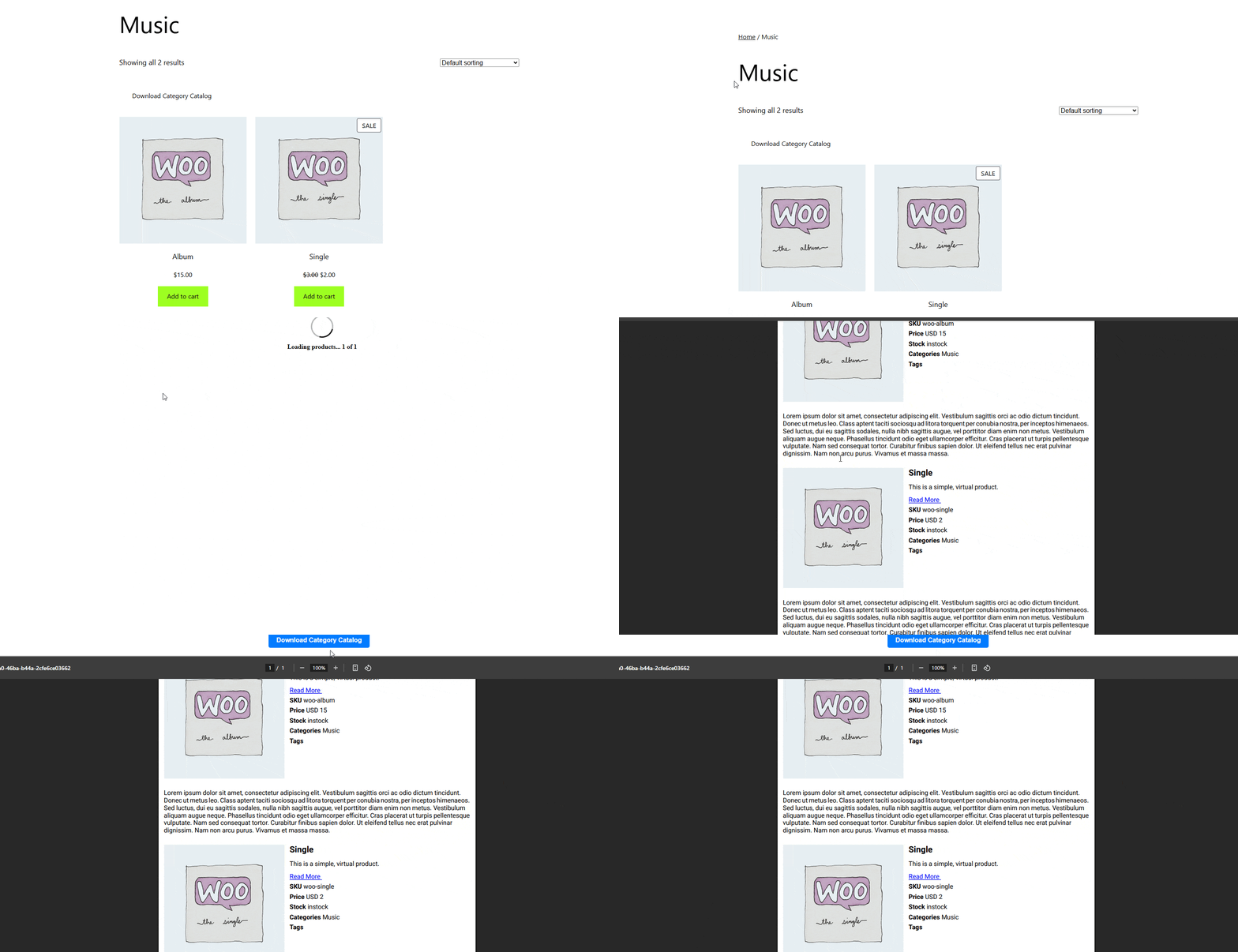
PDF Catalog for WooCommerce adds a download button to your shop, category and product pages. When a customer clicks it, the plugin builds a print-ready PDF from your live product data and downloads it. No design software and no copy-pasting product details into a document.
The PDF is created at the moment of the click, so prices, images and descriptions are always current.
What can customers download?
- The whole shop as one catalog
- A single category, so buyers only get relevant products
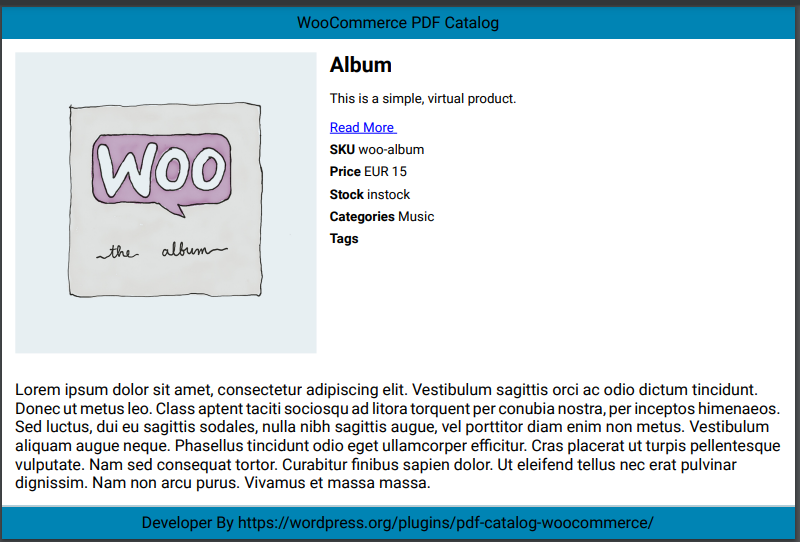
- A single product, as a spec sheet or price sheet
Who is it for?
- Wholesalers and B2B sellers who send a clean price list to buyers who order by email, phone or WhatsApp.
- Trade show and offline sellers who want a printed catalog without maintaining it separately from the store.
- Any WooCommerce store that gets asked “do you have a PDF of your products?”
- RTL language stores (Arabic, Hebrew and others) that need the PDF to read right to left.
How it works
- Install and activate the plugin.
- Open Woo Catalog PDF in the WordPress admin menu.
- Choose your layout, fields, colors and exclusions.
- The download button appears automatically on your shop, category and single product pages, or you place it yourself with a shortcode.
Free features
Shop and category catalog
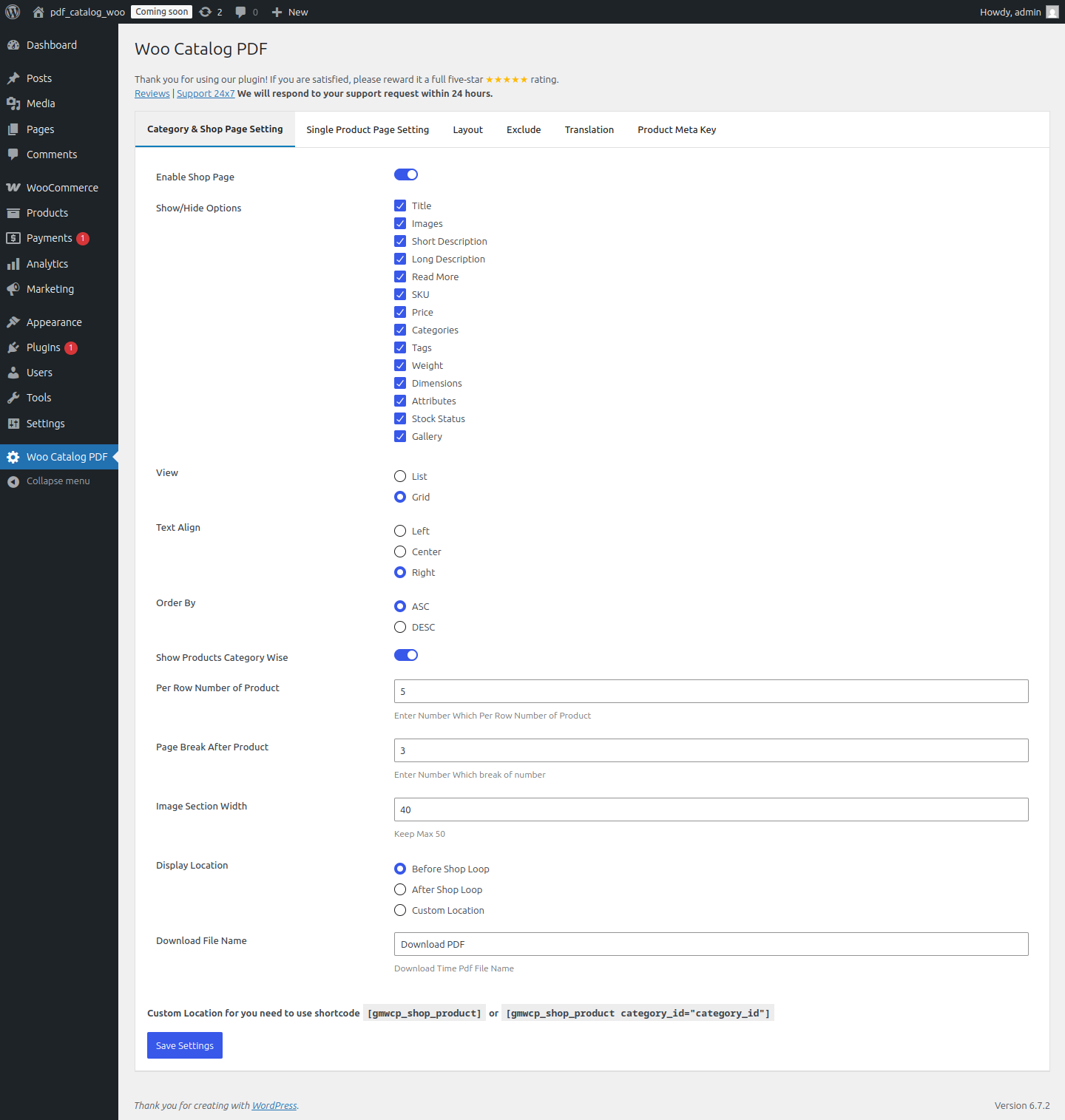
- Download button on the shop and category pages (before or after the product loop, or a custom spot with a shortcode)
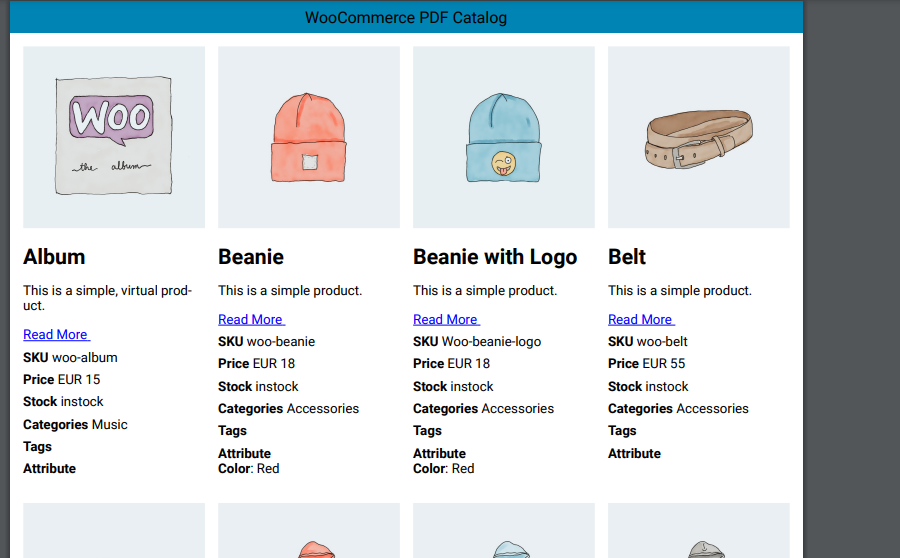
- List layout or grid layout (choose how many products per row in grid)
- Sort products by date, title or price, ascending or descending
- Optionally group products by category
- Search results can be downloaded too
- Text alignment: left, center or right
- Image width control
Single product PDF
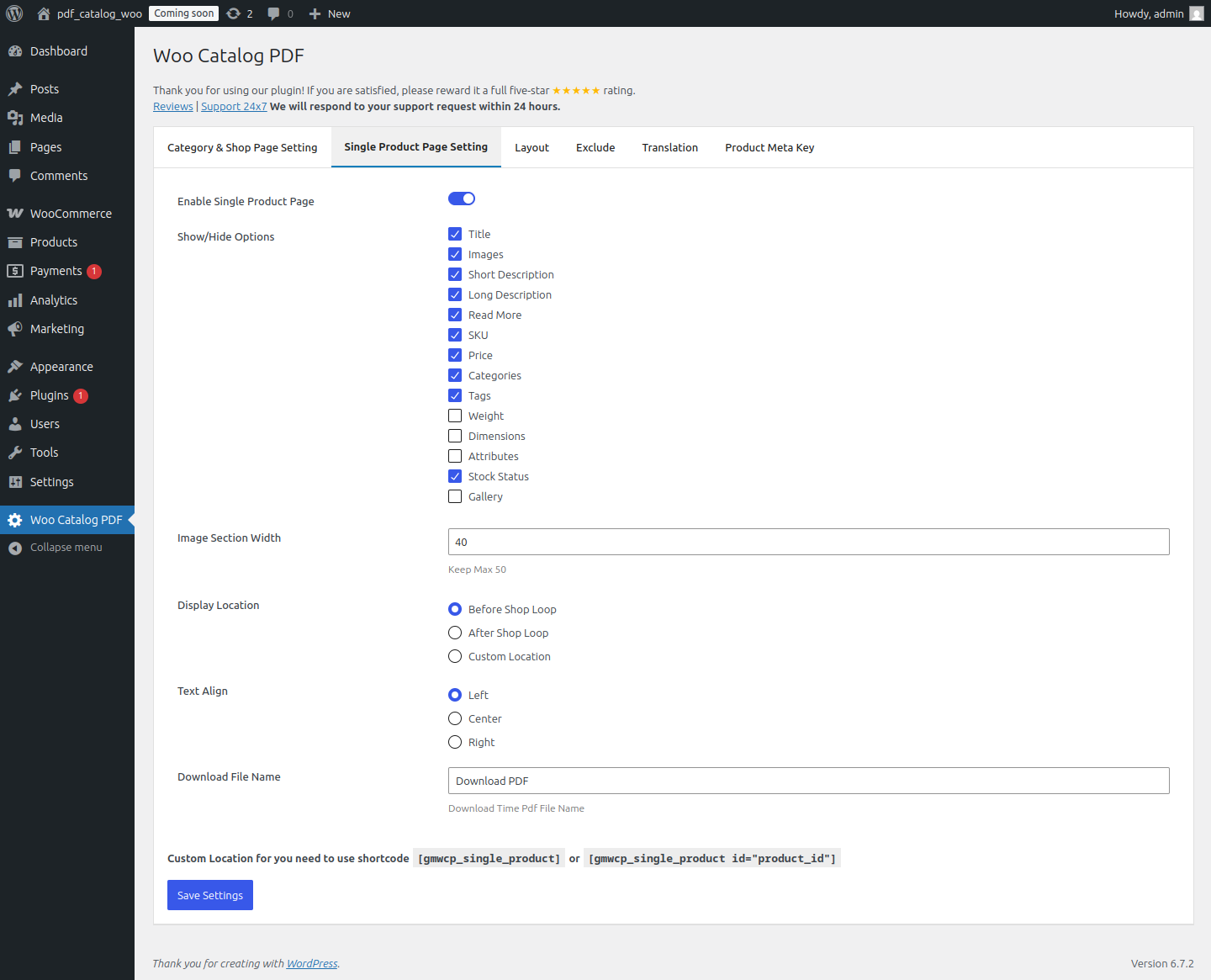
- Download button on every product page (before or after the product details, or a custom spot with a shortcode)
- Image width and text alignment settings
Choose what appears in the PDF
Show or hide: title, images, short description, long description, read more link, SKU, price, categories, tags and brands.
Design
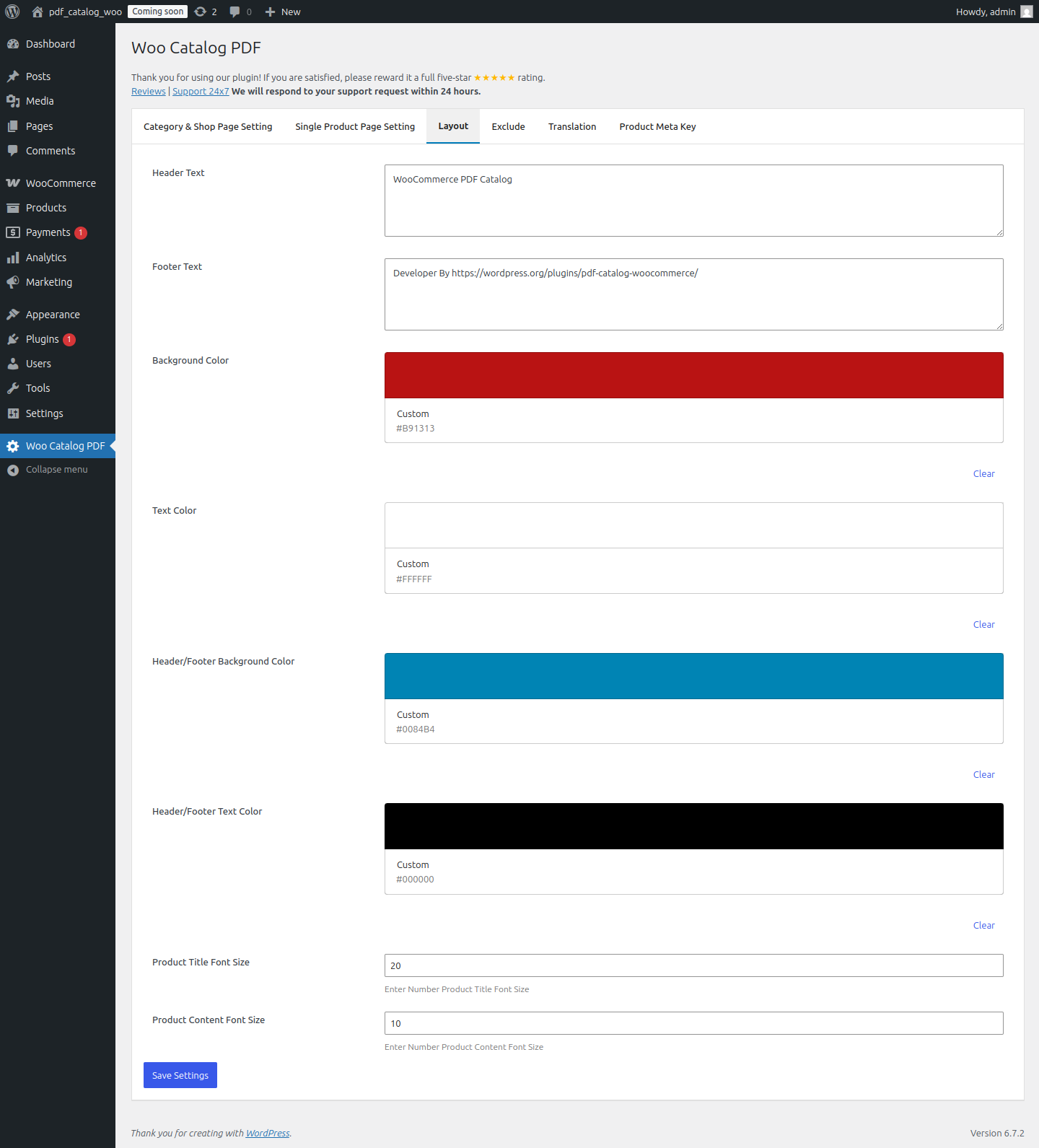
- Background color and text color
- Header and footer background and text colors
- Product title and content font sizes
- LTR or RTL direction
- Custom PDF file name for shop and single product downloads
Control who sees what
- Exclude out-of-stock products from shop and category PDFs
- Exclude whole product categories
- Exclude individual products using the Pdf Catalog tab on the product edit screen
- Show the download button only to selected user roles
PRO version
The settings screen shows these options as locked in the free version:
- Custom header text and footer text in the PDF
- Show/hide for stock status, attributes, weight, dimensions and product gallery images
- Custom product meta fields in the PDF
- Page break after a set number of products
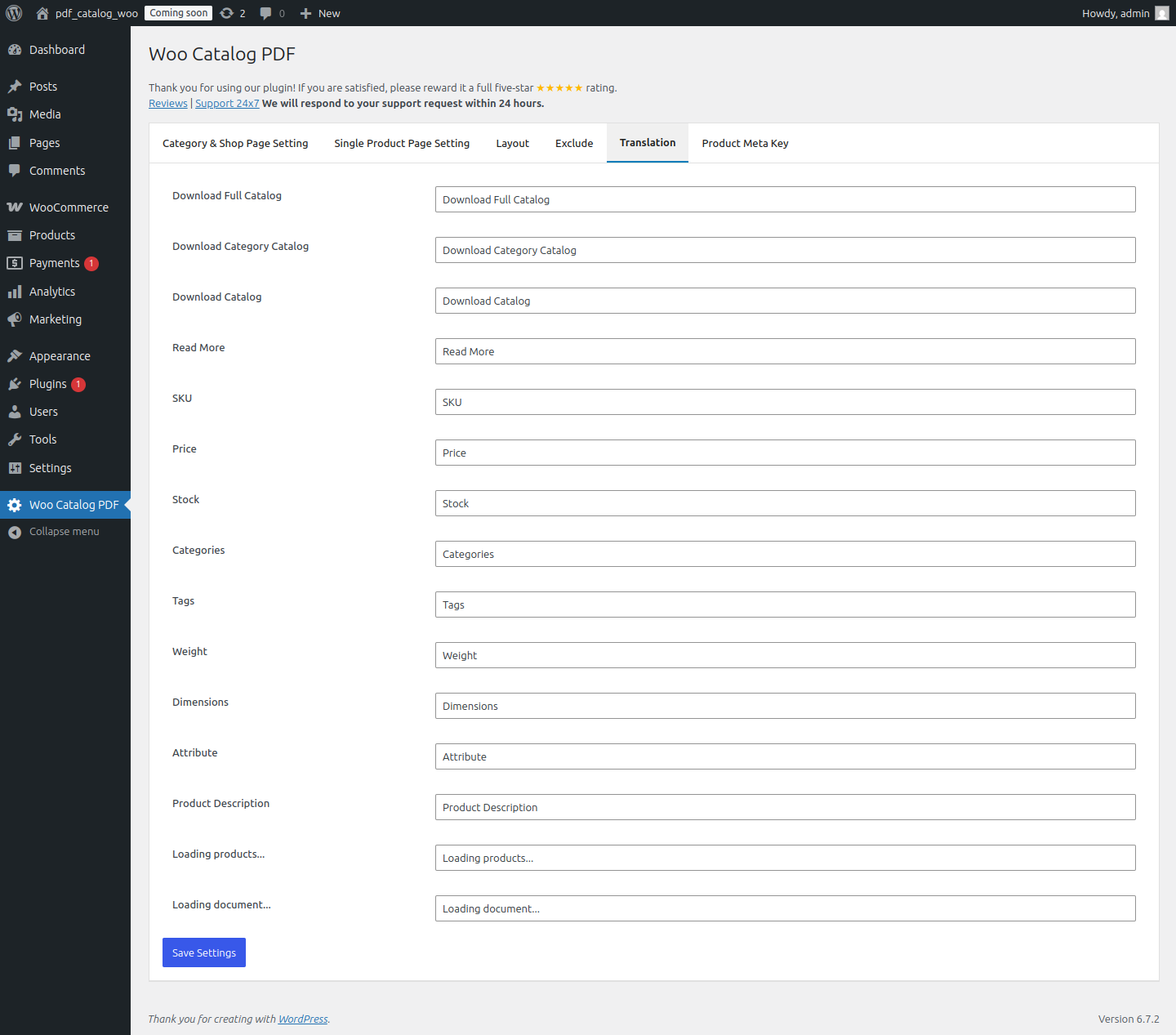
- Translation of button labels and PDF keywords (SKU, Price, Stock and others)
🔗 Live Demo
🔗 Get Support
🔗 Upgrade to PRO
Shortcodes
Single product PDF button:
[gmwcp_single_product]
[gmwcp_single_product id="123"]
Shop or category PDF button:
[gmwcp_shop_product]
[gmwcp_shop_product category_id="45"]
Without an id or category_id, the shortcode uses the page it is placed on. A single product PDF can also be opened with a URL:
?action=catelog_single&product_id=123
(The spelling “catelog” in this URL is kept for backward compatibility.)
Installation
- Make sure WooCommerce is installed and active.
- Upload the plugin files to
/wp-content/plugins/pdf-catalog-woocommerce/, or install it from Plugins → Add New. - Activate the plugin from the Plugins screen.
- Open Woo Catalog PDF in the admin menu (or click Settings next to the plugin on the Plugins screen).
- Review the Single Product, Shop / Category, Layout, Exclude and other tabs, then save.
- Visit your shop page. The download button appears automatically, or add a shortcode where you want it.
FAQ
Where are the plugin settings?
In the WordPress admin menu under Woo Catalog PDF. There is also a Settings link next to the plugin on the Plugins screen.
How do I let customers download a PDF catalog in WooCommerce?
Activate the plugin. The button appears on your shop, category and product pages by default. You can change its position, or turn it off, in the Shop / Category and Single Product tabs. You can also place it anywhere with [gmwcp_shop_product] or [gmwcp_single_product].
How do I let customers print WooCommerce products?
Customers click the download button and open the PDF, then print it from their PDF viewer. No separate printing plugin is needed.
Can I create a wholesale price list PDF?
Yes. Show or hide fields such as price and SKU, exclude products or categories, hide out-of-stock items, and generate the PDF for the whole shop or one category. Use the user role setting to show the button only to your wholesale customers.
How do I create a PDF for a single product?
Use [gmwcp_single_product], or [gmwcp_single_product id="123"] for a specific product. The single product button also appears on product pages automatically.
How do I create a PDF for one category?
Use [gmwcp_shop_product category_id="45"], replacing 45 with your category ID, or use the button on the category page.
Can I exclude out-of-stock products?
Yes. In the Exclude tab, turn on “Exclude Out of Stock Shop / Category Page”.
Can I exclude a single product?
Yes. Edit the product, open the Pdf Catalog tab in the Product data box and tick “Exclude Pdf Catalog”. The product is then left out of shop and category PDFs.
Can I exclude a category?
Yes. Tick the category under “Exclude From Category” in the Exclude tab.
Can I show the button only to certain user roles?
Yes. Tick the roles under “Include Only User Role” in the Exclude tab. When any role is ticked, the button is shown only to logged-in users with one of those roles. Leave all roles unticked to show it to everyone.
Does it support RTL languages?
Yes. Choose RTL in the Layout tab.
Can I change the colors and font sizes?
Yes. The Layout tab sets the background, text, header/footer colors and the font sizes. Custom header and footer text is a PRO feature.
Can I change the button text?
The button labels (“Download Full Catalog”, “Download Category Catalog”, “Download Catalog”) can be translated in the PRO version.
Can I include custom product fields, attributes or the product gallery?
These are PRO features.
Is the PDF always up to date?
Yes. The PDF is built from your live product data each time a customer clicks the button.
Where is the PDF created?
In the visitor’s browser. Product data is loaded from your own site and the PDF is generated on the visitor’s device. Very large catalogs may take longer to build on slower devices.
Is this a “catalog mode” plugin?
No. Catalog mode plugins disable purchasing. This plugin does not change how your store sells. It only adds downloadable PDF catalogs.
Where can I get help?
Use the support forum or contact us.
Screenshots


Changelog
3.0
- Improved plugin title, tags, description and FAQ for clarity.
- Corrected the stable tag to match the plugin version.
- Removed “catalog mode” tags, as this plugin does not disable purchasing.
2.0
- Added more PDF customization options.
- Improved PDF generation and compatibility with the latest WooCommerce and WordPress versions.
- Bug fixes and performance improvements.
1.0.0
- Initial release.