


Description
📁 PixelVault is the free way to organize your WordPress media library with unlimited, drag-and-drop media folders — and the same folder tree now organizes your Posts and Pages too. Sort images, videos, PDFs, audio, and documents into nested, colour-coded folders right inside the Media Library, then publish any folder as a browsable, downloadable Document Library — a tidy asset manager for your visitors.
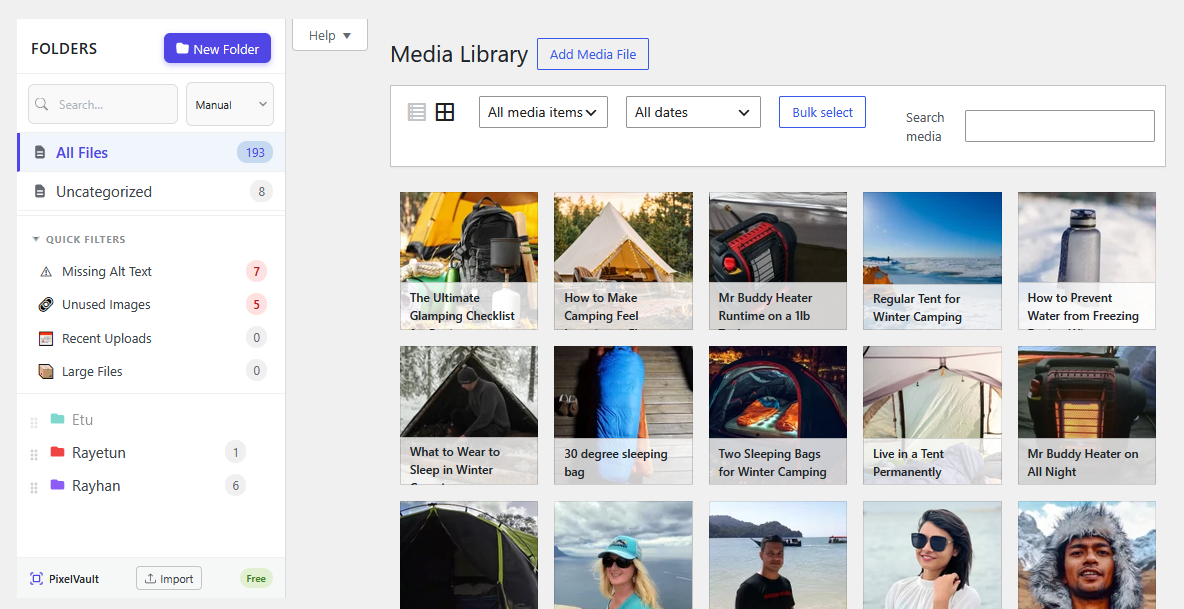
Stop scrolling through hundreds of unsorted attachments. PixelVault lets you categorize media into folders and subfolders, filter instantly, and find any file in seconds — a proper file manager for your WordPress media.
Folders are virtual — physical files never move, no URLs change, nothing breaks, and standard WordPress export/import keeps working without any special steps.
💡 Use Cases for PixelVault
Wondering how PixelVault fits your workflow? A few ways people organize with it:
- Photographers and creators — file hundreds of shots into nested folders by client, shoot, or year, and find any image in seconds.
- Agencies and freelancers — keep each client’s images, PDFs, and landing pages together in one shared folder tree, away from the public taxonomy.
- Publishers and bloggers — group drafts, campaigns, and seasonal posts into Content Folders without touching categories, tags, or URLs.
- E-commerce teams — sort product imagery by collection or season so the right assets are always a click away.
- Knowledge bases and resource centres — publish any folder as a searchable, downloadable Document Library for your visitors.
- Documentation and press kits — hand clients or the public a browsable file library with per-file and Download-all-ZIP access.
✨ Core Features
- 📂 Unlimited nested folders and subfolders — no depth limit, no folder count limit
- 🔗 Assign files to multiple folders — one file can appear in as many folders as you like
- 🎨 Folder colour coding — colour-label folders for instant visual orientation
- 🖱️ Drag-and-drop sidebar — reorder folders, move files, and create subfolders by dragging
- ⚡ Auto-assign uploads — new files go straight into whichever folder is selected
- 🔍 Search and sort — find folders instantly; sort manually, by name, or by file count
- ⌨️ Keyboard shortcut — press “n” to create a new folder
- 🖲️ Right-click context menu — Rename, Delete, Lock, Create subfolders, Copy gallery shortcode, Import ZIP to folder, Download all files
- 🌐 RTL language support — full right-to-left layout
🛠️ Organisation and Productivity Tools
📦 ZIP File Import
Right-click any folder and choose “Import ZIP to folder”. Upload a .zip archive and PixelVault extracts and assigns every image, video, audio file, and PDF directly into that folder.
🗺️ Media Usage Map
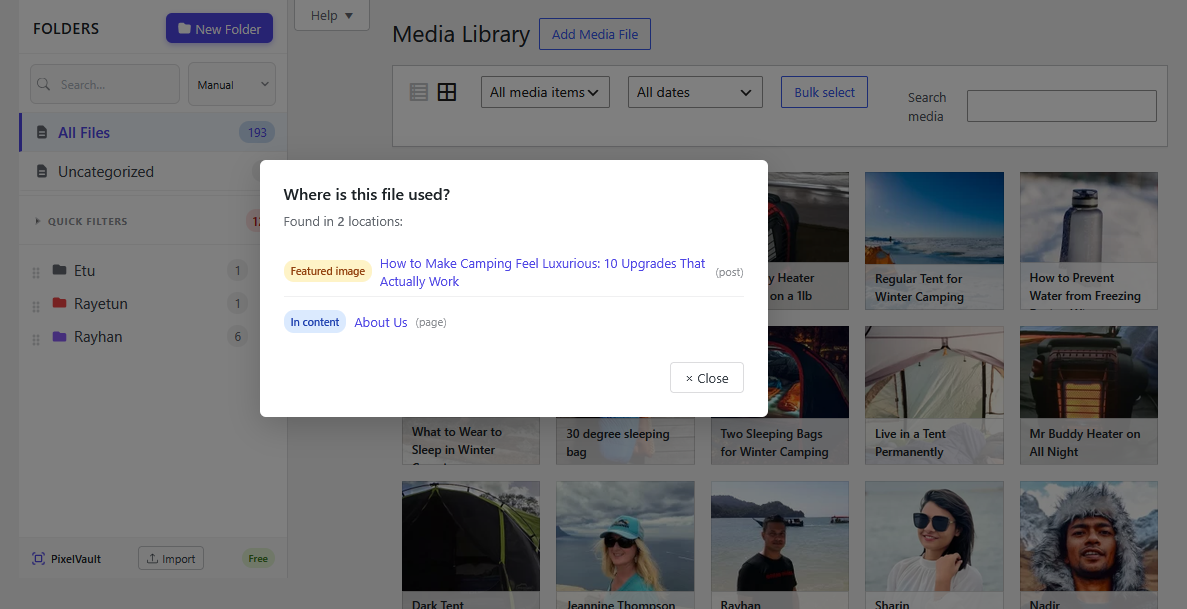
Right-click any image and choose “Where is this used?” to see every post, page, or custom post type that references the file — useful before replacing or deleting files.
⬇️ Bulk Download as ZIP
Right-click any folder to download all its files as a ZIP archive.
🔒 Folder Locking
Lock any folder to prevent accidental renaming, deletion, moving, or file reassignment. Locked folders display a padlock badge.
📊 Storage Analytics
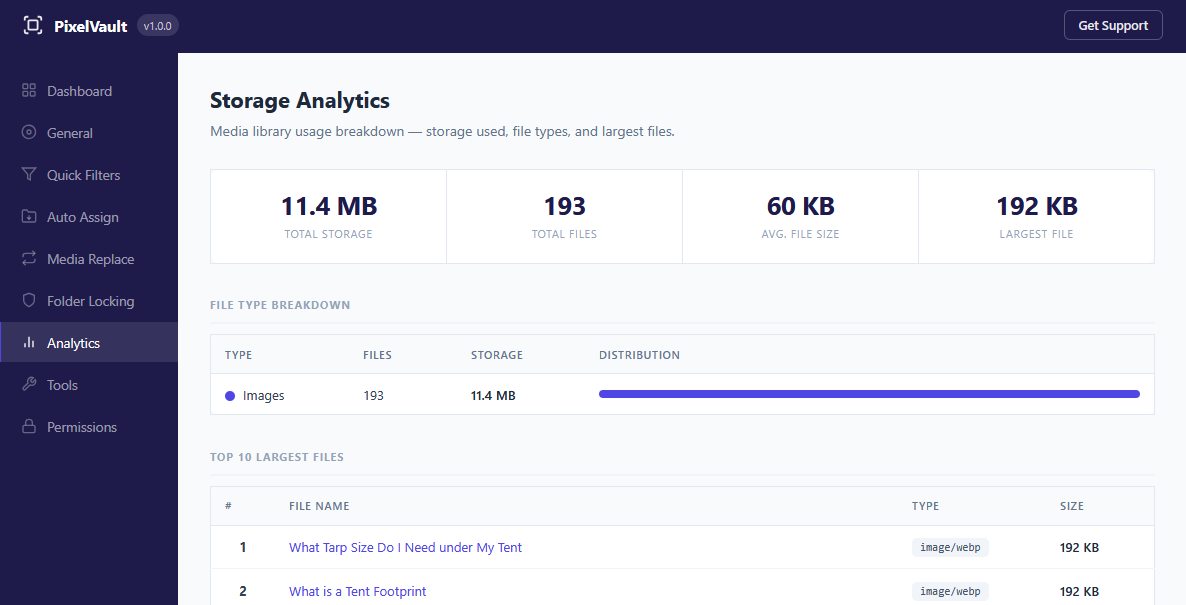
Full storage overview with total size, average file size, file-type breakdown chart, top-10 largest files, and per-folder size distribution. Available under Settings → Analytics and as a WordPress Dashboard widget.
✏️ Bulk Alt Text Editor
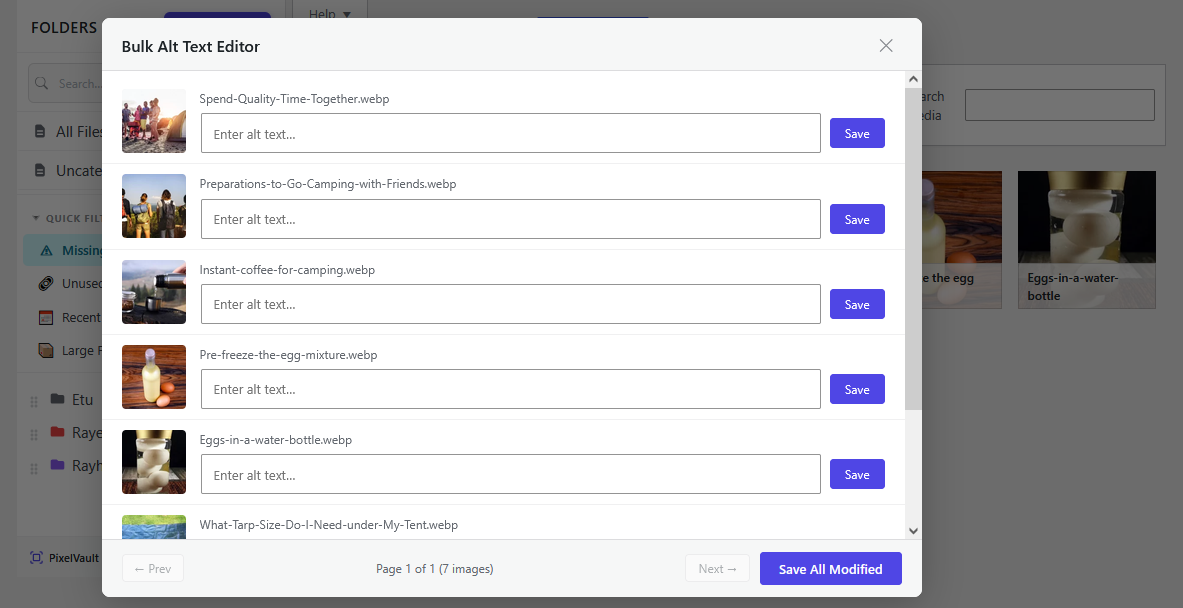
Batch-edit alt text on all images that are missing it — useful for accessibility and image SEO. Edit multiple files at once without opening each one individually.
🔄 Media Replace
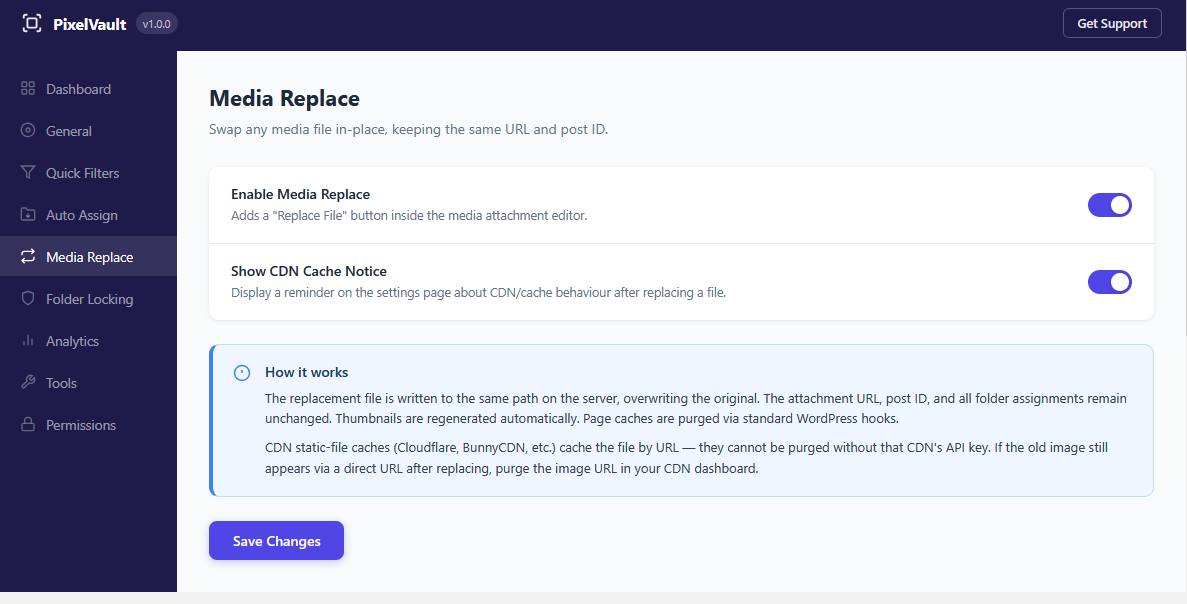
Swap any file in place, keeping the same URL and attachment ID. All existing references on posts and pages continue to work automatically.
🎯 Smart Filters
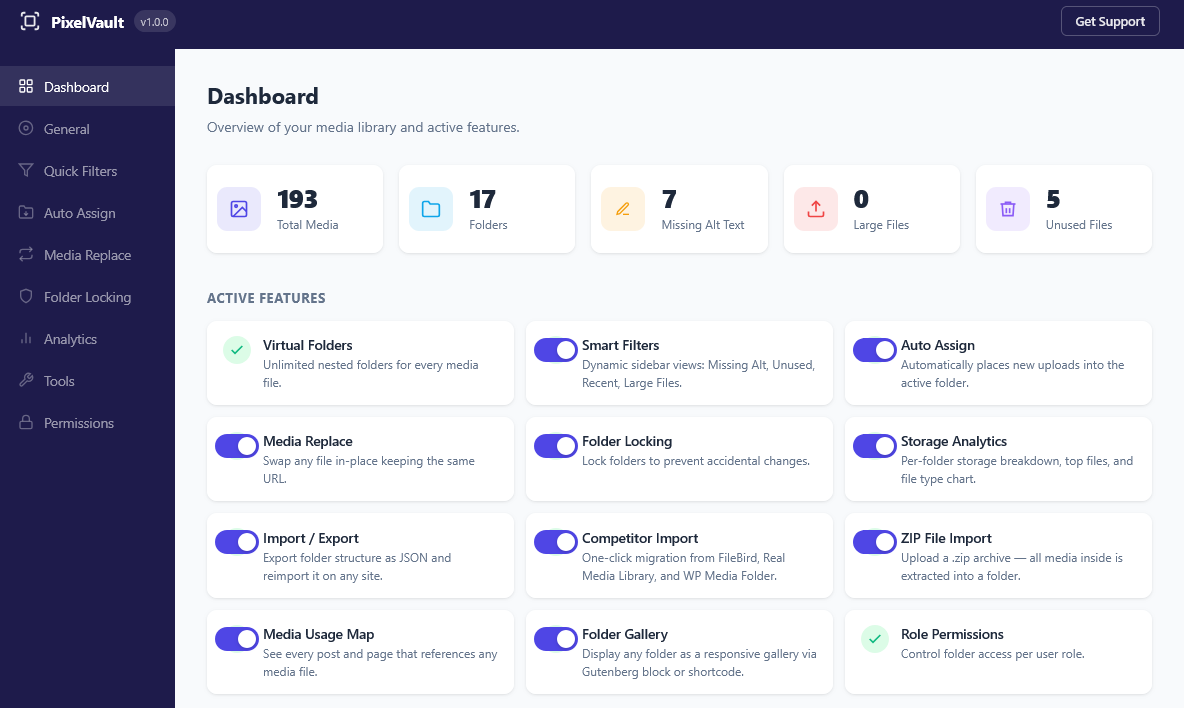
Dynamic built-in views that update automatically: Missing Alt Text, Unused Files, Recent Uploads, and Large Files.
🗂️ Auto-Categorise Existing Media
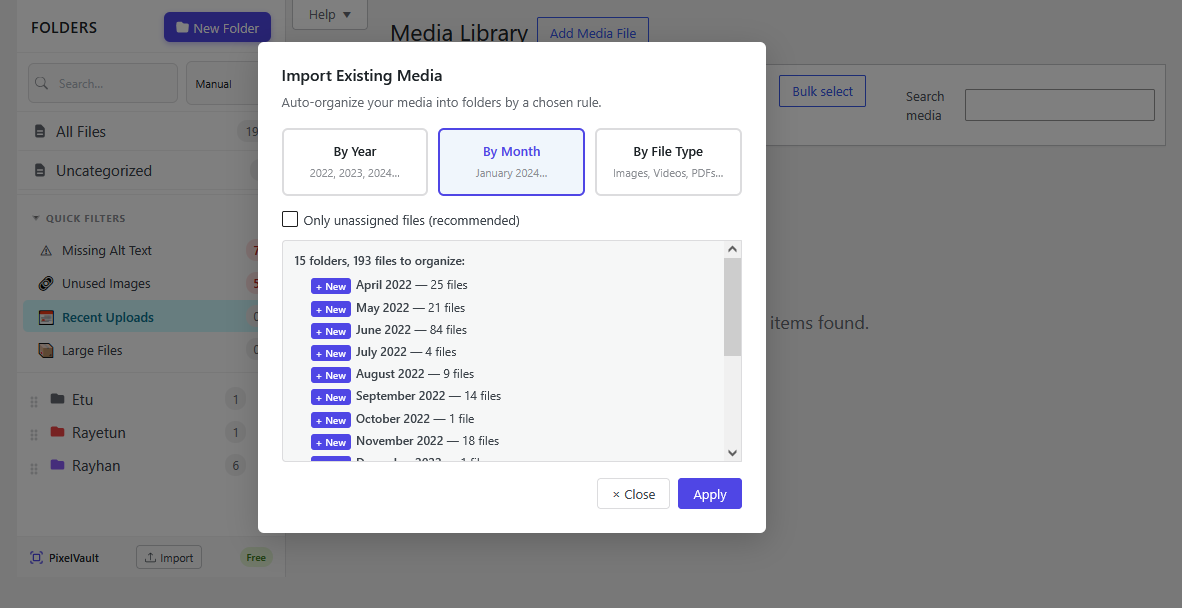
Bulk-organise your existing media library in one click via the import icon at the bottom of the folder panel. Choose a rule:
- 📅 By Year — creates a folder per year (e.g. 2023, 2024).
- 🗓️ By Month — creates a folder per month (e.g. January 2024, February 2024).
- 🏷️ By File Type — creates Images, Videos, Audio, PDFs, Documents, and Spreadsheets folders.
Choose Unassigned only to leave already-organised files untouched, or All files to reassign everything. PixelVault previews the result before making any changes.
🚚 Import from Other Plugins
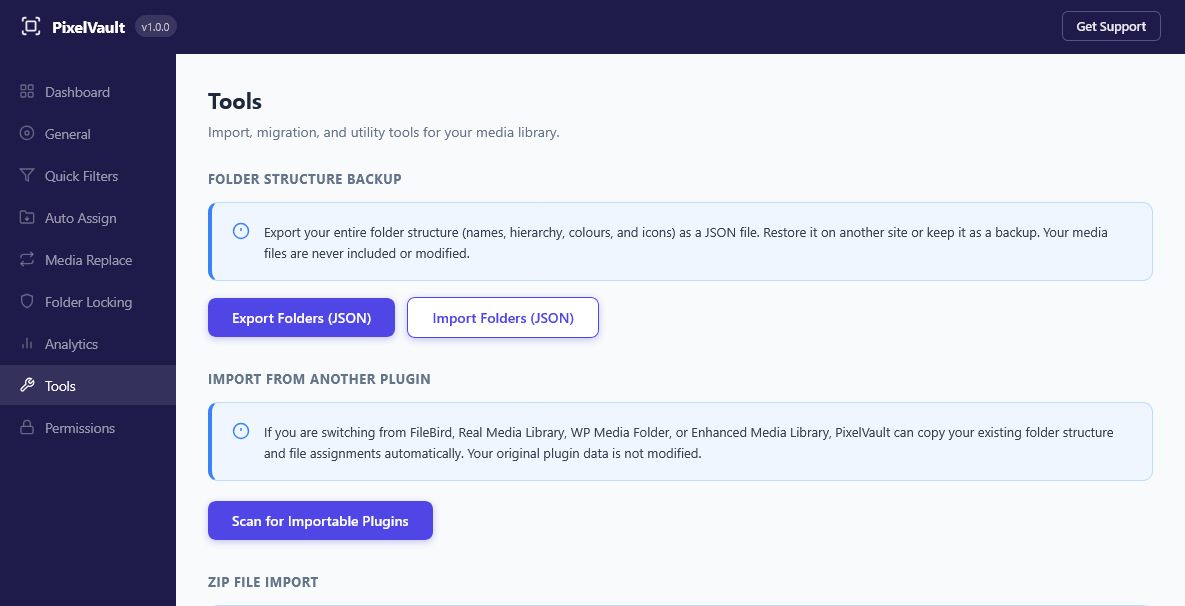
One-click migration from FileBird, Real Media Library, WP Media Folder, Enhanced Media Library, HappyFiles, and Wicked Folders. Folder hierarchy and all file assignments are copied automatically. Go to Settings → Tools → Import from Another Plugin. The original plugin’s data is never modified.
💾 Export and Import
Back up your entire folder structure as a JSON file and restore it on any WordPress site — no SQL required.
🔐 Role Permissions
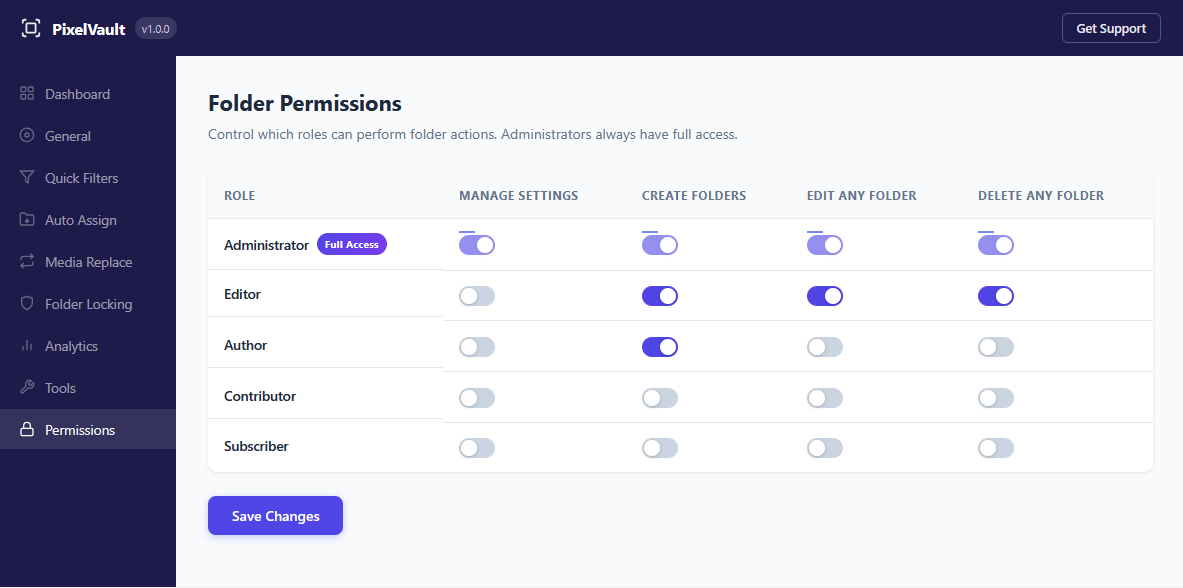
Granular folder access per WordPress user role: control who can create, edit, and delete folders independently.
🧩 Gutenberg, Elementor, and Divi
- 📚 PixelVault Document Library block — publish a folder as an accessible, downloadable file library with a folder tree, search, pagination, and Download-all ZIP
- 🖼️ PixelVault Gallery block — insert a folder’s contents as a responsive gallery with lightbox directly in the block editor
- 📝 [pixelvault_gallery] shortcode — classic editor, widgets, and theme template support
- 🎛️ Elementor — folder panel works inside the Elementor media modal
- 🏗️ Divi — folder panel works in the Divi backend builder and the Divi Front End Builder
- 🌍 Universal compatibility — PixelVault hooks into WordPress’s native media modal, so it works with any theme or page builder
📚 Document Library block
Turn any media folder into a browsable, downloadable document library on the front end, no page builder required. The PixelVault Document Library Gutenberg block renders a folder as an accessible file browser with a sidebar folder tree, breadcrumb navigation, in-library search, pagination, and per-file downloads.
- 🗂️ Folder tree and breadcrumb: visitors browse nested folders without page reloads
- 🔍 Search and pagination: find files fast inside large folders
- ⬇️ Per-file download plus Download-all ZIP: grab one file or the whole folder in a click
- 🎨 Three design presets (Cards, Compact, Minimal), with an accent colour and a framed option
- ♿ Accessibility-first: full keyboard navigation (WAI-ARIA tree pattern), screen-reader friendly
- 📱 Fully responsive: grid and list layouts adapt to mobile
- 🔒 Respects folder visibility: restricted folders stay hidden from guests
- 🧩 Block or shortcode: insert it with the block, or use
[pixelvault_document_library]in the Classic Editor, page builders, widgets, and theme templates
Perfect for knowledge bases, press kits, resource centres, download portals, and product documentation.
🗂️ Content Folders for Posts & Pages
Folders aren’t just for media any more. Enable Content Folders and the same folder tree appears on your Posts and Pages list screens, so you can organise content the way you organise files — without touching public categories or tags.
- 📂 Nested folders on the Posts and Pages screens — a sidebar with create, rename, delete, and unlimited subfolders
- 🖱️ Drag-and-drop filing — drag selected rows onto a folder, or use “Add to folder”
- ⚡ Instant folder filtering — click a folder to filter the list, no page reload
- 🧩 One shared tree — a “Client campaign” folder can hold both its images and its landing pages
- 🔒 Private and admin-only — folders never appear on the front end and never affect your categories, tags, URLs, or SEO
Content Folders keep your editorial workflow tidy — group drafts, campaigns, seasonal pages, or client work — separately from the public taxonomy your visitors see.
🏛️ Architecture: Virtual Taxonomy
PixelVault stores folder assignments in WordPress’s native taxonomy tables (wp_term_relationships). Physical files stay exactly where they are. Deleting a folder never deletes files.
Because folders use WordPress’s own taxonomy tables, they stay fast as your library grows. In our testing with 10,000 media files, browsing folders and filtering the grid answered in a few milliseconds, and the folder sidebar’s counts computed in well under a quarter of a second.
👩💻 For Developers
Full REST API and documented action/filter hooks.
🔌 REST API — Full CRUD at /wp-json/rayetun-medianest/v1/folders. Authenticate with X-WP-Nonce.
⚙️ Action hooks (selection):
rayetun_medianest_folder_created( $term_id, $folder_id, $args )rayetun_medianest_folder_renamed( $term_id, $new_name )rayetun_medianest_folder_moved( $term_id, $new_parent, $old_parent )rayetun_medianest_folder_deleted( $term_id, $folder_object )rayetun_medianest_folders_reordered( $ordered_term_ids )rayetun_medianest_attachment_assigned( $attachment_id, $term_ids, $context )
🔧 Filter hooks (selection):
rayetun_medianest_get_folders( $folders, $post_type )— modify the folder listrayetun_medianest_auto_assign_target( $term_id, $attachment_id )— override the upload target folderrayetun_medianest_smart_folders( $defs )— register custom dynamic folders
JavaScript hooks (via @wordpress/hooks) let you add items to the folder/image context menus and the bulk-action bar.
A full list of PHP and JavaScript hooks with examples ships in HOOKS.md inside the plugin.
🧩 More free plugins by the same developer
PixelVault is part of a family of free WordPress plugins built by the same independent developer:
- RayEtun Media Protection — watermark your images and PDFs, protect downloadable files, and control who can access them. A natural companion to PixelVault: organise your media here, then watermark and protect it. View on WordPress.org
- PinSpot – Interactive Image Hotspots — turn any image into an interactive map with clickable hotspots, great for product tours, galleries, and infographics. View on WordPress.org
Credits
PixelVault bundles the following open-source library:
- enshrined/svg-sanitize by Daryll Doyle — sanitizes SVG uploads to remove scripts and other unsafe content. Licensed under GPL-2.0-or-later.
Installation
- Upload the plugin folder to
/wp-content/plugins/. - Activate the plugin through the Plugins screen in WordPress.
- Go to Media → Library — the folder panel appears on the left.
No configuration is required to get started.
FAQ
❓ Will this break my media URLs or move my files?
No. PixelVault uses virtual folders — it only stores a taxonomy relationship between your attachment and a folder label. Physical files are never moved. No URLs change.
🔗 Can one file appear in multiple folders?
Yes. PixelVault supports many-to-many assignment — the same file can appear in as many folders as you like.
🗑️ What happens to my files if I delete a folder?
Your files are completely unaffected. They remain in the media library; only the folder assignment is removed. Child folders are automatically moved up to the deleted folder’s parent.
♻️ What happens if I uninstall PixelVault?
All folder data is removed cleanly on uninstall: taxonomy terms, term relationships, and the plugin’s custom table are deleted. Your media files are never touched.
🔌 Is there a REST API?
Yes. Full CRUD is available at /wp-json/rayetun-medianest/v1/folders. Authenticate with a standard X-WP-Nonce header.
🚚 Can I import my folders from FileBird, Real Media Library, WP Media Folder, Enhanced Media Library, HappyFiles, or Wicked Folders?
Yes — all six are supported. Go to Settings → Tools → Import from Another Plugin, scan for importable plugins, and click Import. The original plugin’s data is never modified or deleted.
🧩 Does it work with Elementor, Divi, and Gutenberg?
Yes. The folder panel works inside Elementor’s media modal, in both the Divi back-end and front-end builders, and the Gutenberg media uploader. There are also two dedicated Gutenberg blocks: the PixelVault Gallery block and the new PixelVault Document Library block.
📚 What is the Document Library block and where does it work?
The Document Library block turns any folder into a front-end file browser your visitors can search, navigate, and download from (including a Download-all ZIP). It is a Gutenberg block, so add it on any post or page from the block inserter, pick a folder, and choose a design preset. It is keyboard-accessible and fully responsive, and it respects your folder visibility rules, so restricted folders stay hidden from guests. Requires WordPress 6.5 or newer.
🧩 Is there a shortcode for the Document Library (search and folder browsing)?
Yes. Use [pixelvault_document_library] on any page or post, including in the Classic Editor, page builders, widgets, and theme templates. It renders the same searchable file browser with the folder tree and downloads as the block. To start inside a specific folder, pass its ID: [pixelvault_document_library root="12"]. You can also set options, for example columns="4", layout="list", show_search="false", or per_page="30".
💬 Get Support
Post in the WordPress.org support forum. We aim to respond within 24 hours on business days.
Screenshots



Changelog
1.5.0
- New: 📊 Storage by Folder, reimagined. The Analytics tab now shows folder storage as a collapsible, rolled-up tree — each folder’s total includes its subfolders — with a “% of Library” column, a quick filter box, and sortable Folder, Files and Size columns. Folders that use no storage are tucked away so the biggest consumers stand out.
- New: 💾 Folder sizes at a glance. Hover any folder in the Media Library sidebar (or “All Files”) to see its file count and total storage.
- New: 🔎 Filter in “Add to folder”. The right-click “Add to folder” menu now scrolls within the screen and gains a quick filter box once you have more than a handful of folders, so filing into a large folder tree stays fast.
- Improve: the Media Library sidebar now previews the Pro-only “Expired” and “Duplicates” smart folders — clearly marked as Pro — when PixelVault Pro is not active, so you can see what the add-on adds. They make way for the real folders once Pro is active.
- Improve: the dashboard now shows contextual suggestions for the optional PixelVault Pro add-on and related tools. These are simple links — no third-party code — and can be switched off with the
rayetun_medianest_show_pro_upsellfilter.
1.4.0
- New: ↩️ Undo for folder moves. Filed a file, or a bulk selection, into the wrong folder? An “Undo” button now appears so you can reverse it instantly. Covers drag-and-drop, “Add to folder”, bulk move, and remove-from-folder.
- New: 🚚 More importers. You can now import your existing folders from HappyFiles and Wicked Folders, in addition to FileBird, Real Media Library, WP Media Folder, and Enhanced Media Library. Go to Settings → Tools → Import from Another Plugin.
- New: a “Go Pro” link in the plugin’s row on the Plugins screen, for quick access to the optional PixelVault Pro add-on. It is a simple link (no third-party code) and hides itself when Pro is active.
- New: 📄 Document Library shortcode. Add the searchable, browsable Document Library on any page with
[pixelvault_document_library], so it works in the Classic Editor, page builders, widgets and theme templates, not just the block editor. Point it at a folder with[pixelvault_document_library root="12"]. - Improve: 📂 collapsible folders in the Document Library front end. Folders with subfolders now have an expand and collapse toggle, so visitors can browse large folder trees without clutter.
- Improve: 🧩 easier shortcode discovery. Right-click any folder to “Copy document library shortcode” or “Copy gallery shortcode” (with the folder ID pre-filled), and find a Shortcodes reference with copy buttons under Settings → Tools.
- Improve: newly uploaded files now appear in their folder, with updated folder counts, straight away, without a page reload.
- Improve: a more consistent, polished settings interface — unified, collapsible “how it works” help across every tab and tidier spacing. When PixelVault Pro is active, the Media Library now shows a “Pro” badge instead of “Free”.
- Fix: the “Copy gallery shortcode” option copied a shortcode tag that was no longer registered, so it printed as plain text on the page. It now copies
[pixelvault_gallery], and the old tag keeps working for any pages that already use it. - Fix: the folder sidebar in the media picker no longer flickers when more than one media window is open at once (for example, setting a WooCommerce product image and its gallery).
- Developer: new
RayetunMediaNest_Folder_Service::ensure_folder()andfind_folder()helpers for finding or creating folders programmatically (used by the importers and by add-ons), plus a newrayetun_medianest_dashboard_statsfilter so add-ons can add tiles to the dashboard overview. - Performance: verified responsive folder browsing and filtering with libraries of 10,000 or more media files.
1.3.1
- Fix: the Save and Cancel buttons in the Content Folders sidebar (Posts/Pages list screens) showed garbled characters instead of their check and cross icons. They now render correctly.
1.3.0
- New: 🗂️ Content Folders — organize Posts and Pages into the same folder tree you use for media. A Folders sidebar appears on the Posts and Pages list screens (enable them under PixelVault → Content Folders) with inline create, rename and delete, nested subfolders, drag-and-drop filing, a Folders column, and instant folder filtering — no page reloads. One folder can hold both a campaign’s images and its pages.
- New: 🧩 Blocks tab — turn each PixelVault block on or off from one screen (PixelVault → Blocks). Disabled blocks are hidden from the editor and load no assets.
- New: 🖼️ SVG upload support — upload SVG images to the Media Library (administrators only by default). Every SVG is automatically sanitized on upload — scripts, event handlers, and remote or unsafe references are stripped — so only clean files are stored, and SVGs preview correctly in the grid.
- New: a dedicated “PixelVault” category in the block inserter, so the Document Library and Gallery blocks are grouped together.
- New: an “Upgrade to Pro” tab in Settings that introduces the optional PixelVault Pro add-on. It contains only feature descriptions and a link — no third-party code — and hides itself automatically if Pro is installed.
- Change: PixelVault now has its own top-level admin menu with a Settings page, instead of living under Media. All existing links and bookmarks continue to work.
- Improve: the “How it works” panels on the settings tabs are now collapsible, and the tabs share a consistent full-width layout.
- Developer: new
rayetun_medianest_content_folder_typesfilter to extend Content Folders to custom post types, andrayetun_medianest_content_assignedaction fired when an item is filed. - Developer: new
rayetun_medianest_folder_object_typesfilter lets add-ons register the folder taxonomy for other post types, reusing the existing folder engine. Also addsrayetun_medianest_svg_upload_capabilityandrayetun_medianest_svg_allowed_elementsfilters. - Developer: new
rayetun_medianest_after_analytics_panelaction so add-ons can render extra sections inside the Analytics tab, andrayetun_medianest_delete_data_descfilter to extend the “Delete All Data on Uninstall” description. Registers a shared “pixelvault” block category viablock_categories_all. - Compatibility: tested up to WordPress 7.1.
1.2.1
- Fix: the folder sidebar now appears in the Site Editor (full-site editing) and the block-based Widgets screen when you open the media library. Previously the modal there could stay filtered to your last-used folder with no sidebar to change or clear it.
- Fix: the PixelVault Gallery and Document Library blocks now declare their editor script and styles in their block.json, so both blocks are detected and listed on the WordPress.org plugin page.
1.2.0
- New: 📚 PixelVault Document Library block — publish any media folder as an accessible, downloadable file library on the front end, with a sidebar folder tree, breadcrumb navigation, in-library search, pagination, per-file downloads, and a Download-all ZIP.
- New: three design presets (Cards, Compact, Minimal), plus an accent colour, a framed option, and grid/list layouts, all configurable from the block settings.
- New: the block is accessibility-first (full keyboard navigation using the WAI-ARIA tree pattern, screen-reader friendly) and fully responsive on mobile.
- New: the Document Library respects folder visibility and role permissions, so restricted folders stay hidden from guests. It uses a public REST endpoint for no-reload navigation, and adds developer filters to extend file queries, downloads, and per-file output.
- Fix: bulk “Move to folder” in the Media Library now works. It previously did nothing.
- Fix: bulk “Add to folder” now keeps a file’s existing folders instead of removing it from them, so a file can stay in several folders at once.
- Fix: the bulk Delete button no longer gets stuck showing “Deleting…” after a deletion.
- Fix: turning on Bulk Select and switching folders now clears it, instead of leaving Bulk Select active when you move between folders or return to a previous one.
- Improve: bulk Add, Move, Remove, and Delete now show live “X of N” progress and run in batches for speed.
- Change: Requires at least is now WordPress 6.5, which the Document Library block needs.
1.1.5
- Improve: the folder panel in the media popup now shows a collapsible tree (collapsed by default with expand arrows), so large folder structures stay tidy instead of appearing fully expanded.
- Fix: removed the flicker/flash in the media popup when opening it, switching folders, or uploading. The folder panel and grid now render smoothly.
- Improve: dragging files onto a locked folder now shows clear feedback (a blocked highlight while dragging, and a rejection shake plus a message on drop) instead of failing silently.
1.1.4
- Fix: pressing the “N” key while typing in the block (Gutenberg) editor, Elementor, or Divi no longer triggers the folder shortcut — the “New Folder” keyboard shortcut is now limited to the Media Library screen, where the folder sidebar lives. Previously the letter “n” could be swallowed while writing a post or page.
1.1.3
- New: create a folder right from the media popup while adding images to a post, page, Elementor, or Divi — no need to pre-create it in the Media Library first. New uploads go straight into the folder you just made.
- New: ZIP imports now run in batches, so large archives (hundreds or thousands of files) import reliably without timing out, with a live “Importing X of Y…” progress readout.
- New: added safety guards to ZIP import — a per-file-count limit and an uncompressed-size (zip-bomb) limit — and abandoned extractions are now cleaned up automatically.
- Fix: dropping a .zip onto the “Import ZIP to folder” window no longer uploads it to the Media Library by mistake — the drop is now captured by the import window and sent to the chosen folder.
- Fix: the “Done” button in the ZIP import window now closes the window as expected.
1.1.2
- Fix: the Media Library layout no longer pulls WordPress’s own “Help” and “Screen Options” tabs (and the update/admin notices) into the folder sidebar row. They now stay in their normal position instead of forming an empty column and pushing the media grid off-screen.
- Fix: newly uploaded files now appear in the grid instantly — with WordPress’s native upload progress bar — without needing to reload the page.
- Fix: the folder drag handle and the expand/collapse arrow no longer overlap in the sidebar.
- Fix: the “Media → PixelVault” admin menu item now shows with correct capitalisation.
- New: developer filter
rayetun_medianest_load_admin_assetslets companion plugins load the PixelVault folder sidebar inside their own media modals.
1.1.1
- Fix: folder drag-to-reorder now starts from anywhere on the folder row — previously it required a pixel-perfect press on the tiny drag handle, so reordering often did nothing.
- Fix: drag-to-reorder now works for Editors (users with the “Edit Any Folder” capability), not only Administrators. Previously it silently failed to save for non-admins.
- Tweak: the drag handle is hidden for users who don’t have permission to reorder, so there’s no confusing non-working handle.
1.1.0
- New: ⭐ Starred Folders — mark favourite folders and pin them to the top of the media library sidebar (per user).
- New: 🗂️ Folder Templates — save your current folder structure as a reusable template and apply it in one click (Settings → Tools).
- New: Folder Structure Backup — export your folder structure to a JSON file and re-import it on any site.
- New: Developer hooks — added a full set of PHP actions/filters and JavaScript hooks so add-ons can extend PixelVault. See HOOKS.md.
- Tweak: Assets now use file-modification-time cache-busting, so updates always load without a hard refresh.
- Fix: Quick Action cards on the dashboard no longer overlap on some screen widths.
🎉 1.0.0
- Initial release.
- Unlimited nested virtual folders with colour coding and drag-and-drop sidebar.
- Right-click context menu: rename, delete, lock/unlock, subfolder creation, gallery shortcode copy, ZIP import, usage map, bulk download.
- Keyboard shortcut: press n to create a new folder.
- Auto-assign new uploads to the selected folder.
- Search and sort controls (manual, A-Z, Z-A, file count).
- Role-based folder visibility and granular role permissions panel.
- Folder Locking with padlock badge.
- Bulk Download as ZIP — download any folder’s contents as a zip archive.
- ZIP File Import — upload a zip and extract media directly into a folder.
- Media Usage Map — see every post and page that references any image.
- Import from other plugins — one-click migration from FileBird (v5 and v6), Real Media Library, WP Media Folder, and Enhanced Media Library.
- Auto-Categorise Existing Media — bulk-assign unorganised files into folders by year, month, or file type.
- Storage Analytics — overview dashboard, file-type chart, and per-folder size breakdown.
- Bulk Alt Text Editor — batch-edit missing alt text.
- Media Replace — swap any file in place, preserving its URL and attachment ID.
- Smart Filters — Missing Alt Text, Unused Files, Recent Uploads, Large Files.
- PixelVault Gallery Gutenberg block with lightbox support.
- [pixelvault_gallery] shortcode for classic editor and theme templates.
- Elementor media modal integration.
- Divi backend and frontend builder integration.
- REST API — full CRUD at /wp-json/rayetun-medianest/v1/folders.
- AJAX fallback for environments where the REST API is restricted.
- JSON Export and Import for folder structure backup and restore.
- RTL language support.
- Documented action and filter hooks for developers.
- No external services, no data collection.