
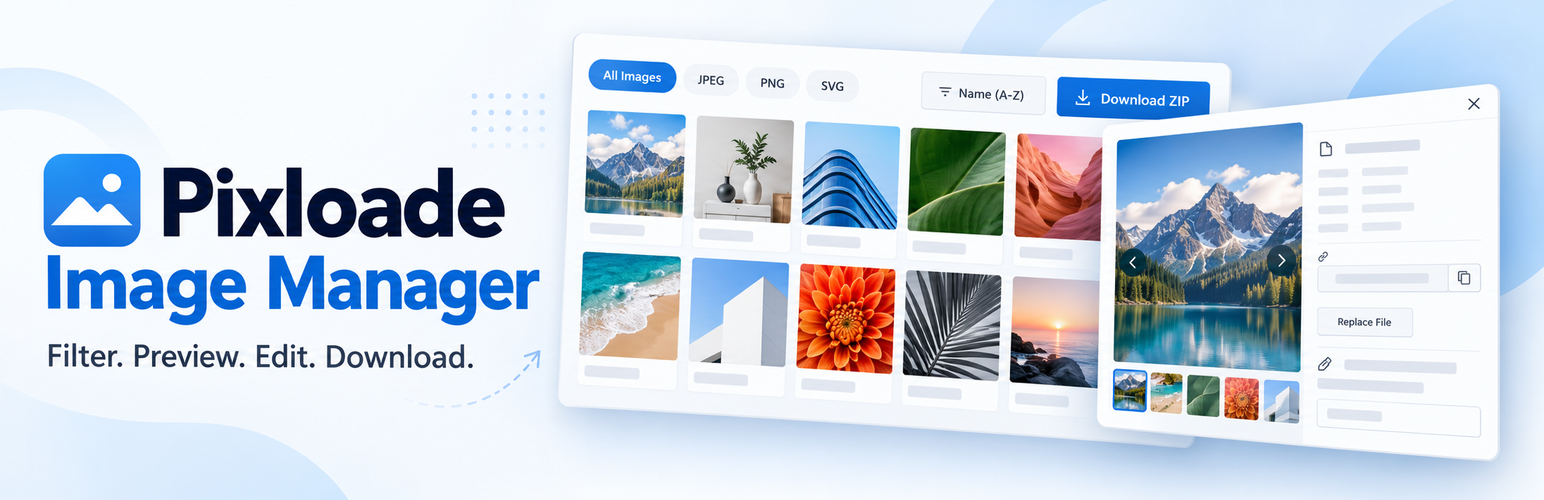

Description
Pixloade Image Manager is the fastest way to browse, export and tidy up the images in your WordPress Media Library.
Need to download every image from your site? Move a client’s photos to a new host? Grab only the PNG files? Find the heaviest images that slow your pages down? Fix missing alt text on dozens of images? Pixloade does all of this from one clean screen under Media → Image Manager.
Bulk download Media Library images as ZIP
- Download all images in your Media Library as a single ZIP file with one click.
- Select the images you want with checkboxes (Shift-click selects a range) and download only those.
- The ZIP always follows what you see: the current format tab, search and filters.
- Download only one format: JPEG, PNG, GIF, WebP, SVG or any other image type on your site.
- The ZIP contains your original uploads, not the resized thumbnails or “-scaled” copies WordPress creates.
- Duplicate file names are renamed automatically, so nothing gets overwritten.
Find images that need attention
- Missing alt text filter lists every image without alt text, with a live count and a “No alt text” badge on each card.
- Large files filter shows images of 500 KB or more, the ones that slow your pages down.
- See your library size at a glance, in total and per format (JPEG, PNG, WebP…).
Search, filter and sort images
- Search by title, caption, description or file name.
- Filter by upload month and by format tabs with live counts.
- Sort by name, upload date, or file size (smallest or largest first) to find heavy images quickly.
- Combine everything, for example “PNG + Large files + Missing alt text”.
- Large libraries load in pages with a “Load more” button, so the screen stays fast.
Preview and edit image details
- Click any image to open a detail view with file name, type, size, dimensions, upload date and author.
- Edit the title, caption, alt text and description in place and save without leaving the screen. Great for fixing missing alt text and improving image SEO and accessibility.
- Save & next saves and jumps straight to the next image, so you can fix alt text for a whole list in minutes.
- Move between images with the arrow buttons or the ← → keys.
- Copy the image URL with one click, or download a single image.
- See extra data other plugins store on an image (for example Rank Math, Yoast SEO or Elementor).
Convert new uploads to WebP (optional)
- Turn on Convert new image uploads to WebP under Media → Pixloade Settings and every new JPEG or PNG upload is saved as a WebP file, usually 25–35% smaller.
- Off by default. Choose which formats to convert (JPEG, PNG) and the WebP quality (1–100).
- Works for uploads from the Media Library, the block editor and most plugins that add images to the Media Library.
- Safe: if the WebP file would be larger than the original, the original is kept. Photo orientation, camera details, IPTC title and caption are preserved.
- Optionally keep a backup of the original file; it is deleted together with the image.
- The image details show how much space each conversion saved.
Convert images you already uploaded
- One click: go to Media → Pixloade Settings and click Convert all images to WebP. A progress bar and a Stop button keep you in control.
- Only some: select images in Media → Image Manager and click Convert selected to WebP.
- One by one: open any image and click Convert to WebP in its details.
- All image sizes are regenerated as WebP, and links to the image are updated automatically in posts and pages (block editor and classic), Elementor (image, background, gallery and text widgets, page settings, generated CSS), widgets, theme options and custom fields.
- Elementor’s CSS cache is cleared afterwards so pages show the new images straight away.
- Runs on your own server with GD or Imagick. No external service, no API key, no extra cost.
Safe for teams
- Uses the same permissions as the WordPress Media Library: Authors, Editors and Administrators can browse and download, and people can only edit images they are allowed to edit.
- Lightweight: no extra database tables, no tracking and no external services.
Installation
- Install the plugin from Plugins → Add New by searching for “Pixloade Image Manager”, or upload the
pixloade-image-managerfolder to/wp-content/plugins/. - Activate the plugin through the Plugins menu in WordPress.
- Go to Media → Image Manager.
FAQ
How do I download all images from my WordPress Media Library?
Go to Media → Image Manager, keep the All Images tab selected and click Download ZIP. Every image is added to one ZIP file.
Can I download only PNG or only JPEG images?
Yes. Click the format tab you want (for example PNG) and then click Download ZIP. Only images of that format are included.
Does the ZIP include all thumbnail sizes?
No. The ZIP contains only the original uploaded files, not the resized thumbnails WordPress generates.
Can I download only some images?
Yes. Hover an image and tick its checkbox (hold Shift to select a range, or use Select all), then click Download selected.
How do I find images without alt text?
Click the Missing alt text filter. Every image without alt text is listed and marked with a “No alt text” badge.
Can I find the largest images on my site?
Yes. Click the Large files filter, or choose Size: Largest First in the sort menu to see your heaviest images at the top. Developers can change the 500 KB limit with the pixloade_large_image_size filter.
Can I edit alt text for many images quickly?
Yes. Turn on the Missing alt text filter, open the first image, type the alt text and click Save & next. Repeat until the list is done.
What image formats are supported?
Every image format stored in your Media Library, including JPEG, PNG, GIF, WebP, AVIF and SVG. Any format found on your site gets its own tab automatically.
Is the PHP ZipArchive extension required?
Yes, for the ZIP download. ZipArchive is enabled by default on most hosting providers. Browsing, previewing and editing work without it.
Who can use the Image Manager?
Users with the upload_files capability (Authors, Editors and Administrators by default) can browse and download images. Editing an image’s title, caption, alt text or description additionally requires permission to edit that image, the same rule the Media Library uses. Developers can change the base capability with the pixloade_capability filter.
Does it change or compress my images?
Not unless you ask it to. By default Pixloade only reads your image files and saves the text fields you edit. If you turn on WebP conversion under Media → Pixloade Settings, new JPEG and PNG uploads are saved as WebP files.
How do I convert uploads to WebP?
Go to Media → Pixloade Settings, tick Convert new image uploads to WebP and save. From then on every new JPEG/PNG upload becomes a WebP image. Existing images are not changed.
Can I convert images I uploaded before?
Yes. Go to Media → Pixloade Settings and click Convert all images to WebP. To convert only some, select them in Media → Image Manager and click Convert selected to WebP, or open one image and click Convert to WebP. Links to those images in your posts, pages, Elementor designs, widgets and theme options are updated automatically. Please make a backup of your site first, and clear any page cache or CDN cache afterwards.
Does converting existing images break Elementor pages?
No. Pixloade rewrites the image URLs inside Elementor’s data (image, background, gallery and text widgets, page settings) and clears Elementor’s CSS cache, so the pages load the new WebP files. Image IDs stay the same.
Who can convert existing images?
Editors and Administrators (the edit_others_posts capability), because converting updates image links in everyone’s posts. Developers can change this with the pixloade_convert_capability filter.
What happens to the original JPEG or PNG?
It is replaced by the WebP file, unless you tick Keep a backup of the original JPEG/PNG file. If the WebP version would be larger than the original, nothing is converted and the original is kept.
My server cannot create WebP images. What can I do?
The settings show a notice when WebP is not available. WebP needs WordPress 5.8+ and the GD or Imagick PHP extension compiled with WebP support; most hosts have it. Ask your host to enable it.
Screenshots


Changelog
1.3.0
- New: convert images you already uploaded to WebP, in one click from the new Media → Pixloade Settings page (with progress and Stop), only the selected ones from the Image Manager, or one by one from the image details.
- New: Media → Pixloade Settings page with two tabs: “WebP for new uploads” (the WebP options, moved here from Settings → Media) and “Convert existing images” (images ready to convert, already WebP, space saved, and the Convert all button).
- New: when an existing image is converted, all its sizes are regenerated as WebP and its links are updated in posts, Elementor data and CSS, widgets, theme options and custom fields.
- New: Elementor’s CSS cache is cleared after a conversion so pages show the new images straight away.
- Improvement: the WebP quality setting now also applies when converting existing images.
- Improvement: calmer, clearer Image Manager design: images on a transparency checkerboard, format and size in the caption, a quiet “No alt text” tag, segmented format tabs, checkbox-style filters, no hover overlay.
- New: thumbnail size slider in the Image Manager (remembered in your browser).
1.2.0
- New: optional WebP conversion of new JPEG/PNG uploads (Settings → Media). Off by default.
- New: choose the formats to convert and the WebP quality, and optionally keep a backup of the original file.
- New: the image details show the original format and how much space the WebP conversion saved.
- New: “Settings” link on the Plugins screen and a WebP status link on the Image Manager page.
- Tweak: format names in the library size summary now match the tabs (WebP instead of WEBP).
1.1.0
- New: select images with checkboxes (Shift-click for a range, or Select all) and download only the selected ones as ZIP.
- New: “Missing alt text” filter with a live count, plus a “No alt text” badge on each image card.
- New: “Large files” filter for images of 500 KB or more (adjustable with the
pixloade_large_image_sizefilter). - New: search by title, caption, description or file name.
- New: filter by upload month.
- New: library size summary, in total and per format.
- New: “Save & next” button in the image details.
- Improvement: Download ZIP now follows the current search and filters.
- Improvement: image cards are now proper buttons for better keyboard and screen reader support.
1.0.2
- New: plugin logo in the page header.
- New: a one-time, dismissible review request on the Image Manager page after one week of use.
- Fix: admin notices from other plugins no longer break the Image Manager page header.
- Tweak: clean up the plugin’s saved data on uninstall.
- Docs: improved description, FAQ and screenshots.
1.0.1
- Security: editing and viewing details now only works on image attachments the current user is allowed to edit, matching core Media Library permissions.
- Security: base capability changed from
edit_poststoupload_files; format filter now only accepts image MIME types. - Fix: arrow keys and Escape no longer discard edits while typing in a field; unsaved changes now ask before closing.
- Fix: saving no longer strips HTML from caption/description or backslashes from text.
- Fix: saving an image without a title no longer stores “Untitled” as its title.
- Fix: ZIP download now contains original uploads, cleans up its temporary files and handles duplicate file names safely.
- Fix: upload date now respects the site timezone.
- Fix: sort menu and Download ZIP button now have the same height.
- Performance: format counts use a single query and the grid loads in pages with a “Load more” button.
1.0
- Initial release with image format filtering, sorting, bulk ZIP download, and detailed image modal with inline editing.