

Description
Requires WooCommerce. PrintPrice is a WooCommerce add-on, the WooCommerce plugin must be installed and active for PrintPrice to do anything. If WooCommerce isn’t present, PrintPrice will refuse to activate.
PrintPrice turns any WooCommerce store into a 3D-print quote shop. Customers upload an STL, OBJ, 3MF or STEP file, choose material / colour / infill, and get an instant price based on your own material costs and profit-margin tiers. The price becomes a regular WooCommerce cart item, they check out the same way they would any other product.
This plugin is a thin client to the PrintPrice Cloud service at https://wp.printprice.one. The cloud service does the heavy lifting: parsing the mesh, computing volume / mass / print time, applying your pricing rules, and storing the uploaded file so you can download it from the order detail in WordPress admin. No 3D-printing background needed: sensible defaults work out of the box, then you tune materials and margins to match your shop.
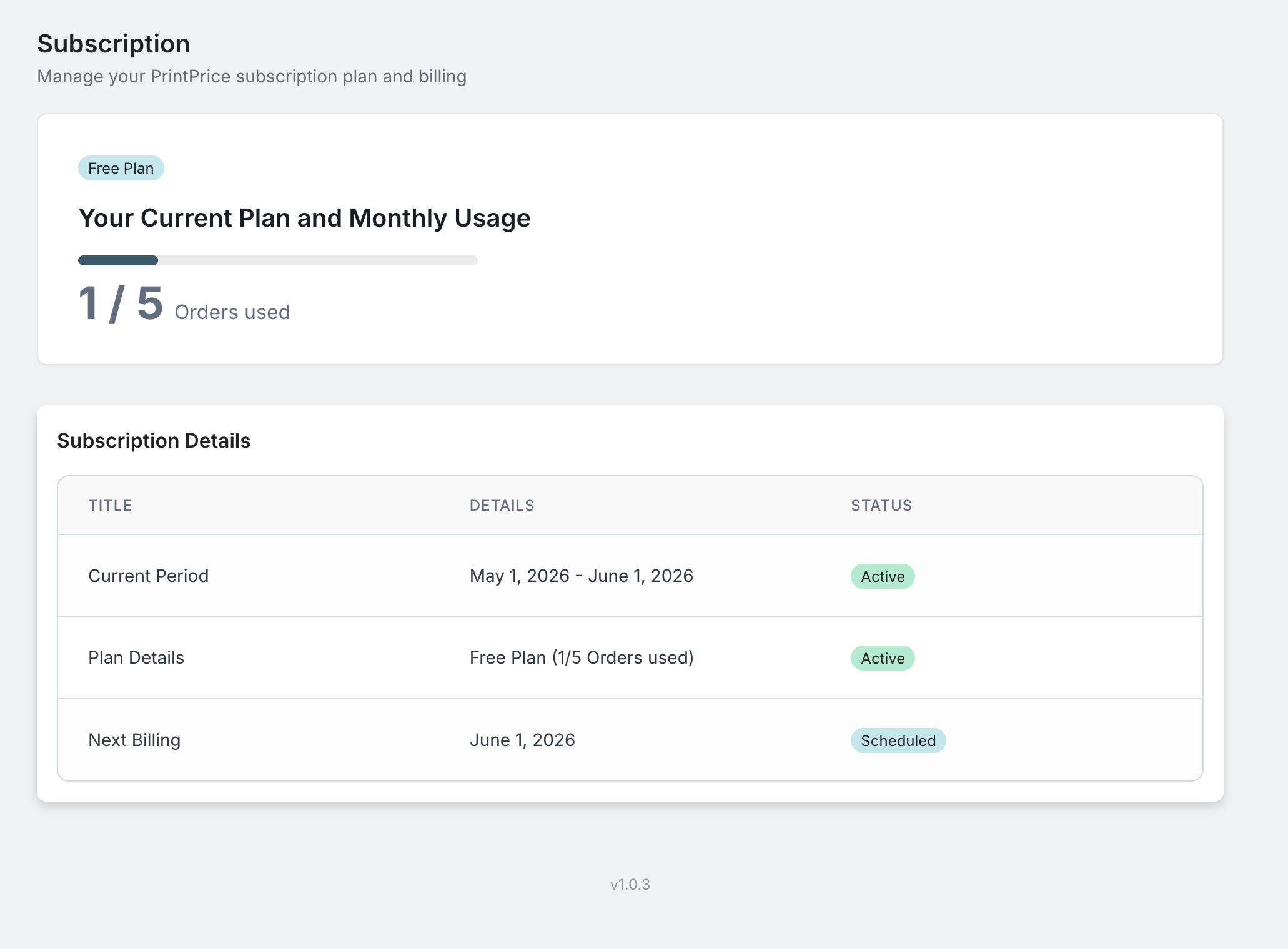
The free plan is unlocked the moment you activate the plugin: no opt-in, no signup form, no credit card. It has every feature, including STEP files, quotes and PDF quotes. Only paid orders count towards the plan (5 a month on Free), and a quote counts once the customer pays. Price checks are never counted. Paid plans (50 / 100 / 300 paid orders a month) unlock through a Freemius checkout from the admin Upgrade menu when you’re ready.
Features
- STL, OBJ, 3MF and STEP upload with an in-browser 3D preview, on any WooCommerce product page, on every plan
- Your normal checkout: the quoted part goes into the WooCommerce cart as a regular product, so every payment gateway, shipping method and tax rule you already use works with it
- Shipping ready: each part carries its weight and size in your store’s units, so weight-based rates, carriers and pickup-point plugins work as usual
- Your store currency and tax: prices are shown in your store currency and taxed by your WooCommerce tax settings
- Multi-color 3MF detection: recognises sliced files with multiple filaments and adds a “Multi-color” badge plus a configurable purge-waste allowance to the quote
- Print-time estimation: pulled directly from sliced 3MF gcode where available, or estimated from filament mass when not
- Material catalogue you control: name, colour, price per kg, density, currency, used directly in price calculations
- Profit-margin tiers: different multipliers for different cost bands (e.g. higher margin on small prints, lower on bulk)
- Bulk pricing: automatic per-unit discount above a quantity threshold you set
- Multi-file orders: customers upload several files in one transaction with per-file quantities
- Per-file materials: each uploaded file can have its own material and colour, priced individually and shown as a per-file breakdown on the order
- Minimum price per part (optional): set a floor so very small prints still cover your handling; off by default
- 18 languages: the storefront widget follows the WordPress site language automatically, and quote emails to customers use the language they saw; your own custom labels always take priority
- Order admin block: every order’s admin detail page shows uploaded files (downloadable), material, infill, print status, multi-color badge, and the per-file material breakdown
- Customisable widget: colours, button labels, fonts, and uploader styling configurable from a hosted React dashboard
- Quotes and approvals: choose which orders need your approval first (by price, weight, size, quantity, material or multi-color) and which customers can buy straight away
- Counter-offers: approve a quote at a different price with a note and an optional deadline, or decline it with a reason
- PDF quotes: customers download their price as a PDF quote
- Saved quotes: customers email themselves their price, reopen it from the link, and get one reminder if they have not ordered
- Weight and print time under the price, and an optional “Ready to ship by” date
- Cheaper option: optionally show a cheaper material of the same type under the price, with one click to switch
- Gutenberg block: drag “PrintPrice Calculator” straight into any page; also works as the legacy
[print_price_widget]shortcode
External services
This plugin connects to PrintPrice Cloud (https://wp.printprice.one), operated by PrintPrice, to provide the STL / OBJ / 3MF / STEP upload, price calculation, and quote-product creation that customers see on your storefront.
Customer data is processed by this third party. This is exactly what is sent, and when.
From your customers’ browsers to PrintPrice Cloud, when a customer uses the calculator:
- The calculator script and 3D viewer are loaded from wp.printprice.one, so the customer’s browser makes ordinary web requests there (IP address and browser details)
- The STL, OBJ, 3MF or STEP file the customer uploads (sent straight from the browser; the file never touches your WordPress server)
- Material, colour and infill choices and quantity
- A small preview image of the model, made in the browser. PrintPrice adds it to the cart item on your store so the cart can show it
- The note to your shop, if the customer writes one, and the email address the customer enters when they ask you for a quote or ask to have their price emailed to them. PrintPrice uses that address only to send the quote, its reminders and your reply
- Your storefront key (a public ID that only allows these calculator requests)
From your WordPress site to PrintPrice Cloud:
- When the plugin first runs: your PrintPrice identifier and your site address, to set up your PrintPrice account
- When you save your store keys in PrintPrice Settings, and again after you confirm that your site moved to a new address: your WooCommerce REST API consumer key and secret, your site address, your site name and your WordPress admin email. PrintPrice uses the keys to create the quoted product in your catalogue, add it to the cart and register order webhooks. It uses the email to tell you when something needs your attention
- Every 6 hours, and when your plan changes: your PrintPrice identifier, the plugin version, and the Freemius install ID, install address, plan ID and licence ID (plus the licence key on a paid plan). This tells PrintPrice which plan you are on and that the plugin is still installed
- When you delete the plugin: your PrintPrice identifier and site address, so PrintPrice can forget your store keys and order webhooks
From your store to PrintPrice Cloud, through the order webhooks it registers:
- Order details whenever an order is created or updated, including the customer’s name, email, billing and shipping address and the items ordered
The PrintPrice page in wp-admin is loaded from wp.printprice.one.
Payments (paid plans only):
- Your email and chosen plan are processed by Freemius (https://freemius.com), our billing provider, to issue and validate paid licences. Freemius’s terms apply: https://freemius.com/terms/
Nothing is transmitted until the plugin is activated. Uploaded files are stored on AWS S3 in the Frankfurt region (eu-central-1), encrypted in transit (HTTPS) and at rest. Uploaded files are kept for 7 days after an order is fulfilled on the free plan, 14 days on Basic and 30 days on Pro and Business, then removed. The full data flow and retention policy is documented in our Privacy Policy.
- Terms of Service: https://printprice.one/terms
- Privacy Policy: https://printprice.one/privacy
- Refund Policy: https://printprice.one/terms#refund
Installation
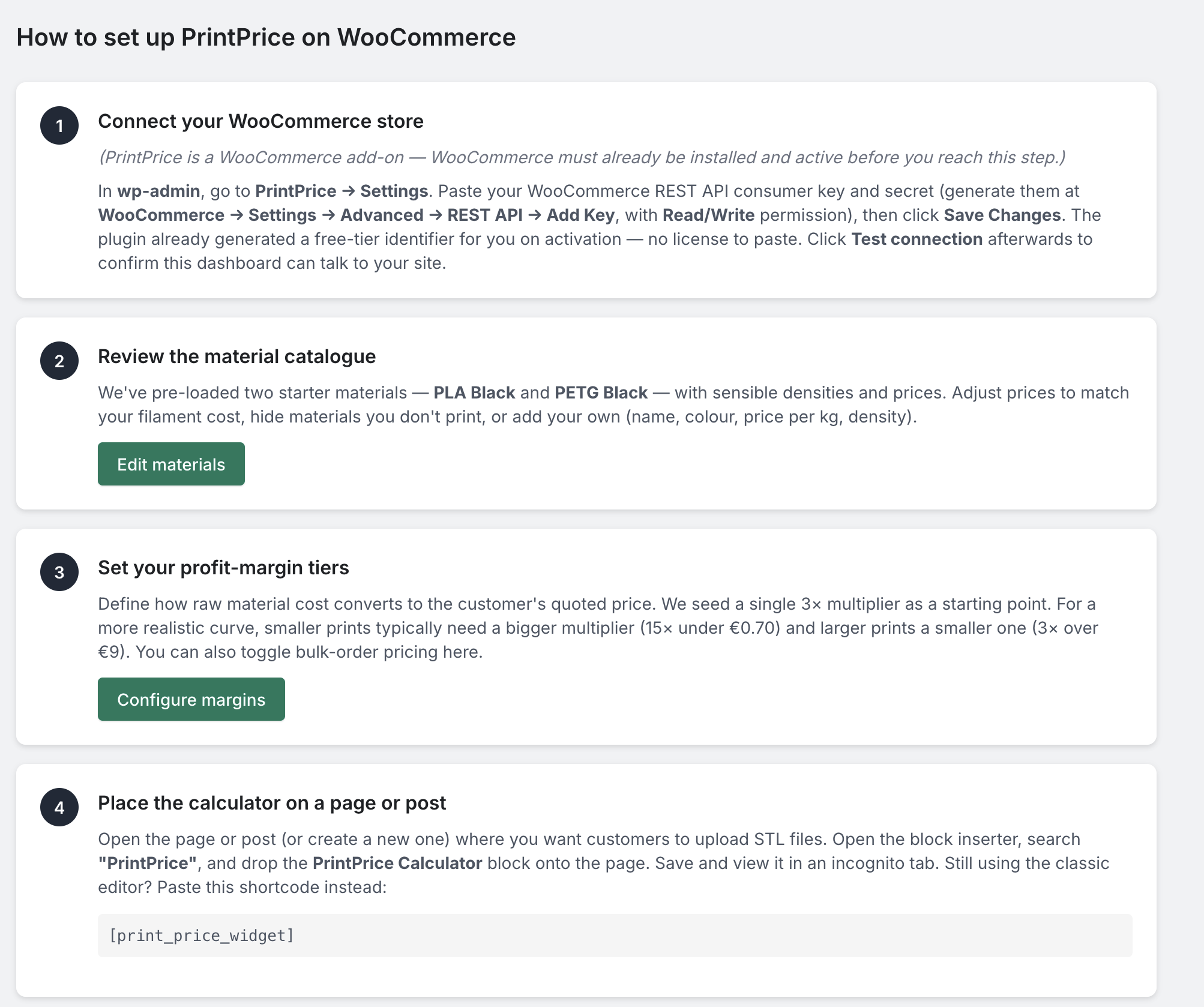
Prerequisite: WooCommerce must be installed and active before you install PrintPrice. PrintPrice will refuse to activate without it.
- Install the plugin via the WordPress.org Plugin Directory, or upload the
print-pricefolder to/wp-content/plugins/. - Activate. The plugin generates a free-tier identifier for you automatically, no signup required.
- Go to PrintPrice → Settings.
- Generate WooCommerce REST API keys at WooCommerce → Settings → Advanced → REST API → Add Key with Read/Write permission. Paste the consumer key and secret into the PrintPrice settings page and save.
- Click Test connection to verify your store can talk to PrintPrice Cloud.
- Add the PrintPrice Calculator block to any page in the block editor (or use the
[print_price_widget]shortcode in a Shortcode block). You’re live.
To unlock higher monthly order limits, open PrintPrice → Upgrade and pick a Basic / Pro / Business plan.
FAQ
Do I need a separate PrintPrice account?
No. On activation, the plugin generates a random free-tier identifier locally, no signup form, no email confirmation, no credit card. You’re on the free plan (5 paid orders per month) immediately. If you want a higher limit you can upgrade in-place via Freemius from PrintPrice → Upgrade.
Which file formats can customers upload?
STL, OBJ, 3MF, STEP and STP on every plan, including the free plan. All formats get the same instant price and in-browser 3D preview.
Where does the uploaded file go?
Directly from the customer’s browser to PrintPrice Cloud’s AWS S3 storage in Frankfurt. It does not pass through your WordPress server. We keep it while the order is open and for 7 days after the order is fulfilled on the free plan (14 days on Basic, 30 days on Pro and Business), then permanently remove it. Files from a cart that never became an order are kept just as long, and files from prices never added to a cart are removed within about a day. You can also delete individual files at any time from your order admin.
Which payment gateways work?
All of them. The customer pays for the part through your normal WooCommerce checkout, so any gateway you have installed works: cards, PayPal, Stripe, Apple Pay, Google Pay and local gateways alike. PrintPrice never handles the payment.
Does it work with my shipping and tax setup?
Yes. The part is a physical product with its weight and size, so your shipping zones, carriers and shipping plugins (pickup points and parcel lockers included) work at checkout. Tax comes from your WooCommerce tax settings, in your store currency.
Quotes you approve work the same way: the link in the customer’s email puts the quote in the cart at the approved price and opens your checkout, where they choose shipping and pay tax.
Which files and settings do I see on the order?
Every order’s admin page has a PrintPrice box with the uploaded files (with a download button), material, colour, infill, quantity and the other print settings the customer chose.
Can I customise the calculator UI?
Yes, colours, button labels, fonts, and uploader styling are configurable in PrintPrice → Design (the hosted dashboard that opens in your WordPress admin).
Does it work with the block editor / Gutenberg?
Yes. Drag the PrintPrice Calculator block from the inserter into any page. The legacy [print_price_widget] shortcode is also supported for sites still using the classic editor.
What happens if I hit my monthly plan limit?
The plugin will continue serving existing customers who already added items to their cart. New customers attempting to start a calculation see a “this shop is currently at capacity” message until you either wait for next month or upgrade to a higher tier.
Can I uninstall and get my data back?
Deactivating keeps your settings, so you can switch the plugin back on and carry on. Deleting the plugin removes its settings and any unpaid quote products from your site, and asks PrintPrice Cloud to forget your store keys and order webhooks. Your materials, pricing and quotes stay on our side until you ask us to delete them. To request deletion of your stored files and merchant data on our side, contact us via the support form in PrintPrice → Support.
Do I have to use a paid plan?
No, the free tier covers 5 paid orders per month forever. Most hobby print shops never need to upgrade. Paid tiers exist for higher-volume sellers (Basic 50/mo, Pro 100/mo, Business 300/mo).
Screenshots
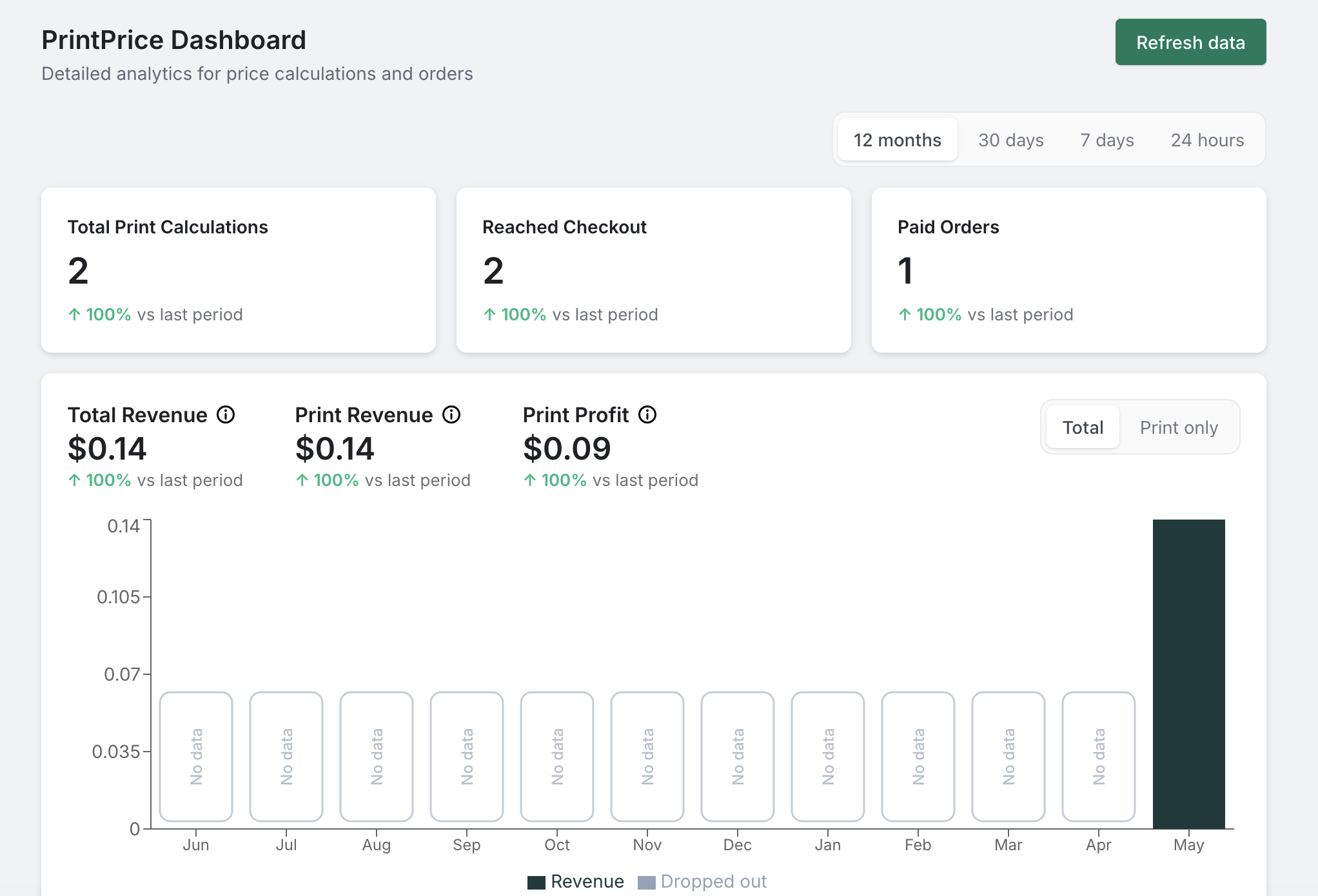
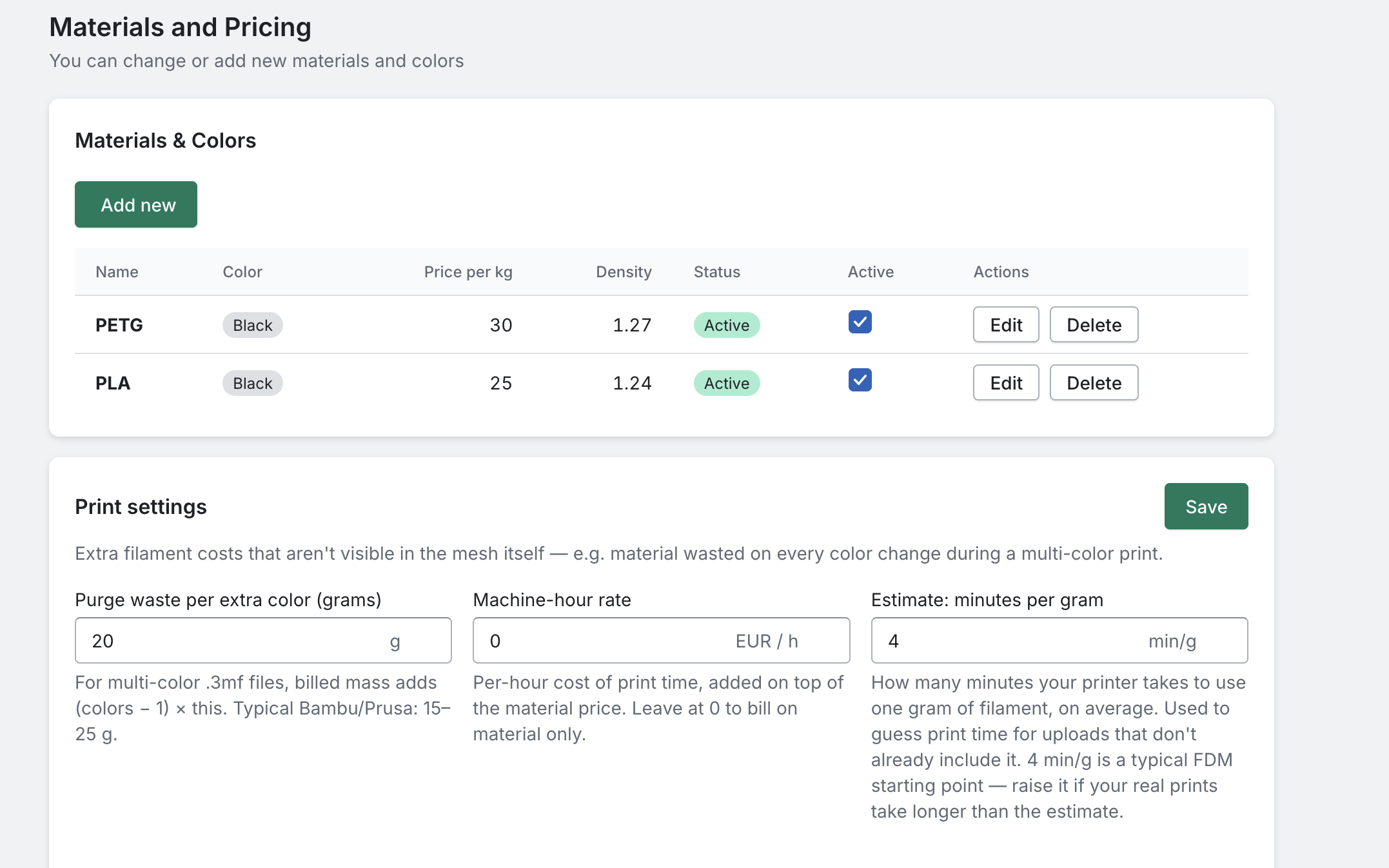
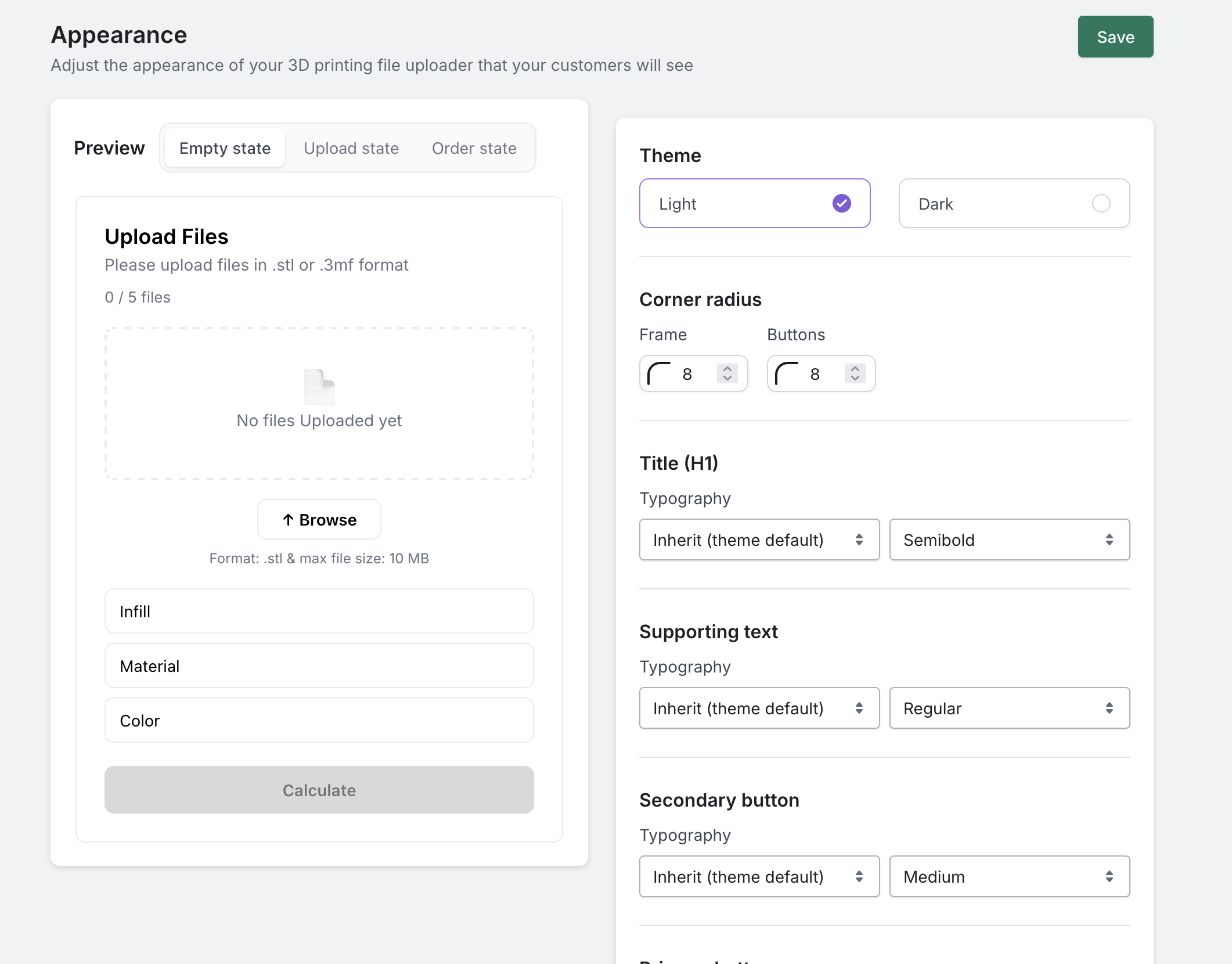
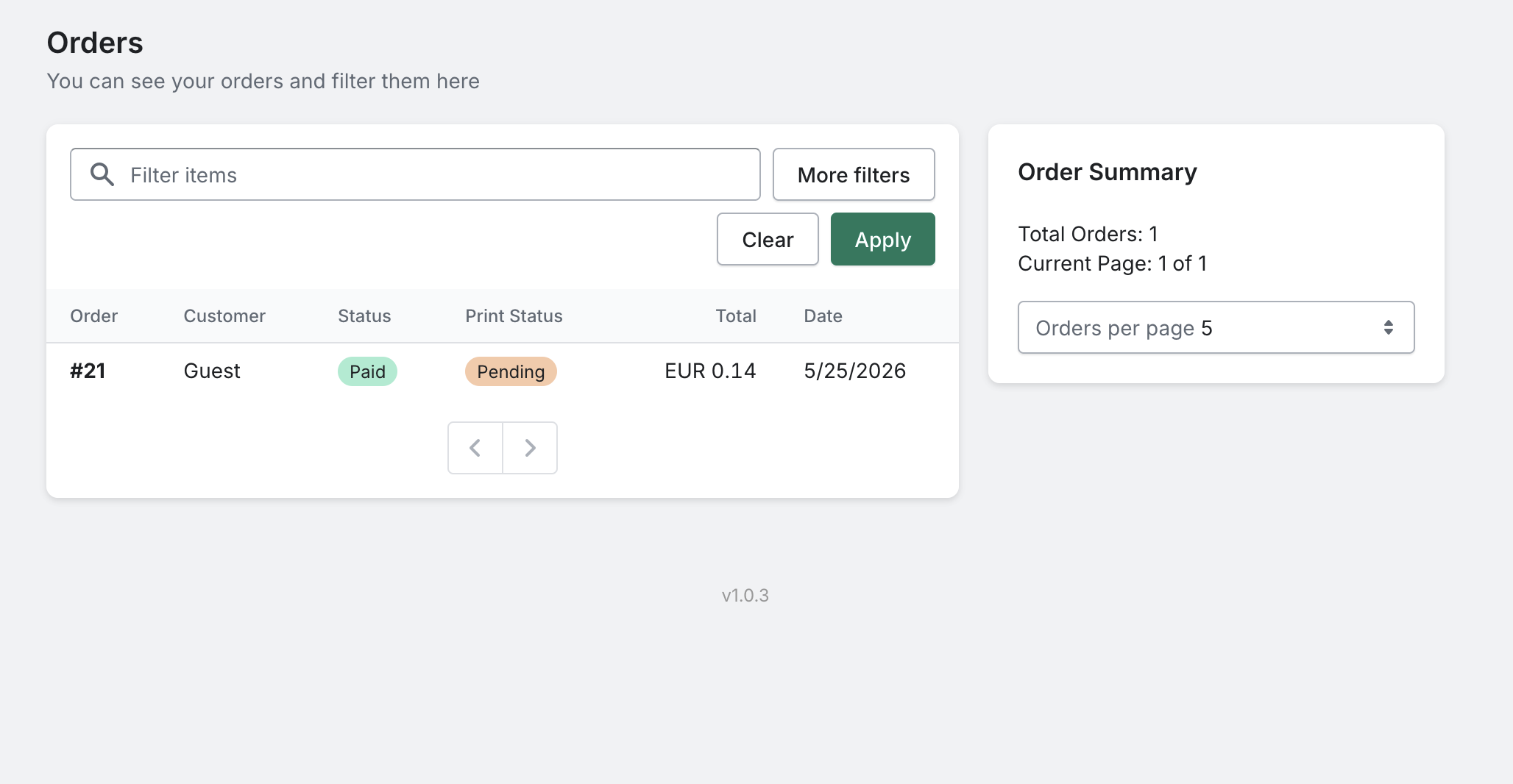
Changelog
Version numbers match the PrintPrice product line (same numbering as
our Shopify app). The WordPress plugin debuts at 1.0.3 with feature
parity to the Shopify side as of the same date.
1.8.1
- New: Print time is now estimated from the model’s shape and your printer type: walls, infill, layers and colour changes, far closer to your slicer. New stores start on it; existing stores can switch it on in Settings.
- New: The 3D preview now stands models upright as in your slicer, and multi-colour files show each part in the colour the customer picks. The cart picture matches what they chose.
- New: Choose the material and colour the calculator starts on. Set a Starting material on the Materials page so new uploads open on what most of your customers order.
- New: Order pages now show the estimated print weight at the chosen infill, like your slicer, and label the fully solid figure as Solid mass (100% infill), so the numbers match what you print.
- New: Uploaded model files are now kept by plan: 7 days after fulfillment on Free, 14 days on Basic and 30 days on Pro and Business. Files from a cart that was not checked out are kept just as long.
- New: Files too large for a shopper’s browser to show in 3D now get a simplified 3D view in their painted and layer colours once the price is ready, instead of only the picture saved in the file.
- New: New stores now see a short Welcome popup the first time they open PrintPrice, with the four setup steps and a link to the setup guide, instead of the list of changes in the latest version.
- Fixed: Adding a large 3MF project to the calculator is faster and uses far less memory, because only its plate and colour settings are read at that point, not the whole file.
- Fixed: Security improvements: add to cart, draft orders and manual review now only accept a price the calculator made for that shopper, add to cart is rate limited, and file downloads and the order search are better protected.
1.8.0
- New: New quote in Approvals: upload files a customer sent you, pick material, color, infill and quantity, adjust the total, then email the invoice or copy the payment link to send by SMS or WhatsApp.
- New: Settings now open on a home page with a search box and eight short pages, from Printers to Tax and currency. Each page has one Save button, and you are asked before leaving with unsaved changes.
- New: A tax setup guide under Tax and currency reads your store’s tax settings, suggests your country’s VAT rate, and can add VAT on top of your prices so your margin stays what you set.
- New: Approvals has a No VAT (reverse charge) switch for business customers in another EU country. Choose whether the rest of the cart goes without VAT too, or the quote is paid on its own. Needs plugin 1.8.
- New: A setup fee under Costs adds a fixed amount per order, per file or per printed part. It is charged exactly as you set it, with no markup and no cap, and shows on the order breakdown.
- New: Customers can choose the number of walls when you allow it. Set the lowest and highest choice under Printers. More walls add weight and print time to the price, and the order shows what they picked.
- New: Quality tiers can now carry a layer height. The tier then prices print time as if sliced at that height, so Fine at 0.12 mm costs more by itself, and the order records the layer height used.
- New: Models larger than your printer can now be sent to you for a price instead of being refused. Choose this under Printers, next to the build volume, and they wait in Approvals for you to price.
- New: New stores allow 10 files per quote instead of 5, and you can now set up to 20 under Settings, Calculator display. If your store still allows 5, raise it there whenever you like.
- New: Approvals lists the file names of each quote, and an approved quote leaves a note on the order with the price and the date you approved it, so you can tell later where the order came from.
- New: Quote details and the order page now explain multi plate 3MF projects: each plate is priced as its own part, and all plates are in the one file you download and open in your slicer.
- New: Paid extras now offer common choices such as Support removal, Sanding and Priming, each charged per printed part, so adding one takes a click and a price.
- New: An experimental support estimate adds material under steep overhangs to the weight and print time, using the model as uploaded. Turn it on under Printers and set how dense your supports print.
- Fixed: The last row of the profit margin table now sets the multiplier for parts above your highest threshold, so you decide what larger parts cost. Leave it empty to use your highest tier’s multiplier.
- Fixed: Estimated profit on WordPress orders now subtracts machine and labour cost, and unpaid quotes stay out of Orders and the review prompt until the customer pays.
- Fixed: A 3MF file holding several parts no longer sends its largest part to WooCommerce as the parcel size, so shipping priced by box size is not quoted too low.
- Fixed: The tax line under the price now follows your store’s own tax setting, and the amount the other way is shown only to shoppers in your country, since others may be taxed at their own rate.
- Fixed: Links in quote and invoice emails now open even when the customer uses an ad blocker, because they go straight to the page instead of through a tracking address.
- Fixed: When the calculator is busy it now waits a moment and tries again by itself, instead of showing an error and asking the shopper to press the button again.
- Fixed: The billing page says Renews on only for a subscription, and Expires on with a Subscribe button when nothing renews your license. The monthly order count reset is now labelled as such.
- Fixed: Projects with several plates are now read once for all their plate rows, and big files are measured with less memory, so quotes on large projects come back faster.
- Fixed: The order button in the calculator now spans the full width of the calculator, so shoppers find it more easily and it is easier to tap on a phone or a small screen.
- Updated: The Freemius SDK to 2.13.5.
1.7.5
- Fixed: A license that needs email confirmation now says where the email was sent, and the billing page shows the paid plan as soon as the license is confirmed.
1.7.4
- Fixed: Settings now has a license key field, so a PrintPrice license bought outside the Upgrade button, or moved over from another store, can be activated there.
1.7.2
- New: Project files that state a layer height now show it to the shopper, who can change it before ordering. The price and print time follow their choice, and the order shows the final value and where it came from.
- New: A project file that states its infill is now priced at that infill, and the shopper can change it per row. Orders and quotes list each part’s own choices, and downloads give the original file once.
- Fixed: Projects that switch filament partway up the print are now priced as multicolor, with the purge amount taken from the slicer’s own settings instead of a flat allowance.
- Fixed: Very large or detailed 3MF projects are priced several times faster, and their preview shows each plate’s picture with the colors it prints in. A project with several plates now adds one row per plate, and a file that prints in several colors gets a color choice for each, shown on the order.
- Fixed: A store whose first connection was stopped by a firewall or security check now finishes connecting by itself within the hour once the block is lifted, so pressing Save again is no longer needed.
1.7.1
- Fixed: Big 3MF project files (up to 512 MB unpacked) are now priced instead of being refused as too large.
- Fixed: A big upload no longer slows the calculator down for other shoppers, and a calculation that takes over a minute now finishes instead of showing an error.
1.7.0
- New: prices in the shopper’s chosen currency with WooPayments, CURCY, FOX, WPML or Price Based on Country.
- New: approved quotes are paid at your normal checkout, with shipping, tax and every payment method, and optional coupons.
- New: minimum order value, shown as a top-up line.
- New: price shown including or excluding tax, and an optional company VAT ID on quote requests (EU IDs checked in VIES).
- New: up to 8 quality and turnaround tiers in the calculator.
- New: product star rating under the price.
- New: price one plate of a multi-plate 3MF project.
- New: infill per file when pricing 2 or more files.
- New: colour swatches, with optional swatch photos.
- New: Size, Measure and Section tools in the 3D preview.
- New: add a whole filament line from the library in one step.
- New: “Email me this quote” is a button, and customers can stop the saved-quote reminder.
- New: quote emails to customers in the language they used in the calculator (18 languages).
- New: the 3D preview opens as soon as a file is added.
- Fixed: saving one Pricing card no longer clears unsaved changes in the others.
- Fixed: no saved-quote reminder after the customer has ordered through the cart.
- Fixed: orders paid later by bank transfer or cheque are marked as paid.
- Fixed: customers get a clear message when a Free plan store is out of orders.
1.6.1
- Fixed: STEP files made of flat faces (common when a mesh is converted to STEP) are now priced and shown in the 3D preview.
1.6.0
- New: approve a quote at a different price, with a note and an optional deadline.
- New: decline a quote with a reason for the customer.
- New: one reminder to customers who emailed themselves a price and have not ordered after 2 days.
- New: estimated weight and print time under the price.
- Fixed: Download PDF on an expired price offers to calculate it again.
- Fixed: deleting the plugin also removes unpaid quote products.
1.5.0
- New: customers can email themselves their price from the calculator and reopen it from the link. Turn it on under Order handling.
- New: choose when quote reminder emails are sent, with an optional last reminder.
- New: the calculator can show a cheaper material of the same type under the price, with a button to switch to it. Turn it on under Storefront options.
- New: customers can download their price as a PDF quote.
- New: optional “Ready to ship by” date under the price, from the production days you set.
- New: optional calculator events for Google Analytics, Google Tag Manager and Meta Pixel.
- New: WordPress’s Export and Erase Personal Data tools now include PrintPrice quotes.
- Fixed: reminder emails are never sent for a quote whose files have been removed.
1.4.4
- New: clearer order handling settings, with rules that make some orders a quote and let others be bought straight away.
- New: an order funnel on the dashboard, for orders added to cart and for quotes.
- Fixed: stores using the “Plain” permalink setting now connect to PrintPrice.
- Fixed: quotes count towards your monthly order allowance in the month the customer pays.
1.4.3
- New: a notice in WordPress when PrintPrice cannot reach your store or your WooCommerce key stops working, with the exact fix.
- New: PrintPrice checks your calculator page is showing and clears an outdated page cache automatically.
- New: customers see that ordering is paused while your store is disconnected.
- Improved: clearer conversion stats and quote handling.
1.4.2
- General bug fixes and reliability improvements.
1.4.1
- WooCommerce carts, mini carts and checkout now show a preview image generated from the first uploaded 3D model, making print items easier to recognise before payment.
- Checkout retries reuse the existing temporary product and safely restore a missing preview image without creating a duplicate product.
1.4.0
- Create SLA/MSLA resin materials, classify them by common resin type and price them with dedicated handling loss, machine rate and height-based print time settings. Resin printing is optional and can be turned off when a shop only offers FDM.
- Match resin workflows with separate generated-support and build-plate pad settings. Choose uploaded, fastest or conservative model orientation for SLA time estimates. Plate time follows the tallest model instead of multiplying the same exposure cycle by every copy.
- Pricing and Print settings now has focused Pricing and Store and Printing views. FDM, SLA/MSLA and shared printing settings are visually separated.
- Configure the nozzle sizes your printers support and optionally let customers choose a nozzle for each FDM file. Reliable 3MF and G-code nozzle metadata is detected automatically.
- Rename the Draft, Standard and Fine quality tiers to match the services shown to customers.
- Files that cannot be priced automatically can now be sent to the merchant for manual review. The merchant can enter a price and continue the normal quote approval flow.
- An always-visible Licence & Account page now provides direct access to licence activation and management.
- Paid plans are now matched using the verified Freemius installation and website instead of the account email, with automatic recovery when local entitlement is stale.
- Quote checkout retries now reuse existing products and drafts instead of creating duplicates, and interrupted manual review pricing recovers safely.
- 3MF archives that store model data without ZIP compression can now be quoted correctly.
- SLA materials can share a display name while remaining separate by resin category. Their colours, prices and customer selections no longer merge into one material.
- General reliability improvements for quote creation, payment tracking and customer notifications.
1.3.14
- Sliced 3MF files exported from Bambu Studio can now be quoted directly, including multi-plate projects. PrintPrice reads the embedded filament usage, print time and model dimensions, then shows an interactive toolpath preview that can be rotated and zoomed.
- Invalid or unsafe sliced 3MF toolpaths now show a clear upload error without interrupting the calculator.
1.3.13
- Paid plan activations now appear reliably in the PrintPrice dashboard. If licence verification fails, the plugin shows clear recovery guidance instead of silently leaving the Free plan visible.
- STL previews now open more exporter variants reliably and safely reject malformed or exceptionally complex files without interrupting the quote.
1.3.12
- Print quote approvals and paid order details in a clean A4 layout, including customer choices, pricing, legal confirmations and uploaded filenames.
- Printed quote references now use WooCommerce order numbers and link directly to the matching pending order, with support for both HPOS and legacy order storage.
1.3.11
- Draft quote fees now appear under the order subtotal instead of being mistaken for shipping in the order overview.
1.3.10
- Multicolour 3MF files now preserve their embedded filament colours in the 3D preview.
- The 3D preview now uses clearer lighting for dark models and keeps overlapping colour surfaces stable instead of flickering.
1.3.9
- Legal confirmation records now show every checkbox presented to the customer, including confirmations they left unchecked.
- Order-routing rules now support up to 100 conditions, with pagination for large rule sets.
- Button hover and pressed colours now save reliably, and invalid colour values safely fall back to usable colours.
- Store connections are only accepted after WooCommerce access and webhook registration are fully verified.
- Reinstalled or disconnected stores now receive clear recovery instructions without creating duplicate store identities.
- PrintPrice emails recovery guidance after detecting an identity problem.
1.3.8
- Add optional legal confirmation checkboxes under Pricing. Start with suggested intellectual property declarations or write your own, and choose whether each checkbox is required.
- Customer confirmations are saved with the quote and resulting order, so you can review exactly what was accepted.
- General bug fixes and reliability improvements.
1.3.7
- PrintPrice now checks in automatically every six hours, even when you do not open the dashboard. This helps us distinguish an active shop that needs help from a plugin that was intentionally deactivated.
- Paid stores always remain in active support monitoring. If billing is interrupted, your store remains protected for 14 days while you update the payment details.
1.3.6
- General bug fixes and reliability improvements.
1.3.5
- If you change the WordPress home or site address, PrintPrice now reconnects your store automatically. It verifies your existing WooCommerce connection at the new address and restores the order webhooks without sending credentials through the old domain.
1.3.4
- If an earlier update left your dashboard showing a new, empty shop while your storefront kept the real settings, PrintPrice now reconnects it automatically. It proves ownership through your existing WooCommerce connection, then restores access to the materials, pricing and appearance that were never deleted.
1.3.3
- Your settings could appear to reset themselves, with your materials and pricing replaced by defaults while your live site kept showing the real ones. Nothing was ever deleted. This release stops it happening. If your dashboard still looks empty after updating, contact support and we will reconnect it.
1.3.2
- Set your nozzle size and wall count under Pricing, so quotes are weighed on the printer you actually use instead of a 0.4 mm assumption. Shops running a wider nozzle, or more walls, were undercounting the plastic in every part they sell.
- A post-processing add-on priced as a percentage was saved as a fixed amount, so “50% of the order” became a flat 50. The percentage now sticks, and it is charged on the print price, so it scales with the size of the job.
- Buying a plan now takes effect by itself. An upgrade was not reaching PrintPrice, so a paying shop kept its free monthly limit, and while trying to sync the plugin could lose track of which shop it was set up as.
1.3.1
- PrintPrice now checks your store every hour: it puts back missing order webhooks by itself, reconnects a store that was switched off by a passing outage, and emails you once, only if something needs you.
- A brief outage at your host no longer counts as several failures. Setup calls arrive together, so one bad second used to spend most of a store’s allowance in one go and switch the connection off.
- Uploads with more than one file quoted too much material. The markup was applied to the whole upload and then again for each file, so a four-file order carried it four times over. One file printed several times was always priced correctly.
- A quote could fail outright, showing your customer an error instead of a price, on stores where a material had no currency recorded. The currency is now taken from your other materials, and a quote is never held up by it.
- Deleting a material left it in the list until you reloaded the page, and opening it produced a server error rather than saying it had gone. The list now refreshes itself after every add, edit or delete.
1.3.0
- Handling time: charge the setup and finishing minutes every print costs you, billed at your own labour rate. That is a separate setting from the machine-hour rate, which covers what the printer costs to run unattended. Choose per order, per file or per printed part under Pricing, with a live example of what each choice adds. Customers still see one price; handling is never itemised for them.
- Two ceilings keep handling in proportion, both on by default: at most one hour per order, and at most half the print price. A batch of small parts sharing one plate is never quoted as hours of labour, and a cheap print never costs more in handling than in printing.
- Customers now get a “?” beside each filament saying what it is for: PETG for outdoor parts, TPU where it must flex. In all 18 storefront languages, and it works even if you have renamed your materials.
- A “?” beside Infill density now explains what infill is, that more of it means a stronger and heavier part, and that it costs more to print. In all 18 storefront languages, so fewer customers guess high and abandon the quote.
- Materials now carry a family (PLA, PETG, TPU, …), prefilled when you add from the filament library, and worked out from the name for materials you already have.
- A “new quote is waiting” email that never arrived left nothing to look at. Each one is now recorded against the quote, so a missing notification can be traced.
- Customers now see one line under Infill density saying what the percentage they picked is actually for, from decorative at 10% to solid at 100%. Written for you in all 18 storefront languages, and you can replace the wording with your own under Pricing.
- Model units are now tucked behind “My model is not in millimetres”, and only appear for STL and OBJ files at all. 3MF and STEP already state their own units, so the question was being asked when it could not change anything.
- Materials are now listed by material, with their colours folded underneath, so a dozen filaments in ten colours is twelve rows instead of a hundred and twenty. Add several colours at once, and set a price, density, name or on/off state for a whole material in one go. Colours can still be priced individually for specialty spools.
- Labels, hints, buttons and the quote email field were rendering too small to read, and on wider themes the calculator sat against the left edge instead of centred. Every size now comes from one scale your theme cannot shrink, and nothing customer-facing is under 12px.
- Uploading a .step file failed as an unsupported type, while the same model saved as .stp worked. The upload was quietly renaming the file and cutting its extension short, so a valid CAD model arrived looking like a format we do not accept.
- The admin pages now fit a phone. Materials, the dashboard, quote approvals and Appearance each needed sideways scrolling to reach half of what was on them. Rows, cards and the two-column Appearance layout stack instead.
- The calculator no longer changes width when a customer picks a file. It settles on one size from the start, decided by where you put the 3D preview, so nothing on the page shifts mid-quote.
- Unpaid quotes were counting against your monthly order allowance, so a busy month of enquiries could stop the calculator quoting for everyone. Only orders that were actually paid count now, which is what your plan always said.
- On quote approvals, Reject now looks like the destructive action it is, and a failure there shows as an error rather than an ordinary notice.
- If your shop moves to a new web address, or starts redirecting to one, PrintPrice now notices and emails you the one step that reconnects it. Before, it looked like a rejected API key and orders quietly stopped.
- A shop whose connection had switched itself off now gets an email saying exactly that, and what to do about it, instead of a note about one failed checkout.
- Retrying add to cart while the shop connection was broken showed a hard error page. It now shows the same short message as the first attempt, and notifies the shop owner.
1.2.4
- The buttons on the Plans page did nothing when clicked. Each plan now opens the checkout for that plan, and the page lists what every plan includes — only the monthly order allowance and the support channel differ.
- When a WooCommerce API key was rejected, stores running WordPress in a language other than English were told to regenerate the key even when the real problem was its permissions. The message now names the actual fix in any language.
- A dropped connection while the calculator was starting up left “we could not load this shop’s materials” on screen for good — common on a phone that changes network. It now retries, and reloads itself when the customer returns to the tab.
- Links in the dashboard now open in place instead of loading a page outside the WordPress admin.
1.2.3
- A customer whose browser cannot show 3D was told the preview was unavailable for their file, which sent them off to re-export a model that was fine. The calculator now says their browser does not support 3D preview, in their own language, and the quote works as normal.
- Housekeeping: uploads left behind by abandoned quotes are now cleared on a schedule, as they already were on our Shopify service.
1.2.2
- Optional customer notes: switch on “Let customers add a note” under Pricing and customers can send print instructions with their quote. The note lands in the order’s “Customer provided note”, on the quote in Approvals, and in your quote emails. Off by default.
- Automatic theme: a new Appearance option, now the default. The calculator matches your site’s light or dark background on its own. Light and Dark remain for a fixed choice.
- Files per quote: now yours to set under Appearance. The old fixed limit of five made customers merge a multi-part job into one file, which arrives as a single object you cannot split on the print bed. Choose up to 20.
- Fixed light-theme colours showing on dark sites, where the buttons blended into the page, Reset was a white block and the email field was a pale panel.
- A mistyped email on a quote request failed with “We couldn’t reach our servers” and the quote was lost. The calculator now flags the address before sending, in the customer’s own language.
- Add-on checkboxes could show as a bare tick, or not at all, on themes that replace the browser’s own checkbox. The calculator keeps the standard one now, so add-ons are selectable whatever your theme.
- With the Dark theme on a light site, field labels and add-on text took the site’s colour and disappeared into the dark card. Both themes now set their own text colour.
1.2.1
- OBJ file support: customers can now upload .obj files alongside .stl, .3mf and .step/.stp, on every plan including the free tier. They are measured with the same geometry maths as an STL and get the same interactive 3D preview. Like STL, an OBJ stores no units, so the customer chooses the unit at upload.
- Storefront calculator readability on dark themes: several labels, the quantity controls and the customer email field could render as text the same colour as the surface behind them, and the widget card had no visible edge on a dark page.
- The Browse button now follows the same styling rules as the price button, so it uses your brand colour instead of a fixed white block.
- The wireframe view in the 3D preview drew near-black lines, so on a dark theme the model looked like a black blob. It now draws in the selected filament colour.
- When the calculator cannot reach PrintPrice Cloud it now says so plainly, instead of showing a placeholder material list and an unusable price button.
1.2.0 – 2026-08-07
- One-click filament library: add a material from a built-in library of popular brands, with density and common colours pre-filled. You still set your own price per kilogram.
- Quality tiers (Draft / Standard / Fine): optional. Turn them on to add a Quality dropdown to your storefront calculator; each tier multiplies the quote by a factor you choose. Off by default, so your current prices are unchanged.
- Turnaround tiers (Standard / Express): optional rush upcharge you set. Off by default.
- Post-processing add-ons: optional paid services such as sanding or painting. You define each add-on (charged per order or per part) and customers pick them on the quote. Off by default.
- Draft orders (quotes): instead of paying instantly, an order can become a draft order that sends the customer a pay link, with no temporary product added to your store. Choose the default for your store, or add rules such as “orders over a set amount become a draft.” Quotes count towards the same monthly order allowance as instant checkout, and only once the customer pays.
- Approvals page: every quote waits for your review before the customer is asked for money, so nothing is priced without you seeing it. Open a quote to see the material, colour, infill, dimensions and volume, download the customer’s files to check them in your slicer, adjust the price if the job needs it, then send the invoice. If you change the price the customer sees both the original estimate and the updated total, so the new …