


Description
Productberg is a growing collection of product blocks for WooCommerce, built for the WordPress block editor. It starts with two focused, flexible blocks: a Product Carousel and a Product Categories Grid, with more on the way.
Drop them into any page, post, or template, pick what to show, and style everything from the block sidebar. What you see in the editor is what your customers see on the front end.
There are no shortcodes to remember and no settings pages to dig through. Every option lives right next to the block you are editing.
Product Carousel block
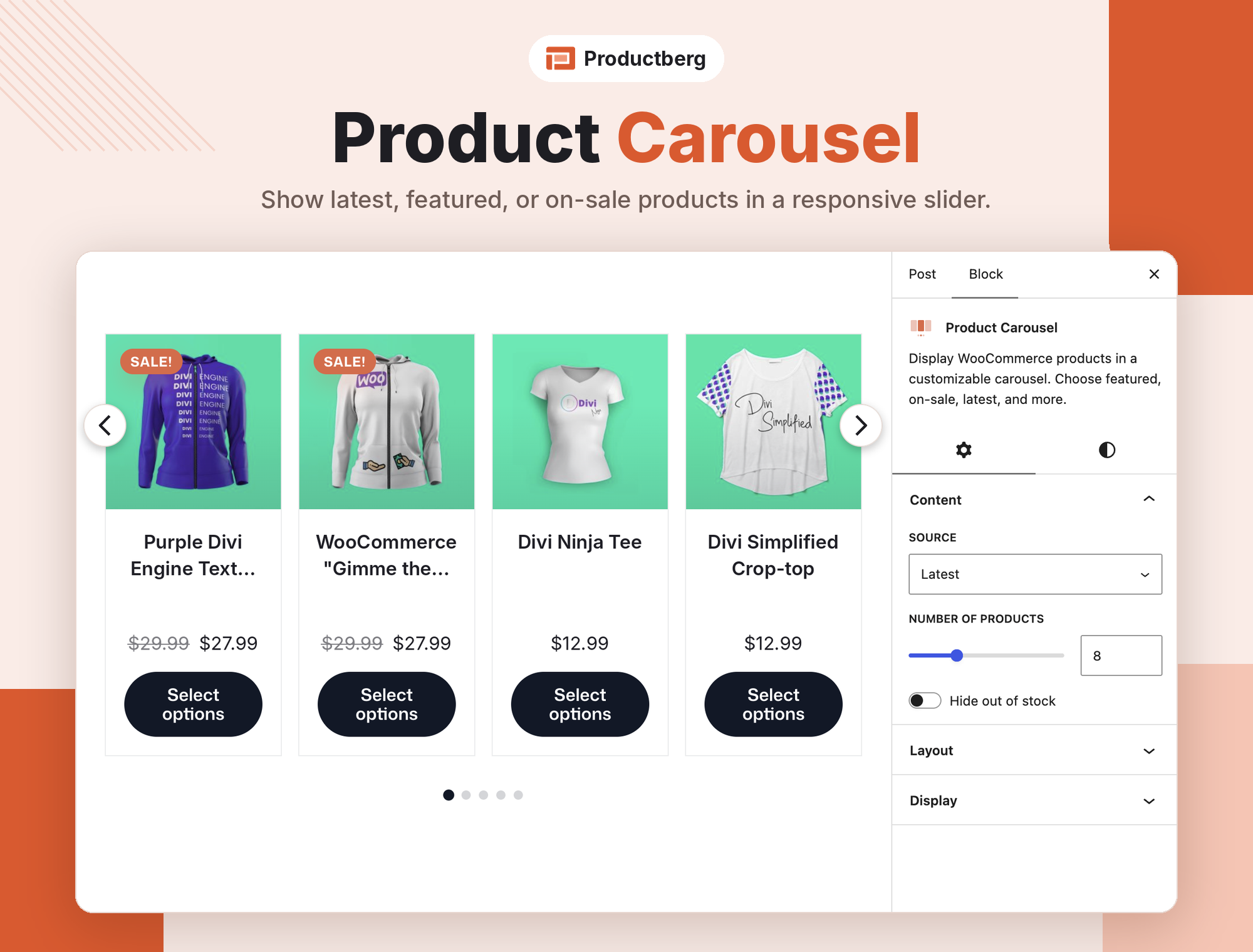
Show your products in a smooth, responsive slider. Great for homepages, landing pages, sale announcements, and “you may also like” sections.
- Choose the product source: latest, featured, on-sale products, and more.
- Set how many products to load and hide out-of-stock items with one toggle.
- Responsive slides per view: set a different number of slides for desktop, tablet, and mobile.
- Image aspect ratio: keep every product image the same shape for a clean, even row.
- Navigation: turn arrows and pagination dots on or off.
- Choose what each card shows: image, title, price, rating, add to cart button, and sale badge.
- Add to cart button width: auto, full width, or a custom width.
- Sorting: order products by date and more, in ascending or descending order.
- Text alignment: left, center, or right.
- Typography: control the size and appearance of product titles and prices.
- Colors: set colors for the block background, card background, title, price, rating, add to cart button and text, sale badge, arrows, and pagination dots.
- Spacing and borders: adjust the gap between slides, card corner radius, and button corner radius.
Product Categories Grid block
Help shoppers find what they want faster with a visual grid of your product categories. Each card links straight to that category’s products.
- Pick your categories, or leave the field empty to show your top-level categories automatically.
- Hide empty categories so shoppers never land on a page with no products.
- Responsive columns: set a different column count for desktop, tablet, and mobile.
- Image aspect ratio: keep category images consistent.
- Choose what each card shows: category image, product count, and description.
- Sorting: order categories by name and more, in ascending or descending order.
- Text alignment: left, center, or right.
- Typography: control the size and appearance of category names, product counts, and descriptions.
- Colors: set colors for the block background, card background, category name, product count, description, and image overlay.
- Spacing: adjust the row and column gaps.
Why Productberg?
- Built for the block editor. Productberg blocks are native WordPress blocks, so they work with block themes, classic themes, and the Site Editor.
- Live preview. Your real products, prices, and sale badges appear in the editor while you design.
- Fits your theme. Blocks inherit your theme’s fonts and colors by default. Change only what you want.
- Focused and lightweight. Each block does one job well, without extra page builders or frameworks.
More blocks are on the way
Productberg is growing. We plan to add more WooCommerce product display blocks in future updates. Have a block you would like to see? Let us know in the support forum.
More free plugins from our team
Productberg is part of the WP Block Suite family of block plugins by DotCamp:
- Ultimate Blocks: essential content blocks for the block editor.
- Tableberg: a table block builder.
- Galleryberg: a gallery block.
- Sliderberg: a slider block.
Source Code
The minified JavaScript and CSS in build/ are generated from the uncompiled sources included in this plugin. No obfuscation is used.
src/contains the block sources:block.json,edit.js,inspector.js,view.js,render.phpand SCSS for each block.shared/src/contains the shared editor controls and styling helpers, imported in the block sources as@productberg/shared.build/is the compiled output loaded by WordPress. Do not edit it directly.
Rebuilding the JavaScript and CSS
The build uses @wordpress/scripts (webpack), configured through the scripts field of package.json.
- Install Node.js 18 or later and pnpm.
- Run
pnpm installin the plugin directory. - Run
pnpm run build(orpnpm startfor watch mode).
Composer
The PHP autoloader in vendor/ is generated by Composer from the included composer.json by running composer install. It contains no third-party runtime code, only the PSR-4 autoloader mapping the Productberg namespace to includes/.
Bundled third-party libraries
The following libraries are compiled into the files under build/:
- Swiper 11 (MIT License) – https://github.com/nolimits4web/swiper – bundled into
build/product-carousel/view.jsandview.css - classnames 2 (MIT License) – https://github.com/JedWatson/classnames – bundled into the editor scripts
build/*/index.js
Privacy
Productberg does not collect or store any personal data. All category data is read from your own WordPress/WooCommerce database and stays entirely within your site.
Installation
From your WordPress dashboard
- Make sure WooCommerce is installed and active.
- Go to Plugins > Add New Plugin.
- Search for Productberg.
- Click Install Now, then Activate.
Manual installation
- Download the plugin ZIP file from WordPress.org.
- Go to Plugins > Add New Plugin > Upload Plugin.
- Choose the ZIP file, click Install Now, then Activate.
Using the blocks
- Open any page or post in the block editor.
- Click the + button and search for “Product Carousel” or “Product Categories Grid”.
- Insert the block and adjust its settings in the block sidebar on the right.
FAQ
Does Productberg require WooCommerce?
Yes. Productberg displays your WooCommerce products and categories, so WooCommerce must be installed and active.
Is Productberg an official WooCommerce plugin?
No. Productberg is an independent plugin made by DotCamp. It is built to work with WooCommerce but is not affiliated with or endorsed by WooCommerce or Automattic.
Does it work with my theme?
Productberg blocks work with any theme that supports the block editor, including block themes and classic themes. The blocks use your theme’s fonts and colors by default.
Can I use the blocks in the Site Editor?
Yes. You can add both blocks to templates and template parts in the Site Editor, as well as to regular pages and posts.
Can I show different numbers of slides or columns on mobile?
Yes. Use the desktop, tablet, and mobile icons in the Layout panel to set slides per view (Product Carousel) or columns (Product Categories Grid) for each screen size.
Which products can the Product Carousel show?
You can choose a source such as latest, featured, or on-sale products, set how many to show, and hide out-of-stock items.
Which categories does the Product Categories Grid show by default?
If you do not select any categories, the block shows your top-level product categories. Turn on “Hide empty categories” to show only categories that contain at least one product.
Why is a category showing a placeholder instead of an image?
The block uses the thumbnail set on each product category. Go to Products > Categories, edit the category, and add a thumbnail image.
Will the blocks slow down my site?
Productberg loads its styles and scripts only on pages where its blocks are used.
Where can I get help?
Please post in the support forum. We read every topic.
Screenshots

Changelog
1.0.2
- FIX: Text domain now matches the plugin slug so community translations work.
- FIX: Build is reproducible from the included sources (pnpm workspace config, corrected shared import).
- DOC: Added Source Code section with build steps and third-party library attribution.
1.0.1
- FIX: Technical issues.
1.0.0
- Initial release.
- New: Product Carousel block.
- New: Product Categories Grid block.