


Description
Radio Player Page gives each of your radio stations its own player page on WordPress: a standalone player at the URL of a page you choose. It plays Icecast, Shoutcast, MP3, OGG, HLS, and DASH streams.
Add your radio shows and a weekly schedule, and the player shows the radio show on air and the next one. Three blocks bring the schedule, the radio shows, and what’s on air to the rest of your site.
Player pages
- Standalone player page – Each station plays on its own WordPress page, with its own URL. The page skips your theme and other plugins’ scripts and styles, so they can’t break playback.
- Stream formats – Icecast, Shoutcast, MP3, OGG, HLS (
.m3u8), and DASH (.mpd). The player detects the format from the URL and uses native HLS on iPhone and iPad. - Always live – After a pause, Play returns to the live broadcast. If the stream drops, the player reconnects on its own and only shows an error if it can’t.
- No tracking – The plugin doesn’t track listeners or load anything from third-party services. The player only connects to your site and to the streaming server you set.
Radio shows and schedule
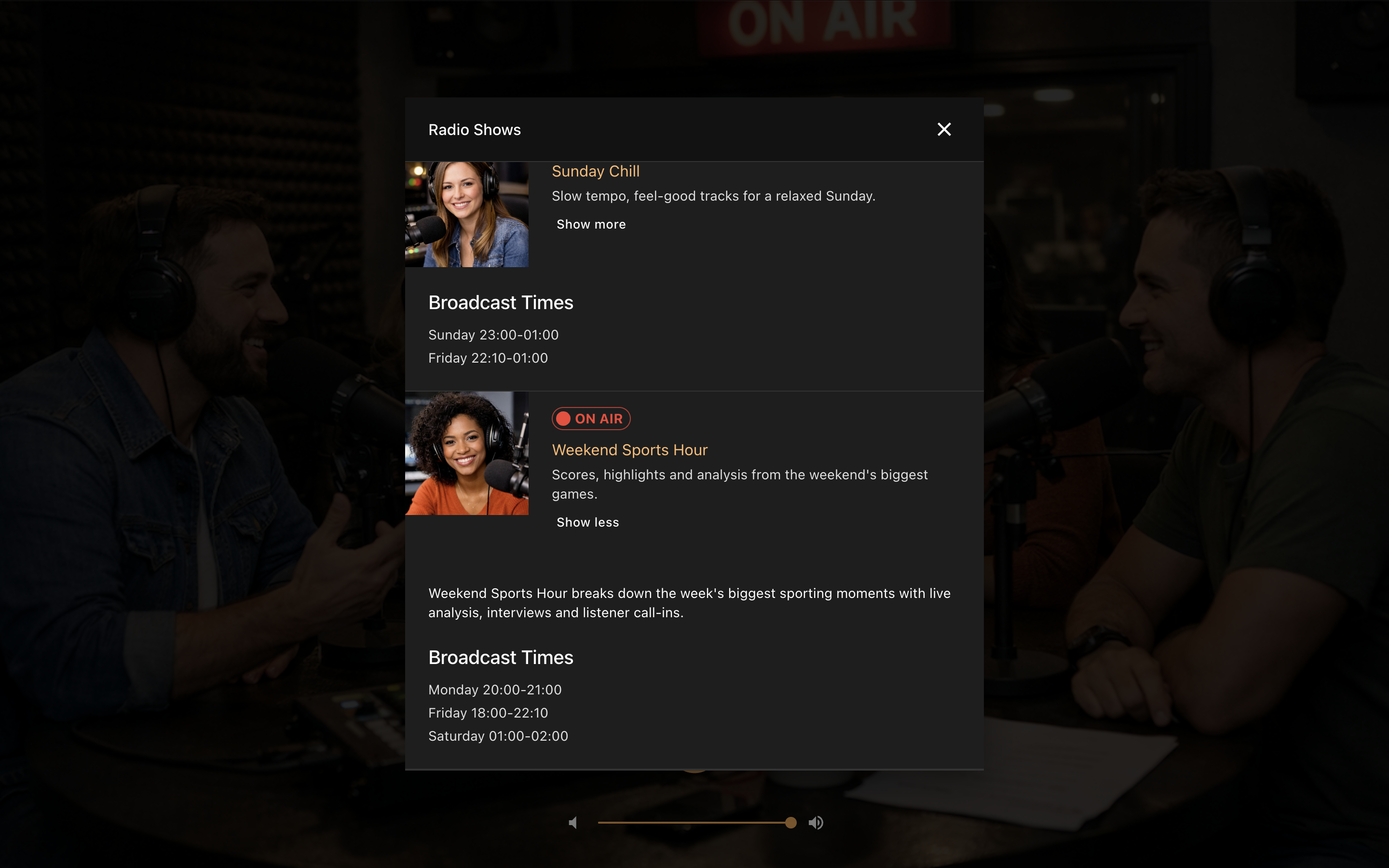
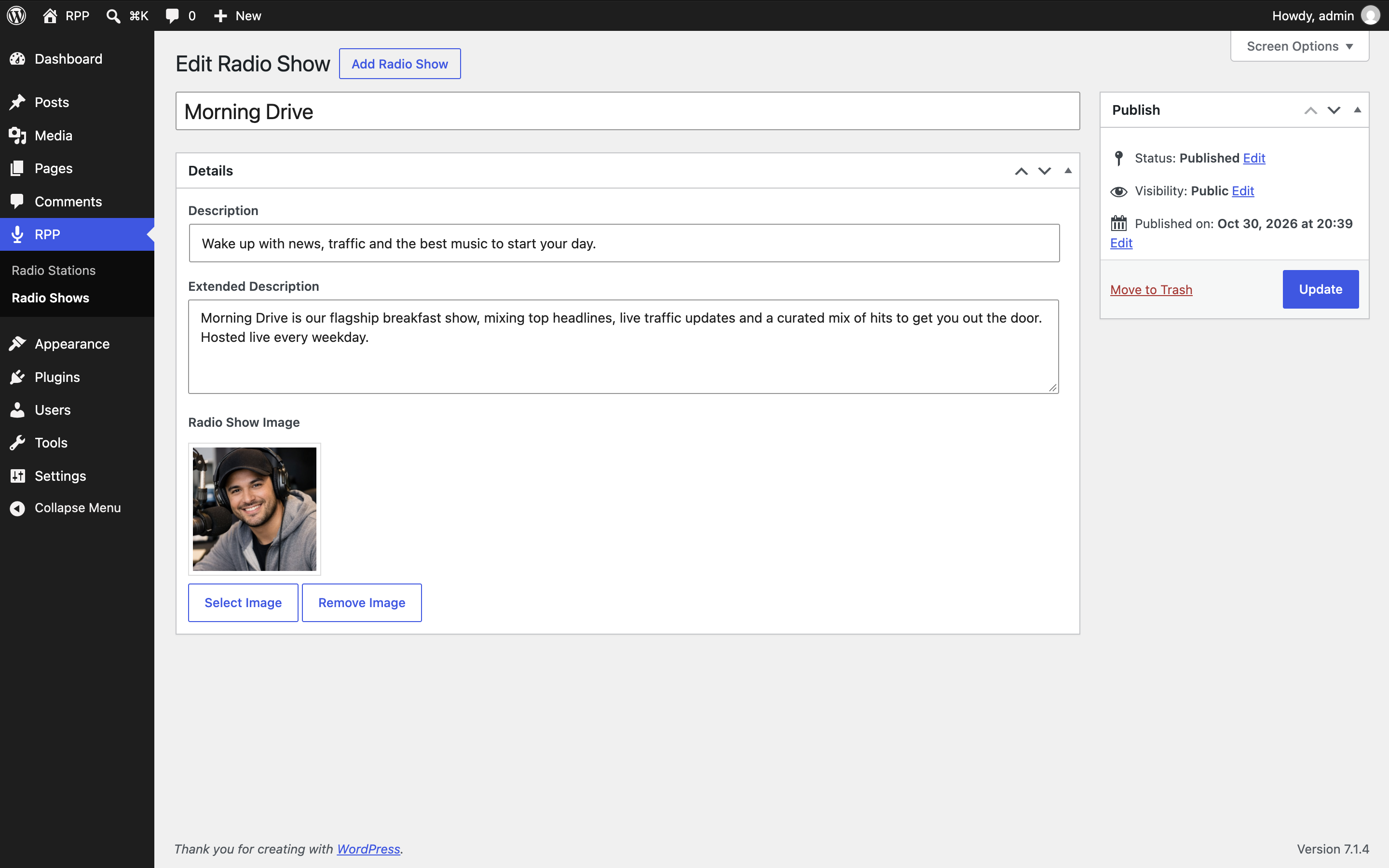
- Radio shows – Reusable radio shows with an image, a description, and their broadcast times.
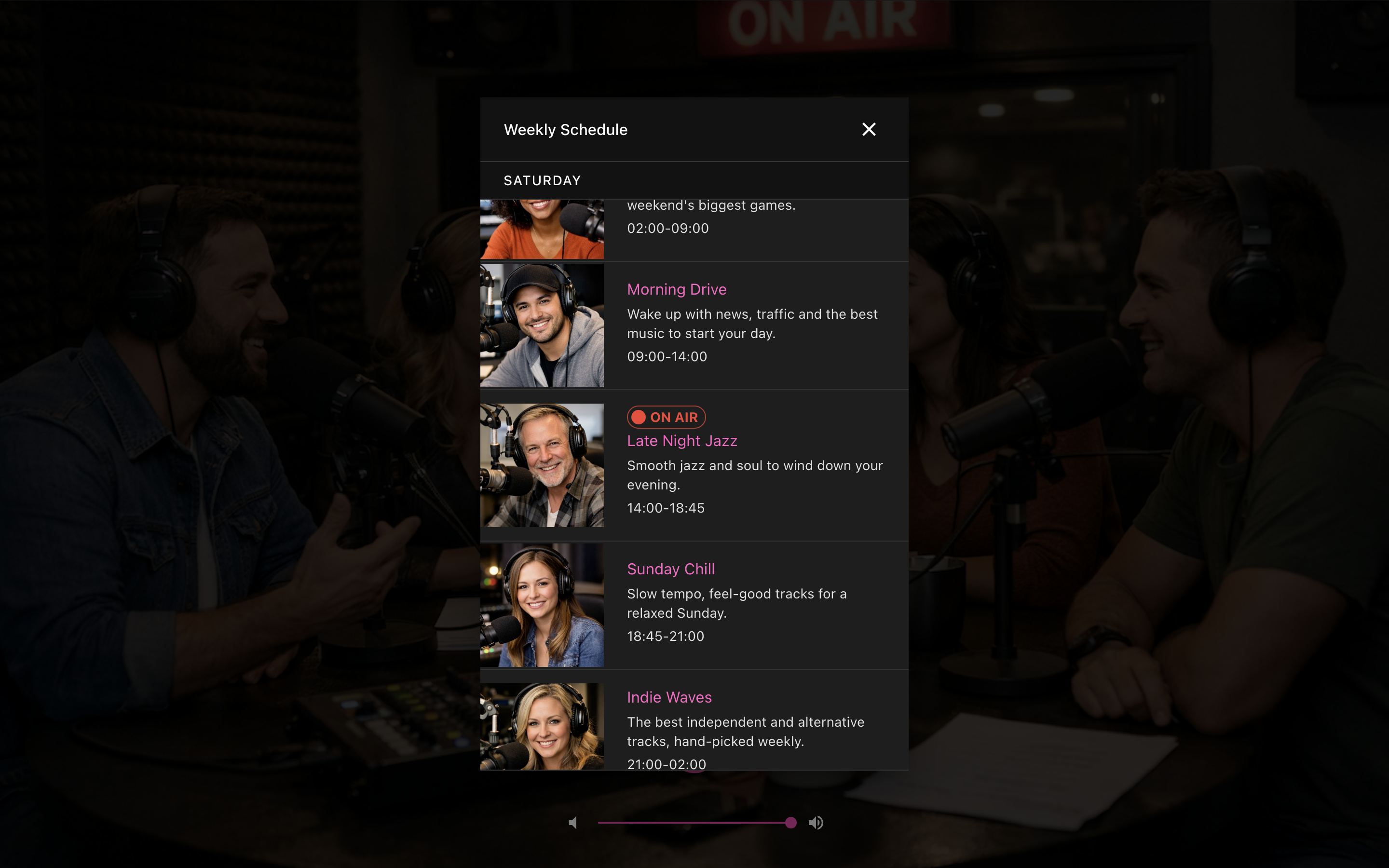
- Weekly Schedule – Build each station’s week from your radio shows, with time slots that can cross midnight. The plugin prevents overlapping time slots.
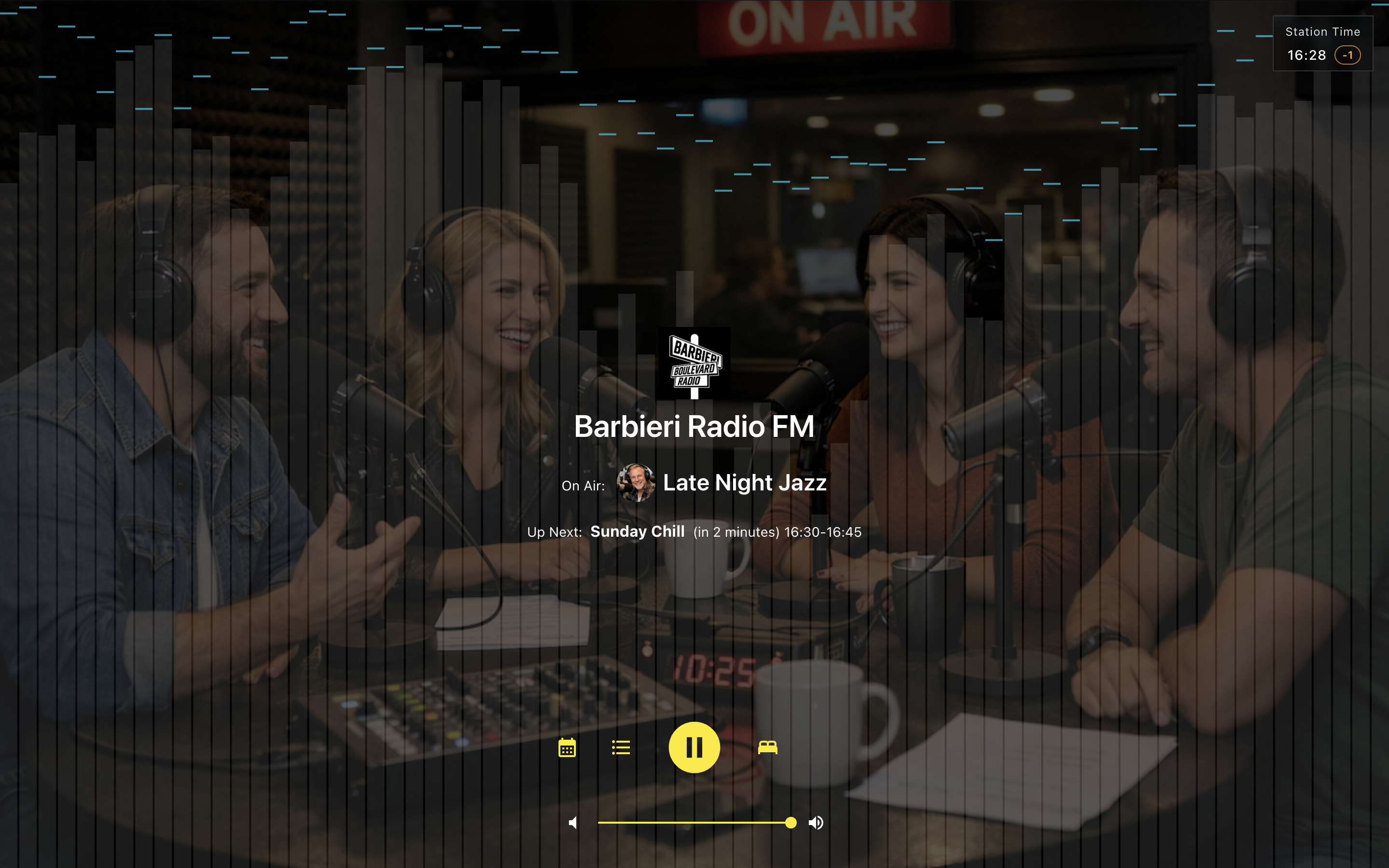
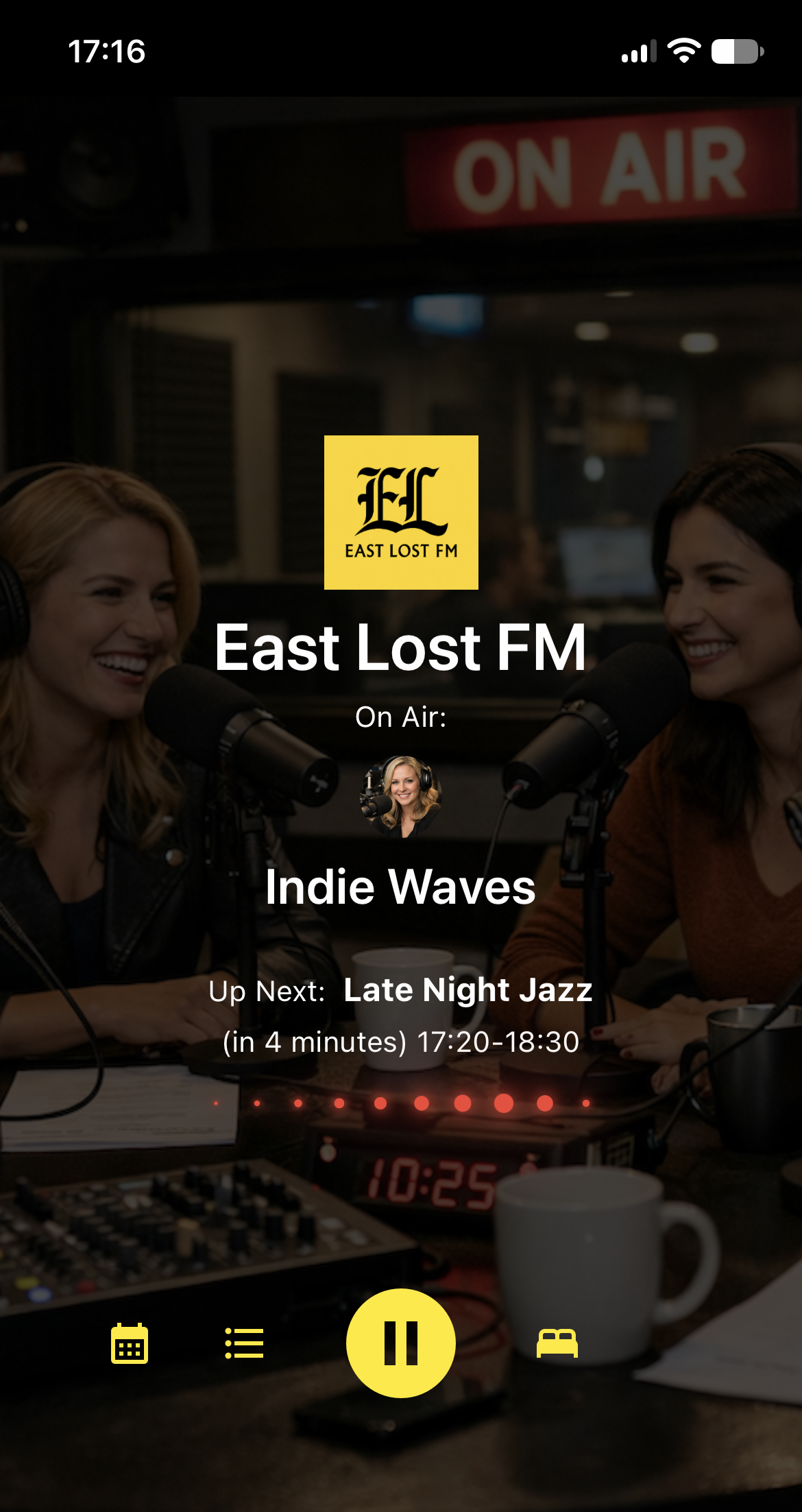
- On air and up next – The player shows the radio show on air and announces the next one when it starts within 10 minutes, in the station’s time zone.
- Reruns – Mark any time slot as a rerun. Listeners see the marker in the player and in the schedule.
- Station Time – When the station’s time zone differs from the listener’s, the player shows the station’s local time and the difference.
Station management
- Multiple stations – Run several independent radio stations from one WordPress site, each on its own page.
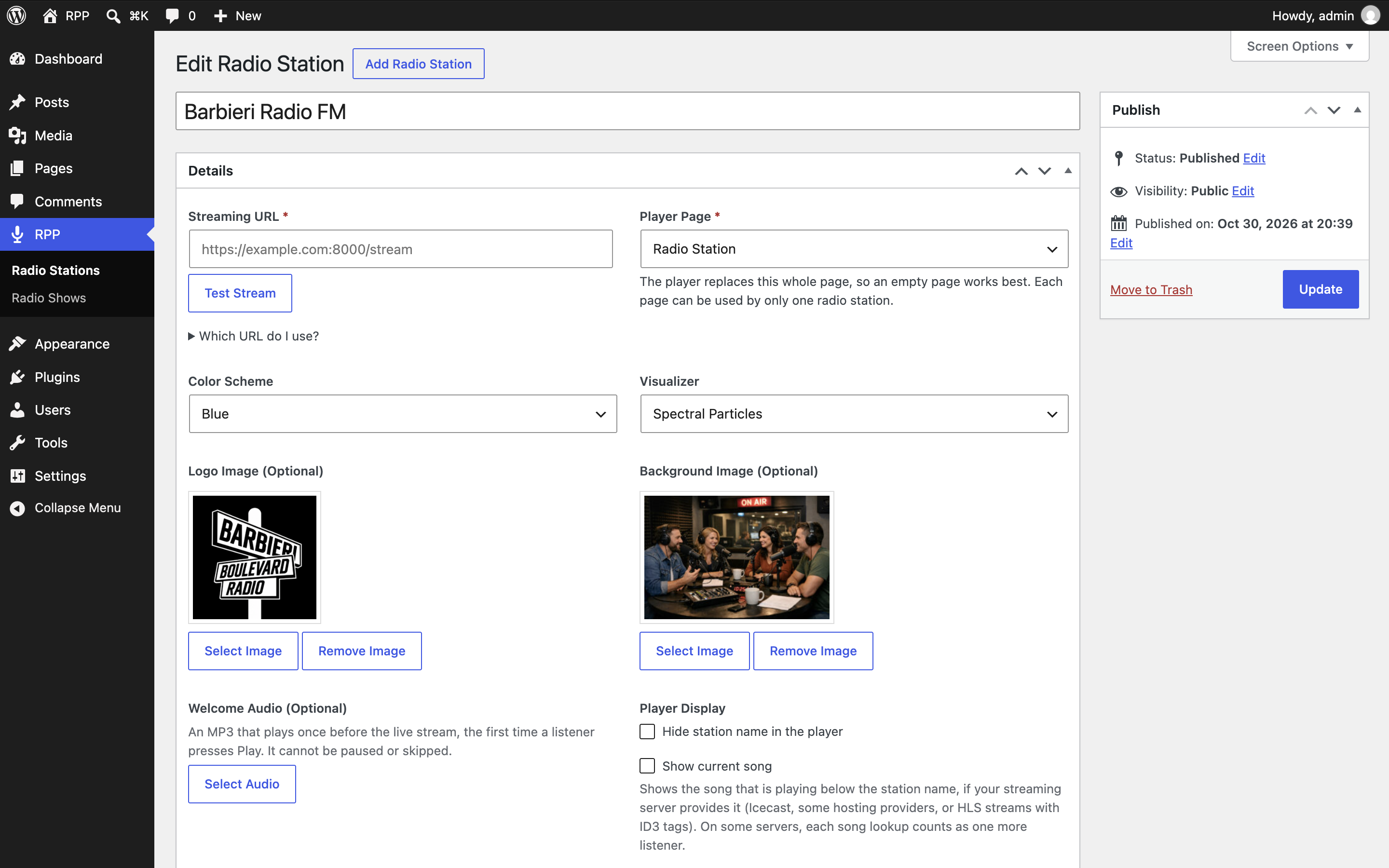
- Station branding – Give each station its own logo, background image, color scheme (eight to choose from), and visualizer. You can also hide the station name in the player.
- Welcome Audio – Optionally upload an MP3, such as a station ID or a greeting, that plays once before the live stream, the first time a listener presses Play. It can’t be paused or skipped.
- Test Stream – Check the streaming URL from the station edit screen. The plugin finds the stream behind a playlist or a server page and tells you what to fix.
Listener experience
- Audio visualizers – Four real-time visualizers: Oscilloscope, Bars Spectrum, Amplitude Waterfall, and Spectral Particles. They need a stream that allows cross-origin access (CORS). In Safari, in any browser on iPhone or iPad, and with “reduce motion” turned on, the player shows a static animation instead.
- Current song – Optionally show the song your streaming server reports, below the station name.
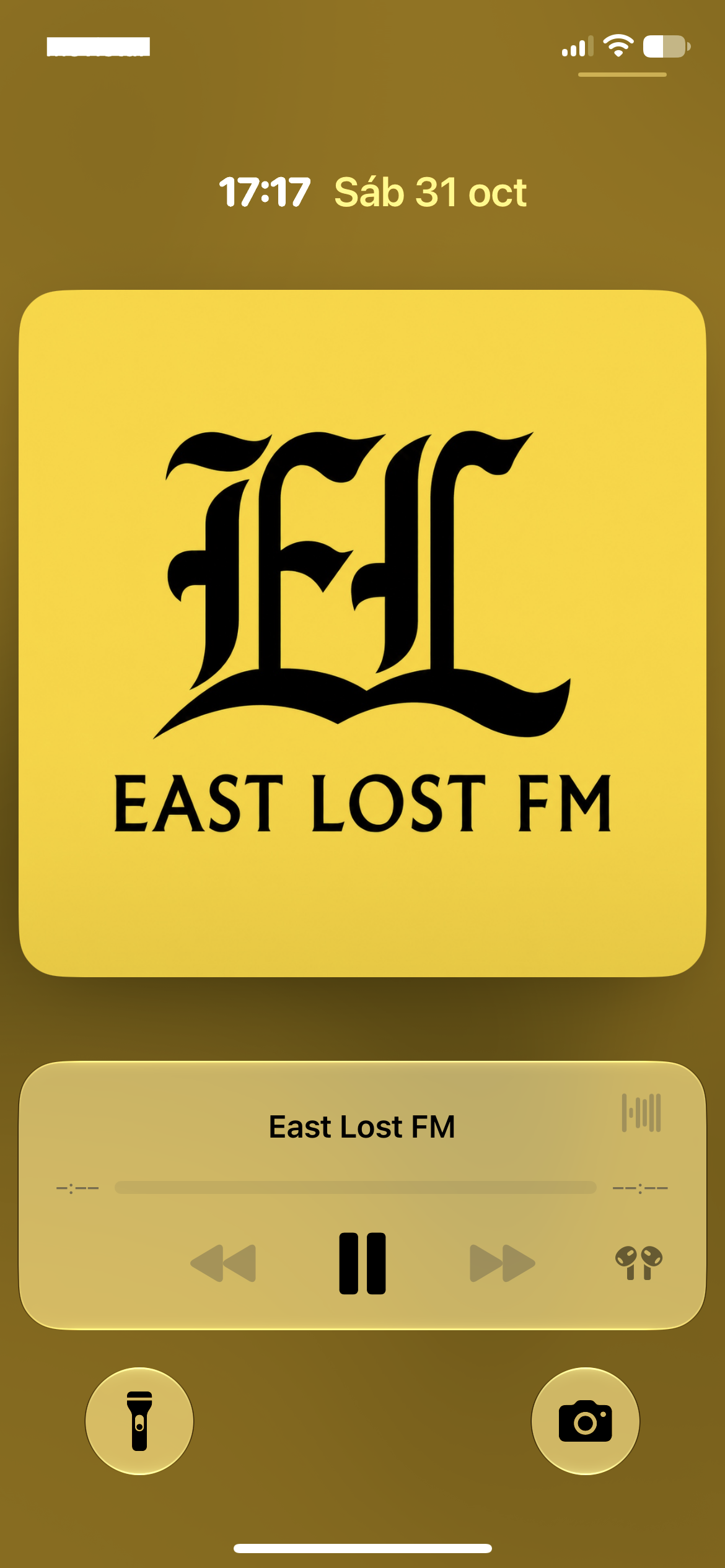
- Lock screen and media controls – The station name and logo appear on the lock screen, and listeners can play and pause from headphones, keyboards, and other media controls.
- Sleep timer – Listeners can stop playback after 30 minutes, 1 hour, or 2 hours.
- Sharing and search – Open Graph metadata for social sharing and schema.org structured data for search engines.
- Accessible and translated – The player works with a keyboard and screen readers, and follows your site’s language, with translations for 12 languages included.
Blocks
Show your stations’ schedules and radio shows on any post or page:
- RPP: Weekly Schedule – The weekly schedule of a radio station.
- RPP: Radio Shows List – The radio shows in a station’s weekly schedule, with their name, image, descriptions, and broadcast times.
- RPP: On Air – The radio show on air, with its time slot, and the next one if it starts within 10 minutes.
Installation
- In WordPress, go to Plugins → Add New Plugin, search for “Radio Player Page”, and click Install Now. Or upload the
radio-player-pagefolder to/wp-content/plugins/. - Activate the plugin.
- Go to RPP → Radio Stations and add a station.
- Enter the station name as the title and fill in:
- Streaming URL (Icecast, Shoutcast, HLS, DASH, or MP3, starting with
http://orhttps://). Click Test Stream to check it. - Player Page: the WordPress page where the player appears. An empty page works best.
- Optionally, Color Scheme, Visualizer, Logo Image, Background Image, and Welcome Audio.
- Streaming URL (Icecast, Shoutcast, HLS, DASH, or MP3, starting with
- Publish the station and visit its page.
- Optionally, add radio shows in RPP → Radio Shows and build the station’s Weekly Schedule on its edit screen.
Notes
- Each station needs a valid streaming URL and its own published page. A page can be used by only one station.
- Deactivating the plugin keeps your data.
- Uninstalling the plugin deletes all stations, radio shows, schedules, and plugin settings, including items in the trash.
FAQ
Do I need to configure anything on the WordPress page?
No. Choose the page in Player Page on the station edit screen, and the plugin shows the player at that page’s URL instead of your theme. The page’s own content isn’t shown, so an empty page works best. The page must be published and can’t be password protected or your site’s posts page, and each page can be used by only one station.
Which streaming URL do I use?
Use the address of the audio stream itself, not your station’s website. It’s usually the “Listen” link of your streaming server or control panel:
- Icecast: the URL of a mount point, for example
https://example.com:8000/live. - Shoutcast: version 1 servers need
/;after the port. Version 2 servers use/streamor/;. - AzuraCast, Centova Cast, and other control panels: the station’s stream or listen URL.
Not sure? Paste the playlist link from the “Listen” button (.pls or .m3u) or the address of the server’s status page, and click Test Stream next to the field. The plugin finds the stream and offers it with Use This URL.
What does Test Stream connect to?
Nothing is tested until you click Test Stream. Then:
- Your WordPress server requests the URL you entered and, only when needed, the Icecast
status-json.xslon the same server and thehttps://version of anhttp://URL. Each request follows up to three redirects and sends your site’s address as its origin. - When needed, your browser loads the stream without playing it (and tries once more without cross-origin access if the first try fails) or, for HLS and DASH, loads its manifest.
If a stream fails on the player page, administrators see the reason under the error message and a link back to the test. Listeners see the usual message.
Why doesn’t my stream play, or why don’t I see the visualizer?
The player first loads the stream with cross-origin access (CORS) so the visualizer can read the audio. If your streaming server doesn’t allow it, MP3 and OGG streams still play, with a static animation instead of the visualizer. HLS and DASH streams from another domain need CORS on the streaming server to play at all (except native HLS on iPhone and iPad). An http:// stream is blocked on an https:// site; the station edit screen warns you about it, and Test Stream tells you what to fix. Safari, any browser on iPhone or iPad, and “reduce motion” also show the static animation instead of the visualizer.
Why doesn’t the current song show?
Show current song is off by default. To turn it on, select it on the station edit screen. Then, while the live stream plays (not the Welcome Audio) and the page is visible, each listener’s browser asks your streaming server for the current song:
- MP3 and OGG streams: the server’s Icecast
status-json.xslevery 20 seconds or, if that fails, the song information inside the stream every 30 seconds. On some servers, each of these lookups counts as one more listener. - HLS streams: the song comes in the stream’s ID3 tags, with no extra requests.
- DASH streams: the song isn’t shown.
These requests only go to the stream’s own server. The song only shows if the server reports it and allows cross-origin access (CORS), which many hosting providers and Shoutcast servers don’t. An http:// server is never asked from an https:// site. Without a song, the player looks the same as with the option off.
Can I use this for commercial radio stations?
Yes. The plugin is free and open source (GPLv2 or later), so you can use it for commercial and non-commercial radio stations.
Where can I get support or report issues?
Ask in the support forum for help, feature requests, and bug reports.
Where can I view the full source code?
The full source code, including the player and its build tools, is on GitHub.
Screenshots




Changelog
3.6.0
- The player reconnects automatically when the live stream drops, and only shows an error if it cannot.
- Added a “Test Stream” button to the station edit screen that checks the streaming URL and suggests a fix; administrators also see why a stream fails on the player page.
- Added an option, off by default, to show the current song from the streaming server in the player.
- Added schema.org structured data to the player page.
- Improved the visualizers: bars and particles respond to the whole audible spectrum, not just the bass; they run at the same speed on 120 Hz screens and look sharp on high-density screens. With “reduce motion,” no visualizer is drawn, and screen readers no longer announce the canvas.
- The Weekly Schedule keeps a time slot whose radio show was deleted, labeled as deleted, instead of blocking the station from being saved.
- Renamed some labels to match the rest of the plugin: the “RPP: Now Playing” block is now “RPP: On Air,” and the station’s Theme Color and Radio Schedule are now Color Scheme and Weekly Schedule. In the player, Sleep mode is now Sleep Timer, and the station clock is labeled Station Time. Blocks already on your pages keep working.
3.5.0
- Improved player page layout and accessibility.
- Fixed playback issues, including streams without CORS.
- Fixed issues in blocks, Weekly Schedule, and admin area.
- Radio shows that are not published (drafts, password-protected, or trashed) no longer appear in the player, the schedule, or the blocks.
- Added an option to hide the station name in the player.
3.4.2
- Added Croatian translation.
- Added Czech translation.
- Fixed wording in the Swedish translation of the playback error message.
- Fixed alignment of the active radio show logo, name, and rerun marker on the player page so they stay centered and grouped together. (thanks marcelgremme)
3.4.1
- Fixed rerun marker position in the Weekly Schedule dialog to appear below the broadcast time instead of next to the radio show name.
- Fixed layout of the Live/Active badge and radio show name in the Weekly Schedule and Radio Shows dialogs to stack correctly instead of overlapping on narrow screens.
- Fixed active radio show logo cropping on the player page so it fills its frame instead of leaving empty space.
3.4.0
- Added Now Playing block.
- Added optional Welcome Audio: an MP3 that plays once before the live stream starts, the first time a listener presses play.
- Added rerun/repeat marker for schedule time slots.
- Fixed errors in the player’s Dutch translation (thanks marcelgremme).
- Fixed errors in the player’s Swedish translation.
3.3.1
- Raised minimum requirements to WordPress 6.6 and PHP 7.4. Required for blocks (Block API v3 and modern JSX runtime). Sites below these versions can keep the installed plugin but cannot update until they upgrade.
- Tested up to WordPress 7.0.
- Modernized PHP codebase for PHP 7.4+ (typed classes, short array syntax, null coalescing).
- Aligned terminology across the admin area, player, and blocks around consistent concepts such as Radio Station, Radio Show, Weekly Schedule, Broadcast Time, and On Air.
- Updated player translations across all supported languages.
- Improved empty states and block editor settings labels for the Weekly Schedule and Radio Shows List blocks.
- Improved radio show featured image layout in the player weekly schedule and radio shows dialogs.
3.3.0
- Added Weekly Schedule block.
- Added Radio Shows List block.
- Radio stations and radio shows now use CPTs.