
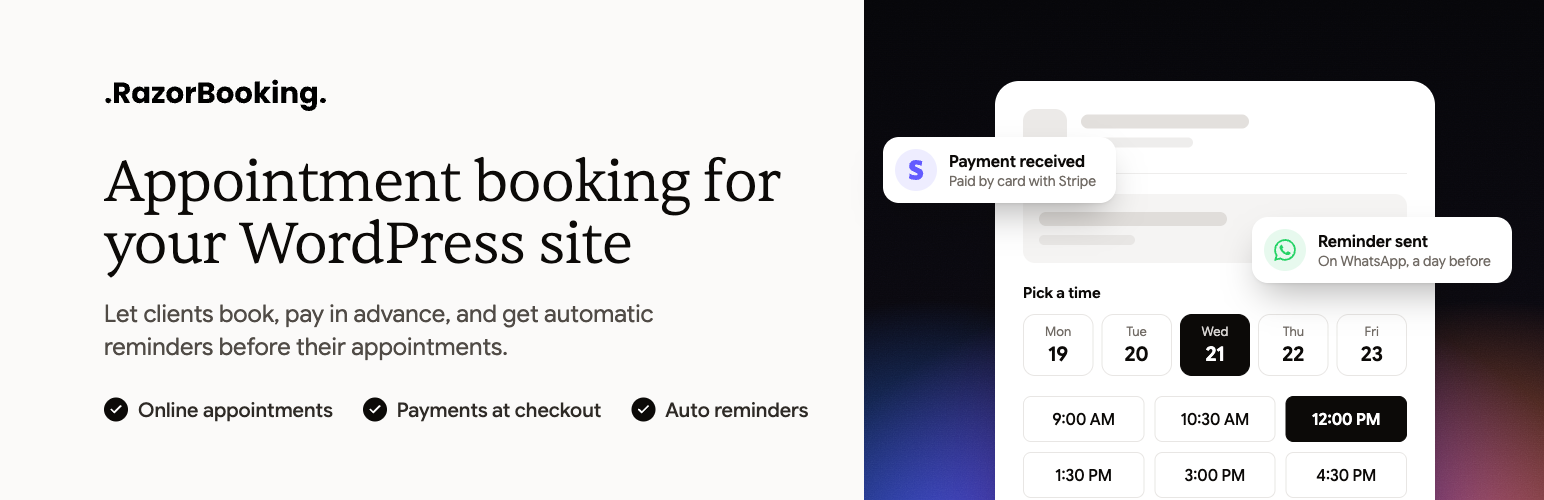

Description
RazorBooking is an appointment booking plugin for service businesses, with a built-in AI receptionist.
Customers book online on your WordPress site, around the clock. They pick a service, a team member and a free time, and can pay a deposit or in full. The AI receptionist answers your phone and your website visitors, day and night, and books appointments into the same calendar.
It’s made for salons, barbershops, spas, auto repair and tire shops, home services, yoga and fitness studios, clinics and consultants. You manage services, staff, availability, prices and payments in your RazorBooking account. The plugin puts them on your website and keeps them in sync.
Online appointment booking
- Booking form: all services, one category, or one service (with its variations and quantity), optionally for one team member. Show it on the page, in a popup, as a button linking to your booking site, or as a floating Book now button.
- Real-time availability for each team member, with Google Calendar sync.
- Online payments with Stripe, PayPal or Razorpay, including deposits and no-show fees.
- Email and WhatsApp confirmations and reminders.
- Coupons and discounts at checkout.
- My bookings: your customers’ bookings, on your own site.
- Thank-you page and Booking confirmation: send customers to your own page after they book, showing their booking reference.
- Reviews, Gallery and FAQ: synced from your booking site. Choose how many items to show and which title to use, or open them from a button.
- Floating Book now button: with rules for where it appears, including hiding it on pages that already have a booking form.
AI receptionist and voice assistant (optional)
- Answers your phone, day and night. Your AI receptionist answers every call and books appointments from your real availability. Add a Call us button that dials it.
- Talks to your website visitors. An Ask button, on the floating Book now button or wherever you place it, lets visitors ask questions and book by voice.
- Knows your business. It answers from your services, prices, team and hours, and from your own knowledge base: policies, directions, aftercare and anything else you add.
- See every conversation. The AI assistant screen shows this week’s conversations by outcome and length, and whether it’s answering on your website and phone.
The booking form works on its own. Turn the AI on when you want it.
Why RazorBooking
- One AI for your phone and your website. The same receptionist answers calls and website visitors, from the same knowledge base.
- The AI owns the calendar. It books straight into RazorBooking’s own booking system, with team availability, rooms and equipment, deposits and reminders. There’s no separate calendar app to connect and nothing for a developer to build.
- One calendar for every channel. Bookings from your website, your hosted booking site, phone calls and voice conversations land in the same calendar, so nothing is double-booked.
- Booking runs on RazorBooking, not on your server. Availability checks, payments and reminders don’t run on your hosting, and no booking tables are added to your WordPress database.
- No customer data in your WordPress database. Bookings, customer details and payments stay in RazorBooking, so there’s less to secure and back up in WordPress.
- Local SEO from your own domain. The plugin adds business info for search engines (structured data) to your pages: business, address, hours, services and prices, FAQs and team. Search engines credit it to your site. A pasted embed code can’t do that.
- Fast pages. Your pages read a saved copy of your business info, so they never wait on RazorBooking to load.
- A booking site as well. Every account includes a hosted booking site at yourbusiness.razorbooking.app or your own domain. Share it on Google, Instagram and in messages.
- Your brand. Set your colors, font and corner style with a live preview. Buttons, popups and booking forms on your pages match.
- No silent failures. If the connection breaks, visitors never see a fake booking form. The booking area stays empty and administrators see why, so you can fix it the same day.
Works with your site
The block editor, Elementor (a “RazorBooking” section of widgets), widget areas, and shortcodes for classic themes and page builders such as Divi, Beaver Builder and WPBakery.
Pricing
The plugin is free, with nothing locked or limited. RazorBooking, the service it connects to, is paid. Every account starts with a 7-day free trial, no card needed. There is no free plan. The AI receptionist and voice assistant use minutes from your RazorBooking account. See plans.
Shortcodes
[razorbooking], `[razorbooking_my_bookings]`, `[razorbooking_reviews]`, `[razorbooking_gallery]`, `[razorbooking_faq]`, `[razorbooking_confirmation]`, `[razorbooking_assistant]` and `[razorbooking_call]`. Click **Embed** on any item in the plugin to build its shortcode, or see every option under RazorBooking → Support → Shortcodes.
External services
This plugin is the WordPress side of RazorBooking, a hosted booking service, and doesn’t work without it. Nothing is sent to RazorBooking until you connect your account. After that, it contacts RazorBooking in the ways below.
RazorBooking API (from your server). Used to connect your site and to show and edit your RazorBooking business from the plugin’s admin screens. Sent: your site’s address and name when you connect; your site key and a random ID for this installation (created on activation) with every request; and whatever you create or change on these screens (services, categories, team members, the Design, your thank-you page’s address). Received: your business information (services, team, reviews, gallery, FAQs, settings, whether your AI assistant and phone number are answering, and your AI assistant’s last 7 days of conversations by outcome and length, without any name, number or what was said) and, on the Home screen, today’s numbers and upcoming bookings. Requests go to app.razorbooking.com only from your WordPress admin: to fetch the saved copy of your business information the first time after you connect, when you click Sync, and after you save a change on these screens; and to show Home’s bookings and numbers and the reviews waiting for approval, which are never saved. RazorBooking never contacts your site, and visitors’ page views never make a request to it. If you delete the plugin, it sends one request asking RazorBooking to revoke the site key it created when you connected.
Your booking site (from your visitors’ browsers). The booking form, popup, reviews, gallery and FAQ are pages of your RazorBooking booking site (for example yourbusiness.razorbooking.app, or your own domain) shown inside your pages, and the script that displays them (widget.js) loads from there too. By default, a visitor’s browser loads them when it opens a page that shows one, and is told to connect to your booking site early (a “preconnect” hint). In Settings → Privacy you can make booking wait until the visitor accepts cookies in your cookie banner, or until they click a booking button. The browser sends what it sends with any web request (IP address, browser type and language). What a visitor types into the booking form goes to RazorBooking. Fonts come from your booking site, not a font service. If your gallery has YouTube videos, their preview images come from YouTube (i.ytimg.com), and a video plays from youtube-nocookie.com when the visitor starts it. If you take payments online, your payment provider’s page or window opens at the payment step.
Your booking site may show a small “Powered by RazorBooking” line inside the booking form. It comes from RazorBooking, not from this plugin, and you can turn it off in RazorBooking.
Your AI assistant (from your visitors’ browsers). If you add the AI assistant, its “Ask” button loads nothing until a visitor taps it. Then a panel from your booking site opens (/embed/voice) and asks for the microphone. The visitor’s voice streams to RazorBooking’s voice service, which uses OpenAI to understand and answer it, for as long as the conversation lasts. Call us is a plain phone link: it contacts nothing until the visitor calls.
Your booking site (in the admin screens). The Design and Add to site screens show a preview of your booking site, loaded from it. “Try it now” on the AI assistant screen opens your assistant from your booking site, and uses your minutes.
Images. Service, team and gallery images you uploaded to RazorBooking are shown from RazorBooking’s file storage.
RazorBooking is provided by RazorBooking: terms of service, privacy policy. OpenAI: terms of use, privacy policy.
Installation
- In WordPress, go to Plugins → Add New, search for “RazorBooking”, then install and activate it.
- Click Start setup on the banner on the Plugins screen, or open RazorBooking in the WordPress menu.
- Sign in, or create a RazorBooking account (7-day free trial, no card needed). Choose which business this site is for and confirm.
- Add the Booking form block, Elementor widget or
[razorbooking]shortcode to any page. - Optional: open AI assistant in the RazorBooking menu to turn on the AI receptionist, then add the AI assistant or Call us block, widget or shortcode.
Your browser brings your site key back from RazorBooking to your WordPress admin in a form, never in an address bar. WordPress saves it once you’re signed in as the administrator who started connecting.
FAQ
Is this a free appointment booking plugin?
The plugin is free, and nothing in it is locked or limited. RazorBooking, the service it connects to, is paid: every account starts with a 7-day free trial, no card needed, and there is no free plan.
Do I need a RazorBooking account?
Yes. The plugin shows your RazorBooking account on your site and doesn’t store bookings itself. You can create an account from the plugin’s setup screen.
What is an AI receptionist?
It’s an assistant that answers phone calls and website questions for your business, like a front desk that never closes. RazorBooking’s can also book appointments in your calendar.
Can the AI book appointments by itself?
Yes. It checks real availability for your services and team, confirms the details with the customer, and books into the same calendar as your booking form.
Can the AI answer questions about my business?
Yes. It answers from your services, prices, team and hours, and from the knowledge base you add in RazorBooking, such as your policies, directions and aftercare.
How is it different from booking plugins that store bookings in WordPress?
Those plugins run the booking system inside your WordPress site: their tables, customer details and payment records live in your database, and the work runs on your hosting. RazorBooking runs the booking system on its own servers. Your site shows it and keeps a small saved copy of your business information, so there are no booking tables to grow, back up or secure, and pages don’t wait on it.
How is it different from AI voice agent platforms?
AI voice platforms give you an agent to configure and connect to a calendar you already have. RazorBooking’s AI receptionist comes with the booking system built in: your services, prices, team, availability, deposits and reminders are already there, so it’s ready once your services are set up.
Do I have to use the AI?
No. Online booking, payments and reminders work without it. Add the AI assistant or Call us button when you want them.
What happens if my trial or subscription ends?
You get 7 more days as usual. After that your account becomes read-only until you subscribe: your site keeps showing your services, team, reviews and other content, but changes made from WordPress are paused. Subscribe and everything works again, with nothing to reconnect.
Can customers pay online when they book?
Yes. Connect Stripe, PayPal or Razorpay in RazorBooking to take full payments or deposits. The payment step opens your payment provider’s page or window.
Does it work with Elementor, Divi and other page builders?
Yes. Every block is also an Elementor widget. For Divi, Beaver Builder, WPBakery and classic themes, use the shortcodes. Click Embed on any item to build one.
Can I put it in a sidebar or footer widget?
Yes. All five blocks (Booking form, Reviews, Gallery, FAQ and My bookings) are available in Appearance → Widgets. With the Classic Widgets plugin, add a Shortcode widget instead.
I changed something in RazorBooking. Why doesn’t my site show it?
The booking form, gallery, reviews and FAQ load from your booking site, so they’re always current. Everything else (the plugin’s screens, choices in the page editors, button colors, your booking site’s address and the business info for search engines) comes from a copy saved on your site. After a change in RazorBooking, open RazorBooking in your WordPress menu and click Sync. Changes made in the plugin are picked up automatically. If you change your booking site’s address, sync right away.
Where do customers go after they book?
To the booking confirmation, unless you choose a thank-you page under RazorBooking → Add to site → Thank-you page. Customers then go there wherever they booked, including after paying by card. Add the Booking confirmation block or [razorbooking_confirmation] to show their booking reference. You can change or hide its title, its label and its “View your booking” button, for example [razorbooking_confirmation title="Thanks!" link="no"].
How do I add a “Book now” link to my menu?
Add the page with your booking form to your menu the usual way (Appearance → Menus, or the Navigation block). To link to your booking site instead, add a custom link to its address, shown in the account menu at the top right of the RazorBooking screens.
Does it work with caching and speed plugins?
Yes. If your speed plugin, host or Cloudflare Rocket Loader delays, defers or combines JavaScript, exclude /embed/widget.js, razorbooking-public and razorbookingEmbed. When cached information changes, the plugin shows an admin notice telling you to clear your page cache. It never clears another plugin’s cache itself.
Does it work with my cookie banner?
Yes. Under RazorBooking → Settings → Privacy → “When booking loads”, choose “After visitors accept cookies” (your cookie plugin decides) or “When visitors click a booking button”. If your cookie plugin doesn’t detect RazorBooking, add it as a service using the details on the Privacy screen. The booking form sets two cookies it needs to work, customer_session and XSRF-TOKEN, both lasting 2 hours.
What data leaves my site, and what does it keep?
Your server sends RazorBooking your site’s address and name when you connect, and what you create or change on the plugin’s screens. It sends nothing about your visitors. Your site keeps a copy of your business information so pages don’t wait on RazorBooking. No customer or visitor data is stored in WordPress. Handle requests to see or erase a customer’s data in RazorBooking. See External services for details, and Settings → Privacy → Policy Guide for suggested privacy policy text.
Can I use it on a local or staging site?
Yes. Your browser brings the site key back, so RazorBooking doesn’t need to reach the site. If WordPress is in its own folder, use “Paste a key instead”. If you copy a connected site to staging, the plugin notices the address change and asks you to disconnect, so staging bookings don’t reach your live account.
Is it accessible?
The buttons, cards and popup follow WCAG 2.1 AA: full keyboard use, focus stays in an open popup, Escape closes it, and every control has a screen reader name. The booking form, gallery, reviews and FAQ are built to the same standard.
I already use Yoast or Rank Math. Will the SEO feature conflict?
No. The plugin detects them and keeps its business info for search engines off by default. If you turn ours on, turn off the business schema in the other plugin first.
How do I disconnect, and does deleting the plugin delete anything?
Disconnect from the account menu at the top right of any RazorBooking screen. Your blocks stay on your pages but are hidden until you reconnect. Deleting the plugin removes the site key, and revokes it if this site created it. Other saved data is deleted only if you turn on RazorBooking → Settings → Data on uninstall. Your bookings, customers and services in RazorBooking are never touched.
Can I edit the plugin’s admin screens?
Yes. The TypeScript source is included in src/. Install Node 22 and run npm ci and npm run build in the plugin folder to rebuild admin/js/.
Screenshots


Changelog
1.3.1
- New: AI assistant screen, with this week’s conversations and when it answers on your website and phone.
- New: “Book now | Ask” on the floating button, and the AI assistant inside the booking popup.
- New: AI assistant and Call us blocks, Elementor widgets and shortcodes.
- Changed: the Design screen saves even if the look was changed in RazorBooking since you opened it. The last save wins.
- Improved: the desktop preview on the Design and Add to site screens stays readable and scrolls sideways.
- Privacy: your AI assistant’s last 7 days (counts and outcomes, no names, numbers or what was said) are saved with your business information. The suggested privacy policy text says so.
- Improved: plugin description, FAQ and screenshots.
1.2.1
- Removed: the Custom CSS field on the Design screen. Custom CSS is still available in RazorBooking under Settings → Appearance.
1.2.0
- New: every block is also an Elementor widget.
- New: Gallery and FAQ blocks, and shortcodes for reviews, gallery, FAQ, My bookings and booking confirmation.
- New: one Booking form for everything, on the page, in a popup, as a link button or as a floating button.
- New: Design screen with live preview, thank-you page, and a privacy setting for when booking loads.
- Privacy: the plugin no longer stores customer data.
The full changelog is in changelog.txt.