

Description
Simple Media Library Folders allows you to create folders in the WordPress media library. This is a free version of the plugin, which is also packed with all necessary features and provides a seamless workflow.
Compare Free vs. Pro | 🚀 Get Simple Media Library Folders Pro
Features
✅ Unlimited number of folders
Whether you decide to use the Free or Pro version of the plugin, in any case, it doesn’t have any limits on how many folders you can create.
✅ Nested folders
You can create child folders up to five levels deep.
✅ Download any folder as a ZIP archive in one click
All you need to do is navigate to a folder, and then click the Download Folder button that is displayed next to the Add Media File button.
✅ Instantly search for a folder using the search feature
This feature is actually very useful because the search is working in real time, the search results with the folders will be updated as you type. If a folder with the matching name is a child folder, then the parent hierarchy will be opened, and it will be displayed in the search results as well. I am very proud of this feature 🙂
✅ Sorting folders in a custom order using drag and drop
This feature allows you to change the order of how your folders are displayed, more than that, you can even move child folders (change the depth level by drag and drop).
✅ No annoying notifications
The plugin will neither suggest to you to upgrade to PRO in unexpected places nor gather any usage data or force you to choose a reason when you try to deactivate it. I value user experience more than marketing tricks.
✅ The plugin does not affect your site performance in any way
First of all, the plugin size is only 700KB, compared to up to 5MB of other media folder plugins. Second, all the possible user interactions with the folders are designed the way, so no page refresh is required, which will give you the feeling like you are working with the folders in your Windows/macOS/etc.
✅ Secure SVG uploads
This is basically the feature that allows turning on SVG uploads in WordPress, which are not allowed by default. But what is crucial here is that simply allowing this file type can lead to security issues – my plugin uses an open-source PHP library that sanitizes every uploaded SVG (in other words, makes sure that there is nothing added into it that should not be there).
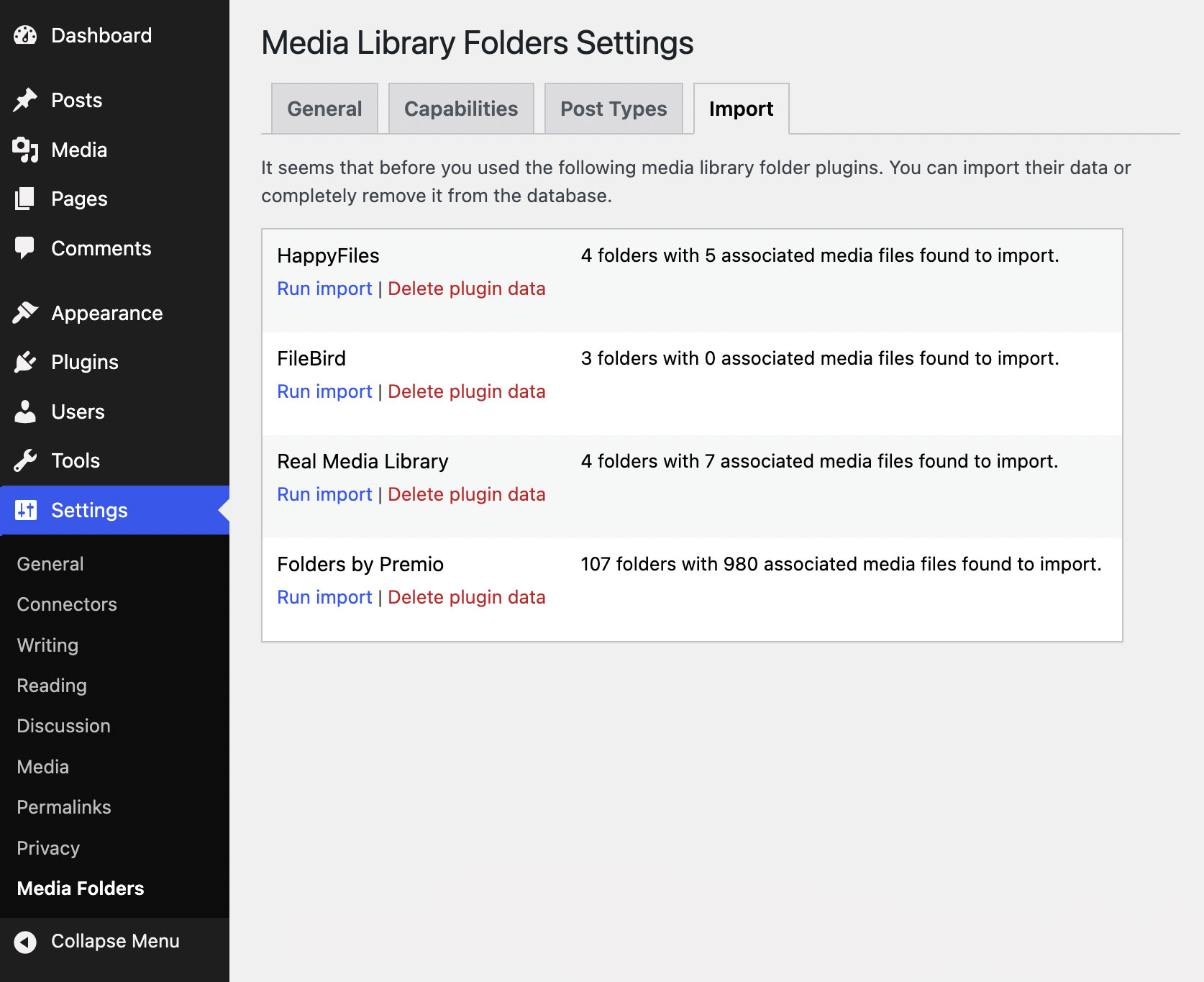
✅ One-click import from other plugins
Currently supported are: Filebird, HappyFiles, Real Media Library, Wicked Folders, WP Media Folder by Joomunited, and Folders by Premio.
Pro features
⚡️ Add folders for CPT (Custom Post Types)
I guess, in that case, we should call the plugin Simple Custom Post Types Folders or something 🙂
⚡️ Remove all media files together with a folder feature
Be careful! The feature is quite powerful, and it is deactivated by default.
⚡️ Custom default folder (previously selected folder is also supported)
If you do not want the All Files folder to be opened every time when you navigate to the Media Library or, for example, select images for your WooCommerce products, then this feature is going to be super-helpful for you.
⚡️ Configurable folder management capabilities for each user role
By default, the Free version of the plugin does not add any custom capabilities (rights) to users. So, if a user can view the Media Library, then probably this user can manage folders. If you are the only administrator on your website, then you do not need anything else. However, if users of different roles are using your WordPress admin, then using custom capabilities becomes crucial.
⚡️ Show folders in a list view
In the Free version of the plugin, the folders are only displayed in the Grid view.
⚡️ Show folder tree in media modals (instead of dropdown filter)
When inserting media files into post content or custom fields, setting a feature image or WooCommerce product images, etc.
⚡️ Individual folder permissions (by a username or by a user role)
When editing a folder, it is possible to set a role a user must have to access this folder. The access can also be granted only for specific usernames.
Did you know?
If you’re running a WordPress Multisite network, then you can use a media library of any site in this network as a global media library and have access to it from any other site. Can be implemented with the Multisite Shared Media Library plugin, and then you can add folders to your network library using Simple Media Library Folders (available in the Pro version only).
Need Help?
If you are faced with any type of issue while using the media folders plugin or if you have an improvement suggestion, please visit the support forum, and I will help you ASAP.
Installation
Automatic Install
- Log into your WordPress dashboard and go to Plugins > Add New
- Search for “Simple Media Library Folders”
- Click “Install Now” under the Simple Media Library Folders plugin
- Click “Activate Now”
Manual Install
- Download the plugin from the download button on this page
- Unzip the file, and upload the resulting
rudrastyh-simple-media-library-foldersfolder to your/wp-content/pluginsdirectory - Log into your WordPress dashboard and go to Plugins
- Click “Activate” under the Simple Media Library Folders plugin
FAQ
Is there a folder limit in the Lite version?
No, there is not. Feel free to create as many folder as you’d like.
Is it possible to migrate my existing folders, which I created using another plugin?
Yes. The one-click import is supported from the following media folder plugins: Filebird, HappyFiles, Real Media Library, Wicked Folders, WP Media Folder by Joomunited, and Folders by Premio.
How many nested levels are supported?
Both Lite and Pro versions of the plugin support nested folders up to 5 levels deep.
Will using folders change the URL of my images/posts/pages?
No, it will not happen. Permalink structure remains untouched.
What actually happens if I delete a folder?
By default, the plugin only removes the folder itself. The files remain untouched. However, the Pro version of the plugin allows you to delete all files along with the folder (the appropriate checkbox is available in the plugin settings).
If I delete a folder, will the pages (posts, custom post types) in the folder be deleted?
No, only the folder itself will be deleted.
Can I hide the folder pane at any time?
Yes, you can hide or show it anytime without a page refresh using “Screen Options” in the top right part of the screen.
Is this plugin compatible with WordPress Multisite?
Yes, but if you want to use it together with Multisite Shared Media Library, you will need the PRO version.
Can I organize WooCommerce products with folders?
Yes, the plugin allows you to do that, but this option is only available in the Pro version of the plugin.
Will the plugin settings and folders remain unchanged if I upgrade to the PRO version?
Yes, the plugin configuration and the folders you created using the Lite version of the plugin will remain unchanged.
How to activate the Pro version of the plugin?
You need to deactivate the Lite version of the plugin, then to install and activate the Pro version (as a separate plugin).
Is the plugin GDPR compliant?
Yes, the Simple Media Library Folders plugin is GDPR compliant. The plugin neither collects or sends data from your website anywhere.
Screenshots


Changelog
1.9.2
- Minor UI improvements for the upcoming WordPress 7.2 version
1.9.1
- Fixed: An issue when drag and drop folder sorting was not working for some user roles
1.9
- Added: It is now possible to hide Media > Folders taxonomy page in the plugin settings
- Added: SVG uploads with sanitization can be allowed in settings
1.8.1
- Fixed: An issue when drag and drop folder sorting was not working when the search is hidden in the plugin settings
- Folder search is now displayed by default (but can be set to hidden in the plugin settings at any time)
- Some code optimization and minor performance improvements
1.8
- Added: Sorting folders in a custom order using drag and drop
- Fixed: An issue with incorrect folder order in dropdown lists (when adding images to posts)
- Minor UI fixes
1.7.3
- Fixed: Color mismatch of the resize handle when using other than standard admin color schemes
- Fixed: Minor issue when emptying the search field
1.7.2
- Added: Style and usability improvements for the Edit Folder modal window
- Added: UX Builder (by Flatsome) compatibility
1.7.1
- Fixed: A console error when editing galleries in posts
1.7
- Simplified and more convenient interface for adding new folders
1.5.5
- Fixed: A database error PHP notice which was related to importing folders from other plugins
- Performance improvements
1.5.4
- Added: Sticky folder sidebar which can be helpful in cases when you have a lot of media in the WordPress media library
1.5.3
- Fixed: An unnecessary media library refresh when editing folders via the media modal
1.5.2
- Fixed: An issue with parent folders when creating new folders via the media modal
1.5.1
- Fixed: An issue where the parent folder selection was not updated after adding a new folder
- Fixed: An issue where a page refresh was sometimes required after adding a new folder
- Fixed: Minor CSS issues in WordPress 7.1+
1.5
- Added: A more convenient way to manage attachment folders when editing it via the modal
- Added: Editing a folder or adding a new one now works without a page refresh
- Changed default capabilities for folders
- Fixed: An issue with the media library not properly refreshing when moving a media file between folders
- CSS styles are optimized for WordPress 7.1+
1.4.4
- Fixed: An error in the browser console when adding new folders
1.4.3
- Bug fixes
1.4.2
- Some improvements in the plugin settings pages
1.4.1
- Minor UI changes
1.4
- Added: It is now possible to select multiple folders using checkboxes
1.3
- Added: A button, which allows you to download files from any folder as a ZIP archive
- Some CSS fixes for the upcoming WordPress 7.0 version
1.2
- Added: A tool that allows you to import media library folders from other plugins
1.1
- Added: It is now possible to hide or show folders sidebar via the Screen Options
- Fixed: An issue with SVG arrow icons not being properly displayed for nested folders
- Fixed: PHP Warning inside pre_get_posts action hook
- Fixed: A folder selection when editing media in the modal window is properly displayed as a dropdown list now
- Fixed: Capability issues: the plugin now uses two capabilities for folder management: upload_files and edit_files
1.0
- Initial release