

Description
SA Integration for Stripe Checkout and WooCommerce replaces the standard WooCommerce checkout form with Stripe Checkout for carts requiring payment. Customers can continue from supported cart and mini-cart buttons or visit the store’s checkout page directly, without filling in two checkout forms. They review products and apply WooCommerce coupon codes in the cart, then enter their payment details through Stripe.
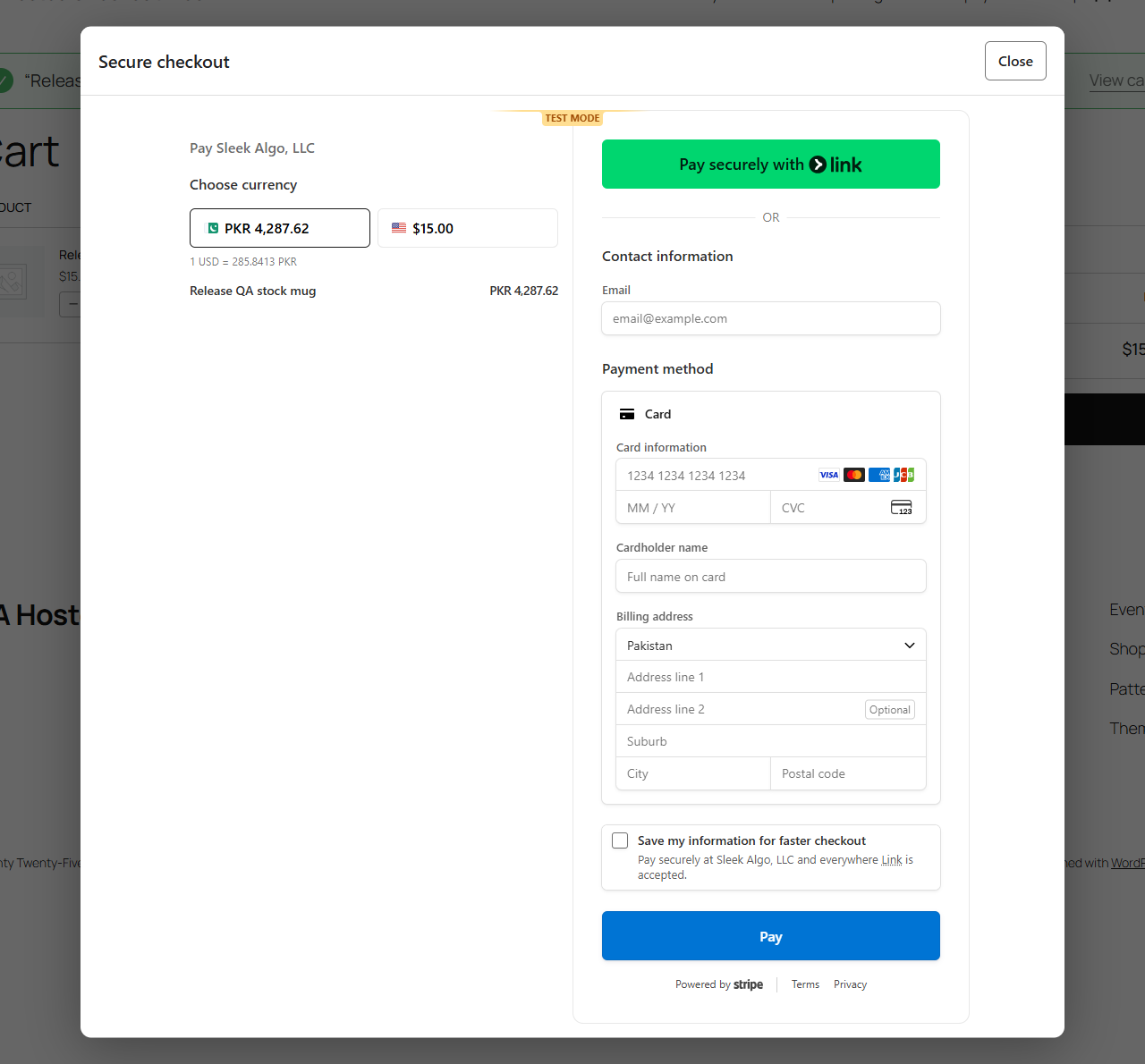
Choose a Stripe-hosted payment page, Embedded Checkout on a page in your store, or Embedded Checkout in a popup. All three checkout experiences are free, together with branding controls, WooCommerce cart discounts, payment-method selection, checkout language selection and optional quantity changes for eligible products.
For standard Checkout, the plugin creates a WooCommerce order from the cart and uses its saved totals for payment. The free edition also includes optional Stripe Managed Payments for eligible one-time digital products, with product-level opt-in and Stripe-calculated final tax. Payment confirmations are verified before an order is marked paid. See the FAQ for eligibility, setup and calculation limits.
Free features
- Hosted, embedded page and popup checkout: choose how customers use Stripe Checkout.
- Optional Managed Payments: use Stripe’s merchant-of-record service for supported, eligible one-time digital products across all three experiences. Disabled by default, with product/variation opt-in and whole-cart eligibility checks.
- Cart-to-Stripe checkout: bypass the standard checkout form from supported cart and mini-cart buttons and ordinary checkout-page visits, including WooCommerce Cart, Mini-Cart and Checkout blocks and the classic Checkout shortcode.
- Setup & health: find configuration issues, check your Stripe connection, review test/live webhook delivery indicators and copy a redacted support report.
- Stripe refunds from WooCommerce: request full or partial amount-only refunds for eligible plugin-paid orders and track their status from the order screen. No automatic restocking or item-level refund allocation.
- Cart and popup usability: clearer Mini-Cart error messages, keyboard navigation and right-to-left layout improvements for popup checkout.
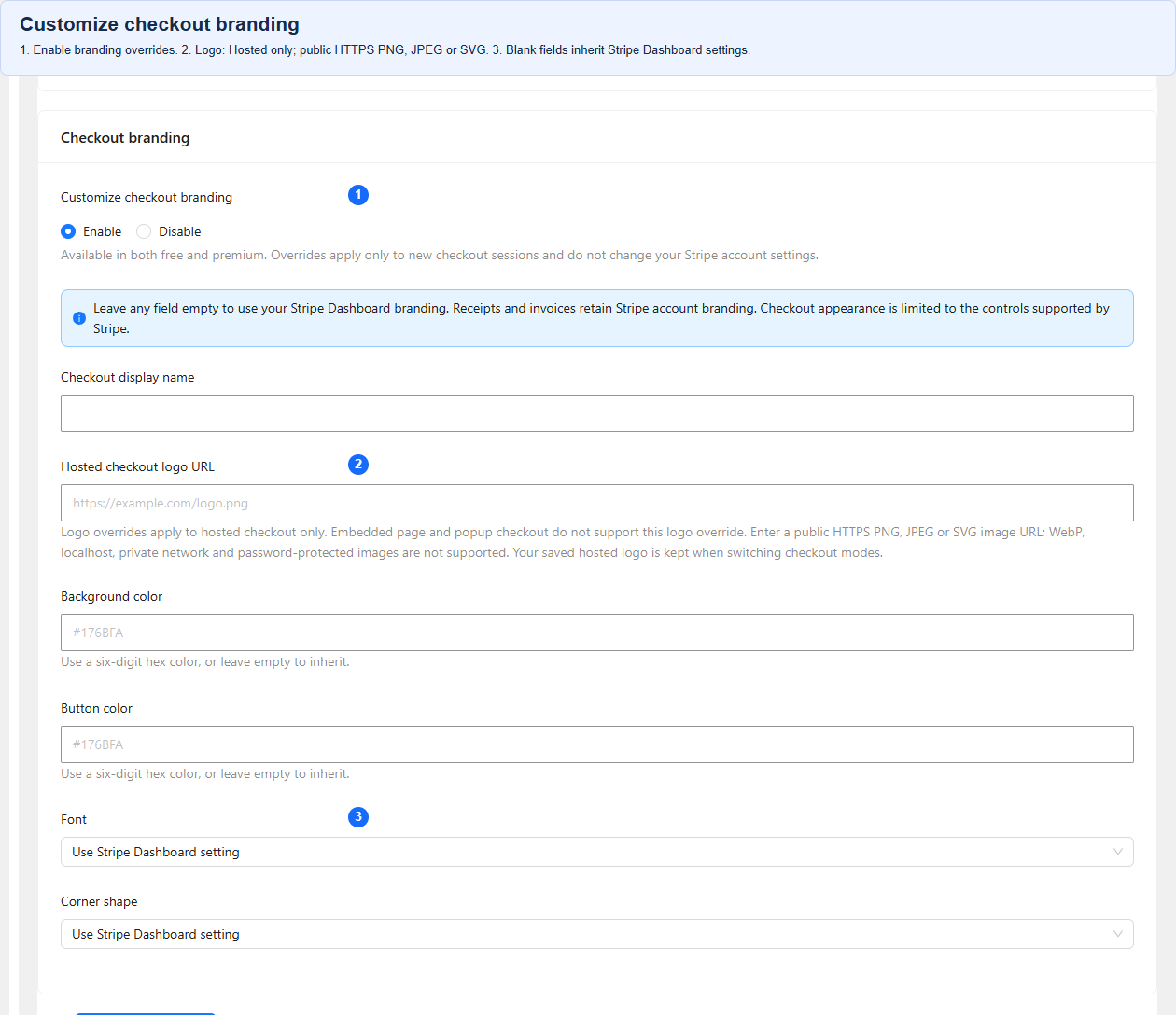
- Branding controls: set the display name, background and button colors, font and corner shape, or inherit Stripe Dashboard branding. Custom logo overrides are available for Hosted Checkout.
- Dedicated payment page: create one automatically or select a published page containing the [sahcfwc_checkout] shortcode.
- WooCommerce coupons and discounts: include eligible discounts already applied in the cart.
- Standard Checkout order totals: include WooCommerce shipping, fees and taxes, with separate lines for additional charges.
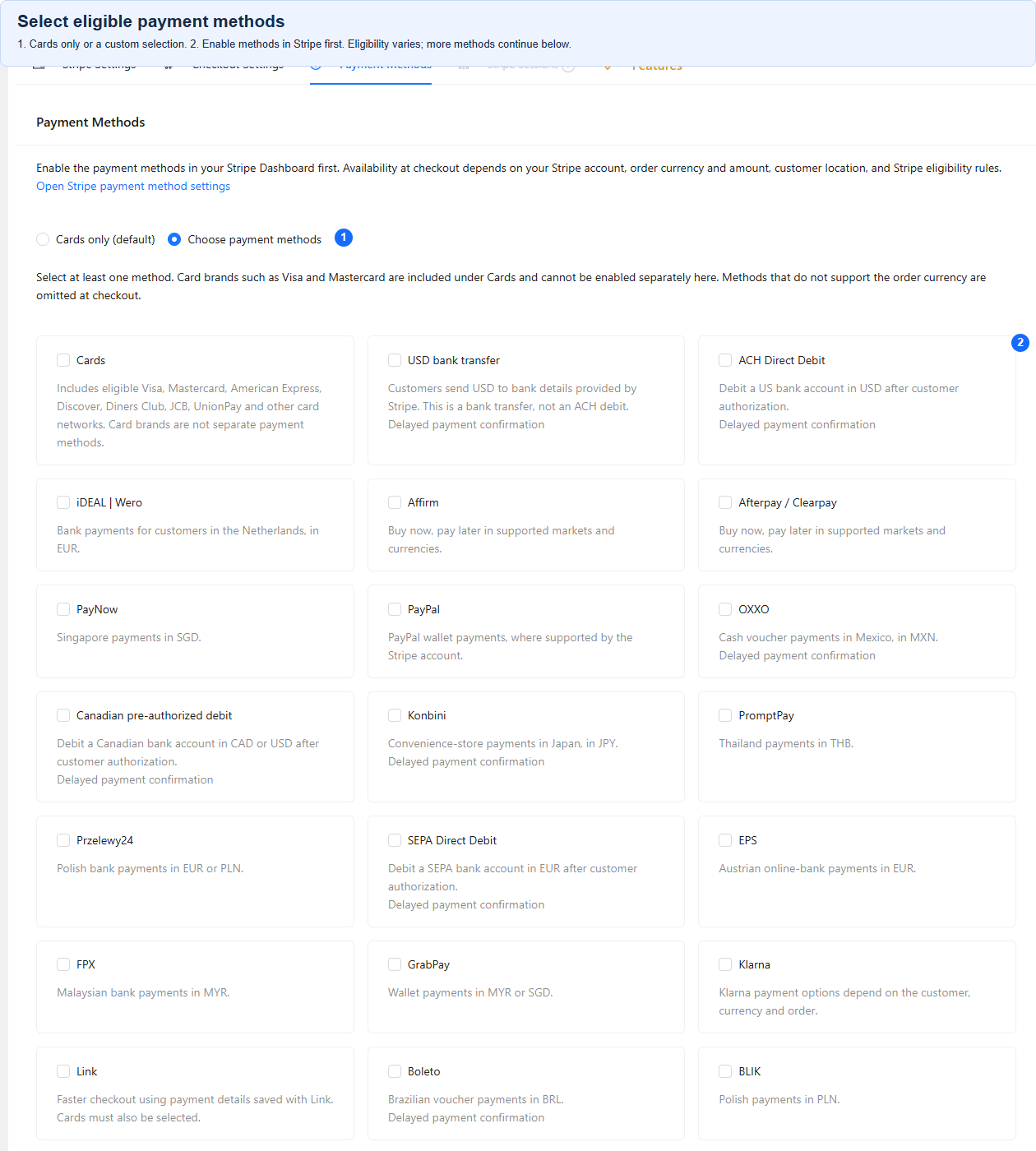
- Standard Checkout payment-method selection: choose Cards and eligible local payment methods supported by the plugin and your Stripe account.
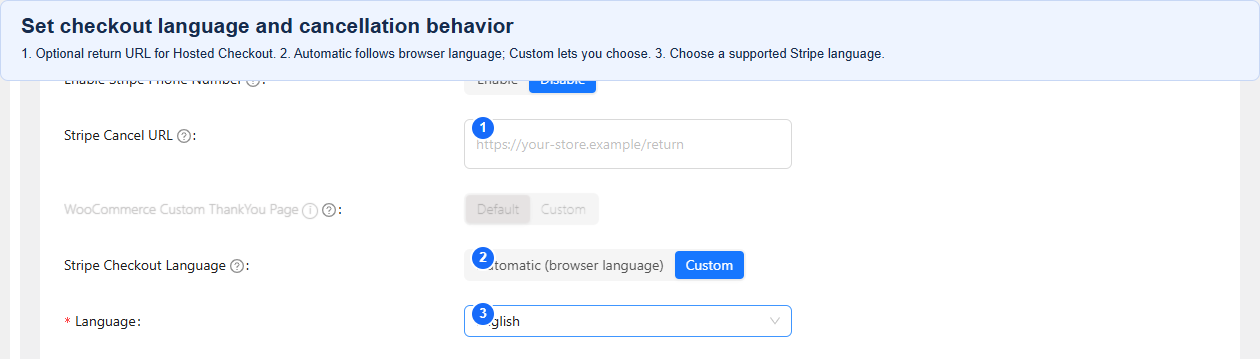
- Checkout language: use the customer’s browser language or choose a supported Stripe language.
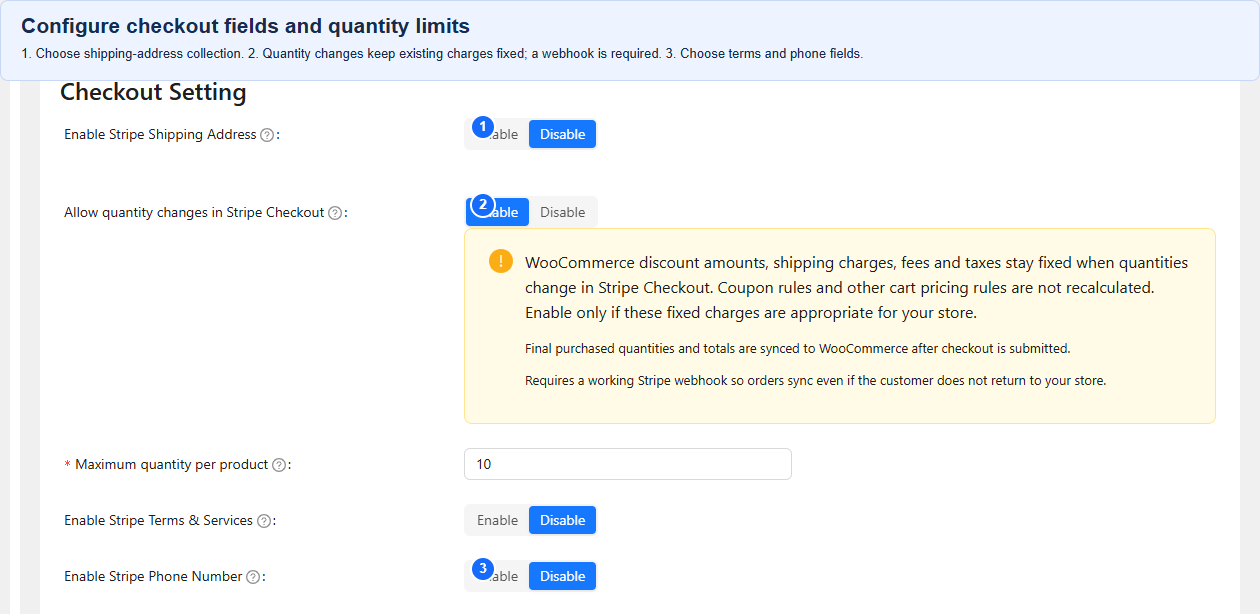
- Optional standard Checkout quantity changes: let customers adjust eligible product quantities within configured limits. Disabled by default; Managed Payments quantities remain fixed.
- Checkout fields: enable phone-number collection and the terms of service checkbox.
- Hosted cancellation URL: choose a return page or send customers back to the cart.
- Stripe connection: use a standard secret API key or a restricted API key with the required permissions, in test or live mode.
- WooCommerce High-Performance Order Storage (HPOS) compatibility.
For standard Checkout, payment-method availability depends on your Stripe account, enabled methods, business and customer countries, currency and order. WooCommerce calculates discounts, shipping, fees and taxes before checkout opens; they are not recalculated in Stripe when an address or quantity changes. See the FAQ before enabling quantity changes.
Managed Payments is a separate, opt-in payment model for eligible automated digital products and supported businesses. Stripe determines eligibility, available payment methods and final tax. This first scope does not support subscriptions, shipping, fee lines or quantity changes inside Stripe. Mixed or unsupported carts are blocked unless you explicitly choose standard Checkout for the entire cart. Product configuration is not Stripe approval, and tax-coverage exceptions apply.
Premium features
The separate premium edition adds:
- Custom text, number and dropdown fields.
- Custom terms of service text and text before or after the payment button.
- Custom text alongside shipping-address collection.
- A session-management screen for checkout sessions created by the plugin.
- Administrator-only test mode.
Compare editions on the plugin website. Hosted, embedded page and popup checkout, basic branding, cart coupons, payment-method selection, language selection and optional quantity changes do not require premium.
Setup tutorial
For current setup instructions and checkout options, see the installation guide.
Translations
The plugin includes translatable interface strings. Contribute translations through WordPress.org. The Stripe Checkout language is configured separately in the plugin’s Checkout Settings.
Support and contributions
For help, use the WordPress.org Support Forum. Before starting a new thread, check the documentation and existing support threads. Describe the issue and include your WordPress, WooCommerce and plugin versions. Do not post API keys or customer payment details.
Report reproducible bugs or contribute code through GitHub. Source files, build instructions and third-party license notices are included with the plugin.
External services
This plugin uses Stripe Checkout to process payments and requires a Stripe account. After you configure Stripe API credentials, the plugin contacts Stripe to verify the account connection and create, retrieve or expire checkout sessions and verify their payment status.
Requests include order and item references, verification metadata, product names and public image URLs when available, quantities, totals, discounts, fees, shipping, taxes, currency, store return URLs and the billing email when available. Enabled branding overrides also send the selected display name, colors, font and corner shape to Stripe; Hosted Checkout can also receive a public logo URL. Stripe retrieves the logo image; WordPress does not download it through this feature. USD bank transfers also require a Stripe customer record associated with the order.
Managed Payments requests also include the opted-in products’ digital tax categories and saved request verification references. Stripe returns final product/tax amounts and may return a separate customer presentment currency/amount. The plugin stores verified values for payment confirmation, order accounting and refund reconciliation. Local eligibility confirmations do not constitute an application for Stripe approval.
For refunds, the plugin retrieves the original Checkout Session, PaymentIntent, Charge and refund records. A confirmed request sends the original payment reference, refund amount, fixed reason requested_by_customer, order ID and a unique refund-operation identifier to Stripe. The optional refund note remains in WooCommerce and is not sent to Stripe. Webhooks and bounded follow-up checks retrieve refund status without creating another refund.
The storefront loads Stripe.js directly from js.stripe.com when checkout is enabled or an existing payment page is opened. This connects the customer’s browser to Stripe to provide its payment interface and payment security services. Customers enter payment details directly into Stripe’s hosted page or Stripe-controlled embedded interface, not a WordPress payment-card form. Stripe may also collect their name, billing address, shipping address and phone number according to the checkout settings. The plugin receives payment status, customer details and, when quantity adjustment is enabled, final line-item quantities and amounts from Stripe to update the WooCommerce order.
See the Stripe Privacy Policy and Stripe Services Agreement.
Source code and licenses
Readable admin JavaScript and SCSS source is included in node-dev/free-app and node-dev/shared. The storefront checkout controller and styles are in node-dev/frontend/checkout. The package includes node-dev/package.json, node-dev/webpack.config.js and build instructions in README.md. From node-dev, run npm install, then npx cross-env NODE_ENV=production CREATE_ZIP=no npm run build to generate assets/backend and assets/frontend/checkout. Stripe.js is loaded directly from Stripe, not bundled or self-hosted. Third-party license notices are included in THIRD-PARTY-NOTICES.txt and the bundled libraries’ license files. The plugin is licensed under GPLv2 or later; see LICENSE.
The order-level refund panel’s readable JavaScript and CSS are in assets/refunds. The Managed Payments product-editor controls are in assets/managed-payments. These files are canonical runtime sources and are not generated by the admin build.
Installation
Requires WordPress 6.3 or later, WooCommerce 8.6 or later, and PHP 7.4 or later with the curl, json and mbstring extensions.
- Install and activate WooCommerce. In Plugins > Add New Plugin, search for “SA Integration for Stripe Checkout and WooCommerce”, then install and activate it.
- Open the plugin’s Stripe Settings. Select test mode and enter your Stripe secret or restricted API key. Embedded Checkout also requires the publishable key from the same Stripe account and mode.
- Copy the webhook endpoint URL shown in Stripe Settings. In the matching Stripe test environment, add this HTTPS endpoint and subscribe to checkout.session.completed, checkout.session.async_payment_succeeded and checkout.session.async_payment_failed. For refund synchronization, also select refund.created, refund.updated and refund.failed. Save the endpoint’s signing secret in the plugin. See the webhook FAQ below.
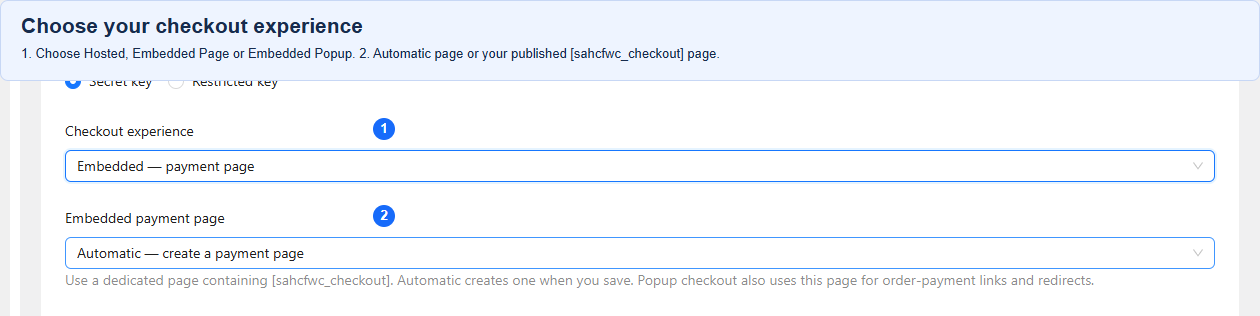
- Enable checkout and choose Hosted Checkout, Embedded payment page or Embedded popup. Hosted remains the default for existing installations.
- For either Embedded mode, use Automatic to create a dedicated payment page when settings are saved, or select a published page containing [sahcfwc_checkout]. Do not use the WooCommerce Cart, Checkout or My Account page. Keep this payment page and its query-string URLs out of page caches.
- Optionally enable Checkout branding. Leave individual fields empty to inherit Stripe Dashboard settings. Custom logos apply to Hosted Checkout only and require a publicly accessible HTTPS PNG, JPEG or SVG image URL.
- Configure Checkout Settings and Payment Methods, then save. Enable coupons in WooCommerce settings if you want customers to apply them in the cart. Review the fixed-charge limits before enabling quantity changes.
- Verify test payments, order updates and webhook delivery with your products, coupons, shipping, taxes and selected payment methods. Before accepting live payments, switch to matching live API keys and a live webhook endpoint’s signing secret. Use HTTPS in production.
- Open Setup & health to review saved configuration, run the explicit Stripe connection check and review matching webhook delivery evidence. These checks do not replace a successful test payment. Test refunds on eligible sandbox orders before using the Stripe refunds panel for live orders.
- Optional: activate Managed Payments in the matching Stripe environment, then enable it in Checkout Settings after reviewing the eligibility acknowledgement. In each eligible product’s Managed Payments panel, opt in, choose its digital tax category and confirm its eligibility. Configure virtual variations through complete parent inheritance or their own settings. Review the mixed-cart policy and test these products separately before live use. See the Managed Payments FAQs below.
See the installation guide for illustrated setup instructions.
FAQ
Does this plugin bypass the WooCommerce checkout form?
Yes. When the plugin is enabled and configured and the cart requires payment, supported cart and mini-cart buttons take customers to the selected Stripe Checkout experience. Direct visits to the ordinary checkout page also open Stripe Checkout instead of displaying the standard WooCommerce form. Both classic Checkout shortcode pages and WooCommerce Checkout block pages are supported by this replacement flow.
Customers do not need to fill in two checkout forms. The plugin replaces the standard form rather than adding a payment-method choice inside the WooCommerce Checkout block. JavaScript must be enabled. Empty carts, orders with no payment due, order-payment links, receipt pages and API requests are not taken over by the ordinary checkout-page replacement. The separate classic gateway remains available for supported existing-order payment flows.
Custom checkout buttons, themes and checkout extensions require compatibility testing. In popup mode, intercepted cart-button clicks do not emit WooCommerce’s cart_proceed_to_checkout event, so extensions that depend on this event need separate testing.
Is Embedded Checkout included in the free version?
Yes. In Stripe Settings, choose Hosted Checkout, Embedded payment page, or Embedded popup. Hosted redirects to Stripe and remains the default for existing installations. Embedded page and popup display Stripe’s payment interface within your website. Some payment methods still redirect customers to their bank or payment provider for authorization.
Embedded Checkout needs a publishable key from the same Stripe account and mode as the configured secret or restricted key. Use HTTPS in production. Apple Pay and Google Pay also depend on Stripe payment-method domain registration, an eligible account, browser and device.
How do I choose the Embedded payment page?
Use Automatic to create a dedicated payment page when you save Stripe Settings. Alternatively, publish a page containing the [sahcfwc_checkout] shortcode and select it. The page must not be password protected or assigned as the WooCommerce Cart, Checkout or My Account page. Customers reach it through a private order-payment link; adding the shortcode alone does not create a payable order.
Popup checkout uses the same payment page for existing-order payment links and returns from payment providers. Closing the popup does not cancel the order or create another payment session; customers can reopen it while the session remains payable. Exclude the payment page and its query-string URLs from page caching.
After an administrator changes the checkout mode, an existing popup session may continue on the dedicated payment page instead of being replaced.
If payment has already been verified for the shopper’s unchanged cart, reopening checkout returns the existing order receipt. If the paid cart cannot be matched safely, checkout stops with a review notice instead of starting another payment.
Are checkout branding controls free?
Yes. Enable Checkout branding in Stripe Settings to set the checkout display name, background and button colors, font and corner shape. Leave individual fields empty, or disable the override, to use Stripe Dashboard branding.
Custom logo overrides apply to Hosted Checkout only. Stripe’s Embedded Checkout does not accept per-session logo or icon overrides, so those images are not sent in Embedded page or popup mode. A Hosted logo must be a publicly accessible HTTPS image with a URL path ending in .png, .jpg, .jpeg, .jfif, .pjpeg, .pjp or .svg. Query strings are allowed. WebP, localhost, private-network and password-protected images cannot be used.
Branding changes apply to new checkout sessions and do not change your Stripe account settings, receipts or invoices. An already-open session retains its existing settings. Stripe controls the payment interface, so arbitrary WordPress CSS cannot style the inside of its protected payment frame.
How are discounts, fees, shipping and taxes calculated?
For standard Checkout, WooCommerce calculates the cart before Stripe Checkout opens. The plugin creates an order and uses that saved total, including eligible discounts, fees, shipping and taxes, for payment. Positive fees and taxes are shown as separate lines, with shipping shown as a separate charge.
Changing an address on Stripe Checkout does not recalculate WooCommerce shipping or taxes. Optional quantity changes affect eligible product amounts, but leave these charges and existing discount amounts fixed. Stores with address-dependent shipping, tax or discount rules should test their calculation and checkout paths before going live.
Managed Payments uses a different tax flow: saved product discounts are sent to Stripe, which calculates the final customer tax. Verified product net, tax and total amounts are recorded in the WooCommerce order. Inclusive prices retain their inclusive amount; Stripe determines the net/tax split. Inconsistent rounding or coupon totals stop checkout rather than silently changing a price. See the Managed Payments accounting FAQ below.
Is Stripe Managed Payments included in the free plugin?
Yes. The free edition supports an optional Managed Payments path for one-time purchases of eligible automated digital products through Hosted Checkout, Embedded payment page and Embedded popup. It is disabled by default. Activate the service in your Stripe account, then open Checkout Settings > Managed Payments and review the merchant acknowledgement before enabling it.
Each purchased simple product or variation must be virtual, opted in, assigned an accurate supported digital tax category and covered by the product eligibility confirmation. Variations can inherit the parent’s complete classification, use their own complete settings or be excluded. The product editor’s configuration status is not Stripe approval; saving a product does not submit an approval application or synchronize a permanent Stripe catalog.
Stripe decides account, product and transaction eligibility. This integration does not make every product, service, business or country eligible. Read Stripe’s eligibility requirements. Start in a sandbox and verify payment, return handling and signed webhook delivery before live use.
What happens with mixed carts and standard Checkout settings?
Managed Payments uses one payment model for the entire cart. Its supported scope excludes physical items, subscriptions, shipping and additional fee lines. Quantities are fixed once Stripe Checkout opens; customers can change them in the WooCommerce cart beforehand. Stripe controls Managed Payments payment-method availability, so the plugin’s ordinary payment-method selection and adjustable-quantity settings do not override it.
This initial Managed Payments flow also does not forward the plugin’s standard Checkout branding, language, optional phone-number or terms-checkbox settings. Stripe’s applicable defaults control those aspects of its interface. Configure and test Managed Payments separately from standard Checkout.
The default mixed/ineligible-cart policy blocks checkout and asks the customer to adjust the cart. Alternatively, you can explicitly choose standard Stripe Checkout for the entire cart and acknowledge the merchant and tax responsibilities. No item in that fallback transaction uses Managed Payments. The plugin does not split the payment or silently switch to standard Checkout after a Stripe rejection.
Eligible WooCommerce coupon discounts applied in the cart are allocated to the saved product amounts. Coupons with per-customer limits need a known customer identity before checkout; a guest without a usable saved billing email may need to sign in. Coupon eligibility, reservation and exact rounding checks still apply. There is no live WooCommerce coupon recalculation inside Managed Payments.
How are Managed Payments tax, documents and refunds recorded?
After verification, the order records Stripe’s final customer net, tax and gross in its original integration currency. If Stripe presents another currency to the customer, the verified presented amount is shown separately; it does not replace or add to the order total. The pre-discount WooCommerce subtotal is a comparison amount, not a Stripe tax invoice.
The Managed Payments accounting panel provides a per-order customer-amount ledger, not a settlement or tax-remittance report. Customer tax does not establish how much Stripe withheld or the merchant’s own liability. Tax-coverage exceptions apply; review Stripe’s tax guidance. Stripe/Link supplies transaction documents and applicable tax invoices. WooCommerce confirmations remain order/fulfilment records; review third-party invoicing integrations to avoid duplicate tax invoices.
Eligible verified payments use the same full/partial amount-only refund panel. Refunds do not restock products, revoke downloads or allocate reversals to item or tax lines, including after a full refund. Original item/tax accounting remains unchanged and needs reconciliation with Stripe/Link documents. Signed refund events and Refresh Stripe status can reconcile independently issued refunds. Pending, unknown or conflicting outcomes require review before another refund is requested.
Can I use WooCommerce coupons in the free version?
Yes. To use coupons, enable “Enable the use of coupon codes” under WooCommerce > Settings > General and save your changes. The plugin respects this setting; it does not enable or disable coupons automatically. Customers apply coupon codes in the WooCommerce cart before opening Stripe Checkout, and eligible discounts are included in the payment total. This does not add coupon-code entry to Stripe Checkout. Coupon eligibility and usage restrictions still apply.
Coupons limited to one use per customer require login. For higher per-customer limits, guests must have a valid billing email available before applying the coupon; otherwise, they must log in.
Why is checkout unavailable after installation?
Enter the appropriate Stripe API credentials and webhook signing secret in Stripe Settings, select the matching test or live mode, and enable checkout. Start in test mode and check any setup notice if checkout remains unavailable.
What does Setup & health check?
Setup & health provides a checklist for saved Stripe settings, the selected checkout experience, payment-page configuration, HTTPS and webhook setup. Refresh checks reads local settings and any cached connection result. Check Stripe connection makes one read-only Stripe account request; it does not create a payment or verify every restricted-key permission, payment method or wallet.
The webhook indicator records recent verified Checkout delivery for the matching configuration and test/live mode. A received event is not proof that an order was paid, and sandbox delivery does not verify live delivery. Complete a sandbox checkout and confirm its order status as part of setup. Copy support report includes version information and diagnostic states, excluding API keys, signing secrets, site addresses and customer/order details. Review the report before sharing it with support.
How do I issue a Stripe refund from WooCommerce?
Open an eligible paid order and find the Stripe refunds panel. Select Refresh Stripe status to verify the original payment and existing refunds. Enter a partial amount or choose Use remaining amount, then review the amount, currency and original payment mode before confirming. Opening the panel and refreshing status do not request a refund. WooCommerce records the refund only after Stripe confirms success.
Refunds are amount-only: they do not restock products, allocate amounts to product, fee, shipping or tax lines, or revoke downloads. Keep the original payment’s test/live API credentials available, including permissions to read the original payment and create/read refunds. The panel requires a matching saved Checkout Session, payment reference and order snapshot; older orders without these records cannot be refunded automatically.
If a refund is pending, unknown or requires review, refresh its status and inspect the original payment in Stripe. Do not create another refund or add a manual WooCommerce refund for the same Stripe refund. An uncertain request is not automatically resubmitted; an available retry uses the saved request identity. Resolve review warnings before requesting more money back. Stripe-initiated refunds can be synchronized for eligible plugin orders through the configured refund events or Refresh Stripe status.
Can I select payment methods in the free version?
Yes, for standard Checkout. In Payment Methods, keep the default card-only mode or select a custom set of methods from the supported catalog. Examples include Cards, Link, iDEAL | Wero, Klarna, SEPA Direct Debit, ACH Direct Debit and USD bank transfer. Card brands such as Visa and Mastercard are included under Cards, not separate payment-method choices. USD bank transfer and ACH Direct Debit are different methods. Managed Payments uses Stripe’s own available payment methods instead of this selection.
Enable the relevant methods in your Stripe account. Stripe determines availability using the account, business and customer countries, currency, order amount and other eligibility rules; selecting a method does not guarantee it will be displayed. See Stripe’s payment-method support. Link requires Cards to be selected. Canadian pre-authorized debit also requires a Personal or Business mandate type in the plugin settings. Delayed-payment methods require a configured, working Stripe webhook.
Can I choose the checkout language in the free version?
Yes. In Checkout Settings, use automatic browser-language detection or select one of the Stripe languages listed by the plugin. This changes Stripe Checkout, not the language of your WordPress site or product names.
Can customers change quantities in Stripe Checkout?
Yes, for standard Checkout when you enable the free “Allow quantity changes in Stripe Checkout” option. It is disabled by default and requires a working Stripe webhook. Eligible simple products and variations can be adjusted within the allowed limits. Sold-individually products and product lines that need split prices are not adjustable. Carts containing fractional quantities keep fixed quantities. Customers cannot remove a product by reducing its quantity to zero, and discounts can impose a higher minimum. Managed Payments always keeps quantities fixed once checkout opens.
WooCommerce discount amounts, shipping charges, fees and taxes stay fixed when quantities change in Stripe Checkout. Coupon rules and other cart pricing rules are not recalculated. Enable only if these fixed charges are appropriate for your store. For example, an existing percentage coupon’s calculated discount amount does not grow when the customer adds more units in Stripe.
The maximum defaults to 10 per eligible product and can be set from 1 to 999999. A higher quantity already in the cart is preserved, and available stock may lower the allowed maximum. For stock-managed products, the allowed maximum is reserved while checkout is open, not just the starting cart quantity. Choose a cap appropriate for your inventory.
Verified final quantities and totals are synced to WooCommerce after checkout is submitted. A submitted checkout is not proof of payment: delayed payments remain on hold until Stripe confirms payment. If the plugin cannot verify the final quantities or stock reservation, the order requires review before fulfillment.
Which webhook events should I configure?
Copy the webhook endpoint URL shown in Stripe Settings and configure it in the matching Stripe test or live environment. In Stripe Workbench > Webhooks, create an event destination for Your account, use the Snapshot payload format, and choose Webhook endpoint as the destination type. The route is /wp-json/sahcfwc/v1/webhooks/stripe-listener on your site’s URL; copy the plugin’s displayed Webhook URL rather than the WordPress admin address or a guessed URL, particularly if WordPress is installed in a subdirectory.
Subscribe to checkout.session.completed, checkout.session.async_payment_succeeded and checkout.session.async_payment_failed, then save that endpoint’s signing secret in the plugin. A webhook signing secret is separate from an API key. Test and live endpoints have separate signing secrets. The plugin also accepts payment_intent.succeeded and charge.succeeded as payment-confirmation events. You do not need to select every Stripe event.
For refund synchronization, also subscribe to refund.created, refund.updated and refund.failed. A verified refund event triggers a check of Stripe’s refund records; it does not count as Checkout-delivery health evidence. Verify refund-event delivery separately in the matching environment before relying on automatic updates.
Use a publicly reachable HTTPS endpoint and verify successful delivery in Stripe. Signed webhooks allow order updates when the customer does not return to your store. They are required for Managed Payments, delayed-payment methods and quantity adjustment; keep them working for ordinary card payments as well.
Which checkout customizations require premium?
Basic checkout branding is free, including the display name, colors, font and corner shape, plus a custom logo for Hosted Checkout. The premium version provides additional custom text and text, number and dropdown fields.
Can I view incomplete checkout sessions?
The premium edition includes a session-management screen for sessions created by this plugin, with customer, order and payment-status details. In either edition, you can also review payment activity in your Stripe Dashboard.
Screenshots



Changelog
1.3.2
- Updated the plugin display name to SA Integration for Stripe Checkout and WooCommerce.
- Existing settings, checkout behaviour and plugin identifiers are unchanged.
1.3.1
- Improved settings-page feedback when the Stripe connection-status request fails, without logging raw error details.
- Prevented outdated connection-status responses from overwriting newer results after switching settings tabs.
- Clarified the checkout settings save button as “Save Checkout Settings”.
1.3.0
- Added optional Stripe Managed Payments for eligible one-time digital products in the free edition, across Hosted, Embedded page and Embedded popup checkout.
- Added default-off settings, per-product tax categories and eligibility confirmations, variation inheritance/override controls and explicit whole-cart block or standard-fallback policies.
- Added fixed-quantity Managed Payments requests with saved coupon allocation, exact rounding checks and recovery safeguards for existing or uncertain payment attempts.
- Added verified final Stripe tax recording, separate presentment-currency information and customer/admin accounting and document disclosures.
- Extended amount-only refund verification and synchronization to eligible Managed Payments orders without automatic stock or item/tax allocation changes.
- Preserved standard Checkout features and settings; updated setup guidance and documented Managed Payments eligibility, webhook, refund and tax-coverage limits.
1.2.0
- Added Setup & health with saved-configuration checks, an explicit read-only Stripe connection check and a redacted support report.
- Added timestamped, configuration-bound Checkout webhook delivery evidence and test/live-aware setup guidance.
- Added a Stripe refunds panel for full and partial amount-only refunds on eligible WooCommerce orders, without automatic restocking or product, fee, shipping or tax-line allocation.
- Added original-payment verification, durable refund request tracking, duplicate protection, signed refund-event synchronization and bounded read-only reconciliation.
- Added manual-review safeguards for uncertain refund outcomes, conflicting manual refunds, changed orders and interrupted refund finalization.
- Improved Mini-Cart error visibility, popup keyboard navigation and RTL behavior, with guarded handling of supported WooCommerce Interactivity Mini-Cart quantity updates and removals before checkout.
1.1.1
- Replaced the standard WooCommerce checkout form on ordinary checkout-page visits with the selected Stripe Checkout experience for carts requiring payment, including classic shortcode and Checkout block pages.
- Added automatic checkout launch with clear retry and return-to-cart controls, while preserving empty-cart, zero-total, existing-order payment and receipt flows.
- Prevented hidden or prerendered pages from starting a checkout session and required POST requests for checkout creation.
- Updated the plugin description, free and premium feature lists, installation instructions and FAQs, including webhook setup and checkout calculation limits.
1.1.0
- Added free Embedded Checkout on a dedicated store page or in a popup, while preserving Hosted Checkout as the default for existing installations.
- Added free checkout branding controls for the display name, background and button colors, font and corner shape, plus a Hosted Checkout logo override, with Stripe Dashboard inheritance for empty fields.
- Added automatic payment-page creation and support for a custom published page containing [sahcfwc_checkout].
- Added mode-matched publishable-key validation and private, non-cached access to embedded payment sessions.
- Reused saved WooCommerce order totals and verified payment handling across all three checkout experiences, including existing-order payment links and payment-provider returns.
- Added popup close/reopen handling and retry safeguards without creating parallel payment sessions for an order.
- Fixed WooCommerce Cart block checkout buttons remaining in a loading state after closing Embedded Checkout.
- Kept Stripe quantity and payment-authentication dialogs accessible above the checkout popup.
- Added receipt recovery when an unchanged cart’s payment has already been verified, without rechecking consumed stock or coupon uses. An unverifiable paid cart is blocked from starting another payment.
- Fixed unnecessary payment-processing conflicts between stores using separate databases on the same database server.
- Updated the bundled Stripe PHP SDK to 18.0.0 with Stripe API version 2025-09-30.clover.
- Updated setup instructions, free-feature descriptions, Stripe.js service disclosure and readable storefront source/build information.
1.0.7
- Made Stripe payment-method selection and checkout language selection available in the free version, while preserving the default card-only and automatic-language behavior.
- Added validation for method currency eligibility, Link’s Cards requirement and Canadian debit mandate settings, with webhook requirements for delayed payments.
- Added optional quantity changes for eligible products, configurable maximum quantities and stock reservations while checkout is open.
- Added verification and WooCommerce order synchronization for final Stripe quantities and totals, including delayed-payment handling. Existing discounts, fees, shipping and taxes remain fixed when quantities change.
- Reloaded persisted order state under the payment lock to prevent overlapping callbacks from repeating completion emails or reopening refunded orders.
- Restored coupon usage after failed delayed payments on older supported WooCommerce versions, without double-counting retries.
- Declared compatibility with WooCommerce High-Performance Order Storage after testing both order-storage modes.
- Improved settings save validation and error recovery; an empty optional cancellation URL no longer prevents saving Checkout Settings.
- Updated free and premium feature descriptions and documented payment-method, webhook and quantity-adjustment limits.
1.0.6
- Added WooCommerce cart coupon support to the free version while preserving the store’s coupon setting and eligibility rules.
- Fixed payment totals to include saved WooCommerce order discounts, fees, shipping and taxes, with separate lines for additional charges.
- Improved checkout validation, rounding and retry handling to prevent mismatched totals and duplicate checkout sessions.
- Improved payment confirmation and webhook validation, including protection against repeated order completion.
- Improved cancellation and expired-session handling while preserving the customer’s cart.
- Replaced unclear setup and payment notices with professional messages, including guidance for missing Stripe keys.
- Corrected the settings screen version display and updated compatibility requirements to WordPress 6.3, WooCommerce 8.6 and PHP 7.4 or later.
1.0.5
- Updated WordPress and PHP compatibility metadata and the release version.
1.0.4
- Fixed slow redirection to Stripe Checkout.
1.0.3
- Fixed a PHP fatal error in the webhook listener.
1.0.2
- Fixed switching integration modes in Stripe settings.
- Added Stripe Restricted API Key authentication support.
1.0.1
- Fixed support for virtual products.
- Preserved the cart when customers return from Stripe Checkout.
- Updated Delete Temporary Order to remove only the temporary order, without emptying the cart.
1.0.0
- Initial release.