

Description
SaddleWP connects your AI agent to your WordPress site.
SaddleWP is a free MCP server for WordPress. It runs on your own site. Connect Claude, ChatGPT, Cursor or any other MCP agent, then ask in plain words: build a page, fix an SEO title, show this week’s visitors, run the updates. Your agent does the work with real WordPress tools. You decide what it may change.
SaddleWP website · Docs · Live demo · Plans · PlugPress
What is SaddleWP?
SaddleWP is a free core plugin with add-ons. Each part does one job.
- SaddleWP (this plugin): the WordPress MCP server. It gives AI agents safe tools for your content, pages, plugins and settings. saddle.to/ai
- SaddleWP Rank: SEO for WordPress, and AI search visibility. Free. saddle.to/seo
- SaddleWP Analytics: analytics for WordPress, cookieless, kept in your own database. Free. saddle.to/analytics
- SaddleWP Pro: a paid add-on for Divi 5 sites. saddle.to/pricing
- Your SaddleWP account: optional, free for one site. One connection for all your sites.
SaddleWP Rank and SaddleWP Analytics need this plugin. SaddleWP can install each one for you with one click.
MCP for WordPress
MCP, the Model Context Protocol, is how an AI agent uses tools. SaddleWP is the MCP server for WordPress: it turns your site’s posts, pages, media, menus, plugins and settings into tools an agent can call.
- Any MCP agent: Claude, Claude Code, ChatGPT, Cursor, VS Code, Codex, Gemini CLI, Windsurf and others.
- Two ways to connect: through your SaddleWP account, with one address for all your sites. Or straight to your site, and your content never goes through our servers.
- Sign-in for agents: Connect this site turns it on. An administrator approves each agent on your site. It needs HTTPS and pretty permalinks. Without them, an agent uses a key that works only with SaddleWP.
Connect Claude to WordPress
Add your site’s address to Claude or Claude Code and approve it in your browser. Then ask Claude to draft a post or build a page in your theme’s styles.
Connect ChatGPT to WordPress
Add your site as a connector in ChatGPT and approve it on your site. ChatGPT reads your content first. It writes after you give it Edit content.
Connect Cursor, Codex, Gemini CLI and other MCP agents
Add the same address to Cursor, VS Code, Codex or Gemini CLI. There is a guide for each agent at saddle.to/docs.
Build: pages, content and updates
- Pages that look like your site: real block editor and Divi 5 pages in your theme’s colors, fonts and patterns.
- Content written your way: drafts of new posts, updates to old ones, images from a link or from Unsplash, and menus kept in order. Teach it your voice and rules once with Skills, and it remembers.
- A site that keeps running: plugin, theme and WordPress updates through WordPress’s own updater, with its backup and rollback, and Site Health in plain words.
Rank: SEO for WordPress
- SEO fixes: your AI agent rewrites SEO titles and descriptions with SaddleWP Rank, Yoast SEO, Rank Math or All in One SEO.
- Site repairs: with SaddleWP Rank it also fixes broken links, redirects missing pages and writes FAQ schema.
- Where you rank: with your SaddleWP account, Google Search Console and keyword tracking.
Rank: AI visibility for WordPress
- Readable by AI: SaddleWP Rank keeps an llms.txt, writes page summaries, and scores each page on how easy it is to quote in an AI answer.
- Your choice: two switches decide whether AI answer engines may show your site, and whether AI companies may train on it.
- Who reads you: SaddleWP Analytics lists the AI crawlers that visit, and counts the people AI chat apps send you.
- Whether you are cited: with your SaddleWP account, a weekly Google check shows whether Google’s AI Overview cites you.
Grow: analytics for WordPress
- Know who visits: with SaddleWP Analytics, ask “how many people did ChatGPT send us this week?” and get the numbers your dashboard shows.
- Private by design: it counts visits without cookies, and the data stays in your own database.
- Find what to write next: with your account, keyword research, competitors checked every week and article plans your AI agent writes as drafts.
- Every site from one chat: with your account, one AI connection for all your sites, with uptime alerts.
Safe on a live site
- A new agent can only read. You choose Read only, Edit content or Manage the site for each one.
- Deletes, overwrites, installs and other big changes show a preview first, and any tool can be set to ask first. You can let a Manage the site agent skip this. It is off until you turn it on, and deleted posts and pages still go to the Trash.
- Every change is logged, and most can be undone.
Content
- Posts and pages: Create, edit and delete posts and pages.
- Custom content types: Work with the post types your plugins and theme add, such as products, events or docs.
- Media: Upload images from a URL and edit their details.
- Categories, tags and search: Create categories and tags, and find any post, page or media item.
- Menus: Create a menu, add, rename, move and remove its items, and choose which menu shows in each theme location.
- Users: List users and read their profiles.
Block editor pages
- Block pages: Build pages with real blocks that stay editable in the block editor, and add, edit, move or remove single blocks.
- Theme styles: Use your theme’s colors, fonts, spacing and patterns, and add a palette, type scale and spacing to a block theme.
- Templates and patterns: Read templates, template parts and global styles. On a block theme, change a template, the header or the footer, add a template part, or save a section as a pattern. Changes are saved in the database. Theme files are never edited.
Divi 5 pages
These tools work on sites running Divi 5.
- Divi pages: Build and edit pages with real Divi modules. Add, edit, move and remove modules, and change page settings.
- Module settings: Read every setting of a module, including modules from add-on packs, and set it with a checked value.
- Layout and styles: Set column layouts on rows, place rows inside columns and groups, and style a module for tablet, phone and hover.
- Loops and dynamic content: Repeat a module for each post in a query, and show live post data in module fields.
- Interactions: Make a click or a hover on one module show, hide or change another.
- Display conditions and presets: Show or hide a module by rule, and apply a saved preset.
- Divi design data: Read global colors, fonts, variables and presets, and list Library items and Theme Builder templates.
SaddleWP edits Divi 5 pages only. It leaves Divi 4 shortcode pages untouched.
Check the result
- Page check: Find layout, contrast and accessibility problems on a block or Divi 5 page, with a score and a fix for each problem.
- Node view: See the real styles and HTML of any part of a page.
- Rendered page: Read the real HTML and CSS of a Divi 5 page, so an agent can check its work without a browser.
- Preview: Get a short-lived preview link to see the page before it goes live.
Integrations
The SEO and WooCommerce tools work when that plugin is active.
- Yoast SEO, Rank Math and All in One SEO: Read and edit the SEO title, meta description and robots of posts and pages, plus terms, schema type or social fields where the plugin has them.
- WooCommerce: List and read products and variations. Listing orders needs Edit content, because orders show customer names and emails.
- Unsplash: Find and import free stock photos with your own Unsplash API key.
- Other plugins: Any plugin can add its own tools. Tools from other developers stay off until you switch them on in SaddleWP → Settings → Advanced.
Skills and memory
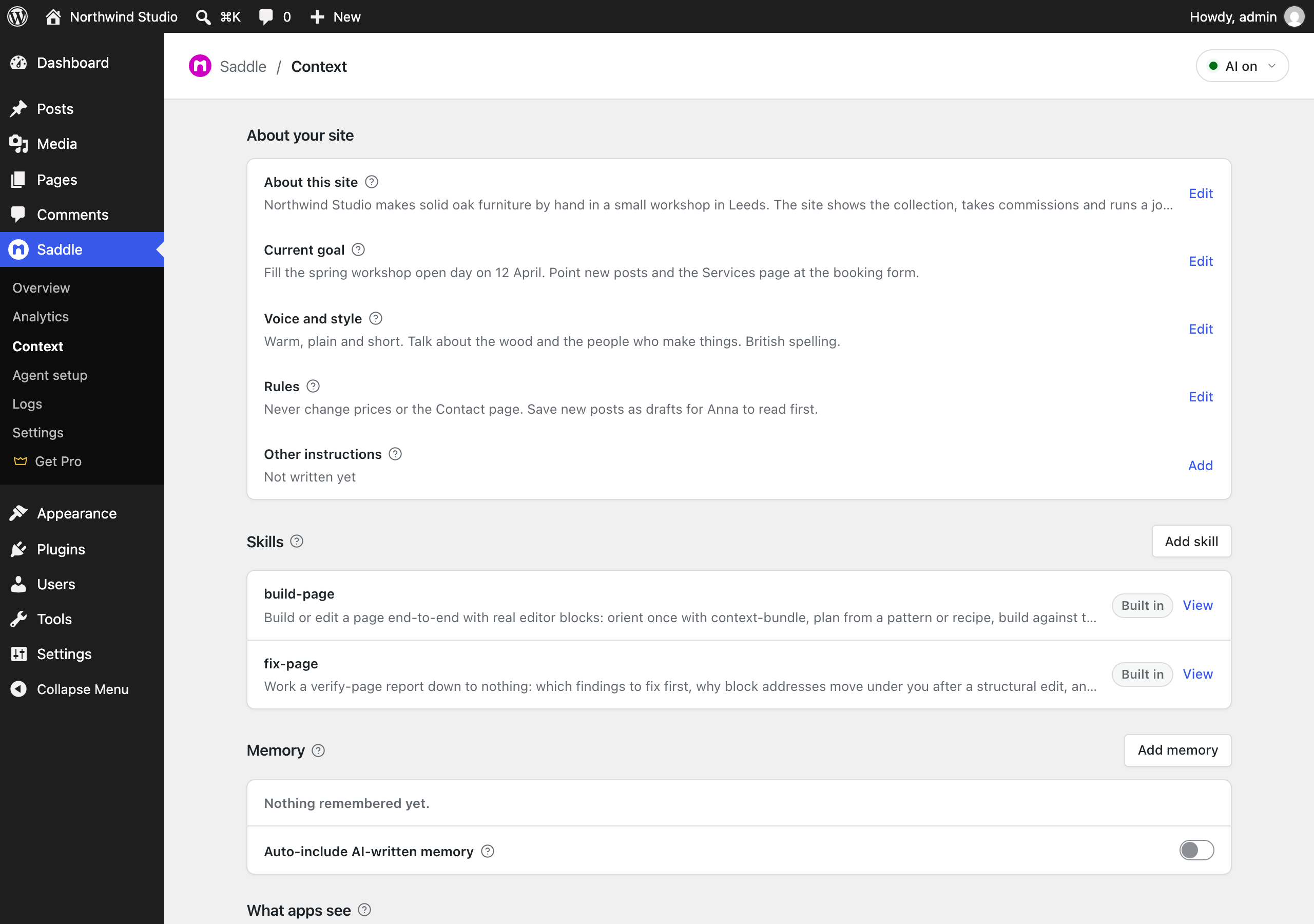
- Skills: Add short Markdown guides that tell your AI how you work. Guides to build a page and fix a page are included.
- Memory: Let your AI save notes for later sessions, and see what changed on the site.
Site management
These tools stay off until you give an agent Manage the site.
- Settings: Change the site title, permalinks and reading options.
- Plugins and themes: Activate, deactivate and switch them after a preview. Install by name from WordPress.org only. A new install arrives inactive. SaddleWP never installs from a zip or a link, and never deletes a plugin or theme.
- Updates: Apply plugin, theme, WordPress and translation updates through WordPress’s own updater, which keeps a backup. Major WordPress releases need SaddleWP’s own switch in Settings, which is off by default.
- Site Health and cache: Read Site Health results and clear the cache.
Safety
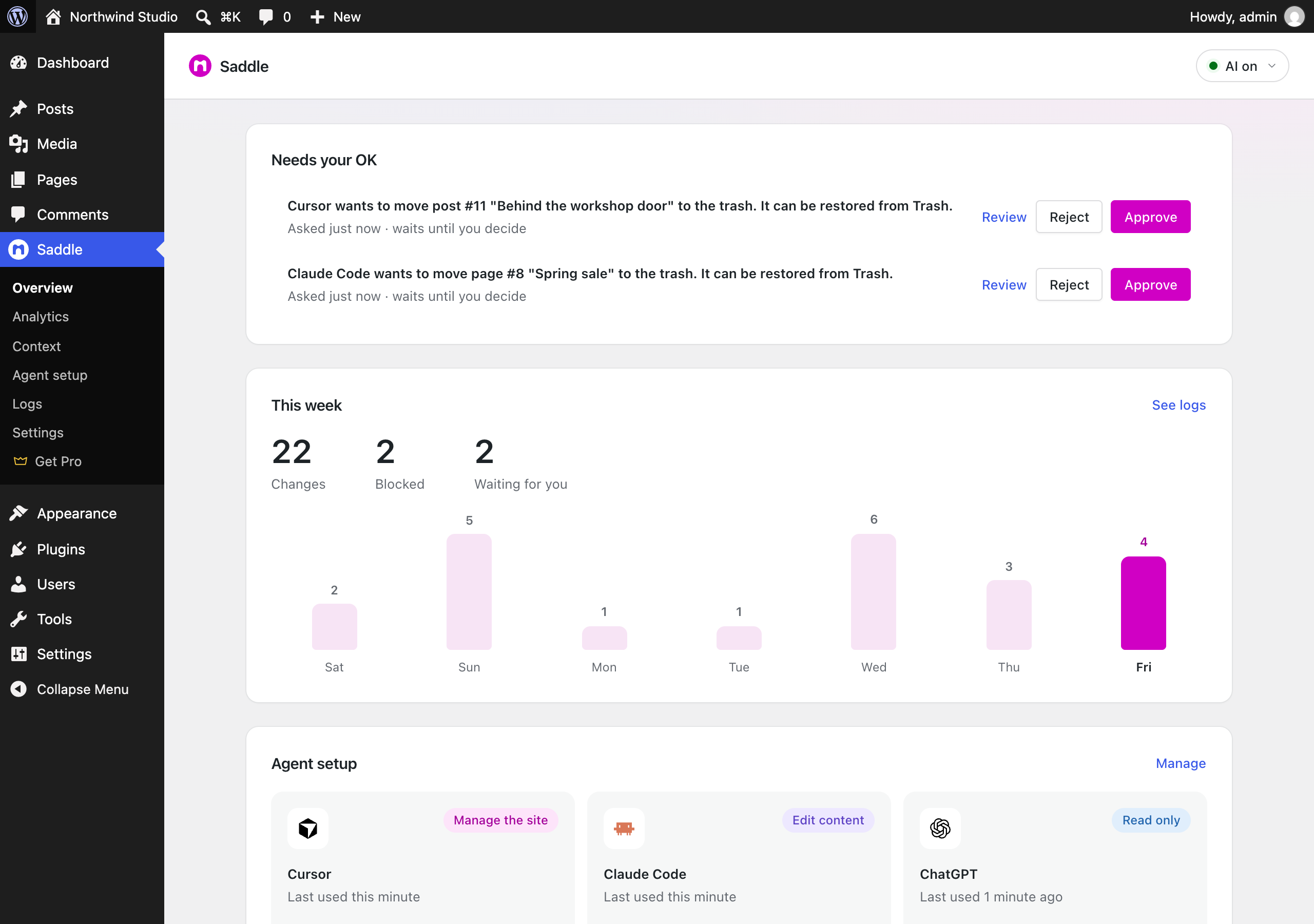
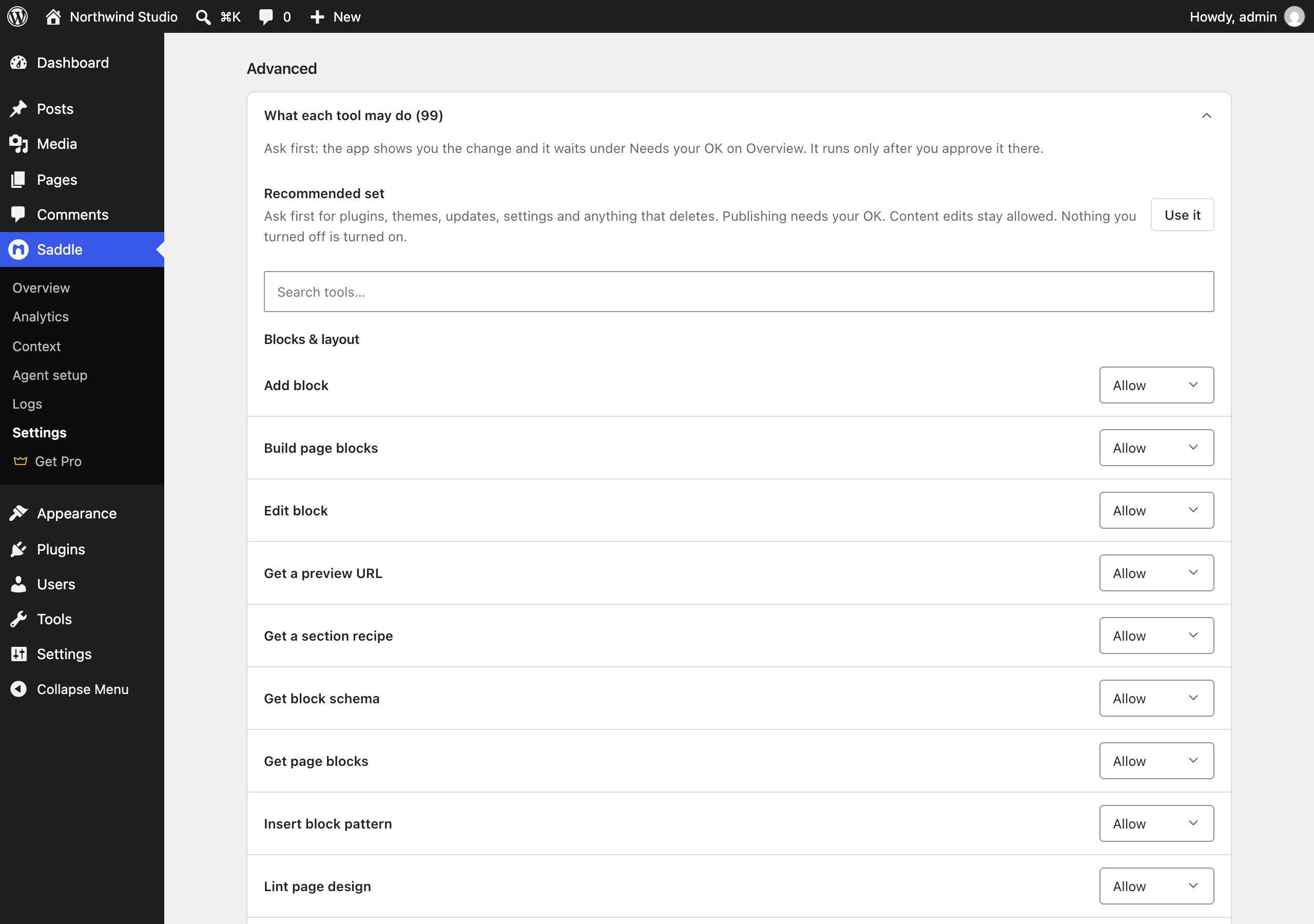
- Tool switches: Set each tool to Allow, Ask first or Off. Ask first waits for your OK in wp-admin.
- Drafts only, Rehearsal and Pause: Keep new posts as drafts, let an agent practise while nothing is saved, or block all AI requests with one switch.
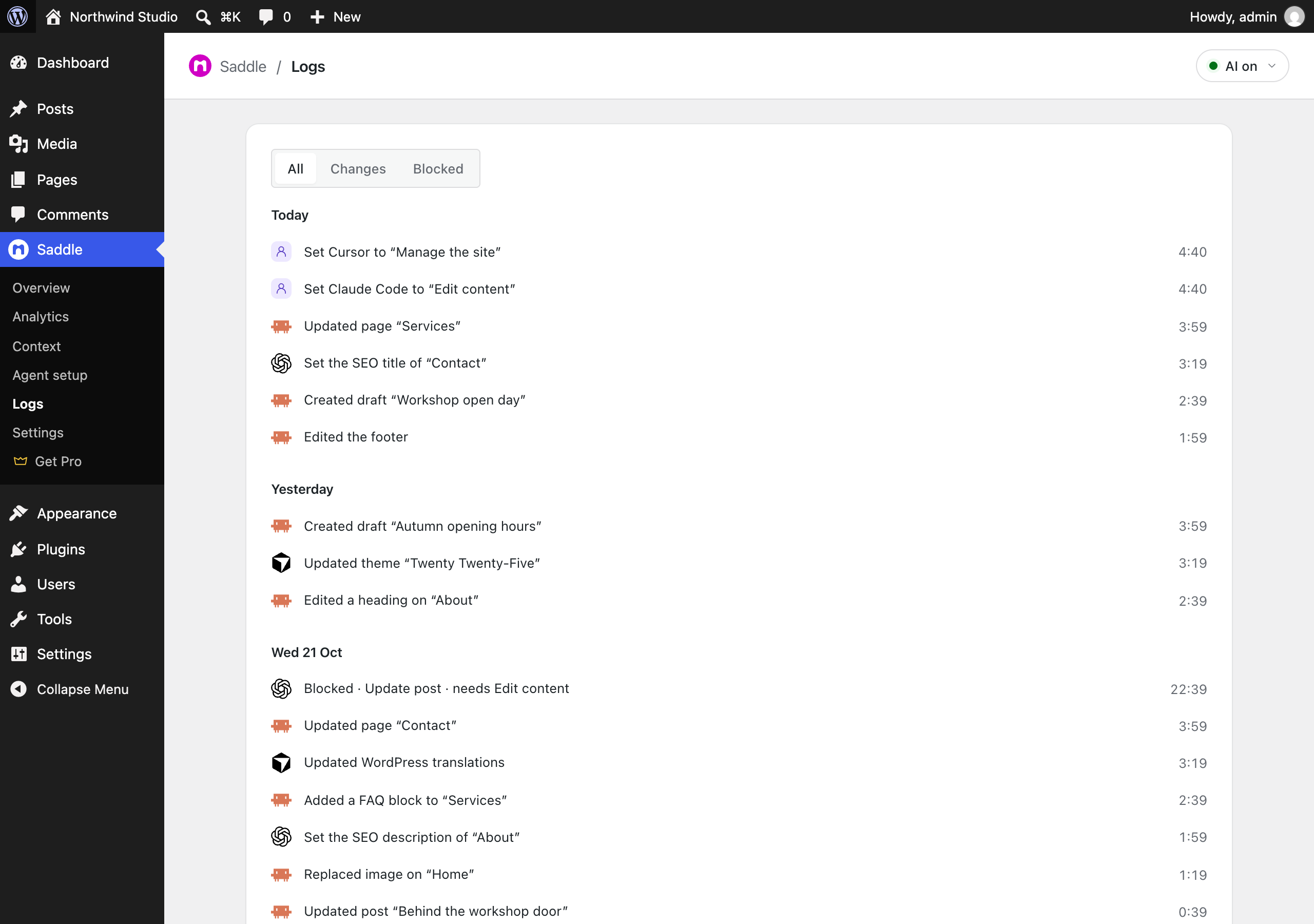
- Logs and Undo: Every change and blocked request is logged. Undo restores earlier versions, untrashes and puts settings back. Updates, installs and permanent deletes cannot be undone.
- Protected settings: The site URL, security keys, user roles and admin email cannot be changed.
SaddleWP never runs code from the AI, has no shell access and cannot write files. The one file it changes is .htaccess, only when you click Fix it for me in the connection check, to pass sign-in headers to WordPress. Uninstalling SaddleWP removes it.
SaddleWP Pro
SaddleWP Pro is a paid add-on for Divi 5 sites, and it needs this free plugin. It adds Divi design system, Library and Theme Builder edits, building or cloning whole pages, site-wide image and preset changes with undo, a design brief, and WooCommerce bulk edits with undo.
Every feature in this free plugin stays free. SaddleWP → Get Premium shows SaddleWP’s plans and prices only while SaddleWP Pro is not installed. It sends nothing. Its buttons open saddle.to or cloud.saddle.to.
Credits
- Iconoir icons (MIT): iconoir.com
- AI agent logos from LobeHub Icons (MIT): github.com/lobehub/lobe-icons. Each logo belongs to its owner.
External services
SaddleWP sends no tracking or usage data unless you choose to. It connects to another site only in these cases:
- Upload from URL: WordPress downloads the one file you asked for.
- Connection check: SaddleWP sends a test request to your own site.
- Page checks (optional): when your AI agent asks, SaddleWP loads the page from your own site, as a visitor would.
- Unsplash (optional): after you add your own API key under SaddleWP → Settings, searches and photo IDs go to
api.unsplash.com, and photos come fromimages.unsplash.com. See the API Guidelines, API Terms and Privacy Policy. - OAuth agent check (optional): with sign-in for agents on, SaddleWP reads a public web address the agent gives to confirm who it is. It sends nothing about your site.
- Updates and Site Health (optional): when your AI agent lists or applies updates, or reads Site Health, WordPress contacts WordPress.org or a plugin’s own update server, as the Updates screen does.
- Plugin and theme directory (optional): a search or an install sends the search words or the slug to
api.wordpress.org, with your WordPress version, language and site address, as the Add New screens do. Packages come only fromdownloads.wordpress.org. - Usage data (optional): nothing is sent until you click Allow. It sends your name, email, site address and title, WordPress and PHP versions, language, timezone, theme and plugins to
console.plugpress.io, then weekly when something changed. Stop it with Stop sharing site info on the Plugins screen. See the Privacy Policy. - SaddleWP news (optional): only if you ask for it, the email address you typed goes to
console.plugpress.io, which passes it to PlugPress’s newsletter onplugpress.io. You confirm by email first. - Deactivation feedback (optional): Send and deactivate sends your reason, what you typed, your email only if you ask for a reply, and the SaddleWP, WordPress and PHP versions to
console.plugpress.io. Skip and deactivate sends nothing. - Your SaddleWP account (optional): Connect this site opens
cloud.saddle.towith your site’s address. If you connect it, your AI agent’s calls and your site’s answers pass through that service, and your site still decides each call. See the Privacy Policy.
The WordPress.org version never checks for its own updates. The version from plugpress.co checks at most once every six hours and sends only the plugin name and version.
Privacy
- SaddleWP stores its settings, Skills, memory, activity log and short-lived confirmation codes on your site.
- With OAuth on, it also stores approved agents and a one-way hash of their tokens.
- For each connected agent, it stores the name the agent reports, when it connected and last called, and the names of its last five tools. It stores no tool inputs or results.
- SaddleWP sends no personal data off your site unless you choose to: what passes through your SaddleWP account once you connect it, your name and email if you tick that part of usage data, an address you give for SaddleWP news, and a reply address you add to deactivation feedback. PlugPress keeps usage data while you share it and clears what identifies your site after 12 months without an update. It deletes deactivation feedback after 24 months.
- Deactivating or deleting SaddleWP deletes the agent keys it made, because nothing limits them while SaddleWP is off. Agents that connected with a key need to connect again after you turn SaddleWP back on. Keys you made yourself stay.
- Uninstalling removes all SaddleWP data.
Installation
- Install and activate SaddleWP from Plugins → Add New.
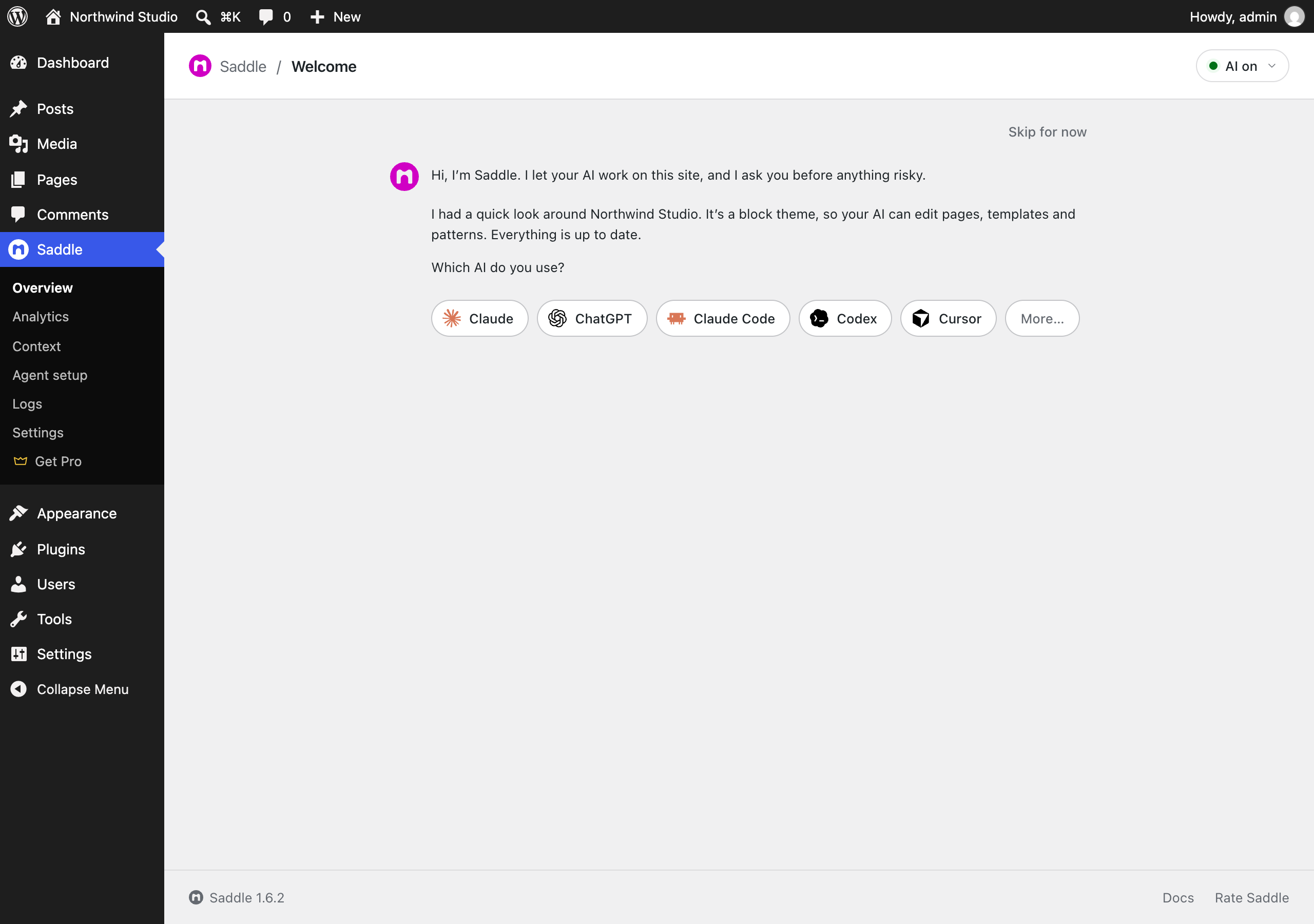
- In SaddleWP’s welcome, click Connect this site. It turns on sign-in for agents and opens your SaddleWP account, which shows how to add your AI agent. Or choose Connect directly instead, pick your agent and paste the address into it.
- Approve the connection when your site asks.
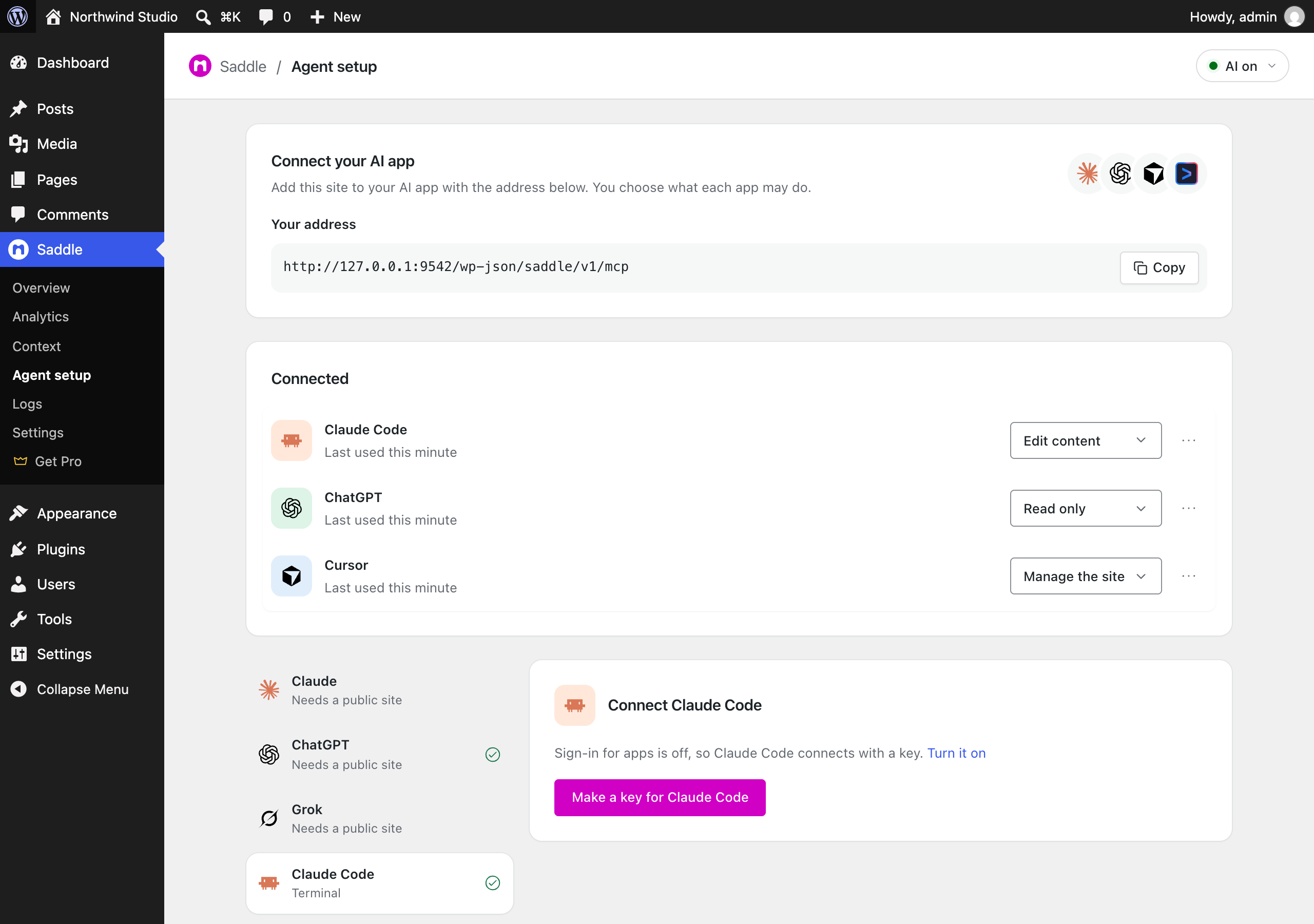
- To allow changes, choose Edit content or Manage the site next to the agent on SaddleWP → Agent setup.
FAQ
What is an MCP server for WordPress?
MCP is the standard way an AI agent uses tools. An MCP server for WordPress gives the agent tools for your site. SaddleWP is that server, and it runs inside your own WordPress.
Can ChatGPT log in to WordPress?
Yes, with your approval, and it never gets your password. You add your site to ChatGPT as a connector and approve it on your own site. You can disconnect it at any time.
How do I connect ChatGPT to WordPress?
Connect through your SaddleWP account. Or open SaddleWP → Agent setup, choose Connect directly and pick ChatGPT.
Can Claude edit my WordPress site?
Yes. Add your site’s address to Claude and approve it. Claude starts as Read only. You choose when it may edit.
Can an AI agent write and publish WordPress posts?
Yes, with Edit content. Turn on Drafts only to keep every new post a draft until you publish it.
Is it safe to let AI change a live WordPress site?
A new agent can only read. Big changes show a preview first. Every change is logged, and most can be undone.
Can the AI delete my content?
Only with Edit content or higher, and each delete shows a preview first. Deleted posts go to the trash. Run without asking skips the preview. It is off until you turn it on.
Can the AI run code on my server?
No. Every action uses standard WordPress functions.
Can my AI agent see my WordPress analytics?
Yes, with SaddleWP Analytics, the free add-on.
How do I get my WordPress site into AI answers?
No plugin can promise a citation. SaddleWP Rank, the free add-on, helps AI answer engines read your site.
Does SaddleWP work with Yoast SEO or Rank Math?
Yes, and with All in One SEO. Your AI agent reads and edits their SEO titles and descriptions.
Do I need an account?
No. You can connect your AI agent straight to your site. A SaddleWP account is optional and free for one site.
Does my content go through your servers?
Not when your AI agent connects directly. Through your SaddleWP account, calls pass through cloud.saddle.to.
Can I try SaddleWP before installing it?
Yes. Click Live Preview on this page. To connect an AI agent, install SaddleWP on a real site.
Does it work with page builders?
SaddleWP edits Divi 5 pages with real Divi modules. It protects layouts from other page builders against overwrites.
Do I need the MCP Adapter plugin?
No. SaddleWP works on its own.
Screenshots
Changelog
1.7.6
- Changed: A shorter plugin page on WordPress.org. The description, the list of external services and the questions say the same in fewer words. Nothing in the plugin itself changed.
1.7.5
- Changed: Get Premium’s buttons open your SaddleWP account first. You sign up or log in, then pay for the plan you picked, so the plan lands on your account. Connect this site goes through the same sign-up.
- Changed: The welcome and Agent setup lead with one way in: your SaddleWP account. The Connect this site button turns on sign-in for agents on this site, then opens your account in a new tab with the site’s address filled in. Before, the account could not finish connecting until you found that switch under Settings. SaddleWP sends nothing to the account; the button is a link.
- Changed: Connecting your AI agent straight to this site stays one click away: “Connect directly instead” in the welcome, and the Connect directly row on Agent setup.
- New: When a SaddleWP account can’t reach the site, the welcome says why and offers what helps. A site on your computer connects directly, Plain permalinks link to Settings → Permalinks, and a site without HTTPS is told to ask its host.
- New: Your AI agent sees every setting of every Divi 5 module, including modules from add-on packs, and SaddleWP checks each value before it saves.
- New: Divi 5 rows take column layouts such as two halves or two thirds and one third. Rows can sit inside columns and groups, and your agent can set tablet, phone and hover styles.
- New: Two Divi 5 tools. One adds a click or hover interaction between two modules. One reads a page’s real HTML and CSS, so an agent can check its work without a browser.
- New: Ten more design checks on Divi 5 pages, such as two main buttons in one section or a button with no hover style. They are advice and never lower the score.
- New: Divi 5 loops take every loop option, and an image or a button link can show a value from each post.
- Changed: The Divi 5 playbook for agents starts from your site’s own pages and presets, and the section recipes take your content.
- Fixed: A Divi 5 loop made through SaddleWP now lists only the post types you chose, newest first. Loops saved earlier are corrected when the page is shown and when it is next saved.
- Fixed: SaddleWP no longer warns about custom CSS, a CSS ID or class, or form field focus styles on Divi 5 modules. It now warns about more values that Divi saves and ignores.
1.7.3
- New: Saddle Rank, the free SEO and AI search plugin, is offered like Saddle Analytics: a tile in Home’s Add-ons and a last question in the welcome. One click installs it from WordPress.org and turns it on, or turns on a copy you already have. Nothing is installed without your click, and only you can do it.
1.7.2
- Changed: Get Premium shows Saddle Cloud’s plans by sites, as saddle.to does: Free for one site, Go $49 a year for one site, Pro $99 for up to 3 and Ultimate $199 for up to 10. Every paid plan includes Saddle Pro and every SEO tool, with more SEO credits and AI agent calls on the bigger plans.
- Fixed: Saddle Pro, Saddle Analytics and Saddle Rank now activate when Saddle sits in a folder with another name, such as
saddle-2after a second upload. Before, WordPress said a required plugin was missing, even with Saddle active.
1.7.1
- Fixed: Saddle now finds Divi 5 and Extra in any theme folder, such as
Divi-2after a second upload. Before, it found them only in a folder namedDiviorExtra, so it reported the site as classic and offered your AI agent no Divi tools. - Fixed: When your AI agent can’t use the Divi tools on a Divi page, Saddle’s message now says why. Before, it named a Divi tool the agent couldn’t see.
- Fixed: verify-page no longer calls Divi 5 presets and column widths “ignored”. A page built with presets in the Visual Builder scored F, and an AI agent fixing the findings would remove the presets.
1.7.0
- New: Connecting your AI agent shows two ways, in the welcome and at the top of Agent setup: all your sites through Saddle Cloud, free up to 500 AI agent calls a month, or just this site through its own address. Saddle Cloud’s button opens it with this site’s address filled in, and Saddle sends nothing. Once Saddle Cloud is connected, its card says so.
- New: Run without asking, on Saddle → Agent setup, for each agent set to Manage the site. With it on, that agent’s changes and deletes run right away, with no preview and no OK from you. It is off for every agent until you turn it on, and Saddle asks you to confirm first. Tools you turned off stay off, deleted posts and pages go to the Trash, and every change is logged and can be undone in Logs.
- Changed: Ask first is off by default. A tool asks first only when you set it to, alone or with the recommended set. A tool added by a later update, or by a plugin you activate later, is allowed like the others instead of asking first. Tools you set to Ask first keep asking.
- New: Your AI agent can create a menu, and show it in a theme location such as the header or footer in the same step. Until now it could only change menus that already existed.
- New: A small card on Overview and the Plugins screen asks once whether to share your name, email and basic site info with PlugPress for better support, and offers Saddle news by email, which you confirm by email first. Nothing is sent until you click Allow or Subscribe.
- New: When you deactivate Saddle, a short form asks why. Skip sends nothing. The card and the form use WordPress’s own buttons and your admin colour scheme.
- New:
define( 'PLUGPRESS_INSIGHT', false );inwp-config.phpturns off the card and the form. - Changed: Get Pro is now Get Premium and shows Saddle Cloud’s four plans, each with unlimited sites and one yearly price: Free, Go $49, Pro $99 and Reach $299. Free’s button opens Saddle Cloud with this site’s address filled in.
- Changed: Saddle is now named “Saddle – Build, Rank & Grow Your Website with AI”, here and on the Plugins screen: the free core of SaddleWP. Its menu, settings and address are unchanged.
- Changed: AI apps are now called AI agents everywhere in Saddle.
1.6.3
- Fix: Saddle’s own records (app connections, approvals, the log, skills and memory) are no longer saved as published posts. SEO plugins that tell search engines about new posts, such as AIOSEO’s IndexNow, could send links like
?post_type=saddle_oauth&p=123to Bing. The links never showed anything (they return 404), and now they stop. Existing records move over once, on the first page load after the update.
1.6.2
- Changed: The Saddle menu reads Overview, your add-ons, Context, Agent setup, Logs, Settings and Get Pro, as one plain list with no dividing line. Home is now called Overview. Get Pro carries a crown, and it is gone once Saddle Pro is installed, even while switched off.
- Changed: Activity moves from Overview to its own page, Saddle → Logs: every change your apps made and every attempt Saddle blocked, with Undo. This week on Overview links to it.
- Changed: On Overview, your connected apps are cards, up to three in a row, each with its access and its next step, and a last card connects another app. The card group is called Agent setup. Add-ons show their own WordPress.org icons.
- New: Analytics is always in the Saddle menu. Until Saddle Analytics is on, its page says what it does and installs it from WordPress.org in one click; then the same page shows your stats.
- Changed: Get Pro is clearer. The plans sit side by side with their rows lined up, Pro marked with a crown, and each plan shows its sites, AI-app calls a day and SEO credits a month. Four short answers follow.
- Changed: On a site on this computer, Agent setup marks the apps that need a public site, and picking one shows one short note with the apps that run here.
- Fix: Mark as expected on the notice that the site’s address changed now clears it. Since each app got its own access, the button did nothing.
1.6.1
- New: Saddle → Get Pro, the last item in the Saddle menu, shows the Go, Pro and Reach plans for 5, 20 or 50 sites, with their prices billed yearly and a button to each plan’s checkout on saddle.to. It is hidden while Saddle Pro is active, sends nothing from your site, and changes nothing else.
1.6.0
- Changed: Saddle CRM is now Mailpuff, PlugPress’s standalone newsletter plugin. Its tools work as soon as it is active, like Bridle’s.
- New: Ask first. In Saddle → Settings → Advanced → What each tool may do, set any tool to Allow, Ask first or Off. A tool set to Ask first shows you the change and waits under Needs your OK on the Dashboard. It runs only after you approve it there; a yes in the chat is not enough. Each app’s access level still applies.
- New: A recommended set in the same place, applied in one click. Plugins, themes, updates, settings and anything that deletes ask you first, and publishing needs your OK. Content edits stay allowed, and a tool you turned off stays off. Nothing is set until you click.
- New: A tool added by a later Saddle update, or by a plugin you activate later, asks you first until you choose what it may do. Tools that exist when you update to this version keep working exactly as before.
- New: Home is one column of soft cards. This week leads with big numbers and a bar for each of the last seven days. Your AI apps follow, each with what it may do as a coloured label, when it was last used and its next step: Try it for an app that has not tried Saddle yet, Change access for one that can only look. Add-ons are tiles that open them, and Saddle Analytics shows today’s visitors there.
- Changed: AI apps is now Agent setup. Your site’s address sits on top with Copy, then your connected apps, then every app down the side with its steps beside it. Connecting no longer opens a panel, and Setup guide and Rotate key show that app’s steps on the page.
- Changed: The Saddle menu shows its page names without icons.
- Changed: The Services page is gone. Add your Unsplash key under Settings → Accounts, and switch on plugins from other developers under Settings → Advanced → Plugins that add tools. Old links to Services open Settings.
- New: The welcome ends with one more question: do you want visitor stats? Say yes and Saddle Analytics installs from WordPress.org and turns on, without leaving the page. Home offers it under Add-ons too. It is asked only when you may install plugins and Saddle Analytics is not on yet.
- Fix: A list item your AI app writes now keeps its CSS class and style on the page. They used to reach the block’s settings only, so an icon or style set by class disappeared.
- Fix: A block’s anchor now becomes its HTML id, so links to #anchor reach it. An anchor made in the block editor is kept when your AI app edits that block.
- Fix: When your AI app changes only the settings of a paragraph, heading, list item, separator or spacer, such as a drop cap, a heading level or a class, the page now shows the change. It used to keep the old markup.
- Fix: When sign-in by address cannot read an app’s identity because this server cannot look up the app’s address, Saddle now says so and suggests a key. It used to say the address pointed to a private network. WordPress Playground and Studio cannot look up outside addresses.
1.5.2
- New: Your AI app can search the WordPress.org plugin directory. Each result shows the plugin’s version, active installs, rating, last update and the WordPress and PHP versions it needs, and whether it is already installed and active on your site.
- New: Your AI app can install a plugin from the WordPress.org directory by its name. It shows a preview first, with warnings when the plugin is not tested with your WordPress or has not been updated in two years, and waits for your approval. WordPress’s own installer then adds it in the background. The plugin arrives inactive, so turning it on is a separate step you approve. Saddle never installs from a zip file or a link, and never deletes a plugin.
- New: Your AI app can install a theme from the WordPress.org directory the same way. The theme is not activated. A child theme needs its parent theme installed first, so WordPress never adds a theme you did not see.
- New: Your AI app can update WordPress itself to a release WordPress offers. Minor and security releases are always allowed. A major release, such as 7.1 to 7.2, is allowed only if you turn on Major WordPress releases in Saddle → Settings. It is off by default, and no app can turn it on. The preview lists active plugins not tested with the new version, and nothing happens until you approve.
- New: Your AI app can apply the translation updates WordPress offers, after a preview, through WordPress’s own language pack updater.
- Fixed: Saddle and the WordPress MCP Adapter plugin 0.7.0 can now run on the same site. Activating the adapter next to Saddle stopped with a fatal error, and with both active every page failed. Saddle now serves its own endpoint itself when the adapter is a version it doesn’t support yet, and keeps its built-in copy of the adapter out of the way of the official plugin.
- Changed: Saddle’s brand color is now magenta, the same as saddle.to. It shows on the logo, primary buttons, switches when on and the selected access level. Links and greys stay WordPress’s own.
- Changed: Bridle and Bridle KB are PlugPress plugins, so their tools are on as soon as the plugin is active, like Mailyard and SEO. You no longer switch them on under Services.
- Fixed: When a step shows a preview first, such as moving a post to the trash, your AI app now shows you the preview and waits for your yes. Claude Code reads only the start of Saddle’s guide, and it could confirm on its own.
1.5.1
- New: A plugin that adds a page under Saddle can draw it as one page, with no sidebar and no tab row. Its settings open from the page and lead back to it. Saddle Analytics uses this.
- Changed: On a plugin’s page under Saddle, such as SEO or CRM, the sections sit in a white panel on the left, and the page starts right beside it instead of in the middle of the screen.
Earlier versions
The changes in 1.5.0 and earlier are in the changelog on GitHub.