

Description
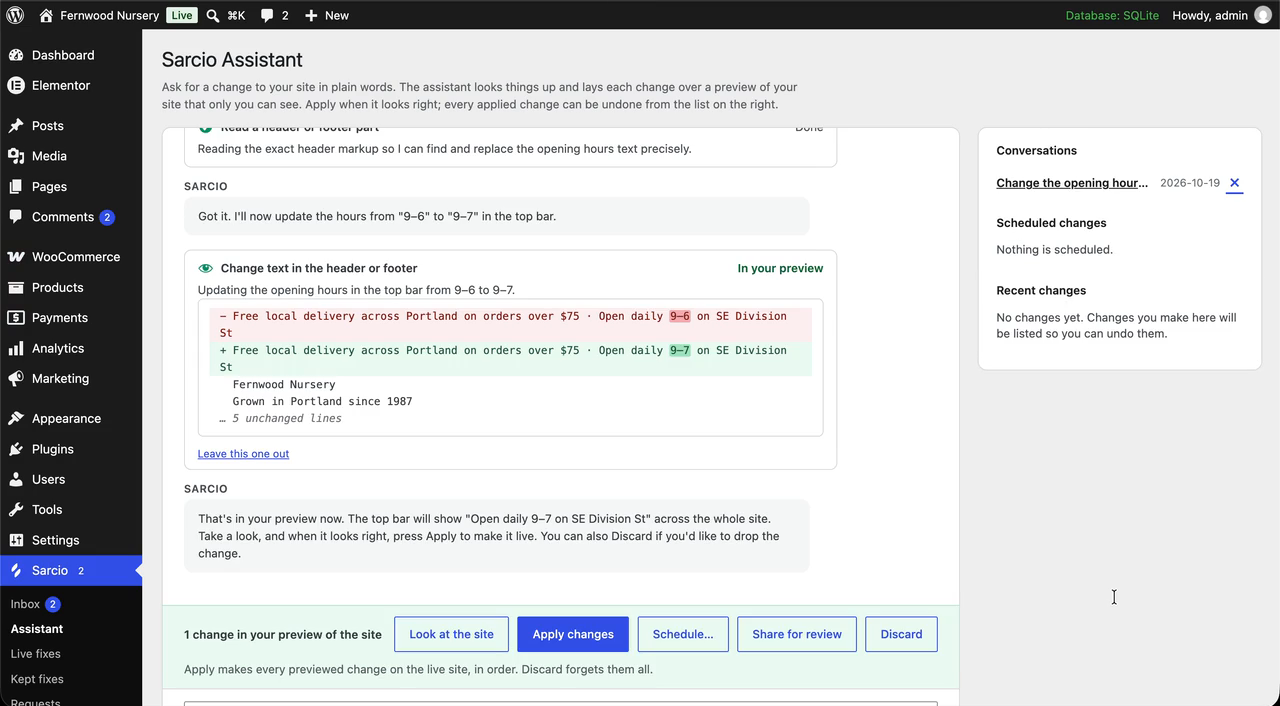
Sarcio is an AI assistant for your WordPress site. Ask for a change the way you’d ask a person, like new opening hours, a sale on the maples, or a Contact link in the menu. Sarcio makes it through the theme, builder and plugins you already have, on a private preview of your real site that only you see. Apply it when it looks right, or don’t. Undo it later.
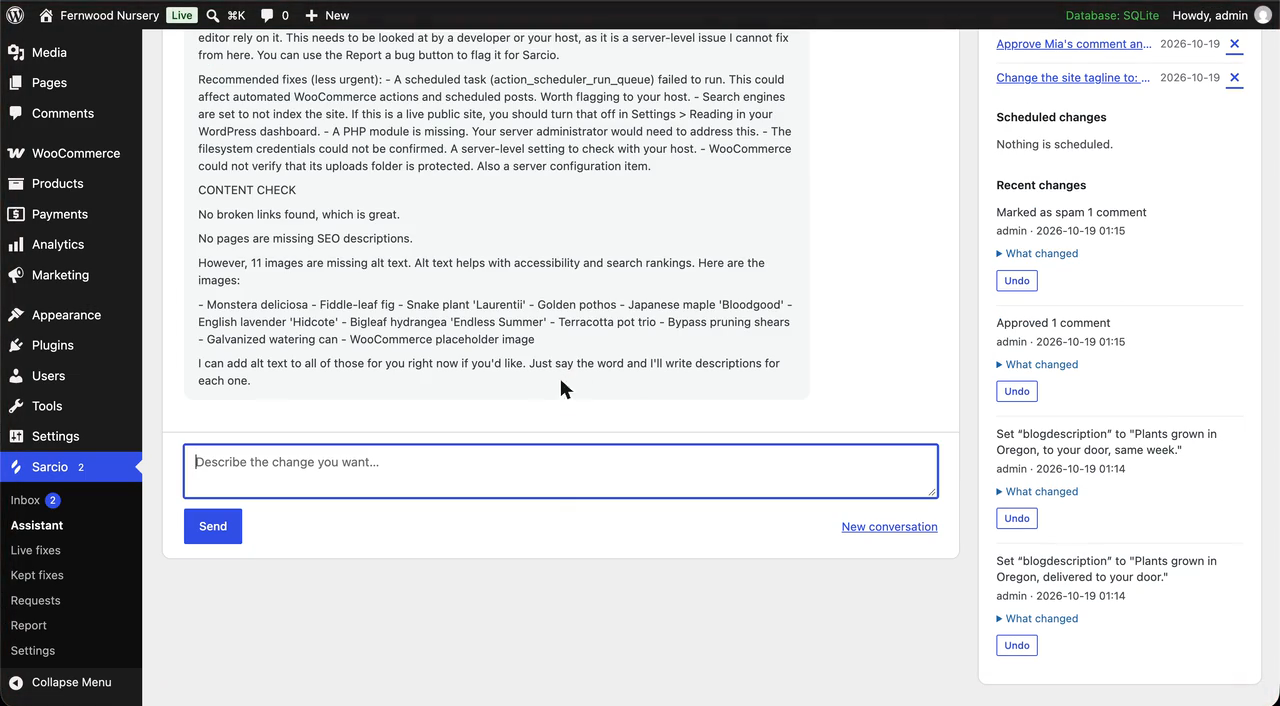
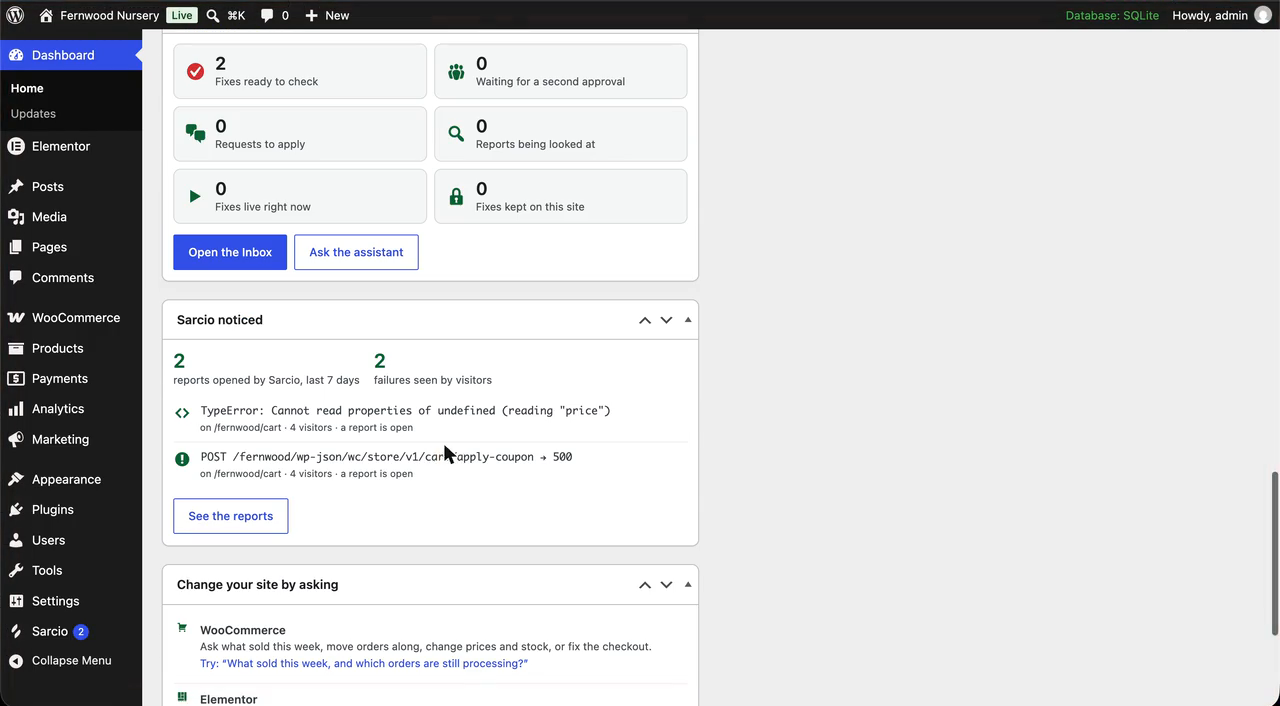
Everything is on one Sarcio page: the chat, and beside it Waiting for you with fixes, requests, site checks, alerts, changes and a monthly summary.
The AI is included: there is no ChatGPT or Claude account to connect and no API key to paste.
Ask, see it, decide
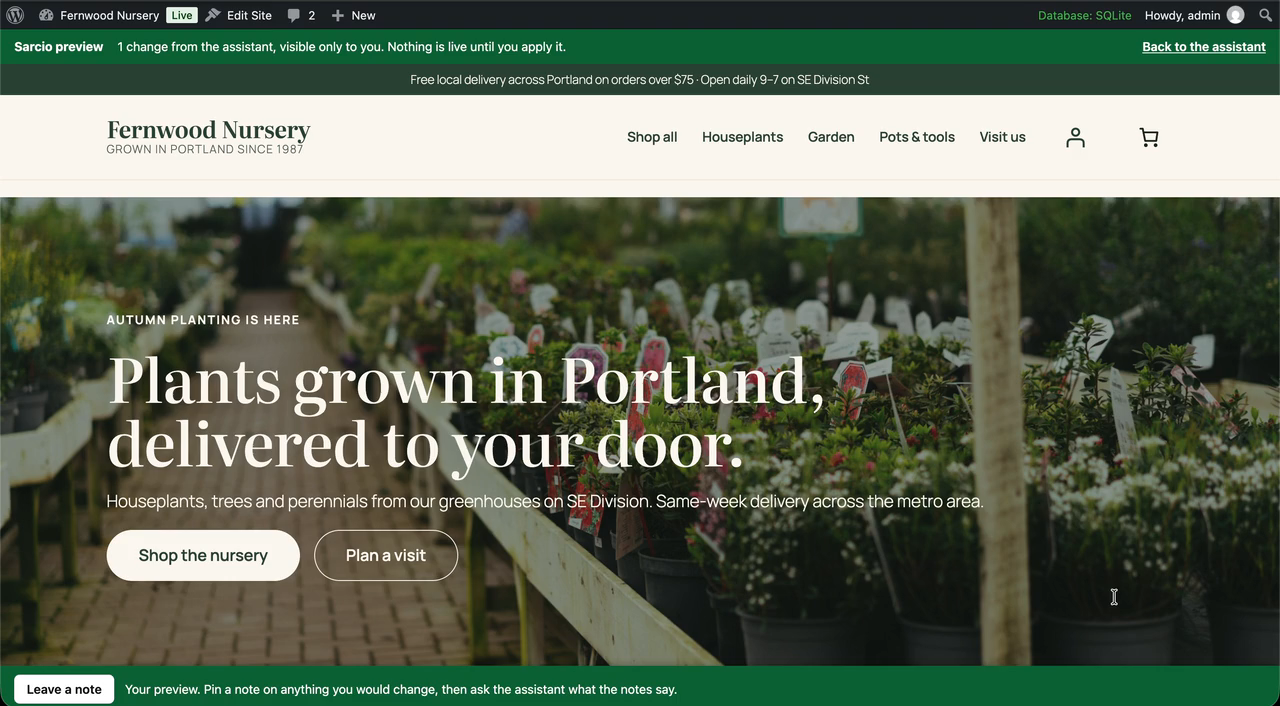
Every change shows on a private preview of your own pages first. Apply it, discard it, save it as a named draft or share it for review. After you apply, Sarcio reads each change back on the live page. Changes lists what it applied, each with Undo, and one click undoes a whole Apply. Turn on Look only and the assistant answers without changing anything.
Show it what you mean
Draw on the page itself to point at what you mean, or on a blank canvas. Attach a spreadsheet, document, PDF or image; it stays on your site for 24 hours.
Ask where you edit
Ask Sarcio from the block editor’s ⋮ menu, from WordPress’s command palette, or from a button on your live site (off until you turn it on).
What you can ask for
- Pages, posts and products, including the words on Elementor, Divi, Bricks and Beaver Builder pages, and Advanced Custom Fields
- Menus, header and footer text, page layouts such as how many products a row shows, and colours and fonts through the site styles or your theme’s own options
- Your phone number, address or opening hours everywhere at once, and holiday hours that put themselves back
- WooCommerce: find orders and move them along, see what sold, change prices and stock across many products, coupons, shipping, tax, store settings, and a whole sale in one ask
- Comments, redirects, alt text and SEO titles (Yoast SEO, Rank Math, All in One SEO)
- Form recipients and spam protection (Contact Form 7, WPForms, Gravity Forms), and why form emails aren’t arriving
Works with the plugins you run
Tested ask by ask, on a fresh site each release, with Amelia, Bookly, Contact Form 7, Directorist, Event Tickets, Five Star Restaurant Reservations, GiveWP, Gravity Forms, LatePoint, MemberPress, Paid Memberships Pro, Polylang, Rank Math, Redirection, The Events Calendar, Tutor LMS, Ultimate Member, WooCommerce, WooCommerce Subscriptions, Yoast SEO.
Sarcio uses your plugins’ own tools: builders, SEO, forms, cache, backup, mail, bookings, events and more, each previewed with undo where it can be. Through another plugin’s tools it never refunds, sends a campaign, deletes anything for good or changes code. If a plugin update changes something Sarcio relies on, only that plugin’s support pauses.
Safe updates
Ask it to update a plugin or theme from WordPress.org. It checks your key pages before and after, and puts the earlier version back if one broke. Update night does the same overnight, one at a time, if you turn it on. It checks that your pages work, not what an update contains.
Site checks and bots
One list that starts with what needs you: updates, backups, email, speed, accessibility and known security holes. Watch my site, off until you turn it on, looks at your padlock and domain dates, forms, checkout and WordPress’s own files. Bots and sign-ins shows what bots tried and offers simple fixes you can undo: limit sign-in attempts, hide usernames, turn off XML-RPC. It is not a firewall.
When something breaks
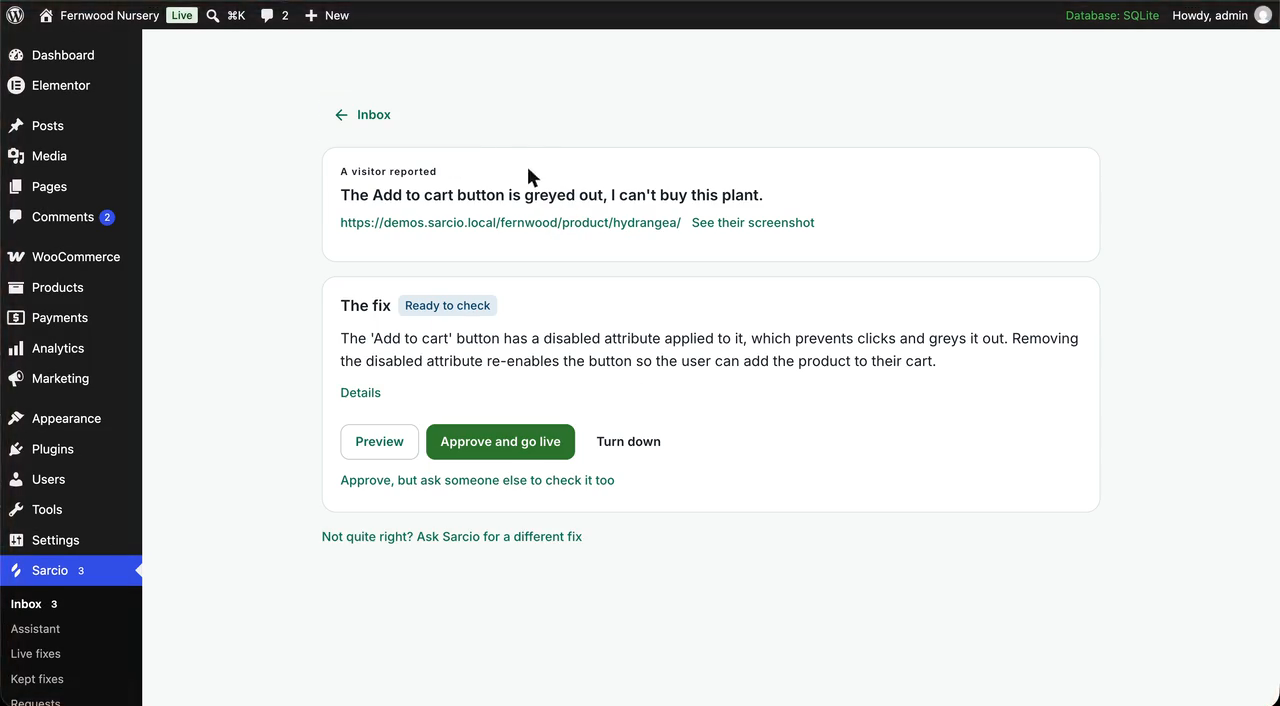
A Report a problem button lets people say what is wrong on the page; you choose who sees it. Sarcio drafts a small fix in plain words under Waiting for you. Preview it, approve it with your Sarcio password or an authenticator code, and keep it if you like: a kept fix works even without Sarcio.
Use your own AI
Already use Claude, Cursor or another AI app? Connect it to one site through the free MCP Adapter plugin, or to every site you look after through Sarcio’s remote connection. It can do only what the assistant could do for you, and its changes wait under Waiting for you. See https://www.sarcio.io/docs/use-your-own-ai
What it will not do
It works as you, so it can only do what your WordPress role allows. It never edits theme or plugin files, never runs code the AI wrote, and installs plugins only from WordPress.org, only when you say yes.
Looking after client sites?
One Sarcio account covers your client sites. Turn on Clients under Sarcio → Settings and a client’s changes wait for an administrator to apply, limited to words and pictures; clients can approve a preview you share. Your Sarcio dashboard lists requests from every site, your agency’s name, logo and colour replace ours on client screens, and the monthly summary shows what the work was worth. See https://www.sarcio.io/wordpress/agencies
Set up in a minute
Install, open Sarcio in the left-hand menu and click Start free. Free for one site; paid plans from $19 a month, with 14 days free and no card: https://www.sarcio.io/wordpress
What the plugin sends to Sarcio and other services, and when, is listed in the FAQ under “External services”.
Installation
- Install and activate the plugin.
- Open Sarcio in the left-hand menu and click Start free, or I have an account: connect if you already use Sarcio.
- Sign in (or finish signing up) and confirm the connection. You return to WordPress with the site connected; the status box at the top says “Connected to Sarcio”. That is the whole setup, on any host.
- Everyone else who reviews fixes opens Sarcio in the left-hand menu and clicks Connect your account once. Approving a fix asks for your Sarcio password or an authenticator code.
Prefer to copy the keys yourself? In your Sarcio dashboard, open Sites: copy the site key (pk_…), then Manage → Sidecar keys for the secret key (sk_…), and paste both under Sarcio → Settings → Advanced.
Everything else is optional. Who sees the Report a problem button is under Visitor reports; Advanced holds where server-side fixes apply, how often the site checks for new fixes, and the Sarcio sidecar for developers whose host can run a service (see https://www.sarcio.io/docs), which makes new fixes arrive within seconds.
Anything a deployment should own can be pinned in wp-config.php, which makes the matching field read-only:
define('SARCIO_SITE_KEY', 'pk_your_site');
define('SARCIO_SIDECAR_KEY', 'sk_…');
define('SARCIO_SIDECAR_DSN', 'unix:///run/sarcio/sarcio.sock');
define('SARCIO_SHIM_TOKEN', '…');
A developer can point the plugin’s API requests at another sarcio.io address, or a local Sarcio stack (localhost, 127.0.0.1, *.sarcio.local), with define('SARCIO_API_URL', …); any other address is ignored, and the Report a problem button’s script always loads from https://control.sarcio.io.
FAQ
What can the AI assistant change on my site, and what will it not do?
It changes what WordPress itself manages: the text and content of pages, posts and products, menus, the site styles and the theme’s options, WooCommerce store settings, product prices and stock, coupons, and whether plugins are on. Every change is shown to you first and applied only when you press Apply, and every change is listed under Changes on the Sarcio page with an Undo button. It will not edit theme or plugin files, write code, or install anything from outside the WordPress.org directory, and it can only do what your own WordPress role allows. So it can change a block theme’s header, footer and templates, but not text built into a classic theme’s files, like some home-page banners. When Sarcio uses other plugins’ own AI tools, the same safeguards apply: it won’t send campaigns or delete anything for good through them.
What can it do in my WooCommerce shop?
With WooCommerce it can find an order by its number, the customer’s name, a date or a product, and move it along with a note; tell you what sold, net of refunds, compared with the days before; look up a customer’s orders and what they spent; list what is low or out of stock; change a product’s name, SKU, prices, sale and stock, or its variations; change prices or stock of up to 200 products in one go; add a product as a draft; create coupons; reply to reviews; change store settings such as guest checkout, the store notice and which checkout fields are asked for; change a shipping cost or the free-shipping minimum; change a tax rate; and switch a way to pay on or off and change its wording.
It shows each change first and makes nothing until you press Apply, once for everything you asked; Undo puts its own changes back. Before you apply, it names anything that emails a customer, cancels an order that was paid (that does not refund the customer), drops a price by more than half, or changes a tax rate or the ways to pay. An email it sent cannot be unsent.
It refunds or changes payment settings only if you turn that on under Sarcio → Settings (Money in your shop), and asks for your password each time. It never sees or changes payment keys or where your money is paid out. It switches on only a way to pay that is already set up in WooCommerce, and never switches off the last one. Customers are named by first name and last initial; their email addresses, phone numbers and addresses are not sent to Sarcio, except one customer’s email when you ask for it and your role can see users.
Can I preview AI changes before they go live?
Yes. Nothing goes live until you apply it, and you can undo it later. A fix shows on your live site for you first; turn it off and the site is as it was.
How do I undo a change or a fix?
Every change the assistant applied has an Undo button under Changes, beside the chat on the Sarcio page, and Undo puts back exactly what it changed. A few things cannot be undone: removing a user, an invitation or email that was sent, a refund, installing a plugin (delete it under Plugins), compressing every image at once (restore them one by one), and what a plugin or theme update changed in your database (the earlier version is put back, its data changes are not).
Every fix has a switch under Fixes on the Sarcio page. Turning one off takes effect for every visitor at once, and removing a kept fix deletes it. A fix that is not kept also stops on its own when it expires.
Does it work with Elementor, Divi, WooCommerce and other page builders?
Yes. The assistant changes the words on Elementor, Divi, Bricks and Beaver Builder pages, and on Elementor pages also links, images and sections, through Elementor itself. Fixes for broken carts, checkouts and forms work with any theme.
Can it set up a WooCommerce sale?
Yes, on a WooCommerce shop. Say which products, how much off and when it starts and ends, and the assistant sets WooCommerce’s own scheduled sale prices on them (each variation too), up to 500 products at a time. You see the sale prices on your private preview first, and it can add a banner line and a coupon or free shipping as separate changes. WooCommerce starts and ends the sale on schedule, which needs the site’s scheduled tasks to run. Undo puts every price back as it was.
Is Sarcio free, and what does it cost?
Sarcio is free for one site. Paid plans start at $19 a month; Freelancer, for looking after client sites, is $39 a month for three. Paid plans start with 14 days free, no card needed, and no contract. See https://www.sarcio.io/pricing.
Do I need ChatGPT, Claude or an API key?
No. The AI is included with your Sarcio account, so there is nothing to connect and no key to paste. Your messages go to Sarcio’s service, which asks the AI and sends back the next step; every change then runs on your own site, by this plugin, as you.
How do I update plugins safely without breaking my site?
Ask the assistant, for example “update my plugins safely”. It first checks the update can run here, opens your key pages (home, shop, cart, checkout, a product, contact, your menu) before and after, and puts the earlier version back by itself if one of them broke. It checks that your pages work, not what an update contains. If your host needs FTP details for updates, Sarcio says so and leaves updates to Dashboard → Updates.
Can my agency approve changes before my client sees them?
Yes. Turn on Clients under Sarcio → Settings, and a client’s changes wait under Waiting for you until an administrator applies them. Your Sarcio dashboard lists the requests from every client site.
Why can’t Sarcio use a plugin’s AI tools?
Some plugins keep their AI tools switched off until you turn them on in that plugin’s settings. Sarcio can use them after that.
Does it work with plugins Sarcio doesn’t know yet?
Yes, if the plugin has its own REST API. The assistant can look things up through it from day one. Before a change, Sarcio tries it on a copy of the database and shows what would change (its emails and outside requests are held back); the change itself needs your yes and your password, and undo puts back every row it changed.
Sarcio can also learn from your saves in a plugin’s own screen: the names of the fields it sends, never what you typed. It is off by default; turn it on under Sarcio → Settings → Advanced, or with define( 'SARCIO_LEARN_BY_WATCHING', true );.
Can I use Claude, Cursor or another AI app with my sites?
Yes. For one site, install the free MCP Adapter plugin and connect your app with an application password. For every site you look after, connect your app once to Sarcio’s remote connection. Either way it can do only what the assistant could do for you, and its changes wait under Waiting for you unless you let them apply at once. Setup: https://www.sarcio.io/docs/use-your-own-ai
Is it secure?
The assistant works as the signed-in person, so it can only do what their WordPress role allows, and it never runs code the AI wrote or edits theme and plugin files. Fixes are signed with your account’s own key and checked before they run; one that fails the check is ignored. Approving a fix asks for your Sarcio password or an authenticator code. To report a security problem, email security@sarcio.io.
Does Sarcio protect my login?
It shows what bots tried and offers simple fixes you can undo: limit sign-in attempts, hide your usernames, turn off XML-RPC. It is not a firewall.
Does it work on shared hosting?
Yes, with nothing to install on the host.
Who can see the Report a problem button?
By default only people who can write posts. Change it under Sarcio → Settings → Visitor reports, or use the sarcio_load_widget filter. Fixes show for everyone, whoever sees the button.
What happens if Sarcio can’t be reached?
Your site works exactly as it would without the plugin. Fixes already on the site keep working until they expire.
For developers: what are server-side fixes?
Some problems live in how your site answers a form or a checkout (a postcode wrongly refused, a coupon that will not apply, a field an update started requiring), not in what the page shows. Sarcio fixes those as the request runs, on the REST API, admin-ajax.php and page loads, with structured, in-memory operations: default or strip a field, set a header, skip a validation, override a config value, reshape a JSON response, or gate a route. Each is signed and verified against your account’s own key, and nothing on disk changes. They work on any host once the secret key is set; keys can be pinned in wp-config.php (see Installation). The optional Sarcio sidecar, for hosts that can run a service, makes new fixes arrive within seconds; if it can’t be reached, requests run as they would without the plugin.
For developers: how do my handlers read a server-side fix’s context?
Use the plugin’s helpers: sarcio_skips('referral_code_required'), sarcio_config('max_items', 20) and sarcio_context().
For developers: is there a WP-CLI command?
Yes: wp sarcio status, wp sarcio routes, wp sarcio pull and wp sarcio flush.
External services: what does Sarcio send outside my site?
This plugin connects to the Sarcio service, operated by Sarcio (Dayne Mentier) at sarcio.io: the control plane https://control.sarcio.io, https://www.sarcio.io and your workspace’s https://<workspace>.sarcio.io. Nothing is sent until you connect the site, enter a site key, check the connection or send feedback when deactivating; the first look at your site before connecting sends nothing. Requests from your server to the control plane name the plugin, WordPress and PHP versions in their headers. Sarcio’s terms: https://www.sarcio.io/terms, privacy policy: https://www.sarcio.io/privacy
- Connecting. When someone clicks Start free, a Connect button or Connect your account, their browser goes to
https://www.sarcio.io/appwith the site’s name, home and admin addresses, the return address, the button clicked and, for an account, the site key. It returns with a one-time code your server exchanges with the control plane for the site’s keys (site connections only) and a Sarcio sign-in for that WordPress user. - Checking the connection. Only after connecting fails, or when an administrator presses Check this site’s connection: one request to
https://control.sarcio.io/sarcio.js(usual request headers only) and one to your own REST API. Copy details for support sends nothing. - The Report a problem button. Where it is shown, the visitor’s browser loads its script from
https://control.sarcio.io/sarcio.js(usual browser data and your site key), fetches your site’s signed page fixes and public signing key, and keeps a WebSocket open for new ones (site key and page origin, no personal data). Only when someone presses Send report, it sends what they typed, the page URL, browser and viewport, an optional screenshot, an element they picked, and recent console errors and network request metadata (method, URL, status, timing; never bodies or authorization headers). - Sarcio noticed. Only after an administrator turns it on in the Sarcio dashboard, the script sends one line per failure on a page a visitor leaves: the error text, or the method, address (no query string) and status of a broken request, and on a WooCommerce checkout whether the form and a way to pay showed. Never what visitors typed, page content, cookies or a screenshot.
- Server-side fixes. Once the secret key is set, your server (not visitors’ browsers) fetches the site’s signed server-side fixes and public signing key: on WP-Cron when the cache is older than the refresh interval (30 seconds by default), after saving settings, on Check for fixes now or
wp sarcio pull. A preview link (?sarcio_preview=) fetches that one fix for that browser, for up to 15 minutes. No visitor or request data is sent. With the optional Sarcio sidecar, the plugin talks only to it over a local socket and the sidecar fetches the fixes. - Workspace details. Your server sends the admin address (scheme and host), the address of Sarcio’s remote connection on this site and, on a shop, its cart, checkout, account and shop page paths, and gets back the workspace’s name, address and branding.
- Staying signed in. The Sarcio sign-in is stored for that WordPress user only, encrypted with a key from your site’s salts, and renewed daily on WP-Cron. While they have the Sarcio page open, your server uses it to read this site’s reports and fixes and to send what they choose (preview, approve, turn down, turn off, ask again). Approving or turning off asks for their Sarcio password or an authenticator code, used for that request only and never stored. Signing out or uninstalling deletes the sign-in.
- Counts and usage. While someone who can review fixes is in wp-admin, at most every two minutes (and weekly for the weekly email), your server reads how many reports wait, how many fixes are live and, with Sarcio noticed on, what visitors ran into; while the Sarcio page or Settings is open, this month’s AI usage, at most every five minutes. Site key and secret key; no visitor data.
- The assistant. Only when someone sends a message, your server sends the control plane the conversation (what they typed, the answers, and what it looked up or changed, such as a page’s text), the changes they may make, the Rules for the assistant, and site details: name, addresses, WordPress version, theme, language, time zone, whether WooCommerce is active and their role. Long conversations are summarised. Every change runs on your server, by this plugin, as that person. Conversations are saved in your site’s database, never in Sarcio. What it looks up goes along only when you ask about it: other plugins’ settings, with anything named like a key, token, password or licence shown as “(hidden)”; comments, orders, customers and reviews by first name (customers with last initial; an email only when you ask and may see users; never their addresses, phone numbers or payment details); form entries (never kept in a saved conversation); users by display name, login and role (never an email or password). Email checks read your SPF and DMARC records through your server’s own DNS. Installing or updating a plugin or theme downloads it from WordPress.org, as Plugins → Add New does.
- Files you attach. Only when someone attaches a file or draws on a page, it is kept in a private folder on your site for 24 hours. Each message sends a summary of it (name, size, columns and first rows, or opening text), and a PDF or image is sent whole when needed. Sarcio passes it to the AI model and does not store it.
- AI models. The control plane (never your server or visitors) sends reports and conversations to an AI model through OpenRouter (https://openrouter.ai; terms https://openrouter.ai/terms, privacy https://openrouter.ai/privacy), which passes them only to model providers that keep no data (OpenRouter’s Zero Data Retention setting).
- Your AI app through Sarcio. Only when a workspace member who connected their account here uses an AI app through Sarcio’s remote connection, the control plane sends your site signed requests at
/wp-json/sarcio/v1/remote, run as that member’s WordPress user. Your server checks the signature and refuses old or repeated requests. Sarcio logs who, which site, which tool and the outcome, never what was sent or answered.define( 'SARCIO_REMOTE_MCP', false );turns it off. - Agency features. Only when turned on: Across sites asks the control plane every five minutes for changes your agency wrote (site key and secret key), prepared here as a preview to apply; each change is reported in one line. A change waiting for you sends a card (title, asker’s display name, one line per change), then the decision and who made it. Review links are served by your own server; their notes are sent only when you ask the assistant about them.
- Update checks. Only when a safe update finds a problem, your server sends the update’s name and versions, what broke on each key page (name, address, a few words such as “server error 500”) and the owner’s choice (site key and secret key). The checks only open your own pages.
- Keeping a fix. When an administrator clicks Keep this fix, your server fetches that fix’s signed details once; from then on it runs with no request to Sarcio.
- Plugin shapes. Only on a connected site, in the background when a plugin’s version changes or Sarcio learns something new about it: that plugin’s folder name and version, the WordPress, PHP and Sarcio versions, and the names and argument shapes of its tools, REST routes and settings. For a plugin Sarcio doesn’t know yet, also the shapes of its settings and blocks, the names of its content types and shortcodes, and a one-line summary of each route from its code. While Learn from other plugins’ screens is on (it is off by default), when someone saves in another plugin’s screens: what kind of save it was, the address or action it went to, the field names, and short fixed words that stayed the same across two saves (such as “save”); never what anyone typed, content, setting values, passwords or personal data. When Sarcio’s own call to one fails, the kind of error and the active plugins’ names and versions, at most hourly. Never content, setting values, users, addresses or error messages.
define( 'SARCIO_SHARE_PLUGIN_SHAPES', false );turns it off;define( 'SARCIO_LEARN_BY_WATCHING', true );turns the watching on,falsekeeps it off. - Plugin knowledge and tool search. Only on a connected site, twice a day and after a plugin update: the folder names and versions of the active plugins and theme, for signed notes on using them. When the assistant looks for a tool, the words it searches for and that list; Sarcio does not store them.
- Compatibility reports. When another plugin no longer offers something Sarcio relies on: its folder name and version, the WordPress and Sarcio versions and the failed check, once per failure. The site key is only used to limit how often a site can send.
- Turn-off list. Twice a day on a connected site, your server fetches a signed list from
https://control.sarcio.io/api/wp/integrations/turn-off(nothing sent). It can only pause Sarcio’s support for a plugin version. - Security check. Only when someone runs the site check or asks about known security holes: each installed plugin’s and theme’s folder name and version, and the WordPress version, to the control plane, which compares them with the US National Vulnerability Database, Wordfence Intelligence and WordPress.org’s closed plugins and keeps nothing it was sent. The answer is kept on your site for twelve hours.
- WPScan (optional). Only after an administrator adds their own WPScan API token, and only when Sarcio cannot be reached: each plugin’s and theme’s folder name, with the token, to
https://wpscan.com/api/v3/. Vulnerability data is provided by WPScan. Terms https://wpscan.com/terms, privacy https://automattic.com/privacy/ - WordPress.org. The site check asks
https://api.wordpress.org/plugins/info/1.2/whether each installed plugin is closed (by folder name; kept a day), and the Moving-away report about up to ten. Watch my site, while on, fetches WordPress’s and each plugin’s file lists for your versions fromhttps://api.wordpress.org/core/checksums/1.0/andhttps://downloads.wordpress.org/plugin-checksums/, weekly or on Check now; your files are compared on your server and never sent. Privacy: https://wordpress.org/about/privacy/ - Google PageSpeed Insights. Only when someone asks for a speed check and says yes: that page address goes to Sarcio, which asks
https://www.googleapis.com/pagespeedonline/v5/runPagespeedand does not store the address; without Sarcio, your server asks Google directly. Google terms https://developers.google.com/terms, privacy https://policies.google.com/privacy - Domain renewal date. While Watch my site is on, or on Check now, your server reads IANA’s registry list (
https://data.iana.org/rdap/dns.json, at most monthly) and asks your domain’s registry for its record over RDAP, at most weekly. Only your domain name is sent; each registry’s terms are on its website. IANA terms https://www.icann.org/privacy/tos, privacy https://www.icann.org/privacy/policy - Link and image checks. Only when someone asks about broken links or a slow site: HEAD requests to the links on your own pages and the images on your home page, on your own domain, following up to three redirects (which can lead elsewhere).
- Feedback when deactivating. Only when someone clicks Send and deactivate: their answer and note, the plugin and WordPress versions, the site’s language and whether it was connected. No address, key, name or email.
The screenshot library html2canvas 1.4.1 (MIT) and Parsedown 1.7.4 (MIT) are bundled and run on your own site; nothing loads from a third-party CDN.
Screenshots

Changelog
1.0.2
- Setup opens on what Sarcio does and how to start free; the background switches come after your site is connected.
1.0.1
- The preview shows your changes as soon as Sarcio replies, before you apply them. A new page made the home page could stay hidden until Apply.
1.0.0
- One Sarcio page: the chat, with Waiting for you beside it. One-screen setup. Free to start, no card.
- Every change previewed first. Undo a whole Apply at once, save a preview as a draft, and see each change checked on the live page. Look only answers without changing anything.
- Draw on your page to explain, or attach CSV, Excel, Word, PDF or image files.
- Ask Sarcio from the block editor, the command palette or a button on your live site (off by default).
- Works with your builders, SEO, forms, cache, backup, mail and booking plugins, previewed with undo. If a plugin update changes something Sarcio uses, only that plugin’s support pauses.
- WooCommerce: orders, sales figures, bulk prices and stock, and a whole sale in one ask. Refunds stay off until you turn them on.
- Change your phone number or hours everywhere at once.
- Update night: safe updates overnight, with rollback. Off by default.
- Site checks: speed, accessibility, known security holes, and Watch my site (off by default).
- Bots and sign-ins: see what bots tried, with fixes you can undo.
- An optional weekly email; alerts only when something urgent needs you.
- Agencies: client changes wait for you; clients approve a preview you share.
- Use your own AI: connect Claude or Cursor once for every site you can reach, with the same safeguards.
- Plugins new to Sarcio work from day one; signed notes tune each version. Their changes are tried on a copy first and undo puts back every row.
- Sarcio can learn a plugin’s fields from your saves in its screens: names only, off until you turn it on.
0.17.0
- Other plugins can now add to what the assistant can do through one small, versioned way in (for developers: the
sarcio_loadedaction). The oldersarcio_assistant_abilitiesfilter still works and is marked deprecated. - When a change under Recent changes was made by another plugin that is switched off now, the list says so and how to undo it, instead of only leaving out the Undo button.
0.16.5
- A new first screen under Sarcio: change your site by asking, see it on a private preview, undo it any time. Start free (14 days, no card needed) or connect an account you already have.
- Until the site is connected, administrators see a short note on the Plugins screen and the Dashboard pointing to Set up Sarcio. Close it once and it stays closed for you.
- When you deactivate Sarcio you can tell us what didn’t work, in one click. It is optional: nothing is sent unless you press Send and deactivate.
0.16.4
- The reporter script always loads from
https://control.sarcio.io/sarcio.js. The Sarcio server address setting is gone, and nothing in the plugin can move the script elsewhere. - Every REST route names its permission check where it is registered.
- WooCommerce’s own product and order abilities that Sarcio already covers are left to Sarcio’s, which preview and undo. No other plugin’s ability may delete something for good or mark an order refunded through the assistant.
0.16.3
- Across sites: a change your agency writes for several sites is only prepared here as a preview and waits under Sarcio → Requests, marked as your agency’s, until an administrator presses Apply. It is never applied by the scheduled check, including when the agency asked for it to go live, and an undo the agency asks for waits the same way. These changes are limited to content, menus, media, products, comments, categories, SEO and the site’s look: never plugins, themes, users or site settings.
- The assistant no longer suggests CSS: the hand-off to the Additional CSS editor is gone. It styles through the site styles, the theme’s own options and style rules.
- Content the assistant writes is filtered like an author’s, for everyone, and a theme option it changes must be a plain value from a plain field.
- Live fixes has a Turn off button, after you confirm it is you.
- The preview escapes what it shows, and the Dashboard boxes accept only a real colour.
0.16.2
- The preview shows in a panel beside the chat.
0.16.1
- A Show live switch on the preview bar.
0.16.0
- Safe updates with checks and an automatic way back, and urgent reports for a broken checkout.
0.15.0
- Style rules instead of Additional CSS, fix screens drawn by WordPress itself, and Across sites off by default.
0.14.1
- Other plugins’ abilities offered on every turn, and MainWP tick boxes that work.
0.14.0
- MainWP portfolios, and notes on your own preview.
0.13.2
- A tidier review bar.
0.13.1
- WordPress’s own settings reachable from asks across sites.
0.13.0
- Across sites, review links with pinned notes, repeating schedules and activity logs.
0.12.0
- Users, Site Health, widgets, Elementor colours, scheduled publishing, and theme updates with backups.
0.11.0
- Comments, categories, revisions, redirects, orders, Gravity Forms, plugin updates and cache clearing.
0.10.0
- Other plugins’ settings and abilities in the assistant.