


Description
Put your Media Library in folders. Drag, drop, done.
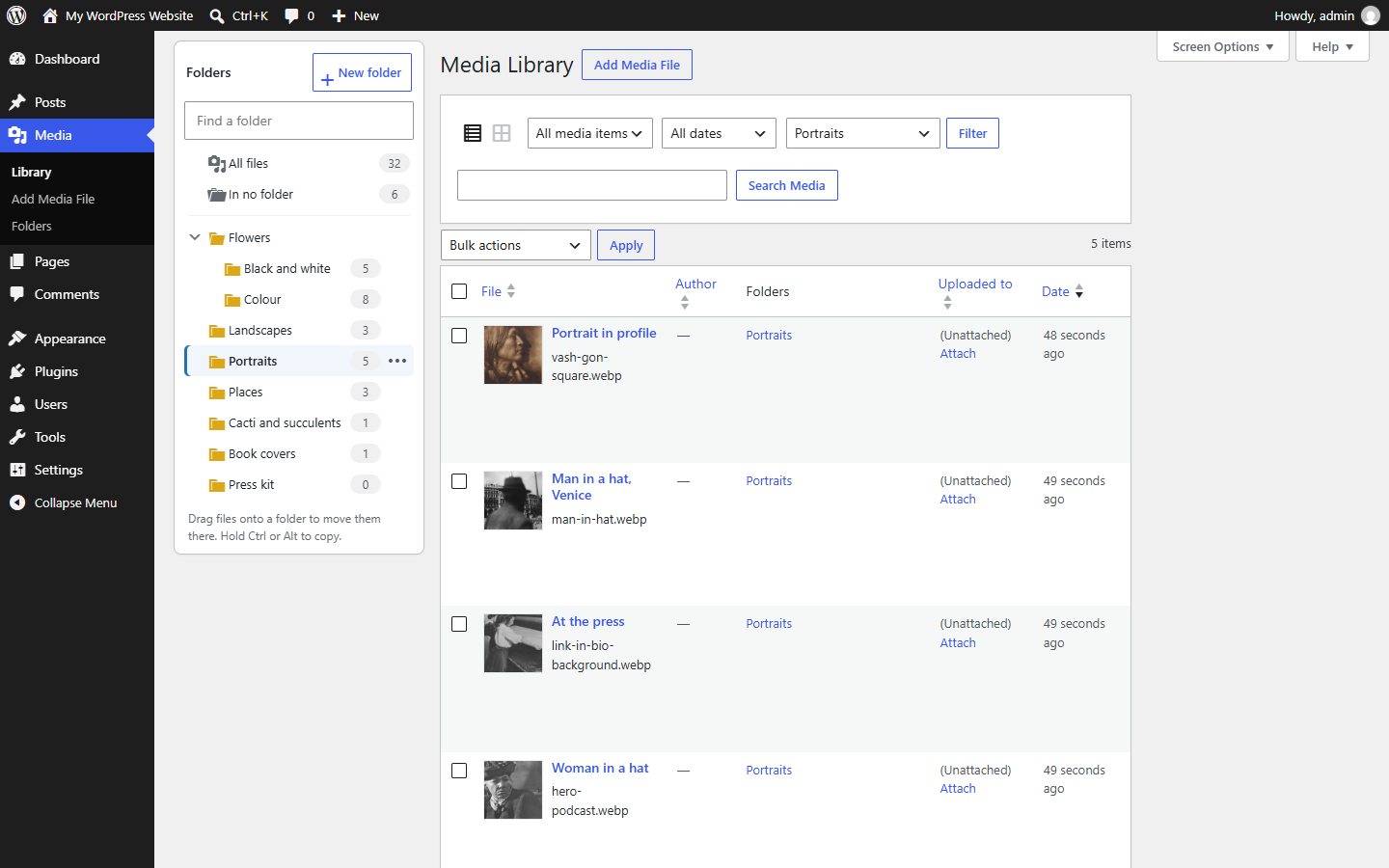
Shelfwright adds a folder tree beside the WordPress Media Library. Open a folder to see its files, drag files onto a folder to move them, and upload straight into the folder you are in. Unlimited folders and subfolders, free.
Switching from Enhanced Media Library?
Enhanced Media Library has not been updated since July 2024, and its filters no longer fit the media dialogs of WordPress 7. Shelfwright is built to take over without any migration:
- Your categories are already there. Shelfwright uses the same
media_categorytaxonomy, so every category shows up as a folder, with its subcategories and files. Nothing is copied or converted. - Your galleries keep working.
[gallery media_category="flowers,mosses"],[gallery media_category="california+flowers"],type,limit,orderbyand[playlist]work the same way. - Extra taxonomies stay. Taxonomies you created in Enhanced Media Library, and Categories or Tags you put on media, are registered again with the same names.
- Category pages keep their address, if you used them.
- Activate Shelfwright, deactivate Enhanced Media Library. That is all.
Coming from another folder plugin?
Shelfwright finds the folders of FileBird, Real Media Library, Media Library Folders, Folders, HappyFiles, WP Media Folder, Wicked Folders and Media Library Assistant, and imports them with one click, subfolders and all. The other plugin’s data is only read, never changed, so you can try Shelfwright without risk.
Files already on your server?
Media → Import from server adds files that are already on the server (put there by FTP, restored from a backup, or left by another tool) to the Media Library, and turns their folders into Shelfwright folders with the same structure.
- Nothing is copied or changed. Files inside the uploads folder are registered where they are. Only the file types WordPress allows are imported, and files that are already in the Media Library are skipped.
- The site owner decides which folders can be read: the uploads folder, plus any folder listed in the
SHELFWRIGHT_IMPORT_ROOTSconstant in wp-config.php (or added with theshelfwright_import_rootsfilter). You choose a folder inside those. Paths are checked, symbolic links are never followed, and only administrators can use it. - You see what will happen first: how many files and folders would be imported, and what is skipped and why.
- Folders outside the uploads folder can only be imported by copying the files into uploads, and only when you tick a box that says so. The originals stay where they are.
- It can be stopped and continued. Progress is kept on the server, and thumbnails and file details are made in small batches, so large folders do not run into time limits.
- Failures are listed, never skipped: every file that could not be added, put into its folder or given thumbnails is shown with the reason, with Retry and a CSV list.
Coming from Add From Server? Import the folder with the option to also put files that are already in the Media Library into the folders, and they get the structure they never had.
Features
- Folder tree beside the Media Library, in grid and list view, with file counts, “All files” and “In no folder”.
- Drag and drop: drag files onto a folder to move them (hold Ctrl or Alt to copy), drag selected files together, drag folders to nest or reorder them.
- Uploads go into the open folder.
- Subfolders as deep as you like; rename in place (double-click or F2), right-click for more.
- One file, several folders: a logo can be in “Brand” and in “Press kit” at the same time, without a copy.
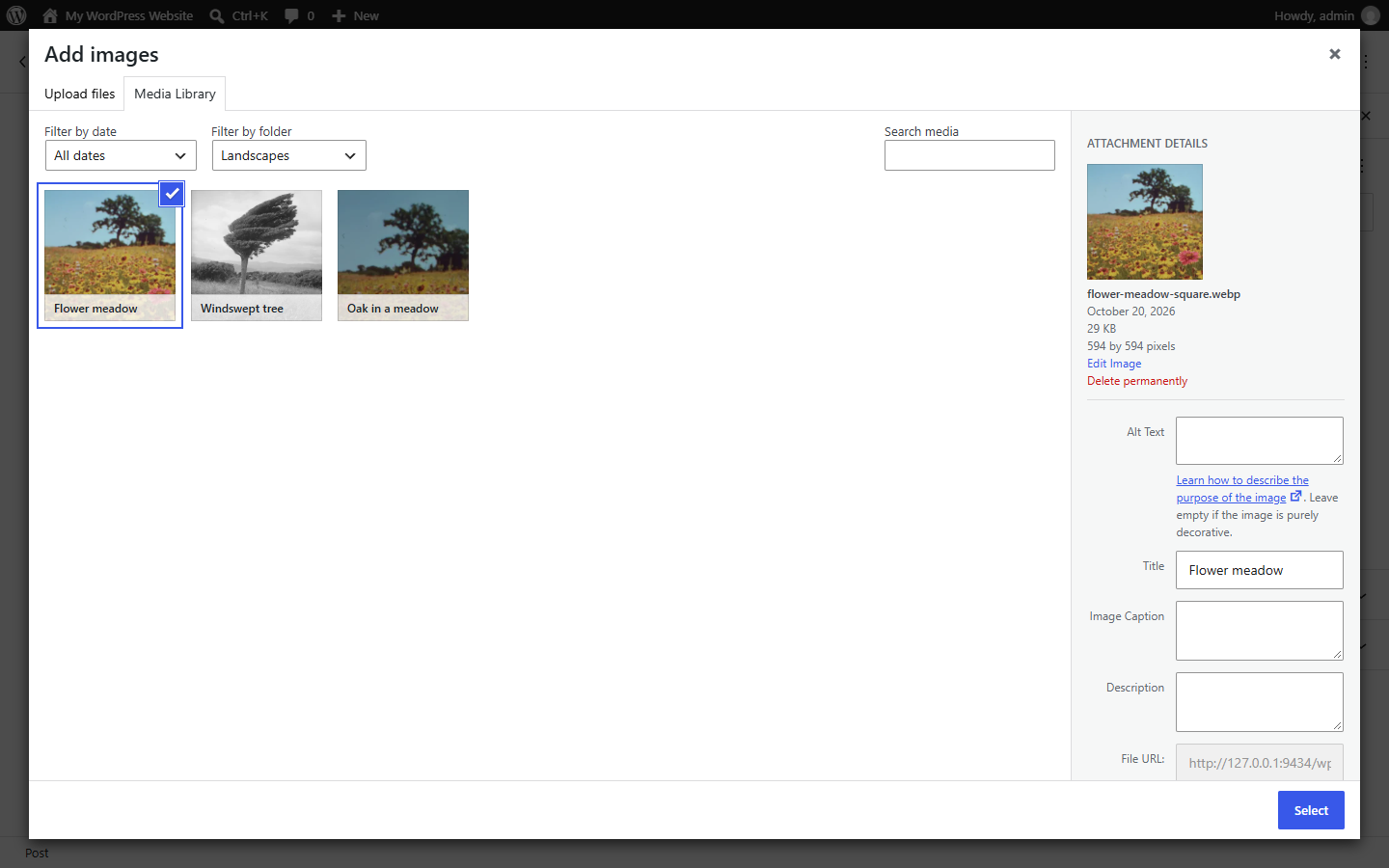
- Folder filter in the editor’s media dialogs, laid out for WordPress 7.
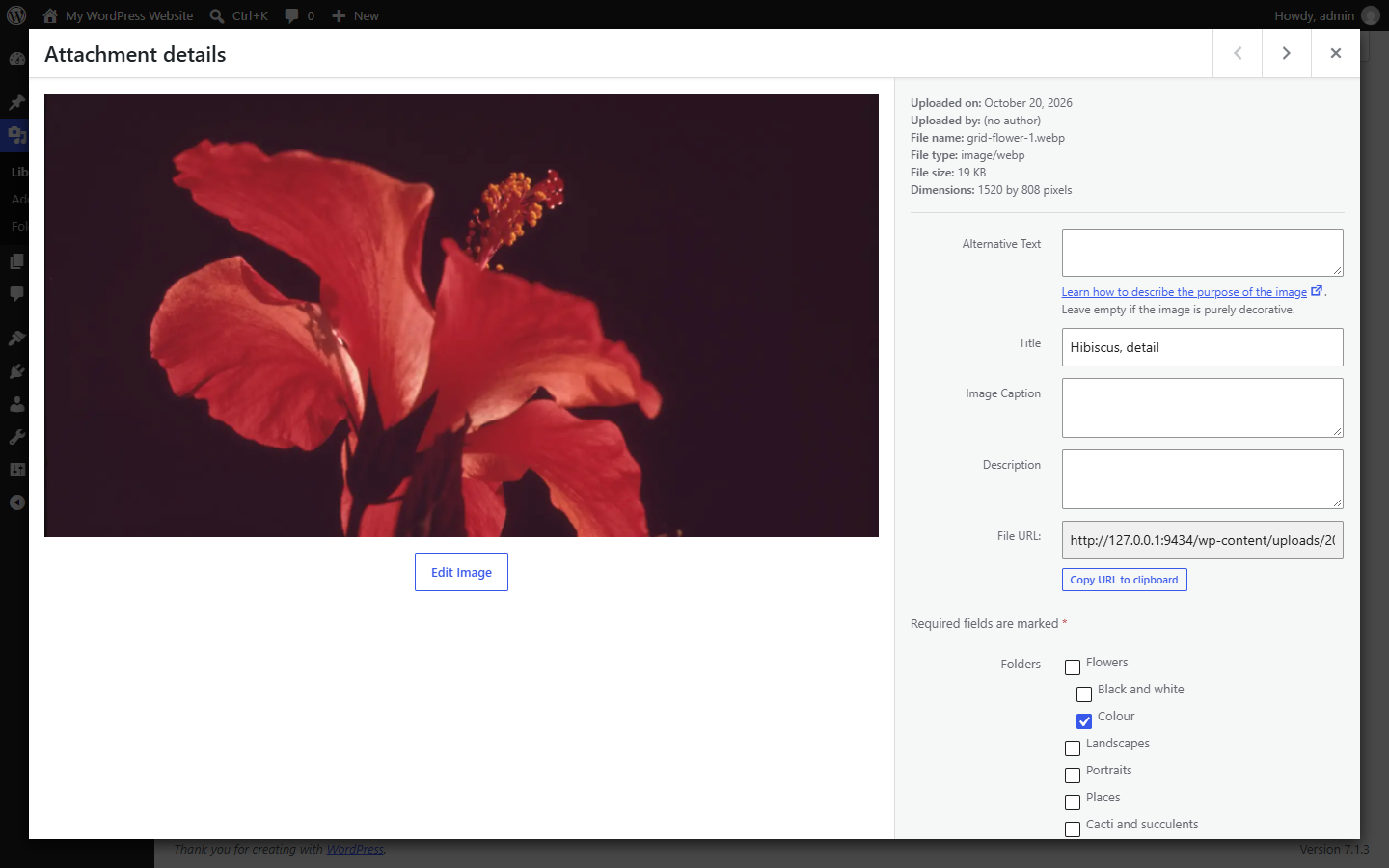
- Folder checkboxes in the attachment details, a Folders column and a folder filter in list view.
- Import from server: files that are already on the server, with their folders, without copying them.
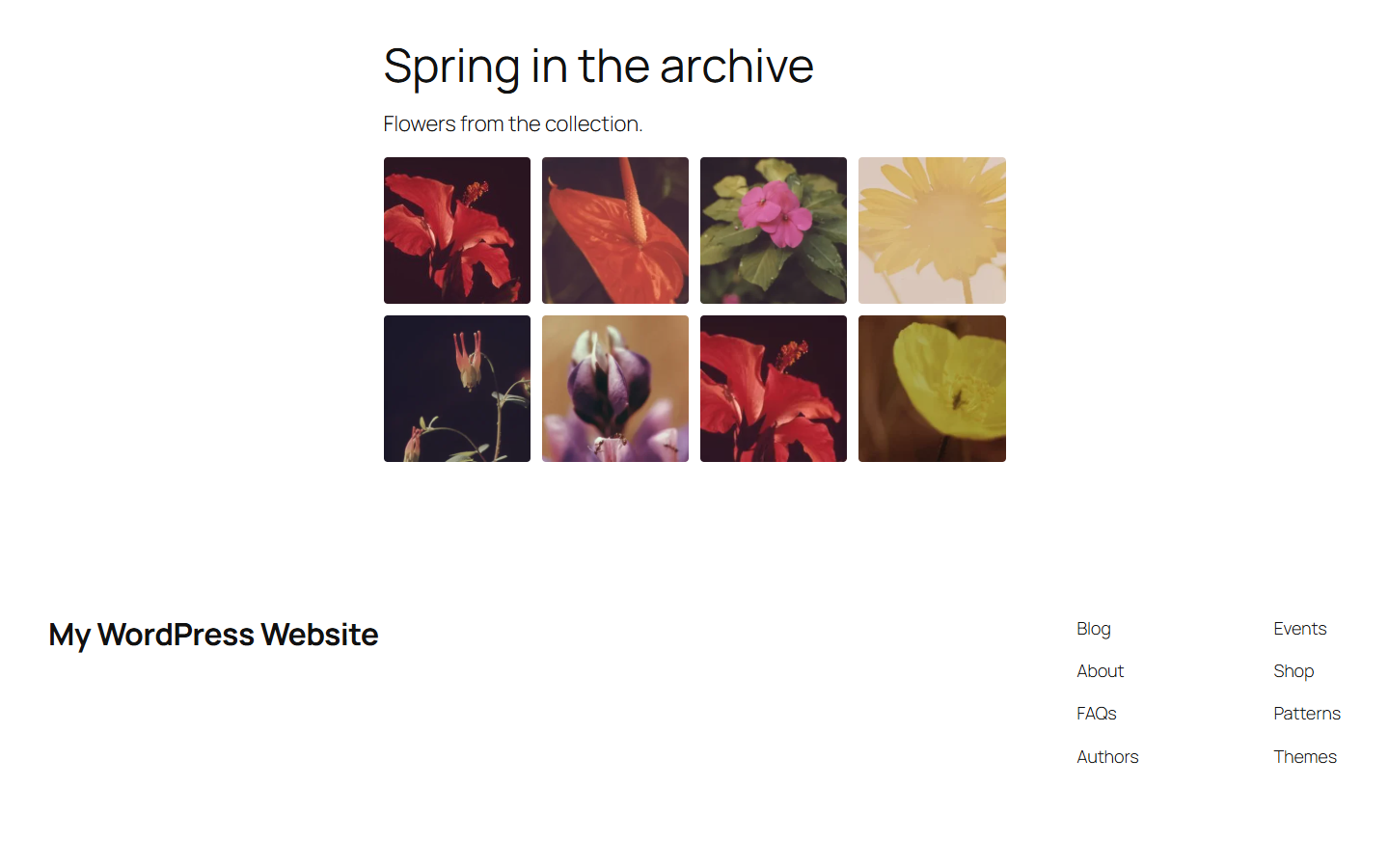
- Folder gallery block: show the images of a folder; images you add later appear automatically. Also
[gallery folder="logos"]. - Keyboard and screen reader friendly: the tree follows the WAI-ARIA tree pattern (arrow keys, Enter, F2, Delete, Shift+F10).
- Your files never move. Folders are virtual, so URLs, links and image sizes stay exactly as they are.
- No new database tables. Folders are a standard WordPress taxonomy, so backups, exports and other plugins understand them.
Shelfwright Pro
Shelfwright Pro adds:
- AI sorting: an image-recognition model looks at your images and suggests the right folder for each one, using your own folder names. It runs in your browser, so your images are not sent anywhere. Review the suggestions and apply them in one click.
- Sort new uploads automatically into the folder the AI suggests.
- Folder colours.
- Download a folder as a ZIP file.
Installation
- Install and activate Shelfwright.
- Open Media → Library. The folder tree is on the left. Click New folder to make your first folder, then drag files onto it.
- Using Enhanced Media Library? Your categories are already in the tree; deactivate Enhanced Media Library. Using another folder plugin? Click Import in the tree.
Settings are under Settings → Media → Folders.
FAQ
Does Shelfwright move my files on the server?
No. Folders are virtual: a file’s address never changes, so nothing on your site breaks. Moving a file between folders is instant.
Can a file be in more than one folder?
Yes. Drag with Ctrl or Alt held down to copy it into another folder, or tick several folders in the attachment details.
What happens when I delete a folder?
The folder is removed; its files stay in the Media Library, and its subfolders move up one level.
I used Enhanced Media Library. Do I need to import anything?
No. Shelfwright uses the same categories, so they are already there. Deactivate Enhanced Media Library once Shelfwright is active, so the two do not both change the Media Library.
What happens to my folders if I delete Shelfwright?
They stay, so you can reinstall or switch back to Enhanced Media Library. If you want them removed too, tick “Also delete all folders when Shelfwright is deleted” under Settings → Media first. Your files are never deleted.
Who can manage folders?
Anyone who can upload files can create, rename and fill folders. Deleting folders needs an Editor or Administrator.
How do I add files that are already on my server (uploaded by FTP)?
Open Media → Import from server, choose the folder, check the count and click Import. The files are registered where they are, and the sub-folders become folders in the tree. Folders you want to import from outside the uploads folder have to be allowed by the site owner first (see the next question).
Which server folders can be imported?
The uploads folder, and folders the site owner lists in wp-config.php: define( 'SHELFWRIGHT_IMPORT_ROOTS', array( '/home/example/ftp-incoming' ) ); (absolute paths; use 'Label' => '/path' to give a folder a name), or with the shelfwright_import_roots filter. Nothing else can be read, however the address is written, and symbolic links are never followed.
Does the import move, copy or change my files?
Files inside the uploads folder are registered where they are: no copy, no move, no rename. WordPress makes thumbnails next to them, as for any upload; originals of large pictures are not scaled or rotated. Files in a folder outside uploads are copied into uploads/server-import only if you tick the box that asks for it; the originals stay.
What is not imported?
Types WordPress does not allow (PHP, scripts, SVG unless your site allows it) and files whose content does not match their name, empty files, hidden files (names starting with a dot), symbolic links, resized copies WordPress made of another file, files that are already in the Media Library, and names with #, ? or % or invalid text (they would break the file’s web address). The count before the import lists each group.
Can I run the import again?
Yes. Files that are already in the Media Library are skipped, so only new files are added, into the folders that match. Tick “Also put the files that are already in the Media Library into these folders” to give older files their folders.
Does it work with large libraries?
Yes. Folders use WordPress’ own taxonomy tables and indexes, and imports run in batches.
Screenshots



Changelog
1.1.0
- New: Media → Import from server (administrators). Choose a folder on the server, see how many files and folders would be imported and what is skipped, and import. Files inside the uploads folder are registered where they are, without copying; sub-folders become Shelfwright folders with the same hierarchy, under a folder you choose.
- Which folders can be read is decided by the site owner: the uploads folder, folders listed in the
SHELFWRIGHT_IMPORT_ROOTSconstant, or added with theshelfwright_import_rootsfilter. Paths are checked one segment at a time and resolved, must stay inside the allowed folder, and symbolic links are never followed. Every route needs the Administrator capability and the REST nonce. - Only the file types WordPress allows are imported (the content is checked against the name). Files already in the Media Library, resized copies WordPress made, hidden files, empty files, and names that would break a web address are skipped and counted.
- Folders outside the uploads folder are imported by copying the files into uploads/server-import, only after you tick a box that explains it; the originals are never touched and an existing file is never overwritten.
- Resumable: progress is saved on the server after every step, so the page can be closed and the import continued later. Folders are walked in name order and the position is a file name, so files added or removed while it is paused are neither skipped nor read twice. Thumbnails and file details are made in small batches; WordPress does not scale or rotate the originals.
- Nothing that fails is passed over: a file that cannot be added, put into its folder or given thumbnails is kept, listed with the reason (all of them, with a CSV download), and the import is not reported as finished until Retry has written them or you choose “Finish without them”.
- Importing a folder again adds only new files. An option puts files that are already in the Media Library into the matching folders (for sites coming from Add From Server).
- Deleting the plugin also removes the import records and file markers.
1.0.10
- Seven days after activation (or after updating to this version), and only when the site has at least one folder, administrators see one request for a review on WordPress.org on the Media Library, Media → Folders and the Plugins screen: “Leave a review” (opens WordPress.org in a new tab), “Maybe later” (hidden for 30 days) or “Don’t ask again”. The choice is stored for the site and nothing is sent anywhere.
1.0.9
- Moving files between folders (dragging, bulk moves, the folder boxes in the attachment details and WordPress’s own attachment form): the new folder is added first and read back from the database; the file leaves its old folders only when the new one is really there. A move whose new folder could not be saved keeps the file in all its old folders (also with subfolders shown) and is reported with the names of the files; a file that got the new folder but could not leave the old one is reported as such.
- The list view no longer reloads the page under a message about files that could not be changed; it offers a Reload button instead. The same for the import’s final message.
- Ticking a folder that was deleted meanwhile changes nothing (the old folder is not removed) and says why. A move uses the subfolder setting of the view it was made in.
- Deleting a folder is done under the folder lock and checked afterwards; a folder whose parent was lost is shown at the top level instead of disappearing. Renaming and moving a folder are read back.
- An upload whose chosen folder could not be set is not sorted elsewhere by the AI, and its message can no longer be taken by another request.
- Deleting the plugin with “Also delete all folders” deletes the folders before the settings, so a run that stops half way keeps the choice.
- Documentation updated for this version: installation file names, continuing an interrupted import, the list of import failures with Retry and Finish without them, and exactly what deleting the plugin keeps and removes.
1.0.8
- Import from other folder plugins: nothing that fails is passed over. A folder that cannot be created (or is deleted while the import runs) and every file whose folders cannot be written are kept with the error and listed in the folder tree, all of them, with a CSV download. Retry writes them again. The import counts as done only when everything is written, or when you choose “Finish without them” after seeing the list.
- Import: a database read error stops the step without moving on, the position is kept on the server and read by key (links the other plugin adds or removes meanwhile are never skipped or read twice), every write is checked against the file’s folders afterwards, and a finished import is never run again by a late request from another tab.
- Moving, adding and removing files in bulk: the new folder is added before the old one is left, every write is checked afterwards, and files whose folders could not be saved are reported apart from files you may not change.
- Uploads into a folder that was deleted meanwhile, or whose folder could not be set, are reported instead of landing in no folder unnoticed.
- This plugin no longer contains any code for Shelfwright Pro’s features: Pro adds them itself.
1.0.7
- Attachment details: while a folder change is being saved, further ticks and unticks are kept as changes of their own (this folder added, that one removed) instead of as a whole selection. When the save comes back, the waiting changes are applied on top of the folders the server returned, so a folder another tab, a drag or automatic sorting added or removed in the meantime is never undone.
- A save whose answer was lost (an error page after the server had already stored it) is no longer cancelled against a later click: the server is asked which folders the file has now, a change made to the same folder in the meantime wins, and only what is still missing is sent. Retry sends only the changes that are not saved.
- Attachment details drawn again (the next file, the dialog reopened) show the folders saved last, also after files were dragged or sorted. Unticking the folder that is open takes the file out of the grid.
- Leaving the page asks first while a folder change is on its way, or when a change that could not be saved is not safely stored in the browser (storage full or blocked, or replaced by another tab).
- A folder change that the database did not take is reported instead of looking saved.
- Media → Edit no longer shows WordPress’s own Folders box, which sent the whole list and took away folders given elsewhere; Shelfwright’s folder boxes are there instead and save only what changed.
- The folder script now comes with every media dialog (also with the folder filter switched off, and on the front end), so each tick is saved as its own change.
- WordPress’s own attachment form (where the script is not loaded) saves only what changed: every folder box has its own name (WordPress sent only the last ticked box of a shared name), the server remembers what each copy of the form saved last and saves one file at a time, so quick ticks and unticks end as the boxes show. A failed save is reported on the next screen.
- The REST route for one file’s folders only takes changes (add, remove); it no longer replaces the whole list. More than 500 folder changes for one file are saved in several requests instead of being refused.
- An upload into the open folder is added to the folders the new file already has instead of replacing them.
- Renaming or moving a folder next to a folder with the same name is refused, as creating one is. [gallery] and [playlist] also find a renamed folder by its new name (it keeps its old slug).
- Import: folders are matched by their exact name, so “C++” is no longer merged into “C” (same slug). One import step runs at a time per source; a second tab or administrator is told the import is already running, and steps from two tabs continue the same import. When the server has to start its folder step over, the import follows it instead of stopping.
- Deleting the plugin keeps the folder order and colours along with the folders, unless “Also delete all folders” is ticked.
1.0.6
- Unsaved folder selections and other remembered state (open folder, open branches) are kept per site and per user. Two WordPress sites under one address, or two users of one browser, no longer see each other’s selections. Unsaved selections stored by 1.0.5 and earlier, which did not say whose they were, are discarded.
- Settings: the settings are registered with a plain function name for the sanitize callback.
- Importers read the other plugin’s tables with prepared queries.
- Attachment details: the folder checkboxes save only what you changed (the folders you ticked or unticked), so a folder that was added or removed elsewhere in the meantime (another tab, a drag, another user) is kept. A selection that could not be saved is applied on top of the file’s current folders when you retry it, also after a reload.
- Without Shelfwright’s script on the page, WordPress’s own attachment form saves the folder checkboxes.
- The folder route of the REST API only accepts media files.
- Importing from another folder plugin works in batches: folders are created a batch at a time with a progress count, file links are read page by page, so large libraries import without running into time limits. Files that could not be added and folders that could not be matched are counted in the final message.
- Moving many files into or out of a folder changes only the folders that really change and counts the folders once at the end, which is faster on large selections.
- Uninstalling on a multisite network cleans every site, import progress included.
1.0.5
- Attachment details: a folder selection that is still waiting to be saved is no longer lost when you close the dialog or move to another file. Each file keeps its latest selection until it is saved. If saving fails, the selection is kept and the file shows “Folders not saved” with Retry whenever you open it again, also after a reload. Leaving the page while a selection is still being saved asks first. When the same file is open in several media dialogs (Add Media, featured image), every one of them shows the same selection.
- Folders deleted in another tab: opening one shows no files instead of the whole library, creating a subfolder in it is refused instead of landing at the top level, and moving files into it reports an error and refreshes the folder tree.
- With “Show files in subfolders too”, moving files out of a folder or taking them out also takes them out of its subfolders, as the view showed. Messages now count only files that really changed, plus the ones that were already that way.
- Dragging a folder into a new place moves only that folder, even when the tree in this tab is out of date; folder moves are sent one at a time.
- A refresh of the folder tree (finished upload, automatic sorting) no longer closes a rename or new-folder box while you type.
- Uploads go into the folder that was open when the files were dropped, even if you open another folder while they upload.
- An import that stops with an error continues where it stopped when you click Import again.
1.0.4
- Attachment details: folder checkboxes are saved one at a time per file, so the last selection is always the one saved. A failed save keeps your selection, says it was not saved and offers Retry.
- The folder tree now says so when it cannot be refreshed.
1.0.3
- Shortcodes: [gallery] and [playlist] that name an empty or unknown folder now show nothing. Before, WordPress fell back to the post’s own attached files.
- Folder lists (the folder filter, dropdowns and the Folder gallery block) show folders at any depth; there was a limit of 50 levels.
- Folder gallery block: if the folders cannot be loaded, the block says so and shows the error, instead of asking you to create a folder.
- Import: folders nested more than 60 levels deep keep their place under their parent.
1.0.2
- Folder galleries: “0” (or no limit) now really shows every image in the folder, also for the [gallery folder=”…”] shortcode. There is no hidden maximum.
- Large selections are put in folders in batches, so every selected file is handled. If some files cannot be changed, the message says how many and why. The server refuses requests above 2,000 files instead of cutting them.
- Importing from another folder plugin continues until every link is done, and says where it stopped if a batch fails.
1.0.1
- AI sorting: an image is only ticked or sorted automatically when it really matches the folder name on its own and the best folder clearly beats the others. Unrelated images are left where they are. The review list says “Good match”, “Possible” or “No folder fits” instead of a relative percentage.
- Automatic sorting now covers images uploaded anywhere (Media Library, Add New, media dialogs, block editor). They are sorted the next time the Media Library is open; a folder chosen by hand is never changed.
- AI sorting handles libraries of any size: images are fetched page by page instead of at most 3,000.
- Folder names are cut safely also on servers without the PHP mbstring extension.
1.0.0
- First release: folder tree for grid and list view, drag and drop for files and folders, uploads into the open folder, folder filter in media dialogs, folder checkboxes, Folder gallery block, Enhanced Media Library compatibility (categories, extra taxonomies, gallery and playlist shortcodes), importers for eight folder plugins.