


Description
Compress and convert images, offload media and serve them from a CDN
Images are usually the heaviest part of a web page. Large, unoptimized images slow down page loads, hurt Largest Contentful Paint (LCP) in Core Web Vitals, and fill up your hosting storage.
SmallPict is an image optimizer that compresses your images and converts JPG, PNG and GIF files to WebP and AVIF. New uploads are compressed automatically, and on paid plans you can bulk compress the images already in your Media Library. Pro and Business plans can also move your media library to cloud storage and serve images from a global CDN. It works for blogs, WooCommerce stores, agencies and larger publishers.
Compression and format conversion run on SmallPict’s servers, not on your hosting. Your server only makes the usual WordPress thumbnail sizes.
Website | Documentation | Pricing
Why use SmallPict
- Less work for your server: Compression, format conversion and animation processing run on SmallPict’s cloud servers. Your server only makes the usual thumbnail sizes.
- WebP and AVIF: JPEG and PNG images are converted to WebP, or to AVIF on paid plans. Both formats are much smaller at similar visual quality.
- Free up disk space (Pro and Business): Move your media library (originals and thumbnails) to cloud storage and remove the local copies from your server.
- Global CDN (Pro and Business): Offloaded images are served from edge servers close to your visitors, with HTTP/3, Brotli and edge caching. No setup needed.
- Animated images (paid plans): Animated GIFs and other animated formats are converted to animated WebP, which is usually much smaller.
- Quick setup: Connect your site with an email verification code. No cloud accounts or API keys to configure by hand.
- Safe by default: If an upload or transfer fails, your local files are left as they are and your uploads keep working.
Features
Cloud compression (WebP and AVIF)
Choose lossy compression for the smallest files, or lossless mode (Pro and Business) when every pixel matters, such as photography portfolios. Browsers that support WebP or AVIF get the modern format, and older browsers get a fallback.
Cloud storage offload
Media libraries can grow to tens of gigabytes, which makes backups slow and pushes you toward a bigger hosting plan. SmallPict moves your media to cloud storage and frees the local disk space. The WordPress Media Library, image editing and thumbnails keep working as before.
Global CDN
Offloaded images are delivered from a worldwide edge network, so visitors download them from a nearby location instead of from your hosting server.
Animation optimization
Animated GIFs can be several megabytes or more. SmallPict detects animated images and converts them to animated WebP, which uses far less bandwidth.
Better Core Web Vitals
Smaller images served from a CDN reduce page weight, which helps your Largest Contentful Paint (LCP) and PageSpeed scores.
Free and paid plans
Free
- Automatic compression for newly uploaded images
- WebP conversion
- Compression and conversion in the cloud, not on your hosting
- Good for personal blogs, portfolios and small sites
Starter
- Everything in Free
- AVIF: Convert images to AVIF as well as WebP
- Bulk optimization: Compress and convert the images already in your Media Library
- Animated images: Convert animated GIFs to animated WebP
- Unlimited sites: Connect as many sites as you want and share one plan quota between them
Pro
- Everything in Starter
- Cloud storage offload: Move media to cloud storage and free up server disk space
- Global CDN: Serve images from edge servers close to your visitors
- Lossless compression and serving WebP and AVIF together
Business
- Everything in Pro
- Priority processing: Your images are processed in a faster queue
Quotas and file size limits differ by plan. See the full plan comparison.
Privacy and security
- Encrypted transfer: Images are sent over encrypted (TLS) connections. In standard mode, the optimized image is returned to your site and is not kept on SmallPict’s processing servers.
- Isolated storage: If you use cloud storage offload, your files are kept in isolated, encrypted cloud storage.
- Your content stays yours: We do not inspect, sell or otherwise use your images.
External services
This plugin connects to the SmallPict cloud service to process images, manage your account and quota, and deliver images through the CDN. The plugin does not work without it.
- API:
https://api.smallpict.app/v1is used for connecting your site, authentication and image processing jobs. - CDN:
https://cdn.smallpict.appserves offloaded images when the CDN is turned on. - What is sent: The images you upload or optimize, and your plugin settings. All data is sent over TLS.
- How long it is kept: In standard mode, images are processed in memory and returned to your site right away. If you use cloud storage offload, your images are stored in SmallPict’s cloud storage.
- Terms of Service: https://smallpict.app/en/terms
- Privacy Policy: https://smallpict.app/en/privacy
Installation
From your WordPress dashboard (recommended)
- Go to Plugins > Add New.
- Search for
SmallPict. - Click Install Now, then Activate.
- Enter your email on the setup screen. You will receive a verification code.
- Enter the code to connect your site. New uploads are optimized from then on.
Manual upload
- Download
smallpict.zipfrom SmallPict.app or WordPress.org. - Go to Plugins > Add New > Upload Plugin.
- Choose the file and click Install Now.
- Activate the plugin and follow the setup screen.
WP-CLI
- Run
wp plugin install smallpict --activate. - Go to Settings > SmallPict in your dashboard to connect your site.
FAQ
Does SmallPict slow down my server?
Compression and format conversion run on SmallPict’s servers, not on your hosting. Your server handles the upload and download and makes the usual WordPress thumbnail sizes, as it does without the plugin.
How does cloud storage offload free up disk space?
SmallPict copies your media to cloud storage. Once the copy is confirmed, the local files are removed from your server. This keeps your hosting storage small and your backups fast.
What happens if a transfer to cloud storage fails?
The process stops and your local files are left untouched, so there are no missing images or broken links.
Do I need my own cloud storage account or DNS changes?
No. SmallPict is a managed service. You do not need a separate cloud account, access keys or DNS records. Cloud storage and the CDN can be turned on from the plugin settings.
What happens to animated images on the Free plan?
They are uploaded and kept in their original format, without errors. Animation optimization is available on paid plans.
Can I use one subscription on several sites?
Yes. Starter, Pro and Business plans let you connect unlimited sites. All connected sites share your plan’s quota.
What happens when I run out of monthly quota?
New uploads are saved as normal WordPress media without optimization. Images that were already optimized or offloaded keep working. Your quota resets at the start of each billing cycle.
Does SmallPict add a credit or link to my site?
No, not by default. There is an optional setting, “Credit SmallPict in the page source”, that adds a hidden HTML comment to the end of your pages. It is off unless you turn it on in Settings > SmallPict > Settings.
Can I compress and convert images I uploaded before installing SmallPict?
Yes, on paid plans. Open the Optimize library tab in Settings > SmallPict to bulk compress existing images and convert them to WebP or AVIF. Bulk optimization uses your monthly quota.
Which image formats can SmallPict convert?
JPG and PNG images can be converted to WebP on every plan, and to AVIF on paid plans. HEIC/HEIF photos from phones are converted to WebP, AVIF or JPEG. Animated GIFs are converted to animated WebP on paid plans.
Does it work with WooCommerce and page builders?
Yes. SmallPict hooks into the standard WordPress media handling, so it works with WooCommerce product galleries, Elementor, Divi, Bricks, the block editor and most themes.
Screenshots


Changelog
1.3.0
- Fix: With both AVIF and WebP enabled, the full-size AVIF and WebP copies are now moved to cloud storage with the image, so wide screens no longer show broken images. “Move existing images” uploads the copies left behind by 1.2.9.
- Fix: Sites that are not connected to smallPict keep WordPress’s own thumbnails and large-image scaling.
1.2.9
- New: A “Download images back to this server” button on the Delivery tab copies every image stored only in smallPict cloud storage back to your uploads folder, at any time. Images that fail are skipped and can be retried.
- New: Deleting an image from the Media Library also deletes its files in smallPict cloud storage.
- Fix: AVIF and WebP thumbnail sizes are now moved to cloud storage and listed in only when they exist, so they no longer return errors.
- Fix: Downloading images back now includes their AVIF and WebP thumbnail sizes.
- Fix: Uninstalling removes the plugin settings and data. The record of images in cloud storage is kept, so those images keep loading.
- Improvement: Faster status checks while an image is being optimized, and uploads wait at most 60 seconds for a conversion.
- Improvement: The connection check runs once an hour in the background instead of on admin page loads.
- Change: Requires WordPress 5.9 or later.
1.2.8
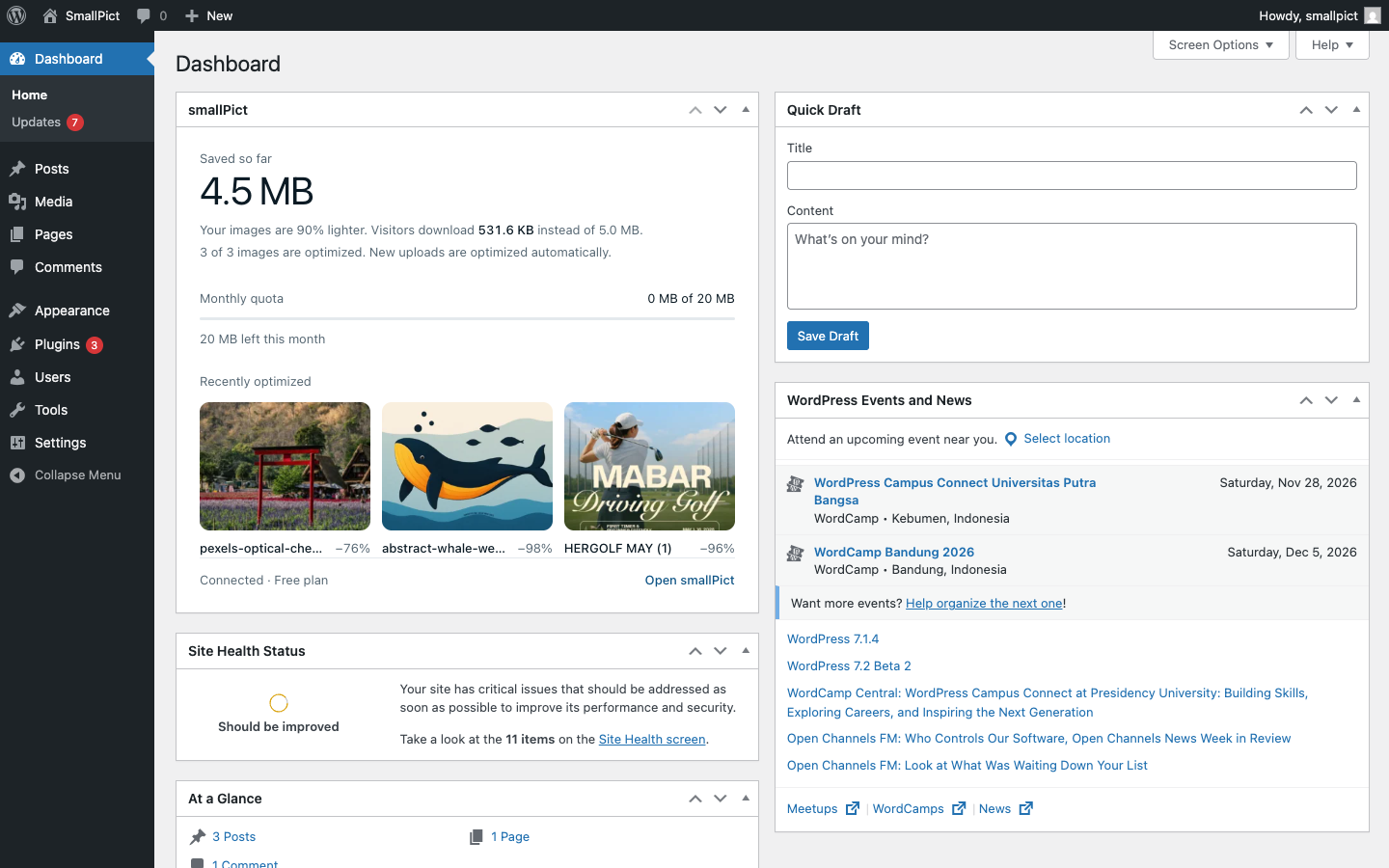
- New: A smallPict widget on the Dashboard shows how much you have saved, your monthly quota and the last three optimized images, with a link to the full overview.
- Improvement: A simpler Overview: the amount saved, your monthly quota, the latest optimized images shown large, and your current settings in one row.
- Change: The “Images optimized by SmallPict” comment in the page footer is now off by default. You can turn it on with the new “Credit SmallPict in the page source” setting on the Settings tab.
- Improvement: Rewrote the plugin description and FAQ in plainer language.
1.2.7
- Improvement: New animated plugin icon.
- Improvement: The plugin author is now listed as SmallPict Team.
1.2.6
- Fix: Sites that connected or reconnected since version 1.2.3 could have every request rejected with “Invalid signature”, so new uploads were not optimized. The saved secret key is now read after WordPress has loaded its security keys. No need to reconnect after updating.
- New: Redesigned settings screen with five tabs: Overview, Settings, Delivery, Optimize library and Account. Overview shows how much your images were reduced, using real numbers from your Media Library.
- New: A save bar appears only when you have unsaved changes, with Save changes and Discard.
- Improvement: Simpler settings. Compression is now three choices (Balanced, Smallest files, Pixel-perfect), with quality fine-tuning under “Fine-tune quality”. Options that need a higher plan say which plan.
- Improvement: The first-run connect screen matches the new design and shows the three setup steps.
- Improvement: Better keyboard and screen reader support: arrow keys move between tabs, dialogs keep focus inside and close with Esc, and the layout works down to phone width.
- Improvement: Removed the visual previewer and other figures that were estimates rather than measurements.
- Improvement: Every message on the settings and connect screens can now be translated, including progress, errors and the activity log.
- Fix: “Clear CDN cache” now actually clears this site’s CDN cache and shows the real result. Before, it only showed a success message.
- Fix: Deleting an image from the Media Library now also removes it from the CDN cache, so it no longer loads from its CDN address.
- Fix: Images over your plan’s per-file limit (Free 2 MB, Starter 10 MB, Pro 20 MB, Business 45 MB) are now refused before upload, with a message that gives the file size, your plan and its limit. The message used to name the Free plan whatever your plan was.
- Fix: When your plan’s per-minute limit is reached, Optimize library and moving images to cloud storage wait a minute and continue, instead of failing every remaining image. A single upload shows a clear message.
- Fix: An image that could not be optimized (too large, or the per-minute limit was reached) stays in Optimize library, so you can try it again later.
- Fix: When SmallPict cannot optimize an upload, the warning now appears right away on Media > Add New and in the Media Library, instead of on the next admin page you open.
- Fix: After saving, the screen returns to the tab you were on, and the “Settings saved” notice no longer appears twice.
- Fix: Closing the cloud storage confirmation with Esc now turns the switch back off.
1.2.5
- New: HEIC/HEIF support. Photos from iPhone and Android cameras are converted to WebP, AVIF or JPEG, depending on your format setting.
- New: Clearer HEIC upload message. The generic WordPress HEIC warning is replaced with one that explains the actual cause (WordPress older than 6.7, or Imagick on your server without HEIC support).
- Improvement: Image format is now detected from the file contents, so HEIC photos that WordPress 6.7+ already converted to JPEG are no longer skipped.
- Improvement: HEIC photos always get a JPEG fallback in Dual and Disabled modes, because browsers cannot display HEIC.
- Fix: HEIC photos are no longer mistaken for animations.
- Reliability: Failed HEIC conversions are reported and left unprocessed so they can be retried.
- Improvement: Smaller release package. Tests, development tools and internal docs are no longer included.
1.2.4
- New: An HTML comment is added to the page footer:
<!-- Images optimized by SmallPict (https://smallpict.app) -->. - New: Setting to turn the footer comment on or off (
smallpict_enable_attribution). - Improvement: Rewrote the Free vs. paid plan comparison in the readme and added links to pricing.
- Reliability: Image delivery rewriting now skips RSS feeds, AMP pages and admin screens.
1.2.3
- New: WebP and AVIF modes now replace the original attachment with a single converted file, so the original no longer takes up disk space.
- New: Maximum image size setting. Very large uploads are scaled down (for example to 1600, 1920, 2048 or 2560 px), using WordPress’s big_image_size_threshold.
- Improvement: Simpler format setting with one choice and clear fallback options.
- Performance: In WebP or AVIF-only mode, each image now needs just one cloud conversion request.
- Security: Improved the security of transfers to cloud storage.
- Security: Stricter file path checks when cleaning up local media.
- Security: Credentials are now stored with AES-256-GCM encryption.
- Improvement: Existing encrypted keys and connected accounts keep working after the update.
1.2.2
- New: “Connect with API Key” option in setup and in the reconnect dialog. Pasting a combined
apiKey:secretKeyvalue fills both fields. - New: Paid accounts can use their dashboard API keys on unlimited WordPress sites, all sharing the plan’s quota.
- Security: Requests are signed with HMAC-SHA256 and protected against replay (5-minute time window). Secret keys are stored encrypted with AES-256-CBC.
1.2.1
- New: Reconnect button with a verification code dialog in the Cloud Account & Quota tab.
- New: Connection check that shows response time and status (Connected, Disconnected / Invalid Key, Unreachable).
- Improvement: Re-sync Status now detects revoked or invalid keys and asks you to reconnect.
- Fix: Reconnecting now restores working API keys without manual database changes.
1.2.0
- New: CDN & Storage screen for managing the CDN and cloud storage offload.
- New: Cloud storage offload to move media off your server and free up disk space.
- New: Optimization for animated GIF, APNG and animated WebP files.
- New: Animated images on the Free plan are uploaded as-is instead of failing.
- Improvement: Faster and more reliable cloud conversions.
- Improvement: Better subscription handling and account screen.
- Improvement: Code updated to follow the WordPress Coding Standards.
1.1.8
- New: Monthly quota now resets with your billing cycle.
- New: Simpler email verification during setup.
- New: Account screen with live connection status.
- Improvement: Plan upgrades are detected and applied more reliably.
- Improvement: Better background sync and error handling.
- Fix: Usage numbers and other screen data not updating correctly.
1.1.7
- Improvement: Updated plugin banner and icons.
1.1.6
- Fix: Release process fixes.
1.1.5
- Security: Better validation of data exchanged with the cloud service.
- Performance: Faster uploads to the cloud and faster job responses.
- Fix: Image quality handling across plans.
1.1.4
- Improvement: Output escaping and WordPress coding standards fixes.
1.1.3
- Fix: Library compatibility checks and style output.
1.1.2
- Improvement: File handling now uses the WordPress filesystem API.
1.1.1
- Security: Stricter file access checks and input sanitization.
- Fix: Consistent time zone and date handling.
1.1.0
- New: Image processing moved fully to the cloud.
- Improvement: Works on a wider range of server setups.
- Fix: Cleaner activation, and data cleanup on uninstall.
1.0.0
- Initial release.
- Automatic cloud image optimization.
- WebP support.