

Description
SoftIcon Flipbook turns your brochures, magazines, catalogs, menus and ebooks into a realistic page-turning book, right inside the block editor. Add the Flipbook block, pick a PDF and you see the finished book in the editor. For the Classic Editor and page builders, every flipbook also has a shortcode.
Documentation | Demo | Pricing | Support
Video tutorials: the 30-second promo, every setting explained, add a flipbook, the Hardcover design and reading features and the lightbox and the shortcode for the Classic Editor and Elementor and autoplay and right to left and fullscreen on phones, or watch the whole playlist.
Why choose SoftIcon Flipbook?
- Block first – upload or pick a PDF in the block and preview the real flipbook while you edit.
- Readable on phones – the book switches to one page at a time on small screens, two-page spreads on wide ones. Or force one layout.
- Light on your pages – the flipbook engine loads only when the book scrolls into view, and pages are drawn as the reader gets near them. In a lightbox the book loads only when a visitor opens it.
- Many books on one page – show each one as a cover, button or link that opens the book in a popup.
- PDF or images – build a book from a PDF, or from images in reading order.
- Clear errors – if a PDF cannot be shown (for example a link to another website that blocks it), the block says why and keeps a link to the file.
Features
- Lightbox: a cover, button or text link on the page opens the book in a popup over the page
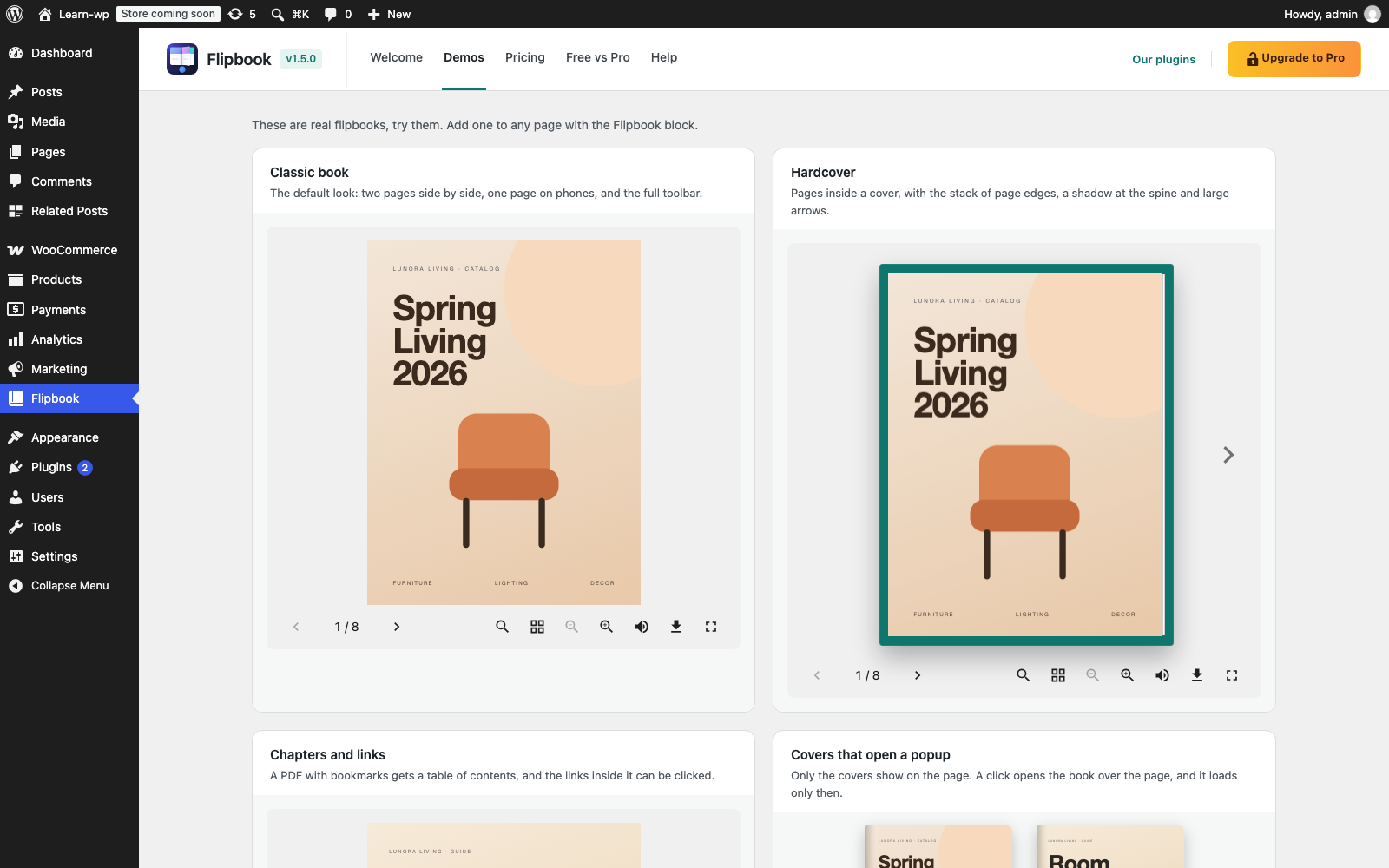
- Two designs: Classic, or Hardcover book with a cover around the pages, the stack of page edges, a shadow at the spine and large arrows beside the book
- PDF flipbook from the Media Library or a link
- Image flipbook from any set of images
- Auto, always-two-pages or always-one-page layout
- Hard cover: first and last pages turn on their own
- Open at any page, jump to a page from the page counter, or link straight to a page with #page=5
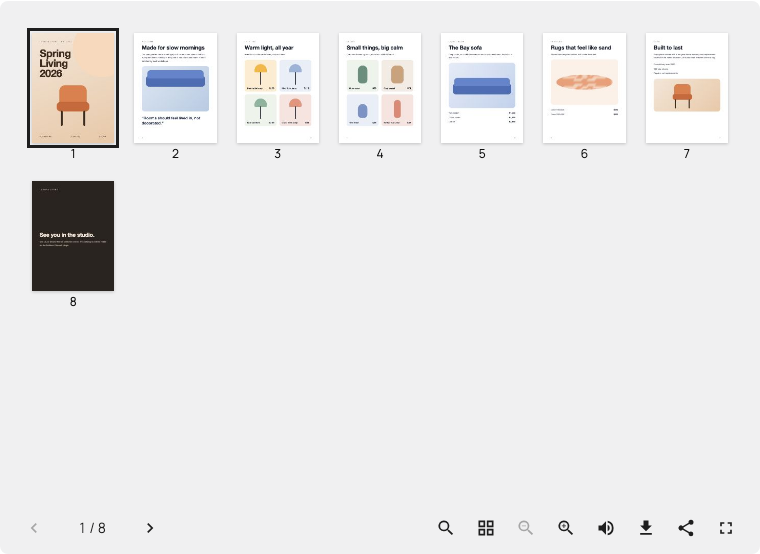
- Thumbnails of all pages: a click opens that page
- Links inside the PDF work: web and email links, and page links that turn the book
- Table of contents from the PDF’s bookmarks
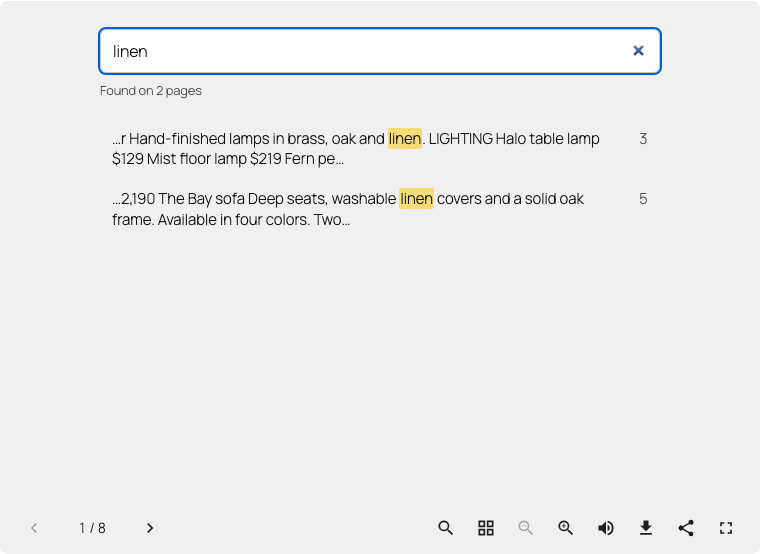
- Search: type a word, see the pages that have it with a short excerpt, and open one with a click
- Share menu: Facebook, X, LinkedIn, Pinterest, email and Copy link for the page that is open; phones use their own share sheet (optional)
- Print: readers print the whole book, one book page on each sheet of paper (optional)
- Zoom with the toolbar buttons, a pinch on phones or Ctrl + scroll on computers; drag to move around a zoomed page
- Toolbar with page counter, previous/next, play / pause, thumbnails, zoom, print, download, share, fullscreen and a page-turn sound visitors can mute
- Keyboard arrows turn the pages, the toolbar works with screen readers
- Fullscreen that fits the book to the screen, with an iPhone fallback
- Fullscreen on phones: the book shows “Tap to read” and one tap opens it full screen
- Autoplay: the book turns its own pages every few seconds, holds under the mouse, stops when a reader takes over, and can start again at the end
- Right to left, for Arabic, Hebrew, Urdu or Persian books: the book opens from the right and the arrows and arrow keys follow
- Start with the thumbnails or the table of contents, so readers pick a page first
- A title above the book
- Maximum height, with its own height for tablets and phones
- Light, Dark or Auto theme (dark when the reader’s device is), and colors for background, toolbar and icons
- Wide and full width alignment
- Flipbooks with a shortcode, such as
[softicon_flipbook id="123"], for the Classic Editor, Elementor and other page builders
SoftIcon Flipbook Pro
Everything above stays free, with no limits on books or pages. SoftIcon Flipbook Pro is a separate plugin for sites that want more from their books:
- Shelf of books – show many books on a wooden shelf; a click on a cover opens that book in a popup. Watch the shelf.
- Lead capture – ask readers for their name and email after the pages you choose. Leads are saved on your site, with CSV download and an email for each new lead. Watch lead capture.
- Reading analytics – opens and downloads per book, the most read pages and a daily chart, with a CSV export and no cookies. Watch reading analytics.
- PDF protection – no download button, no right-click saving, and the PDF address kept out of the page.
- Password for a book – readers type a password to open it; the password is checked on your site and never put in the page. Watch protection and the password.
- Page buttons – a button under the book while a chosen page is open, linking anywhere or to a WooCommerce product with its name and price. Watch page buttons.
- Hotspots – draw clickable areas on any page: a link, or a WooCommerce product that opens a card with its picture, name and price. Watch hotspots.
- Branding – your logo in the book’s toolbar, with a link, and your own picture behind the book. Watch branding.
- Watermark – your words or logo drawn into every page, also when printed, with the reader’s name or email if you like.
- PDF from a custom field – each post shows the PDF in its own Meta Box or ACF field, so one flipbook in a template, a Query Loop or a shortcode shows every post’s book.
- Bookmarks – readers mark pages with one click and find them again in a small list with page pictures, saved in their own browser.
- Selectable text – readers select and copy the words of the PDF.
See every Pro feature in one minute.
Pro replaces the free plugin when you activate it, and every book you made keeps working. Prices and a full comparison are in Flipbook → Pricing in your dashboard.
Try Pro without risk: start with a free trial from Flipbook → Pricing, no card needed, and every Pro plan comes with a 14-day money-back guarantee. Any problem or question, before or after you buy, email us at support@softiconai.com. We build SoftIcon Flipbook for the people who use it, and your satisfaction comes first.
Third-party libraries
- PDF.js 6.4.299 (npm package pdfjs-dist) by Mozilla – github.com/mozilla/pdf.js – Apache License 2.0. Bundled as build/pdfjs.js and build/pdfjs/pdf.worker.min.js (minified upstream build); license in build/pdfjs/LICENSE.txt.
Also from the pdfjs-dist package: the JavaScript builds of the OpenJPEG (BSD-2) and JBIG2 (BSD-3) image decoders in build/pdfjs/decoders, the Foxit (BSD-3) and Liberation (GPLv2 with font exception) standard fonts in build/pdfjs/standard_fonts, and the Adobe CMaps (BSD-3) in build/pdfjs/cmaps, each with its license file. The fonts and CMaps are binary data files; the build stores each one unchanged as a base64 string in a .json file, which the plugin decodes back to the original bytes for pdf.js. - StPageFlip 2.0.7 (npm package page-flip) by Nodlik – github.com/Nodlik/StPageFlip – MIT License. License in build/page-flip-LICENSE.txt.
- Freemius Checkout 1.5.1 (npm package @freemius/checkout) by Freemius – github.com/Freemius/freemius-checkout-js – MIT License. Bundled in build/dashboard.js, it opens the Pro checkout window on the Flipbook dashboard when you click Get Pro. License in build/freemius-checkout-LICENSE.txt.
The demo PDFs in assets/demo use the Inter font by Rasmus Andersson – rsms.me/inter – SIL Open Font License 1.1, embedded as subsets. Their HTML source is in the plugin’s GitHub repository (tools/demo-pdf).
The unminified source of this plugin is in the src folder, with package.json and webpack.config.js. Build it with npm install and npm run build; the build copies the pdf.js files from node_modules/pdfjs-dist.
Development
The plugin is developed on GitHub: github.com/softiconai/softicon-flipbook. Bug reports and pull requests are welcome there; for help, use the support forum here on WordPress.org.
Installation
- Install and activate the plugin.
- Edit a post or page and add the Flipbook block.
- Upload or choose a PDF (or switch to images) and publish.
FAQ
How do I add a flipbook?
Edit a page, open the block inserter, search for Flipbook and add the block. Pick a PDF from your Media Library or upload one, and the live book appears right away. Watch the 36-second tutorial.
How do I get the hardcover look?
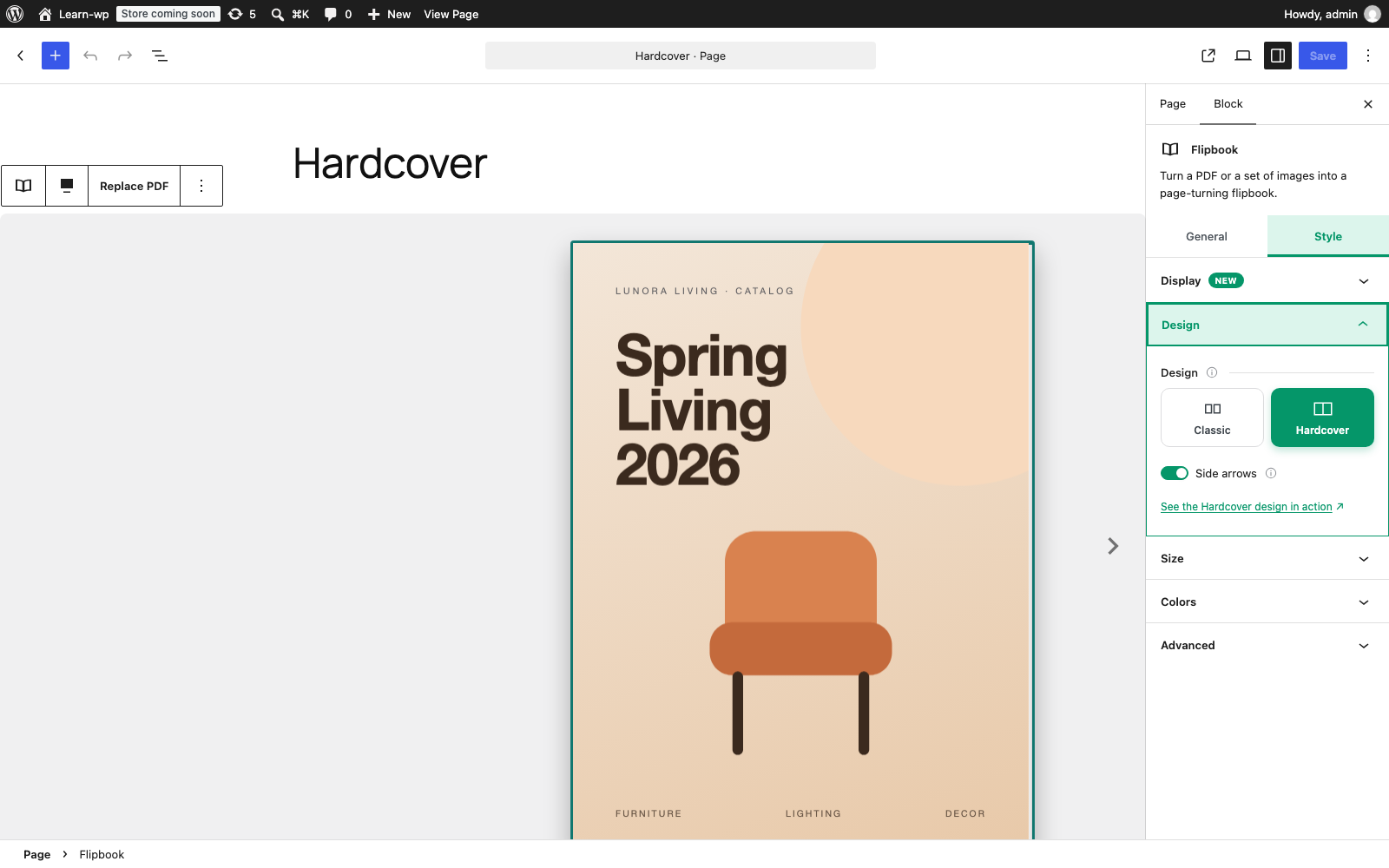
Select the flipbook, open the Style tab and choose Hardcover book under Design. The pages get a cover, page edges and a shadow at the spine, with large arrows beside the book; you can pick the cover color there too. See it in the Hardcover video.
Can the flipbook open in a popup?
Yes. Select the flipbook, open the Style tab and turn on Open in a lightbox under Display. Choose what shows on the page – the book’s cover, a button or a text link – and a click opens the book in a popup over the page. The cover is the PDF’s first page, or any image you choose. The book loads only when it is opened, so a page can list many books and stay fast. Watch the lightbox video.
Does it work with a PDF hosted on another website?
Only if that website allows it (CORS). Browsers block reading PDFs from other sites otherwise. Upload the PDF to your Media Library and it always works.
Is there a page or file size limit?
The plugin adds no limit of its own; your site’s upload limit still applies. Pages are drawn as the reader gets near them, and on servers that support range requests (most do) large PDFs are fetched in parts instead of all at once.
Does it slow down my pages?
The front end loads a 35 KB script (12 KB compressed). The PDF engine is loaded only when a flipbook comes near the screen, or for a lightbox only when it is opened.
Does it work with caching and minify plugins?
Yes. The block tells its script where the plugin’s files are, so combining or moving scripts does not break the flipbook.
Does it work with the Classic Editor or page builders?
Yes. In the block editor add the Flipbook block. For the Classic Editor, Elementor, Divi or a widget, go to Flipbook → All Flipbooks, click Add a flipbook and set it up in the block editor, then publish it. The list shows its shortcode, such as [softicon_flipbook id="123"]; paste it where the flipbook should be. Change the flipbook there later and every page with its shortcode shows the change. Watch the shortcode video.
How do I link to a specific page?
Add #page= and the page number to the address of the page with the flipbook, for example https://example.com/catalog/#page=12. The first flipbook on the page opens at that page; if it is a lightbox, the popup opens there. Links like <a href="#page=8"> on the same page turn the book to that page, so you can write your own table of contents. The reading features video shows it.
Do the links inside my PDF work?
Yes. Web and email links in the PDF can be clicked, web links open in a new tab, and links to another page (like a contents page) turn the book to that page. If the PDF has bookmarks, a Table of contents button in the toolbar lists them. You can turn off either one in the block settings.
Can visitors download the PDF?
Yes, from the download button in the toolbar. You can hide the button in the block settings.
Is the PDF text readable on phones?
On small screens the book shows one page at a time at the full width of the screen. Visitors can pinch to zoom into a page and drag to move around it, and fullscreen redraws the pages at a higher resolution.
Does the plugin collect any data?
From your visitors: nothing. The flipbook sets no cookies, tracks no one and sends nothing anywhere.
From you, the site admin: only if you say yes. After activation, a short screen asks if you would like to opt in. Click “Skip” and nothing about you or your site is ever sent; the plugin works exactly the same either way. If you allow it, Freemius may email you a confirmation link (it can land in your spam folder); nothing is sent until you click it.
If you click “Allow & Continue”, this is shared with us through Freemius, the service we use to manage our users:
- Your profile: your first name, last name and email address.
- Your site: the site address, title and language, and an anonymous site ID (a one-way code made on your site, so the same site is not counted twice).
- Versions: your WordPress, PHP and Flipbook versions.
- Plugin events: when Flipbook is activated, deactivated, updated or deleted.
We never collect your posts, pages or PDFs, anything about your visitors, or the list of your other plugins and themes.
Why we ask: to email you about security fixes and important new features, to know which WordPress and PHP versions we must keep supporting, and to learn what to improve.
Changed your mind? Click “Opt Out” under Flipbook on the Plugins page and nothing more is sent. To have your data deleted, email us at support@softiconai.com.
When you deactivate the plugin, a short form asks why. Answering is optional (“Skip & Deactivate” is always there). If you choose a reason, it is sent only when you delete the plugin. If you never opted in, only the reason and the anonymous site ID are sent, never your name or email.
Why a small built-in opt-in instead of the Freemius SDK?
Earlier versions included the full Freemius SDK. Since we only need the opt-in, Flipbook now uses its own small client in the vendor/fs-lite folder:
- A lighter plugin: about 0.8 MB smaller to download and about 3.6 MB less on your server.
- Easy to check: one plain PHP file (vendor/fs-lite/fs-lite.php) that shows exactly what is sent and when.
- Only Freemius: it connects to wp.freemius.com and api.freemius.com and nowhere else. Anything about you or your site is sent only after you click “Allow & Continue”.
- Works on strict hosts too: if your server is not allowed to reach Freemius, your browser sends the same opt-in to wp.freemius.com instead, and Freemius sends you back to your site.
- Nothing extra in your admin: no added menus, and its scripts load only on the Plugins page and the Flipbook dashboard.
If you opted in or skipped with an earlier version, your choice is kept and you are not asked again.
Which outside services does the plugin use?
- Freemius (wp.freemius.com, api.freemius.com) for the optional opt-in described above, only if you allow it. Terms, privacy policy.
- Freemius plans (api.freemius.com): when you open the Demos, Pricing or Free vs Pro tab of the Flipbook dashboard, it reads the Pro features and prices we set in Freemius. The answer is kept for 12 hours (1 hour if Freemius could not be reached or has no Pro plan yet). Only the plugin’s public ID is sent, nothing about you or your site, and this happens even if you skipped the opt-in.
- Freemius Checkout (checkout.freemius.com) opens in a window only when you click a “Get Pro” button on the Flipbook dashboard, so you can buy Pro. Nothing is sent before you click, and what you type in the checkout goes to Freemius, which handles the payment. Same terms and privacy policy.
- YouTube (youtube-nocookie.com): a video tutorial plays in a popup only when you click it on the Flipbook dashboard. YouTube terms, Google privacy policy.
What if Pro is not right for me?
Every Pro plan comes with a 14-day money-back guarantee. Email support@softiconai.com within 14 days of your purchase and we refund you in full, no questions asked. The same address works for any question or problem with Pro.
Where can I get help?
Ask in the support forum and we will reply there, so the answer can help others too. For anything you would rather not post in public, such as a site you cannot share, email us at support@softiconai.com. Tell us your WordPress version, the page with the flipbook and what you see, and we will get back to you.
Screenshots



Changelog
1.7.0
- New: a Manage menu on the Flipbook dashboard. It shows what Pro’s reading analytics, lead capture, site defaults and settings do, each with a working demo you can click, using sample data.
- New: a new Help page with the ways to reach us (a support ticket, the docs, video tutorials and the forum), quick answers you can search, and your site details (WordPress, PHP and theme versions) to copy into a ticket. The details are only copied, never sent.
- New: a short notice in the block’s Colors panel: Pro can set the colors, size and toolbar once for every flipbook.
- Changed: the dashboard uses more of a wide screen, and the Pricing and Free vs Pro pages line up with the rest.
- Changed: the support email is now support@softiconai.com.
1.6.3
- New: Getting started on the Flipbook dashboard, with the steps for the block editor, the Classic Editor, Elementor and other page builders, and themes (PHP). Your flipbooks are listed with their shortcodes, ready to copy, and it opens on the editor your site uses.
- New: when SoftIcon Flipbook Pro has a free trial, Pricing and Free vs Pro show a “Start free trial” button.
- New: short notices in the block for three new Pro features: a PDF from a custom field (Meta Box, ACF), selectable text, and bookmarks.
1.6.2
- New: true colours for PDFs with a colour profile. Books exported from InDesign or made for print (ProPhoto RGB, Adobe RGB, CMYK such as ISO Coated) now show the same colours as in Acrobat, instead of duller ones. Nothing to set.
- Fix: pictures missing from some PDFs exported from InDesign, such as full-page pictures on chapter pages. A JPEG 2000 picture whose colour profile happened to contain a certain pair of bytes was skipped; it now shows as in Acrobat.
1.6.1
- New: short videos in the block: Autoplay and Right to left with fullscreen on phones under the Pages panel, Hotspots and Branding under their Pro panels; both free videos are also in the dashboard’s video tutorials.
- Changed: when you deactivate the plugin, two more answers to choose from, “I could not figure out how to set it up” and “It is not what I was looking for”, each with its own short question. Answering stays optional.
1.6.0
- New: Autoplay. The book turns its pages by itself while it is on screen, every few seconds you choose, and can start again at the end. It holds under the mouse, stops when a reader takes over, and the toolbar gets a play / pause button. Readers who ask for reduced motion start it themselves.
- New: Right to left, for Arabic, Hebrew, Urdu or Persian books. The book opens from the right, the next page is on the left, and the arrows and arrow keys follow.
- New: Fullscreen on phones. The book shows “Tap to read”; one tap opens it full screen.
- New: Print button. Readers print the whole book, one book page on each sheet of paper (off by default).
- New: Share menu with Facebook, X, LinkedIn, Pinterest, email and Copy link for the page that is open; phones keep their own share sheet.
- New: a maximum height for tablets and phones, shown in the editor’s Tablet and Mobile previews too.
- New: a title above the book.
- New: Start with the thumbnails or the table of contents, so readers pick a page first.
- New: Theme: Light, Dark, or Auto (dark when the reader’s device is).
- Changed: the block shows Hotspots, Watermark and Branding with its other Pro panels, each with a short note.
- Fix: a flipbook under Flipbook → All Flipbooks always opens in the block editor, also where the Classic Editor plugin is set for every post type.
- Security: only flipbooks the plugin made start on a page, so HTML that looks like a flipbook, written into a post, never runs; the download link must be a web address.
1.5.1
- New: a shortcode for the Classic Editor, Elementor and other page builders. Make a flipbook under Flipbook → All Flipbooks, publish it and paste its shortcode, such as
[softicon_flipbook id="123"]. In Elementor’s Shortcode widget the book shows right away in the editor. - New: “Create a flipbook” on the dashboard opens a new page that already has a flipbook of a demo PDF. Replace it with your own PDF and publish.
- New: Pricing and Free vs Pro show our 14-day money-back guarantee and the email to write to; the Help tab and the FAQ say the same.
- New: a short review request on the Flipbook dashboard, only after you have published a flipbook. “Maybe later” hides it for 30 days, the other answers for good.
- New: short videos of the Pro features: under each Pro panel of the block, on Pricing and Free vs Pro, and in the dashboard’s video tutorials.
- Changed: the demo PDFs use the open Inter font, and the room guide has a bookmark for each chapter.
- Changed: the checkout shows the product icon kept by Freemius, so it loads on any site and your site address is not sent.
- Fix: dashboard tabs no longer keep a focus ring after a mouse click (the keyboard still gets one), and nine tabs fit on one line.
- Fix: with one page at a time, a page turned back no longer swings in from outside the book.
1.5.0
- New: Search in the book. A search button lists the pages that contain the words, with an excerpt; a click opens that page. On by default for PDFs.
- New: Share button (off by default). It opens the phone’s share sheet, or copies a link to the open page on a computer.
- New: Flipbook dashboard (Flipbook in the admin menu) with live demos, video tutorials that play in a popup, help, and a Free vs Pro comparison.
- New: SoftIcon Flipbook Pro, a separate plugin with a shelf of books, lead capture, reading analytics, page buttons (links or WooCommerce products) and PDF protection with an optional password. The free plugin only lists those features.
- Changed: the optional opt-in now uses a small built-in client instead of the Freemius SDK: about 0.8 MB smaller to download and 3.6 MB less on your server. It talks only to Freemius, and only after you click “Allow & Continue”; your earlier choice, including an opt-out, is kept.
- Changed: the opt-in is a short screen of its own after activation, no longer a card on the dashboard. If Freemius emails a confirmation link, the screen says where it went and to check the spam folder.
- New: when you deactivate the plugin, an optional short form asks why. The answer is sent only when the plugin is deleted.
- New: the Demos, Pricing and Free vs Pro tabs read the Pro features and prices from Freemius (only the plugin’s public ID is sent). See “Which outside services does the plugin use?” in the FAQ.
- Security: a media id in a block now resolves to its file only when the file is not attached, sits on a public post, or the post’s author may edit it.
- Security: pdf.js no longer uses eval for fonts.
- Fix: the lazy pdf.js and page-flip files carry a version, so a browser never mixes an old cached copy with a new viewer.
- Fix: a one page book with an even “Open at page” opened one page early when there was room for two pages (wide or full width, the popup, a small maximum height).
- Fix: a #page= link now names its book (#page=4&book=2) when a page has more than one flipbook; old #page= links still open the first one.
- Fix: an opt-out takes effect at once, even when Freemius cannot be reached.
- Fix: search excerpts read letter-spaced headings and ligatures (fi, fl) as whole words.
- Editor: the “Open at page” field can be cleared while typing, the Search switch shows only for PDFs, and the toolbar switches no longer reload the preview.
1.4.2
- New: Optional opt-in for security and feature update emails (powered by Freemius, you can skip it). Nothing is sent unless you allow it.
1.4.1
- Fix: in a lightbox, dragging a page past the edge of the book no longer closes the popup.
- Fix: theme palette colors that use color-mix(), and see-through rgba() or hsl() colors, now show on the site and not only in the editor.
- Fix: when the column is too narrow for two pages, the one-page book no longer leaves empty space above and below it.
- Fix: a #page= link clicked while the lightbox is still loading now opens that page.
- Fix: after clicking a page, the arrow keys and +/- work right away.
- The editor preview now uses the same limits as the site, so a caption with only spaces shows the same in both.
1.4.0
- New: links inside the PDF can be clicked. Web links open in a new tab, email links open the mail app, and page links turn the book to that page.
- New: Table of contents. If the PDF has bookmarks, a toolbar button lists them; a click opens that page.
- Both are on by default and can be turned off in the block settings (Source and Toolbar panels).
- A two-minute video that explains every setting, linked from the Help panel.
1.3.1
- A short video tutorial for the lightbox, linked from the Display panel.
1.3.0
- New: Lightbox. Turn on Open in a lightbox (Style tab, Display) to show only the book’s cover, a button or a text link on the page; a click opens the book in a popup. The book loads only when it is opened.
- New: the cover can be the PDF’s first page or an image you choose, with a caption, width and alignment.
- Links like #page=5 open a lightbox at that page.
1.2.2
- Clearer block settings: one panel open at a time, choices shown as icon tiles, short tips behind the (i) icons and a reset button for the height.
- The block now shows only its own General and Style tabs, without the extra WordPress tabs and Dimensions panel. Margins already set on a flipbook stay as they are.
1.2.1
- New: short video tutorials, linked from the empty block, a Help panel in the block settings, the Design panel and the Plugins screen.
1.2.0
- New: Hardcover book design – a cover around the pages, the stack of page edges and a shadow at the spine. Choose it under Design in the block’s Style tab.
- New: large previous and next arrows beside the book.
- Fix: a flipbook added from the block inserter’s search now looks right in the editor straight away.
- The GitHub repository moved to github.com/softiconai/softicon-flipbook.
1.1.0
- New: zoom with the toolbar buttons, a pinch on phones, or Ctrl + scroll and trackpad pinch on computers. Drag to move around a zoomed page.
- New: thumbnails of all pages; a click opens that page.
- New: click the page counter and type a page number to jump there.
- New: link straight to a page with #page=5, and links on the same page turn the book.
- Toolbar fits narrow columns and small phones.
1.0.2
- Longer plugin name and better readme tags, so the plugin is easier to find.
- Link to the GitHub repository and new FAQ entries.
1.0.1
- PDF.js CMaps and standard fonts now ship as JSON data files.
- JPEG 2000 and JBIG2 images in PDFs are decoded with the JavaScript decoders; the WebAssembly files are no longer included.
1.0.0
- First release.