

Description
Let people see your product from every side, and then in their own room.
Documentation | Demo | Support
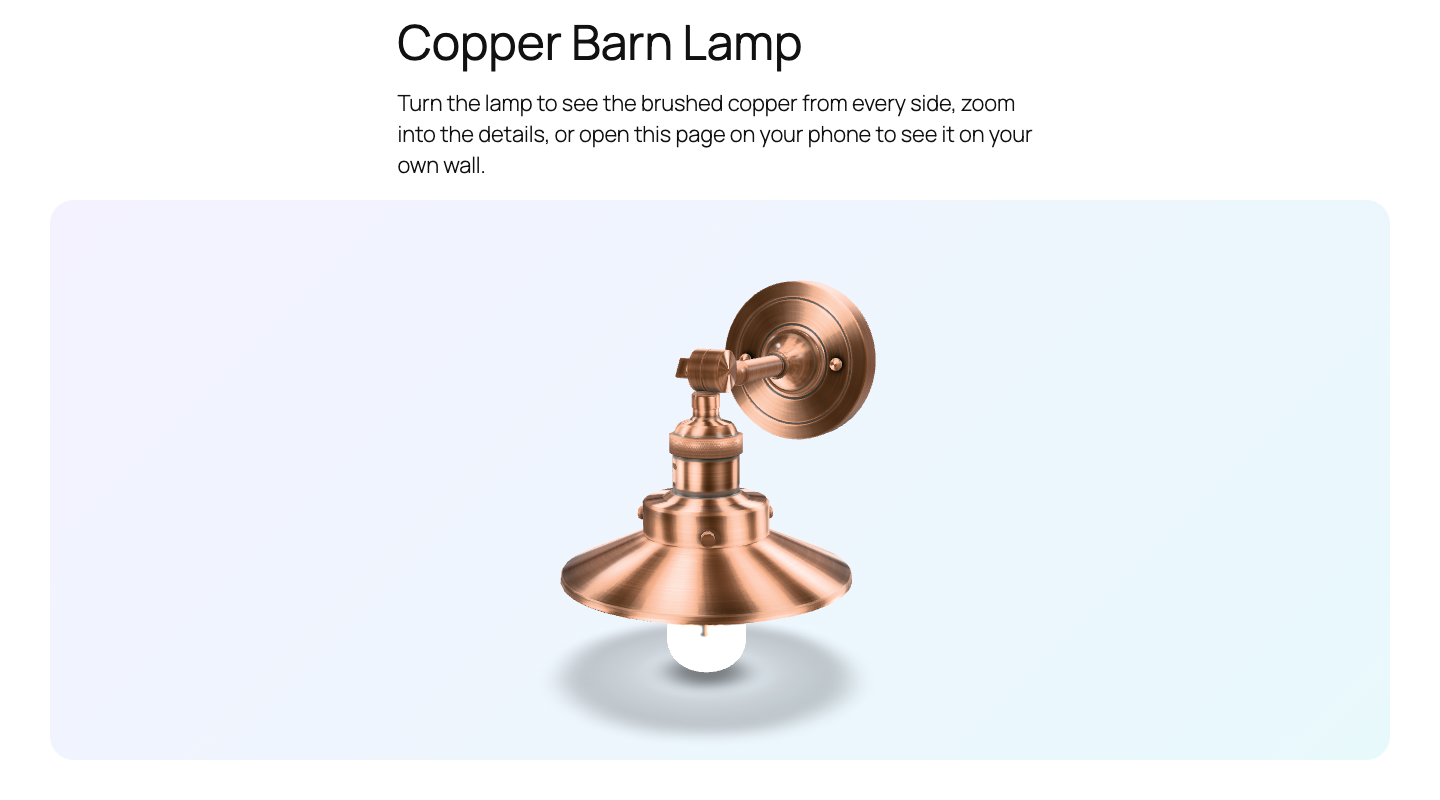
Softicon 3D Model Viewer adds one block, 3D Model Viewer, to the WordPress editor. Drop in a GLB or glTF file and your visitors can:
- Rotate the model and zoom into every detail.
- Watch it turn slowly on its own.
- Tap View in your room on a phone or tablet and place the model in their own space with augmented reality (Android Scene Viewer, iPhone and iPad Quick Look, and WebXR).
It is perfect for furniture, lighting, decor, fashion, art, products and anything people want to look at from every side. For the Classic Editor and page builders like Elementor, every saved model also has a shortcode.
Everything in one block
- Your model: upload a GLB or glTF file, pick one from the media library, or add one from a URL.
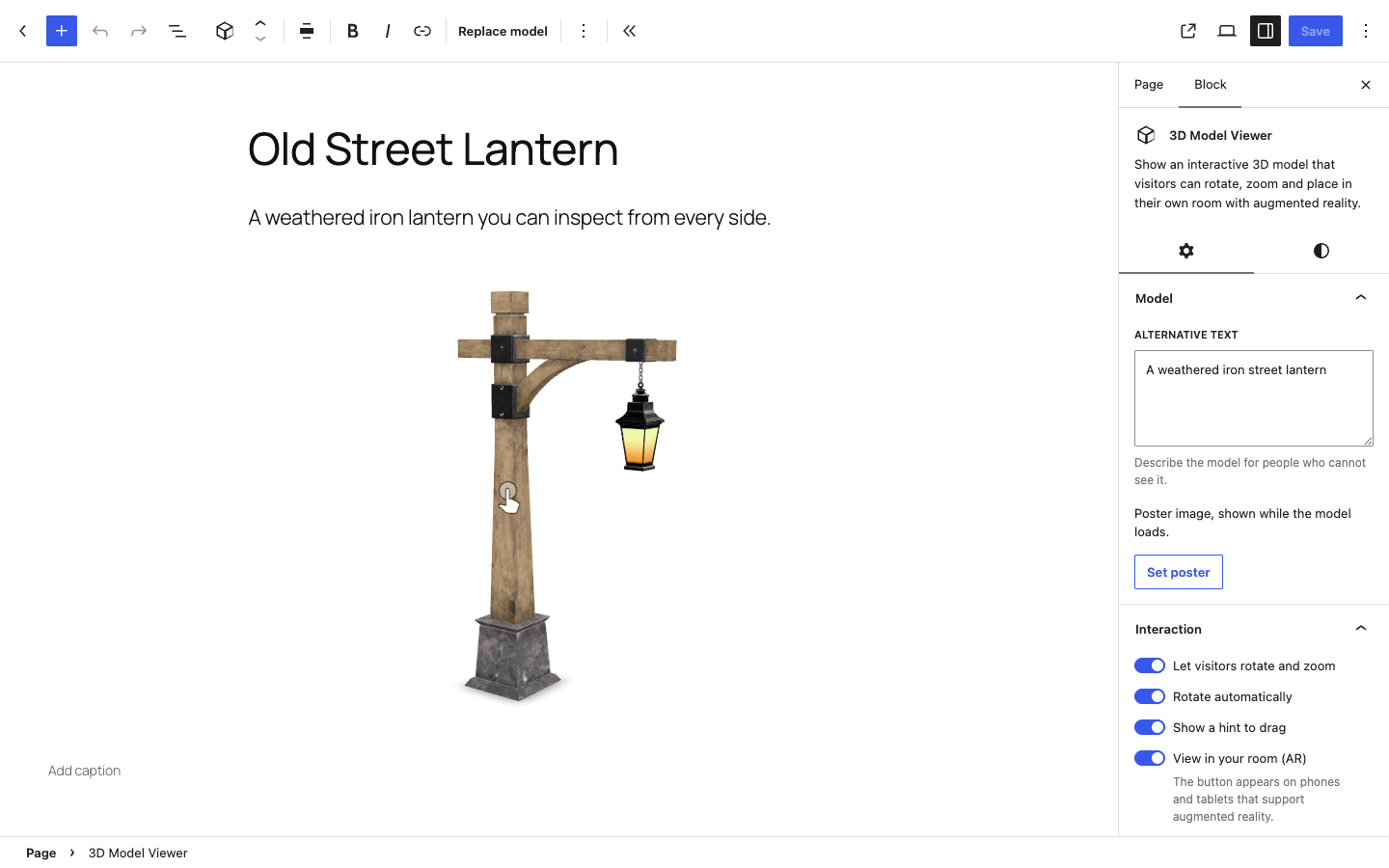
- Accessibility: alternative text, plus an optional poster image that shows while the model loads.
- Interaction: rotate and zoom, automatic rotation, and a small hint that invites visitors to drag.
- Augmented reality: turn the “View in your room” button on or off, and write your own button text.
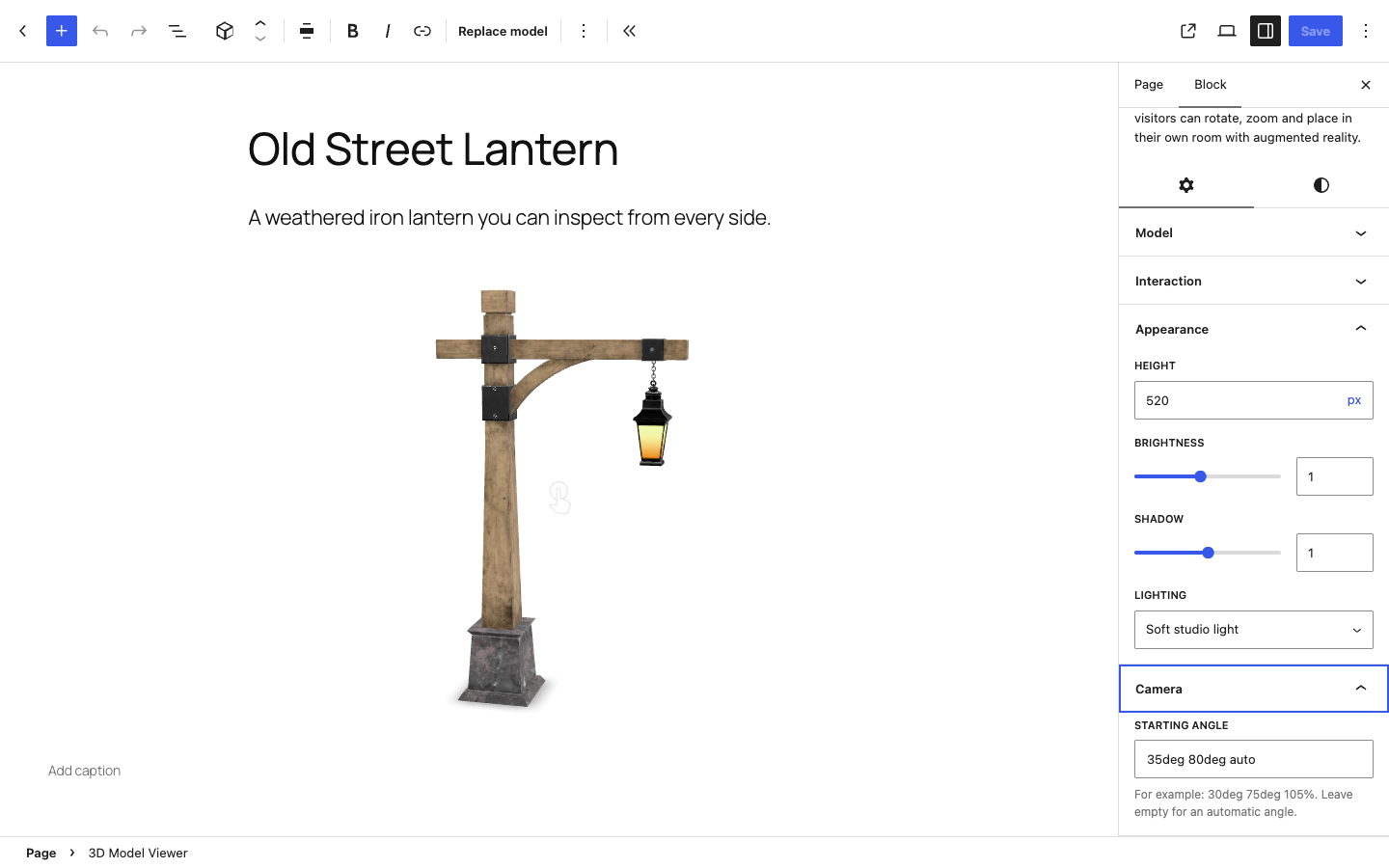
- Appearance: height, brightness, shadow strength, and two lighting styles (soft studio or classic).
- Camera: choose the starting angle, or let the viewer pick one for you.
- Hotspots: click on the model to add numbered points, each with a label and a short text. They turn with the model, fade when they are behind it, and open their text on click.
- Design: caption, and wide or full width.
- Shortcode: for the Classic Editor, Elementor, Divi and widgets, save a model under Model Viewer → All 3D Models and paste its shortcode, such as
[softicon_model_viewer id="123"].
3D for your WooCommerce products
Running a shop? Give any product its own 3D model:
- A 3D model tab on the product screen: pick a GLB or glTF file, an optional poster image, and turn “View in your room” on or off.
- A View in 3D button appears under the product images. It opens the model in a popup where shoppers turn it, zoom in and, on a phone, place it in their own room.
- Hotspots on the product’s model: name its parts right on a preview in the 3D model tab, and shoppers see them in the popup.
- The model loads only when the button is clicked, so your product pages stay fast. Products without a model are not changed at all.
- Works with block themes (like Twenty Twenty-Five) and classic themes (like Storefront).
Why you’ll like it
- A dashboard that sets you up. Under Model Viewer in the admin menu: a checklist that ticks itself as you add models, pages, products and hotspots, your 3D content at a glance, and the video tutorials. No account to create. Sharing usage data is optional and off until you allow it.
- Everything is free. Augmented reality, posters, lighting and every other setting are included. There is no Pro version.
- Fast pages. The 3D viewer only loads on pages that use the block, and the model is lazy-loaded.
- Works with any theme, and with the block editor you already know.
- Readable code. The full, readable source ships with the plugin, so it is easy to review and extend.
Video tutorial
See every step in about 80 seconds: installing the plugin, adding a 3D model to a WooCommerce product, and showing one on any page with the block.
Privacy
The 3D viewer on your pages sets no cookies and contacts no external service: models are loaded from your own media library or from the URL you enter.
In the admin, after activation, the plugin asks once if you want to share basic data with us through Freemius (wp.freemius.com, api.freemius.com). It is optional, and nothing about you or your site is sent unless you click “Allow & Continue”. See “Does the plugin collect any data?” below. Freemius terms and privacy policy.
Support
Need help, found a bug, or have an idea for a new feature? We are happy to help.
- Website: softiconai.com
- Email: softiconai@gmail.com
- Forum: open a topic in the support forum.
- Video tutorial: watch on YouTube
To help us answer faster, please include your WordPress version, your theme, and a link to the page (or the model file).
Third-party libraries
The block loads one bundled library, model-viewer by Google, from the plugin folder. Nothing is loaded from a CDN or another server.
- @google/model-viewer 4.4.0, Apache License 2.0. Source: https://github.com/google/model-viewer/tree/v4.4.0
- It includes three.js r183 (MIT, https://github.com/mrdoob/three.js), Lit (BSD-3-Clause, https://github.com/lit/lit) and @monogrid/gainmap-js (MIT, https://github.com/MONOGRID/gainmap-js).
The minified file vendor/model-viewer/model-viewer.min.js is the unmodified dist/model-viewer-umd.min.js from the npm package. The readable, non-minified build of the same version is included next to it as vendor/model-viewer/model-viewer.js, together with the Apache license and a list of all bundled projects in vendor/model-viewer/THIRD-PARTY-NOTICES.txt.
Models in the screenshots and videos
The screenshots, banner and videos use sample models from the Khronos glTF Sample Assets (https://github.com/KhronosGroup/glTF-Sample-Assets): Anisotropy Barn Lamp by Eric Chadwick, © 2023 Wayfair LLC (CC BY 4.0), Diffuse Transmission Plant by Eric Chadwick (CC BY 4.0) and Rico Cilliers (CC0), and Lantern (CC0). They are not included in the plugin.
Source code of this plugin
The plugin ships the readable source of the block next to the built files:
src/holds the source:src/index.jsandsrc/Components/(editor, in JSX),src/render.php(front end),src/block.json(block settings) and the SCSS files.src/vendor/softicon-tools/holds the shared settings panel components and styles.build/holds the files WordPress loads, made fromsrc/with@wordpress/scripts.
To build it yourself, run npm install and then npm run build in the plugin folder (see package.json).
Installation
- In your WordPress dashboard, go to Plugins → Add New Plugin and search for Softicon Model Viewer.
- Click Install Now, then Activate.
- Edit any page or post, click the + button, and add the 3D Model Viewer block.
- Upload a GLB or glTF file, or choose one from the media library, and publish.
You can also upload the plugin folder to /wp-content/plugins/ and activate it on the Plugins screen.
How to use
- Add the 3D Model Viewer block to a page or post.
- Click Upload, Media Library or Insert from URL and choose your model.
- In the block settings on the right, the General tab has Help (video tutorial and support), Model (alternative text and an optional poster image) and Interaction (rotate and zoom, automatic rotation, the drag hint, and the AR button).
- On the Style tab, set the height under Size, the lighting style, brightness and shadow under Lighting, and a starting angle such as
35deg 78deg autounder Camera (or leave it empty). - To point out parts of the model, open Hotspots on the General tab, click Add hotspot, then click on the model where it goes, and give it a label and an optional text.
- Publish. Visitors can now rotate and zoom the model, and open it in AR on their phone.
Use a shortcode (Classic Editor, Elementor, Divi)
- Go to Model Viewer → All 3D Models and click Add a 3D model.
- Give it a title, choose the model in the block and set it up as above, then click Publish.
- Back in All 3D Models, click the shortcode in the Shortcode column to copy it, such as
[softicon_model_viewer id="123"]. - Paste it into a classic post, Elementor’s Shortcode widget, a Divi Code module or a Shortcode widget. Change the model later and every page with its shortcode shows the change.
Add a 3D model to a WooCommerce product
- Go to Products and edit a product.
- In the Product data box, open the 3D model tab.
- Click Choose model and pick a GLB or glTF file from the media library (or upload one).
- Optionally click Choose image to add a poster that shows while the model loads, and untick View in your room if you do not want the AR button.
- Click Update. A View in 3D button now shows under the product images.
To name parts of the product, click Add hotspot under the model preview in the same tab, click on the model where it goes, and type a label and an optional text.
To take the model off a product, click Remove in the 3D model tab and update the product. Its hotspots are removed with it, since they sit on that model.
FAQ
Is there a video tutorial?
Yes. The step-by-step tutorial shows the whole process in about 80 seconds, for WooCommerce products and for any page.
Which file types can I use?
GLB (recommended, a single file) and glTF. To place models in a room on iPhone and iPad, the viewer converts the GLB automatically.
Why does the plugin allow GLB and glTF uploads?
WordPress does not allow these file types by default, so the plugin adds them to the list of allowed uploads for users who can already upload files. This is the only server-side change it makes.
Why can’t I see the “View in your room” button on my computer?
Augmented reality needs a phone or tablet with a camera and AR support. On other devices the button stays hidden, and visitors can still rotate and zoom the model.
How do hotspots work?
A hotspot is a numbered point on the model with a label and an optional text. Add one by clicking Add hotspot and then clicking on the model. It stays on that spot when visitors turn the model, fades when it is behind the model, and its text opens on hover, click or keyboard focus. Turn off Always show labels to show only the numbers until a point is opened.
Does it work with WooCommerce?
Yes. With WooCommerce active, each product gets a 3D model tab. Add a model there and a View in 3D button appears under the product images, opening the model in a popup. Developers can change the button text with the softicon_model_viewer_wc_button_text filter.
How large should my model be?
Keep files small for fast pages, ideally under 5 MB. Compress textures before you export the model.
Can I use it with the Classic Editor, Elementor or Divi?
Yes. Go to Model Viewer → All 3D Models, click Add a 3D model, set it up in the block and publish it. The list shows its shortcode, such as [softicon_model_viewer id="123"]; paste it where the model should be. In Elementor’s Shortcode widget the model shows right away in the editor. Only published models show, and a model always opens in the block editor, even with the Classic Editor plugin.
Does it work with my theme?
Yes. The block works with any theme. It also supports wide and full alignment, so it can stretch across the page in themes that allow it.
Does the plugin collect any data?
From your visitors: nothing. The 3D viewer sets no cookies, tracks no one and sends nothing anywhere.
From you, the site admin: only if you say yes. After activation, the plugin asks once if you would like to opt in. Click “Skip” and nothing about you or your site is ever sent; the plugin works exactly the same either way.
If you click “Allow & Continue”, this is shared with us through Freemius, the service we use to manage our users:
- Your profile: your first name, last name and email address.
- Your site: the site address, title and language, and an anonymous site ID (a one-way code made on your site, so the same site is not counted twice).
- Versions: your WordPress, PHP and Softicon Model Viewer versions.
- Plugin events: when the plugin is activated, deactivated, updated or deleted.
We never collect your posts, pages or models, anything about your visitors, or the list of your other plugins and themes.
Why we ask: to email you about security fixes and important new features, to know which WordPress and PHP versions we must keep supporting, and to learn what to improve.
Changed your mind? Click “Opt Out” under Softicon Model Viewer on the Plugins page and nothing more is sent. To have your data deleted, email us at softiconai@gmail.com.
When you deactivate the plugin, a short form asks why. Answering is optional (“Skip & Deactivate” is always there). If you choose a reason, it is sent only when you delete the plugin. If you never opted in, only the reason and the anonymous site ID are sent, never your name or email.
The opt-in is a small built-in client (vendor/fs-lite/fs-lite.php) instead of the full Freemius SDK. It connects to wp.freemius.com and api.freemius.com and nowhere else. If your server is not allowed to reach Freemius, your browser sends the same opt-in to wp.freemius.com instead, and Freemius sends you back to the plugin’s page.
Is it really free?
Yes. Every feature, including augmented reality, is free. There is no Pro version and no account to create.
How do I get support?
Visit our support website, softiconai.com, or send an email to softiconai@gmail.com and we will get back to you as soon as we can. You can also post in the support forum. Please tell us your WordPress version, your theme and, if possible, share a link to the page or the model file.
Screenshots
Changelog
1.4.0
- New: a shortcode for the Classic Editor, Elementor, Divi and widgets. Save a model under Model Viewer → All 3D Models, publish it and paste its shortcode, such as
[softicon_model_viewer id="123"]. A click in the Shortcode column copies it, and in Elementor’s Shortcode widget the model shows right away in the editor. - New: “Getting started” on the Model Viewer dashboard, with a tab for each way to show a model (block editor, shortcode, Elementor, WooCommerce, theme or PHP), numbered steps and the shortcode of your newest model to copy.
- Our support website, softiconai.com, is linked from the Plugins screen, the dashboard’s Help tab and the block’s Help panel.
- The plugin is now called Softicon 3D Model Viewer, so it is easier to find when you search for “3D Model Viewer”.
1.3.1
- New: a Model Viewer dashboard in the admin menu. A setup checklist ticks itself as you upload a model, add it to a page or a product and add hotspots; your 3D pages and products are listed with their numbers, and the Help tab has the video tutorials and answers.
- New: “New page with a 3D model” opens a new page with the block already in it.
- The opt-in card now shows on the dashboard.
1.3.0
- New: hotspots. Click on the model to add numbered points with a label and a short text, in the block (General tab, Hotspots) and on WooCommerce products (the 3D model tab). They turn with the model, fade when they are behind it, and open their text on hover, click or keyboard focus.
- New: “Always show labels” for hotspots, or only the numbers until a point is opened.
- New: an optional opt-in after activation for security and feature update emails, through Freemius. Nothing about you or your site is sent unless you click “Allow & Continue”; visitors are never tracked. See “Does the plugin collect any data?” in the FAQ.
- New: an optional short form when you deactivate the plugin, asking why.
1.2.0
- New: WooCommerce support. Each product gets a 3D model tab: pick a GLB or glTF file, an optional poster image, and turn the AR button on or off.
- New: a View in 3D button under the product images opens the model in a popup, where shoppers turn it, zoom in and, on a phone, place it in their own room. The model loads only when the button is clicked.
- New: works with block themes (the product image gallery block) and classic themes (like Storefront).
- New: the
softicon_model_viewer_wc_button_textfilter changes the button text. - New: a new promo video and a new step-by-step video tutorial, linked from the plugin, the block and the product screen.
1.1.1
- Fixed: a block added right after installing the plugin from the block inserter’s search now shows its styles at once, without reloading the editor.
1.1.0
- New: redesigned block settings with General and Style tabs, and one section open at a time.
- New: a Help section with the video tutorial, support, rating and more plugins, plus the support email.
- New: lighting style as picture tiles, and Reset buttons for height, brightness and shadow.
- Changed: the background, spacing and border settings are no longer in the sidebar. Blocks that already use them keep their look.
- Changed: the editor code is now built from the readable source in
src/(see “Source code of this plugin”).
1.0.2
- New: a “Watch the video tutorial” link in the empty block, so you can learn it in about 90 seconds.
- New: “Video tutorial” and “Email support” links under the plugin on the Plugins screen.
- Improved: a clearer plugin page with videos, installation steps, a how-to guide and more answers in the FAQ.
1.0.1
- Renamed the plugin to Softicon Model Viewer (slug: softicon-model-viewer).
1.0.0
- Initial release.