


Description
Spinix Image Optimization makes your images smaller and your pages faster, right on your own server. Every image is compressed and served as WebP whenever that makes it smaller, the first images on each page load right away while the rest are lazy-loaded, and the hero image gets priority. Your original files are never changed.
Spinix Image Optimization is developed and maintained by Spinix Technologies Ltd, a UK company.
Free vs. Pro, plainly: everything described on this page is free, with no image limits, no account and no API key. Nothing is locked or limited. If you want even more speed, the optional Spinix Image Optimization Pro add-on adds AVIF, device-sized images, real-visitor LCP learning, cloud storage / CDN and more to the same screen.
It fixes these PageSpeed Insights warnings:
- Serve images in next-gen formats. Every JPEG and PNG is converted to WebP (the original is kept in the rare case it is already smaller).
- Efficiently encode images / Increase the compression factor. Smart compression finds the right quality for each image automatically.
- Largest Contentful Paint image was lazily loaded. The first images on a page are never lazy-loaded, and the hero image gets
fetchpriority="high". - LCP request discovery / fetchpriority=high should be applied. When the hero is a CSS background image (for example an Elementor section background), it is preloaded in the page head with high priority, so the browser finds it right away.
- Image elements do not have explicit width and height. Missing dimensions are added to prevent layout shift.
Your originals are safe
All optimized files are written to a separate folder, spinix-webp, inside your uploads folder. Your original uploads are never changed. Switch delivery off, pause, deactivate or delete the plugin, and your site goes straight back to the original images.
Fast
Images are encoded directly with GD or Imagick (whichever your server has). Each image is read once, the right quality is found in memory before anything is written, and the bulk optimizer processes several images in parallel. Progress, time per image and images per minute are shown live on the dashboard.
Features
- Automatic optimization of every new upload
- Background bulk optimization of your existing library, starting the moment you activate the plugin
- Three compression levels: Smart (recommended), Smallest files and Best quality
- PageSpeed-safe compression that stays above a safe quality floor
- WebP delivery with
<picture>tags (automatic fallback) or direct URL replacement - WebP for CSS background images, including page builder CSS files (Elementor and others)
- Smart lazy loading that never delays the first images on the page
- Hero image priority for a better LCP: automatic on every page, works for normal images and background images, with an optional manual choice per page
- Missing width and height added to prevent layout shift (CLS)
- Works with page caching plugins and CDNs (no server rewrite rules required)
- Plays well with WP Rocket, Elementor and other plugins that also lazy-load or prioritize images: you choose which plugin does it, so nothing is done twice
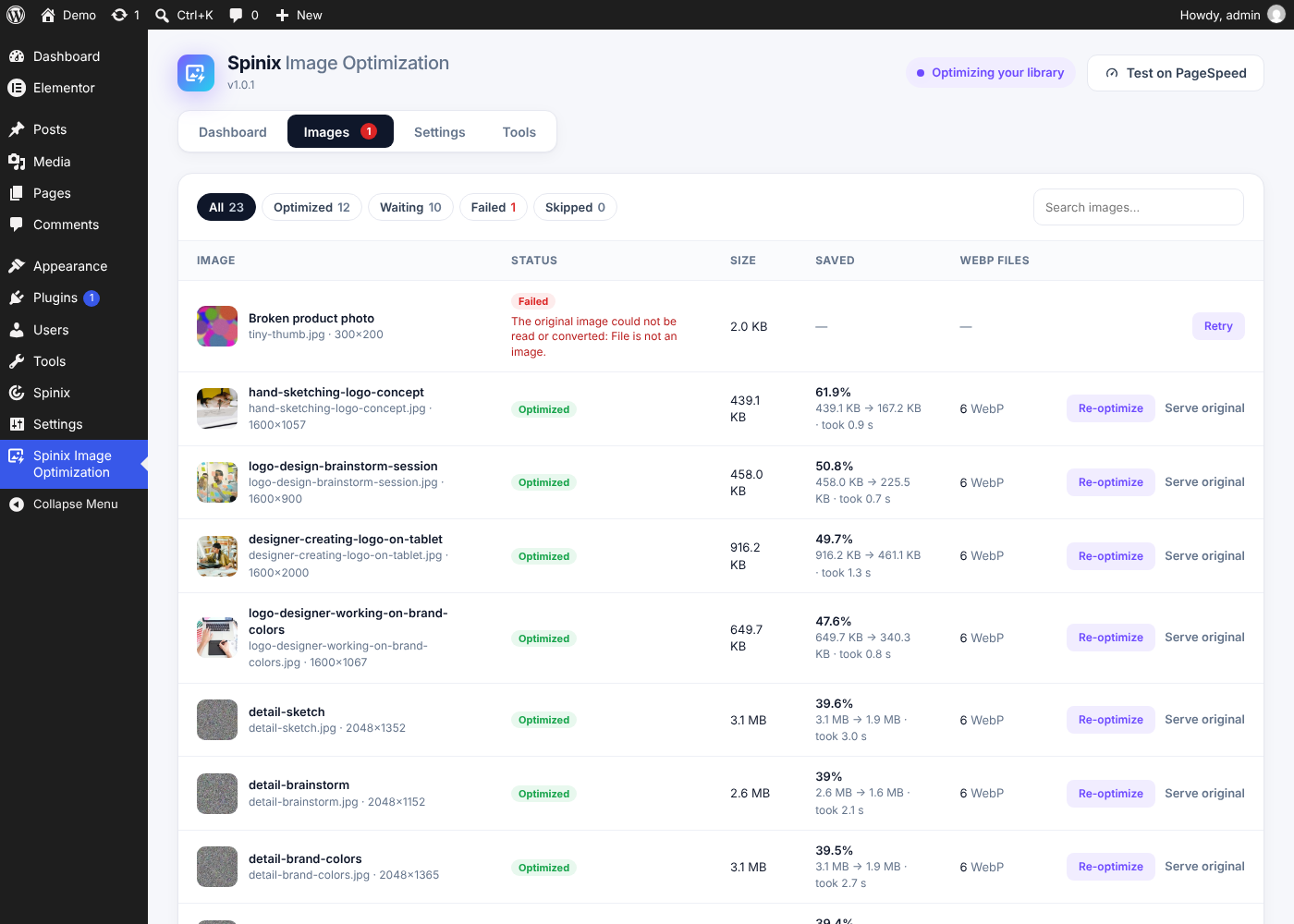
- Images list with status, savings, time taken and the reason for any image that could not be optimized
- Media Library column with savings per image, optimize again or serve the original
- Exclusions by file name, class or folder
- Pause and resume, plus a choice to keep or delete all data when you deactivate
- WP-CLI:
wp spinix-images optimize,wp spinix-images status,wp spinix-images reset
Spinix Image Optimization Pro (optional add-on)
Spinix Image Optimization Pro is a paid add-on that installs next to this free plugin. It adds its features to the tabs you already know, with the same Save button and no extra menu. The free plugin keeps working exactly the same without it.
- AVIF next to WebP, served only when it is smaller at the same visual quality
- Device-sized images: extra widths for phones and tablets, so every device downloads the right size
- Real-visitor LCP learning: learns the real main image of each page from visitors and prioritizes exactly that image
- Lazy background images for sections further down the page
- Light YouTube and Vimeo previews until a visitor clicks play
- Animated GIF to animated WebP
- Cloud storage and CDN: Amazon S3, Cloudflare R2, DigitalOcean Spaces, Wasabi, Backblaze B2 or your CDN
- Image Health Report: every image problem on every page, one-click fixes and an optional weekly email
- Image SEO: find and fill in missing alt texts, and clean file names on upload
- WooCommerce: WebP for variation, gallery zoom and lightbox images
- Custom folders: WebP for theme and plugin images outside the Media Library
- Upload resizing and privacy: scale huge photos down and remove camera / GPS data
See Spinix Image Optimization Pro and pricing →
External services
This plugin does not connect to any external service. All images are processed on your own server, nothing is sent anywhere and nothing is tracked.
The dashboard has a “Test on PageSpeed” button. Only when you click it, a new browser tab opens Google PageSpeed Insights (https://pagespeed.web.dev/) with your site’s home page address, so that you can test your site there. Google’s terms: https://policies.google.com/terms, privacy policy: https://policies.google.com/privacy.
Source code
All JavaScript and CSS in this plugin is the original, unminified source code. There are no build tools, no compiled files and no third-party libraries.
Installation
- Install the plugin from Plugins → Add New (search for “Spinix Image Optimization”) or upload the ZIP file, then activate it.
- Open Spinix Image Optimization in the admin menu.
- Your existing images are optimized in the background right away. New uploads are optimized automatically.
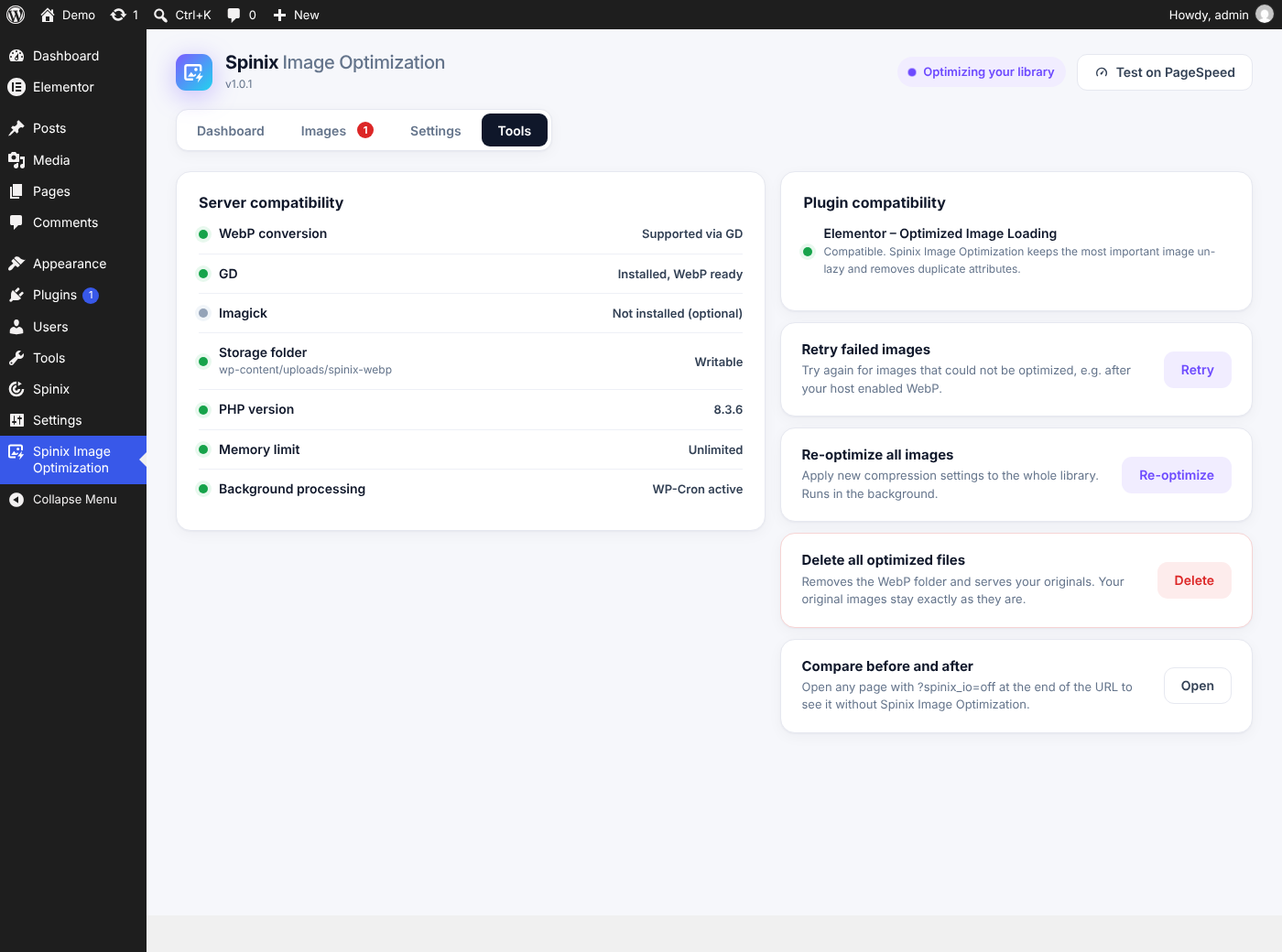
Your server needs WebP support in the GD or Imagick PHP extension. The Tools tab shows whether it is available.
FAQ
What happens to my images if I remove the plugin?
Nothing. Your original images are never modified. Optimized copies live in the spinix-webp folder inside your uploads folder. When you delete the plugin, that folder and all plugin settings are removed (you can turn this off under Settings → When you uninstall).
My server says WebP is not supported
Ask your hosting company to enable WebP support in the GD or Imagick PHP extension. Most hosts can switch it on in a minute. The Tools tab shows exactly what is missing.
Does it work with caching plugins and CDNs?
Yes. The WebP markup is written into the page itself, so cached pages and CDNs serve it like any other HTML. Clear your page cache after the first bulk optimization.
Another plugin also lazy-loads images or prioritizes the hero image. Is that a problem?
No. Spinix Image Optimization detects WP Rocket, Elementor, Perfmatters, FlyingPress, Autoptimize, LiteSpeed Cache and other common plugins and lets you choose which plugin handles lazy loading and the hero image, so nothing is done twice.
An update broke something on my site. Can I go back?
Yes. Open Spinix Image Optimization → Tools → “Version and rollback”, choose an earlier version and click “Roll back”. It is installed from WordPress.org like a normal update, and your settings and optimized images stay. Please also tell us in the support forum what went wrong so we can fix it.
Is there a paid version?
Yes, Spinix Image Optimization Pro is an optional paid add-on. It adds AVIF, device-sized images, real-visitor LCP learning, cloud storage / CDN, an Image Health Report and more. The free plugin is complete on its own: there are no image limits and nothing is locked.
Will it slow down a big WooCommerce product import?
No. When a WooCommerce CSV import, WP All Import, the WordPress importer or a large burst of uploads is running, new images are not optimized during the import. They are queued and optimized in the background right after, and the dashboard shows the progress. Single uploads are still optimized immediately.
Can I use it together with another image optimizer?
Two image optimizers on one site convert and rewrite the same images and break each other. Spinix Image Optimization therefore asks you to deactivate the other optimizer first, and pauses itself if one is activated later.
How does hero image priority work? Automatic or manual?
Automatic (the default, on every page): Spinix looks below your site header and takes the first large image or background image. A normal image gets fetchpriority="high" and is never lazy-loaded. A background image (Elementor, other page builders, inline styles) is preloaded in the page head with fetchpriority="high", with a separate image for phones and tablets if your design uses one. Only this image gets priority, so other images no longer compete with it.
Manual (optional, per page): if PageSpeed Insights shows another image as the “Largest Contentful Paint element”, open that page in the editor and use the Spinix hero image box in the sidebar. Choose the right image, or switch hero priority off for that page. Pages you do not change stay automatic.
You can see what Spinix chose at the end of the page source: <!-- ... hero image = ... -->.
How can I compare a page with and without optimization?
Add ?spinix_io=off to the end of any page address. That page is then shown without Spinix Image Optimization.
Why are some images not served as WebP?
Spinix serves a WebP version only when it is really smaller than the original. Most photos become 40-80% smaller, but a few images do not: very small icons, simple graphics with only a few colours, or JPEGs that were already compressed very hard. For these, the WebP would be the same size or even bigger, and simple graphics can lose sharpness. Spinix therefore keeps serving the original, which is already the smallest file, and shows “Already optimal · Original kept”.
This does not cost you anything in PageSpeed Insights. Google only flags an image (“Improve image delivery” / “Serve images in next-gen formats”) when converting it would save a meaningful number of bytes, so an image that WebP cannot make smaller is not flagged.
Which images are optimized?
JPEG, PNG and WebP images in the Media Library, including all sizes WordPress creates. GIF files are left as they are so animations are kept, and SVG files are left untouched.
Does Spinix Image Optimization send my data anywhere?
No. All images are optimized on your own server. The plugin does not contact any external service, does not track you and collects no data. The “Test on PageSpeed” button only opens Google PageSpeed Insights in a new browser tab with your home page address when you click it.
Are there hooks for developers?
spinix_io_webp_quality(int 1-100) – WebP quality.spinix_io_target_bytes_per_pixel(float, default 0.085) – target for PageSpeed-safe compression.spinix_io_mime_types(array) – image types to optimize.spinix_io_exclude_image(bool, string $tag) – leave an image untouched.spinix_io_process_page(bool) – skip optimization on a page.spinix_io_optimize_inline(bool) – return false to optimize uploads in the background instead of during the upload.spinix_io_defer_upload(bool, $id, $importer) – send a new image to the background queue instead of optimizing it during the upload (true during bulk imports).spinix_io_fast_encoder(bool) – return false to always use the WordPress image editor.spinix_io_cron_time_budget(int seconds) – work per background run.spinix_io_write_htaccess(bool) – return false to skip the .htaccess file with cache headers in thespinix-webpfolder.spinix_io_lookup_unknown_images(bool) – find images without awp-image-IDclass by their file name.spinix_io_hero(array $choice, int $post_id) – change the hero choice of a page:array( 'mode' => 'auto'|'image'|'off', 'id' => attachment ID ).spinix_io_optimized(action, int $id, array $data) – after an image was optimized.spinix_io_before_optimize(action, int $id) – before an image is optimized.spinix_io_image_row(array $row, int $id),spinix_io_media_status_html(string $html, int $id) – extend the Images list and the Media Library column.spinix_io_admin_settings(array),spinix_io_settings_saved(action, array $input) – add settings to the Settings tab (saved with the same Save button).spinix_io_admin_tabs,spinix_io_admin_panels,spinix_io_admin_dashboard,spinix_io_admin_settings_sections,spinix_io_admin_tools,spinix_io_admin_checklist(actions) – add parts to the screen. In JavaScript,window.spinixIooffersaddFilter( 'hero' | 'rowFormats' | 'rowActions', fn )andon( 'render' | 'rows' | 'row' | 'saved' | 'response', fn ).
Screenshots




Changelog
1.2.8
- Fixed: when the theme or another tool preloads the original of the hero image (Divi does this for parallax/section backgrounds), the preload now points at the WebP copy the page shows. Before, the browser downloaded the original at high priority and then the WebP without it, so PageSpeed reported “fetchpriority=high should be applied” in “LCP request discovery”.
- Fixed: background images in stylesheets loaded later with (Divi’s deferred CSS, “load CSS asynchronously” options) are now served as WebP too.
1.2.7
- New setting (off by default): “When the plugin is deleted, also delete the optimized WebP copies”. Only files the plugin created are removed, in batches; original images and the Media Library are never touched. Pages cached by other plugins or a CDN should be cleared afterwards.
- Uninstall no longer deletes the Pro add-on’s files or data. WebP copies are now kept on uninstall unless the new setting is on (before, they were always deleted).
- Code clean-up of the hero reveal CSS check (no change in behaviour; the spinix_io_hero_reveal filter still turns it off).
1.2.6
- Fixed: pages that show a different copy of the hero image per device (Elementor “hide on desktop / tablet / mobile”) lazy-loaded the desktop copy, so PageSpeed reported “LCP request discovery” (LCP image is lazy-loaded). Every device’s copy now loads right away with high priority, and screens where a copy is hidden get an empty placeholder instead, so each device still downloads only one image.
- Images printed by their address only (for example Elementor image widgets with a full-size URL) now get srcset/sizes from WordPress’ own sizes when the file belongs to the Media Library, so phones no longer download the full-size image.
- A learned hero image can now be given per device (used by the Pro add-on).
1.2.5
- Fixed: on WooCommerce product pages the main gallery image was served as JPEG/PNG instead of WebP. WooCommerce adds a data-src attribute (the zoom image) to gallery images, which was mistaken for a JavaScript lazy loader. An image is now only treated as lazy-loaded by a script when its src is missing or a placeholder.
- WooCommerce: the zoom and lightbox images (data-large_image) are served as WebP too.
- WooCommerce variable products: choosing a variation now shows the variation’s photo when the gallery image is delivered as (the WebP source is set aside while a variation photo is shown and put back when the choice is cleared).
1.2.4
- Fixed: when the hero section (or a section around it) uses an entrance animation (AOS / Hostinger, Elementor Motion Effects, Animate.css, WOW.js), it is invisible at first paint, so browsers measured the logo as the LCP element. The plugin now shows that section right away with a tiny CSS rule for that element only (no fade-in for the hero). Skipped when Spinix WP Caching handles this itself.
- Improved: images the plugin makes lazy now get sizes=”auto, …”, so browsers download the size that fits the space the image really uses (WordPress only does this for images that were lazy already). Also on the WebP of the plugin’s .
1.2.3
- Fixed: on pages whose sections use entrance animations (AOS / Hostinger, Elementor Motion Effects, Animate.css, WOW.js) the hero detection could pick a small image such as the logo. Content that is only waiting for an animation now counts as visible; content hidden with display:none, visibility:hidden or the hidden attribute is still skipped.
- Fixed: a hero image measured in visitors’ browsers (for example by the Pro add-on) is now checked against the page first. A small image, or one measured while an animated hero section was still invisible, no longer wins over the large first-screen background. A hero picked by hand in the editor still always wins.
- Improved: background images in stylesheets that are already WebP now use their smaller optimized copy, the same file the hero preload points to, so desktops download the hero background only once.
1.2.2
- Fixed: when a page uses a different hero background on phones (for example an Elementor section with its own mobile background), phones could download both the phone and the desktop image. The hero preloads are now placed after the viewport tag, so each device downloads only its own image.
1.2.1
- New: bulk imports run at full speed. During a WooCommerce product CSV import, WP All Import, the WordPress importer, or any burst of more than 20 uploads in two minutes, new images are not optimized inside the import. They go to the background queue and are optimized right after, with the same live progress on the dashboard.
- Developers:
spinix_io_defer_uploadfilter to decide per image, andspinix_io_burst_limit/spinix_io_burst_windowto tune burst detection.
1.2.0
- New: version rollback. Tools → “Version and rollback” installs an earlier version from WordPress.org in one click. Your settings and optimized images stay, and automatic updates for the plugin are switched off afterwards so the newer version is not reinstalled by itself.
- New: after an update, a short “What’s new” box on the plugin’s screen lists the changes. The full changelog is in Tools.
- The “See Pro” button in the Pro tab now opens the Spinix Image Optimization Pro page.
1.1.1
- Images list: bigger, clearer page numbers (Previous / 1 2 3 … / Next) so it is easy to see there are more pages.
- Status labels are easier to read (minimum 12 px text).
1.1.0
- New: hooks for add-ons, so extensions (such as Spinix Image Optimization Pro) appear on the same screen, in the same tabs and with the same Save button.
- New: a “Pro” tab that explains what the optional Pro add-on adds. It disappears when Pro is installed. Nothing in the free plugin is locked or limited.
- New: a one-time, dismissible review request on the plugin’s own screen after it has optimized your images for a week.
1.0.0
- Initial release.
- Compression and WebP conversion of every new upload and of the existing library, with originals kept untouched. A WebP is served only when it is smaller than the original.
- Fast direct encoder (GD or Imagick) with in-memory quality search, and parallel bulk optimization with a live speed timer.
- WebP delivery with
<picture>tags or direct URL swap, including CSS background images and page builder CSS files. - Hero image priority for a better LCP: automatic detection below the site header for normal images and background images (Elementor and other page builders), preloaded per device, plus a “Spinix hero image” box in the page editor to choose the hero image yourself or switch it off for a page.
- Smart lazy loading and missing width/height for better Core Web Vitals.
- Detection of other image optimizers and of plugins that also lazy-load or prioritize images.
- Images list, Media Library column, exclusions, pause/resume, WP-CLI commands.