

Description
Plugins that stop getting updates stop getting security fixes too, and WordPress doesn’t tell you when that happens. A plugin that was closed on WordPress.org for a security issue keeps running on your site with no warning.
SteadyDevs Upkeep Check checks every installed plugin and theme against the WordPress.org directories and tells you, in plain words, which ones need attention.
What it checks
- Closed plugins — removed from WordPress.org, with the date and the reason the directory gives (for example “Security Issue”).
- Abandoned plugins and themes — no update in over two years. No update in over a year is flagged as worth a look.
- Untested plugins — not tested with the version of WordPress you run.
- Updates waiting — a newer version is available, including one WordPress is holding back because your site can’t run it yet.
- Inactive plugins and themes — their files still sit on your server, so delete the ones you don’t need.
- Your PHP version — whether it still gets security fixes, and until when.
- Your WordPress version — whether an update is available.
- What changed? — a record of plugin, theme, WordPress and PHP changes on the site, with the fatal errors and failed emails that came after them. When something breaks, the changes made in the 24 hours before it are listed with the error, so you can see what to roll back.
- Roll back — when a fatal error followed an update of the same plugin, one button reinstalls the version it was updated from, straight from WordPress.org. A plugin that had fatal errors this week is also flagged on the Plugins screen and in Site Health.
Plugins and themes that don’t come from WordPress.org (premium or custom ones) are listed as not checkable, rather than being matched to a directory item that happens to share their folder name.
How it works
- Go to Tools → Upkeep Check and press Check my plugins.
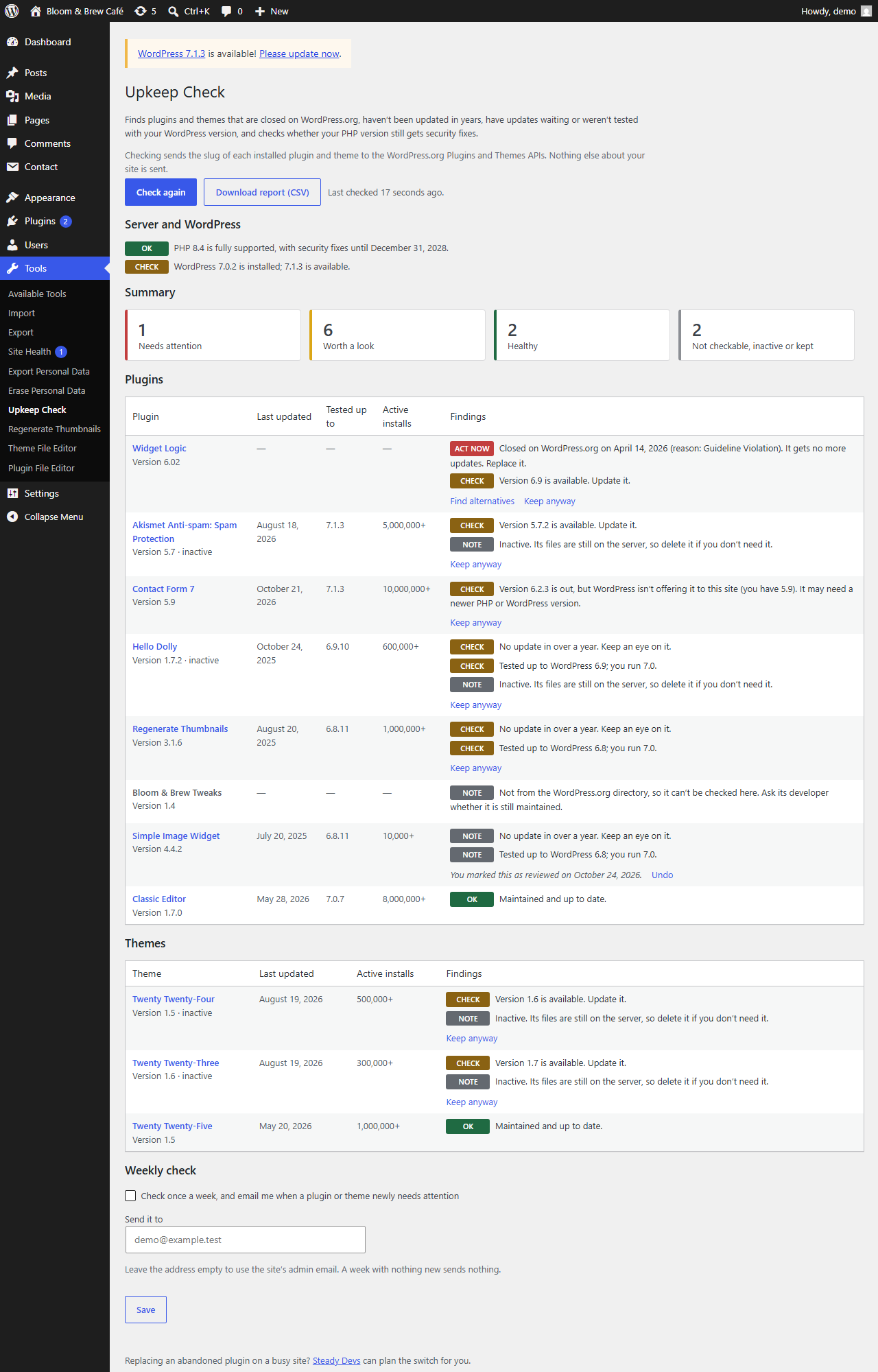
- The report lists every plugin and theme, worst first, with when it was last updated, the WordPress version it was tested with, its active installs and what to do.
- Closed and abandoned plugins get a Find alternatives link to similar plugins in the directory.
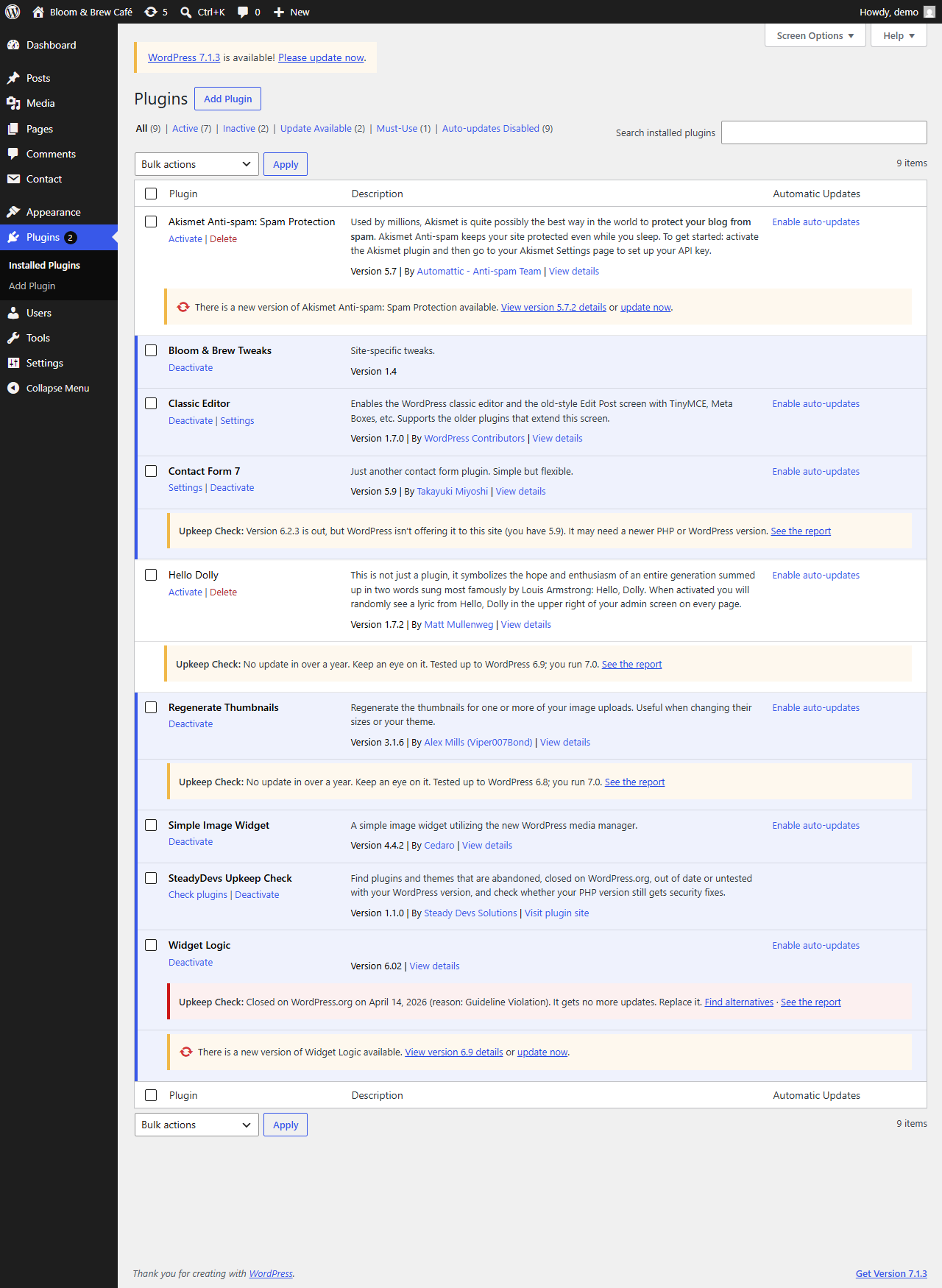
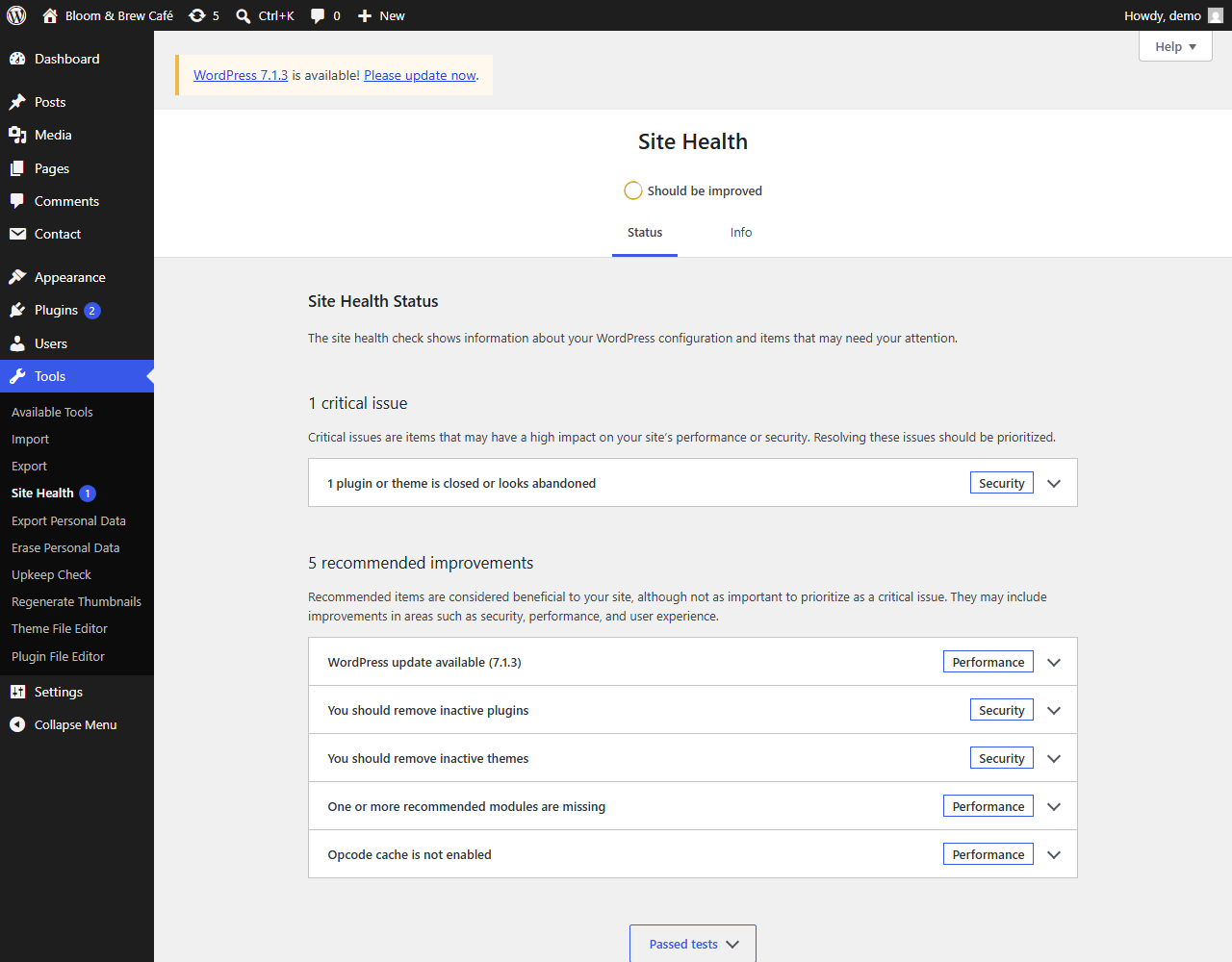
- A warning also appears under each plugin that needs attention on the Plugins screen, and in Tools → Site Health.
- Reviewed a plugin and decided to keep it? Press Keep anyway. It stops counting as a problem until its status changes, for example if a stale plugin is later closed.
- Download the report as a spreadsheet (CSV) for audits and client handovers.
- What changed? lists updates, installs, activations, deletions, theme switches and PHP or WordPress version changes, newest first, with who made each one. Changes made outside WordPress (over FTP, by Composer or by your host) are noticed by an hourly comparison. A fatal error shows the plugin or theme it happened in and the changes made in the 24 hours before it.
- Optionally, turn on the weekly check: once a week the check runs on its own and emails you only when a plugin or theme newly needs attention.
For developers and agencies
WP-CLI commands:
wp upkeep check— run a check and print the report. Add--format=json(or csv, yaml) for scripts.wp upkeep report— print the last saved report without checking again.wp upkeep timeline— print what changed and the errors that followed, newest first.--days=7to look back a week.--fail-on=act-nowor--fail-on=checkexits with code 1 when anything is at that status or worse, for monitoring and CI.
External services
This plugin asks the WordPress.org Plugins API and Themes API about the plugins and themes installed on your site, with one request per item:
https://api.wordpress.org/plugins/info/1.2/https://api.wordpress.org/themes/info/1.2/
Each request sends the item’s directory slug, for example akismet, and your site’s address in the User-Agent header. Nothing else about your site, its content or its users is sent.
Requests are made only when you press Check my plugins or Check again, run wp upkeep check, or — only if you turn the weekly check on — once a week in the background.
The service is provided by WordPress.org: WordPress.org Privacy Policy.
If WordPress hasn’t checked for plugin or theme updates yet, the check also asks it to run its own update check, which WordPress normally does twice a day.
The weekly email is sent with your site’s own mail settings (wp_mail()), to the address you choose.
Installation
- Install SteadyDevs Upkeep Check from Plugins → Add New Plugin and activate it.
- Go to Tools → Upkeep Check.
- Press Check my plugins.
FAQ
Does it slow my site down?
No. It does nothing on the front end. In the admin, it does nothing until you press the button; the Plugins screen and Site Health only read the last saved report.
Why is a plugin “not checkable”?
It isn’t in the WordPress.org directory: it’s a premium plugin, a custom one, or it updates from somewhere else. Ask its developer whether it is still maintained.
Is an old plugin always a problem?
Not always. Some small plugins are finished and still work. That’s why one to two years without an update is marked “keep an eye on it”, only over two years or a closure is marked to act on, and you can mark any plugin you’ve reviewed with Keep anyway.
A plugin was updated recently but shows as stale.
The dates come from WordPress.org. Press Check again to refresh them.
Where do the PHP dates come from?
From php.net’s supported versions page. They’re built into the plugin, so checking PHP makes no outside request.
What does it store?
Four options: the last report, the plugins you marked “Keep anyway”, the weekly-check settings, and the “What changed?” history. The history keeps up to 500 events for 90 days and stays on your site. Deleting the plugin removes all four and the weekly schedule.
Can it undo a bad update?
When a fatal error followed an update of the same plugin, the error shows a Roll back button that reinstalls the version it was updated from, fetched from WordPress.org, over the current files. Settings and data are untouched because they live in the database. It needs a server that WordPress can write to without FTP details, and it only works for plugins from the WordPress.org directory; for anything else it tells you what to do instead. If automatic updates are on for that plugin, switch them off or WordPress may update it again.
Which errors does “What changed?” catch?
Fatal errors: the ones that stop a page with a white screen or “There has been a critical error on this website”. It records the message, the file and line, and which plugin or theme the file belongs to. Warnings, notices and deprecations are not recorded, and an error that happens before this plugin has loaded (in wp-config.php, or in a plugin that loads earlier) can’t be caught. Failed emails are recorded with the mailer’s error message only, never the recipient or subject.
Screenshots
Changelog
1.3.0
- Roll back: under a fatal error that followed an update of the same plugin, a button reinstalls the previous version from WordPress.org over the current files.
- Plugins that had fatal errors in the last 7 days are flagged under their row on the Plugins screen, with the latest error and a link to what changed before it.
- Site Health gets a critical “Fatal errors” test while there have been any this week.
1.2.0
- “What changed?”: a record of plugin, theme, WordPress and PHP changes, with the fatal errors and failed emails that followed. An error lists the changes made in the 24 hours before it.
- A notice on the Upkeep Check page when the site has had fatal errors this week.
- WP-CLI:
wp upkeep timeline.
1.1.0
- Themes are checked too.
- Warnings under plugins that need attention on the Plugins screen.
- “Keep anyway” for plugins and themes you’ve reviewed.
- “Find alternatives” links for closed and abandoned plugins.
- Optional weekly check with an email when something newly needs attention.
- Download the report as CSV.
- WP-CLI:
wp upkeep checkandwp upkeep report. - Faster checks: lookups go out in parallel.
1.0.0
- First release.