

Description
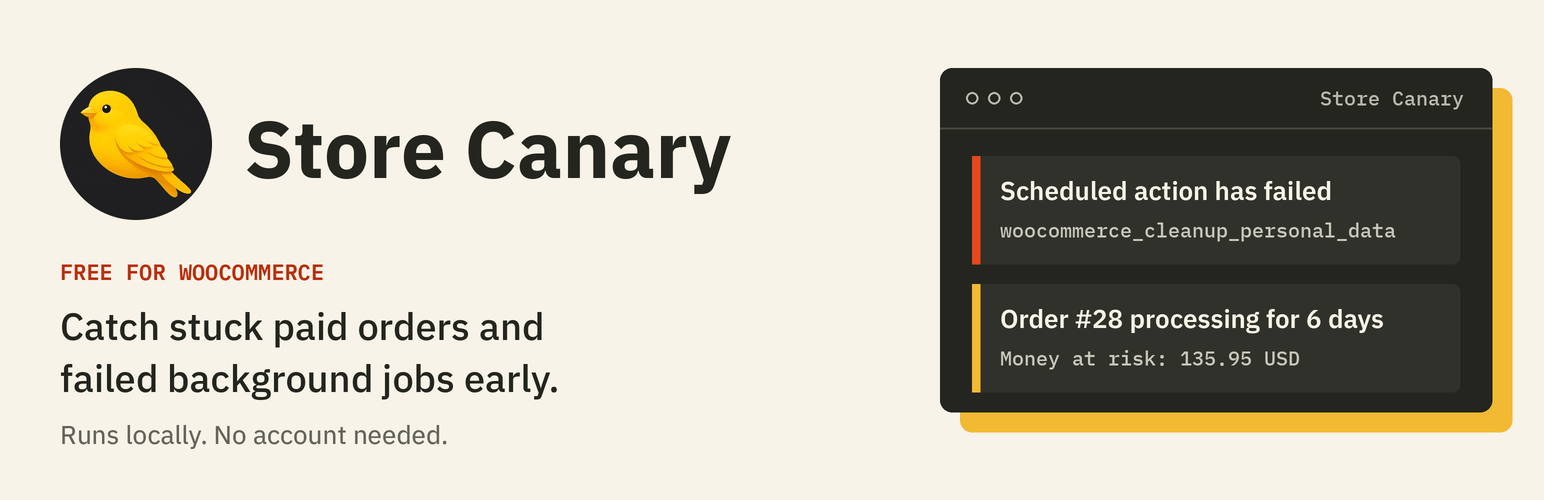
Store Canary finds paid orders stuck in Processing and failed or past-due scheduled actions in WooCommerce, and tells you what to check next. If WooCommerce shows a notice like “Action Scheduler: … past-due actions found”, Store Canary shows which tasks are stuck and links straight to them. It is most useful when order volume spikes, such as Black Friday, when a stuck queue or a backlog of unfulfilled paid orders is easy to miss. It runs locally, with no account.
1. Failed or past-due scheduled actions
WooCommerce runs a lot of background work through Action Scheduler: subscription renewals, emails, webhooks, stock syncs, analytics imports. When that queue breaks, WooCommerce may show a notice like “Action Scheduler: 848 past-due actions found; something may be wrong.” Store Canary finds failed scheduled actions and pending actions that are past due, groups them by hook and status, and links straight to the matching Scheduled Actions screen so you can see which task is stuck.
2. Paid orders stuck in Processing
An order that is paid but still Processing days later usually means a fulfilment step, an integration or a workflow has stopped. Store Canary lists orders stuck in Processing longer than your threshold (48 hours by default), shows how long each one has waited, and adds up the money at risk per currency.
What you get, free:
- An Overview with the last scan, the next background scan, open findings per check and money at risk.
- A Findings list with open, dismissed and resolved findings. Dismiss what you have handled, restore it if you change your mind.
- Run scan now, plus an hourly background scan through Action Scheduler.
- Settings for both checks: turn each one on or off and set its threshold.
- A Diagnostics tab with versions, order storage mode and the last scan’s result.
- An open-findings count badge on the admin menu.
- WP-CLI:
wp storecanary last-scanandwp storecanary check-health. - Works with High-Performance Order Storage (HPOS) and with legacy posts storage.
What it does not do: Store Canary reports and explains. It never changes orders, retries actions or edits your store.
Private by design: there is no account, no sign-up, no licence key and no tracking. Store Canary makes no external HTTP requests and loads no remote files. Everything runs inside your WordPress admin and your data stays in your database.
Store Canary Pro
Store Canary Pro is a standalone plugin, sold as WooCommerce Daily Ops at storecanary.app. It includes both checks in this plugin and adds recent failed payments, newly observed stockouts and an email digest of findings (daily, weekdays or weekly, sent only when there are findings). Pro connects to your Store Canary account to confirm your trial or subscription. Run one or the other: while Pro is active, this plugin pauses its checks and you can deactivate it.
Privacy
Store Canary makes no external requests. It does not collect, send or share any data, and it sets no cookies. It stores findings, scan history and its settings in your WordPress database only.
Installation
- Install and activate WooCommerce.
- Install Store Canary from Plugins > Add New and activate it.
- Open WooCommerce > Store Canary and click Run scan now.
After that, Store Canary scans every hour in the background.
FAQ
Why does WooCommerce say “past-due actions found”?
Action Scheduler runs background tasks on a queue. “Past-due” means tasks are waiting longer than they should, usually because WP-Cron is not running, a task keeps failing, or the queue is overloaded. Store Canary groups the stuck and failed actions by hook so you can see which task is the problem. Guide: Failed scheduled actions in WooCommerce and Action Scheduler past-due actions found: how to fix it.
Why are my WooCommerce orders stuck in Processing?
Processing means the order is paid and waiting for you or an integration to fulfil it. Orders that sit there for days often point to a fulfilment integration that stopped, a missed manual step or a payment gateway that marks orders paid without the next step running. Store Canary lists each one with a link to the order. Guide: WooCommerce orders stuck in Processing.
How do I find WooCommerce orders stuck in Processing?
In WooCommerce you can filter Orders by the Processing status and sort by date, but nothing tells you which ones have waited too long. Store Canary does that check every hour: it lists paid orders that have stayed in Processing longer than your threshold (48 hours by default), with how long each has waited and a link to the order.
Does it detect failed payments?
Not in this plugin. Store Canary Lite checks scheduled actions and paid orders stuck in Processing. A failed payment can leave a background job failing (for example a subscription renewal), which Lite will show, but it does not list failed payment orders. Recent failed payments are covered by Store Canary Pro. Guide: How to investigate failed WooCommerce payments.
Is it useful before Black Friday?
Yes, that is when it helps most. Order volume spikes, the Action Scheduler queue gets longer and a stuck fulfilment step is easy to miss. Install it a few days before, run a scan, and clear any past-due actions or old Processing orders it finds so you start the weekend with a clean baseline. Guide: WooCommerce Black Friday checklist.
Does it email or notify me?
Lite shows findings in your WordPress admin, with a count badge on the menu. It does not send email. The email digest is part of Store Canary Pro.
How is it different from uptime monitoring or analytics plugins?
Uptime monitors check that your site loads, and analytics tools report sales after the fact. Store Canary looks inside WooCommerce for two specific operational problems, stuck paid orders and failing background jobs, which can happen while the site looks fine.
Does it send data anywhere?
No. Store Canary makes no external HTTP requests, has no telemetry and needs no account. Findings and scan history are stored in two database tables on your site.
Does it fix anything?
No. It reports what it finds and explains what to check next. It never changes orders or scheduled actions.
Does it support HPOS?
Yes. Store Canary declares compatibility with High-Performance Order Storage and reads orders through WooCommerce’s own APIs, so it works with HPOS and with legacy posts storage.
Does it work on multisite?
Not yet. Store Canary currently runs on single-site installations only.
What happens to my data when I delete the plugin?
By default, findings and scan history are kept. To remove them, tick Delete Store Canary findings, scan history and settings when the plugin is deleted in Settings before deleting the plugin.
Screenshots


Changelog
1.0.3
- Added a request to rate Store Canary on WordPress.org. It appears only on the Store Canary Overview screen, only after at least 7 days, a completed scan and a resolved or dismissed finding. It offers nothing in exchange, “Not now” hides it for 30 days once, and closing it hides it for good. It makes no external requests.
- Rewrote the plugin description, tags and FAQ.
1.0.2
- Lowered minimum WordPress version to 6.9 to match WooCommerce 11; improved description and tags.
1.0.1
- Added an “Ask your AI to check this store” panel on the Overview screen. It links to the Store Canary connector for ChatGPT, Claude, Grok and Cursor and to the free web checks. It makes no external requests and is dismissible per user.
- Refreshed the screenshots.
1.0.0
- First WordPress.org release: failed or past-due scheduled actions check and paid orders stuck in Processing check, hourly background scan, Run scan now, findings list with dismiss and restore, settings, diagnostics and WP-CLI commands.