


Description
StoreCanvas Lite is a free WooCommerce product options and product personalization plugin. Add extra fields to any product (sizes, finishes, engraving text, gift wrap, file uploads), price each choice, and let customers place their own text and photos on the product with a live design canvas. It all runs on your own store: no SaaS subscription, no per-order fee, no credits, no license key and no phone-home.
Live demo | Documentation | Support
Use it to
- Sell personalized gifts: names, dates and messages, priced per letter
- Let customers upload a logo or photo and design it onto a mug, shirt or sign
- Add paid extras like gift wrap, rush production or premium finishes
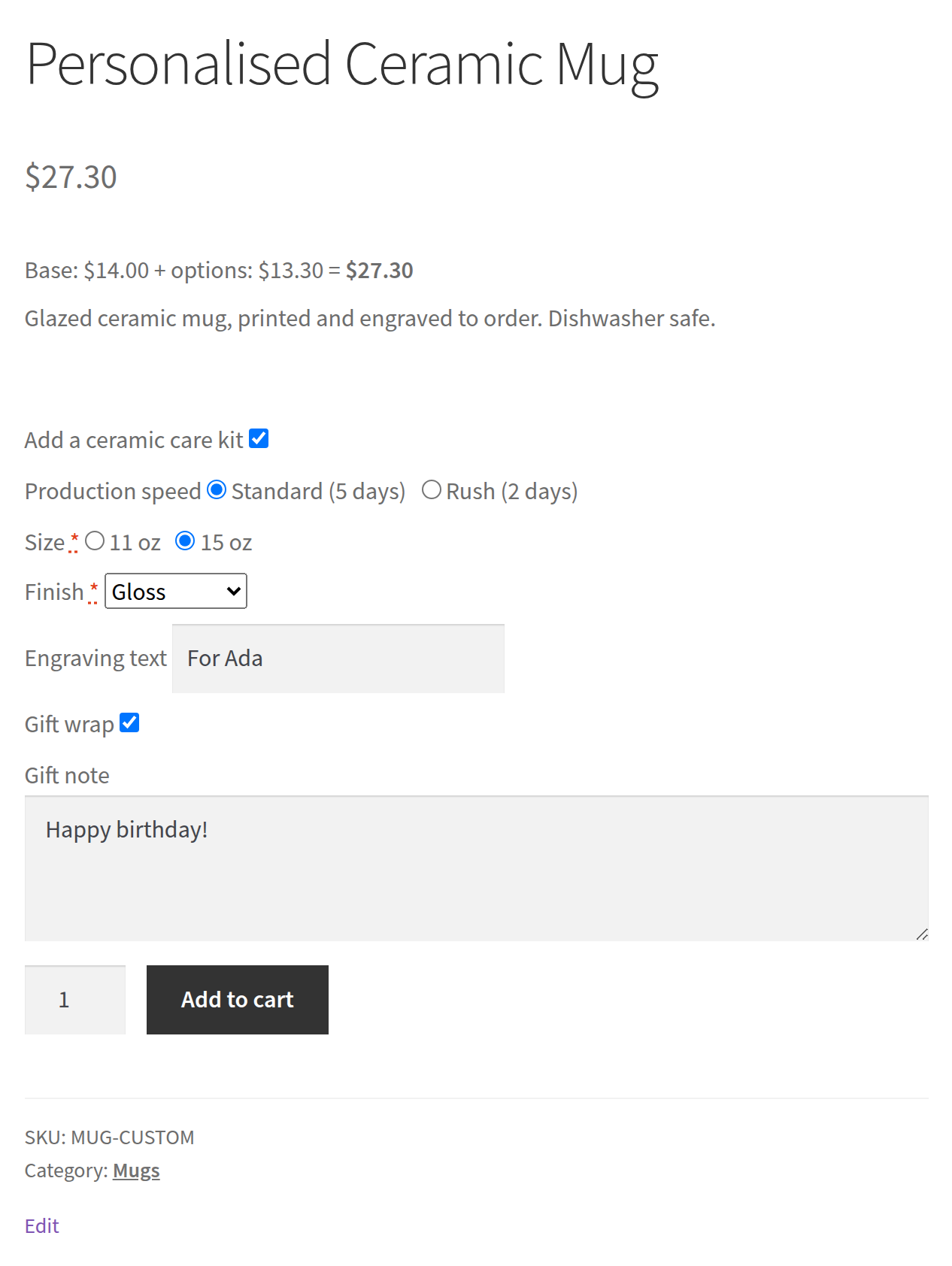
- Show a field only when it matters (a gift note only when gift wrap is ticked)
- Offer bulk pricing: “buy 10 or more, 10% off each”
- Track stock per choice, so a sold-out color can’t be ordered
Who it is for
- Personalized gift, engraving and print shops
- Print-on-demand and custom apparel stores
- Any WooCommerce store that needs extra product options without a monthly fee
Features
- 15 field types: dropdown, radio buttons, checkbox, multi-select, short text, long text, email, phone, phone (tel), number, date, colour picker, image choice, file upload and section heading.
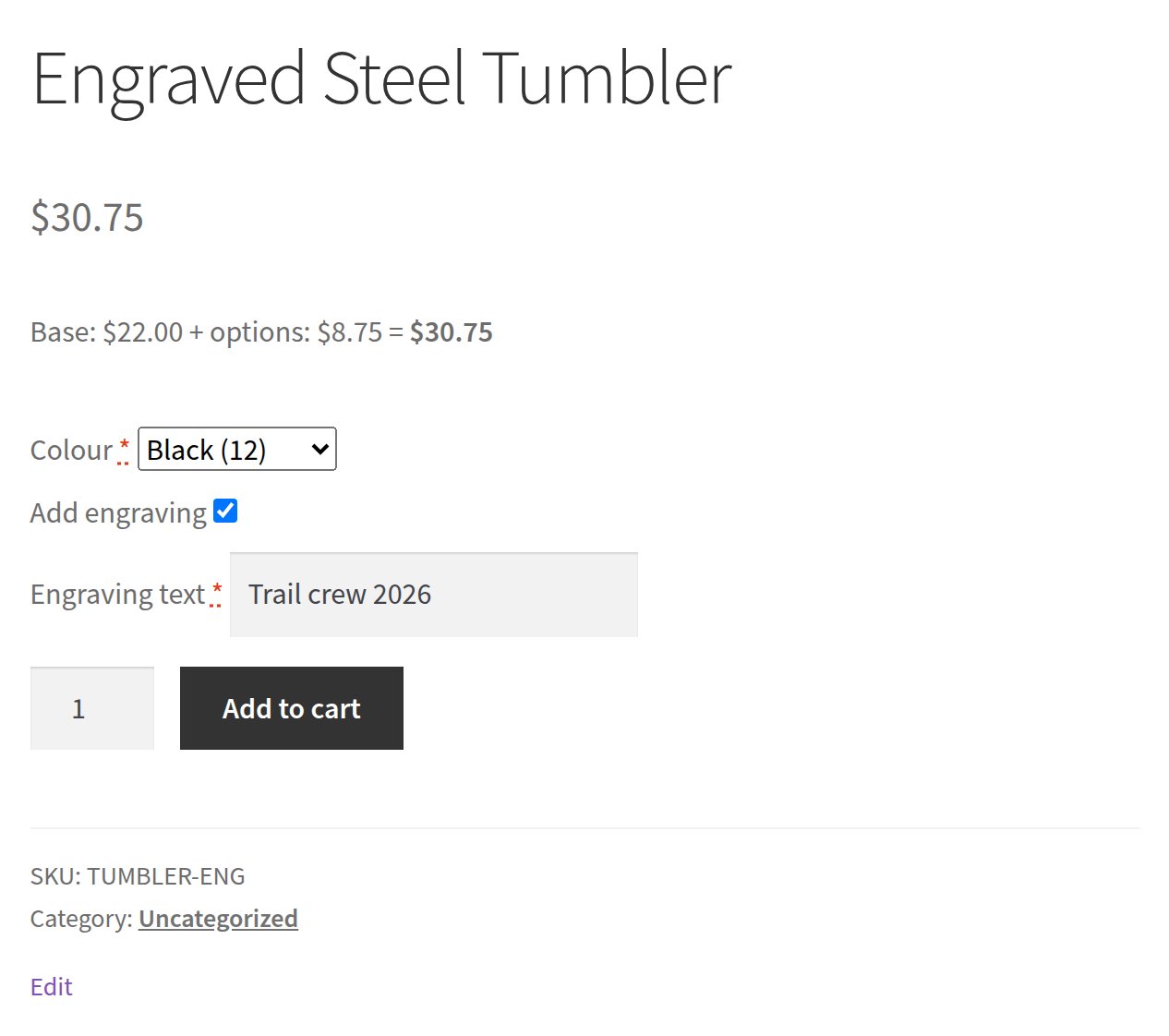
- 5 ways to price a field: a flat fee, a percent of the product price, an amount times a number the customer enters, an amount per character typed (engraving), or a different price for each choice (lookup table). Negative amounts work as discounts; the price never drops below zero.
- Live price on the product page that matches what the cart charges, on classic and block themes.
- Quantity discounts: “buy 10 or more, 10% off each” or “25 or more, $3 off each”, up to 10 tiers per product. A “Buy more, pay less” table shows on the product page, and the quantity counts every item of that product in the cart, in any option or size.
- Conditional fields with AND/OR rules: show a field only when other fields match, for example “Gift note” when “Gift wrap” is ticked, or “Rush date” when Size is Large AND Quantity is more than 10. Rules can test is, is not, contains, more or less than, empty and “is one of”. Hidden fields are never charged or required.
- File uploads with limits: customers attach a file (a logo, a photo, a print-ready PDF) to the order. You choose the allowed types (JPG, PNG, GIF, WebP, PDF) and a size limit per field. Every file is checked on the server, stored in a protected folder and offered to you as a download link on the order.
- Stock per choice: give any choice its own stock count. Sold-out choices are disabled on the product page, stock goes down when an order is placed and comes back when an order is cancelled, fails, or a refund restocks it.
- Option groups: build a set of fields once (for example “Gift options”) and apply it to whole product categories or a list of products.
- Per role and per variation: show a field only to certain user roles (for example wholesale) or only for certain variations of a variable product.
- Validation: required fields, minimum and maximum characters, number ranges and steps, and email, colour and date formats are checked before add to cart.
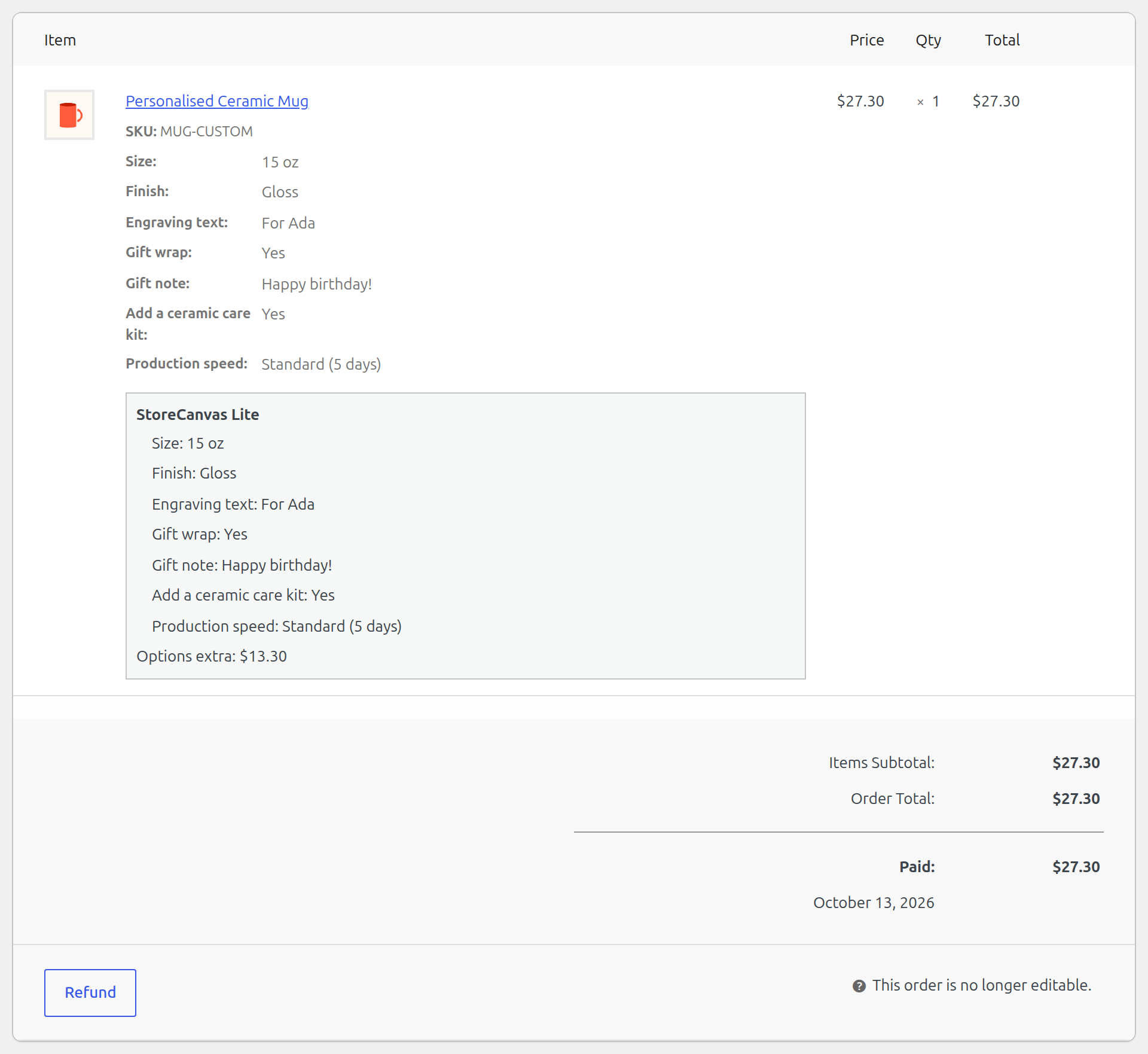
- Orders: each choice and its price appear as line-item details in the cart, checkout, emails and admin order screen.
- Compatible with WooCommerce HPOS (custom order tables), the block cart and block checkout.
- Customer design canvas (free): a front and (optionally) a back, each with its own product photo, print area and safe margin. Customers add text (5 built-in fonts, any colour, bold, outline), upload PNG or JPEG images and add clip-art from a small built-in set, then move, resize, rotate, layer, delete and undo with a mouse, a finger or the keyboard. The front can follow the chosen variation’s photo (the shirt color). Optional: require a design, turn photo uploads or clip-art off, limit the number of layers and charge a flat design fee (added through the same server-side pricing as the options). The design preview of each side shows in the cart, checkout, order emails and My Account; the admin order screen has a download link for a print-ready PNG of each side (the print area only, transparent background), the previews and every original photo.
- Save design and “My designs”: customers save a design and load it again later. Logged-in customers keep up to 20 designs in their account; guests keep them in their browser.
- Templates: start a product from T-shirt (front and back), Mug or Business card (3.5 x 2 in, two sides); it fills in the print areas, back side, safe margin and canvas shape.
- Design proof email: from the order screen, Order actions > “Send design proof to customer” emails the customer the preview of each designed item so they can reply with changes. An order note records each send.
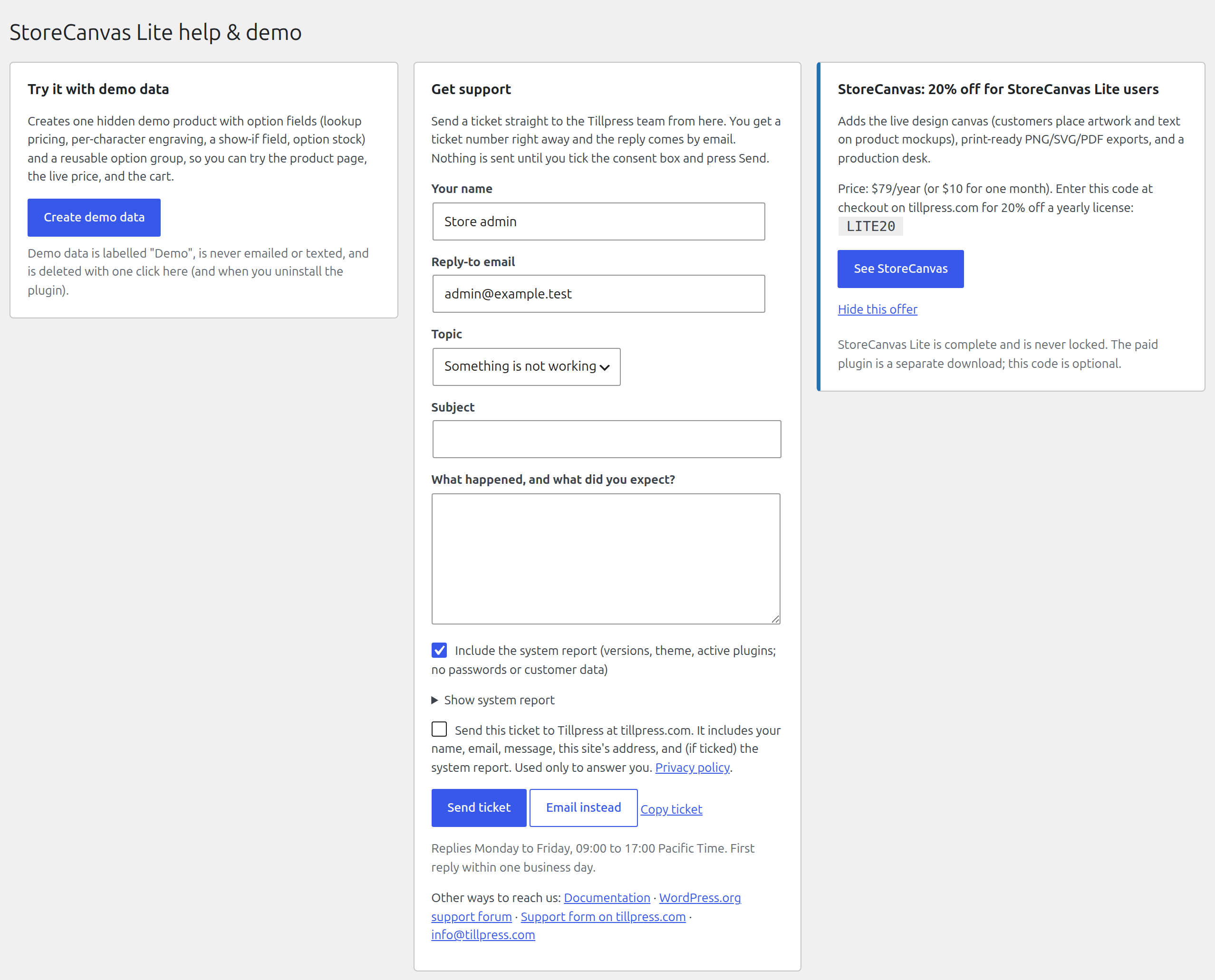
- Help & demo page with a one-click demo product and a support ticket form.
External services
StoreCanvas Lite has no license check, no telemetry, no account, and makes no outbound requests during normal use. The one exception is a support ticket you choose to send.
The customer design canvas uses no outside service: its fonts are bundled with the plugin, customer photos are uploaded only to your own site, and nothing is sent to Tillpress or anyone else.
Support tickets (only when you send one): the Help & demo page has a support form. When an administrator fills it in, ticks the consent box, and presses Send ticket, the plugin sends the name, reply-to email, topic, subject, message, this site’s address, and (if ticked) a system report of WordPress/WooCommerce/PHP versions, theme, and active plugin names to the Tillpress support desk at https://tillpress.com/wp-json/tp/v1/support. Nothing is sent automatically, in the background, or on a schedule, and no passwords, keys, or customer/order data are included. Service provider: Tillpress (Alex Software Holdings LLC). Privacy policy: https://tillpress.com/privacy/ — Terms: https://tillpress.com/terms/ . “Email instead” opens the same ticket in your own email app and sends nothing from the site.
Privacy
Design canvas. When a customer uses the design canvas, these files are stored on your own server, in wp-content/uploads/sclt-designs/ (never in the Media Library and never sent anywhere else): the design preview image and print-ready PNG of each side, every PNG/JPEG photo the customer uploads for the design, and, on the cart line and order item, the design itself (texts, font, colour and positions). Guests can use the canvas without an account.
- The folder is protected: file names are long random strings, the folder blocks direct access and listing (
.htaccessandindex.php; on nginx add adenyrule for/wp-content/uploads/sclt-designs/), and files are only shown to shop staff or through signed links that expire (1 day in the cart, 60 days in order emails and order pages). - Photos uploaded for a design that was never ordered are deleted automatically after 7 days. Files of placed orders are kept with the order so you can produce it.
- Saved designs (“My designs”). A logged-in customer’s saved designs are stored in their user account (user meta
_sclt_saved_designs, up to 20) and the photos in them are kept in the protected folder until the customer deletes the design. A guest’s saved designs stay in their own browser (localStorage); the photos in them are kept on your server for 90 days and then deleted. - Uninstalling the plugin deletes the whole
sclt-designsfolder, including files of past orders (download what you still need first, or adddefine( 'SCLT_KEEP_DESIGNS_ON_UNINSTALL', true );to wp-config.php to keep them). - Suggested privacy-policy text: “If you design a product on our site, the text and images you add are stored on our website so we can produce your order. Images from designs you do not order are deleted after 7 days. If you save a design, it is kept in your account until you delete it (or, without an account, in your browser, with its images kept on our website for 90 days).”
File upload fields. Files a customer attaches to a file upload field are stored the same way, in the same protected folder, with the same rules: random names, no direct access, staff download links on the order, and deletion after 7 days when the cart never became an order.
The rest of StoreCanvas Lite stores only the option choices made with an order, as part of that order.
Installation
- In WordPress, go to Plugins → Add New, search for “StoreCanvas Lite”, then click Install and Activate. (Or upload the
storecanvas-litefolder to/wp-content/plugins/and activate it on the Plugins screen.) - Make sure WooCommerce 7.0 or newer is active.
- Optional: open Products → StoreCanvas Lite help and click Create demo data to see a finished example.
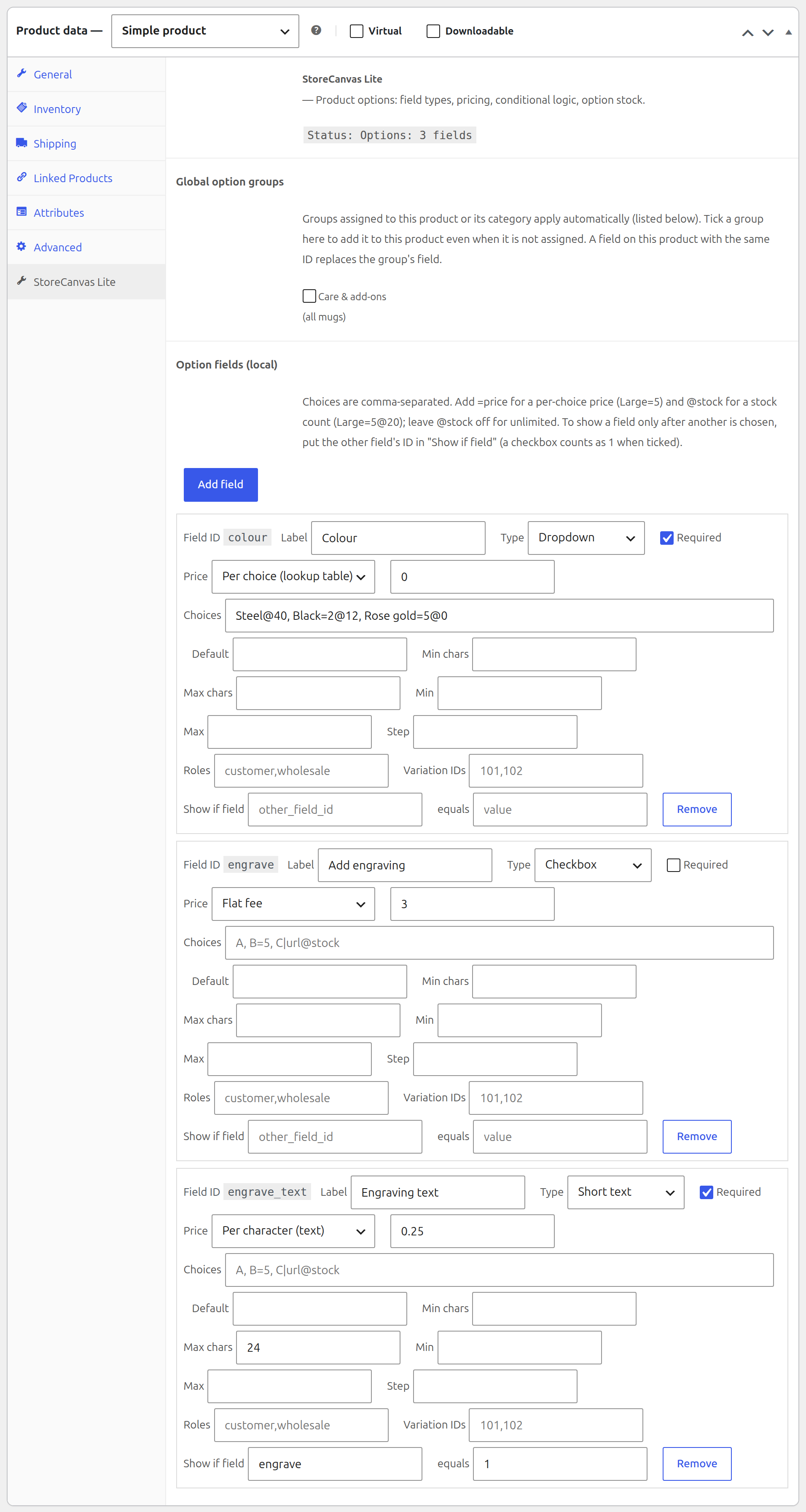
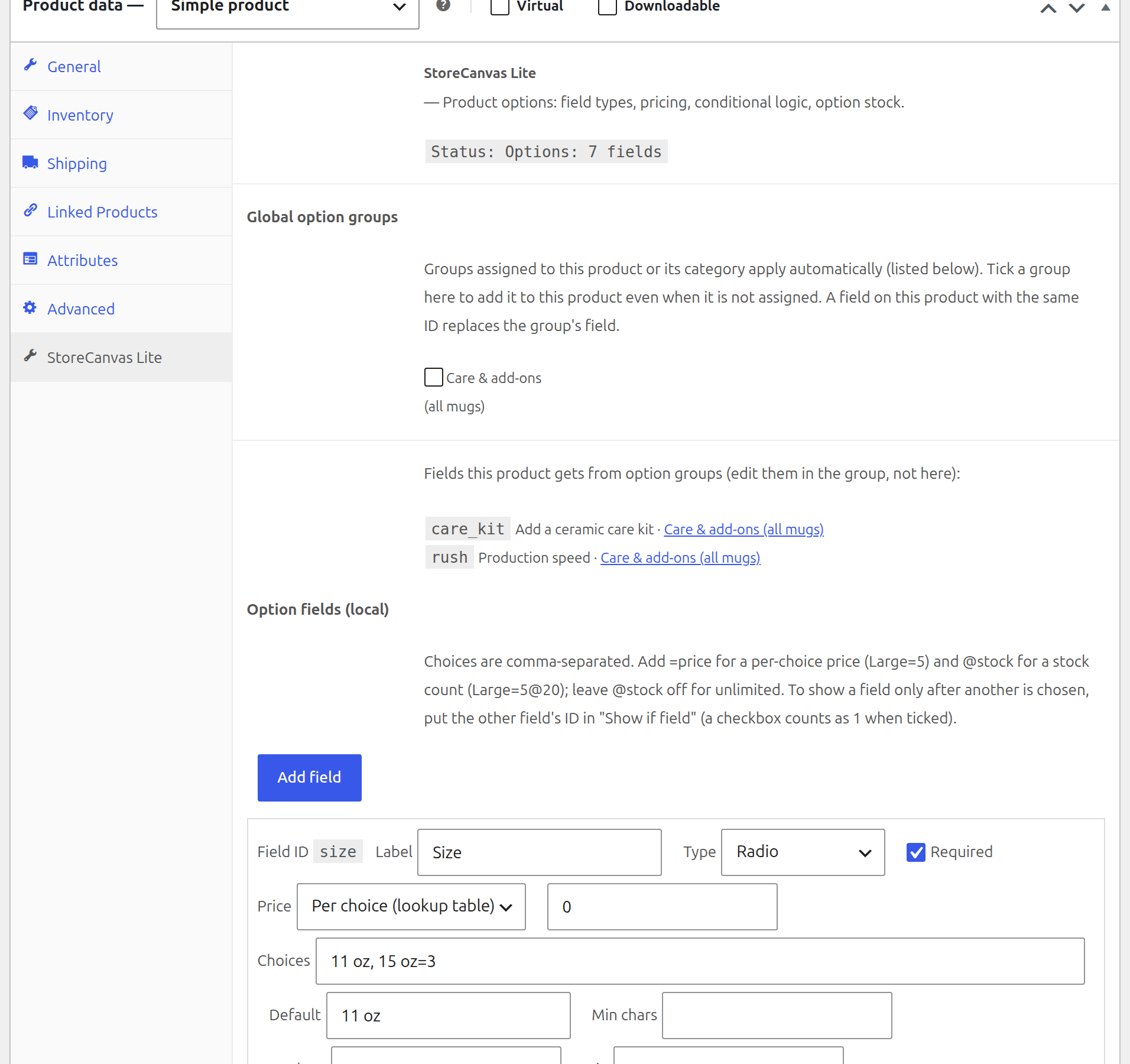
- Edit a product, open the StoreCanvas Lite tab in the Product data box, click Add field, fill in the label, type, price and choices, then click Update.
- Optional: create reusable fields under Products → Option groups and assign them to products or categories.
The Setup guide in the Description tab walks through every setting with examples.
Setup guide
Step 1: Install and activate. In WordPress go to Plugins → Add New, search for “StoreCanvas Lite”, click Install and then Activate. WooCommerce must be active. A Help & demo link appears under the plugin’s name on the Plugins screen, and the same page lives at Products → StoreCanvas Lite help.
Step 2 (optional): Look at the demo. On Products → StoreCanvas Lite help, click Create demo data. It creates one hidden product (not shown in your shop or search) that uses every pricing type, a conditional field and stock per choice, plus one option group. Open it from the links on that page to see the product page, the live price and the cart. Click Remove demo data when you are done; uninstalling the plugin removes it too.
Step 3: Add your first field. Edit a product. In the Product data box, open the StoreCanvas Lite tab and click Add field. A new row appears. Fill in:
- Label: what the customer reads, for example “Size”.
- Type: for example Dropdown or Radio.
- Required: tick it if the customer must choose before adding to cart.
- Price: the pricing method and amount (see Step 4).
- Choices: for Dropdown, Radio, Multi-select and Image choice, type the choices separated by commas (a Checkbox is a single tick box and needs no choices), for example
Small, Medium, Large.
Click Update to save the product. View the product: the field is there, under the price.
Step 4: Price it. Pick one of these in the Price dropdown for each field:
- Flat fee: adds the amount once when the field is used. Example: Gift wrap, Flat fee, 1.50.
- Percent of product: adds that percent of the product (or chosen variation) price. Example: Premium finish, 10.
- Per quantity: the customer types a number, and the amount is multiplied by it. Example: Extra name tags, Per quantity, 2.00 (5 tags = $10).
- Per character (text): for text fields; each character typed costs the amount. Example: Engraving text, 0.20 (“For Ada” = 7 characters = $1.40).
- Per choice (lookup table): each choice has its own price. Write the price after the choice with an equals sign:
11 oz, 15 oz=3, orMatte, Gloss=2.5, Metallic=4. A choice with no=costs nothing extra. Use a minus sign for a discount:Student=-5.
Step 5 (optional): Stock per choice. Add @ and a number after a choice to give it a stock count: Steel@40, Black=2@12, Rose gold=5@0. Here Black costs $2 extra with 12 left, and Rose gold shows as sold out. Leave the @ off and the choice is unlimited. Stock is reduced when the order is placed and returned if the order is cancelled or fails, or if you tick “Restock refunded items” on a refund. If you edit the stock while orders come in, StoreCanvas Lite applies your change to the current count instead of overwriting sales.
Step 6 (optional): Show a field only when needed. On the field that should appear later, click Add condition, pick the other field, a test and a value. Add more rules and choose all (every rule must match, AND) or any (one rule is enough, OR):
- Show “Engraving text” when the checkbox “Add engraving” is ticked:
Add engravingis1(a ticked checkbox counts as 1). - Show “Gloss care tips” only when Finish is Gloss:
FinishisGloss. - Show “Rush date” when Size is Large and more than 10 are ordered: all of
SizeisLarge,Quantityis more than10. - Show “Upload your logo” for either print option: any of
PrintisFront logo,PrintisBack logo(or one rule:Printis one ofFront logo, Back logo).
Products set up with the older “Show if field / equals” boxes keep working; the builder shows that rule as a condition.
File uploads. A File upload field shows tick boxes for the allowed file types (JPG, PNG and PDF by default; GIF and WebP too) and a Max size (MB) box (5 MB when empty, and never more than your server allows). Customers see the allowed types and size under the button and are told straight away when a file does not fit. The server checks every file again, including that its content really is the type its name says.
A hidden field is never required and never charged. Fields can also be limited to user roles (Roles box, for example wholesale_customer) or to variations (Variation IDs box, the IDs shown in the Variations tab).
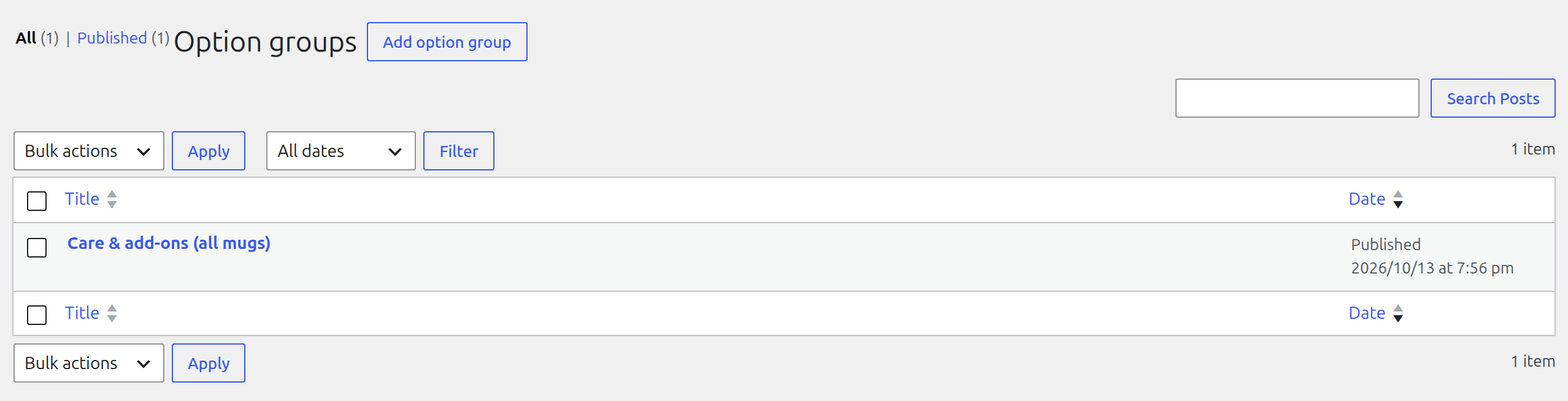
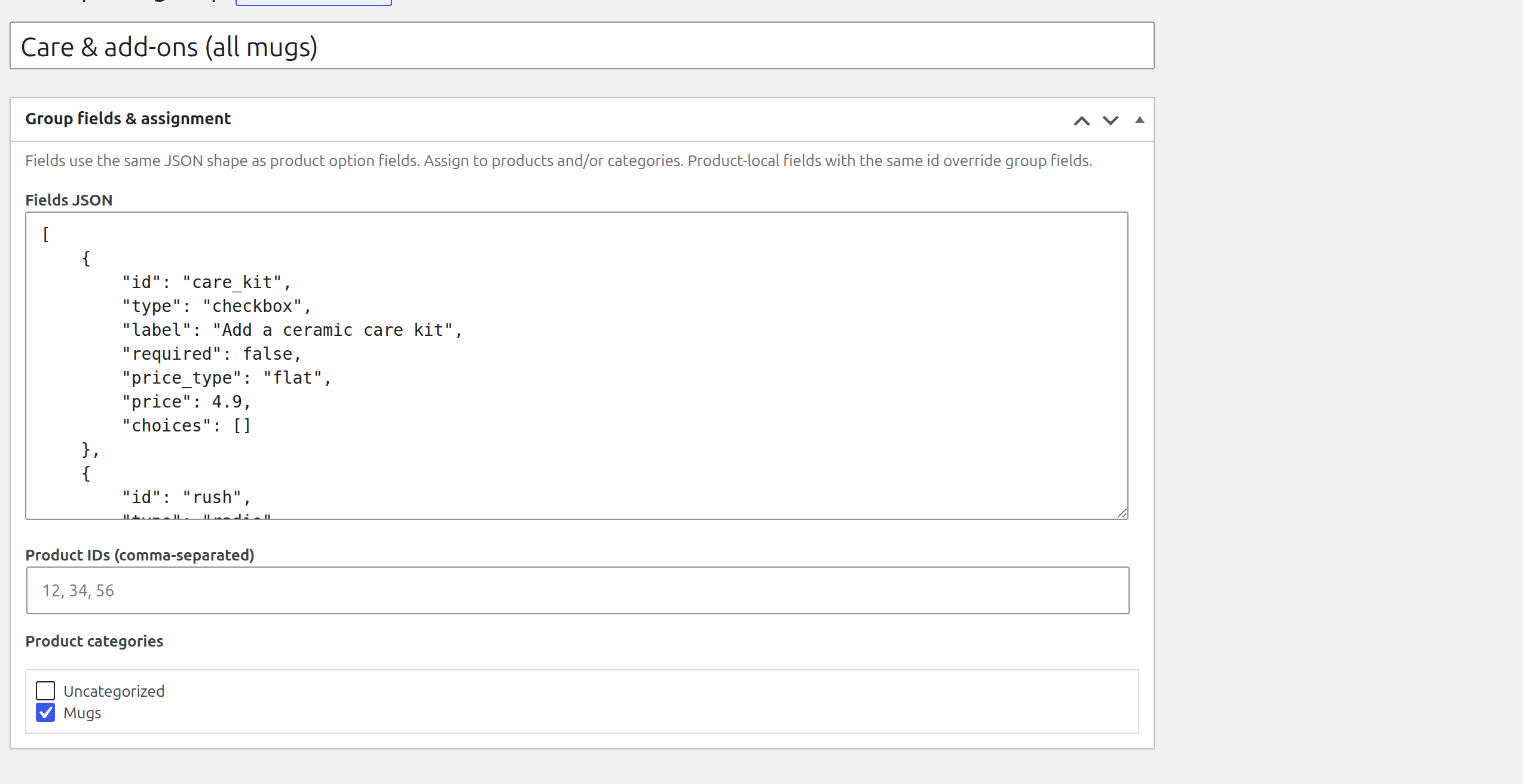
Step 7 (optional): Reuse fields with an option group. Go to Products → Option groups → Add option group. Give it a title, paste the fields into Fields JSON (the easiest way is to build them on one product first; a group uses the same JSON), and choose where it applies: type product IDs in Product IDs and/or tick categories under Product categories. Every product in those categories now gets the group’s fields under its own. On a product’s StoreCanvas Lite tab, group fields are listed separately with a link to their group; edit them in the group, not on the product. A product field with the same ID as a group field replaces it on that product. The ticked list under “Global option groups” adds a group to one product even when it is not assigned.
Step 8 (optional): Let customers design the product. On the product’s StoreCanvas Lite tab, scroll to Customer design canvas and tick Let customers design this product. The product’s main (featured) image is the mockup the customer designs on. To start quickly, pick a template (T-shirt, Mug or Business card) under Start from a template. Drag the blue box on the image (or type Left, Top, Width and Height in %) to mark where printing is possible; designs are clipped to this area. The red dashed line inside is the safe margin (4% by default): customers are warned when part of the design crosses it. Tick Customers can also design the back and click Choose back photo to add a back side with its own print area. Then choose:
- A design is required to add to cart: the Add to cart button asks for a design first.
- Allow image uploads: customers may add their own PNG or JPEG photos (up to 5 MB each by default).
- Offer the built-in clip-art: 13 simple shapes (star, heart, paw print, crown and more) in any colour.
- Front follows the chosen variation photo: on a variable product, the front switches to the photo of the variation the customer picks (for example the red shirt).
- Canvas shape without a photo: height divided by width, used when a side has no photo (a business card is 0.5714).
- Max layers: how many texts and images one design may have.
- Design fee: a flat amount added to the line when a design is added (0 for free).
Click Update. On the product page the canvas appears above Add to cart. When the order comes in, open it in WooCommerce → Orders: the line item shows the design preview of each side and links to download the print file (PNG, print area only, transparent), the preview PNG and each photo the customer uploaded, plus the text, font, colour and outline used. To show the customer a proof, choose Send design proof to customer under Order actions and click the arrow.
Step 9 (optional): Quantity discounts. On the product’s StoreCanvas Lite tab, find Quantity discounts. In each row, type the quantity the discount starts at (2 or more), the discount, and whether it is a percentage or an amount off each item. Example: 10, 10, % off each; then 25, 15, % off each. Empty rows are skipped. The discount comes off the whole item price, options included, and the cart shows it on the line. The product page lists the tiers in a “Buy more, pay less” table and the live price shows the saving for the quantity chosen.
Step 10: Test an order. Add the product to the cart with some choices. The cart and checkout show each choice and the total. After checkout, the order screen in WooCommerce → Orders lists every choice under the line item.
Good to know
- Prices you see on the product page are recalculated on the server for the cart and checkout, so a customer cannot change a price in the browser.
- If you change a product’s price later, carts that already contain it are repriced from the new price.
- Field changes apply to new add-to-carts. Orders already placed keep the choices and prices they were sold with.
- Files customers attach with a file upload field are checked (allowed type, real content, size) and kept in the same protected folder as design files. Shop staff download them from the order screen.
- Design files are kept in a protected folder (
wp-content/uploads/sclt-designs/) that cannot be browsed or opened directly; they are shown through short-lived signed links. Photos from designs that were never ordered are deleted automatically after 7 days.
A paid StoreCanvas plugin is sold separately at https://tillpress.com/storecanvas/ for print shops: print spots with their own prices, print shop pricing (methods, ink colors, stitch tiers, minimums, setup fees), a size grid with names and numbers, a 3D preview, vector production files, proof approval and a production queue, saved logos, supplier catalogs and ordering, Printavo and print on demand, and more templates. It is a different plugin. StoreCanvas Lite, including its design canvas, is complete on its own and is never locked or time-limited.
FAQ
Is there a free WooCommerce product designer that is not a SaaS subscription?
Yes. The design canvas in StoreCanvas Lite is free and runs on your own WordPress site. Designs and photos are stored on your server and come with the order. There is no monthly fee, per-order fee or outside service.
Can customers personalize products with custom text and image uploads?
Yes. Add a text field (with per-letter pricing for engraving) or a file upload field, or turn on the design canvas so customers place text and photos on the product image themselves.
Is there a license key, trial or “pro” lock?
No. Every feature on this page works without a key, a trial or an account, and nothing is locked later.
Where do I add options to a product?
Edit the product, scroll to the Product data box and open the StoreCanvas Lite tab (after Advanced). Click Add field for each option, then Update.
How do I give each choice its own price?
Set the field’s Price to Per choice (lookup table) and write the price after each choice with an equals sign: Small, Medium=2, Large=4. Choices without = add nothing.
How do I charge for engraving by the letter?
Add a Short text field, set Price to Per character (text) and enter the price per character, for example 0.20. Set Max chars to limit the length.
How do I make a field appear only after another choice?
Click Add condition on that field, pick the other field, a test (is, is not, contains, more than and so on) and a value. Add more rules and choose all for AND or any for OR. For a checkbox, use 1 (ticked). Hidden fields are never required or charged.
How do I set stock for a choice?
Add @ and the quantity after the choice: Black@12, or with a price Black=2@12. A choice at @0 shows as sold out. Without @ a choice is unlimited.
What happens to option stock on cancellations and refunds?
Stock is reduced when an order is placed and returned if the order is cancelled or fails. On a refund, stock returns only when you tick “Restock refunded items”, and only for the refunded quantity. A restock that fails is not marked done, so you can retry it.
Can I reuse the same fields on many products?
Yes. Create an option group under Products → Option groups and assign it to product IDs and/or categories. The fields appear on those products automatically. Edit them in the group; a product’s tab lists them with a link to the group.
Does it work with variable products?
Yes. Percent pricing uses the chosen variation’s price, and a field can be limited to certain variations with the Variation IDs box.
Does it work with the block cart and checkout, and HPOS?
Yes. Choices are validated and shown in the block cart and checkout, and orders work with WooCommerce’s custom order tables (HPOS).
Can customers change the price in their browser?
No. The live price is only a preview. The cart and checkout recalculate every option from your settings on the server.
Is there a demo?
Yes. On Products → StoreCanvas Lite help, click Create demo data. It creates one hidden product (not in your shop or search) with lookup pricing, per-character engraving, a gift note that appears only when Gift wrap is ticked, option stock with a sold-out choice, and a reusable option group. Everything is labelled “Demo”, never emailed, and removed with one click (or when you uninstall the plugin).
How do I get support?
Open Products → StoreCanvas Lite help. The support form there sends your ticket straight to the Tillpress support desk at tillpress.com after you tick the consent box and press Send ticket; you get a ticket number on screen and the reply comes by email. It includes your name, email, message, this site’s address, and (optional) a system report of versions, theme, and active plugins; never passwords, keys, or customer data. Prefer email? “Email instead” opens the same ticket in your own email app. You can also use the WordPress.org support forum for this plugin or https://tillpress.com/support/. Replies Monday to Friday, 09:00 to 17:00 Pacific Time; first reply within one business day.
How do I let customers design a product?
Edit the product, open the StoreCanvas Lite tab, tick Let customers design this product under Customer design canvas, and drag the print-area box onto the product image. The product needs a main (featured) image. See Step 8 of the Setup guide.
What can customers do on the canvas?
Add text (Sans, Serif, Typewriter, Bebas Neue or Dancing Script, any colour, bold), upload PNG or JPEG photos, and move, resize, rotate, bring forward, send backward or delete each layer. Everything stays inside your print area. It works with a mouse, on touch screens, and with the keyboard: select a layer, then use the arrow keys to move it, + and – to resize, [ and ] to rotate, Page Up / Page Down to change the order and Delete to remove it.
What do I get with the order?
The order line shows the design preview. On the admin order screen you also get download links for the preview PNG and for every original photo the customer uploaded, plus the texts with their font and colour.
Where are customer designs stored, and who can see them?
On your own server only, in a protected folder (wp-content/uploads/sclt-designs/). Files cannot be listed or opened directly; the cart, emails and order pages use links that are signed and expire. Shop managers can always open them from the order screen. Nothing is sent to Tillpress or any other service. See the Privacy section.
Can I charge for a design?
Yes. Set a Design fee in the canvas settings. It is added once per cart line that has a design, and it is calculated on the server like every other option price.
How big can uploaded photos be?
PNG or JPEG, up to 5 MB and 8000 × 8000 pixels by default (also capped by your server’s upload limit). Developers can change the size with the sclt_canvas_max_upload_bytes filter.
Does the plugin advertise anything?
Only on its own Help & demo page: one box describing the paid StoreCanvas plugin with an optional 20% discount code. It can be hidden for good with “Hide this offer”. There are no dashboard-wide notices, no tracking, and no referral IDs.
What if I also install StoreCanvas (the paid plugin)?
Lite steps aside automatically so you do not get duplicate option fields or double charges. You can then deactivate Lite.
What does the paid StoreCanvas add?
Lite’s canvas has a front and a back, each with one print area, a small clip-art set, three templates and a print-ready PNG per side. The paid StoreCanvas adds priced print spots (sleeves, pockets), print shop pricing, a 3D preview, vector production files, proof approval, saved logos, supplier catalogs, Printavo and print on demand, at https://tillpress.com/storecanvas/.
Screenshots
Changelog
1.4.0
- New: design the back too. Each side has its own product photo, print area and side buttons on the product page; the cart, emails and order show a preview of each side.
- New: print-ready PNG per side on the order screen (the print area only, transparent background, 1500 px on the long edge; filter
sclt_canvas_print_px). - New: text outline (colour and width), a small clip-art set in any colour, undo and redo (buttons, Ctrl+Z, Ctrl+Shift+Z or Ctrl+Y), and a safe-margin line with a warning when the design crosses it.
- New: “My designs”. Save a design and load it later: in the customer’s account when logged in, in the browser for guests.
- New: templates for a T-shirt, a mug and a business card.
- New: basic design proof email (Order actions > Send design proof to customer). No approval links.
- New: the front follows the chosen variation’s photo.
- New: the live price listens to the
sc:base-price,sc:extra-priceandsc:qtyevents (same as StoreCanvas Pro) and follows the chosen variation’s price.
1.3.3
- Docs: clearer plugin name, short description and overview on WordPress.org (what it does, who it is for, how it works, demo and docs links), plus FAQ entries on a free self-hosted product designer and text/photo personalization. The step-by-step setup guide moved to the Installation tab, because WordPress.org was cutting off the end of the description. No code changes.
1.3.2
- Refreshed admin look, shared across Tillpress plugins: rounded cards, pill tabs and buttons, settings forms and tables as cards. Only the plugin’s own screens change; no settings or data change.
1.3.1
- Fix: no more “translation loading was triggered too early” notice on WordPress 6.7 and later.
- Fix: internal stock bookkeeping no longer shows on the admin order screen.
- The “image too large” message now says what the limit is.
1.3.0
- New: quantity discounts. On a product’s StoreCanvas Lite tab, add up to 10 tiers such as “10 or more: 10% off each” or “25 or more: $3 off each”. The tier comes from the total quantity of that product in the cart, across every option and variation, and the discount applies to the whole item price including options.
- New: a “Buy more, pay less” table on the product page, the saving in the live price, and a “Quantity discount” line in the cart, checkout, emails and order screen.
- Prices are worked out on the server from the current catalog price every time the cart is totalled, so a discount never stacks and lowering the quantity brings the full price back.
1.2.0
- New: AND/OR conditions in the field builder. Click “Add condition” to show a field only when all (AND) or any (OR) of several rules match, with tests such as is, is not, contains, more or less than, empty and “is one of”. The product page shows and hides fields with the same rules the server uses. Products using the old “Show if field / equals” boxes keep working.
- New: file upload fields now keep the file. Choose the allowed types (JPG, PNG, GIF, WebP, PDF) and a size limit per field; customers see both and get an instant message when a file does not fit.
- Security: every uploaded file is checked on the server for size, allowed type and real content (a file whose content does not match its name is refused), stored under a random name in the protected
sclt-designsfolder, and offered to staff as a download link on the order. PDFs are always downloaded, never opened in the site. Files of carts that never became orders are deleted after 7 days.
1.1.0
- New: after 5 orders have used StoreCanvas Lite options or a design, and 14 days after install, administrators see one notice asking for a WordPress.org review, with a Get help button next to it. “Maybe later” hides it for 30 days, once; “Dismiss” hides it for good. Nothing is sent anywhere.
- New: free customer design canvas. Per product, turn it on and draw one print area on the main product image; customers add text (5 bundled fonts, colour, bold) and PNG/JPEG photos, and move, resize, rotate, layer and delete them with mouse, touch or keyboard. Designs are clipped to the print area.
- New: optional required design, photo uploads on/off, maximum layers, and a flat design fee priced on the server with the other options.
- New: the design preview shows in the cart (classic and block), checkout, order emails, My Account and the admin order screen, with download links for the preview and the customer’s original photos. Works for guests.
- Security: uploads are checked for nonce, size, and real PNG/JPEG content; previews are re-encoded; files get random names in a protected uploads folder and are served only to staff or through signed, expiring links.
- New: photos from designs that were never ordered are deleted after 7 days by a daily task; uninstall removes the plugin’s design files, settings and task.
1.0.12
- Fix: File upload fields now work. A required file field no longer blocks add to cart, and the uploaded file’s name is saved with the order.
1.0.11
- Fix: saving a product no longer copies option-group fields into the product. The builder now edits only the product’s own fields and lists group fields separately with a link to their group, so later edits to the group reach every product.
- Fix: each field shows its Field ID (needed for Show if field), and multi-rule conditions set outside the builder are kept when the product is saved.
- Improved: the choices box uses the full row, and the help text explains =price, @stock and Show if field.
1.0.10
- Includes 1.0.9 (option stock race, refund restock retry, stale product save).
- Plugin Check: Store API stock message escaped, refund restock flag unslashed and sanitized, stock compare-and-swap uses a prepared %i table placeholder.
1.0.9
- Fix: option stock sold by concurrent checkouts can no longer be overwritten by a later write.
- Fix: a refund whose restock failed is no longer marked done; retrying it restocks once.
- Fix: saving a product that was open while orders came in keeps the sold stock; a stock edit is applied as a change to the current amount.
1.0.8
- Fix: customized cart lines always use the current catalog price; a saved cart can no longer keep the old price after a catalog price change.
1.0.7
- Fix: option surcharges are applied once from the product’s current price (including sale price). Recalculating the cart no longer stacks the same extra.
- Fix: option stock tracks each line and refund. Amount-only refunds do not restock; restock restores only the refunded quantity. Failed then paid orders re-reserve remaining stock.
1.0.6
- Fix: carts saved before this update are re-checked and re-priced from the current product options; invalid items are removed with a notice.
1.0.5
- Security: option quantities must be whole positive numbers; malformed values can no longer lower a price.
- Fix: option stock is counted across the whole cart, on quantity changes and at checkout; stock is reduced and restored once.
1.0.4
- Change: front-end option styles and the field-builder type lists now load through wp_enqueue_style / wp_add_inline_script instead of inline
1.0.3
- New: Send support tickets from inside the plugin (Help & demo page). You get a ticket number on screen; nothing is sent until you tick the consent box and press Send ticket. “Email instead” still opens your email app.
1.0.2
- New: Help & demo page (Products → StoreCanvas Lite help, also linked from the Plugins screen).
- New: one-click demo product and option group showing lookup, per-character, and flat pricing, a show-if field, and option stock. Hidden from the shop; removed with one click or on uninstall.
- New: support ticket form that opens a pre-filled email in your own email app, with an optional system report (no passwords, keys, or customer data). Nothing is sent from your site.
- New: optional, dismissible 20% offer for the paid StoreCanvas plugin, shown only on the Help & demo page.
- Fix: sold-out choices on radio and multi-select fields are now disabled on the product page (they were only blocked at add to cart). Radio choices show “(sold out)”.
1.0.1
- Fix: show-if (conditional) fields now work on block themes such as Twenty Twenty-Five.
- Fix: order confirmation and emails show the customer’s choices instead of raw sclt_price_extra.
- Fix: a plain Update on a product no longer deletes per-choice prices. Write prices as “Large=10”.
1.0.0
- First public release: 15 field types, flat/percent/quantity/per-character/lookup pricing, multi-rule conditional logic, per-choice option stock, reusable option groups, live price preview.