
Description
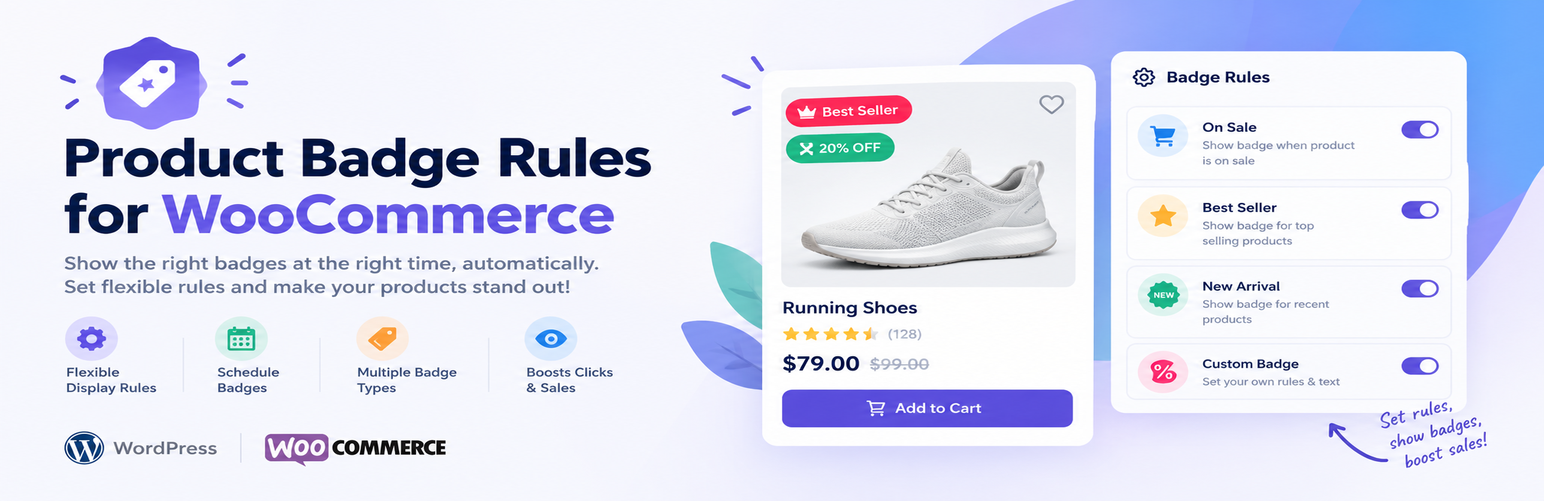
Product Badge Rules for WooCommerce is the easiest way to add smart, automatic product badges and labels to your WooCommerce store. Instead of editing every product by hand, you create a badge once, choose a rule, and the plugin handles the rest — showing the right badge on the right product, every time, automatically.
Whether you want a “Save 30%” sale badge, a “New” arrival label, an “Only 3 left!” urgency badge, a “Sold Out” notice, a “Featured” highlight, or a “Hot” best-seller badge — this plugin generates it from live WooCommerce data with no coding and no image uploads.
Badges update themselves the moment your prices, stock, or sales numbers change. Set it once and forget it.
Who it is for
- Store owners who want to increase conversions without touching code
- Agencies managing multiple WooCommerce stores
- Marketers running seasonal promotions and flash sales
- Developers who need a lightweight, hook-friendly badge system
Nine automatic WooCommerce product badge rules
On Sale badge — fires automatically when WooCommerce marks a product on sale. Use the {pct} token to display the exact discount percentage, for example “Save 30%” or “30% OFF”. Works with simple and variable products.
New Arrival badge — labels products published within the last X days as “New”. You choose the window (default 30 days). Perfect for highlighting fresh stock without touching each product individually.
Featured badge — displays a badge on any product you have marked as featured inside WooCommerce. Great for curated collections and homepage hero sections.
Low Stock badge — appears when available stock reaches your threshold. Use the {qty} token to show the exact quantity, for example “Only 3 left!”. Creates genuine purchase urgency without exaggeration.
Out of Stock badge — clearly flags unavailable products with a “Sold Out” label or any custom text you choose, so shoppers know at a glance.
Hot Seller badge — badges your best-selling products based on total WooCommerce sales count. Set your own minimum (e.g. 50 sales) to control exactly which products qualify.
Price Range badge — show a badge on products inside a price range, for example “Under $20” for budget picks or “Premium” for products from $100 up. Leave the minimum or the maximum empty for “and above” or “up to”. Judged by the current price, so a product on sale uses its sale price; variable products use their lowest variation price.
Product Tag badge — show a badge on every product that carries one or more WooCommerce product tags, such as “Eco-friendly”, “Vegan” or “Gift idea”. Works like category targeting, but with tags.
On Backorder badge — flags products WooCommerce marks as on backorder. Ideal for “Pre-order” or “Ships in 2 weeks” labels so shoppers know before they add to cart.
Badge designer — full visual control
Every badge you create is fully customisable:
- Label text with dynamic
{pct}and{qty}tokens - Background and text colour pickers — match any brand palette
- Four shapes — rounded pill, square, circle, and ribbon
- Eight positions on the product image — all four corners plus all four edge midpoints
- Scheduling — optional start and end dates for Black Friday, Christmas, or any timed promotion
- Priority order — control which badge wins when multiple rules match the same product
- Live preview — see exactly how the badge looks while you are still configuring it
Per-product badge override — full control on a single product
Sometimes one product needs its own rule. Every product edit screen (and the product list Quick Edit panel) has a small Product Badge box with three choices:
- Auto — the badge rules decide (default)
- Hide badge on this product — no badge is shown, no matter which rules match
- Custom text — show your own label, such as “Limited Edition” or “Handmade”. It keeps the colours and shape of the matching badge rule, or uses a neutral dark badge when no rule matches.
Category targeting — show badges on the products that matter
Restrict any badge to one or more product categories. Create a “Summer Sale” badge that only appears on products in your Summer collection, while the rest of your catalogue stays untouched. Leave all categories unchecked to show the badge across every product.
Live product match count
The badge list shows exactly how many published products each badge is currently active on — for example “12 products”. Click the number to refresh it instantly without reloading the page. Know at a glance whether your rule is working and how many products it covers.
Built for speed — zero performance impact
- One database query loads all active badges per page
- Two-layer cache — in-memory per request, plus a 12-hour WordPress transient
- Pure CSS badges — zero front-end JavaScript, no render-blocking scripts
- Conditional asset loading — styles load only on WooCommerce shop, category, tag, and single product pages
- HPOS compatible — fully declared for WooCommerce High-Performance Order Storage
Powerful display controls
- Replace the default WooCommerce “Sale!” flash — one toggle hides the built-in sale bubble on any product that shows a badge from this plugin, so products never show two badges at once. Works with classic and block themes.
- Choose where badges appear — enable or disable badges on shop/archive pages and on single product pages independently
- Admin product column — see at a glance in the WP Admin product list which products are currently showing a badge
- Badge Z-index control — push badges above any theme image overlay with a single number field
- Badge font size — set text size globally from 9 to 24 px
Developer-friendly
- Filter
badgify_render_badge— conditionally hide a specific badge in code - Filter
badgify_rule_map— register fully custom badge rule types - Template override — copy
templates/badge.phptoyour-theme/badgify/badge.phpto change the badge HTML - GPL-2.0-or-later, namespaced PHP, no global function pollution
About Storzen
This plugin is part of the Storzen WooCommerce growth plugin ecosystem, focused on conversion optimisation, store engagement, and performance-first development.
Pro version
The free version displays one badge per product (highest-priority match). A Pro version unlocks multi-badge stacking so more than one badge can appear on the same product simultaneously.
Installation
- Make sure WooCommerce is installed and active.
- Go to Plugins > Add New in your WordPress admin and search for Storzen Product Badge Rules.
- Click Install Now, then Activate.
- Open the Product Badge Rules menu in your admin sidebar and go to All Badges.
- Click Add New Badge, choose a rule, customise the design, and save.
- Visit your shop page — your badge is live immediately.
Alternatively, download this zip and upload it via Plugins > Add New > Upload Plugin.
Requires WooCommerce 8.0 or higher.
FAQ
How do I add a WooCommerce sale badge that shows the discount percentage?
Create a badge, select the On Sale rule, and set the label to something like Save {pct} or {pct} OFF. The plugin replaces {pct} with the real discount rounded to the nearest whole percent — for example “Save 30%”. Works on simple and variable products.
How do I add a “New Arrival” badge to recently added WooCommerce products?
Create a badge, select the New Arrival rule, and enter how many days a product should count as new. The default is 30 days. Any product published within that window gets the badge automatically.
How do I show a “Only X left!” low stock badge in WooCommerce?
Create a badge with the Low Stock rule and a label like Only {qty} left!. Set the stock threshold — the badge appears on any product with that many or fewer units in stock. The {qty} token inserts the live quantity.
Can I show a product badge only on products in a specific category?
Yes. When creating or editing a badge, scroll to the Category Targeting section and tick the product categories you want. The badge only appears on products assigned to those categories. Leave all unchecked to show the badge store-wide.
How do I hide the badge on one specific product?
Edit the product and find the Product Badge box in the right-hand column (or use Quick Edit in the product list). Choose Hide badge on this product and update. You can switch back to Auto at any time.
Can I give one product its own custom badge text?
Yes. In the Product Badge box choose Custom text and type a short label (up to 30 characters), for example “Limited Edition”. If a badge rule also matches that product, the custom text uses that rule’s colours and position; otherwise a neutral dark badge is shown.
How do I add a “Pre-order” badge for products on backorder?
Create a badge, choose the On Backorder rule and set the label to Pre-order (or “Ships in 2 weeks”). It appears on every product whose stock status is “On backorder”.
How do I add an “Under $20” or “Premium” price badge?
Create a badge, choose the Price Range rule and enter a minimum and/or maximum price — for example Max 20 for “Under $20”, or Min 100 for “Premium”. The current price is used, so sale prices count, and variable products use their lowest variation price.
Can I show a badge on products with a certain tag?
Yes. Choose the Product Tag rule and tick one or more tags. The badge appears on every product that has at least one of them.
Can I schedule a WooCommerce product badge for a sale or holiday?
Yes. Every badge has optional Active From and Active Until date fields. Outside that window the badge is hidden automatically — ideal for Black Friday, Christmas, or any timed campaign.
Will this plugin slow down my WooCommerce store?
No. All active badges are fetched in a single database query, cached for 12 hours, and evaluated in PHP memory. There is no JavaScript on the front end and no per-product queries during page rendering.
Does it work with variable products?
Yes. Sale detection, stock levels, and all other rules work correctly with both simple and variable products.
Can I show multiple badges on one product?
In the free version, only the badge with the highest priority (lowest priority number) is shown when more than one rule matches a product. Multi-badge stacking is a Pro feature.
How do I remove the default WooCommerce “Sale!” badge when my badge is showing?
Go to Product Badge Rules > Display, enable Replace WooCommerce Sale Flash, and save. The default sale bubble is hidden on every product that shows a badge from this plugin.
A badge appears behind my product image. How do I fix it?
Go to Product Badge Rules > Display and increase the Badge Z-Index value. A value of 99 or 999 usually solves it.
Can I customise the badge HTML markup?
Yes. Copy templates/badge.php from the plugin folder to your-theme/badgify/badge.php. The plugin uses your version automatically, giving you full control over the HTML structure.
Does it work with block themes and the Product Collection block?
Yes. Badges display on classic themes (tested with Storefront) and on block themes (tested with Twenty Twenty-Five), including the WooCommerce Product Collection block, shop and category pages, and single product pages.
Does it work with page builders such as Elementor or Divi?
Badges are added through the standard WooCommerce hooks woocommerce_before_shop_loop_item_title and woocommerce_before_single_product_summary. Builder widgets that render the product loop through those hooks will show badges; widgets that replace the loop with fully custom markup may not.
Is it compatible with WooCommerce HPOS (High-Performance Order Storage)?
Yes. The plugin explicitly declares compatibility with WooCommerce High-Performance Order Storage.
How do I create a “Hot Seller” badge for my best-selling products?
Create a badge with the Hot Seller rule and set the minimum total sales. Any product that has reached that many WooCommerce sales will receive the badge. The default minimum is 50 sales.
Does the plugin remove its data when deleted?
Yes. Deleting the plugin via the WordPress plugin screen drops the custom database table and deletes all plugin options and per-product badge overrides cleanly.
Screenshots


Changelog
1.0.2
- New: Per-product badge override — choose Auto, Hide badge, or Custom text on the product edit screen and in Quick Edit.
- New: Price Range rule — badge products by current price (e.g. “Under $20”, “Premium”).
- New: Product Tag rule — badge every product that carries selected product tags.
- New: On Backorder rule — perfect for “Pre-order” and “Ships in 2 weeks” badges.
- Improvement: The “Matched” count ignores products whose badge is hidden.
- Improvement: Deleting the plugin also removes per-product override data.
1.0.1
- New: Category targeting — restrict any badge to selected product categories; leave all unchecked to show the badge site-wide.
- New: “Matched” column in the All Badges list shows how many products each badge is currently active on; click the count to refresh it on demand.
- Fix: Boot callback corrected so all badge functionality loads on every request.
- Fix: Admin scripts and styles now load only on this plugin’s own screens, not on every admin page.
- Fix: Saving one settings screen no longer resets options configured on another screen.
- Fix: The Badges column now appears in the WooCommerce product list.
- Fix: Badges sit on the product image in block themes, and the theme’s own Sale badge is hidden per product.
- Fix: “Matched” counts now respect category targeting and count each variable product once.
- Fix: Edit links and dashboard shortcuts in the plugin screens pointed to the wrong page.
1.0.0
- Initial release.
- Six badge rules: on sale ({pct}), new arrival, featured, low stock ({qty}), out of stock, hot seller.
- Badge designer with colour pickers, four shapes, eight positions, scheduling and priority.
- Live badge preview in the editor.
- Option to replace the default WooCommerce sale flash.
- Badges column in the WP Admin product list.
- Two-layer caching (in-memory and transient).
- WooCommerce HPOS compatibility.
- Theme template override and badgify_rule_map / badgify_render_badge developer filters.