


Description
Super Speedy Imports Lite imports CSV, XML and JSON files into WooCommerce products, WordPress posts and pages, in bulk. It is unlimited: import as many products and posts as you want. This edition imports simple products; variable products, product galleries, custom post types and ACF fields are in Pro.
Give it the file you want to import, uploaded from your computer or fetched from a URL that returns CSV, XML or JSON, and it works out where every column goes, including files separated by semicolons with decimal commas. Check the mapping, change anything you like, then run the import from the dashboard or with WP-CLI. Import an updated file and it updates the items already on your site and adds the new ones, or set the import to only update existing items or to remove items that are no longer in your file.
Measured with the WordPress.org build of version 3.40.0 on a 4-vCPU server, through the dashboard: 100,000 simple WooCommerce products imported in 81 seconds, 1,000 products with their images downloaded from a remote image host and resized in 105 seconds, and a price and stock update of 10,000 products in 11 seconds. Full results and how to reproduce them.
What it imports
- WordPress posts and pages, and simple WooCommerce products
- Post fields: title, content, excerpt, status, dates, slug and more
- WooCommerce fields: SKU, GTIN, regular and sale prices and sale dates, stock, weight and dimensions, tax, shipping class and more
- Categories, tags and brands, including hierarchies such as
Men > T-Shirts, and WooCommerce global attributes such aspa_color - Custom fields (postmeta)
- Featured images from any public URL, each URL downloaded once however many rows use it
- XML and JSON files, including JSON Lines, chosen in New Import like a CSV
- Imports saved in WP All Import on the same site, converted into Super Speedy imports under Migration Tools
Your shop is ready when the import finishes
When the products are in, it rebuilds WooCommerce’s product lookup tables, the price, stock and SKU data your shop sorts and filters on, recounts your category, tag and attribute counts, and clears WooCommerce’s caches, so the new prices, stock and counts show straight away. It also hands the rebuild of WooCommerce’s attribute lookup table, the data that filter widgets and other plugins read, to WooCommerce, which runs it in the background. Each import’s choices are under After Import, including a rebuild of the attribute lookup table with bulk SQL straight after the import.
Keeping a catalogue in sync
Run the same import each time your supplier sends a new file. Fields you have not mapped stay as they are, and a mapped column is applied as it is in the file, so an empty cell empties that field. Featured images downloaded on an earlier run are reused.
To update only the items already on your site, set What should this import do? (the ⚙ options on New Import, or Additional Options on the Config tab) to Only update existing items: it updates every mapped field of those items and creates none.
To remove the items this import loaded that are no longer in your file, set If an item is missing from your file… to Remove it, or tick Delete missing items under Additional Options. After each run they are moved to the Trash, or deleted permanently if you tick Force delete (skip trash). Items created by hand or by other imports are left as they are.
Large files and how imports run
A dashboard import runs as a series of short requests to your server. The plugin sizes each batch of rows from how long the previous batch took, so every request stays short, and when one big step takes longer than a request, the dashboard waits for the server to finish it and then carries on. It needs no exec or proc_open.
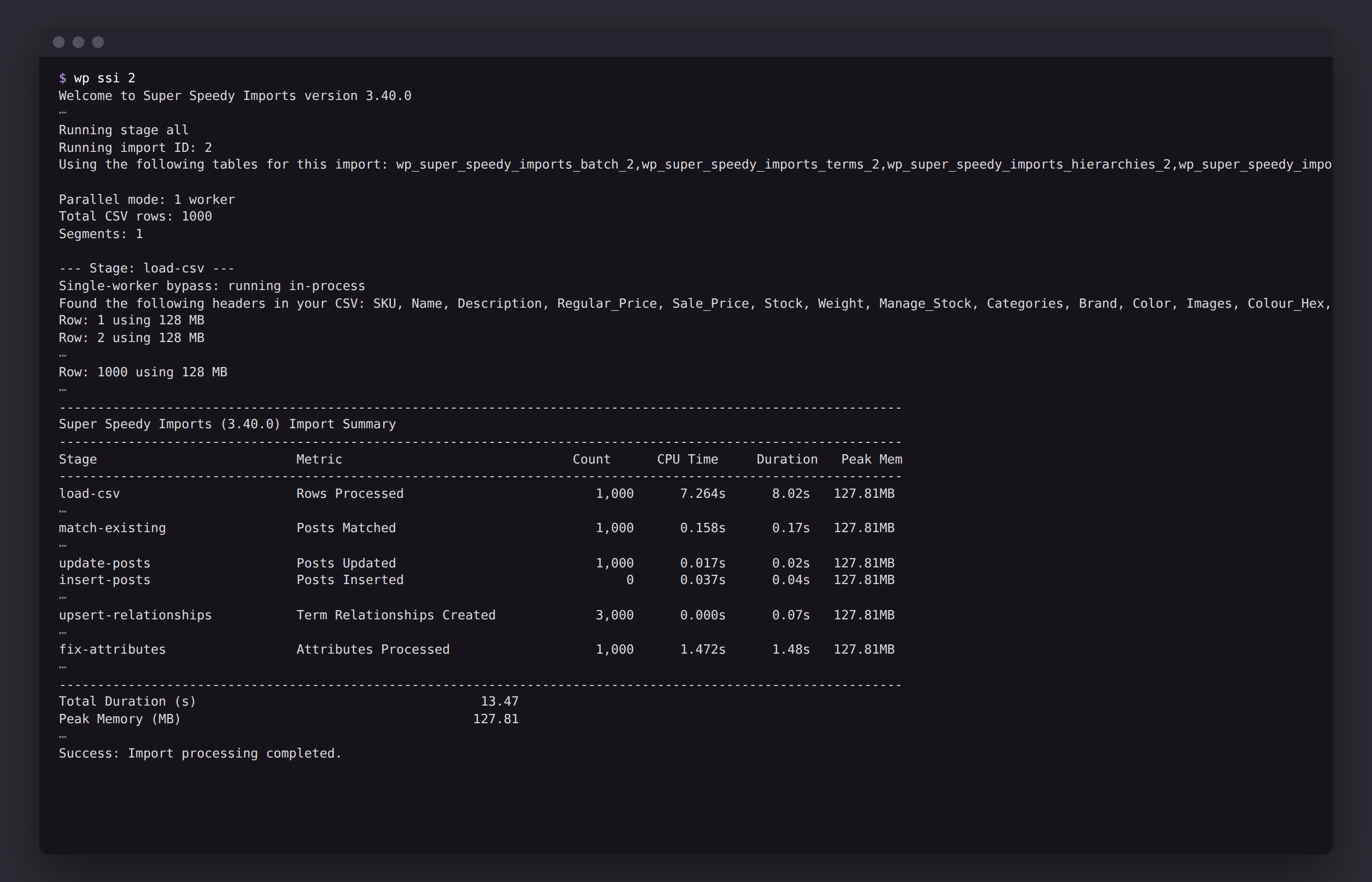
A dashboard import runs while its tab is open. For unattended runs, use WP-CLI: wp ssi <import id> runs the whole import on the server with no browser.
For a file larger than your server accepts as an upload, copy it into wp-content/uploads/super-speedy-imports by FTP or SFTP, then choose it under or pick a previously uploaded file on New Import.
Running your own import
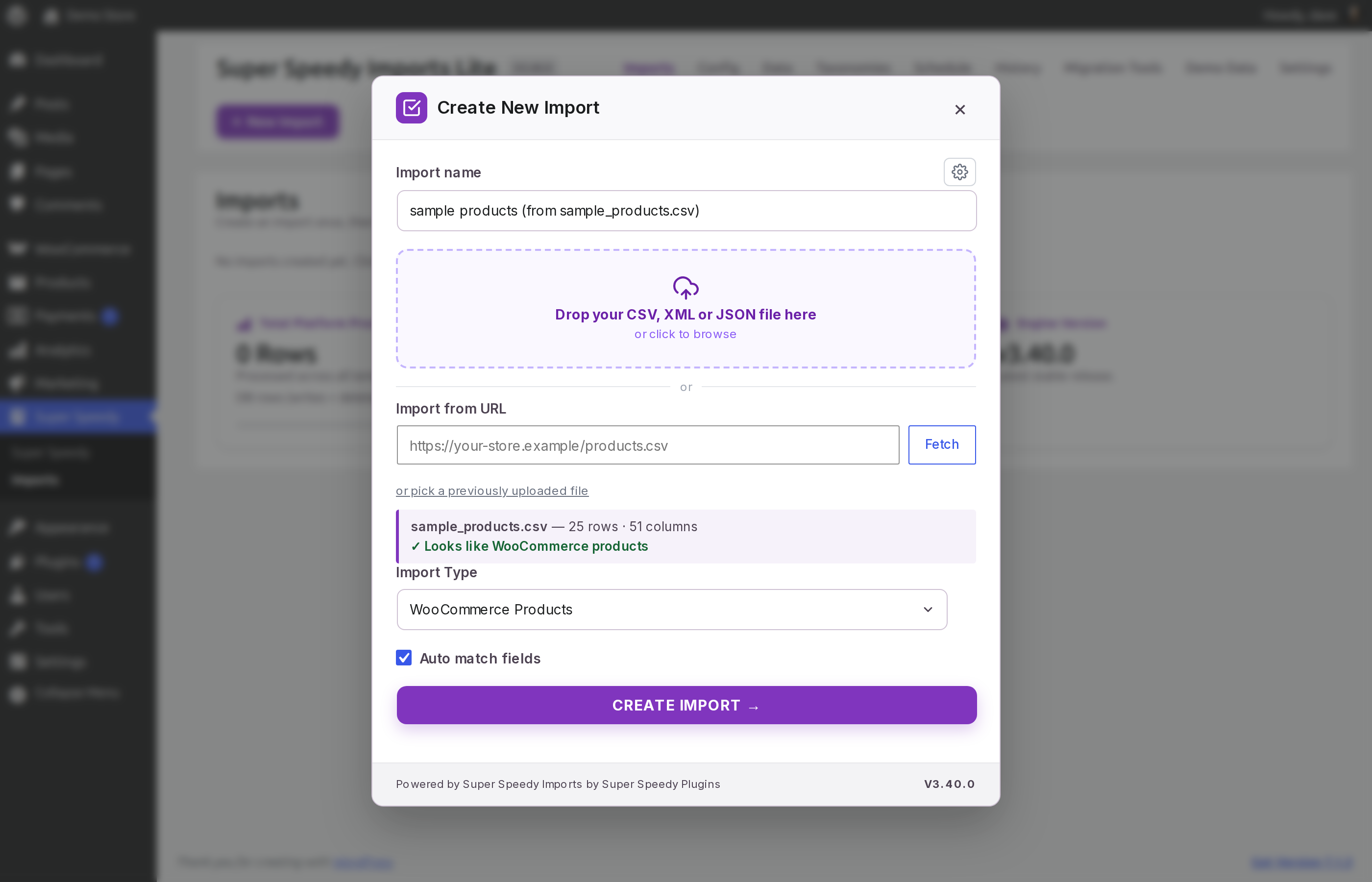
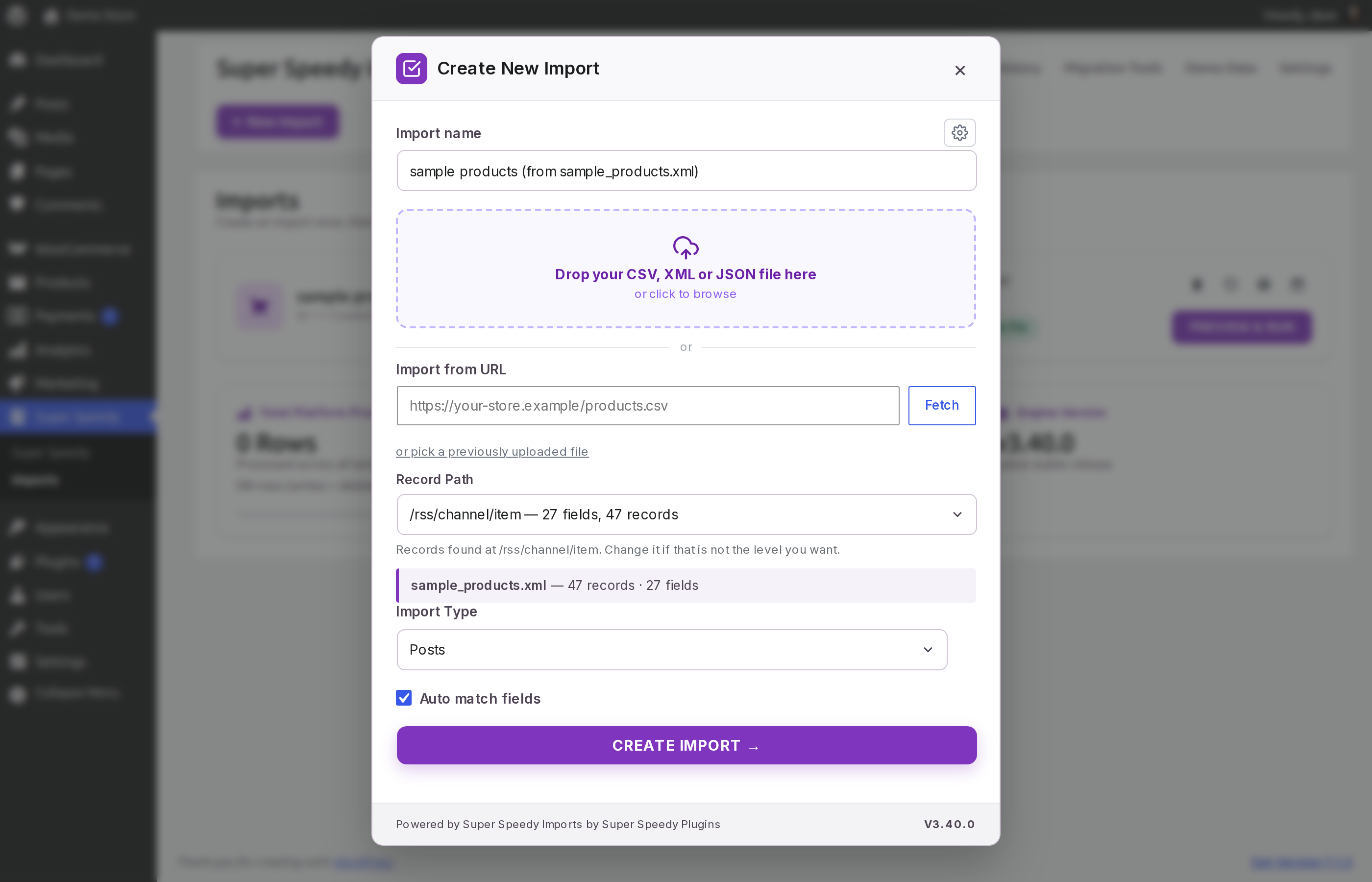
- Give it your file. Click New Import and drop in a CSV, XML or JSON file, or paste a URL that returns one and press Fetch. It reads the file and recognises what it holds (screenshots 1 and 2). For XML and JSON it finds the repeating record and shows the record path it chose, which you can change (screenshot 3).
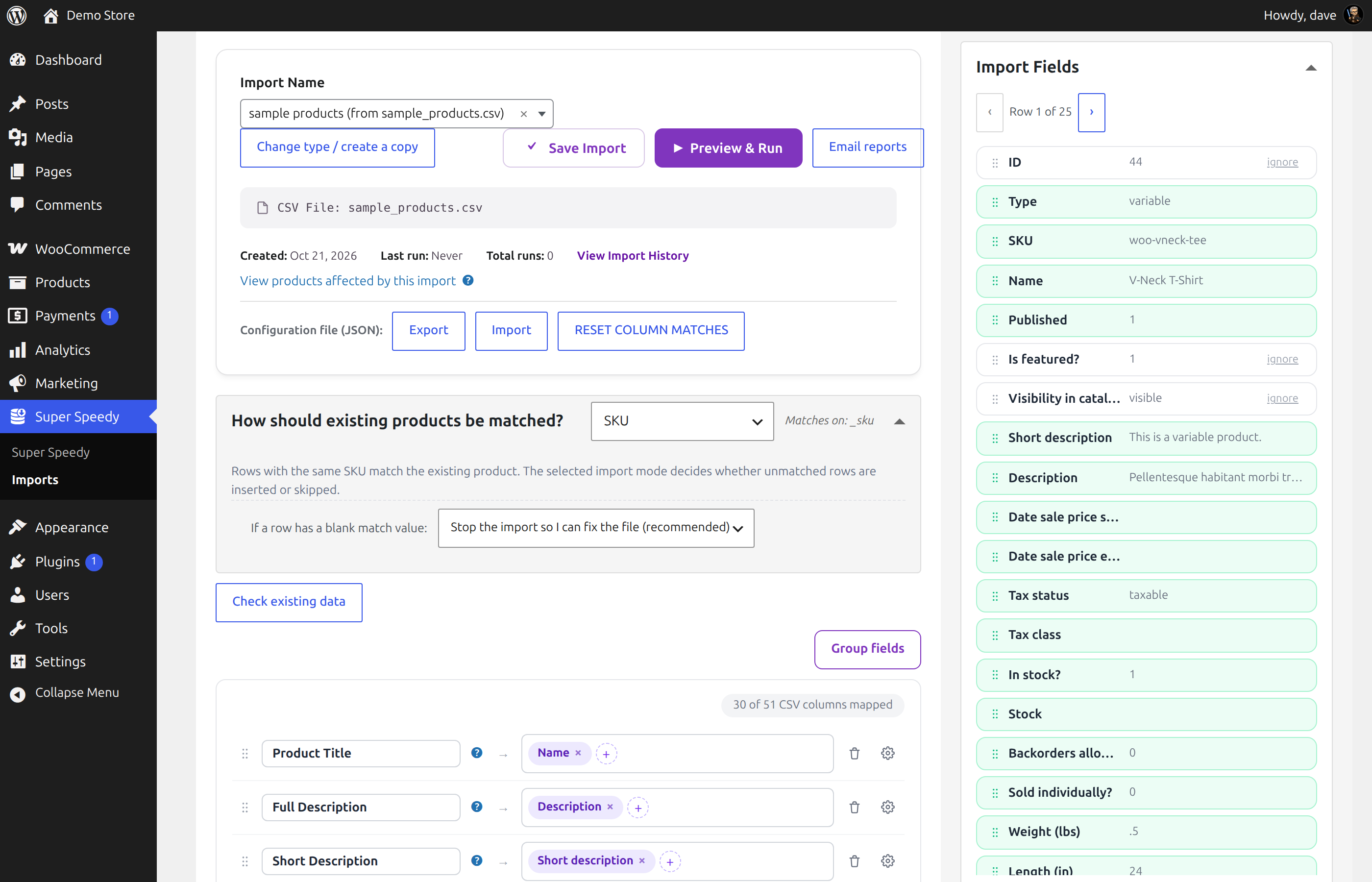
- Check the mapping. The import is already configured: every column it recognises is mapped to its field, and the panel on the right shows the real values from your file, row by row (screenshot 4).
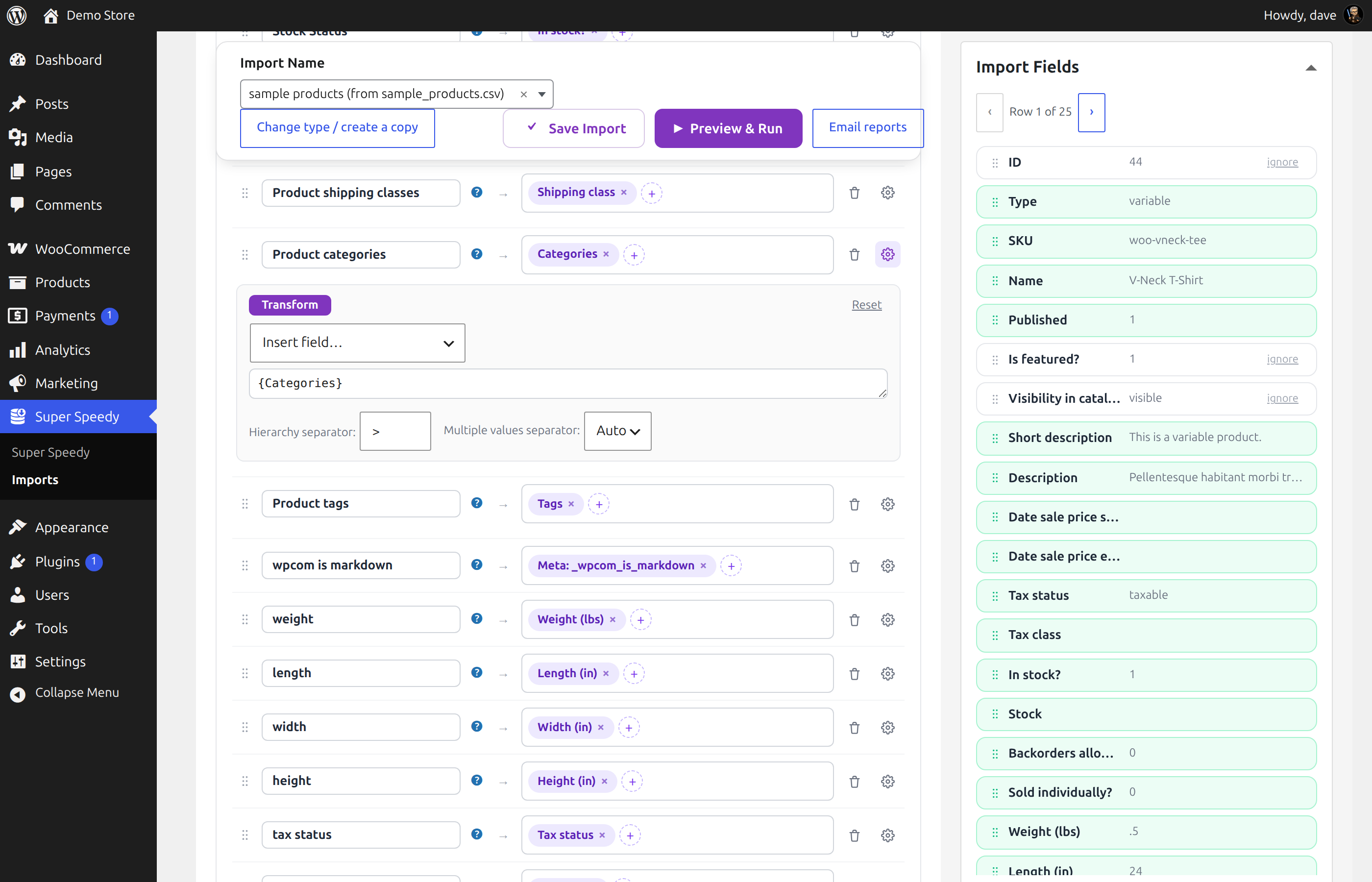
- Make any corrections you want. Map a column somewhere else, add a column, combine columns in a transform, or set the hierarchy and multiple-value separators for a taxonomy (screenshot 5).
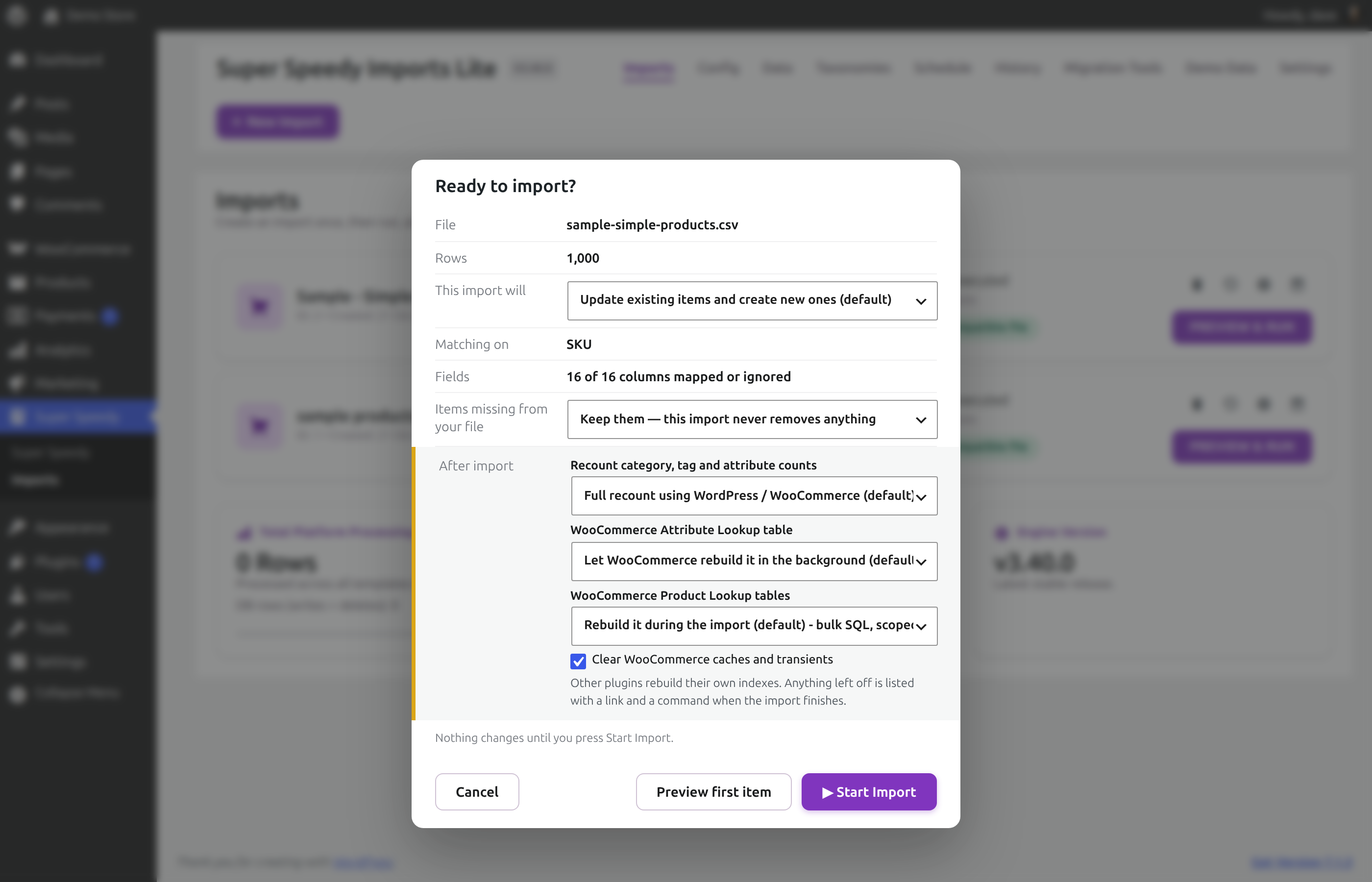
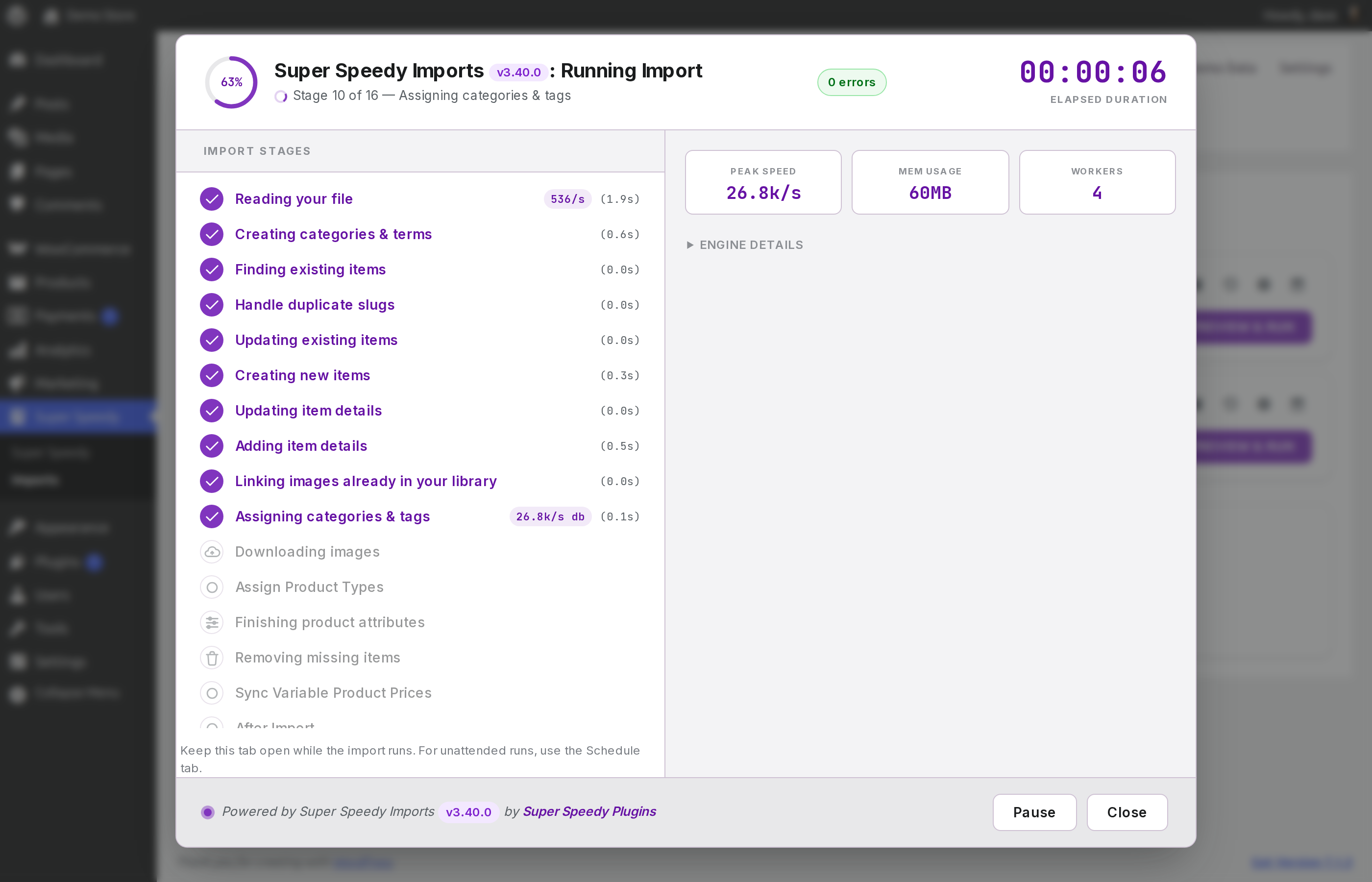
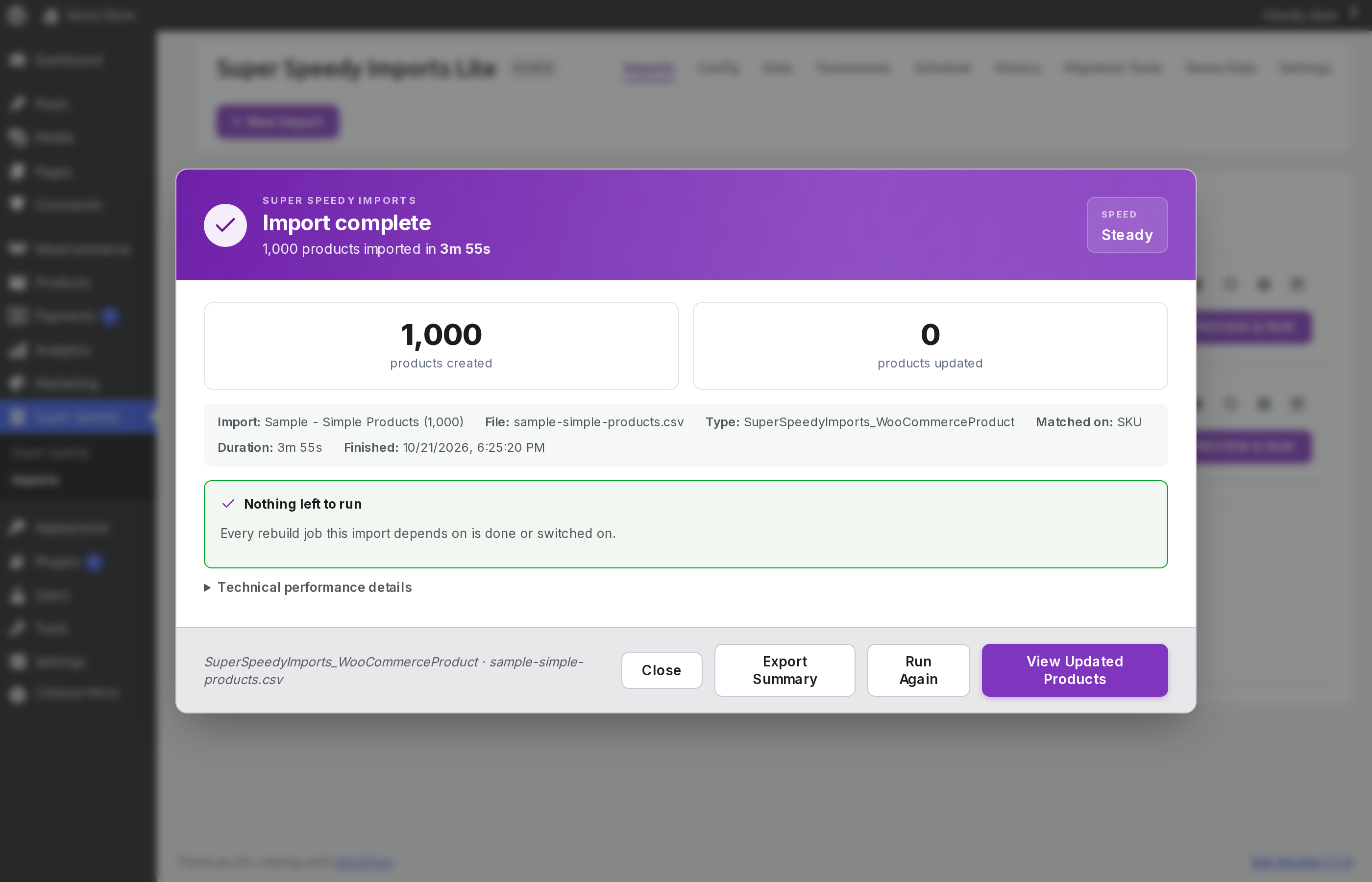
- Run it. Preview & Run shows the file, the row count and what happens to items already on your site, then Start Import runs it with every stage and its timing on screen (screenshots 6 to 8).
- Or run it from WP-CLI with
wp ssi <import id>, and add that command to cron to run it on a schedule (screenshot 9).
Every import matches rows to items already on your site with a unique identifier column. By default this is SKU for products and post title for posts, and you can choose another: GTIN / UPC / EAN / ISBN for products, post title + category for posts, or the post ID for either. Pro matches on any field or combination of fields.
Three ways to run it
- The dashboard – Preview & Run, then Start Import, with every stage and its timing on screen
- WP-CLI –
wp ssi <import id>runs any import; put it in cron to run it on a schedule - AI agents – an AI coding agent runs imports with WP-CLI, and 32 WordPress Abilities API tools let it upload files, create and change imports, preview the first item and read the results over the REST API (
/wp-abilities/v1), with no MCP setup needed
Try it in one click
- Install and activate the plugin.
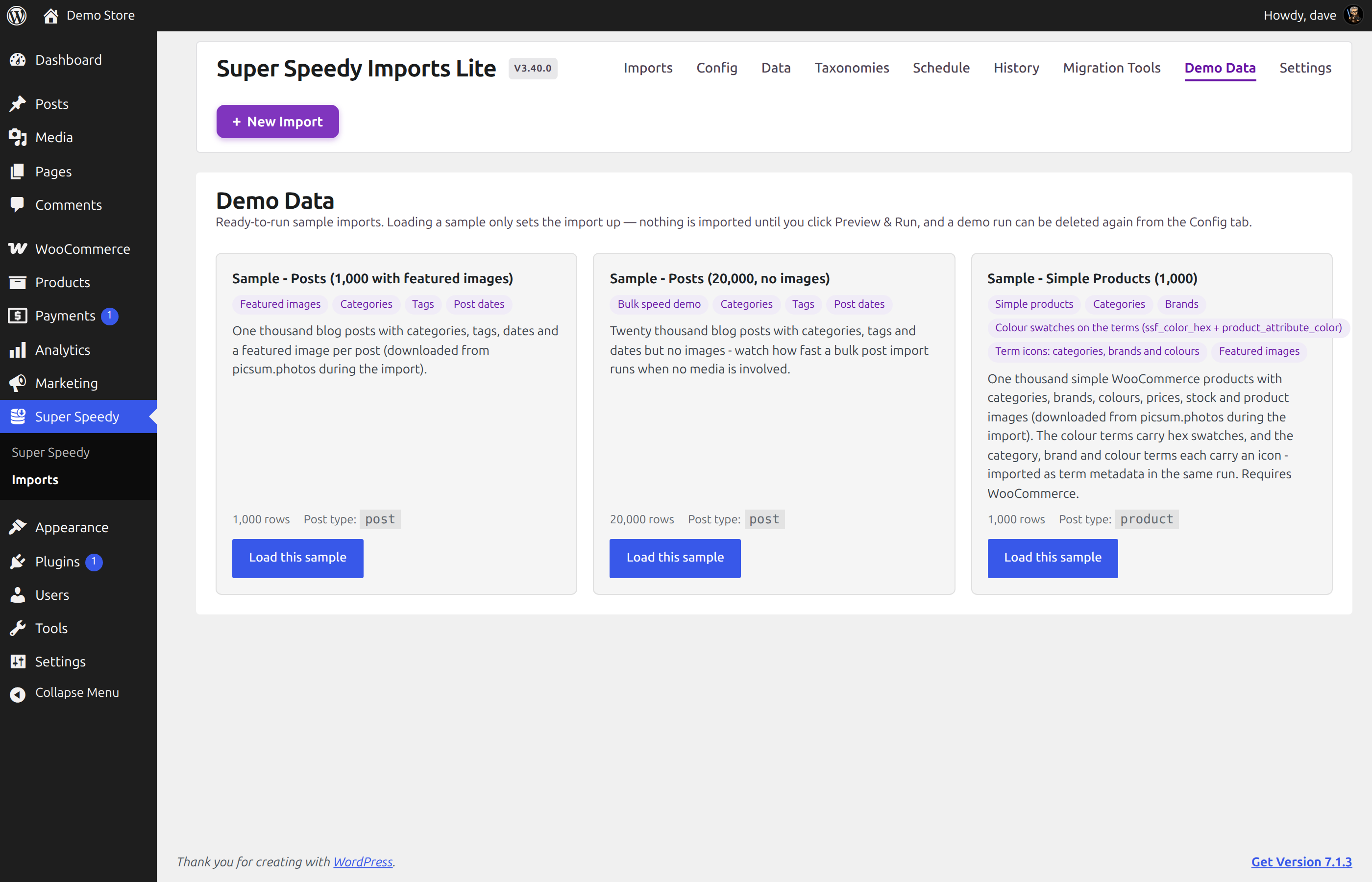
- Open Super Speedy > Imports and go to the Demo Data tab.
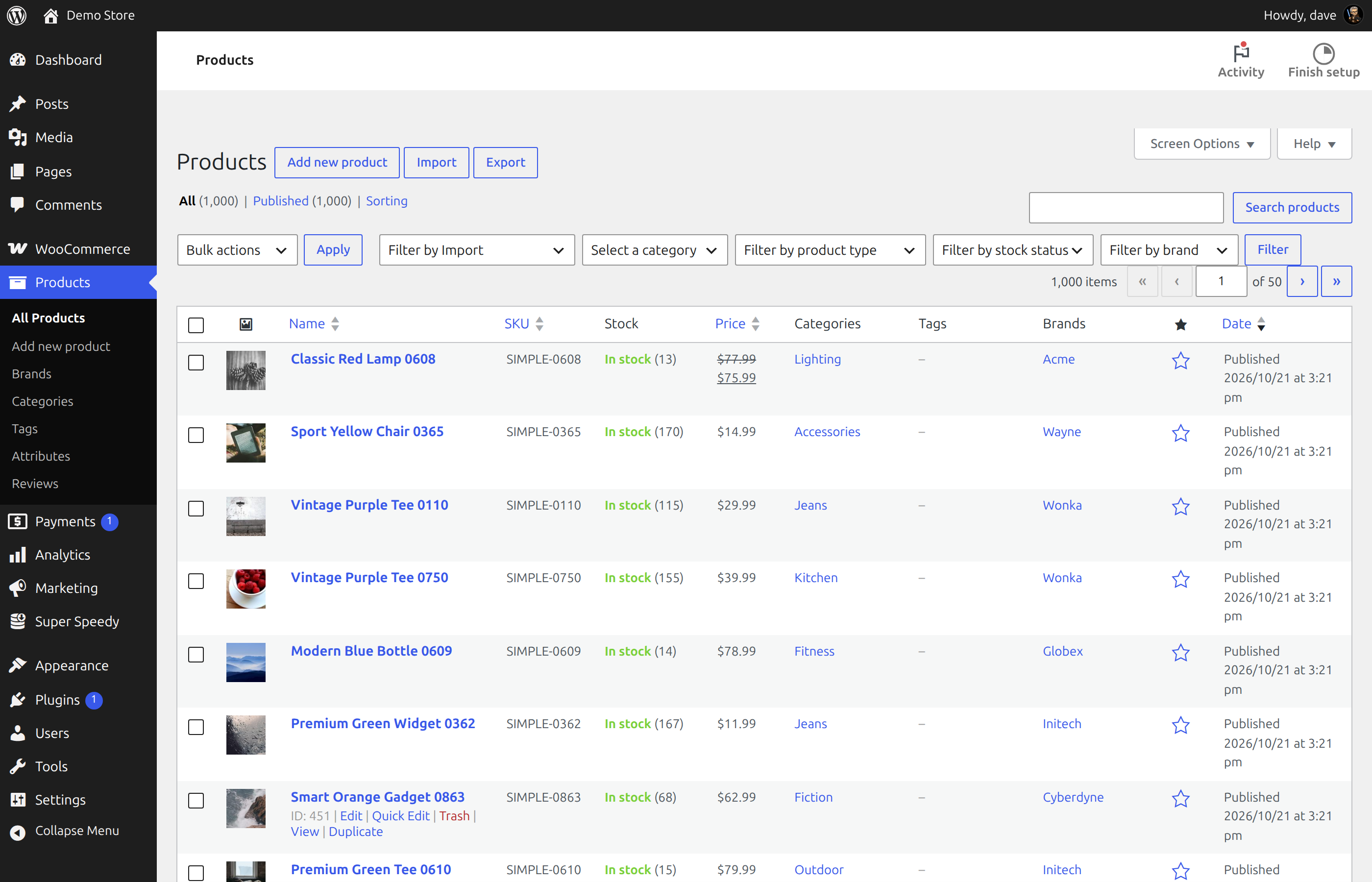
- Click Load this sample on one of the samples: 1,000 posts with featured images, 20,000 posts, or 1,000 simple WooCommerce products with categories, brands, colours and images.
- On the Imports tab, press Preview & Run, then Start Import, and watch it import.
Super Speedy Imports Pro
Everything above is included here, unlimited. Pro, a separate download from superspeedyplugins.com, adds:
- Variable products – parents and their variations, with per-variation prices, stock and attributes
- Product galleries – several images per product, with alt text and captions
- ACF and SCF fields – scalar, choice, group and repeater fields
- Custom PHP transforms – split, format, look up or calculate a value before it is written
- Custom post types – any registered post type
- Term descriptions and term metadata – for the categories, tags and attributes an import creates
- Image size selection – generate only the image sizes you choose
- Parallel workers from WP-CLI – and per-stage performance tuning
- Built-in scheduled imports
- Match on any field – or any combination of fields
- CSV export – export your catalogue and use the file as the start of the next import
- Direct help from the developer in the Super Speedy Plugins Discord
External services
Your own data sources
The plugin makes outbound HTTP requests only to addresses you give it, and only when you ask it to fetch a file or while an import you started is running:
- The address of a CSV, XML or JSON file you enter under Import from URL, when you press Fetch and again at the start of each run of that import, or the address of a CSV or XML file you give the plugin’s Abilities API tools.
- The source of an import converted from WP All Import that loads its file from a URL or FTP server. It is fetched at the start of each run of that import.
- The image URLs inside your file, to download featured images (and, in the paid edition, gallery images). Each distinct URL is downloaded once and reused on later runs.
These requests are made with WordPress’s own HTTP functions and carry nothing but the request for the file. Beyond the requests described in this section, the plugin contacts no other server: it sends no data about your site, your users or your imports to Super Speedy Plugins or to anyone else.
Local process checks (not a service)
On Linux servers, an import started with WP-CLI records its own process identity from the server’s local /proc files and /etc/machine-id (stored only as a hash), so that a later run can tell whether an interrupted import has really stopped. These are files on your own server, read locally; nothing is sent anywhere.
Installation
- In wp-admin, go to Plugins > Add New, search for “Super Speedy Imports”, then click Install and Activate.
- Open Super Speedy > Imports and click New Import, or load a sample from the Demo Data tab.
WooCommerce is needed for product imports only. Requirements: WordPress 6.9 or newer and PHP 8.0 or newer.
FAQ
How do I import products with images from URLs?
Put the image URL in a column of your file and map it to the featured image; automatic configuration does this for the image columns it recognises. The image is downloaded into your Media Library, and it can be on any public website, not only your own. Each URL is downloaded once, however many rows use it, and reused on later runs. Several images per product (galleries) are in Pro.
What happens when I run the same file again, or an updated one?
Each row is matched to the item already on your site by the import’s unique identifier column, and that item is updated; rows with no match are added as new items. The identifier is SKU by default for products, or GTIN / UPC / EAN / ISBN, and post title by default for posts, or post title + category; either can also match on the post ID. Items created by other plugins or by hand are matched too, and images already downloaded are reused.
How do I remove products that are no longer in my supplier’s file?
Set If an item is missing from your file… to Remove it when you create the import (in the ⚙ options on New Import), or tick Delete missing items under Additional Options. After each run, the items this import created or updated that are not in the new file are moved to the Trash; tick Force delete (skip trash) to delete them permanently instead. Items created by hand or by other imports are left as they are.
How do I import a large catalogue, such as 100,000 products? Should I split the file?
Import it as one file: imports are unlimited. Measured with the WordPress.org build of version 3.40.0 on a 4-vCPU server, through the dashboard, 100,000 simple WooCommerce products imported in 81 seconds. With Remove it set, each run removes the items that are not in that run’s file, so keep the whole catalogue in one file. If the file is larger than your server accepts as an upload, copy it into wp-content/uploads/super-speedy-imports by FTP or SFTP and choose it under or pick a previously uploaded file.
Can an import run without a browser?
Yes, with WP-CLI: wp ssi <import id> runs the import on the server with no browser, and you can add it to cron. A dashboard import runs while its tab is open, so leave the tab open until it shows Import complete.
How do I import a CSV that uses semicolons, or commas for decimals?
Choose the file as usual. The plugin detects the semicolon separator and the decimal comma when you choose the file, and both settings are in the ⚙ options on New Import if you want to check them. Prices such as 12,50, 1.234,50 and € 9,95 are read as 12.5, 1234.5 and 9.95.
What format do prices and dates need?
Prices can carry currency symbols or codes and thousands separators: £12.99, $5, EUR 19.90 and 1,234.50 are all read as plain numbers. Write post dates as YYYY-MM-DD, optionally with a time (YYYY-MM-DD HH:MM:SS); ISO 8601 dates such as 2026-01-20T10:00:00Z work too.
How do I import an Excel spreadsheet?
Save it as CSV first (in Excel, File > Save As and choose a CSV format), then import the CSV file. If Excel saves it with semicolons and decimal commas, import it as it is.
How do I import a Google Sheet?
In Google Sheets, choose File > Share > Publish to web, pick the sheet and Comma-separated values (.csv), and paste that link under Import from URL on New Import. The sheet is downloaded when you press Fetch, and again at the start of every run, so each run imports the sheet as it is then.
How do I import a file from a URL or an API?
Paste the address under Import from URL on New Import and press Fetch, and the file is downloaded to your site. The URL can return CSV, XML or JSON, so an API endpoint that exports any of them works. Every run downloads the file again first, so each run imports the newest version, and a run stops before changing anything if the file has lost a column the import uses. To point an import at a different file or URL, use Change Source on its settings screen. Imports converted from WP All Import keep their URL source and fetch it again at the start of every run.
How do I run an import automatically, on a schedule?
wp ssi runs any import from WP-CLI. Add that command to cron to run it on a schedule, and turn on email reports to hear how each run went.
How do I get an email when an import finishes?
On the Schedule tab, under Email reports, add the recipients and tick the outcomes that send a report: Succeeded, Succeeded with issues, Failed and Stopped. You can also send a daily summary. Imports run from WP-CLI send reports too, so a cron job that runs your import can tell you how it went. Reports go out through your site’s own WordPress email.
Does this edition import variable products?
Variable products and their variations are in Pro. This edition imports simple products.
Does this edition import custom post types or ACF fields?
Custom post types and ACF and SCF fields are in Pro. This edition imports posts, pages and simple WooCommerce products, with their custom fields (postmeta).
Can it import WooCommerce categories, tags, brands and attributes?
Yes: hierarchical categories such as Men > T-Shirts (> by default, and you can set any hierarchy separator on the mapping), tags and brands, and global attributes such as pa_color, which the import creates for you along with their terms. If your category names contain commas, set that taxonomy’s multiple-value separator on the mapping to a character they do not use, such as |.
How does automatic configuration work?
When you create an import, the plugin reads your column names and sample values and recognises what the file holds, for example “Looks like WooCommerce products”. It then maps each column it recognises to the matching field: prices, stock, categories, image URLs, dimensions and so on. WooCommerce’s own sample product CSV comes in with its titles, descriptions, prices, stock, categories, tags, dimensions and images already mapped. You can change any mapping before you run.
Are there example CSV files, or can I try it without one?
Load one of the samples from the Demo Data tab, then press Preview & Run and Start Import. The sample brings its own CSV and demo categories, brands and colours.
How do I bring my WP All Import imports across?
Migration Tools reads the WP All Import imports saved on the same site and turns each one into a Super Speedy import. Check its mapping on the Config tab, then run it from the Imports tab like any other import.
Can I copy an import to another site?
Yes. Export the import’s configuration as JSON from the Config tab and import it on the other site.
Where can I get help?
Post in this plugin’s support forum on WordPress.org. Pro customers get direct help from the developer in the Super Speedy Plugins Discord.
What are the requirements?
WordPress 6.9 or newer and PHP 8.0 or newer, on MySQL or MariaDB. WooCommerce is needed for product imports only.
Which database storage engine does it use?
It uses InnoDB, the MySQL and MariaDB default since 2010. On a server without InnoDB it creates its working tables as MyISAM and imports with a single worker, and the Preview screen explains what that means before you start.
Screenshots

Changelog
3.74.4
- Delete all rebuilds the Super Speedy Search and Super Speedy Filters indexes when those plugins are active.
- Send test report, the email report preview and the History list work on MySQL 8.
- The plugin checks whether its import folder can be downloaded from the web, shows how to block it, and gives new uploads unguessable stored names until then.
- Feed values that look like serialized PHP object data are stored as plain text, as WordPress stores them.
- The Import Manager role is described accurately: it can import raw HTML into any post type, so give it only to trusted accounts.
3.71.0
- Change Source on each import chooses an uploaded file, uploads a new one or uses a URL, and lists mapped columns the new file lacks.
- An import from a URL downloads the file again on every run, and stops before changing anything if a mapped column has gone.
- A stage, finalize or After Import job that times out or whose PHP process is killed is re-run until the import completes; only Stop ends a run.
- Database errors, including an interrupted read or unreadable import history, now fail the run or show their message.
- Added compatibility with WooCommerce Back In Stock Notifications; both back-in-stock switches sit under After Import.
- Imports match the collation of the WordPress columns they compare, and Preview & Run warns when two columns differ.
- Matching by title, title and category, or several fields finds items in the Trash and restores them.
- Term names are kept up to WordPress’s 200-character limit, and a SKU, tag or category named
0imports. - Category paths may use any separator, such as
/or::. - With no author mapped, items get the user who created the import.
- A featured image’s title, alt text, caption and description are set when it is first imported.
- A run warns, naming the column, when its mapping uses a column the file does not have.
- Product titles are filtered as WordPress filters them, and error report downloads neutralise spreadsheet formulas.
- A source URL’s username and password are sent only to the same host, and New Import accepts only files in the plugin’s import folder.
- Configurations saved through WP-CLI or the Abilities API are validated like those saved on the import screen.
wp ssirefuses unknown flags, exits with code 1 on errors, and is documented inwp help ssi.- Deleting an import also removes its history and settings; the items it imported are kept.
- File names containing spaces are accepted, and SQLite sites pause the Heartbeat during a browser import.
3.40.0
- Declared compatibility with WooCommerce High-Performance Order Storage (HPOS), so WooCommerce no longer lists Super Speedy Imports Lite as an incompatible plugin.
- XML and JSON files, including JSON Lines, are import sources like a CSV: drop one into New Import or fetch it from a URL, check the record path it found, then map and run it.
wp ssi convert-sourceconverts an XML or JSON file from WP-CLI; the oldxml-to-csvandreplace-xmlnames still work.- New imports recount your category, tag and attribute counts and hand the attribute lookup rebuild to WooCommerce by default, so a finished import leaves nothing to run; imports you saved earlier keep their settings.
- Delete missing items and Force delete (skip trash) stay off until you switch them on, so an import set to Remove it moves missing items to the Trash unless you tick Force delete.
- Delete missing items does not run when a run found no items in its file; the run fails and says nothing was deleted.
- A new Data tab finds products and posts with missing or duplicate SKUs, duplicate titles, or missing titles, descriptions and excerpts, and checks an import’s matching values, with a link to edit each record.
- Post ID is offered as a matching field for products and posts.
- New Import reads the decimal mark from the file, and a price written in the other format is reported against its row and column and leaves the product’s prices as they were.
- Dates with the month written out, such as “19 January 2026”, import correctly, and an all-number date such as 01/02/2026 is refused because its day and month cannot be told apart.
- A CSV saved by Excel as “CSV UTF-8” keeps its first column.
- Uploading or fetching a file with the same name keeps the earlier copy in a
previousfolder. - A blank price cell clears the product’s price, sale dates are stored as WooCommerce stores them, and a sale that has ended or not started does not set the price.
- Products with status
futureare scheduled as WordPress schedules them, and a mapped publish date also sets the GMT date. - On a slow or busy server, a dashboard import that outruns the browser’s 30 second timeout carries on without loading rows or downloading images twice.
Earlier releases: the full Super Speedy Imports changelog.