


Description
Svigent SVG Engine adds secure SVG support to WordPress. Upload SVG and SVGZ files to the Media Library, and every file is sanitized before it is saved. Then turn any SVG image into inline SVG so you can recolor and animate it with CSS.
WordPress blocks SVG uploads by default because an SVG file is XML and can hide JavaScript, which leads to Cross-Site Scripting (XSS) and XML External Entity (XXE) attacks. Svigent SVG Engine removes those risks on upload, so you can use sharp, lightweight vector logos, icons, and illustrations without opening a security hole.
Key Features
- Safe SVG uploads: Every SVG and SVGZ upload is cleaned by the trusted
enshrined/svg-sanitizelibrary. Scripts, event handlers, remote references, and dangerous XML entities are stripped before the file reaches your server. Sanitization is always on. - Inline SVG with one CSS class: Add
style-svgto an image and the plugin swaps the<img>for real<svg>markup, sofill: currentColor, hover effects, and CSS animations just work. - Inline SVG security: The inliner only loads SVGs from your own site and strips scripts and event handlers again before inserting them.
- Media Library previews: Fixes broken or blank SVG thumbnails in the Grid view, List view, and attachment details.
- Automatic SVG dimensions: Reads
viewBox,width, andheighton upload so SVG images keep the right aspect ratio in Gutenberg, page builders, and themes. - SVGZ support: Compressed SVGZ files are decompressed, sanitized, and recompressed, with protection against decompression (“zip bomb”) attacks.
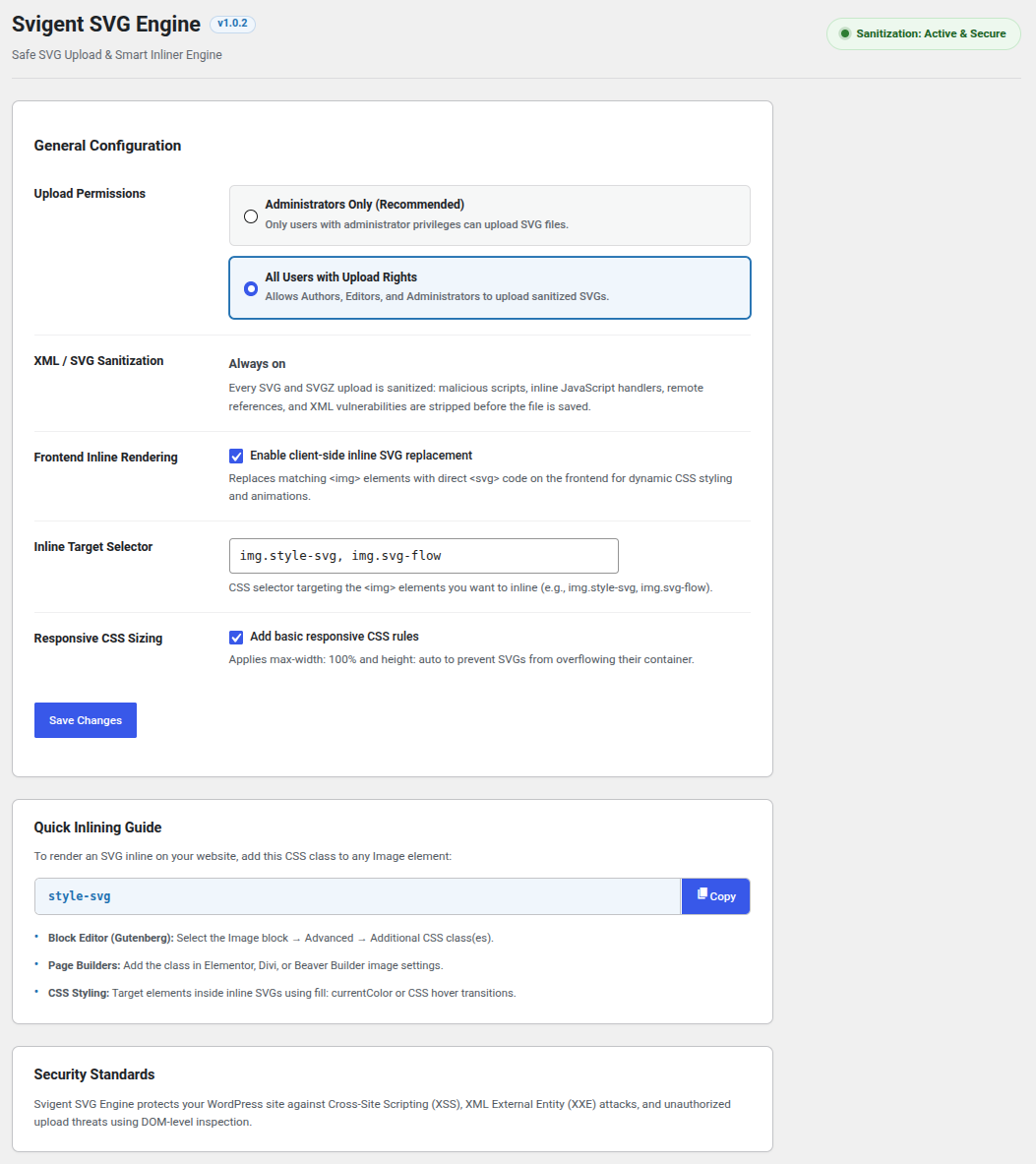
- Upload permissions: Allow SVG uploads for Administrators only, or for every role that can upload files.
- Fast and lightweight: No jQuery and no external requests. Repeated icons are downloaded once, and new images added by AJAX, sliders, or the block editor are detected automatically.
- No raster thumbnails: Skips GD/Imagick thumbnail generation and redundant
srcsetfor SVG files to save disk space.
Works With
- Block Editor (Gutenberg) Image and Cover blocks
- Elementor, Beaver Builder, Divi, and other page builders
- Classic Editor and classic themes
- AJAX pagination, infinite scroll, and sliders
Switching From Another SVG Plugin?
Svigent SVG Engine uses the same style-svg class that many SVG plugins use for inline SVG, so existing images keep working. Deactivate your old SVG plugin, activate Svigent SVG Engine, and enable Frontend Inline Rendering in Settings → Svigent SVG Engine.
Privacy
Svigent SVG Engine does not track users, collect data, or connect to any external service.
For Developers
svg_flow_allowed_tagsandsvg_flow_allowed_attributes: adjust the tags and attributes kept during sanitization.svg_flow_user_can_upload: decide who can upload SVG files.svg_flow_inline_allowed_urls: allow the inliner to load SVGs from a CDN.svg_flow_max_inflated_size: change the maximum decompressed size for SVGZ uploads.svgflow:inlined: a JavaScript event fired on each SVG after it is inlined.
Installation
- In your WordPress dashboard, go to Plugins → Add New.
- Search for Svigent SVG Engine, then click Install Now and Activate.
- Go to Settings → Svigent SVG Engine to choose who can upload SVG files and to enable inline SVG.
- Upload SVG files in the Media Library like any other image.
FAQ
How do I upload SVG files to WordPress?
Install and activate Svigent SVG Engine, then upload SVG files in Media → Add New or in any image block, the same way you upload JPG or PNG files. By default only Administrators can upload SVGs; you can allow other roles in Settings → Svigent SVG Engine.
Is it safe to upload SVG files to WordPress?
Only if the files are sanitized. SVG files are XML documents and can contain JavaScript and external entity references that lead to XSS or XXE attacks. Svigent SVG Engine sanitizes every SVG and SVGZ upload and removes anything dangerous while keeping the shapes, colors, and gradients.
Why does WordPress not allow SVG uploads by default?
Because unsanitized SVG files can carry malicious code. WordPress leaves it to plugins like Svigent SVG Engine to add SVG support with proper sanitization.
How do I inline an SVG and change its color with CSS?
- Enable Frontend Inline Rendering under Settings → Svigent SVG Engine.
- Add the CSS class
style-svgto an Image block (Block → Advanced → Additional CSS class) or to an<img>tag. - The image is replaced with inline
<svg>code. Style it with CSS, for example.style-svg path { fill: currentColor; }.
Why is my SVG not showing or showing at 0 × 0 size?
SVG files without width and height can collapse. Svigent SVG Engine reads the viewBox on upload to set the correct dimensions. For SVGs uploaded before the plugin was active, re-upload the file or set a width in CSS.
Does it support SVGZ files?
Yes. Compressed SVGZ files are decompressed, sanitized, and saved compressed again.
Can I inline SVGs served from a CDN?
Yes. By default the inliner only loads SVGs from your own wp-content folder for security. Add your CDN address with the svg_flow_inline_allowed_urls filter.
Does Svigent SVG Engine work with Elementor and other page builders?
Yes. It works with the Block Editor (Gutenberg), Elementor, Beaver Builder, Divi, and classic themes. In page builders, add the style-svg class to an image widget to inline it.
Will it slow down my website?
No. The inline script has no dependencies, loads only when inline rendering is enabled, and downloads each SVG once even if it appears many times on a page.
Do I need to write code?
No. Upload SVG files and switch features on from the settings screen. Developers can use the filters listed in the description for advanced control.
Screenshots
Changelog
1.0.3
- Security: SVG and SVGZ files are only accepted when the user is allowed to upload SVGs and the file content really is an SVG.
- Security: Uploads that are not an
<svg>document after sanitization are rejected, and plain SVG files are now subject to the same 10 MB limit as SVGZ. - Security: Reading SVG dimensions now uses the decompression limit and blocks network access during XML parsing.
- Security: The bundled
svg-scanner.phpcommand-line tool is no longer shipped. - Performance: SVG dimensions come from saved attachment data instead of re-reading the file on every Media Library and image request.
- Performance: The inliner fetches each SVG once even when several images use it at the same time, and never retries a failed URL.
- Performance: Frontend styles are printed inline and only when inline rendering is enabled; settings screen styles load only on the settings screen.
- Uninstall: On multisite, settings are now removed from every site.
- Cleanup: Removed directory banners, icons, and screenshots from the plugin package, unused code, and the PHP version check that WordPress already enforces.
1.0.2
- Security: The frontend inliner now only fetches SVGs from your own
wp-contentand uploads folders. Images hosted elsewhere stay as normal<img>tags. Use thesvg_flow_inline_allowed_urlsfilter to allow a CDN. - Security: The inliner strips scripts, event handlers,
foreignObject, andjavascript:links from SVGs before adding them to the page. - Security: Updated
enshrined/svg-sanitizeto 1.1.1, which includes the library’s latest security fixes. - Security: Compressed
.svgzuploads are rejected if they decompress to more than 10 MB (adjustable with thesvg_flow_max_inflated_sizefilter). - Security: Remote references (external URLs) are now removed from uploaded SVGs.
- Security: Sanitization is now always on. The option to disable it has been removed.
- Branding: Renamed from “WP SVG Engine” to “Svigent SVG Engine” to follow the WordPress.org trademark guidelines. The plugin slug, settings, and filters are unchanged.
- Fix: The
svg_flow_allowed_tagsandsvg_flow_allowed_attributesfilters caused a fatal error when used. They now receive the default lists, so you can add or remove entries.
1.0.1
- UI & Responsiveness: Redesigned the settings screen layout into a clean, single-column workflow with enhanced mobile and tablet responsiveness.
- UI: Redesigned the Quick Inlining Guide copy-class box with a primary action button and border styling.
- Directory Assets: Added high-resolution icons, banners, and WordPress Playground blueprint configuration.
1.0.0
- Initial release.
- Added safe SVG and SVGZ upload handling.
- Integrated DOM-level XML sanitization via
enshrined/svg-sanitize. - Added Media Library grid and list thumbnail preview styling.
- Added automatic
viewBoxdimension extraction and attachment metadata normalization. - Added client-side Vanilla JS inlining engine with in-memory caching and
MutationObserver. - Added role-based upload restriction settings.