

Description
Photo shoots with models are slow and expensive. The ateliernoir.ai service by Syntranova turns the photo you already have (flat lay, mannequin or packshot) into editorial photos on a model, in the setting you choose, and this plugin brings it into WooCommerce:
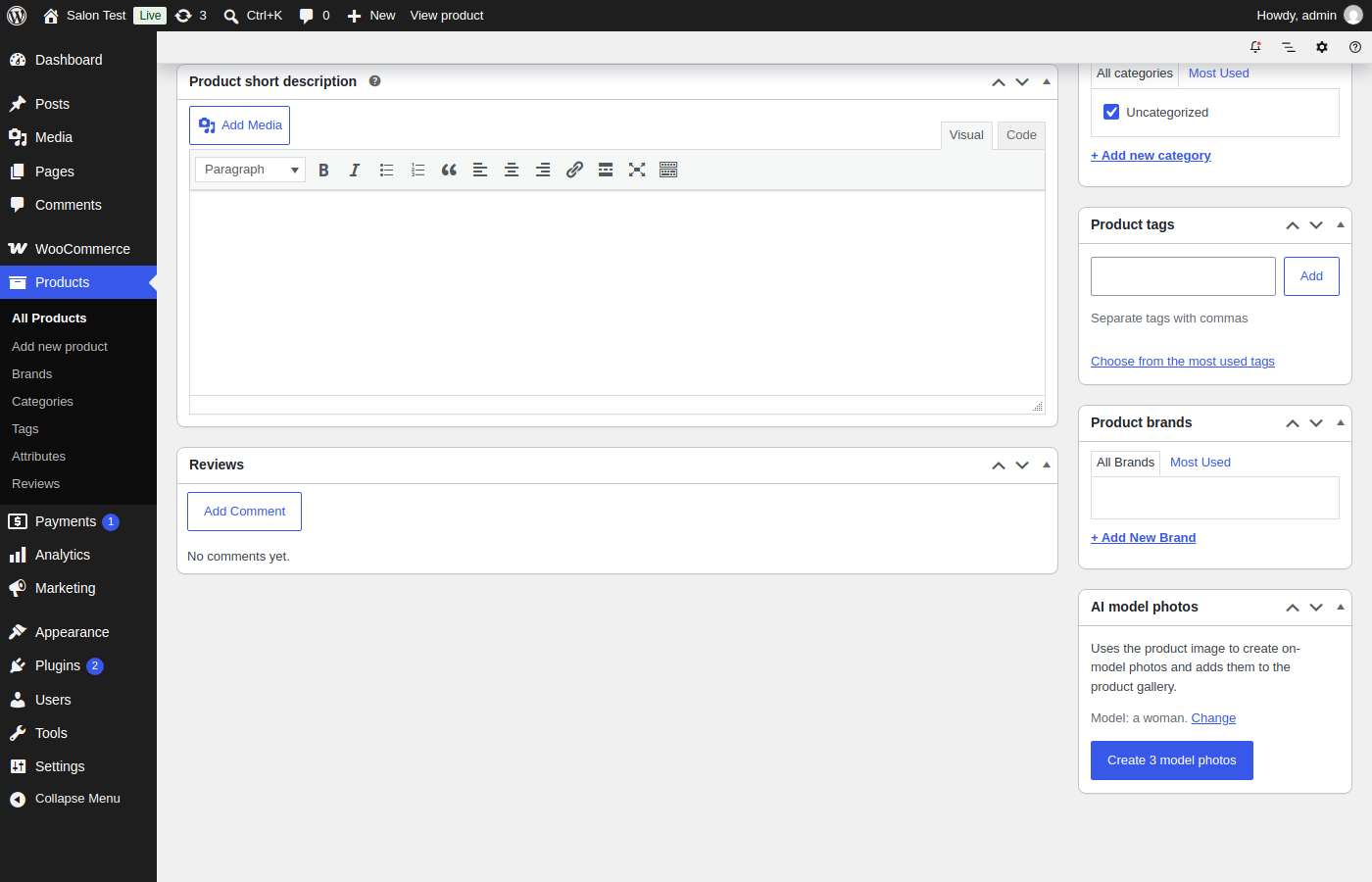
- “Create model photos” button on every product
- Bulk action: create photos for up to 20 selected products at once
- Choose the model and the setting from the ateliernoir.ai library, or let them be chosen automatically
- Finished photos are added to the product gallery automatically, labelled as AI-generated
- 1 to 8 photos per product
You need an ateliernoir.ai account with a plan that includes API access. Each photo uses one frame from your plan.
External services
This plugin connects to the ateliernoir.ai API (https://ateliernoir.ai/api/v1/) from your WordPress server, using the API key you enter:
- In the settings page, it reads the model and setting libraries (GET /models, GET /sets).
- When you click “Create model photos” or use the bulk action, it sends the public address of the product’s main image, the product name and your chosen options (POST /generations). The service downloads that image to create the photos.
- Every 2 minutes, while a job is running, it checks the job (GET /generations/{id}) and downloads the finished photos from ateliernoir.ai into your Media Library.
Nothing is loaded from ateliernoir.ai on your public store pages. The service is provided by Syntranova AL Ltd: Terms of service, Privacy policy.
Installation
- Install and activate WooCommerce, then this plugin.
- Create your account at https://ateliernoir.ai/ and create an API key in the studio (Settings → API keys).
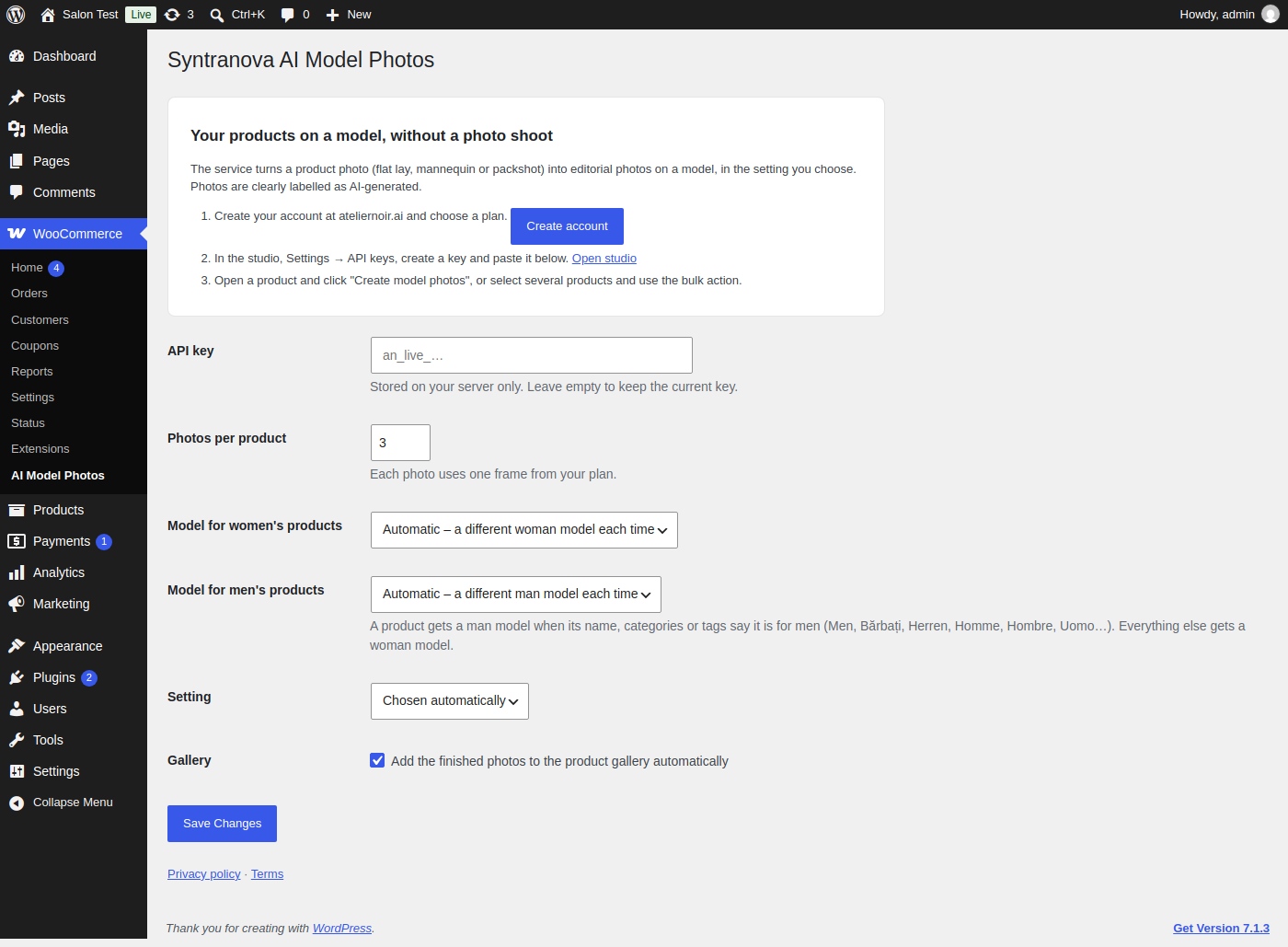
- Go to WooCommerce → AI Model Photos, paste the key and choose your defaults.
- Open a product with an image and click “Create model photos”.
FAQ
Which photos work best?
A clear photo of the garment: flat lay, on a mannequin or a packshot on a plain background.
How long does it take?
Usually a few minutes. The photos appear in the product gallery when they are ready.
Will a dress be shown on a woman and a suit on a man?
Yes. Products whose name, categories or tags say they are for men (Men, Bărbați, Herren, Homme, Hombre, Uomo and more) get a man model; everything else gets a woman model. You can pick a fixed model for each in the settings, or adjust the detection with the synamp_product_gender filter.
My images are on a CDN or private storage
Use the synamp_image_url filter to send a public address of the product image.
Are the photos marked as AI-generated?
Yes. The image title says “AI-generated model photo”.
Screenshots
Changelog
1.1.0
- The model now matches the product: men’s products (from the name, categories or tags, in many languages) get a man model, everything else a woman model.
- Separate model choice for women’s and men’s products in the settings.
- The product screen shows which model will be used.
- New filters: synamp_product_gender and synamp_image_url.
1.0.0
- First release.