


Description
Table Tennis Tournament for Clubs provides a focused admin workflow for maintaining player ratings and contact details, creating tournaments, and assigning active players to each tournament.
Player emails are stored for club administration and are not shown in public shortcodes.
Features
- Player records with name, rating, email, and active status.
- Tournament records with name, description, date, time, separate best-of formats for preliminary rounds, intermediate rounds, and finals, player type, and status.
- Per-tournament group distribution setting for snake-style seeding or consecutive top-to-bottom ranked groups.
- Per-tournament option to show a required phone number field on the signup form.
- Per-tournament option to show or hide the TTapp rating question on the signup form.
- Optional per-tournament attendance question with email notifications for people who cannot attend.
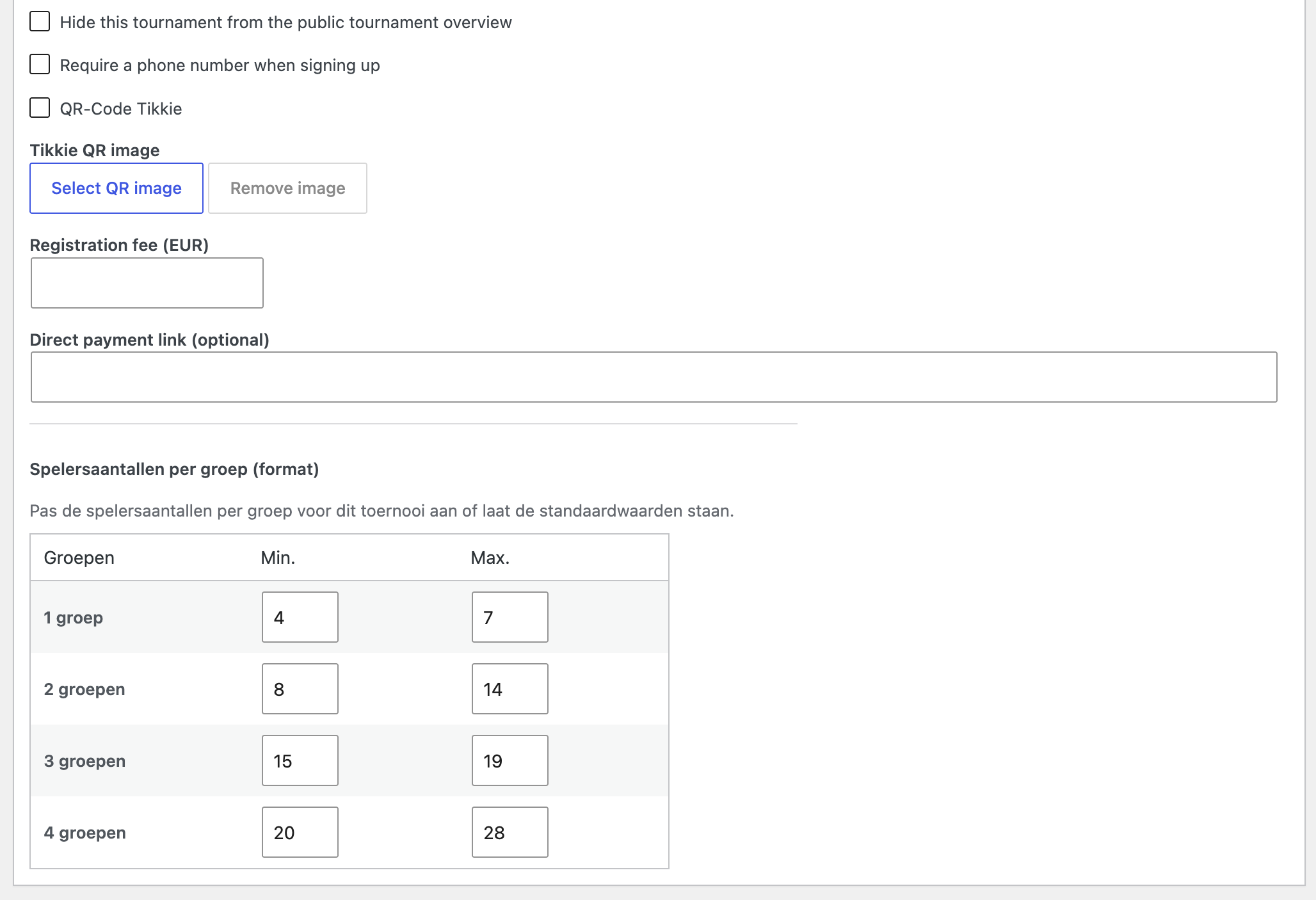
- Optional Tikkie QR-code registration payments with a fee and direct payment link; configure a bank account for manual transfers.
- Tournament Players screen for adding and removing participants.
- Send editable, personalized tournament reminders to assigned players, one email per player.
- Duplicate tournaments as unpublished drafts with the same players and settings, but without match scores or payment details.
- Inactive players cannot be assigned to new tournaments.
- Tournament Scores screen with one, three, or five score fields per generated match.
- Administrators can fill tournament matches and rounds with random, rules-valid scores.
- Administrators can remove all scores from a tournament, including confirmed placement-pool assignments, to restart preliminary scoring.
- Score validation requiring 11 points (with a 2+ point margin) or a deuce win with exactly two points lead, plus a completed Best of 1, Best of 3, or Best of 5 match without superfluous or skipped games.
- Automatic crossover rounds after all group matches are complete. Two groups produce a final and third-place match, three groups produce a round-robin among the group winners, and four groups produce semi-finals followed by a final and third-place match.
- Optional no-follow-up mode that ends the tournament with each group’s final standings and does not declare an overall champion.
- A separate “Groups of 3 → A/B/C placement pools” competition format for tournaments with at least 9 players, including manual pool adjustments after preliminary groups and follow-up groups sized by the tournament’s group settings.
- Group and crossover standings are ordered by match wins, game difference, point difference, and then a stable player-order fallback.
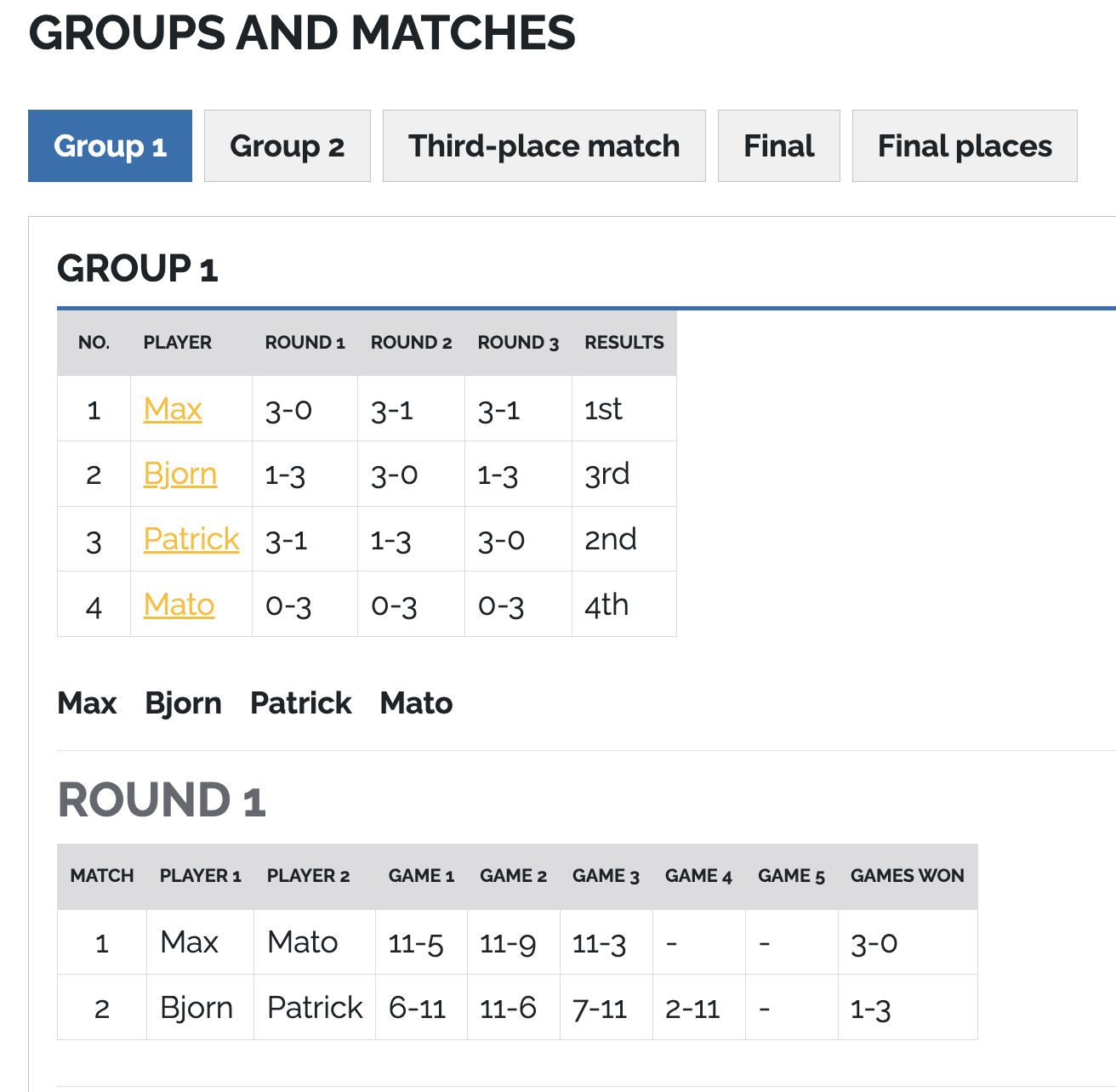
- Public tournament pages with groups, round-robin match schedules, and match scores.
- TV mode (
?showtv=true) for showing live scores full-screen on a TV, with automatic slide cycling and live refresh when scores are saved. - Public player pages at
/speler/{player-name}/{player-id}with player details, played tournaments, and finalized top-three positions. - Public shortcodes for tournament and active player lists.
Shortcodes
[tttc_tournaments] displays published tournaments and their assigned players.
Each published tournament title links to /{tournament-url-base}/{tournament-name}/{DD-MM-YYYY}. The default URL base is toernooi; change it under Settings > Table Tennis > URLs. The public tournament page lists active assigned players by rating, distributes them into groups using the tournament group rules, and shows every round-robin match in each group. Group matches are organized into tabs; A/B/C placement-pool tournaments have separate tabs for preliminary groups, then a Pools tab with nested tabs for each pool and shared tabs for crossover match stages. Standard schedules are available for 4 to 28 players; the A/B/C placement-pool format supports 9 or more players.
Upcoming tournament pages also accept player signups. A new signup creates an active player and assigns them to the tournament. If the same name and email already exist, the existing player’s rating is updated, the player is reactivated, and the player is assigned to the tournament without creating a duplicate. The tournament’s player type restriction is enforced. Tournaments can optionally first ask whether the visitor is joining; a “No” response collects their name, email, and an optional reason, then emails the configured tournament contact without creating a player or assignment.
Players must provide an email address when signing up. A tournament can require a phone number by enabling the telephone field; when the field is hidden, no phone number is collected. The TTapp rating question can also be shown or hidden per tournament. After a successful signup, the plugin sends an HTML confirmation email using the sender address, subject, and body configured under Settings > Table Tennis. When payment details are enabled for the tournament, the email appends the registration fee and configured payment instructions, including the uploaded QR-code image and optional direct payment link. The success page also shows configured payment instructions. Signup closes at the start of the tournament date in the WordPress site’s local timezone; expired tournaments show a disabled signup button. Tournament times use the 24-hour HH:MM format. The email subject and body support [tournament-name], [tournament-date], [tournament-time], and [tournament-link]. Email delivery does not undo a saved signup.
Use the email icon in a tournament’s Players column to edit and send a reminder to its assigned active players. The reminder subject and body support [player-name], [tournament-name], [tournament-date], and [tournament-time]. Each player receives an individual email with no CC or BCC; the sender is the WordPress administration email, and Reply-To uses the tournament leader email or the sender address when that setting is empty. The required tournament leader email is also used for notifications when someone declines to join.
Configure the default reminder title and body under Settings > Table Tennis > Email reminder. These defaults prefill the tournament reminder form and remain editable before sending.
Optional attributes:
[tttc_tournaments limit="10"]-
[tttc_tournaments id="123"][tttc_players] displays active published players and their ratings.
Optional attribute:
[tttc_players limit="50"]
TV mode
Add ?showtv=true to a public tournament page, for example /{tournament-url-base}/{tournament-name}/{DD-MM-YYYY}/?showtv=true (the default base is toernooi), to show a bare full-screen scoreboard without the theme header, footer, breadcrumbs, QR code, player list, or signup form.
- Each group is shown as one slide with all of its rounds and, once the group is complete, its standings. Crossover rounds, the final, and the final places follow as separate slides. The final and third-place match appear only when both players are known.
- Every match is assigned a counter who is not playing in that match, with assignments balanced within the round, and the counter is shown directly beneath the match.
- When there is more than one slide, the page cycles to the next slide at the interval configured under Settings > Table Tennis > TV Display (20 seconds by default).
- Every 10 seconds the page checks
/wp-json/tttc/v1/tournaments/{id}/version. When scores, players, or the tournament status change in the admin, the page reloads automatically and stays on the current slide. - Tournaments that are not active or completed yet show a notice and switch to the scoreboard automatically once the schedule becomes available.
If a page cache or CDN is used, exclude the TV URL or the REST endpoint from caching for the fastest updates.
Tournament statuses
Draft, Upcoming, Active, Completed, and Cancelled are available. Draft tournaments are managed in the admin area but are not shown by public shortcodes.
External services
When a visitor successfully signs up for an upcoming tournament, the plugin uses WordPress’s wp_mail() function to send an HTML confirmation email. It passes the visitor’s email address, configured sender address, subject, and message to WordPress. The message can include the tournament name, date, time, and public tournament URL. If payment details are enabled, it can also include the tournament’s uploaded payment QR image, served from the website’s media library, and an optional direct payment link. Email clients may block remote images. The email is sent only after the signup has been saved.
When a visitor indicates that they are not joining and this option is enabled, the plugin also uses WordPress’s wp_mail() function to send their name and optional reason to the tournament’s configured notification address, using the configured sender and the visitor’s email as Reply-To. The website’s mail transport is configured by the site owner and may be the hosting provider or a separately installed mail service. This plugin does not select or connect to a specific email provider, so the applicable provider’s terms of service and privacy policy depend on the website’s configuration.
When an administrator sends tournament reminders, the plugin uses wp_mail() separately for each assigned active player with a valid email address. Each message contains that player’s personalized title and body, uses the WordPress administration email as the sender, and uses the tournament leader email as Reply-To (or the administration email if that setting is empty). No CC or BCC recipients are used.
Tournament QR codes are generated in the visitor’s browser using JavaScript bundled with the plugin. The tournament URL is not sent to a QR-code service.
Privacy
Player email addresses are available to administrators in WordPress and are never rendered by the public shortcodes.
Player phone numbers are stored with player records and available to administrators; they are not rendered publicly.
Tournament QR codes are generated in the visitor’s browser using JavaScript included with the plugin. Viewing a tournament page does not request a QR-code image from an external service.
Installation
- Upload the
table-tennis-tournament-for-clubsfolder towp-content/plugins/. - Activate the plugin from Plugins in WordPress.
- Use the Table Tennis menu to create players and tournaments.
- Open Tournament Players, select a tournament, and save its participants.
- Set the tournament date and optional start time, choose the competition format and a Best of 1, 3, or 5 format for preliminary rounds, intermediate rounds, and finals, optionally select No follow-up rounds, then use Scores in the tournament overview to enter match scores. The Scores screen includes a collapsed group schedule that can be expanded before score entry.
Use the Duplicate action in the tournament list to create an unpublished draft copy. It keeps the tournament date, setup, and assigned players, adds “copy” to the title, and clears payment details and scores.
Group matches use the preliminary format. Four-group semi-finals and the three-group winners round use the intermediate format. Finals and third-place matches use the finals format. Existing tournaments without saved intermediate or finals formats continue using their existing Best of setting for those stages.
After every group match has a completed score, the Scores screen reveals the applicable crossover matches unless No follow-up rounds is selected. In that mode, each group’s standings are the tournament results and there is no overall winner. The option, like other match format settings, cannot be changed after scores have been entered. Later four-group matches remain unavailable until their semi-finals are complete. Public tournament pages show crossover results and final places when the deciding matches have been completed.
The “Groups of 3 → A/B/C placement pools” competition format is available from 9 assigned active players. Preliminary groups are made up of 3 players, with as few 4-player groups as needed to fit the signup count. Players are seeded into groups according to the tournament’s group distribution setting, using either rating/seed snake order or consecutive top-to-bottom ranks. First, second, and third place advance to pools A, B, and C; fourth place in any 4-player preliminary group defaults to B. After every preliminary match is complete, an organizer can review and change the suggested pool assignments before saving the placements to unlock the pool round-robin score sheets. Each A/B/C pool is split into follow-up groups according to the tournament’s configured player-count ranges, so a placement pool can have multiple groups when its player count calls for them. When No follow-up rounds is unchecked, each set of groups plays the applicable crossover rounds (including semi-finals and finals where the group count calls for them); when checked, group standings are final. This format does not declare one overall tournament champion.
Screenshots




Changelog
2.2.0
- Add personalized reminder emails for assigned tournament players.
2.1.0
- Add a per-tournament option for snake-style or consecutive top-to-bottom group distribution.
2.0.0
- Add a Groups of 3 → A/B/C placement-pool competition format with editable pool assignments and separate standings.
- Allow tournaments to show or hide the required telephone field and TTapp rating question on the signup form.
1.0.8
- Add an optional per-tournament attendance question and non-attendance email notification.
1.0.7
- Include configured payment QR images and direct payment links in signup confirmation emails.
1.0.6
- Add an option to end tournaments after the group rounds.
1.0.5
- Add separate Best of formats for preliminary rounds, intermediate rounds, and finals.
1.0.4
- Add tournament descriptions and per-tournament phone requirements.
- Add Tikkie QR-code and payment details to signup confirmation.
- Close signup when the tournament date is reached.
1.0.3
- Added a counter column to the printed score sheet and the TV view.
- Keep each match on one row when printing from a mobile device.
- Add print icon on tournament overview
- Add Best of 1 game
1.0.2
- Show tournaments in descending date order.
- Default the signup player type to the tournament’s player type.
1.0.1
- Fixed the Stable tag.
- Added release history.
1.0
- First release.