


Description
Talkieon puts a chat button on every page of your site. Visitors ask a question, and you answer it from the Talkieon inbox in your browser, on the desktop app or on the mobile app.
This plugin connects your WordPress site to your Talkieon account. Paste your Workspace ID into the settings page and the chat appears. There is no code to edit.
What you get with Talkieon
- Live chat with a shared team inbox
- An AI agent that answers from your help articles and hands over to a person when it should
- Offline messages: visitors leave their email and get your reply there
- See who is on your site right now and which pages they viewed
- WhatsApp, Instagram, Messenger and email in the same inbox
- An Android app, with push notifications
- WooCommerce: see which chats were followed by an order, and what it was worth
- A free plan for up to 3 team members, with no credit card
The look of the chat (colour, position, greeting, opening hours) is set in your Talkieon dashboard. Changes apply to your site straight away, without touching WordPress.
Several websites, one account
If one Talkieon account runs chat on more than one website, add the Website ID too, so each site’s chats land under the right website.
WooCommerce
With WooCommerce active, each order is sent to Talkieon from the order received page, so the Talkieon dashboard can show the sales that came after a chat. There is nothing to set up.
For developers
The widget config can be changed with the talkieon_lc_widget_config filter, for example to pass a signed visitor identity so returning customers are recognised:
add_filter( 'talkieon_lc_widget_config', function ( $config ) { $config['identity'] = my_signed_identity(); return $config; } );
To stop sending WooCommerce orders, use the talkieon_lc_track_purchase filter:
add_filter( 'talkieon_lc_track_purchase', '__return_false' );
External services
This plugin connects your site to Talkieon, a hosted live chat service. It cannot work without it.
On every public page of your site it loads the chat widget script from https://cdn.talkieon.com/widget.js. The script then talks to https://api.talkieon.com.
- When a page loads, the widget sends your Workspace ID (and Website ID if set) to fetch your chat settings.
- While a visitor has your site open, the widget sends a small presence signal with the page URL, page title and referrer, so your team can see who is on the site. The visitor’s IP address reaches the service as part of any web request and is used to estimate their country and city.
- When a visitor chats, their messages, any name or email they type, and any images or voice messages they send are sent to Talkieon and stored so your team can reply.
- With WooCommerce active, when a customer reaches the order received page, the order total, currency and order number are sent to Talkieon so it can show which chats were followed by an order. No customer name, email, address or product details are sent. Like the presence signal, this only happens once the widget is allowed to track the visitor.
Nothing is sent from the WordPress admin area, and nothing is sent until you save a Workspace ID.
The service is provided by Talkieon. Terms of service, Privacy policy.
Installation
- Install and activate the plugin from Plugins > Add New.
- Sign up at talkieon.com if you do not have an account. It is free.
- In the Talkieon dashboard, open Install widget and copy the ID shown next to Tenant.
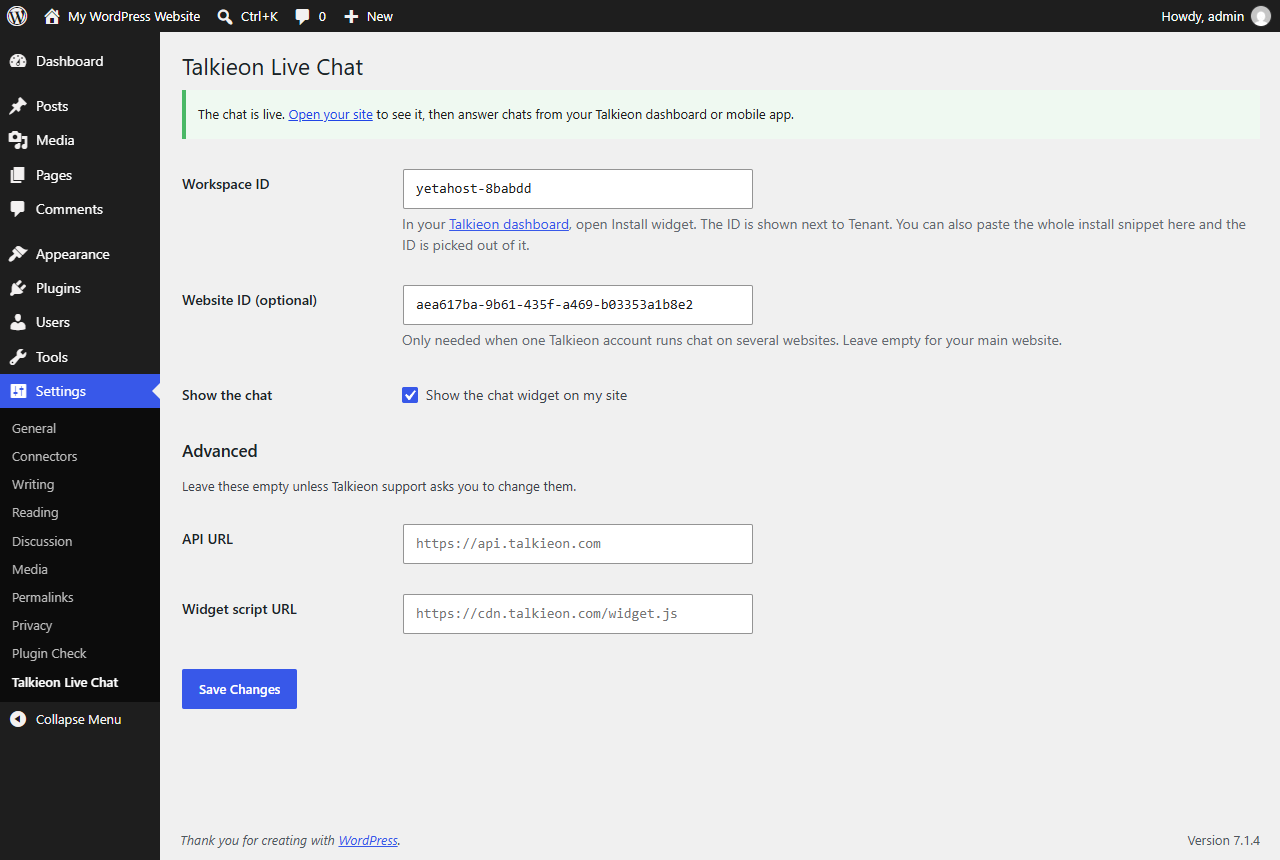
- In WordPress, go to Settings > Talkieon Live Chat, paste it into Workspace ID and save.
- Open your site. The chat button appears in the corner.
You can also paste the whole install snippet from the Talkieon dashboard into the Workspace ID field. The plugin picks the IDs out of it.
FAQ
Do I need a Talkieon account?
Yes. The plugin shows the chat on your site, and the Talkieon account is where you read and answer the chats. The Starter plan is free.
Where do I find my Workspace ID?
In the Talkieon dashboard, open Install widget. The ID is shown next to Tenant.
The chat does not show on my site
Check that Show the chat widget on my site is ticked and the Workspace ID is saved. If you use a caching or optimisation plugin, clear its cache. If your Talkieon account limits which domains may load the widget, add your site’s domain there.
Does it slow my site down?
The widget script loads with defer, after your page content, so it does not block the page from showing.
How do I change the colour or the greeting?
In the Talkieon dashboard, under the widget settings. You do not need to change anything in WordPress.
Can I hide the chat without deactivating the plugin?
Yes. Untick Show the chat widget on my site in Settings > Talkieon Live Chat.
Screenshots

Changelog
1.0.4
- WooCommerce: orders are sent to Talkieon from the order received page, so the dashboard can show sales that came after a chat.
1.0.3
- Updated the plugin owner details.
1.0.2
- Paste the whole install snippet into Workspace ID and the IDs are picked out of it.
- A notice on the Plugins screen until the plugin is set up.
- Updated branding.
- Tested with WordPress 7.1.
1.0.1
- Fixed plugin header details.
1.0.0
- First release.