


Description
TapToLink lets you link anything while you write, without leaving the sentence you are in. The video above is a full session recorded on a phone, start to finish, uncut.
TapToLink is made by Locker Forge. More plugins and themes: https://lockerforge.com
- Highlight a phrase in a post or page.
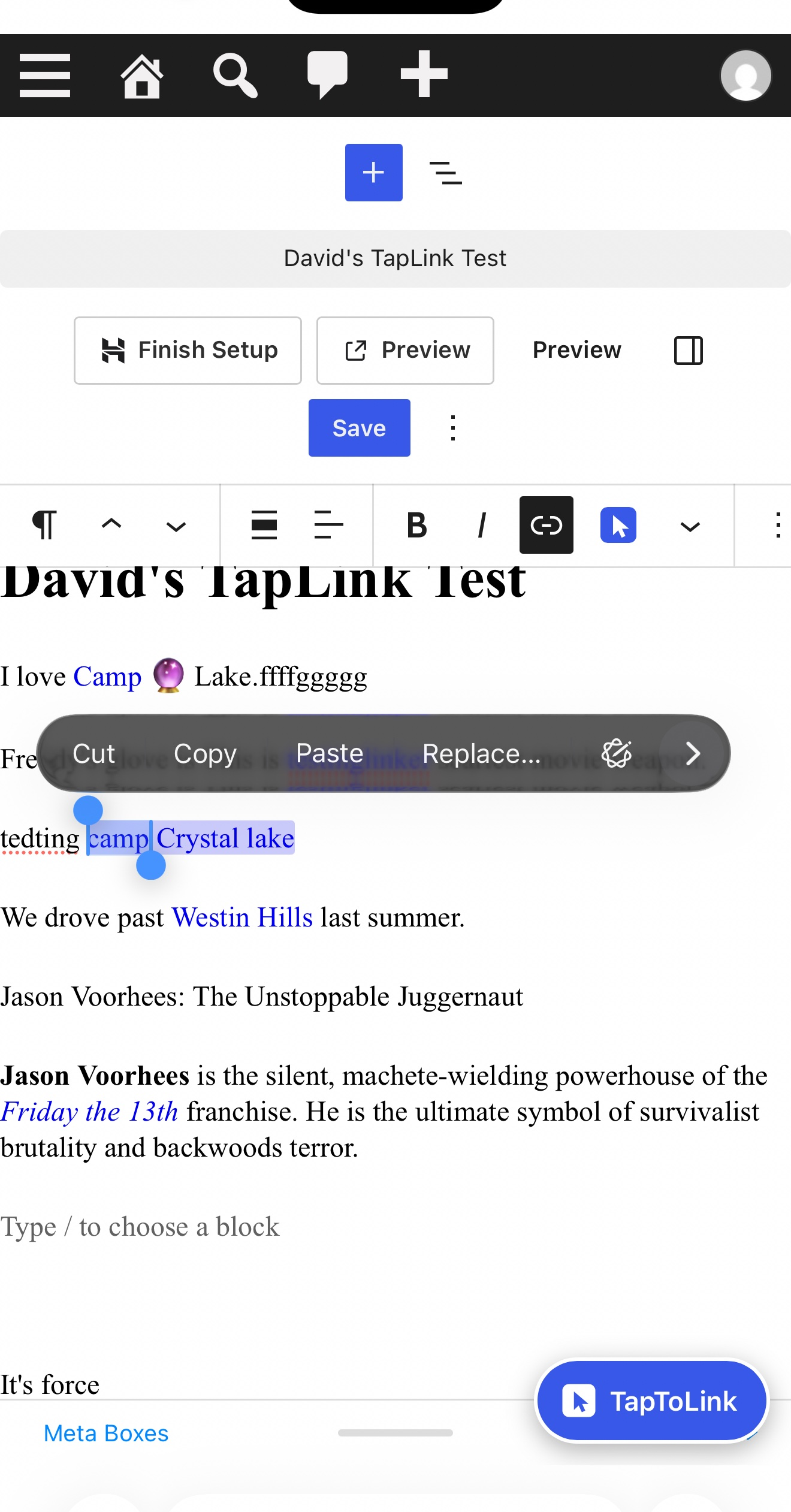
- Tap the TapToLink button that appears right next to your selection, or the TapToLink button next to Link in the toolbar (or press Ctrl+Shift+L, Cmd+Shift+L on a Mac).
- Tap a suggestion. The highlight becomes a link.
There is nothing to set up: no rules, no keyword lists, no CSV files.
Suggestions from your own site. TapToLink looks at your published posts and pages and ranks them in this order: an exact title match first, then titles that contain the phrase, then tag or category matches, then posts that mention the phrase in their text. Newer posts win ties, and the post you are editing never suggests itself. It understands everyday writing: capital letters, straight and curly apostrophes, possessives (“Freddy’s glove” suggests the Freddy page), a missing “The” or “A”, and years (“Halloween 2018” finds “Halloween (2018)”). Each row shows the title, the type (post or page) and the date, and the top suggestion is marked “Best match” (screen readers hear it too). Only published posts and pages are ever suggested, never drafts, pending, private, scheduled or trashed ones, even if another plugin widens WordPress’s queries.
Forgiving. A typo or an extra letter doesn’t leave you with an empty box: if no title or tag matches, TapToLink shows the closest titles instead (“Freddyy” still finds “Freddy Krueger”), clearly labelled as closest matches. This reuses the posts it already looked at, so it costs no extra searching.
Search and paste in the same box. If the suggestions aren’t what you want, type a word or two to search your posts and pages, or paste any address (on your site or anywhere else). TapToLink checks that it looks like a real link before it applies it. Pasted links open in a new tab by default (with rel="noopener noreferrer"); untick “Open in new tab” under the paste field for a same-tab link. If nothing matches, the box opens with search and paste instead of an error.
Edit a link you already made. Put the cursor in a link (or select its words) and open TapToLink: the paste field shows the link’s current address and “Open in new tab” shows how it opens now. Change either and press Link, and TapToLink updates that same link in place. Pick another suggestion to point it somewhere else. To remove a link, use My Links (the picker says so: “To remove a link later, use TapToLink -> My Links.”)
Phone-first. As soon as you select words, a TapToLink button appears near the selection (beside the text column on a desktop, so it never covers the next line); on a phone it sits just above the on-screen keyboard, so it is there even when the editor toolbar has scrolled out of view. On small screens the picker slides up from the bottom as a sheet and keeps your highlighted words visible above it. When the keyboard is open, the whole picker (search field, results and buttons) lifts into the space above the keyboard, and the results list scrolls inside it. Tap targets are big (44px or more). On some phones — iPhones especially — a single tap only places the cursor: double-tap the word to select it, and the button appears.
Both editors. A format button in the block editor; a toolbar button in the classic editor’s Visual tab and a Quicktags button in its Text tab. With nothing selected, TapToLink opens search-first and inserts the page title as the link text.
Accessible. Keyboard shortcut, arrow keys to move through results, Enter to apply, Escape to close. Results are announced to screen readers.
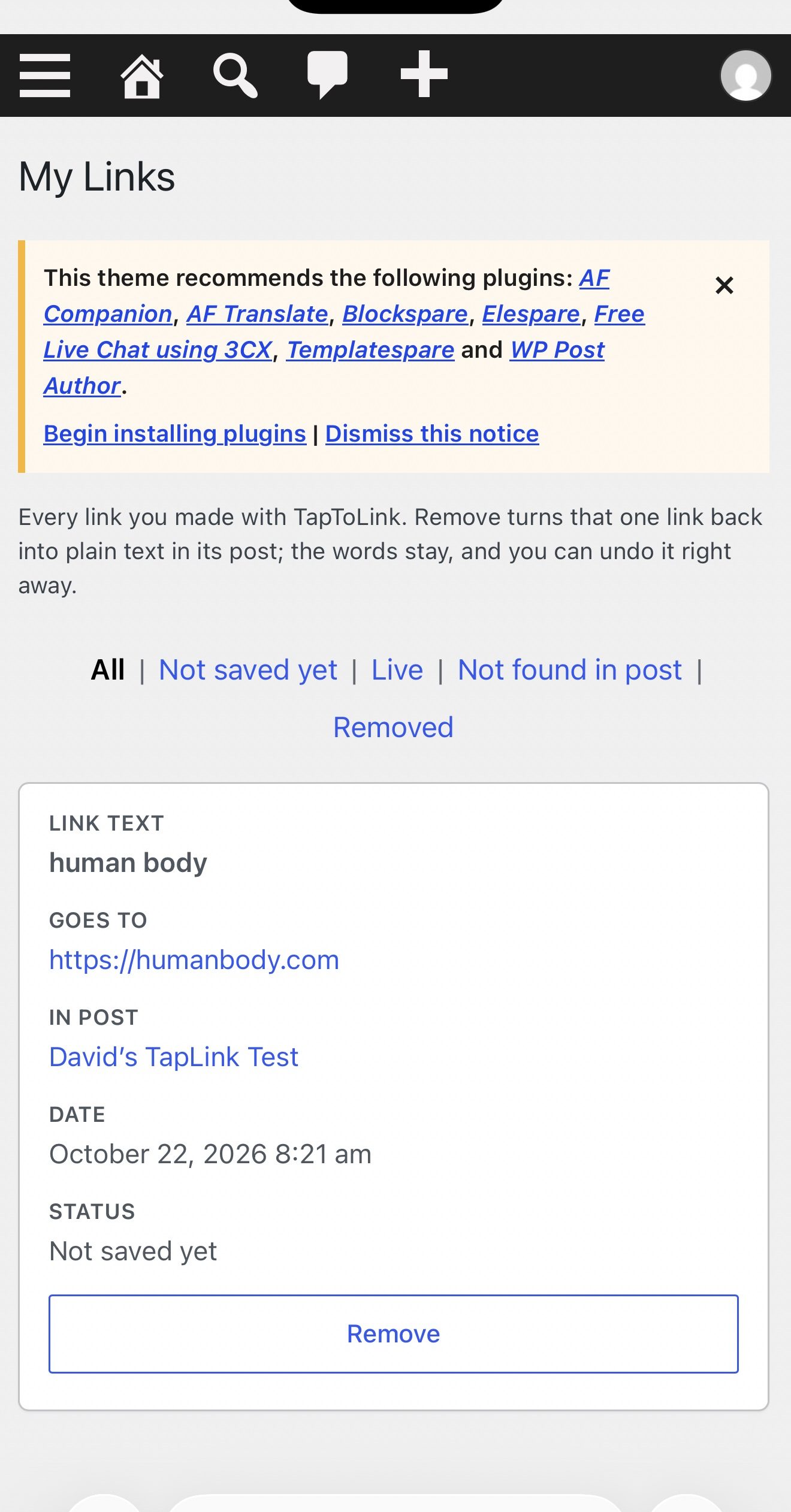
Your links, in one place. Every link TapToLink makes is listed under TapToLink > My Links with its post, text, address, date and status. Remove turns that one link back into plain text in its post: the words stay, only the link goes, and the notice has an Undo link that puts it back exactly as it was. If the passage was edited by hand and the link can’t be found, TapToLink says so and links you to the post. It never guesses and never changes anything else. Never track down a stupid link again.
Light. TapToLink loads nothing on your public site. It only runs in the editor and its own admin screens. Searches use WordPress’s own post search and only run when you open the picker or type (typed searches are debounced).
Links stay standard. TapToLink makes exactly the link WordPress would make. Links to suggested posts and pages open in the same tab with no extra rel attributes; only pasted links get the new-tab attributes, and only while “Open in new tab” is ticked. Your existing content, links and editor tools are never changed or removed, except a link you reopen in TapToLink and update yourself.
TapToLink Pro
Linking is free forever. TapToLink Pro is the premium version of this plugin, sold through our store at https://lockerforge.com/taptolink-pro/ — this free plugin contains no locked or disabled features; Pro is a separate download that replaces the free version. Pro removes repetitive work and reports on your whole site:
- Smart outside links: TapToLink fetches the page title for link text and applies your saved defaults (new tab, nofollow, sponsored).
- Link library and favorites: your most-used links in two taps, with affiliate tags added automatically.
- Orphan finder and stats: pages nothing links to yet, and your most-linked pages.
- Link health: a warning when a page you linked to is deleted, unpublished or renamed.
- Coming soon (not available yet): a bulk link pass to scan a whole draft and approve suggested links one by one.
Privacy. This plugin makes no external HTTP requests and has no tracking or telemetry. Everything it stores stays in your own WordPress database:
- The link log described above: one row per link made with TapToLink (post, link text, address, linked post if any, the user who made it, status and dates), in the table
{prefix}taptolink_log. - Its settings (the option
taptolink_settings) and the link log’s version number (taptolink_db_version). - A per-post queue of links removed in My Links before that post was saved (post meta
_taptolink_unlink). Each entry is cleared once the removal is confirmed in the saved post. - Undo data for each Remove in My Links (transients
taptolink_undo_*, per user), which expire after an hour. - Per user: whether you hid the floating button from inside the editor (user meta
taptolink_fab_hidden).
Uninstalling the plugin (Plugins > Delete) removes all of it.
Installation
- Upload the
taptolink-highlight-link-finderfolder to/wp-content/plugins/, or install the zip from Plugins > Add New > Upload Plugin. - Activate the plugin.
- Open any post, highlight some words and tap the TapToLink button.
FAQ
Do I have to configure anything?
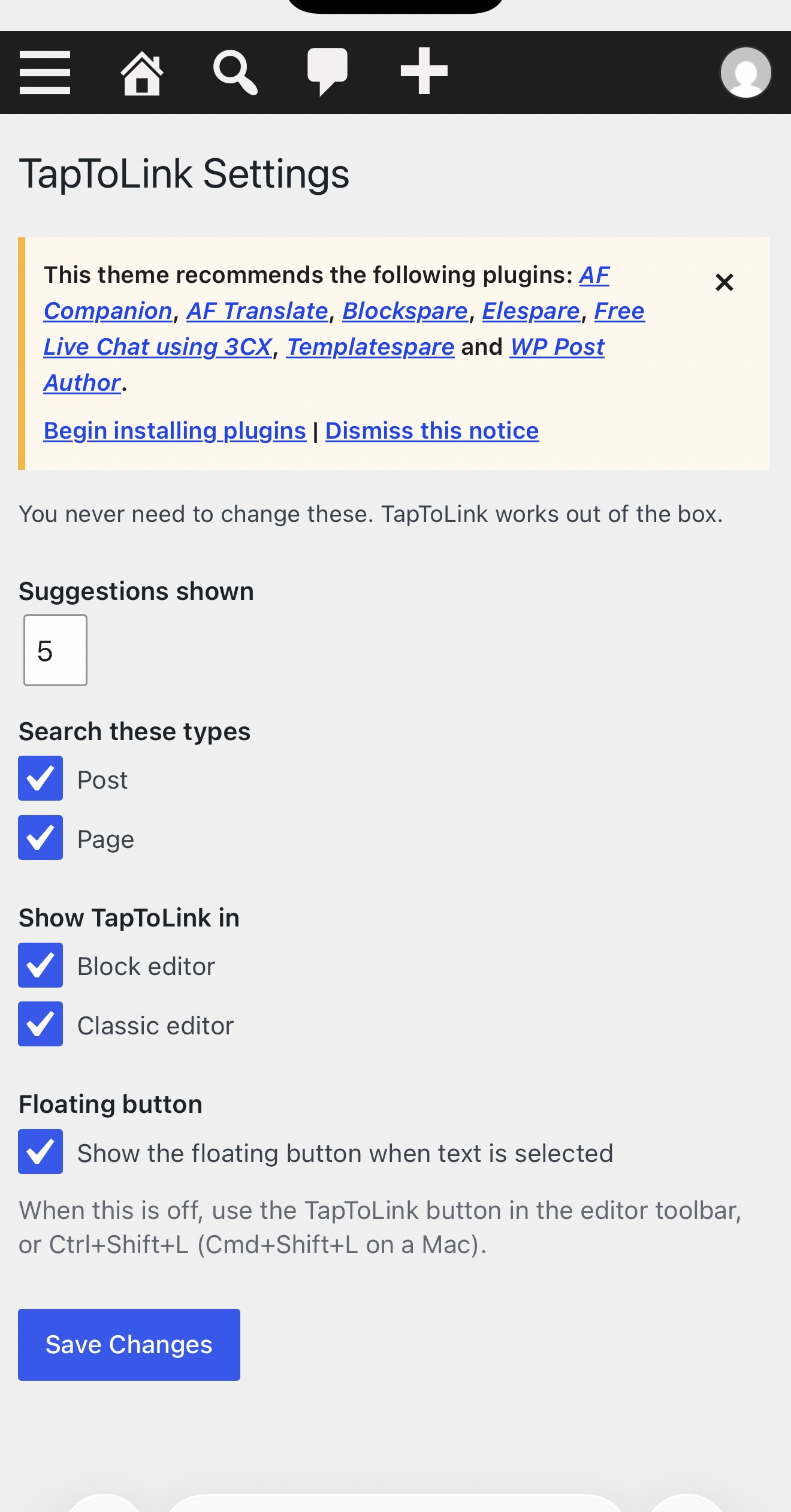
No. The one settings screen (TapToLink > Settings) only holds the number of suggestions (5 by default), which post types are searched, whether TapToLink appears in the block editor and the classic editor, and whether the floating button shows when you select text (on by default).
Where is the TapToLink button?
TapToLink has its own icon: a solid badge with a tap pointer, in your admin colour, so it is easy to tell apart from the chain-link Link button. In the block editor it sits next to the Link button in the formatting toolbar that appears when you select text. In the classic editor it is next to the Link button on the Visual tab and labelled “taptolink” on the Text tab. In both editors, a floating TapToLink button also appears next to any text you select. On some phones — iPhones especially — a single tap only places the cursor: double-tap the word to select it, and the button appears. If you prefer the toolbar only, untick “Show the floating button when text is selected” in TapToLink > Settings; the toolbar button and Ctrl+Shift+L keep working.
To hide the floating button just for yourself, without leaving the editor, tap the small × on its corner. Bring it back from the Options menu (⋮, top right) in the block editor, or from Screen Options at the top of the page in the classic editor. Your choice is remembered the next time you open the editor. When the Settings option is off, the button never appears for anyone.
What support is included?
The free version includes this documentation and the community support forum on WordPress.org, answered on a best-effort basis. Priority email support is included with TapToLink Pro (the separate add-on): if you have purchased Pro, you get direct help from the TapToLink team. Bug reports are welcome from everyone in the forum.
What happens with JavaScript turned off?
The standard WordPress editing and link tools work exactly as before. TapToLink never removes or changes existing editor features, content or links.
How does the link log know what I kept?
When you apply a link, the editor records it as “not saved yet”. When the post is saved, TapToLink checks the saved content: links that are there become “Live”, links you undid before saving are dropped, and links that later disappear (for example, edited by hand) are marked “Not found in post”.
What does Remove change?
Only the one link: the <a> tag around those words is removed and the words stay. Everything else in the post, including block markup, is left byte-for-byte as it was. The success notice has an Undo link (valid for an hour) that puts the link and its My Links entry back exactly as they were; WordPress also keeps a revision. If the same link appears more than once, TapToLink leaves the post alone and tells you, rather than guessing which one you meant.
If the post has not been saved since the link was added, the link only exists in the editor. Remove then takes it out of the editor: an open editor removes it as soon as you switch back to it (and tells you), and it stays out when the post is saved.
Does it slow my site down?
No. Nothing loads on the public site. In the editor the picker only loads its small script and asks the server when you open it; typed searches are debounced.
Developer hooks
taptolink/search_post_types(array) filters the post types that are searched.taptolink/tip_urland theTAPTOLINK_TIP_URLconstant override the optional Tip Jar link (default: https://lockerforge.com/tip-jar/).
Screenshots

Changelog
1.0.8
- New: hide the floating TapToLink button and bring it back without leaving the editor. Tap the small × on the button to hide it; bring it back from the editor’s Options menu (⋮) in the block editor, or from Screen Options in the classic editor. The choice is saved for each user. The Settings toggle stays the default for everyone: when it is off, the button never appears.
- Fixed: removing a link in My Links before its post was saved could clear the removal without it ever happening, while My Links said the link was gone. A removal is now cleared only once it is confirmed in the saved post: TapToLink waits until WordPress has actually stored the post, checks that the link is really gone from what was stored, and only then marks it removed and clears it from the queue. If the save fails, or the link is still there, the removal stays queued and the link keeps its status, so the next save tries again. If the same link appears more than once, TapToLink leaves it in place, lists it as Live again and shows a warning on My Links (and in the editor) instead of saying it was removed.
- Fixed: if TapToLink could not save its list of removals waiting for a post’s save, it reported success anyway. It now keeps the list exactly as it was, says nothing was changed, and shows an admin warning naming the post.
- Fixed: the My Links warning about removals that could not be confirmed looked at only the first 50 posts, without saying so. It now covers every post.
- Fixed: if TapToLink could not record a new link in My Links, it failed silently. It now tries once more, and if that fails too it tells you the link is in your post but not listed in My Links.
- Fixed: when updating an existing link’s address could not be saved to the link log, TapToLink reported success anyway. The failure is now reported.
- Fixed: unexpected link-log database errors (other than a missing table, which still repairs itself) are now written to the PHP error log instead of disappearing.
- Changed: the “See TapToLink Pro” button now goes to the TapToLink Pro page on lockerforge.com instead of straight to checkout.
- Changed: the bulk link pass is marked “coming soon” everywhere it is mentioned, since it is not available yet.
- Changed: the privacy note now lists everything TapToLink stores (the link log, its settings, the queue of removals waiting for a save, short-lived Undo data, and the per-user floating-button choice), and uninstalling removes the new per-user choice too. The unmeasured “returns in milliseconds” claim was removed.
- New: the Tip Jar now points to https://lockerforge.com/tip-jar/ and the readme has a donate link. Tips are optional and unlock nothing.
1.0.7
- TapToLink Pro is now available: the “See TapToLink Pro” button in this plugin now leads straight to the Pro checkout.
- The plugin author is now Locker Forge.
- No changes to the free linking features.
1.0.6
- Security: the admin notice shown after removing or restoring a link is now signed with a nonce, and a post’s title is only shown to users who may edit that post.
1.0.5
- The WordPress.org edition is now free-only: the Pro code that previously shipped locked inside this plugin has been removed entirely. TapToLink Pro continues as a separate add-on plugin from our store; the free features are unchanged.
- Fixed: the text domain now matches the plugin slug, so translations load correctly.
- Fixed: the readme described a picker web search that is not part of this edition; that text has been removed.
1.0.4
- Renamed: TapLink is now TapToLink. A new name for the same plugin — highlight, tap, linked.
1.0.3
- Improved: reopening TapToLink with the cursor or selection inside an existing link (pasted or suggested) now shows that link. The paste field holds its current address and “Open in new tab” shows whether it opens in a new tab. Pressing Link updates that same link in place (address, new tab and rel) instead of adding a new one, so links are never nested or doubled. A link to a suggested post is marked “Current link” in the list. A selection that reaches past the link works as before.
- New: a quiet line under the paste area: “To remove a link later, use TapToLink -> My Links.”
1.0.2
- New: “Open in new tab” checkbox under the paste field, ticked by default. Pasted links open in a new tab with
rel="noopener noreferrer"; untick it for a same-tab link. Links to suggestions are unchanged. - New: setting “Show the floating button when text is selected” (on by default). When off, the toolbar button and Ctrl+Shift+L still open TapToLink.
- New: Undo in the Remove notice in My Links. It restores the link and its log entry exactly as they were.
- New: the top suggestion is marked “Best match”, visibly and for screen readers.
- New: forgiving partial matches. When no title or tag matches (a typo, an extra letter, stray punctuation), TapToLink shows the closest titles instead of an empty box. No heavy extra queries.
- Fixed: drafts, pending, private, scheduled, trashed posts and revisions could be suggested when another plugin or theme widened post queries (pre_get_posts, posts_where or posts_results). Every suggestion is now re-checked to be published.
- Fixed: on a desktop the floating button could sit over the next line, so double-clicking a word there opened the picker for the previous selection. The button now sits beside the text column, a double-click that lands on it selects the word underneath, and the space a double-click picks up after a word is no longer linked.
- Improved: Remove on a post that hasn’t been saved since the link was added now says so plainly, takes the link out of the open editor and keeps it out when the post is saved.
1.0.1
- New: TapToLink has its own icon (a solid badge with a tap pointer) in the block editor toolbar, the classic editor and the new floating button, so it can’t be mistaken for the core Link button.
- New: a floating TapToLink button appears as soon as you select text in the block editor or the classic Visual editor. On phones it docks just above the on-screen keyboard and stays clear of the native Cut/Copy/Paste bubble. It hides again when the selection collapses.
- Improved: with the on-screen keyboard open, the whole picker lifts into the clear space above the keyboard with a gap, and the results list is sized to fit and scrolls inside itself.
- Improved: My Links on phones (782px and narrower) shows each link as a stacked card with each label on its own line above its value.
- Fixed: the link-log table now repairs itself. It is created or upgraded on admin_init when its version is missing or out of date, and recreated on first use if it is missing. My Links shows a friendly empty state instead of a database error. Zero-date column defaults that strict MySQL modes reject were also removed.
1.0.0
- Initial release.