


Description
Find the right file faster. Keep your WordPress Media Library organised. Fix media problems without the repetitive work.
As your website grows, so does your Media Library. Hundreds of images, documents and other uploads become difficult to find, check and maintain. Tieraxo Asset Booster adds practical media management tools directly to the WordPress screens you already use, without replacing your library or changing how your files are stored.
Create colour-coded folders, filter files by type or condition, identify oversized images and missing alt text, inspect file statistics, edit attachment details in bulk, and replace images without starting again.
What you can do with the free plugin
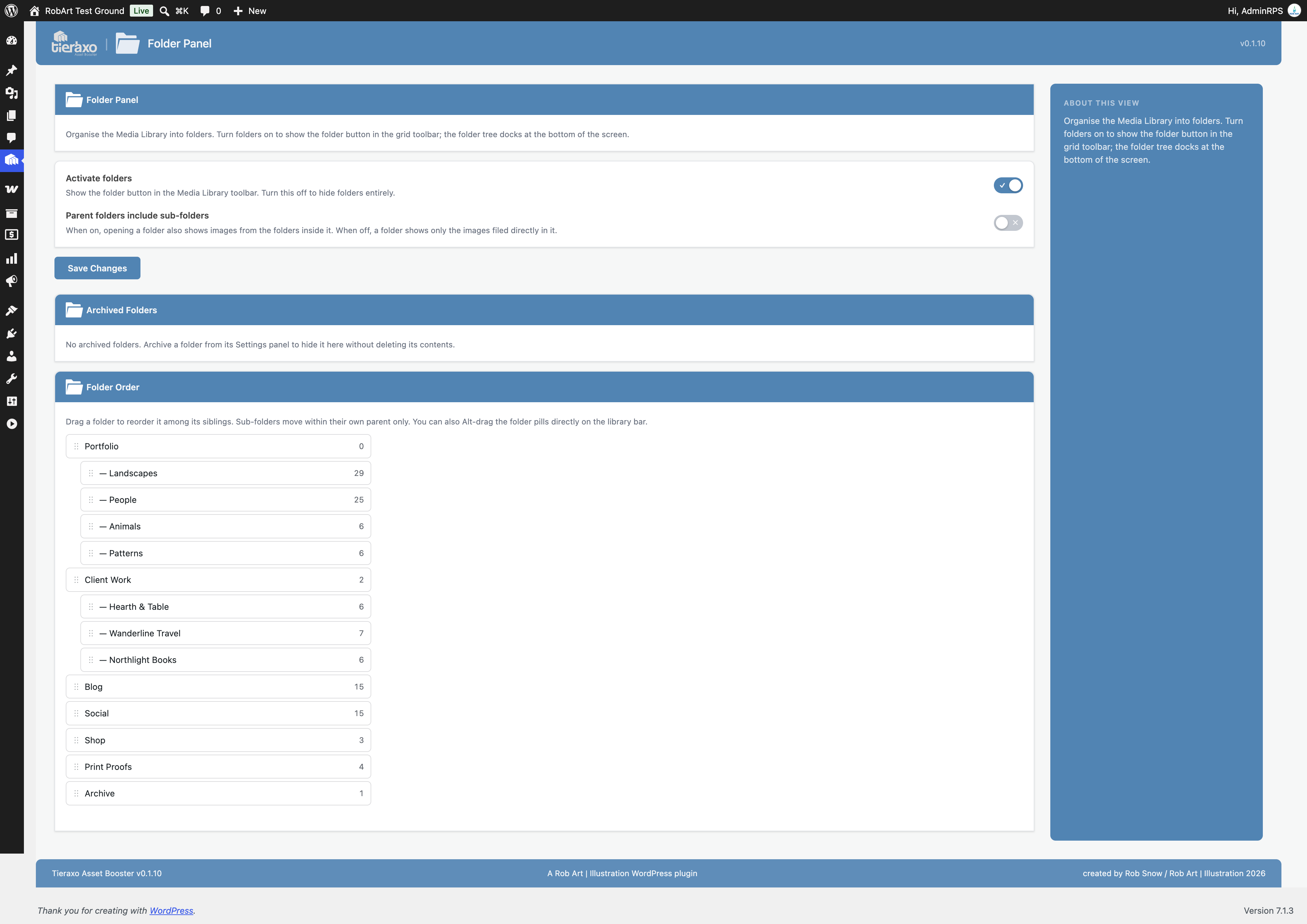
- Organise files into folders and subfolders. Create colour-coded folders, add private notes, drag media into folders and place the same item in multiple folders. Organising does not move the underlying files.
- Find images, videos and documents quickly. Filter by type and format, upload date, attachment status, legacy format, oversized images or missing alt text. Filters work across your library in grid and list views.
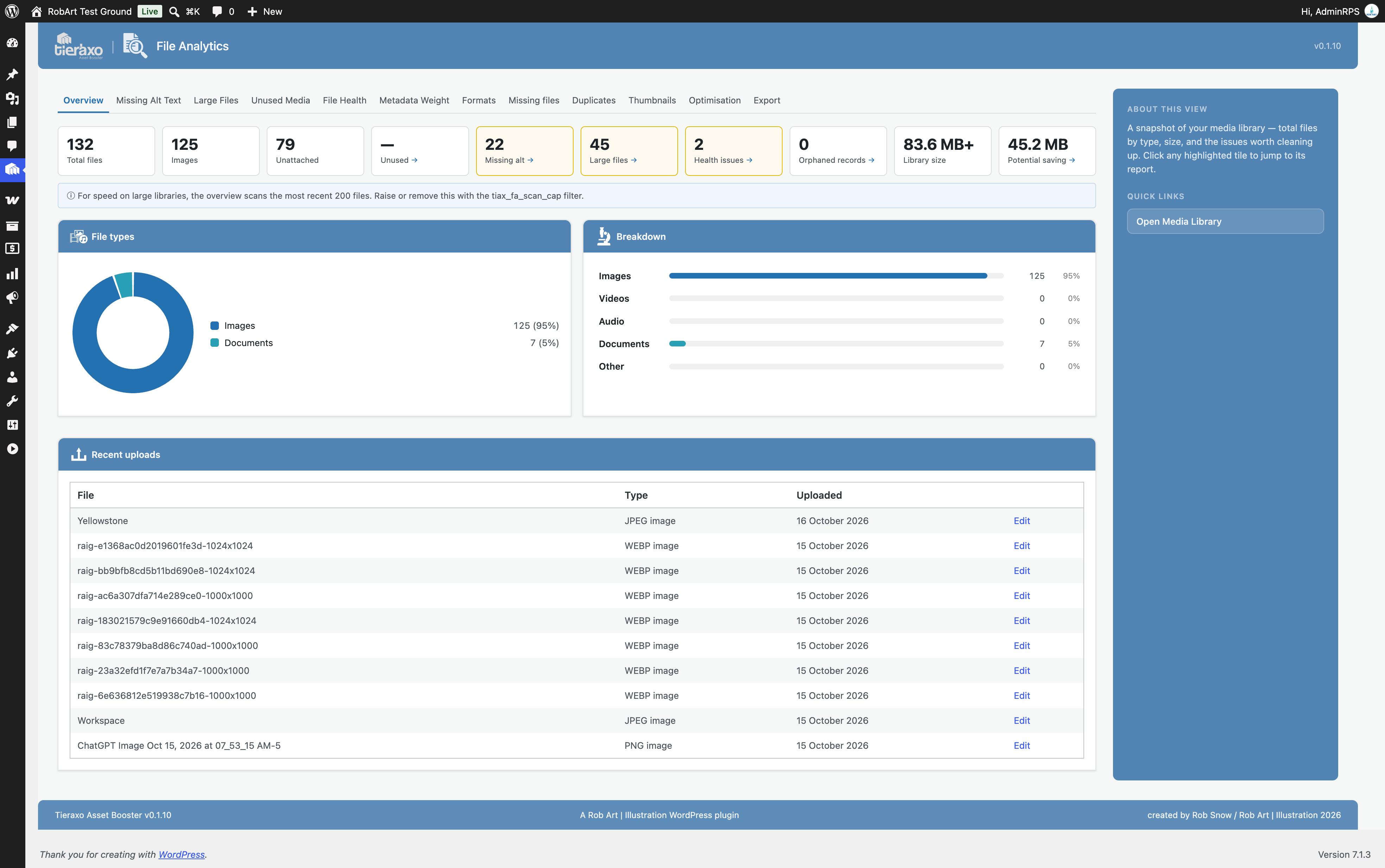
- Spot issues with File Analytics. See the breakdown of your media, identify large files, check missing alt text and review format and metadata reports. Export reports as CSV files.
- Edit alt text, captions and descriptions in bulk. Update attachment information in one place with inline editing and automatic saving. Improve consistency without opening every file individually.
- Manage titles and repair thumbnails. Edit media titles in bulk, rebuild missing thumbnail sizes and generate additional resized copies. The title editor does not rename physical files.
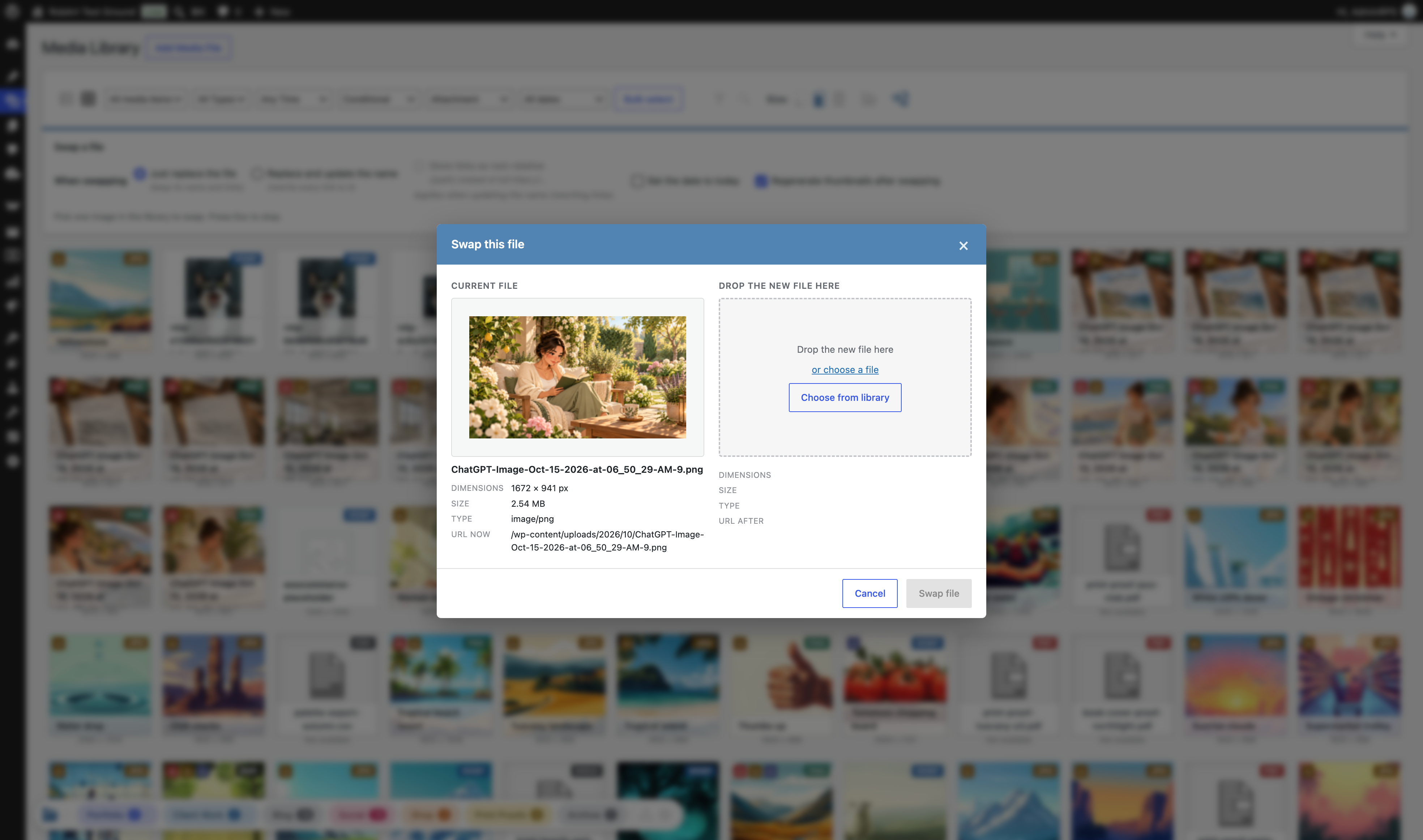
- Swap or relink media. Replace an existing file while keeping its address, rename files and update supported references, or switch references to a different image already in your library. Review a dry-run before making changes.
- Keep media URLs flexible. Use the reversible, on-the-fly Media URLs tool to serve domain-independent links when moving between site addresses.
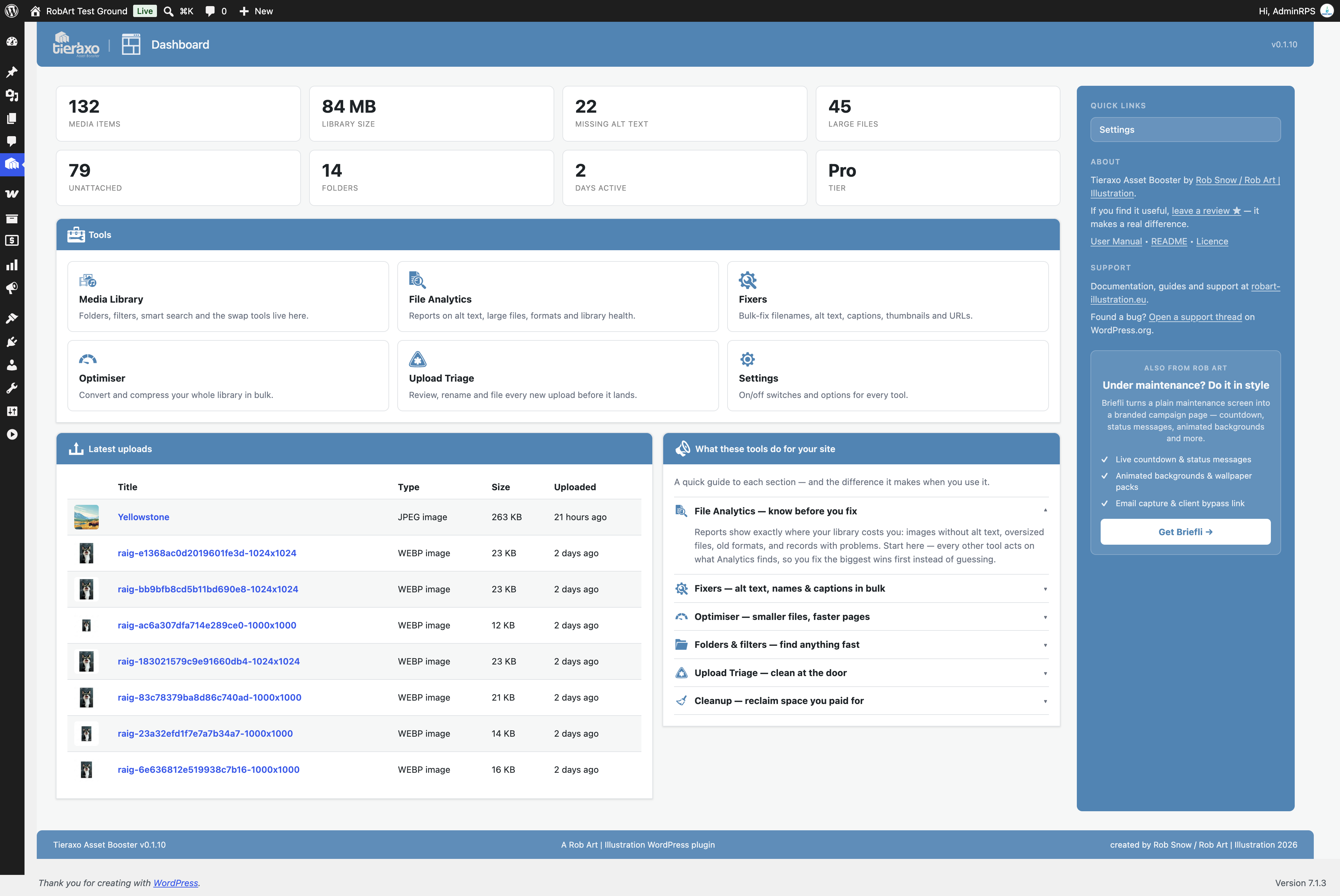
- See your library at a glance. A dedicated dashboard and WordPress dashboard widget display useful media statistics and shortcuts to tools.
Media folders without moving your uploads
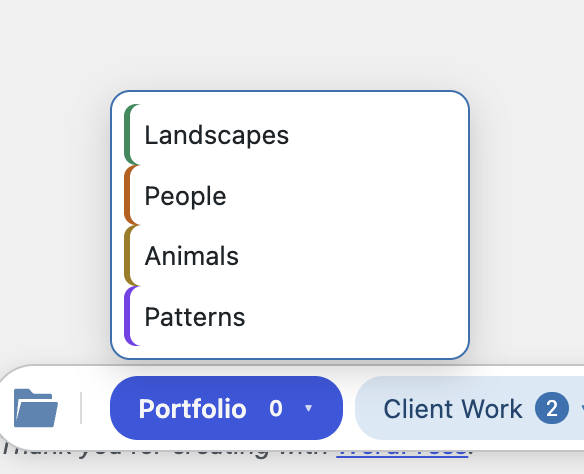
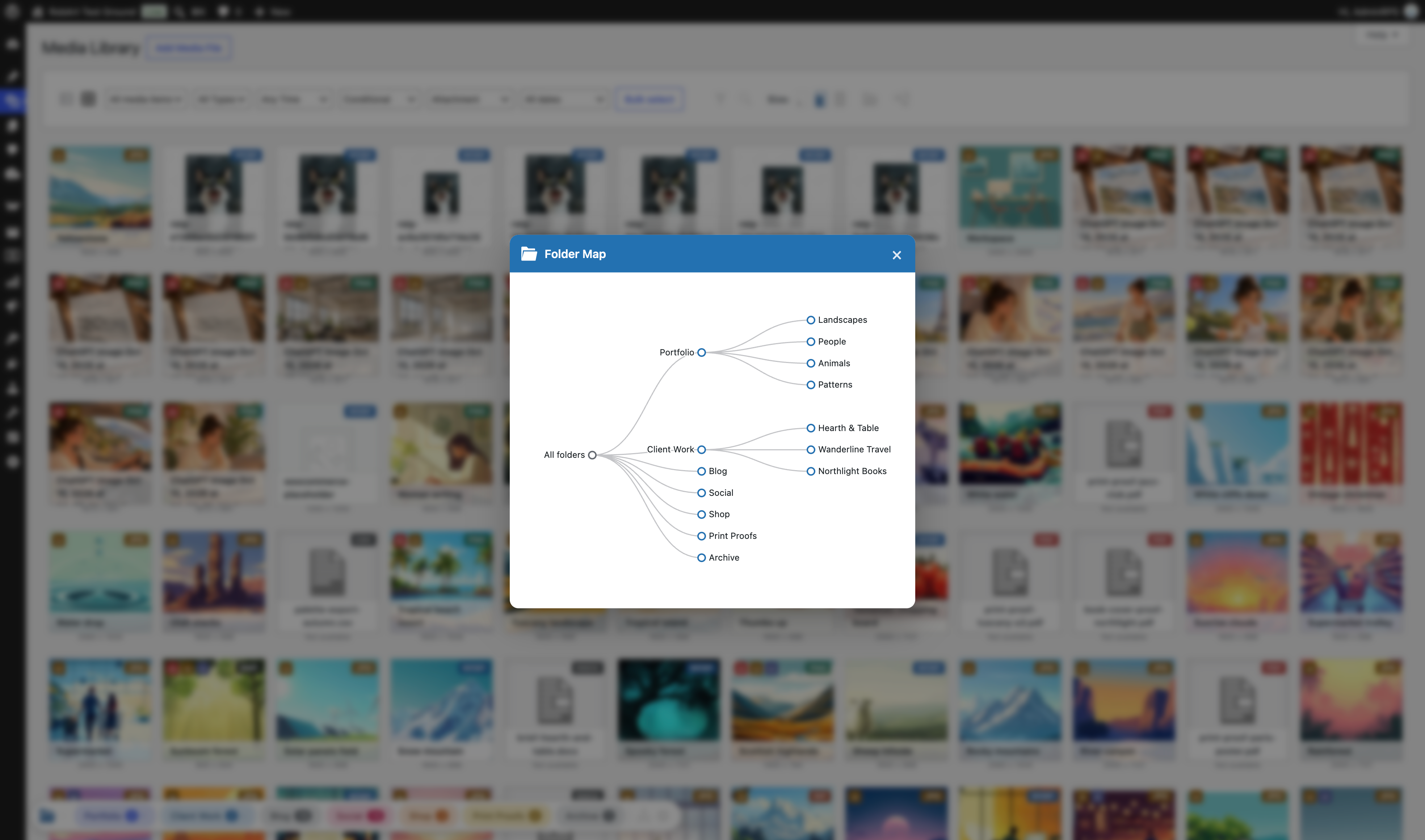
Tieraxo folders are an organisational layer, not physical directories. Keep your existing URLs and file locations, make subfolders, assign one of ten colours and work from both the Media Library grid and list. Folder-filtered views can also be bookmarked. Deleting a folder does not delete the media assigned to it.
More useful filters where you actually work
Use Quick Filters to narrow down files by category and subtype, recent uploads, attached or unattached status, and common media issues. Tieraxo also extends the standard Add Media picker, so you can use folder and quick-filter controls while inserting assets into posts and other supported standard media-picker interfaces.
File Analytics that lead to action
Instead of guessing where media problems are, open reports covering missing alt text, large files, image formats, metadata weight and library health. The Formats inventory identifies modern, legacy, vector and supported file types. Export the results to CSV, then jump to relevant Fixers where available.
Bulk fixes and safer file replacement
Use Fixers to maintain alt text, captions, descriptions and titles, or rebuild thumbnail sizes in batches. Swap & Relink offers several replacement and renaming workflows, including a dry-run of affected references. Supported references can include content, featured images, galleries, widgets and common integrations. Complex stored page-builder data may be left untouched for safety and reported, so always review the preview and keep a backup before major changes.
Tieraxo also supports a workflow with RobArt Image Guard for swapping a protected image into an existing placement.
Need more? Tieraxo Asset Booster Pro adds advanced media tools
The free plugin includes folders, quick filters, analytics, bulk editors, thumbnail regeneration and Swap & Relink. The optional Pro add-on introduces more demanding tasks:
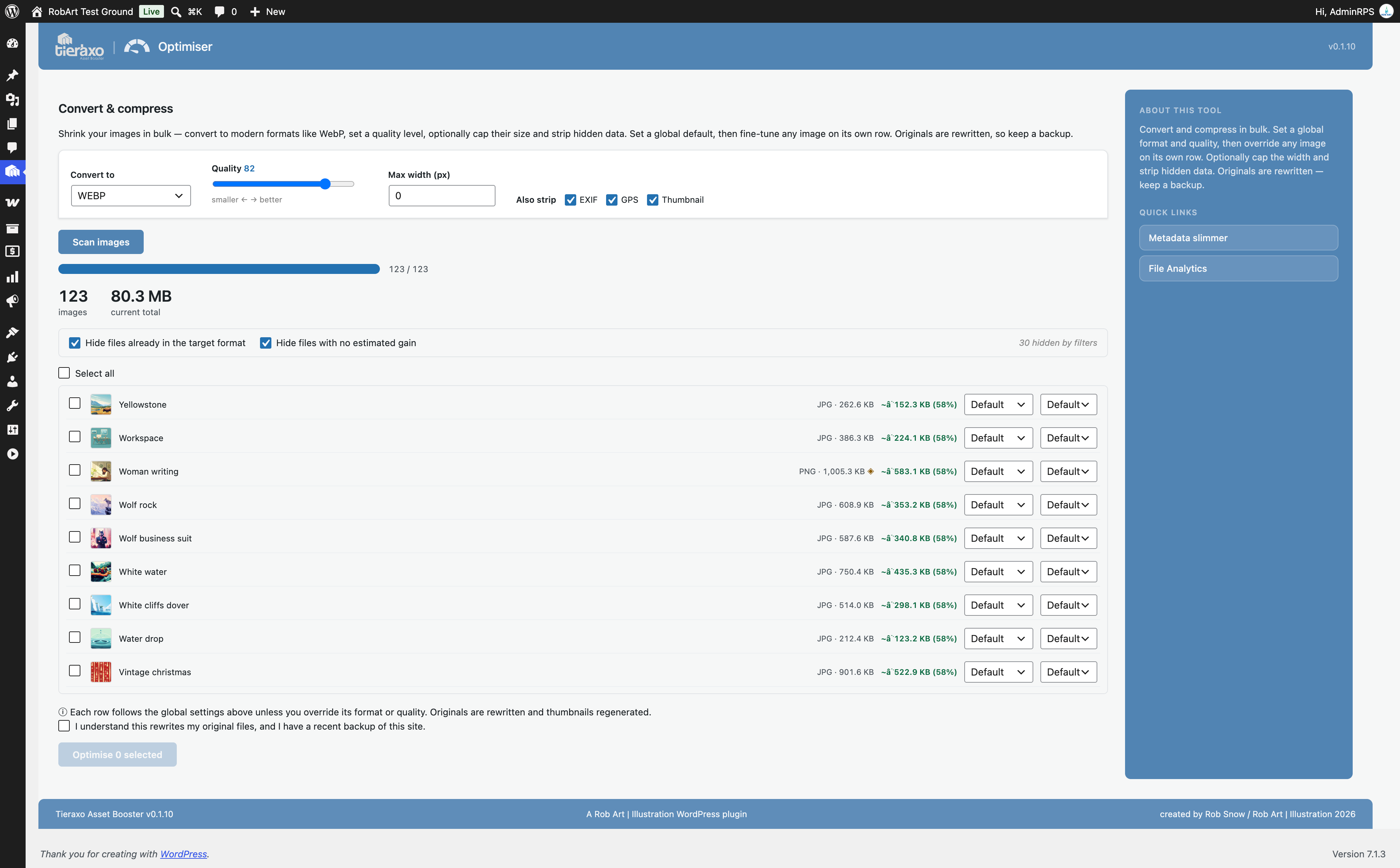
- Bulk Image Optimiser: convert supported images to WebP or other server-supported formats, compress them, adjust quality and optionally resize.
- Unused Media: review potentially unused attachments and selectively move items to the Trash, with safeguards for assets you want to keep.
- Metadata slimmer: review and remove selected embedded EXIF, GPS, IPTC and XMP data.
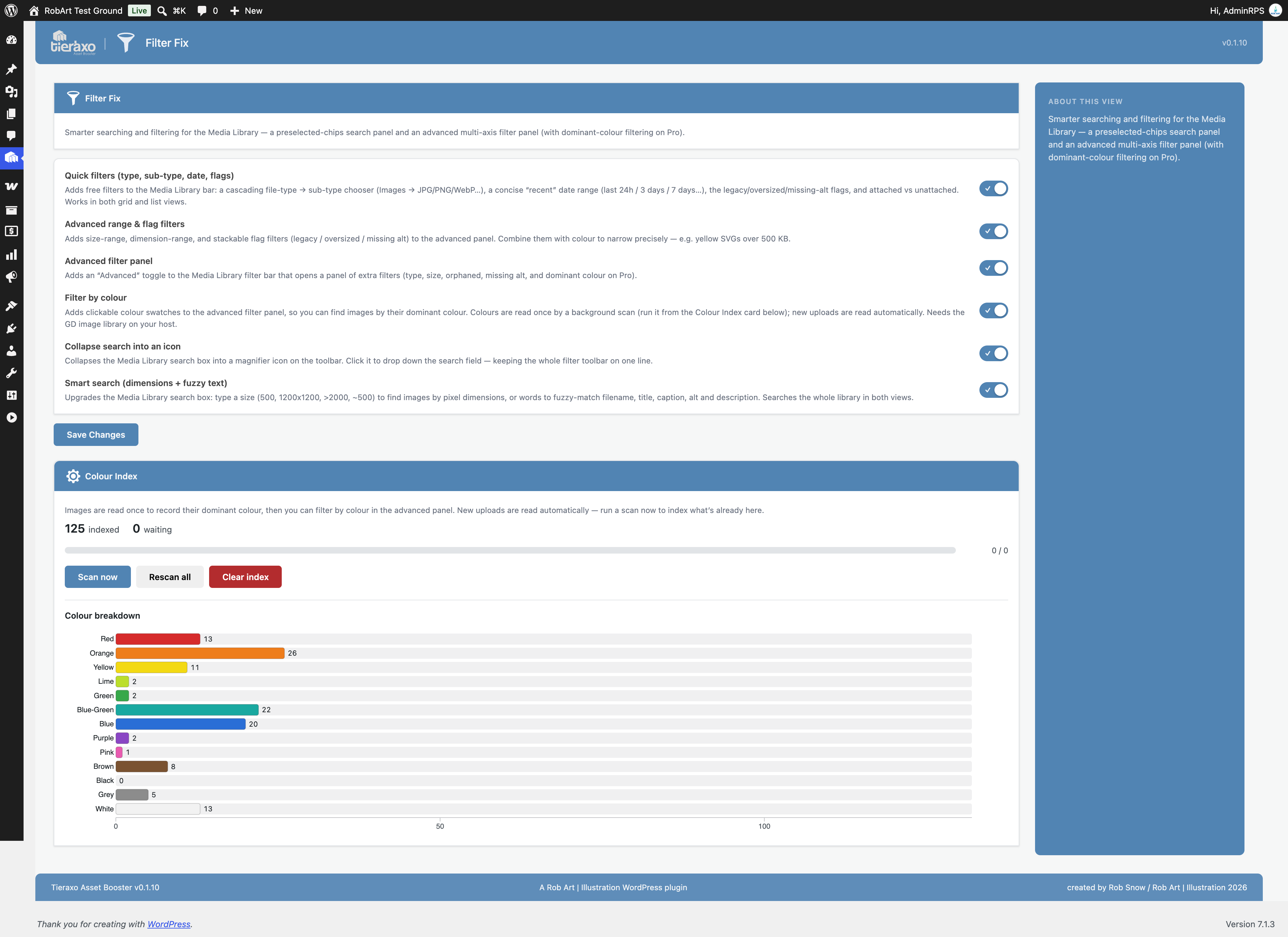
- Smart Search and Dominant Colour: find images by dimensions and filter a scanned library by colour.
- Advanced filters: combine additional size, dimension and condition criteria.
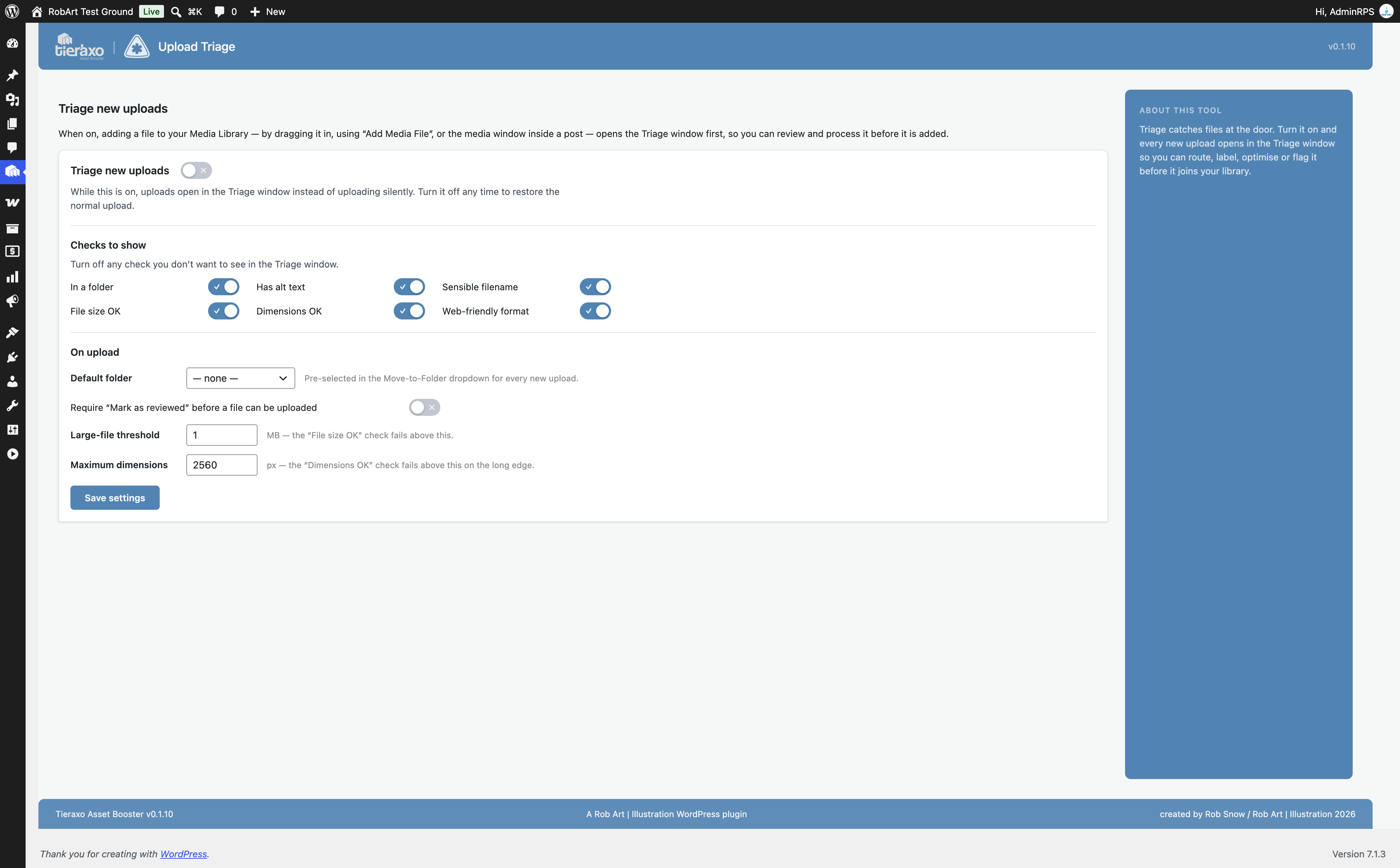
- Upload Triage: review incoming media and apply naming, folder and alt-text choices during upload.
- Additional clean-up tools: including orphaned resized-file pruning and selected advanced folder actions.
Important: Image conversion and bulk compression are Pro features, not features of the free plugin. Free users can still identify large or legacy-format images and take action using the included organisational and maintenance tools.
Set up in minutes
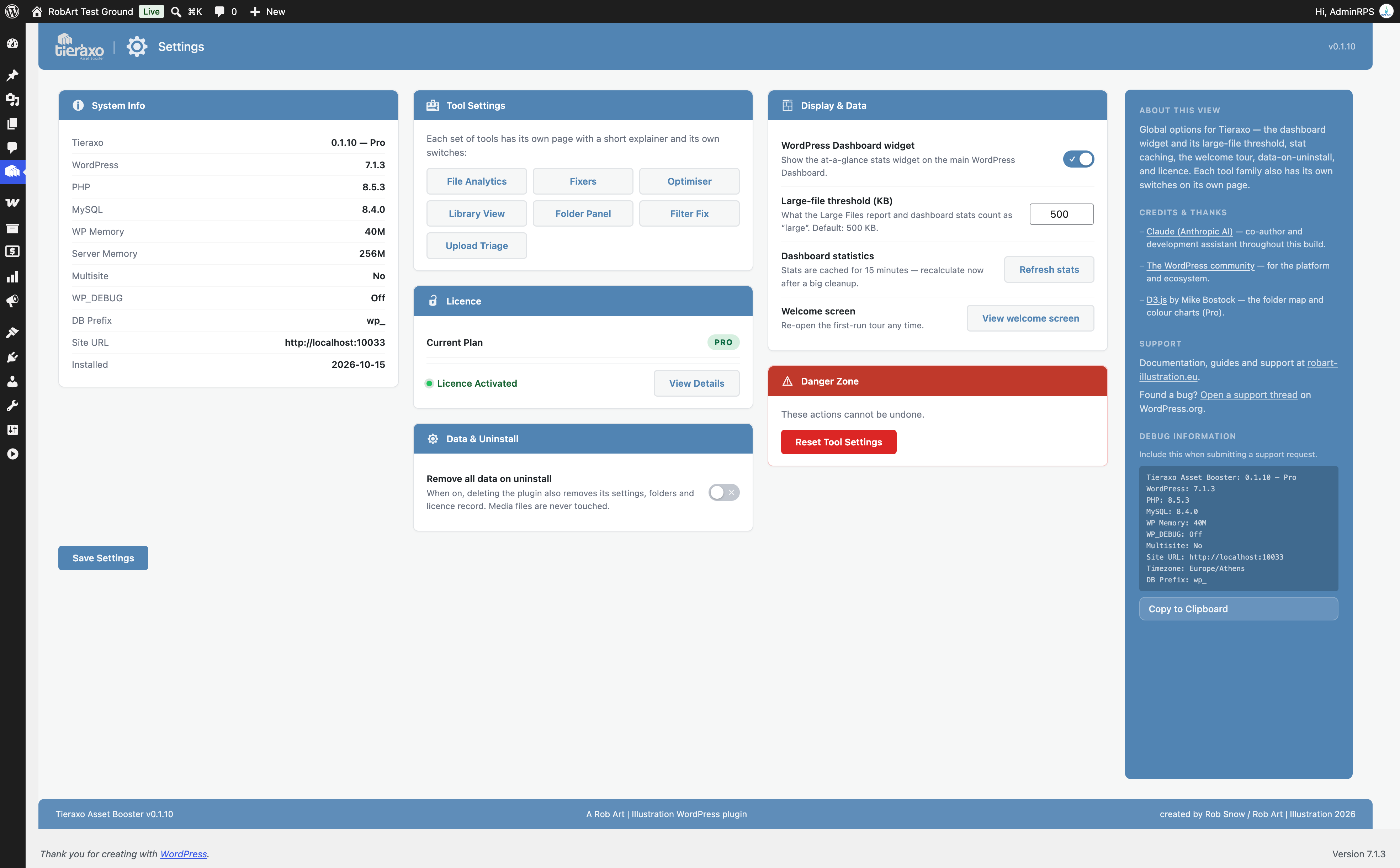
Install and activate Tieraxo Asset Booster, then open Media > Library. Your existing grid and list views gain new folder and filter controls. Visit Tieraxo Asset Booster in the admin menu for File Analytics, Fixers, the Dashboard and Settings. No shortcodes or front-end redesign required.
External services
Tieraxo Asset Booster does all of its work on your own site and server. It makes no automatic network requests during normal use, and sends no analytics or tracking data anywhere.
It contacts one external service, and only when you actively ask it to:
- robart-illustration.eu (Tieraxo licence & Pro download API) — if you choose to upgrade and enter a Tieraxo Asset Booster Pro licence key, the plugin sends that licence key, your site URL, and the plugin slug to
https://robart-illustration.eu/to validate the key and download the Pro package. This happens only when you click to activate a licence — never on a normal page load, and never for users who do not upgrade. The service is operated by Rob Art. See the Privacy Policy (https://robart-illustration.eu/privacy-policy/).
No other external services are contacted.
Uninstall
Tieraxo Asset Booster preserves your data by default. Deactivating the plugin keeps everything, and even deleting it keeps your settings and folders — so reinstalling picks up exactly where you left off.
If you turn on “Remove all data on uninstall” in Settings before deleting the plugin, uninstalling removes everything it stored:
- Its settings, licence record, install date, review-prompt state and database-version marker (stored as options).
- Its cached values (transients).
- Its folder structure — the folder taxonomy terms and their assignments.
Your media files are never touched either way — removing the plugin’s folders only removes the labelling layer, not the images. It writes nothing outside your own site.
Installation
- Upload the plugin to
/wp-content/plugins/tieraxo-asset-booster, or install it from the Plugins screen in your WordPress admin. - Activate it through the Plugins menu in WordPress.
- Open your Media Library — you’ll see the new folder and filter controls on the toolbar. The Tieraxo Asset Booster admin menu gives you the Dashboard, File Analytics, Fixers and Settings.
FAQ
Do I have to change how I use the Media Library?
No. As soon as you activate Tieraxo Asset Booster the Media Library gains folders, quick filters and a toolbar — in both the grid and list views. There is nothing to shortcode or wire up.
Does organising into folders move or change my files?
No. Folders are a labelling layer on top of your existing library — filing an image into a folder never moves or renames the file on disk, and deleting a folder never deletes the images inside it. An image can belong to more than one folder at once.
Will it work with my theme or page builder?
Yes — it enhances the standard WordPress Media Library screens (grid and list), so it works regardless of your theme. Builders that render their own custom media UI instead of the standard library may not show the extra controls there.
Is renaming a file safe? Won’t it break links?
The Swap & Relink tool renames the file and all its thumbnail sizes, then rewrites every reference to it across your posts, pages and custom fields. Complex saved data from some page builders (serialized/JSON blobs) is deliberately left untouched to avoid corrupting it, and it’s reported so you know. A dry-run shows exactly how many references will change before anything is written.
Does it send my data anywhere?
No. The plugin’s library tools run on your own site, and it does not send tracking or usage analytics to an external service. The only external request it ever makes is to validate a Pro licence and download the Pro package — and only when you actively enter a licence key. See the “External services” section for details.
What does the Pro upgrade add?
Pro adds bulk image conversion and compression, Unused Media review and clean-up, metadata slimming, Smart Search by dimension, Dominant Colour filtering, advanced multi-axis filters and Upload Triage. Folders, basic filters, File Analytics, core Fixers and Swap & Relink remain available in the free version.
Does deleting the plugin remove its data?
Only if you ask it to. By default your folders and settings are kept, so reinstalling picks up where you left off. Turn on “Remove all data on uninstall” in Settings first if you want a clean removal. Either way, your media files are never touched. See the “Uninstall” section.
Screenshots



Changelog
0.1.17
- Fixed: Swap & Relink could mistake an unrelated number for the image being replaced. Any saved setting whose value happened to equal the image’s ID (a height, a price, a stock count) was counted as a use and changed along with the real ones. Now a number only counts when it is stored as an image (featured images, galleries, logos, ACF image, file and gallery fields and similar), and image measurements such as widths or column counts never do.
- Improved: Swap & Relink now also updates a theme’s logo and other image settings saved inside widget and theme settings.
0.1.16
- Fixed: images converted to WebP or AVIF keep their old addresses working. A link to the old .png or .jpg file, for example in a Facebook or Pinterest post, is sent on to the new file, so shared posts no longer lose their picture.
0.1.15
- Added (Pro): convert images straight from the Media Library. A new Convert button in the toolbar opens a panel where you pick images, choose a format, quality and maximum width, and convert just those, with no library scan. Images already in that format, and anything that isn’t an image, are left alone.
- Improved (Pro): the Optimiser remembers what it read from each image, so a rescan only reads images that are new or have changed. A new “Re-read every file” tick reads them all again.
- Fixed (Pro): scanning a large library no longer slows the page to a halt near the end. The list now loads as you scroll, and Select all still covers every image the filters show.
0.1.14
- Fixed (Pro): new Pro customers can activate their licence key. The key form and its Activate button now load as soon as Pro is installed; before, they only appeared once Pro was already active.
- Fixed (Pro): activating only checks your key, with no second download of the Pro package.
- Fixed (Pro): Pro updates now find your licence key.
0.1.13
- Fixed (Pro): optimising images into a new format (for example PNG to WebP) now updates the links in your posts and pages to the new files. Before, they kept pointing at the old files, which the optimiser removes.
- Fixed: the Rename tool now finds and updates links to an image’s resized copies (thumbnail, medium and so on), not only links to the full-size file.
- Improved: the optimiser’s finish message says how many links it updated.
0.1.12
- Fixed (Pro): Pro features no longer switch off on pages loaded over plain http. The licence check now uses your saved site address, which is the same for http and https.
0.1.11
- Fixed: Library size (dashboard widget and File Analytics) now measures the files actually on disk, including every generated image size. It used a stored size that is missing for older uploads and for images rewritten by converters, which counted them as 0 and made the total far too small.
- Fixed: folder names containing “&” no longer show as “&”.
- Changed: readme description refreshed.
0.1.10
- Improved: Swap no longer switches on WordPress’s Bulk Select, so the “Delete permanently” bar no longer appears and the image you pick is not left ticked. While Swap is open, click an image (or press Enter on it) to swap it.
- New: each image you swap shows a “✓ Swapped” badge until you close Swap, so a run of swaps is easy to follow.
- Improved: Swap from library and Rename now check what will change by themselves. A note above the buttons says what will be updated (green), or warns when nothing uses the image (amber, and Swap stays off). No more separate “Check what will change” click.
- Improved: keyboard support. Enter presses the main button (Swap, Swap everywhere or OK), Esc closes the swap window and, with no window open, ends swap mode.
- Improved: the “File successfully swapped” message closes by itself after a moment.
0.1.9
- Fixed: in the Optimiser, the “to optimise” tally now counts up as convertible images are found during the scan (recent uploads are checked first), instead of only appearing at the end.
- Fixed: after an optimise run finishes, the panel now returns to its clean starting state (progress bar and file list cleared), keeping only the “Optimised N · saved” confirmation.
- Fixed: file names containing special characters (such as the × sign) no longer show their raw HTML code in the Optimiser list.
- Fixed: spreadsheet and document files (XLSX, XLS, DOCX, PPTX, PDF and more) now show a clean file-type badge in the Media grid instead of a long raw format string.
0.1.8
- Security: internal hardening.
0.1.7
- Security: internal hardening.
0.1.6
- Fixed: converting an image to another format (for example JPG to WebP) left the old-format sizes in the uploads folder, where nothing used or removed them. The Optimiser (Pro) now removes the files the new version no longer uses, including sizes no longer made after a resize, and keeps a large upload’s full-size original attached.
- Improved: Prune orphans (Pro) also finds the old-format sizes left behind by earlier conversions, unless another image of that name still uses them.
Older versions (0.1.5 and earlier) are listed in changelog.txt in the plugin folder.