

Description
ToolDocs™ is a document manager for WordPress. Upload a document once, share its permalink or shortcode, and replace the file whenever it changes: the link stays the same, old versions are kept if you want them, and every download is counted.
Library
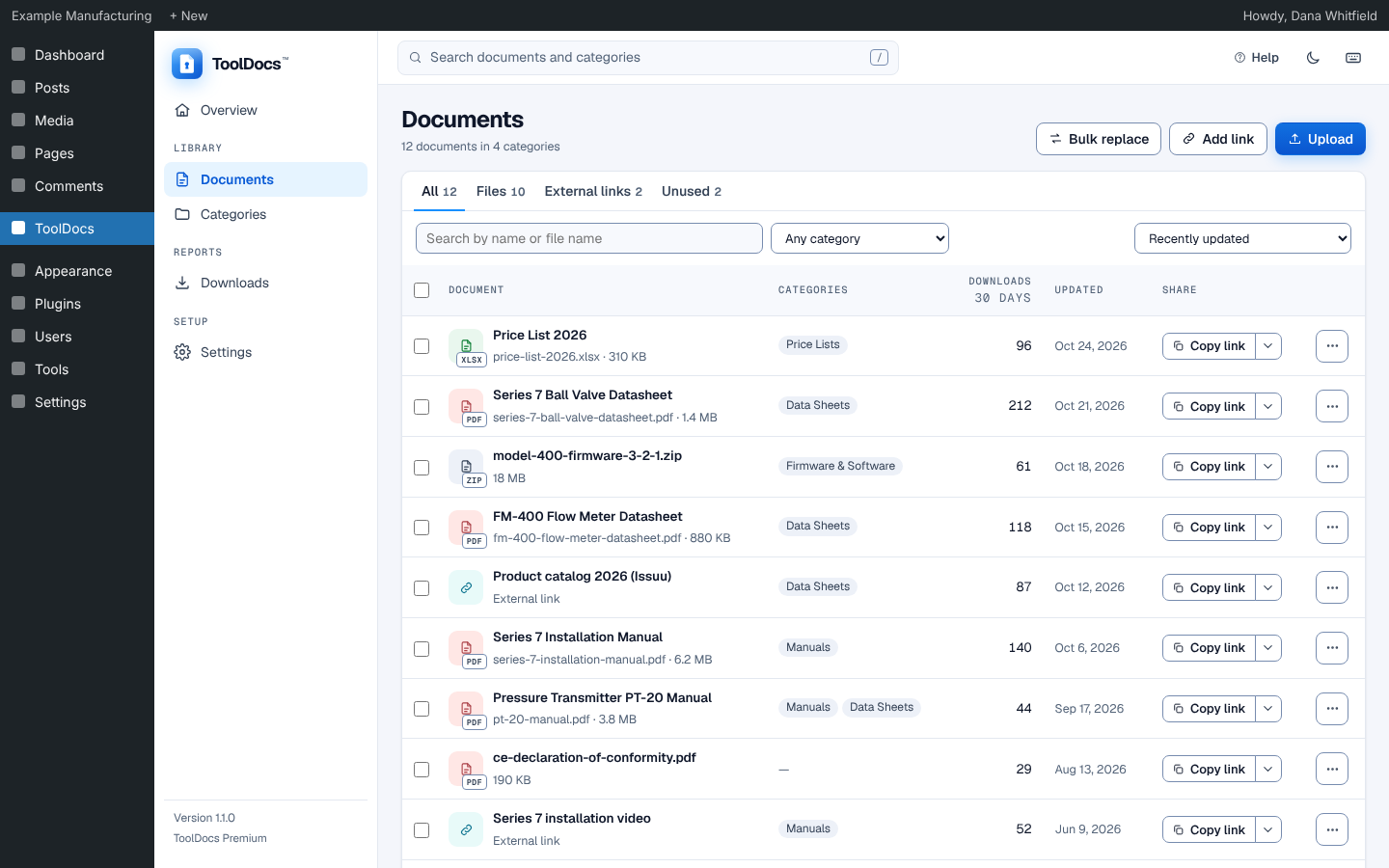
- Upload PDF, Word, Excel, ZIP and any other file type WordPress allows, by drag and drop, from any screen. Large files are sent in pieces, so uploads over 100 MB work behind proxies that limit request size.
- Add external URLs as documents with their own permalink.
- Replace a file or a link in place: the permalink, shortcodes and download count stay.
- Bulk replace: drop in a batch of new files and ToolDocs matches them to the documents they replace.
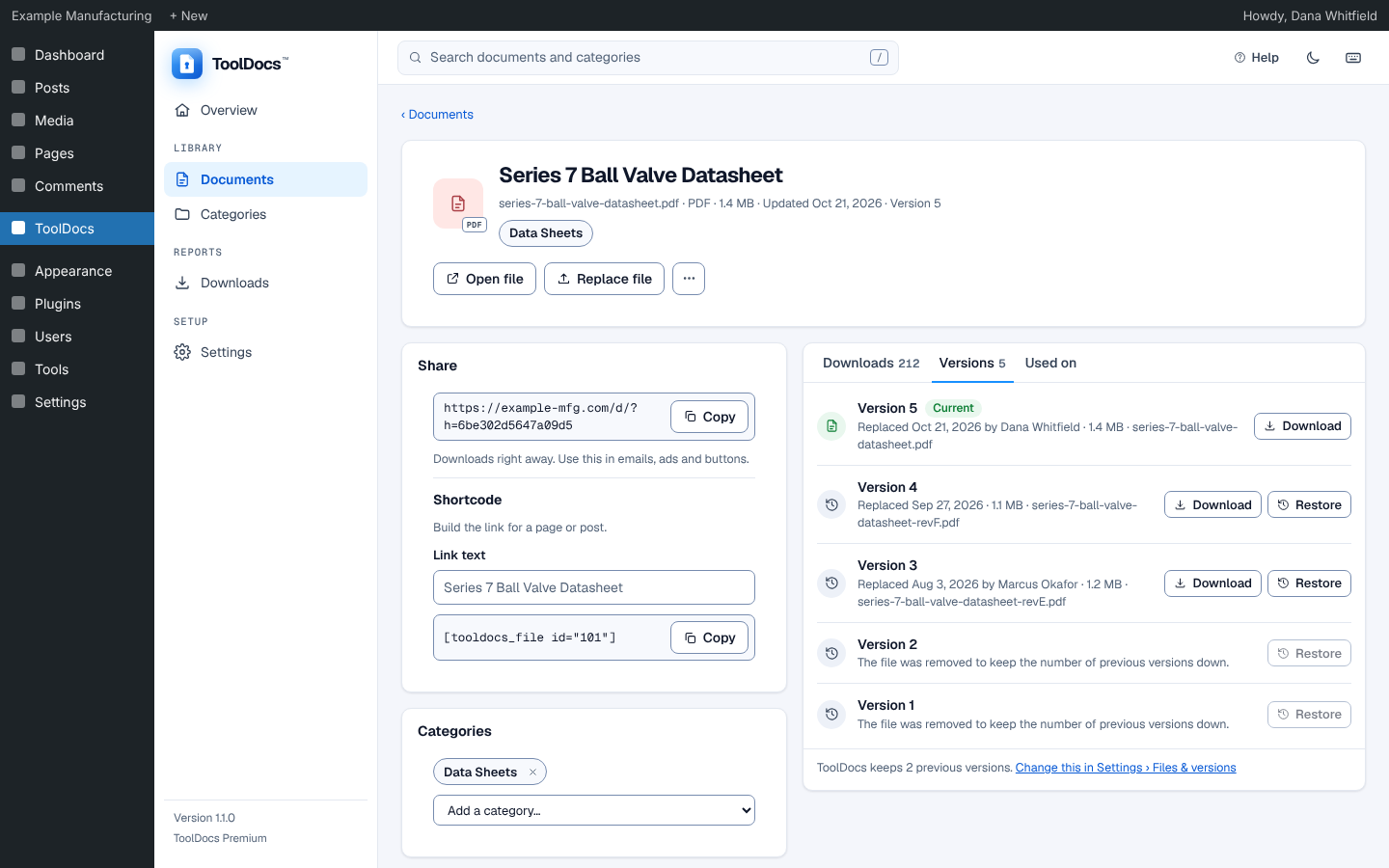
- Version history with Restore, keeping 0 to 4 previous versions.
- Give a document a display title for its links and lists, without renaming the file visitors download.
- See where a document is used: pages and posts that link to it, embed its shortcode or reach it through a category.
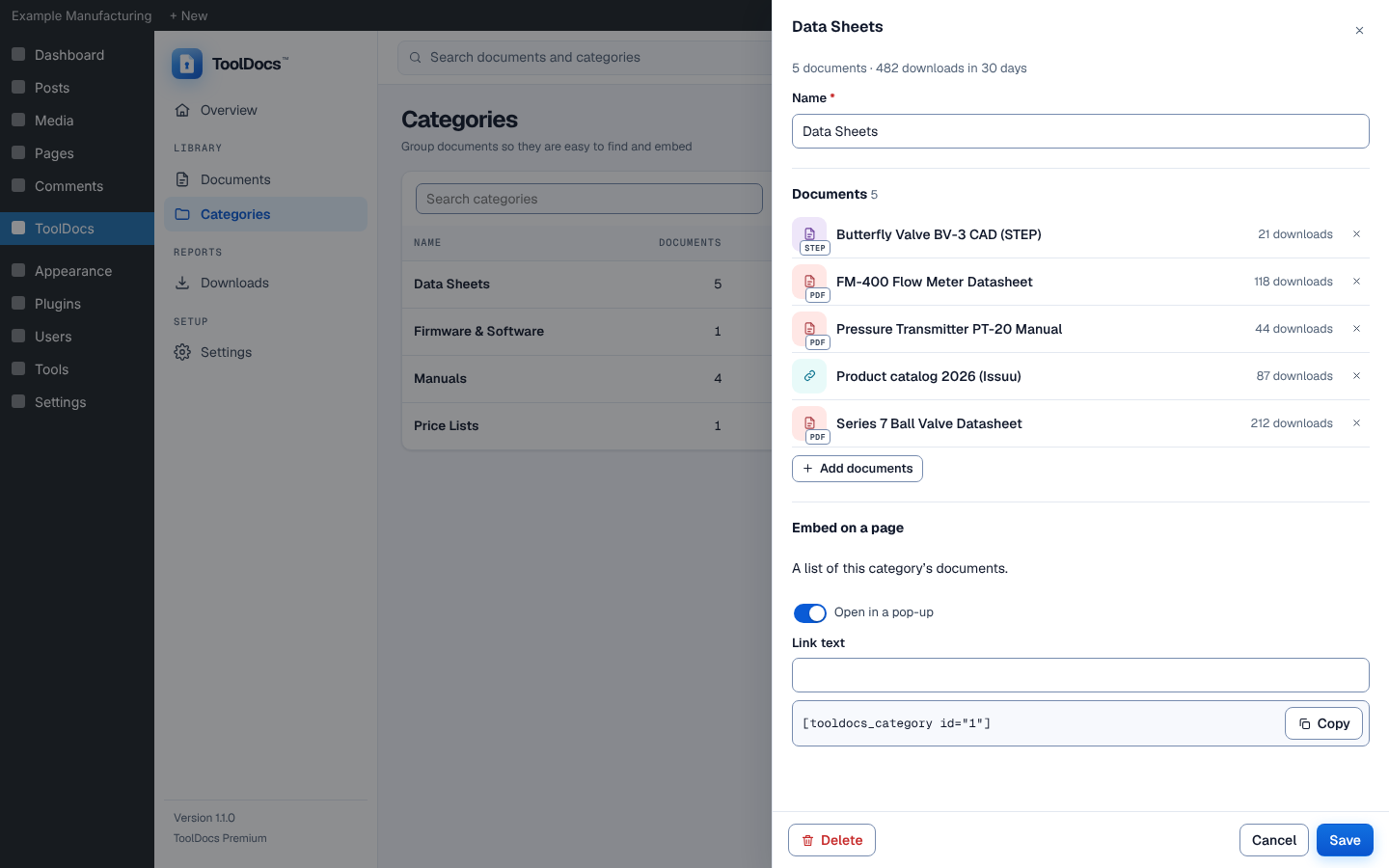
- Organise documents into categories and embed a whole category, inline or in an accessible pop-up.
Reports
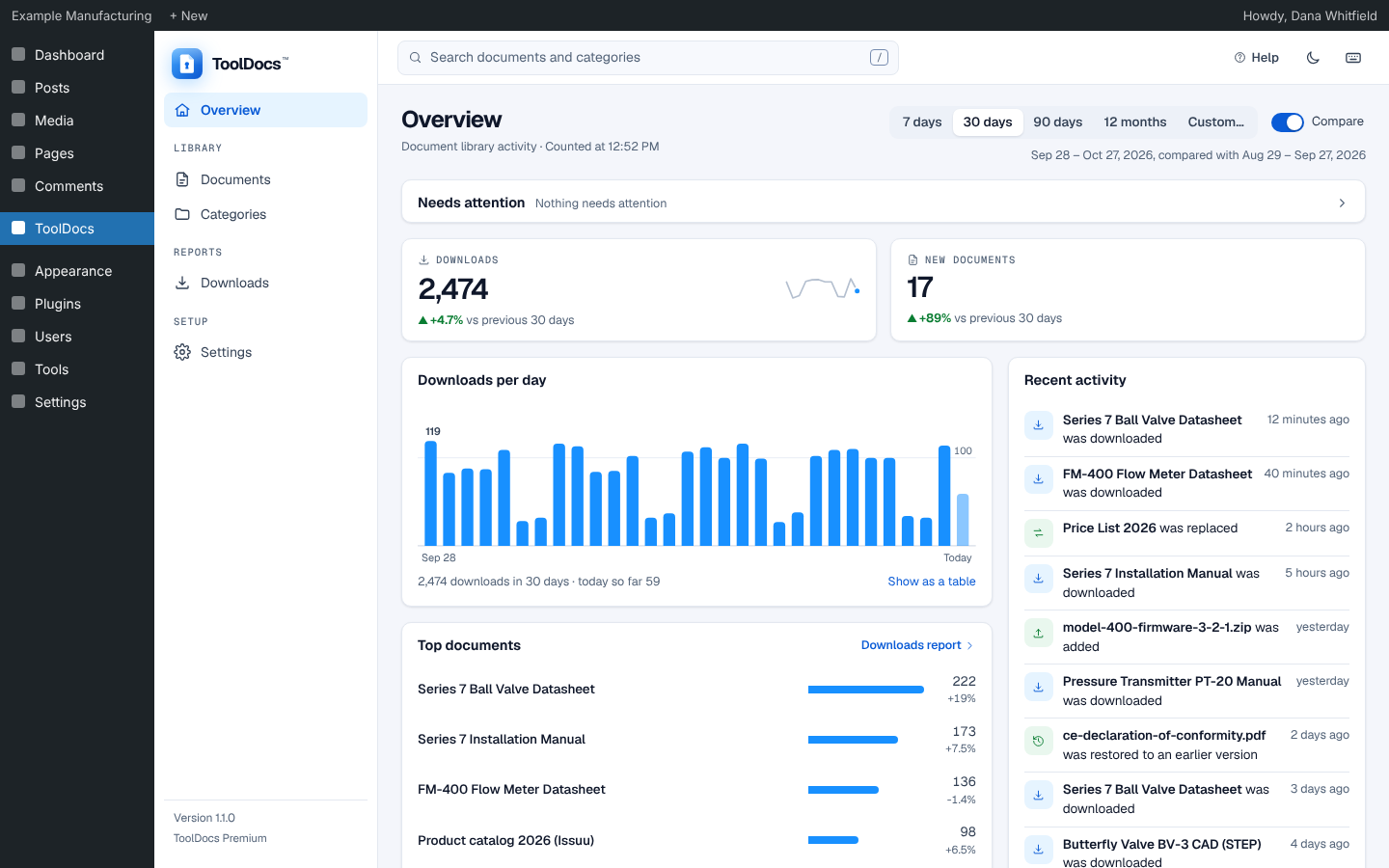
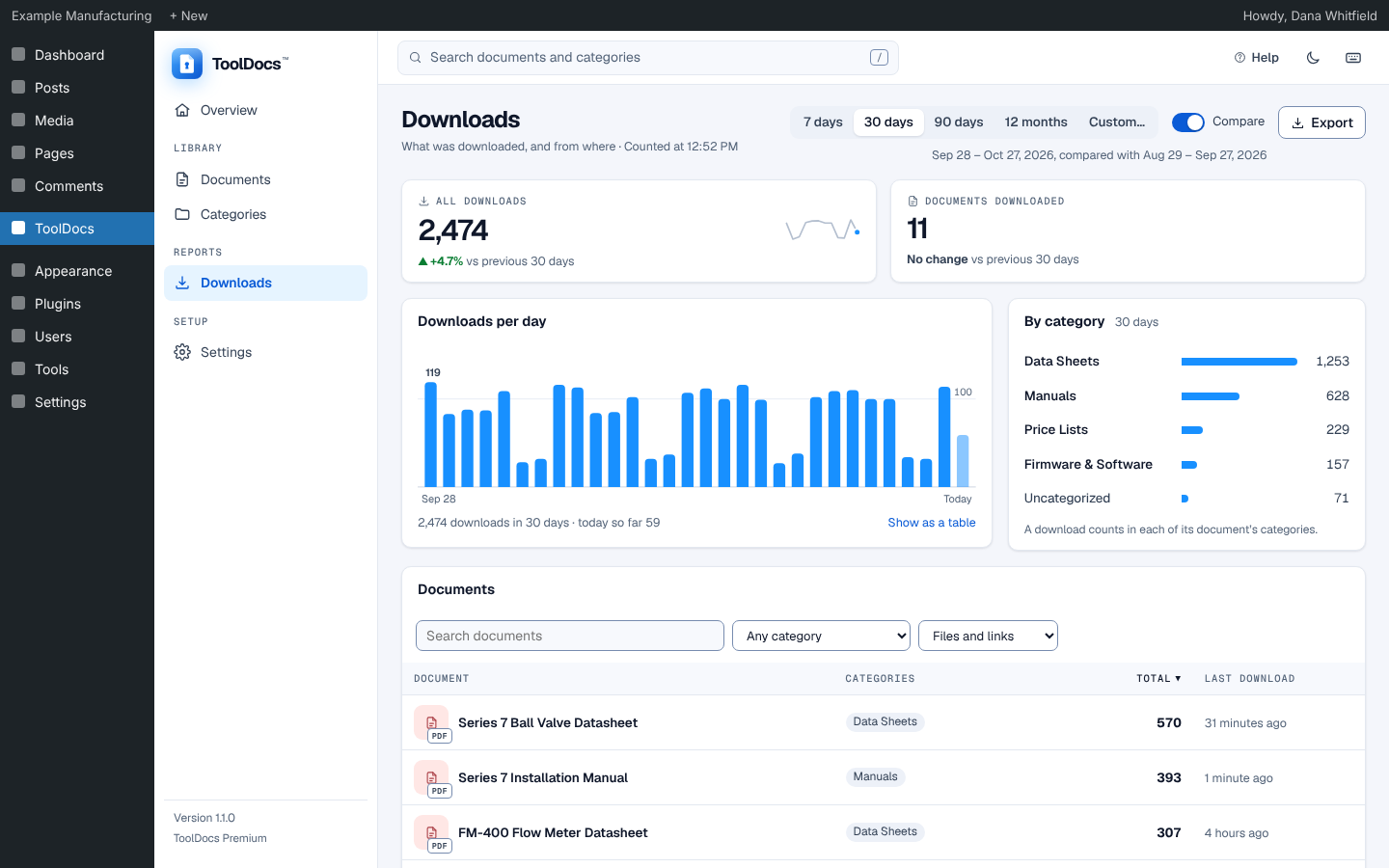
- Overview with downloads against the previous period, a daily chart, top documents, recent activity and library size.
- Downloads report: trend by day, week or month, documents, categories and where downloads start, for any date range with comparison. Export it as CSV files.
- Per-document download history with CSV export.
Admin
- A modern admin with light and dark themes, search (press
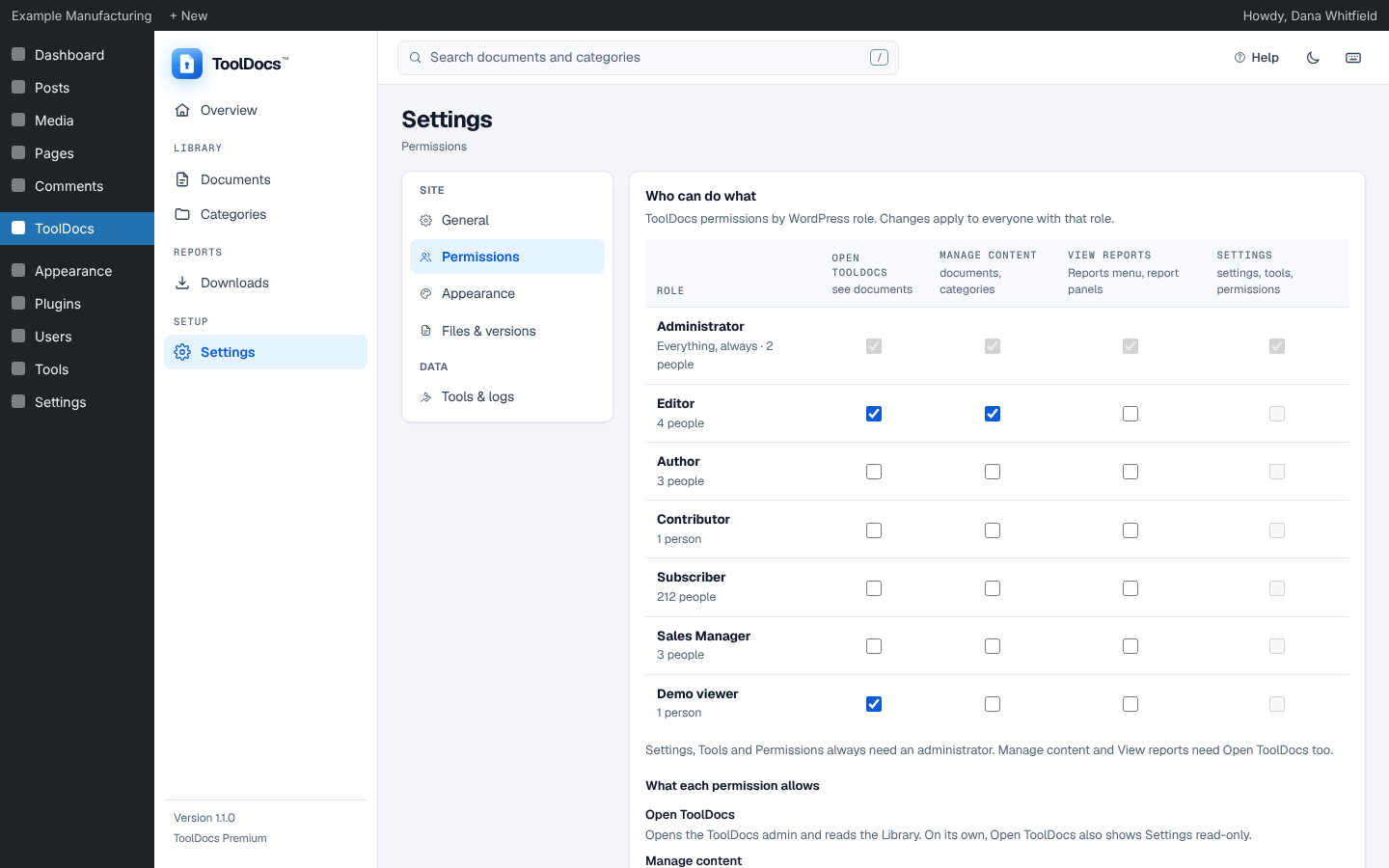
/), keyboard and screen reader support, and translatable text. - Permissions: choose which roles can open ToolDocs, manage documents and view reports, and give report access to individual people.
- Optional “Protect document files” setting that blocks direct file URLs, so documents are only reached through their tracked permalink (Apache
.htaccess; an nginx rule is shown to copy). - Documents are kept out of the public media API and attachment pages.
Shortcodes
[tooldocs_file id="X"]– a download link for one document, with its file type icon. The link shows the document’s display title, or its file name when it has none. Optionallink_text="..."sets your own text.[tooldocs_category id="Y"]– every document in a category, listed by title, behind a “View Documents” link that opens a pop-up. Optionalmodal="false"lists them on the page instead, andlink_text="..."changes the pop-up link’s text. The older[tooldocs_category_files category_id="Y"]still works.
The Document page and the category drawer in the admin build these shortcodes for you.
How it works
- Upload documents in ToolDocs › Documents, or add external URLs.
- Copy a document’s permalink or shortcode and use it anywhere on your site, in emails or in print.
- When the document changes, replace the file. Every link keeps working and points at the new version.
- Follow downloads on the Overview and in Reports › Downloads.
ToolDocs works entirely inside your WordPress site. It makes no requests to external services.
Development
The admin is a Vue 3 app built with Vite. Its source is in admin-app/src/ and the built files are in admin-app/dist/. To build it:
- Go to the
admin-app/directory. - Run
npm ci. - Run
npm run build.
The visitor-side script’s source is in front/. To build it, run npm ci and then npm run build in front/.
Third-party resources
- Vue, Vue Router, Pinia and TanStack Query (MIT), bundled in
admin-app/dist/. - Geist and Geist Mono fonts by Vercel (SIL Open Font License 1.1), bundled in
admin-app/dist/assets/; the licence is inadmin-app/dist/assets/Geist-OFL.txt. - A subset of Font Awesome Free 6 icons by Fonticons, Inc. (icons CC BY 4.0, fonts SIL OFL 1.1), bundled in
assets/fontawesome/; seeassets/fontawesome/LICENSE.txt.
Installation
- Install ToolDocs from the Plugins screen, or upload the
tooldocsfolder to/wp-content/plugins/. - Activate it through the Plugins screen.
- Open ToolDocs in the admin menu and upload your first document.
ToolDocs creates a page with the address /d/ that serves downloads. Leave it empty and published.
FAQ
What file types can I upload?
Any type your WordPress site allows: PDF, DOC, DOCX, XLS, XLSX, PPT, PPTX, ZIP and more.
How large can a file be?
As large as your server’s PHP and WordPress upload limits allow (shown in the upload dialog). ToolDocs sends files over 8 MB in pieces, so a proxy that limits the size of one request, such as Cloudflare’s free plan at 100 MB, doesn’t stop larger uploads.
Where are uploaded files stored?
In wp-content/uploads/tooldocs/ by default. You can choose another folder inside wp-content/uploads/ in Settings › General.
What happens to links when I replace a document?
Nothing: the permalink and shortcodes stay the same and now serve the new file. The previous file is kept as a version if Settings › Files & versions keeps any, and you can restore it from the document’s Versions tab.
How do I embed a document link on a page?
Use [tooldocs_file id="X"], or copy the shortcode from the document’s page in the admin. The link shows the document’s display title (its file name if it has none); add link_text="Custom text" to use your own text.
Can I display all documents in a category?
Yes. Use [tooldocs_category id="Y"], or copy it from the category in the admin. The documents open in a pop-up by default; add modal="false" to list them on the page.
I use [tooldocs_category_files] on my pages. Do I need to change them?
No. [tooldocs_category_files category_id="Y"] keeps working and shows the same list. Its new name is [tooldocs_category id="Y"], which the admin now gives you and which ToolDocs Premium uses too, so new pages should use it. With WP_DEBUG on, WordPress notes the old name as deprecated.
Who can use ToolDocs in the admin?
Administrators always can. On a new install, or when you update from 1.0.x, editors can open ToolDocs and manage documents; authors and contributors can’t. Change this in Settings › Permissions. Reports are for administrators until you give other roles or people “View reports”.
What does “Protect document files” do?
It adds a rule to the .htaccess file of each document folder so the files can’t be opened by their direct address, only through their ToolDocs permalink, which counts the download. It works on servers that read .htaccess (Apache, LiteSpeed). On nginx, ToolDocs shows a rule to add to the server configuration. It is off by default.
Can I track how many times a document has been downloaded?
Yes. Every download through a ToolDocs permalink is counted. Repeat requests from the same browser within a few seconds, browser prefetches, HEAD requests and resumed (partial) downloads are not. See the totals on the Overview, in Reports › Downloads and on each document’s Downloads tab, and export them as CSV.
Does this plugin require any external services?
No. ToolDocs works entirely within your WordPress installation.
How does Font Awesome work with this plugin?
ToolDocs bundles a small set of Font Awesome icons for its file type icons. If your theme or another plugin already loads Font Awesome, turn off “Load Font Awesome” in Settings › Appearance.
Can I switch from ToolDocs Premium to ToolDocs?
Yes. Delete the Premium add-ons, then delete ToolDocs Premium without choosing to delete its data, and install ToolDocs. Your documents, categories, download counts, permalinks and settings carry over, and [tooldocs_file] and [tooldocs_category] keep working (their gated and bypass options are ignored). Gated links open without sign-in. The legacy [td_file] and [td_category_files] shortcodes and Premium’s sign-in and registration shortcodes are not part of ToolDocs: replace or remove them first.
What is the difference between ToolDocs and ToolDocs Premium?
ToolDocs manages documents with open download links. ToolDocs Premium adds gated links that ask visitors to register or sign in first, access requests with approval, lead records, editable emails, bot protection and analytics add-ons.
Screenshots
Changelog
1.1.0
- New admin: Overview, Documents, Categories, Reports › Downloads and Settings, with light and dark themes, search (press
/), and full keyboard and screen reader support. The admin is now translatable. - New: Overview with downloads against the previous period, a daily chart, top documents, recent activity and library size.
- New: Reports › Downloads replaces Download History: trend by day, week or month, documents, categories and sources for any date range, with comparison and CSV export.
- New: document page with a share link, shortcode builder, categories, downloads, where the document is used, and Versions with Restore.
- New: a display title for each document, shown by its links and category lists (the file name when there is none); upload from any screen by drag and drop; bulk actions; filters for type and unused documents.
- New: Bulk replace, which matches a batch of new files to the documents they replace and keeps every permalink.
- New: large files upload in pieces of up to 8 MB, so files over 100 MB work behind proxies that limit request size.
- New: Settings › Permissions to choose who can open ToolDocs, manage documents and view reports.
- New: optional “Protect document files” setting that blocks direct file URLs.
- Changed: the category shortcode is now
[tooldocs_category id="Y"], the name ToolDocs Premium uses.[tooldocs_category_files category_id="Y"]is deprecated but keeps working, with the same output and attributes. - Changed: deleting the plugin with its data but keeping the files leaves those files as ordinary Media Library items.
- Changed: authors and contributors no longer have access to ToolDocs; administrators and editors keep it (see Settings › Permissions).
- Changed: exports are CSV files with unguessable names, kept in a private folder, downloaded through the admin and deleted after an hour. Cells that start with
=,+,-or@are written as text. - Changed: the shortcode icon’s default colour is
#1170e0(better contrast). A colour you chose is kept. - Changed: the category pop-up is an accessible dialog: focus moves into it and back, Escape closes it, and it is printed once per page.
- Security: documents are hidden from the public media API and attachment pages; new uploads get unguessable file names (visitors still download the original name); new permalinks are longer and random; external document URLs must use http or https.
- Fixed: downloads are counted once, not once per request a browser’s PDF viewer makes; browser prefetches, HEAD requests and resumed (partial) requests are not counted.
- Fixed: downloads support resuming and seeking (HTTP range requests).
- Fixed: the icon for external link documents was blank.
- Fixed: download links work with any download page address and with plain permalinks.
1.0.1
- Fixed the admin Premium upgrade callout rendering on top of open detail modals. Modals now correctly sit above all page content.
1.0.0
- Milestone 1.0.0 release. No functional changes from 0.9.9 — the version was raised to mark ToolDocs as stable and production-ready.
- Added ToolDocs Premium upgrade callouts in the admin: a dismissible one on the dashboard and a persistent one on the settings page, for users who want gated downloads and related features.
- Added the trademark (TM) symbol to the ToolDocs name in the plugin title and admin menu.
0.9.9
- Excel export of download statistics replaced with native CSV (ZIP of summary, by-day, by-week, by-month, and detailed CSVs). Single-file download history exports now produce a CSV file. Removes the OpenSpout dependency entirely.
- Removed legacy
[td_file]and[td_category_files]shortcodes. Use[tooldocs_file]and[tooldocs_category_files]instead. - Tightened REST upload permissions:
/upload,/upload/external, and the document replace endpoints now also require theupload_filescapability. - Hardened shortcode output: filter-provided icon HTML is now sanitized through
wp_kses()with a tight SVG-aware allowlist. - Removed the
ini_set('memory_limit', '256M')raise from the document download template; the chunked 8 KB stream keeps memory usage bounded without it.
0.9.7
- Initial release.