

Description
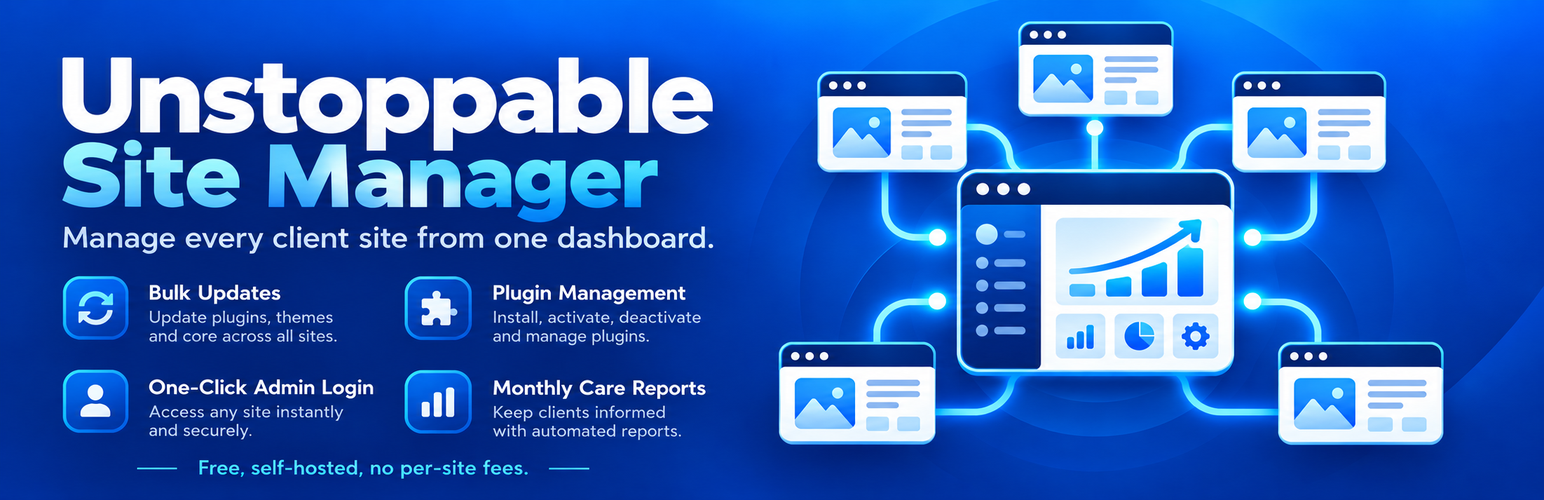
Unstoppable Site Manager turns your own WordPress site into a dashboard for every client site you look after. Install it on your site, install the free Unstoppable Site Connector on each client site, and pair them with a one-time key.
- Sites at a glance – a card for every site with pending updates, WordPress and PHP versions, SSL expiry, when it last reported and, if you turn screenshots on, a picture of its home page. Tiles at the top count plugin, theme and WordPress updates across all sites. Star your most important sites to pin them to the top.
- Updates – update one plugin on one site, everything on one site, or everything everywhere. Opening a site checks it for updates straight away.
- Plugins – one list of every plugin on every site. Activate, deactivate, update or delete across the sites you pick, or install new plugins from the WordPress.org directory, a URL or a ZIP you drop in.
- Vulnerability checks (optional) – flags plugins, themes and WordPress versions with known security problems, using the free WPVulnerability database, with severity and the version that fixes each one.
- Maintenance mode and Coming soon – from a site’s page, show visitors a Maintenance page (“back soon”, tells search engines it’s temporary) or a Coming soon page (for a site that hasn’t launched, kept out of search), with your own heading and message. Signed-in editors see the site as usual. Maintenance can switch off by itself after an hour or a day. Needs Unstoppable Site Connector 0.9.0.
- One-click sign-in – open any client’s wp-admin already signed in. No passwords are stored; each sign-in link works once and expires after 60 seconds.
- Client reports – a monthly Website Care Report for each site, with your logo and brand color: a plain-English health verdict, a health checklist, one tidy line per update, the month’s other changes, the other work you did for them and an optional personal note. Print it, save it as PDF, or email it to your client, by hand or automatically each month.
- Clients – group sites under the client they belong to, then refresh, update and pick plugins for just that client’s sites. Give each client their own report branding (name, logo, colour, wording, sender) and, if you like, your name in the admin footer of their sites.
- Move your dashboard – moving to a new WordPress install? Take every site, client, setting and report history with you. Each site hands over with a one-time code, and the old dashboard can no longer manage them.
- Bulk connect – moving from MainWP or ManageWP? Make a connector that knows your dashboard, push it to all your sites with that tool’s bulk plugin install, and every site connects itself. Upload MainWP’s site export to see which ones are still missing.
- Security you can check – a Security screen with a checklist for your dashboard, one-click locking of every client site to your dashboard’s address, and per-site permission switches. Details below.
- Uptime monitoring – every 5, 15 or 30 minutes the dashboard checks that each site answers, emails you when one goes down and again when it’s back (with how long it was down), and shows uptime on each site page and in client reports.
- SSL and domain expiry alerts – a daily check of each site’s SSL certificate, and (optional) its domain registration date, with emails before either runs out.
- Background checks and a daily email – while you’re away, the dashboard checks every site for new updates, daily or every 6 hours, one site at a time. Optionally, a morning email lists only what needs you: known vulnerabilities, sites not answering, SSL certificates about to expire, sites left in maintenance mode, and pending updates.
- Built not to time out – bulk jobs run one site at a time from your browser, and a site that fails is reported and skipped. Client sites push their own reports, so your dashboard isn’t polling all day.
How it differs from other site managers
- Self-hosted, no outside service. The dashboard is a plugin on your own WordPress site. Your client list, keys and reports never pass through Unstoppable Solutions or any other company’s servers.
- Complete and free. Every feature described here is in this plugin. There are no paid extensions, no add-on store and no license key.
- Client reports included. Branded monthly Website Care Reports, built from each site’s own activity log, ready to print, save as PDF or email on a schedule.
- Finds updates for paid plugins that hide them. Update checks run inside each client site’s admin area, so plugins that only look for updates there (such as Crocoblock’s Jet plugins) are found and updated too.
- Client sites keep control. Each site’s own security settings can only be made stricter from the dashboard (see Security below).
Security
Your dashboard can update and sign in to every connected site, so it is built to be hard to abuse even if something goes wrong:
- No client passwords are stored. Each site trusts your dashboard’s public key. Every request is signed, expires after 5 minutes and can only be used once.
- Client sites have the last word. Each site’s connector has its own security settings: allowed dashboard addresses, what the dashboard may do, and alert emails. From the dashboard they can only be made stricter. Loosening them is only possible in that site’s own wp-admin. (One-click login and installing plugins from a ZIP each give the dashboard full control of a site, so switch them off where you don’t need them.)
- Lock sites to your dashboard’s address. One click locks every site to the address your dashboard’s requests come from, so a stolen key is useless anywhere else. A site that refuses a correctly signed request tells you about it, by email and on your dashboard.
- Keep the signing key out of the database. Move it to wp-config.php, so a leaked backup or an SQL injection in another plugin can’t be used to control your sites. If the key ever goes missing, the dashboard stops and says so; it never quietly makes a new one.
- Choose who can use it. Limit the dashboard to chosen administrator accounts. Others don’t see it and can’t send anything to your sites.
- A checklist for HTTPS, two-factor sign-in and file editing, with clear steps when something needs attention.
Previously released as FM Dashboard. Installing Unstoppable Site Manager on a site that has FM Dashboard carries over every site, key, screenshot and activity entry, so client sites stay connected; you can then deactivate and delete FM Dashboard.
External Services
This plugin connects to the following services.
Your client sites (Unstoppable Site Connector). To show status, run updates, manage plugins and sign you in, the dashboard sends signed requests to each client site you paired, and receives status reports from them. Nothing is sent to Unstoppable Solutions.
Your client sites, directly (uptime and SSL checks). Every few minutes (Settings > Uptime and expiry alerts; can be switched off) the dashboard loads each client site’s home page to see whether it answers, and once a day it reads the site’s SSL certificate. These requests go only to your own client sites.
RDAP domain lookups via rdap.org (optional, off until you turn on Domain expiry in Settings). To warn you before a client’s domain registration runs out, each domain name (only the name, for example example.com) is sent to https://rdap.org/, which forwards the request to that domain’s registry; the registry returns the public registration record. Once a week per domain, daily in the last 30 days. rdap.org, operated by Gavin Brown under the ICANN RDAP framework.
Unstoppable Solutions PageSpeed relay (optional, off until you turn on Page speed in Settings; not used if you add your own Google API key). To get a page speed score without a Google key of your own, the public address of each client site’s home page and an anonymous id for your dashboard (a one-way hash, so each dashboard gets a fair daily share) are sent to the relay at https://wootest.online/wp-json/unstoppable-relay/v1/pagespeed, run by Unstoppable Solutions. The relay asks Google PageSpeed Insights (below) with its own key and returns only the score and five timings; it keeps a count of checks per dashboard and the last answer for each address for up to an hour, nothing else. About once a week per site, and when you click Check now. Unstoppable Solutions, Privacy Policy.
Google PageSpeed Insights API (optional, off until you turn on Page speed in Settings). Each client site’s home page address (only the address) is sent to https://www.googleapis.com/pagespeedonline/v5/runPagespeed, directly with your own API key if you add one, otherwise through the relay above. Google loads that page as a phone would and returns a performance score and timings. About once a week per site, and when you click Check now. Provided by Google: Terms of Service, Privacy Policy.
WordPress.com mShots (optional screenshot service, off by default; turn it on under Settings > Screenshots). Only when you turn it on, the public address of each client site is sent to https://s0.wp.com/mshots/v1/ to show a thumbnail of its home page (when a site is added and weekly). Provided by Automattic: Terms of Service, Privacy Policy.
A screenshot service of your choice (optional). If you enter your own screenshot API address in Settings, client site addresses are sent to it instead. That service’s own terms apply.
WPVulnerability (optional, off until you turn on Vulnerability checks in Settings). To flag plugins, themes and WordPress versions with known security problems, their names (slugs) and WordPress version numbers are sent to https://www.wpvulnerability.net/. Client site addresses are not sent. Each item is looked up at most every 12 hours. Website and terms.
WordPress.org Plugin Directory. When you search for plugins on Plugins > Add plugin, your search terms are sent to https://api.wordpress.org/plugins/info/ and plugin icons load from WordPress.org. Privacy Policy.
WordPress.org Plugin Directory downloads. The Add Site screen’s “Download the connector ZIP” button, and the bulk-connect connector, use the current Unstoppable Site Connector release from https://downloads.wordpress.org/. The bulk-connect copy is downloaded only when you click its download button.
Temporary plugin hosting on your own site. A ZIP you drop on Plugins > Add plugin, or one you install by web address (which this dashboard downloads from that address once), is kept in this plugin’s own database table for up to 6 hours at an unguessable address so your client sites can download it, then deleted. No plugin files are written to your uploads folder. Client sites only install plugin files from WordPress.org or from your dashboard.
Can other plugins add to the client reports or check email delivery?
Yes. These hooks run on the dashboard site when a report email goes out:
usmd_report_email(filter): the email before it is sent, asto,subject,htmlandheaders, plus the site, month and whether it is a test.usmd_report_sections(filter): add sections to the end of the report. Each section is an array with atitleandhtml; the HTML is filtered to what posts allow.usmd_report_before_send,usmd_report_sentandusmd_report_failed(actions): before sending, when the mail server accepted the email, and when it did not.
“Sent” in Site Manager means your mail server accepted the email, which does not prove it reached the inbox. When sending fails, the reason from WordPress’s wp_mail_failed is shown with email addresses, passwords and login strings removed.
Installation
- Install and activate Unstoppable Site Manager on your own site.
- On each client site, install and activate Unstoppable Site Connector (Plugins > Add New, search for it) and go to Tools > Unstoppable Site Connector > Generate connection key.
- Paste the key into Unstoppable Site Manager > Add Site.
FAQ
Does it store my clients’ passwords?
No. Your dashboard and each client site are paired with key pairs, and every request is signed. Changing passwords or usernames on a client site doesn’t affect the connection.
Who can use it?
Administrators of the site it is installed on, or only the administrators you choose under Unstoppable Site Manager > Security. Run it on its own WordPress site rather than your business website, keep plugins there to a minimum, and use two-factor sign-in.
What happens if my dashboard site gets hacked?
It is the most important site you run, so protect it like one (the Security screen has a checklist). But it is also built so that a stolen key isn’t enough: lock your client sites to the dashboard’s address and a request signed with the key from anywhere else is refused and reported. Each client site can also switch off risky actions, such as installing plugins from a ZIP file, and only someone with admin access to that site can switch them back on. If you think the dashboard was compromised, the Security screen walks you through disconnecting your sites and starting over with a new key.
How do I report a security problem?
Please email support@unstoppablesolutions.app privately with the details instead of posting publicly. You’ll get a reply within two business days.
Changelog
0.26.8
- Improved: when a report email fails, the Reports screen now shows the mail system’s actual reason (from wp_mail_failed), with email addresses, passwords and login strings removed.
- Changed: Site Manager now says a report was “accepted by your mail server” rather than “emailed”, because a mail server accepting a message does not prove it arrived.
- New for developers: hooks around report emails (usmd_report_email, usmd_report_sections, usmd_report_before_send, usmd_report_sent, usmd_report_failed), so mail and deliverability plugins can add their own checks and report sections. See the FAQ.
0.26.7
- New: “Skip these, don’t send” on the reports-overdue notice. It asks first, then marks that month’s waiting reports as handled without emailing anyone, so the notice goes away and automatic sending leaves them alone. A report sent earlier in the month is kept as that month’s report. Any of them can still be sent by hand from the Reports screen, which shows “Skipped” next to them.
0.26.6
- Fixed: a client report sent before its month ended (for example a test, or “this month so far”) is now sent again in full once the month is over, whichever button you use. Before, the Reports screen’s month button skipped those clients while the Sites screen kept saying their reports had not gone out.
- Improved: the overdue notice reads “15 reports for October 2026 have not gone out yet” (it could be read as a date before), and says when reports were sent before the month ended.
0.26.5
- Maintenance: adds a missing note for translators on the Reports screen message (0.26.2 to 0.26.4 did not reach WordPress.org). No change in how the plugin works.
0.26.4
- Maintenance: same as 0.26.2 and 0.26.3, which did not reach WordPress.org. Adds a missing note for translators on the Reports screen message. No change in how the plugin works.
0.26.3
- Maintenance: same as 0.26.2, which did not reach WordPress.org. Adds a missing note for translators on the Reports screen message. No change in how the plugin works.
0.26.2
- Maintenance: added a missing note for translators on the Reports screen message. No change in how the plugin works.
0.26.1
- Improved: you can now see exactly what happened when sites update. While updates run, each site is listed with every plugin, theme and WordPress update and its result: ✓ updated (with old → new version), ✕ failed, or – already up to date. Failures come first.
- New: a plain-English reason for each failed update (licence not active, server timed out, folder permissions, out of disk space and so on), with what the site actually said one click away.
- New: Try again. Retries only the items that failed, from the progress box or the site page.
- New: a Last update box on each site page shows what was updated, when and by whom.
- Improved: the summary at the end of a run says how many updates were installed, how many failed and how many sites were already up to date.
0.26.0
- New: Users. Every staff account (administrators, editors, authors and the like) on every site in one list, with email, role, when it was added and last sign-in, filters by role and a search. Subscribers and shop customers are only counted. Open takes you to that user in the site’s wp-admin, already signed in.
- New: a new administrator on any site is logged in its activity, flagged on its card (“New admin”) and listed in the daily email for a week.
- New: Posts & Pages. The most recently changed posts and pages on every site, with scheduled, pending and draft counts and filters. Edit opens it in the site’s editor, already signed in.
- Both screens filter by site, client and group, and each site’s page links to its own users and posts.
- Needs Unstoppable Site Connector 0.12.0 on each site. A site’s administrator can switch sharing this off under Tools > Unstoppable Site Connector > Security.
0.25.1
- Reconnect: each site page has “Reconnect this site with a new connection key”. After a migration, a new host or address, or reinstalling the connector, paste a new key and the site keeps its history, client, group, notes and report settings; a changed address is updated too. It opens by itself when the site has lost its connection.
- Monthly reports: also started from the five-minute uptime run, so they go out even when WordPress’s hourly schedule is late or lost.
- If reports haven’t gone out two hours after the chosen time, the Sites and Reports screens say so, with a Send now button that also retries failed ones.
- A failed report shows why, on the site’s Client box and the Reports screen. One report that can’t be built no longer stops the others, and a send the server cut off is reported instead of silently skipped.
- Settings > Report emails shows when automatic sending last ran and what it sent.
- Sites screen: Refresh all and Update all never run at the same time, the button shows progress (“Updating 3 / 15…”), and both always come back when the run ends, even if a site sends an unexpected answer.
- Reports screen: pick any month, including this month so far, and email that month’s report to every client with monthly email on, or to every client with an email. Clients who already have it are skipped. A report sent before its month ends still goes out in full when the month is over.
0.25.0
- Security: requests to sites running Unstoppable Site Connector 0.11.0 or later name the site they are for, so a request can’t be replayed to another site. Update the connector on your sites (it updates like any plugin).
- Security: one-click login only opens plain web links returned by the site, never javascript: or data: links.
- Security: signed requests and pairing no longer follow redirects; connection keys must point at one website; a site can’t pair with an id that belongs to another site.
- Security: reports from sites are size-limited and checked, so a broken or hostile site can’t break the dashboard’s screens.
- Security: FM Dashboard’s leftover copy of the signing key is removed after the takeover.
- New public address /wp-json/usmd/v1/pubkey with this dashboard’s public key (nothing secret), which connectors 0.11.0 check before accepting a dashboard move.
0.24.0
- Page speed (off until you turn it on, no key needed): each site’s home page is checked with Google PageSpeed Insights about once a week. The mobile score (0 to 100) shows on the site’s card and page with its main timings, a Check now button and a link to Google’s full report. Client reports include it, and the daily email says when a score drops. Checks go through the free Unstoppable Solutions relay, or straight to Google with your own free API key.
0.23.0
- Groups: sort sites into named, coloured groups (“Churches”, “Hosting plan A”). The Sites screen shows Starred, then each group as its own section, then sites with no group. Fold sections away, and Refresh or Update one section on its own.
- Group by Group, Client or None (remembered for each user).
- Select sites: tick several cards (or click them) and move them into a group in one go. Each site page has a Group box, and Groups lets you rename, recolour and delete groups.
- Moving a dashboard brings its groups along.
- Site page: “Update all” next to Refresh now, and an “Update to x.y” button on each plugin, theme and WordPress row and next to each vulnerability an update fixes, to update just that one.
0.22.3
- When a site blocks the dashboard, the error names what blocked it when it can tell (Cloudflare, Wordfence, Sucuri, Imunify360, ModSecurity and other common firewalls), so you know where to allow it.
0.22.2
- A site whose firewall or security plugin blocks the dashboard (HTTP 401/403) now shows “Blocked” instead of “Offline”, with what to allow. Other sync errors show “Can’t sync”. Only a site that cannot be reached shows “Offline”.
0.22.1
- Fewer false “site down” alerts: uptime checks go a few sites at a time with more time per site, a failed check is tried again, and a site whose WordPress still answers (only the home page is slow or blocked) is never reported as down. A site must keep failing for 10 minutes (5, 15 or 30 in Settings) before it counts as down.
0.22.0
- Client reports: a Security section that names items with known vulnerabilities (severity, and the version that fixes them) and lists “Security fixes this month” from the updates you ran. Needs Vulnerability checks on.
- Work notes: optional time spent (hours and minutes) per task, totals on the report box, and time per client for this month and last month on the Clients screen. Shown on client reports only if you turn that on in Settings.
- Favorite plugin sets on Add plugin: save the install list (directory plugins and web addresses) as a named set and add it to the list in one click.
- WooCommerce shortcuts on a store’s site page: Orders, Products, Analytics, Status and Settings open the store’s admin already signed in.
- Optional menu position (Settings > Menu, off by default): show the menu just below Comments.
- Site Manager in the top toolbar: updates waiting as a red count, sites needing attention, and links to every screen (Settings > Menu to switch it off).
- Client form: empty fields now say “Default: …” so it’s clear where their value comes from.
- “Connector shown as” (Settings and per client): the name the connector has in client sites’ plugin list. It stays visible; needs Unstoppable Site Connector 0.10.0.
0.21.0
- A short “Enjoying Unstoppable Site Manager?” line in the footer of the plugin’s own screens, with a link to rate it on WordPress.org.
- One review request, only on the plugin’s own screens and only after 14 days with at least 3 connected sites: Leave a review, Maybe later (asks again in 30 days) or Don’t ask again. It asks at most twice, and links to support if something isn’t working.
0.20.0
- Uptime monitoring (Settings > Uptime and expiry alerts): the dashboard checks every site’s home page every 5 minutes (or 15 or 30, or off), twenty at a time. Two failures in a row mark a site Down: a Down tag on its card, an email, and an entry in its activity log; another email when it’s back, with how long it was down. A 503 during maintenance mode counts as up, and when most sites fail at once (the dashboard’s own connection) no alerts go out.
- Uptime on the site page (response time, last 30 days) and an Uptime line in client reports.
- SSL expiry alerts: once a day the dashboard reads each site’s certificate as a visitor would, and emails you at 14, 7, 3 and 1 days and if it expires.
- Domain expiry alerts (off until you turn them on): registration expiry dates from public RDAP data, emails at 30, 14, 7 and 1 days.
- Page speed (off until you turn it on): a weekly Google PageSpeed Insights score for each site’s home page, on the card and site page, in client reports, and in the daily email when it drops. No key needed, or use your own free Google API key.
- The daily email now includes sites that are down and domains expiring within 30 days.
0.19.0
- Background update check (Settings > Background checks and daily email): the same fresh check as Refresh now, on every site, one at a time, daily (finishing before your morning email) or every 6 hours. On by default (daily); no browser tab needed.
- Daily “needs attention” email (off until you switch it on): known vulnerabilities, sites not answering, SSL certificates expiring within 14 days, sites left in maintenance mode for over a day, and pending updates. Pick the hour and the address; nothing to report, no email. “Send a test email now” shows what it looks like.
0.18.0
- Maintenance mode and Coming soon page: pick a template on a site’s page, add your own heading and message and an optional time to switch off by itself. Sites showing either page get a Maintenance or Coming soon tag on the Sites screen, and switching it on and off is in the activity log and reports. Needs Unstoppable Site Connector 0.9.0; each site can switch it off for the dashboard.
0.17.3
- Monthly report emails on big dashboards: sent in batches of up to 50 (or 20 seconds) with a follow-up batch two minutes later, instead of 10 an hour. 339 automatic reports now go out in about half an hour instead of a day and a half.
- The sent-reports log keeps the last 13 months per site, so it stays small with hundreds of sites.
0.17.2
- Old connectors tile and notices: the connector is on WordPress.org, so they now say it updates like any plugin (and link to Plugins) instead of pointing to Add plugin.
0.17.1
- Site page: Activate, Deactivate and Delete links under each plugin (hover the row), and an Add plugin button next to the Plugins heading. The connector itself has no links, so it can’t be switched off by mistake.
- Add plugin opened from a site page: the back arrow returns to that site.
0.17.0
- Move dashboard (Add Site, below bulk connect): move all your sites, clients, settings and report history to another WordPress install (for example from a test site to its permanent home). Sites hand over with a one-time code that only works for the new address, and the old dashboard can no longer manage them. Needs Unstoppable Site Connector 0.8.0 on each site.
0.16.0
- Site page: Install plugins button opens Add plugin with just that site selected.
- Fix: typing in the Client box on a site page while the page was checking the site no longer gets wiped.
- Clients: group sites under the client they belong to (Unstoppable Site Manager > Clients, or the Client box on a site page).
- Pick a client on the Sites screen to see, refresh and update just their sites; the tiles count only their sites too.
- Pick a client’s sites in one click on Plugins and Add plugin.
- Per-client report branding: agency name, logo, colour, introduction, contact line, email subject and sender. Empty fields use Settings.
- List view on the Sites screen (the list button next to S, M, L): one row per site, no screenshots. Remembered in your browser.
- Client site admin footer: your name and link at the bottom of client sites’ admin screens instead of “Thank you for creating with WordPress” (Settings, or per client). Needs Unstoppable Site Connector 0.7.0; never shown on the public site, and each site can switch it off.
0.15.1
- A dashboard page left open for a day no longer shows every site as failing: when WordPress’s security token expires, the page gets a new one and carries on. If you have been signed out, it says so once instead.
0.15.0
- Screenshots are now off until you choose a screenshot service in Settings, because the service receives your client sites’ addresses.
- Plugin ZIPs held for client sites are now kept in the database instead of the uploads folder, and are deleted after 6 hours. Old copies in uploads/usmd-packages and uploads/usmd-connector are removed.
- The connector ZIP now comes straight from WordPress.org: Add Site links to the WordPress.org download, and the bulk-connect connector is built from it when you download it.
- The menu item now sits below the core WordPress menus.
- Requires WordPress 6.2 or newer.
0.14.1
- Unstoppable Site Connector is now on WordPress.org: Add Site links to its listing and opens the client site’s Add Plugins screen searched for it.
0.14.0
- Bulk connect (Add Site > Connect many sites at once): make a connector that knows this dashboard, install it on all your sites with MainWP, ManageWP or any bulk tool, and each site connects itself. Time-limited, site-limited and cancellable.
- Check against your MainWP list: upload MainWP’s site export to see which sites have not connected yet.
0.13.3
- Installing a plugin by web address: the dashboard downloads it once and client sites fetch it from the dashboard. FM Dashboard is no longer switched off automatically.
0.13.2
- Faster refresh: “Refresh all” checks four sites at once (updates run two at a time), vulnerability lookups run side by side with a shorter timeout and back off for an hour when the service fails, and the activity request is skipped when a site has nothing new.
0.13.1
- “Tested up to” now lives only in readme.txt, as WordPress.org requires.
0.13.0
- Work notes: record work you did for a client outside of updates (task name, date, description) from the report screen. Tasks appear in a “Work we did for you” section on that month’s report and report email.
0.12.2
- Email this report: the address you type is saved as the client’s report email (unless you untick it), and you can switch on the monthly automatic email right there.
0.12.1
- WordPress.org readiness: Plugin Check fixes (translator comments, prepared SQL, WordPress file functions), a languages folder, and a security contact.
0.12.0
- New Security screen: a checklist for the dashboard, who may use it, moving the signing key to wp-config.php, and every client site’s connector security settings.
- Lock all client sites (or one) to this dashboard’s address in one click. Sites that refuse a correctly signed request from elsewhere are flagged on the dashboard.
- Switch off one-click login, updates, plugin changes or installs on any site from its page. Only the site itself can switch them back on.
- The signing key can live in wp-config.php (USMD_SECRET_KEY). A missing key now stops signing with a clear message instead of making a new key.
- Limit the dashboard to chosen administrators (or USMD_ALLOWED_USERS in wp-config.php).
- Client sites’ security alerts name the dashboard user who acted.
- Needs Unstoppable Site Connector 0.5.0 on each site for the new site controls.
0.11.5
- Add Site: removed the WordPress.org link until the connector is listed there.
0.11.4
- Add Site: clear “Save the connector here for future sites” steps, a reminder to click Save after choosing the file, and a confirmation showing the saved version and date.
0.11.3
- Add Site: the connector page is now a Download button, and the “keep a copy” box explains it only stores the ZIP on your dashboard.
0.11.2
- Reports tell you (on screen only) when no logo is saved or the saved logo can’t be loaded, and why.
0.11.1
- Choose the report logo from the Media Library, with a live preview and a warning when an address doesn’t load as an image.
- If a report logo can’t load, the agency name is shown instead.
0.11.0
- Add Site keeps a copy of the Unstoppable Site Connector ZIP to download any time: upload it once, and pushing a newer connector to your sites keeps it current.
- The client-site shortcut on Add Site now opens the site’s Upload Plugin screen.
0.10.2
- New “Your email” setting for report test copies, blind copies and the default From and reply address, instead of always using the site’s admin email.
0.10.1
- Report header setting: show your logo and agency name, the logo only, or the name only, on reports and report emails.
0.10.0
- Email client reports: send any report by email (or a test to yourself), and send last month’s report automatically on a chosen day each month.
- Client details on each site: contact name, report email addresses and an automatic-email switch.
- New Reports page: every site’s report contact, schedule and last send, with View and Send buttons.
0.9.0
- Optional vulnerability checks using the free WPVulnerability database: a badge on site cards, a Vulnerable items tile, a Security section on each site page with severity and the version that fixes each issue, and a line in client reports.
0.8.1
- Works with Unstoppable Site Connector 0.4.1, which finds and installs updates for paid plugins that only check for updates inside wp-admin (such as Crocoblock’s Jet plugins).
- A site whose server blocks loopback requests now shows a warning on its page.
0.8.0
- Redesigned client report: health verdict and checklist, one line per updated item, grouped site changes, a personal note per report, report accent color and contact line in Settings, cleaner printing.
- Admin notices no longer appear inside reports.
0.7.0
- Renamed from FM Dashboard to Unstoppable Site Manager. Existing sites, keys, screenshots and activity are carried over automatically.
- Works with both Unstoppable Site Connector and the older FM Connector.