


Description
“This file exceeds the maximum upload size for this site.” “The uploaded file exceeds the upload_max_filesize directive in php.ini.” “413 Request Entity Too Large.” If you’ve tried to upload a video, a podcast episode or a large PDF to WordPress, you’ve probably seen one of these. Or you watched an upload crawl to 90%, lost your connection, and had to start over.
Uploads Unleashed sends each file in small chunks, using the open TUS resumable upload protocol. Every chunk is far below your server’s limit, and the server puts the file back together when the last one arrives.
- Get past upload size limits. Upload files larger than PHP’s
upload_max_filesizeandpost_max_size, without editingphp.inior asking your host. On a single site, the maximum upload size WordPress shows becomes the free disk space in your uploads folder. - Don’t start over. If a chunk fails, for example because of a network hiccup or a server timeout, it’s retried a few times on its own. If that isn’t enough, you go offline, or you reload or close the tab, select the same file again within 24 hours and the upload continues from the last chunk the server received.
- Nothing to set up. Activate it and upload the way you always do. There’s no settings page.
Where it works
- Media Library (Media → Library, grid view)
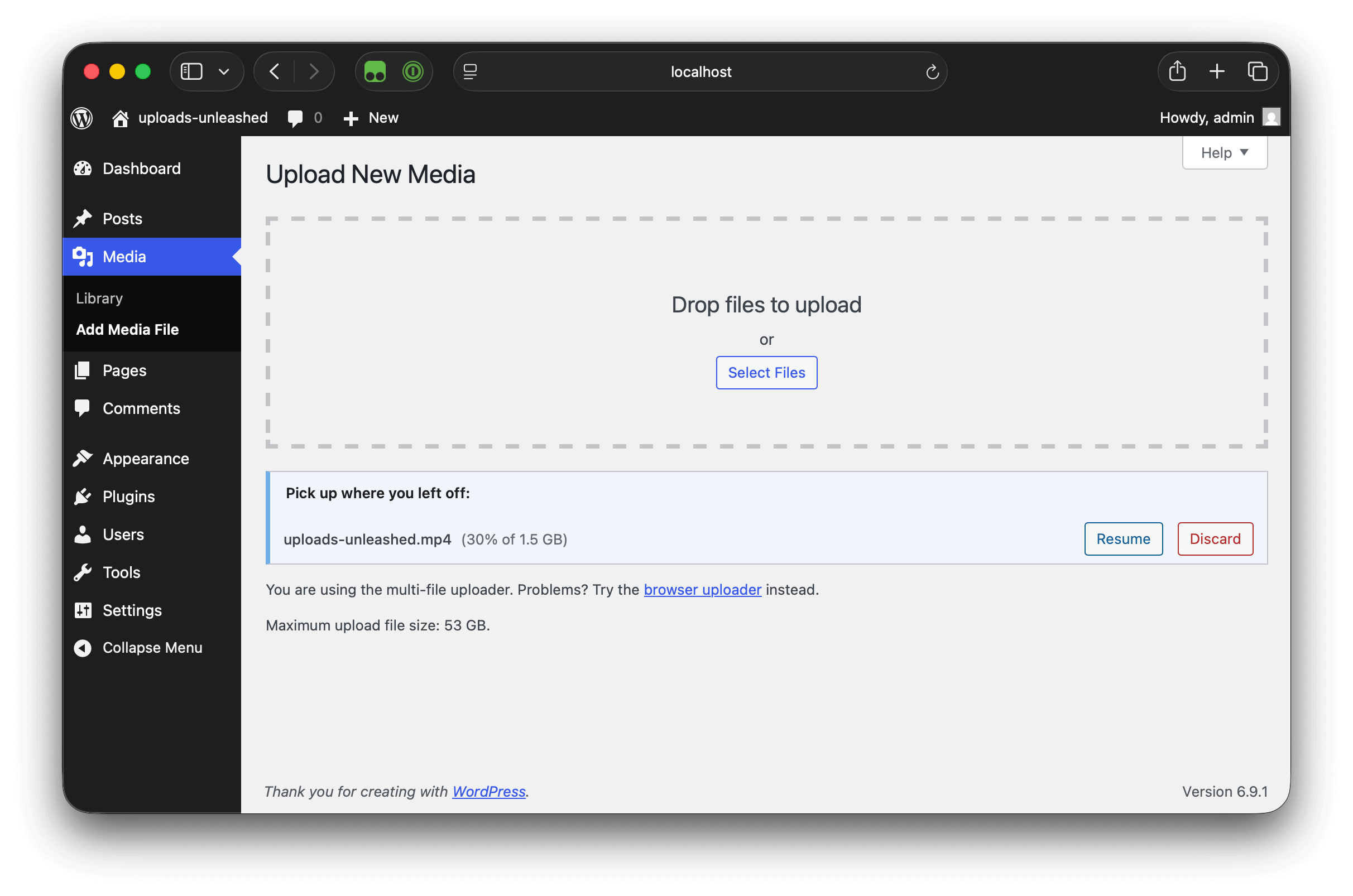
- Add New Media (Media → Add Media File), which also lists interrupted uploads with Resume and Discard buttons
- Block editor: files you drop or upload into blocks such as Image, Video, Audio and File
- Media modal: the “Upload files” tab of the media picker, used by the block editor’s “Media Library” button, the classic editor’s “Add Media” button and other screens that open it
The Media Library, Add New Media and media modal show progress as the upload runs. When you open the block editor or the Media Library with unfinished uploads, a notice links you to Add New Media to resume them.
If a resumable upload fails in the block editor, you’ll see a notice and the plugin hands the file to WordPress’s regular upload, which has the usual size limits.
Why it’s different
Plugins that only raise the upload limit can’t go past what PHP and your host allow. Some split files into chunks too, but start over when the connection drops, or only work in the Media Library.
- Resumable: interrupted uploads continue where they stopped, even after a reload.
- Works in the block editor, not only in the Media Library.
- No settings, no upsell, no account. Everything the plugin does is free.
- Built on an open standard: the upload endpoint speaks TUS 1.0, so it works with standard TUS clients, too.
For developers
- TUS 1.0 endpoint.
POST /wp-json/wp/v2/mediawith anUpload-Lengthheader creates an upload, and/wp-json/wp/v2/media/<uuid>takesHEAD,PATCHandDELETE. Supported extensions: creation, expiration, termination and checksum (SHA-256, SHA-1, MD5). Clients that can’t sendPATCH,HEADorDELETEcan send aPOSTwithX-HTTP-Method-Override. Requests authenticate like any other REST API request. - Hooks. PHP filters and actions let you change the maximum upload and chunk sizes, validate or replace finalization, and react to each step of an upload. The JavaScript filter
uploadsUnleashed.shouldUseTusdecides per file whether to use resumable uploads, anduploadsUnleashed.allowFallbackcontrols the block editor fallback. See the hooks reference. - WP-CLI.
wp tus listshows uploads in progress,wp tus cancel <upload-id>cancels one, andwp tus cleanupremoves expired ones. - Source and issues on GitHub.
Installation
- In your WordPress admin, go to Plugins → Add New Plugin and search for “Uploads Unleashed”.
- Click Install Now, then Activate.
- That’s it. Upload as usual.
FAQ
How do I fix “The uploaded file exceeds the upload_max_filesize directive in php.ini”?
That error comes from PHP’s upload_max_filesize setting, which caps the size of a single upload request. With Uploads Unleashed active, uploads from the Media Library, Add New Media, the media modal and the block editor are sent in 5 MB chunks, so each request stays far below that limit. You don’t need to change php.ini, .htaccess or wp-config.php.
How do I fix “This file exceeds the maximum upload size for this site”?
WordPress shows this message when a file is larger than the maximum upload size it reports, which normally comes from your PHP settings. Uploads Unleashed raises that number to the free disk space in your uploads folder (on multisite: the site’s remaining upload space), minus uploads still in progress. You can see the new value under “Maximum upload file size” on the Add New Media screen.
If your host disables PHP’s disk_free_space() function, the plugin can’t measure free space, and the limit WordPress shows stays the same.
I use Cloudflare and get “413 Request Entity Too Large”. Does this help?
Yes. Cloudflare’s free and Pro plans reject any single request larger than 100 MB, no matter what your server allows. Uploads Unleashed sends 5 MB chunks, so each request stays far below that. The same goes for other proxies and web servers that limit request size, as long as they accept a 5 MB request.
Will this fix the “HTTP error” in the Media Library?
Only if the upload itself was the problem, like a request that was too large or timed out. “HTTP error” often happens after the upload, while WordPress creates thumbnails for a large image and PHP runs out of memory or time. Uploads Unleashed hands the finished file to WordPress the same way a regular upload does, so it doesn’t fix those image-processing errors. Ask your host for more PHP memory, or resize very large images before uploading.
Which file types can I upload?
The same ones WordPress already allows for your account. The plugin checks every finished upload with WordPress’s own file type checks, and makes sure images contain real image data. To allow more types, use WordPress’s upload_mimes filter or a plugin that manages it.
Does it work with front-end upload forms?
No. It covers the WordPress admin uploaders listed above: the Media Library, Add New Media, the media modal and the block editor. Upload fields in front-end forms from form, membership or shop plugins use their own upload code and keep their usual limits.
How is this different from plugins that increase the upload size?
Those plugins raise the limit WordPress uses, but the request still has to pass PHP and your host, so they can’t go above your server’s real limits. Uploads Unleashed sends files in chunks that pass those limits. Unlike other chunked uploaders, it resumes interrupted uploads, works in the block editor, and has no settings and no upsell.
Is there still a limit?
Yes, a few:
- Disk space. A file can’t be larger than the free space in your uploads folder, minus other uploads in progress.
- Multisite. The site’s upload space quota and the network’s allowed file types and maximum upload file size still apply.
- Chunk size. Your web server, PHP and any proxy or firewall in front of them need to accept a single 5 MB request. If they don’t, uploads fail, often with a 413 error.
Is it secure?
Every request needs the upload_files capability. In the browser, requests also carry the REST API nonce, just like WordPress’s own media uploads. Users can only continue or cancel their own uploads. Finished files go through WordPress’s file type checks before they’re added to the Media Library. Partial uploads are stored as .part files in wp-content/uploads/.tus-chunks/, with an .htaccess file that blocks direct access on Apache.
When can I resume an upload?
An upload can be resumed when all of these are true:
- You use the same browser on the same computer, because resume information is kept in the browser’s localStorage.
- You select the same file: same name, size and last-modified date.
- You’re logged in as the same user.
- Less than 24 hours have passed since the upload started.
You can resume by selecting or dropping the file again in any supported uploader, or with the Resume button on the Add New Media screen.
Does this plugin collect any data?
No. Nothing is sent to anyone but your own site. To make resuming possible, the plugin keeps the name, size and last-modified date of unfinished uploads in your browser’s localStorage, and the partial file and its name on your server. Both are removed when the upload finishes or you discard it. Otherwise they expire after 24 hours, and a daily cleanup task deletes expired partial files from the server.
What happens if I deactivate the plugin?
WordPress handles uploads the way it normally does again, and files you already uploaded stay in your Media Library. Deactivating also stops the daily cleanup task, so partial uploads that were interrupted stay in wp-content/uploads/.tus-chunks/. They’re removed when you delete the plugin, or by the next daily cleanup if you activate it again.
Screenshots
Changelog
1.2.0
- Add a WordPress Playground blueprint for the Live Preview by @obenland in #232
- Make the pending uploads list accessible to keyboard and screen reader users by @obenland in #245
- Validate the file type when an upload is created by @obenland in #225
- Make the chunk directory filterable and refuse stream wrappers at creation by @obenland in #235
- Reject oversized chunks before the REST server buffers them by @obenland in #250
- Keep uploads alive through dropped connections by @obenland in #226
- Limit parallel uploads to 3 by default by @obenland in #249
- Slide upload expiration and send the TUS headers the spec requires by @obenland in #255
- Route client-processed uploads through TUS now that the server honors their flags by @obenland in #265
- Resume interrupted uploads without leaving the editor by @obenland in #260
- Negotiate chunk sizes and fall back to method overrides by @obenland in #254
- Show a generic message instead of raw tus errors by @obenland in #256
- Show server-side upload rejections in the media grid by @hirasso in #211
- Load the RTL pending uploads stylesheet in RTL locales by @obenland in #223
- Fix chunk deletion fatal on WordPress 6.4–6.6 by @obenland in #229
- Use the chunk file size as the upload offset by @obenland in #221
- Fix stalled multi-file uploads on Media → Add New by @obenland in #231
- Clear the cleanup cron on every site on network deactivation by @obenland in #237
- Follow core’s file type rules when finalizing an upload by @obenland in #230
- Keep uploads working and private when localStorage misbehaves by @obenland in #258
- Block editor: don’t re-upload after the server rejects a TUS upload by @obenland in #242
- Keep the Attachment.get cache in sync after grid uploads by @obenland in #244
- Reserve an upload’s space when it is created by @obenland in #252
- Don’t route client-side media sideloads through TUS in the block editor by @obenland in #228
- Enforce the network max upload file size on multisite by @obenland in #224
- Load translations for all scripts and translate hard-coded error messages by @obenland in #219
- Translate the remaining Upload aborted errors by @obenland in #263
- Delete sessions from a persistent object cache on uninstall by @obenland in #253
- Skip the site quota when the network disables the space check by @obenland in #227
- Make upload finalization idempotent by @obenland in #247
- Refresh the REST nonce when it expires mid-upload by @obenland in #243
- Count each pending upload once against the quota by @obenland in #234
- Carry the upload context and apply it through core by @obenland in #259
- Block editor: don’t fall back or show a snackbar after a cancelled upload by @obenland in #246
- Convert readme.txt to README.md by @obenland in #83
- Add AGENTS.md and CLAUDE.md, fix stale developer docs by @obenland in #218
- Rewrite the WordPress.org readme for search and accuracy by @obenland in #220
- Describe what the screenshot shows in its caption by @obenland in #262
- Require a changelog label on every PR by @obenland in #266
- Modernize GitHub Actions to latest versions by @obenland in #74
- Add weekly workflow to keep Tested up to current by @obenland in #73
- Fall back to immediate merge when bump PR is already mergeable by @obenland in #75
- Use mergeStateStatus to choose between immediate and auto-merge by @obenland in #76
- Refresh workspace from merged trunk before SVN sync by @obenland in #77
- Validate against latest WordPress before bumping Tested up to by @obenland in #78
- Add Playwright E2E tests for the Media uploader integration by @obenland in #79
- Skip validate in tested-up-to workflow when readme already current by @obenland in #81
- Run tested-up-to weekly instead of daily by @obenland in #82
- Pass README_NAME to the asset/readme workflow by @obenland in #89
- Add Dependabot auto-merge workflow by @obenland in #90
- Fix Update Tested up to workflow: sign commits, bypass redundant PR checks by @obenland in #99
- Remove notify-failure and close-failure-issue jobs by @obenland in #101
- Add README.md to E2E workflow path filter by @obenland in #102
- Switch update-tested-up-to to use WORKFLOW_PAT by @obenland in #103
- Use WORKFLOW_PAT in update-tested-up-to workflow by @obenland in #104
- Bump Tested up to 7.0 by @obenland in #105
- Move scheduled tested-up-to run to Fridays at 01:00 UTC by @obenland in #96
- Migrate wp-env to per-config test environment model by @obenland in #106
- Bump Tested up to 7.1 by @obenland in #167
- Speed up CI: drop Docker image cache, cache npm downloads by @obenland in #212
- Run PHPUnit in CI without wp-env by @obenland in #213
- Run e2e tests in CI without wp-env by @obenland in #214
- Harden GitHub Actions workflows by @obenland in #215
- Exclude eslint.config.cjs from the WordPress.org build by @obenland in #257
- Keep Dependabot auto-merge working when WORKFLOW_PAT is rejected by @obenland in #238
- Add e2e tests for TUS uploads on Media → Add New by @obenland in #222
- Add tests for the WP-CLI command, pending uploads notice and multisite uninstall by @obenland in #248
- Fix resume UI tests broken by the lastModified check by @obenland in #261
- Add multisite, WordPress 6.4 and nightly legs to PHPUnit CI by @obenland in #233
1.1.0
- Fix HEAD request 404 on nginx servers by @obenland in #53
- Use proper package imports for WordPress dependencies by @obenland in #56
- Add pre-flight multisite quota check by @obenland in #55
- Add accessibility to resume UI by @obenland in #54
- Add snackbar warning on block editor TUS fallback by @obenland in #57
- Add WP-CLI command for upload session management by @obenland in #60
- Replace alert() with inline help text and error in resume UI by @obenland in #58
- Add @subcommand annotation for WP-CLI list command by @obenland in #62
- Add pending uploads notice to Block Editor and Media Library by @obenland in #61
1.0.0
- Add uploadsUnleashed.shouldUseTus filter for VideoPress compatibility.
- Add plupload and VideoPress compat tests, improve detection.
- Add uninstall handler to clean up chunk data.
- Validate Upload-Length minimum and enforce chunk size limits.
- Clear stat cache before finalization.
- Use wp.media.attachment for legacy format after TUS upload.
- Use DOM APIs instead of innerHTML in pending uploads UI.
- Show upload progress percentage for pending uploads.
- Improve test coverage to 100% JS lines and 93% PHP lines.
- Automate version bumps in release workflow.
0.1.0
- Initial release.