


Description
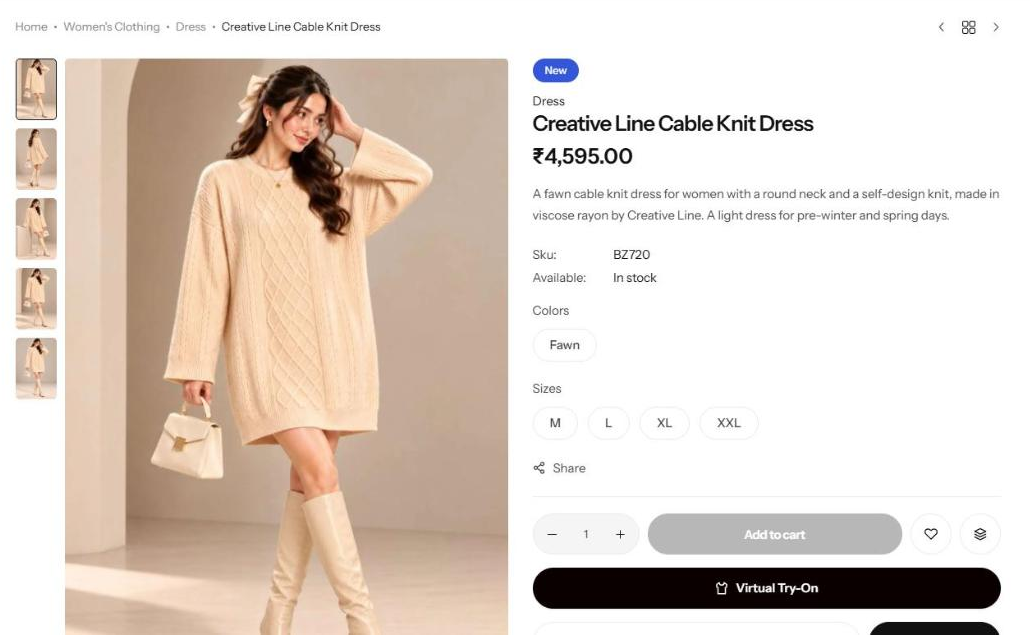
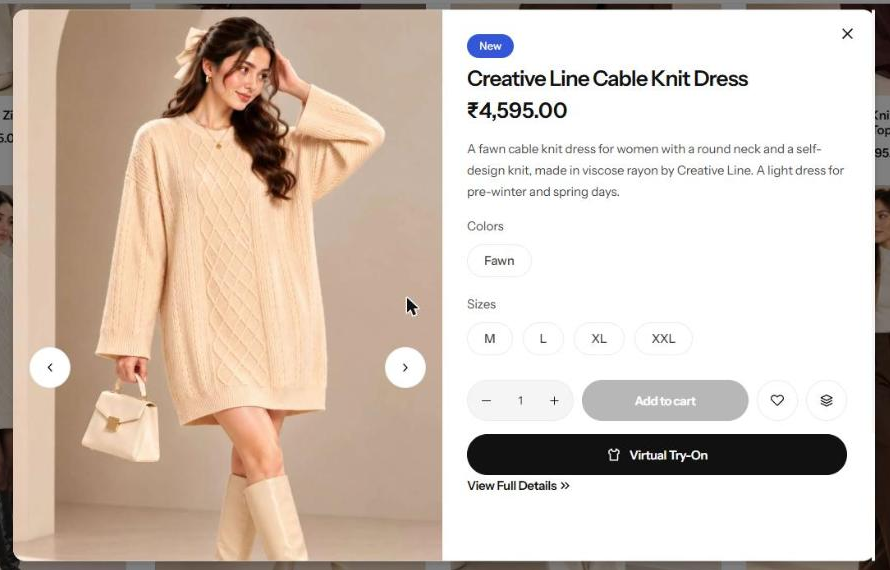
ViewWear AI Try-on adds a “Virtual Try-On” button to your WooCommerce clothing products. The shopper uploads a photo or uses their camera, and a few seconds later sees themselves wearing the product – in the colour and variation they picked.
Free AI option
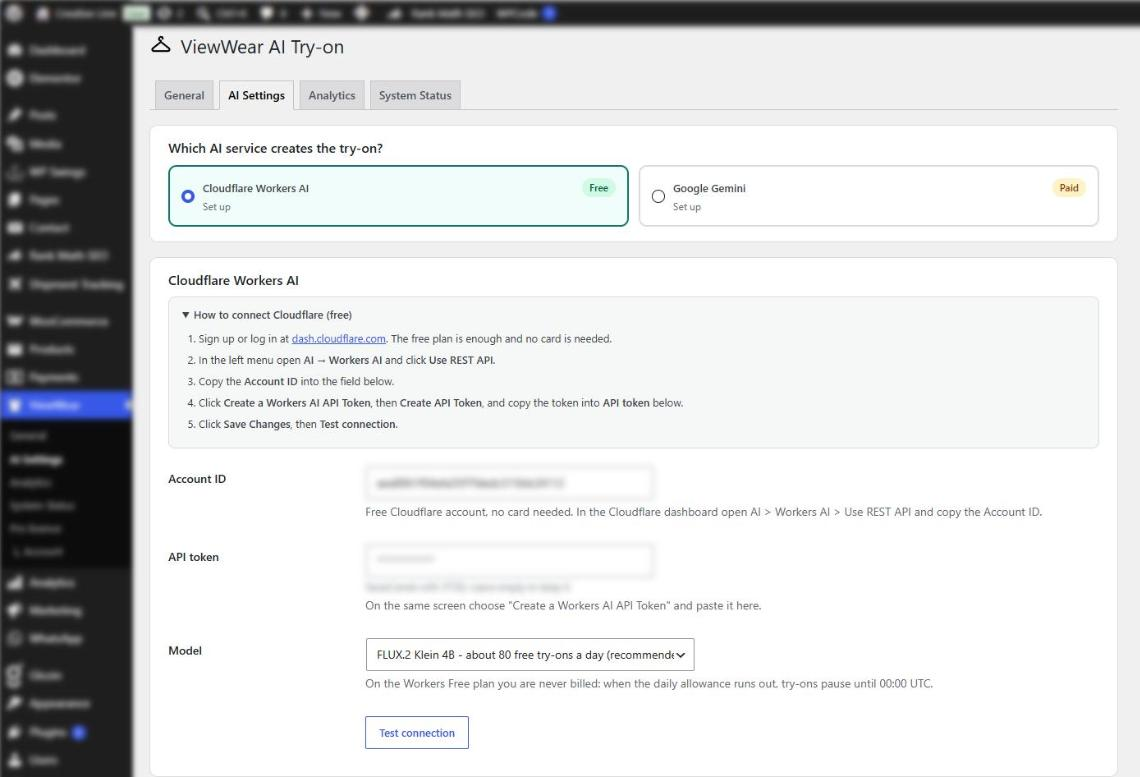
ViewWear works with a free Cloudflare account (no credit card). Cloudflare Workers AI includes 10,000 free “neurons” a day – about 80 try-ons with the FLUX.2 Klein 4B model. On the Workers Free plan you are never billed: when the daily allowance runs out, try-ons simply pause until 00:00 UTC.
Prefer Google? ViewWear also works with Google Gemini image models (paid by Google, no free tier for images). The newest model is picked automatically.
Features
- Try-on popup on product pages: upload, drag and drop, or camera (front / back camera switch on phones and tablets)
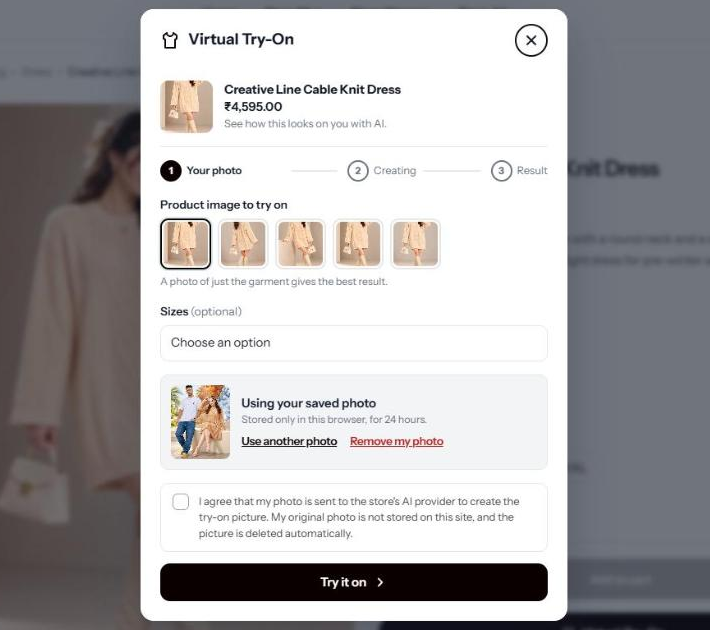
- Shoppers can choose which product photo to try and pick size / colour in the popup
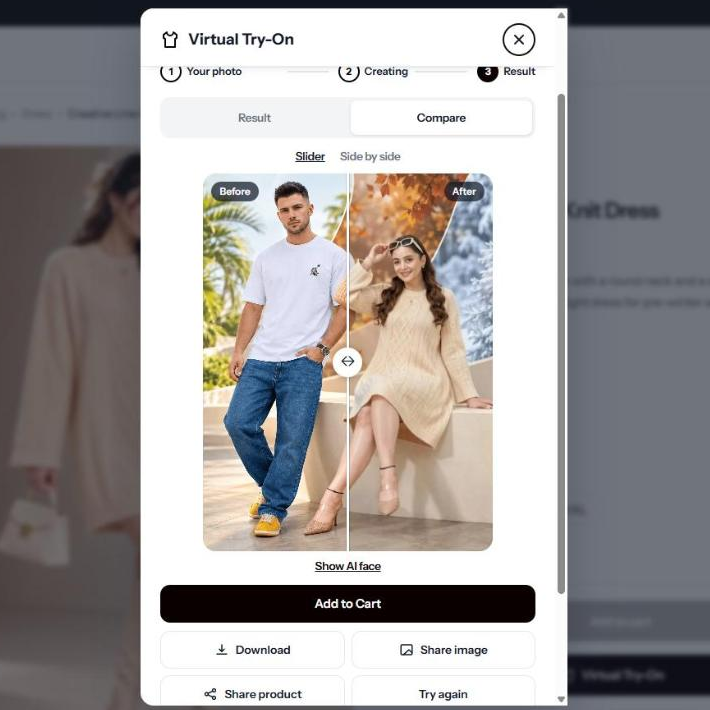
- Before / After slider and side-by-side view
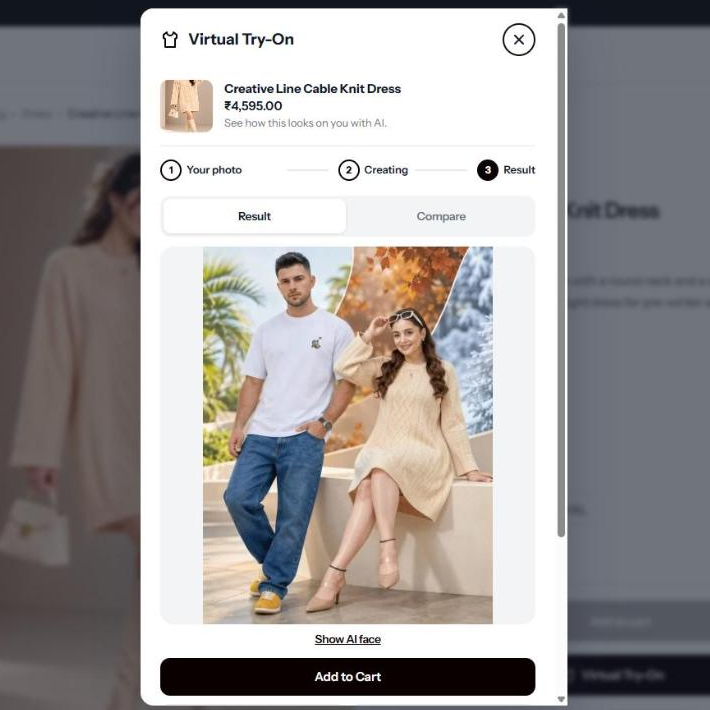
- Add to Cart straight from the result
- Download and share (WhatsApp, Facebook, X, Pinterest, or the phone’s share sheet)
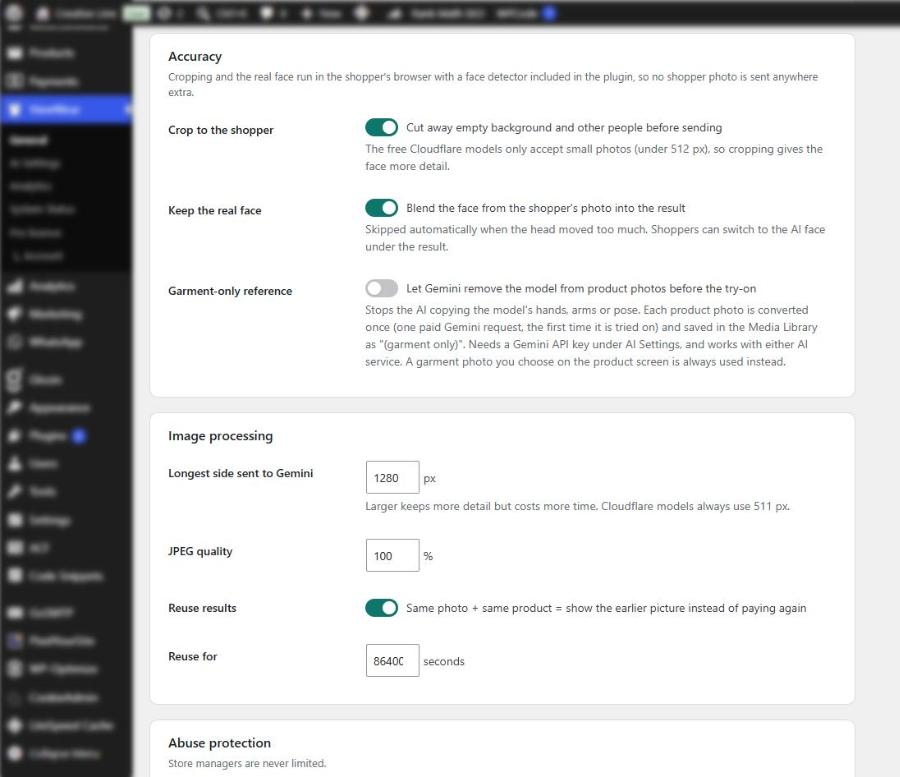
- Face accuracy: the photo is cropped around the shopper before it is sent, and the shopper’s real face can be blended back into the result – both run in the shopper’s browser
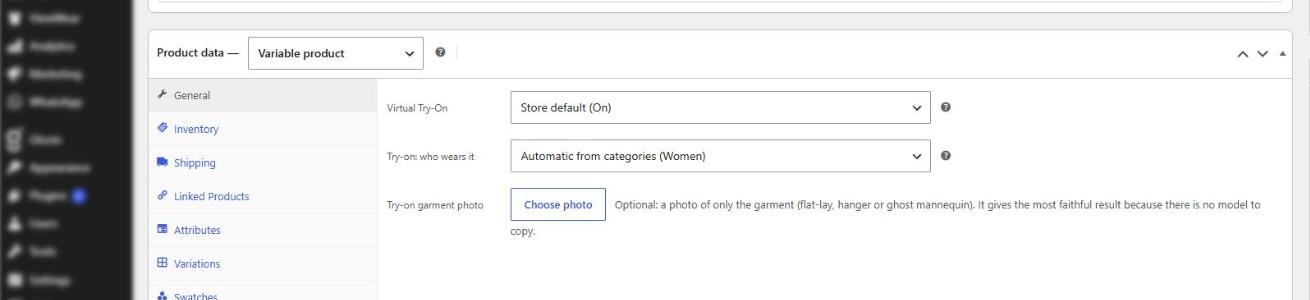
- Optional “garment-only” photo per product for the most faithful results
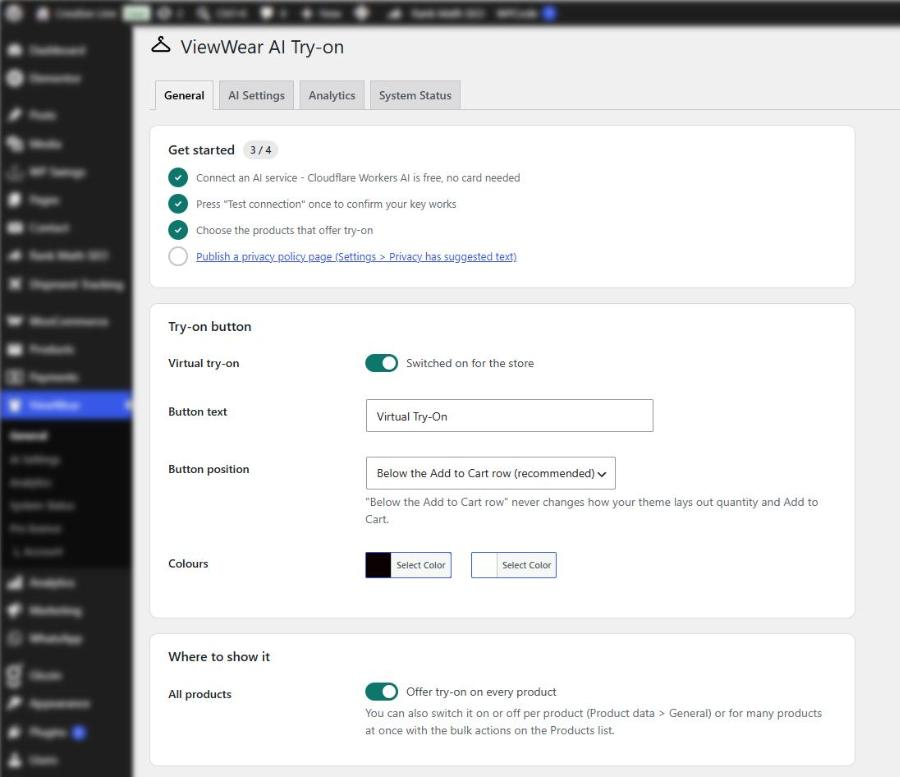
- Turn try-on on for all products, per product, or with bulk actions on the Products list
- The shopper’s photo can be remembered in their own browser for 24 hours (they can remove it at any time)
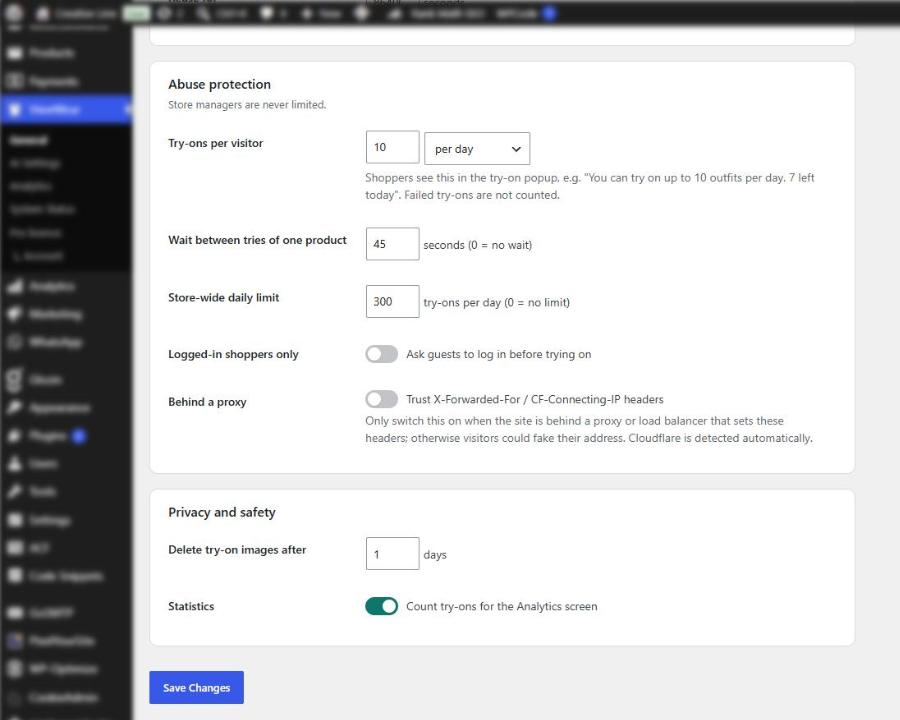
- Abuse protection you control: try-ons per visitor, wait between tries of the same product, store-wide daily cap, logged-in shoppers only, proxy setting
- Image settings: size and JPEG quality sent to the AI, and reuse of earlier results for the same photo and product
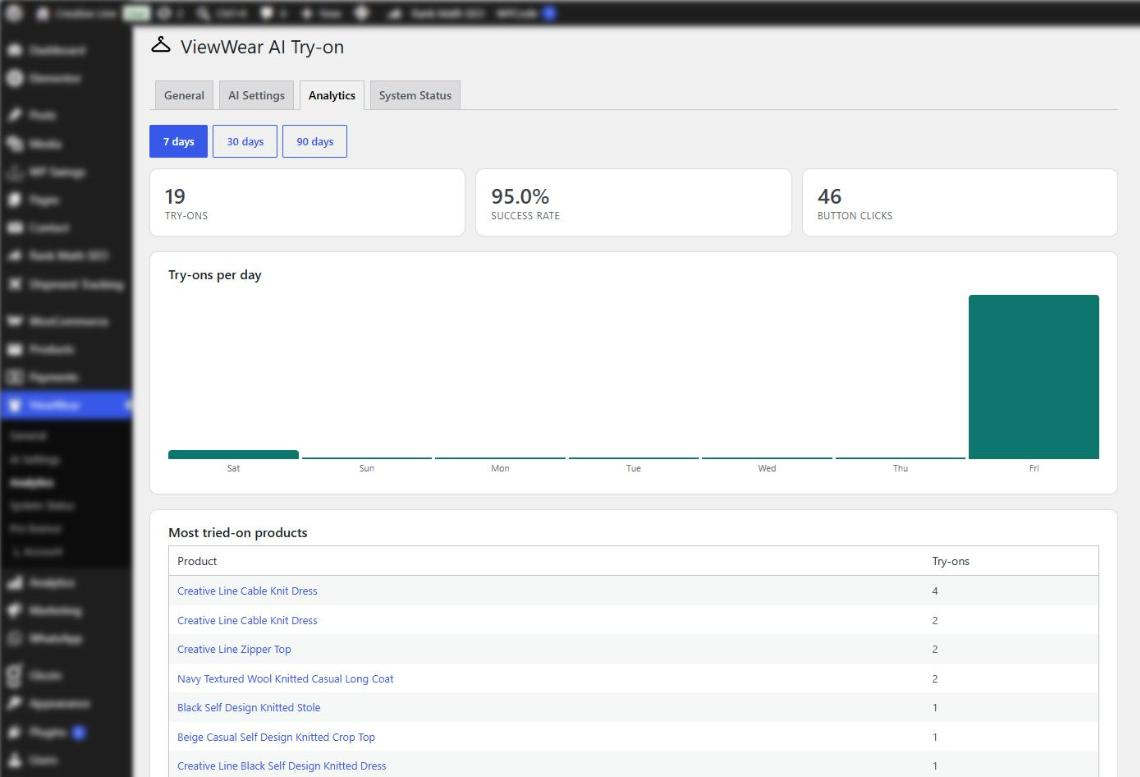
- Analytics for 7, 30 or 90 days: try-ons, success rate, button clicks, top products and why try-ons failed
- Privacy: consent checkbox, suggested privacy-policy text, WordPress personal-data eraser, automatic deletion of try-on images
- Works with page caching, HPOS and the block checkout
ViewWear Pro
ViewWear AI Try-on Pro is a separate, optional add-on plugin that you install next to this one. It adds its own features: try-on by product category, “Try On” links on shop and category pages, a shortcode for any page or page builder, “Try more products” suggestions, and sales tracking (add to carts, orders and revenue from try-ons, with a dashboard widget). This free plugin has no locked or limited features.
External services
ViewWear needs an AI image service to create the try-on picture. Nothing is sent anywhere until the store owner has entered their own API credentials and a shopper ticks the consent box and starts a try-on.
Cloudflare Workers AI (when selected under ViewWear > AI Settings)
- What is sent, and when: when a shopper starts a try-on, their photo (resized to under 512 px) and the product photo, plus a text instruction with the product name and short description. When the store owner presses “Test connection”, only the credentials are checked (no image).
- Endpoint: api.cloudflare.com
- Terms of service: https://www.cloudflare.com/terms/ – Privacy policy: https://www.cloudflare.com/privacypolicy/
Google Gemini API (when selected under ViewWear > AI Settings)
- What is sent, and when: when a shopper starts a try-on, their photo and the product photo (resized), plus a text instruction with the product name and short description. When the store owner opens AI Settings or presses “Test connection”, the list of available models is requested with the API key (no image).
- Endpoint: generativelanguage.googleapis.com
- Terms of service: https://ai.google.dev/gemini-api/terms – Privacy policy: https://policies.google.com/privacy
ViewWear itself does not collect any data and does not “phone home”. Face detection for “Crop to the shopper” and “Keep the real face” runs entirely in the shopper’s browser with the bundled face-api library; no extra data is sent.
Installation
- Install and activate WooCommerce.
- Install ViewWear AI Try-on from Plugins > Add New (or upload the zip) and activate it.
- Create a free Cloudflare account at https://dash.cloudflare.com/ and open AI > Workers AI > Use REST API. Copy the Account ID and create a Workers AI API token.
- In WordPress open ViewWear > AI Settings, choose Cloudflare Workers AI, paste both values, save and press Test connection.
- Under ViewWear > General switch on “All products”, or turn try-on on per product (Product data > General) or with the bulk actions on the Products list.
FAQ
Is it really free?
Yes, with Cloudflare Workers AI on the Workers Free plan (about 80 try-ons a day). If you move your Cloudflare account to the paid Workers plan, Cloudflare bills usage above the free allowance.
Which products work best?
Clothing: tops, shirts, jackets, dresses, trousers and full outfits. For the most faithful results add a “Try-on garment photo” (flat-lay, hanger or ghost mannequin) on the product.
Is the shopper’s photo stored?
The original photo is not stored on your server. It is sent to the AI service you selected, together with the product image. The created picture is stored in wp-content/uploads/viewwear-results with a random file name, is excluded from search engines, and is deleted automatically after the number of days you choose (1 day by default). Shoppers can choose to keep their photo in their own browser for 24 hours to try more items.
Does it work with my theme / page cache?
The button and popup use their own styles and do not change your theme’s Add to Cart layout. Pages served from a full-page cache work: the popup refreshes its security token when needed.
Where is the source code of the minified files?
The readable source of every minified script and stylesheet is included next to it (for example assets/js/popup.js next to popup.min.js). They are minified with terser and clean-css; set SCRIPT_DEBUG to true to load the readable versions. The bundled face-api library (assets/vendor/face-api) is published by Vladimir Mandic under the MIT licence; its source is at https://github.com/vladmandic/face-api
Screenshots

Changelog
2.1.7
- Store admins now also see the try-on limit line in the popup (marked “No limit for you as a store manager”), so you always see what shoppers are told.
- The picture next to the product name now shows the product photo you picked to try on, and the picker explains that a front view gives the most accurate result.
2.1.6
- Couple and group photos: the plugin finds each person and works out who the product is for (women’s or men’s, using a small gender model that runs in the shopper’s browser). Only that person is sent to the AI, and the dressed result is pasted back into the original photo, so everyone else, the background, and the person’s own face and hair stay exactly as they were.
- Photo checks before anything is sent, with a clear message right under the photo: no person found, wrong person for the product (“No woman detected – this is women’s wear”), group photo where it is unclear who should try it on, too far away, head cut off, not facing the camera, blurry, too dark, too bright or too small. A stopped photo never uses up a try-on. Two switches in General > Accuracy. When it is unsure whether a single shopper matches women’s or men’s wear, it asks one quick question instead of guessing.
- The result always shows the shopper’s real face; the “Show AI face” link was removed.
2.1.5
- Couple and group photos: each product is for Women, Men or Anyone (detected from its category names, or set on the product screen). Only the matching person is dressed; everyone else keeps their own clothes. Group photos are no longer cropped to the largest face.
- The AI keeps the garment’s exact type, print and logo (a crop top stays a crop top), and keeps the shopper’s own shoes, bag and accessories instead of copying the model’s.
- Size and colour are marked “(optional)” before the try-on; they are still asked for at Add to Cart.
- Cleaner popup: a neutral consent box with its own tick box that themes cannot distort, tidier photo tips, and on the result screen Add to Cart comes first with a compact row of other actions.
2.1.4
- The photo consent box is now clearly highlighted right above “Try it on”. Tapping “Try it on” without ticking it (or without a photo) points to what is missing instead of doing nothing.
- The popup shows the per-visitor limit from your settings, for example “You can try on up to 10 outfits per day. 7 left today”, under the button and under the result.
- Failed try-ons no longer count towards a shopper’s limit.
- The limit period is now a simple choice: per hour, every 6 hours, every 12 hours or per day.
2.1.3
- Options with only one choice (for example a single colour or size) are selected automatically and no longer shown in the try-on popup.
- The popup now uses the colour and size the shopper already picked on the product page.
- If the camera can’t be used (in-app browsers, blocked permission, no or busy webcam) the popup stays on “Upload photo” and explains why, instead of showing an error screen. Browsers with no camera support no longer show the camera tab.
- The try-on button now works inside theme Quick View popups on shop, category and home pages: a tiny loader fetches the try-on popup on the first click, so those pages stay fast.
- Step-by-step setup guides for Cloudflare and Google Gemini on the AI settings screen.
- New “Garment-only reference” option (needs a Gemini key): Gemini removes the model from each product photo once, so the try-on never copies the model’s hands or arms. The result is saved in the Media Library and can be previewed or redone on the product screen.
- Stricter AI instructions: the result never copies hands, arms or other body parts from the product photo’s model.
2.1.2
- Face detection model weights are now shipped as JSON files (no binary files in the plugin).
2.1.1
- Size / colour labels in the popup start with a capital letter even when the store named the attribute in lower case.
2.1.0
- Image settings and abuse-protection limits can now be changed on the General screen.
- Analytics: 30 and 90-day views and a “Why try-ons failed” table.
2.0.1
- ViewWear Pro is now a separate add-on plugin installed next to the free plugin (it no longer replaces it).
- The free plugin no longer bundles any licensing SDK.
2.0.0
- Rebuilt from the ground up: new code base, faster pages, smaller attack surface.
- Free and Pro editions. The free edition includes the full try-on experience, face accuracy, both AI services and basic analytics.
- Removed the Replicate / FAL providers (the IDM-VTON model they used is licensed for non-commercial use only).
- No REST API and no polling endpoint: everything goes through nonce-checked admin-ajax requests.
- Analytics chart drawn by the plugin (no chart library).
- Settings, products and statistics from 1.x are kept.