


Description
Boosted gives you fast WordPress pages with page caching, image optimization,
CSS/JS handling, an SEO and keyphrase panel, redirects, and a GDPR-style cookie
banner. Core performance, caching, image optimization, SEO, redirects, and
cookie consent features are available free, with optional Pro upgrades for
advanced optimization capabilities.
Open the Cache tab and turn on WP_CACHE – Boosted adds it to wp-config.php
for you. If the file is not writable, the tab shows the one line to add by
hand.
External services
Boosted contacts the third-party services listed below. Every one of them is
reached only after you configure it or explicitly request its suggestions, so a fresh install with
nothing filled in contacts nothing at all. Each entry says what triggers the
request, exactly what is sent, and whether it happens in the WordPress admin or
during a visitor’s page load.
Datamuse related wording
Endpoint: https://api.datamuse.com/words
When: only when an authorized editor clicks “Suggest related wording” in the
Boosted SEO Related Wording box on a post or page. No background queries.
What is sent: the phrase explicitly entered (2–100 characters), vocabulary
language (English or Spanish), and a result limit. Post content, titles,
descriptions, visitor data and WordPress credentials are not included.
Where: server-side from the editor. WordPress caches results per user for
15 minutes. Suggestions never change metadata automatically.
Datamuse temporarily logs queries; its documentation says logs are discarded
at the end of the following day. Suggestions are not search-volume data.
Documentation, usage conditions and privacy: https://www.datamuse.com/api/
Datamuse announces mandatory API keys from January 1, 2027. This integration
currently uses its keyless endpoint; authentication will need updating when
that requirement takes effect. Service failures leave core SEO unaffected.
YouTube video preview images
Endpoint: https://i.ytimg.com/vi/VIDEO_ID/hqdefault.jpg
(VIDEO_ID is the id of a YouTube video embedded on your site.)
When: only once you switch on “Show YouTube and Vimeo videos as a preview
until played” on the Images screen, and only the first time a page with a
given YouTube video is built (again after the page cache is cleared). The
image is saved with Boosted’s cache and
served from your own site after that.
What is sent: the video id in the address. The request comes from your
server; nothing about the visitor whose page view triggered it is included.
Where: server-side. Visitors’ browsers do not contact YouTube until they
press play, at which point YouTube’s own player loads as it would without
Boosted.
Privacy policy: https://policies.google.com/privacy
Terms of service: https://www.youtube.com/t/terms
Gravatar avatars
Endpoint: https://secure.gravatar.com/avatar/HASH
(HASH is the hashed e-mail address WordPress already puts in every avatar
address it prints.)
When: only once you switch on “Serve Gravatars from your site” on the Images
screen, and only when a page that shows an avatar is built and no copy of
that avatar younger than a week is on hand. The image is saved with Boosted’s
cache and served from your own site.
What is sent: the avatar address WordPress built, with its size and default
image. The request comes from your server; nothing about the visitor whose
page view triggered it is included.
Where: server-side. With this switched on, visitors’ browsers no longer
contact Gravatar for avatars.
Privacy policy: https://automattic.com/privacy/
Terms of service: https://wordpress.com/tos/
Google PageSpeed Insights API
Endpoint: https://www.googleapis.com/pagespeedonline/v5/runPagespeed
When: only when an administrator runs a PageSpeed measurement, and only once you
have saved your own Google API key. With no key saved, no request is made.
What is sent: the public URL being tested, and your own API key.
Where: the WordPress admin only. Visitors never trigger this.
Google OAuth 2.0 – signing in for Analytics reporting
Endpoint: https://oauth2.googleapis.com/token
When: only once you have saved a GA4 Property ID and a Google service-account
key, and only when a page or widget actually uses the [boosted_ga total_views]
shortcode. Without either field, or without the shortcode on a page, no request
is made.
What is sent: a signed assertion (a JWT) proving the request comes from your own
service account. It is signed with the private key you saved; the key itself is
never sent.
Where: during a front-end page load, because that is when the shortcode renders.
No visitor data is included in the request, and the answer is cached for an hour
so a page showing the number does not sign in on every visit.
Google Analytics Data API
Endpoint: https://analyticsdata.googleapis.com/v1beta/properties/PROPERTY_ID:runReport
(PROPERTY_ID is the GA4 Property ID you saved.)
When: immediately after the sign-in above, and under the same conditions.
What is sent: your GA4 Property ID and a date range. Nothing about the visitor
whose page load happened to trigger it.
Where: during a front-end page load, as above. The answer is cached for an hour,
and a failure for fifteen minutes, so a broken setup does not retry on every
visit.
Google reCAPTCHA – verification
Endpoint: https://www.google.com/recaptcha/api/siteverify
When: when somebody submits a comment on your site, and only once you have saved
both a reCAPTCHA site key and a secret key. Administrators and other users who
can moderate comments are not verified.
What is sent: the reCAPTCHA response token from the visitor’s browser, your
secret key, and the visitor’s IP address.
Where: this one affects your site’s visitors, not just administrators. A visitor
who posts a comment has their IP address sent to Google. If you switch reCAPTCHA
on, say so in your own privacy policy.
Google reCAPTCHA – script
Endpoint: https://www.google.com/recaptcha/api.js
When: loaded in every visitor’s browser on pages with a comment form, once
reCAPTCHA is configured. Google sets its own cookies and collects its own data
from that point; Boosted is not party to it.
Where: your visitors’ browsers.
Google Tag Manager and Google Analytics (gtag)
Endpoints: https://www.googletagmanager.com/gtag/js,
https://www.googletagmanager.com/gtm.js, https://www.googletagmanager.com/ns.html
When: loaded in visitors’ browsers only once you have saved a GA4 Measurement ID
or a Google Tag Manager container ID. With neither saved, no script is added.
What is sent: whatever Google’s own script collects, which is Google’s to
describe rather than Boosted’s. Boosted adds the tag and nothing else.
Where: your visitors’ browsers.
For all of the Google services above:
Privacy policy: https://policies.google.com/privacy
Terms of service: https://policies.google.com/terms
Google APIs terms of service: https://developers.google.com/terms/
Freemius – licensing, opt-in usage tracking and update delivery
Endpoint: https://wp.freemius.com and https://api.freemius.com
When: on activation WordPress shows the Freemius opt-in prompt. Only if you
opt in does the plugin contact Freemius: on activation/deactivation, on
licence activation or check, and on the scheduled update check.
What is sent: site URL, WordPress and PHP versions, plugin version, site
language, admin email address only if you opted in, and licence state when a
licence key is entered. No page content, no visitor data, no settings values,
no secrets.
Where: the WordPress admin only. Visitors never trigger this. You can opt out
at any time from the Freemius account menu; the plugin keeps working with
free behaviour.
Privacy policy: https://freemius.com/privacy/
Terms of service: https://freemius.com/terms/
Cloudflare API – cache purge sync (Boosted Pro only)
Endpoint: https://api.cloudflare.com/client/v4/zones/{zone ID}/purge_cache
This code is not in the free plugin. It applies to Boosted Pro, and only after
you switch on Cloudflare Cache Synchronization and enter your own Cloudflare
zone ID and API token.
When: after Boosted clears pages from its own page cache – when a post is
published, updated or deleted, or when the whole cache is cleared.
What is sent: the URLs of the pages that were cleared (or a request to purge
the whole zone), and your Cloudflare API token as the authorization header. No
page content, no visitor data.
Where: from your server to Cloudflare. Visitors never trigger this.
Privacy policy: https://www.cloudflare.com/privacypolicy/
Terms of service: https://www.cloudflare.com/terms/
AI provider through WordPress – SEO metadata drafts (Boosted Pro only)
This code is not in the free plugin. It applies to Boosted Pro on WordPress 7.0
or later, only after you switch on the AI Meta Description & Title Assistant and
connect an AI provider yourself under Settings > Connectors (for example
Anthropic, Google or OpenAI, each with its own WordPress plugin and your own API
key). Boosted does not contact any AI service itself and never holds an API key;
it asks WordPress’s built-in AI client, which sends the request to the provider
you connected.
When: when you generate drafts under SEO > Automation, up to 10 posts at a time.
What is sent: for each post, its ID, title, focus keyphrase and up to the first
1,500 characters of its text (without HTML, shortcodes or links), plus your site
name. No visitor data. The drafts that come back change nothing until you
approve them.
Where: from your server to the provider you connected. Its terms and privacy
policy are those of that provider.
Google Tag Manager – local copy of gtag.js (Boosted Pro only)
Endpoint: https://www.googletagmanager.com/gtag/js?id={your measurement ID}
This code is not in the free plugin. It applies to Boosted Pro, and only after
you switch on Local Analytics Hosting while Boosted adds Google Analytics to your
site.
When: once a day, from WP-Cron.
What is sent: your Google Analytics measurement ID, to download the current
gtag.js. The file is stored in your uploads folder and served from your site in
place of Google’s copy. No visitor data is sent by the download.
Where: from your server to Google. What Google Analytics itself collects from
visitors is unchanged and is described under “Google Tag Manager and Google
Analytics (gtag)” above.
Privacy policy: https://policies.google.com/privacy
Terms of service: https://policies.google.com/terms
What does not leave your site
Cache preloading and the cache self-test request your own pages, on your own
domain, and nowhere else.
Your PageSpeed API key, your reCAPTCHA secret and your Google service-account key
are stored on this site only. They are never shown back to you after saving and
are excluded from a settings export.
The Copy for AI button on Console Logs puts text on your clipboard for you to
paste somewhere yourself. It contains no keys, no settings values and no server
paths, and Boosted sends it nowhere.
External fonts and optional local copies
Free does not download external font stylesheets or font files on the server.
If an administrator enables font resource hints or CSS external preconnect,
Boosted may add a browser preconnect or DNS-prefetch hint for an external
stylesheet already enqueued by the theme or another plugin. This connects the
visitor’s browser to that host and can disclose the visitor’s IP address;
Boosted does not add the third-party stylesheet itself.
Premium can make server-side requests only after an administrator enables Font
Optimization and either Self-host Fonts or Optimize External Font CSS, then
runs a font rebuild. The rebuild examines external font stylesheets previously
found during site analysis. Only Google Fonts and Bunny Fonts stylesheets are
eligible; Boosted downloads those, and it copies
font files locally only when Self-host Fonts is enabled. The request sends the
full stylesheet or font-file URL (including its query), the site’s server IP,
and a browser-like User-Agent. It sends no WordPress credentials or visitor IP.
Cached copies are stored under wp-content/cache/boosted/fonts/.
Google Fonts: https://fonts.googleapis.com and https://fonts.gstatic.com.
Premium may download and locally cache their openly licensed fonts after the
explicit settings and rebuild above. Terms: https://policies.google.com/terms
Privacy: https://policies.google.com/privacy
Bunny Fonts: https://fonts.bunny.net. Premium may download and locally cache
its openly licensed fonts after the same explicit settings and rebuild.
Terms: https://bunny.net/tos/ Privacy: https://bunny.net/privacy/
Adobe Fonts (Typekit): https://use.typekit.net. Monotype/Fonts.com:
https://fast.fonts.net. Boosted may recognize these existing external
stylesheets and may add a preconnect hint if that setting is enabled. Boosted
does not download or self-host their font files; the original provider or
theme remains responsible for serving them. Adobe’s standard web-font terms
prohibit self-hosting; Monotype fonts require the site’s own applicable
license and usage reporting. Adobe terms:
Click to access Adobe-Fonts-Product-Specific-Terms-en_US-20240618.pdf
Adobe privacy: https://www.adobe.com/privacy/policies/adobe-fonts.html
Monotype terms: https://www.monotype.com/legal/terms-use
Monotype privacy:
https://www.monotype.com/legal/privacy-policy/website-use-privacy-policy
Any other external font or icon-font stylesheet (for example one a theme loads
from an icon CDN) is treated generically as an external stylesheet. Boosted
does not identify its provider, never requests it on the server and never
copies its files; at most it may add the browser preconnect hint described
above when the administrator enables that setting.
Boosted itself never enqueues a stylesheet or font file from any of the font
providers above. It only works with stylesheets the theme or another plugin
has already added to the page.
Source Code & Build Instructions
All script and style assets shipped in Boosted are provided in full human-readable format.
The uncompiled source files are included directly in the plugin package inside assets/src/:
- Tailwind CSS admin styles source:
assets/src/tailwind.css
Build command:npx tailwindcss -i assets/src/tailwind.css -o assets/tailwind.css - Consent runtime source:
assets/src/consent-runtime.js
Runtime file:assets/consent-runtime.js - Admin script:
assets/admin.js(written and maintained directly as plain, non-minified JavaScript) - Minified admin copies:
assets/admin.min.jsandassets/tailwind.min.cssareassets/admin.jsand
assets/tailwind.css with comments and whitespace removed (JShrink for the script, matthiasmullie/minify
for the stylesheet). Both sources ship beside them, and WordPress loads the sources when SCRIPT_DEBUG is on. - Freemius pricing bundle:
vendor/freemius/freemius-sdk/assets/js/pricing/freemius-pricing.js
Readable upstream source and build instructions: https://github.com/Freemius/pricing-page
Boosted-authored JavaScript is supplied in readable form. The bundled Freemius
pricing script is third-party compiled code; its upstream source is linked above.
Bundled font: Inter (Latin subset, variable weight), assets/fonts/inter/inter-latin-var.woff2,
by The Inter Project Authors (https://github.com/rsms/inter), licensed under the SIL Open Font
License 1.1 (assets/fonts/inter/OFL.txt). It is loaded from the plugin folder on Boosted’s own
admin screens only; nothing is fetched from another site and nothing is added to the front end.
Installation
- In WordPress, go to Plugins > Add New Plugin, search for “Vyse Digital Boosted”, then click Install Now and Activate. To install by hand, upload the
vysedigital-boostedfolder to/wp-content/plugins/and activate it on the Plugins screen. - Open Boosted in the admin menu. Nothing is switched on until you turn it on.
- On the Cache tab, turn on page caching. If
define( 'WP_CACHE', true )is missing from wp-config.php, Vyse Digital Boosted offers to add it for you. - Leave the Auto-optimization mode on the Settings tab at Safe, check your pages, and move to Balanced only when everything still works.
- Turn on the other parts you want, such as image optimization, SEO and the cookie banner, from their own tabs.
FAQ
What does caching actually do?
The first time someone opens a page, Boosted saves the finished HTML to disk.
Every visitor after that is handed that file by a drop-in that runs before
WordPress loads, so no theme, plugin or database query runs at all. Logged-in
users always get a freshly built page, so you never see a cached copy of your
own admin bar.
Nothing is being cached. What should I check?
Three things, in order. Developer mode: if it is on, caching is paused on
purpose. WP_CACHE: the Cache tab shows whether define( ‘WP_CACHE’, true ) is in
wp-config.php, and offers to add it. Another optimization plugin: if one already
owns the caching layer, the Compatibility tab names it, and running two page
caches is worse than running one.
What changes between Safe, Balanced and Advanced?
How much Boosted is willing to rearrange your front end. Safe caches and
minifies but never defers a script, so nothing can break from load order –
start here on a site with lots of plugins. Balanced adds script deferral and CSS
combination. Advanced pushes both further. If something breaks after a change,
step down one level rather than turning everything off.
Does Boosted minify or combine my JavaScript?
It can minify, and it is off by default. The JavaScript page offers opt-in
minification using a parser-backed minifier; Boosted keeps an original copy of
every script and falls back to it on any failure, so nothing is ever rewritten
in place. Scripts are never combined – combining reorders
execution and is the classic way a speed plugin takes a site down – that switch
stays off. Boosted defers scripts instead, which is reversible and does not
rewrite your code. CSS is combined and minified, because the risk there is far
smaller.
I am working on the site and keep seeing the old version.
Turn on developer mode in Settings. It pauses page caching and preloading, lazy
loading, HTML minification, CSS combination, script deferral and the LCP preload
hint, all at once and site-wide, while leaving every one of your settings
exactly as it is. Turn it off when you are done and everything comes back.
Will this replace or delete my original images?
Nothing is deleted. With “Make photos smaller” on, Boosted saves a smaller
version of each JPEG and PNG over the file in place, under the same name.
Before it does, it keeps a backup of the full-size original in
wp-content/uploads/vysedigital-boosted/backups/ (on by default), and Restore
on the Images screen puts it back. WebP and AVIF copies are separate files next
to the original. Deactivating the plugin leaves your images as they are now, so
restore them first if you want the originals back.
I optimized an image but no WebP or AVIF appeared.
Usually the server cannot make that format. The Images tab lists what your PHP
install supports – GD or Imagick, and which formats each can write. AVIF in
particular needs a recent build, and plenty of hosts do not have it. If the
format is supported, the image is probably still queued.
How long does the queue take?
Deliberately longer than it could. Boosted converts three images per cron pass
and reschedules about a minute later, because converting a whole media library
at once is how an optimization plugin gets a site suspended for CPU use. An
image that fails is retried up to three times with a widening gap between
attempts, then left alone rather than retried forever. You can pause and resume
the queue from the Images tab.
What is lazy loading doing to my images?
Images below the fold are told to load only as the visitor approaches them,
which is where most of the saving is. The one image Boosted measures as your
largest visible element is excluded on purpose and given loading priority
instead – lazy-loading your hero image makes the page score worse, not better.
Width and height are filled in where they are missing so the layout does not
jump as images arrive.
Where do I set the SEO title and description?
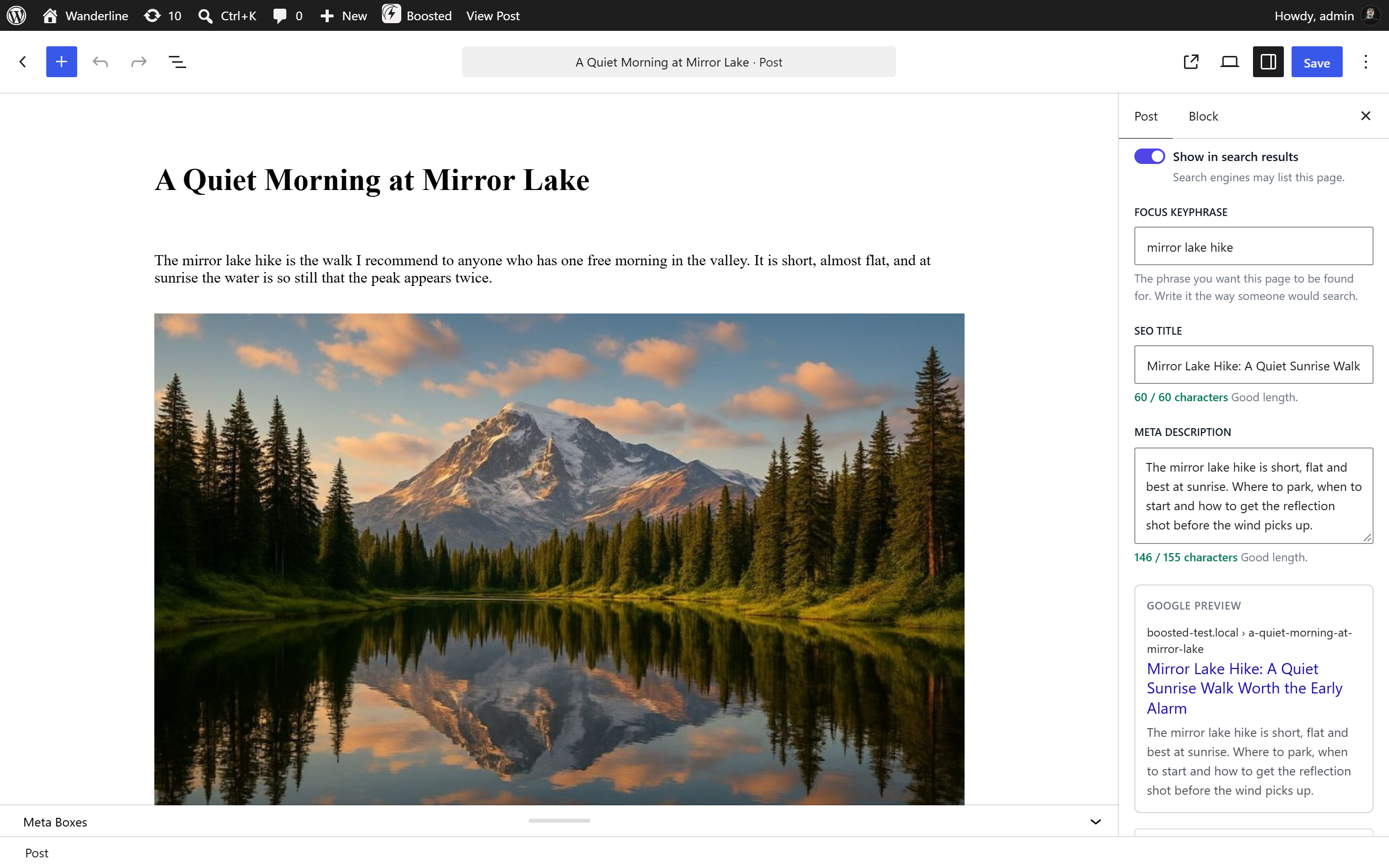
On the post itself. In the block editor it is the Boosted SEO panel in the
sidebar; on a screen still using the classic editor it is a meta box below the
content. Boosted shows one or the other, never both on the same post, so there
is only ever one place holding the real value.
What does Boosted add to my pages?
On single posts and pages: the title and description, an Open Graph title for
link previews, a canonical URL, and structured data describing the page for
search engines. Archives, category listings and the blog index are left alone
– those are the pages where a guessed description does more harm than none.
Will this fight with Yoast or Rank Math?
Boosted steps aside on the title: if another plugin has already set one, it is
left alone. Even so, running two SEO plugins means two sources for the same
tags. Pick one to own titles and descriptions, and use Boosted for the rest.
Is the banner on by default?
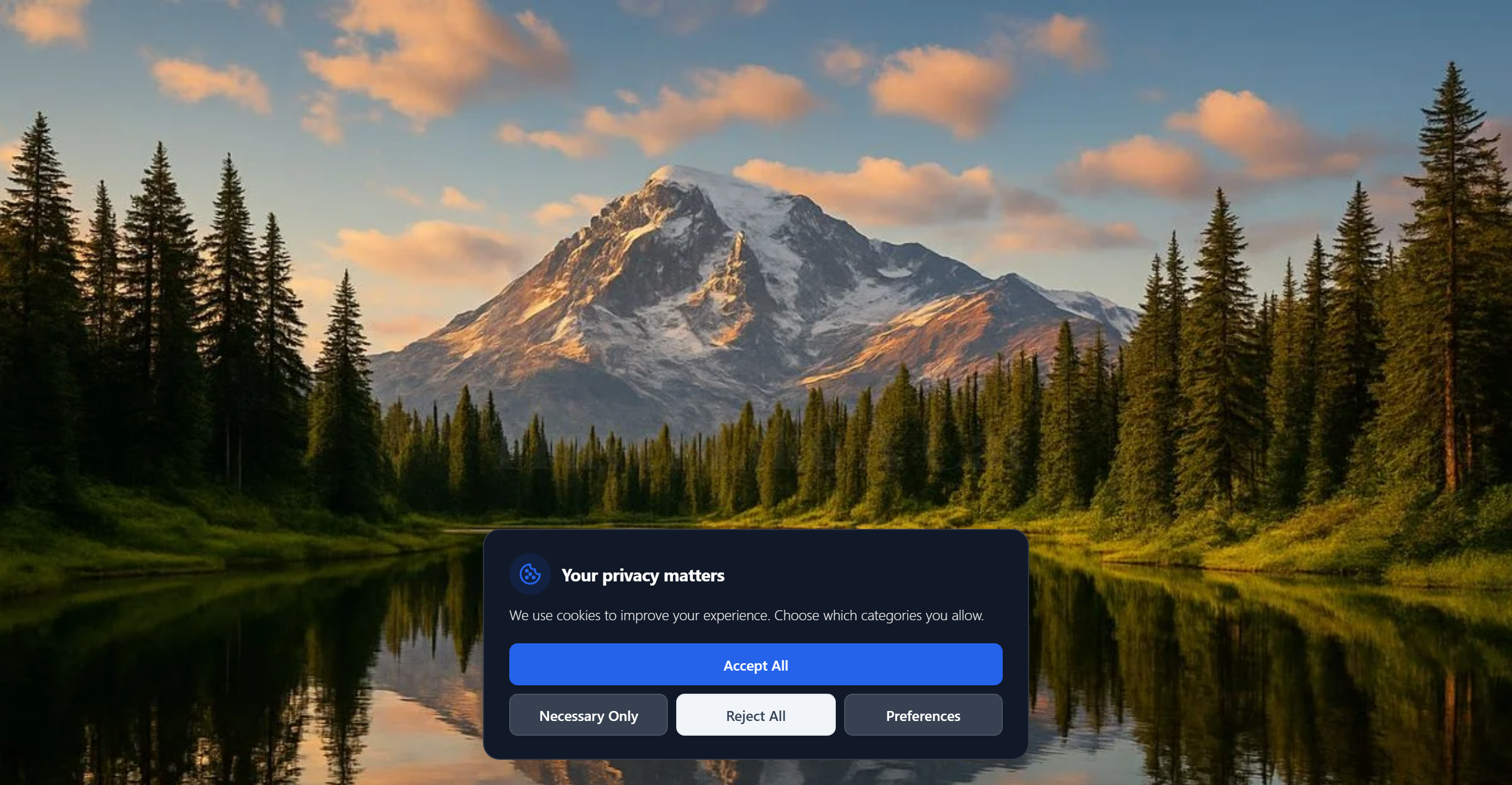
No. Nothing about consent is switched on until you switch it on, because a
banner appearing on a site without warning is its own kind of problem. Turn it
on from the Cookie Consent tab when you are ready.
How does blocking actually work?
Third-party scripts and embeds you have registered are held back before they
load, not cleaned up afterwards. Until a visitor approves the matching category,
the tag simply never runs, so it sets no cookies. The Cookie Consent tab ships
patterns for the common ones – Analytics, Meta Pixel, YouTube, Vimeo, Google
Fonts – and you can add your own.
What is stored in the audit log?
For each answer: when it was given, which categories were accepted, and a
one-way hash standing in for the visitor rather than their raw IP address –
enough to show a regulator you collected consent, without building a list of who
visited. It only records while audit logging is on, and you can export it as CSV
or clear it.
Why can I not use GA4 and Tag Manager together?
Because a container that also loads the Analytics tag counts every pageview
twice, and the numbers look fine until you try to trust them. Boosted makes it a
choice: add the Measurement ID directly, or manage Analytics inside Tag Manager.
If you are already using GTM for anything else, do it there.
Are my keys included when I export my settings?
No. The reCAPTCHA secret, the Analytics service account file and the PageSpeed
key are saved on this site and left out of every export, so a settings file you
email or commit to a repository cannot leak them. Importing settings clears
those fields rather than filling them with someone else’s, and you re-enter them
here.
How do I show a view count on the site?
Use the [boosted_ga total_views] shortcode once reporting is connected.
Connecting it is free; printing the number is also free, and until then the
shortcode renders whatever fallback you give it.
Screenshots
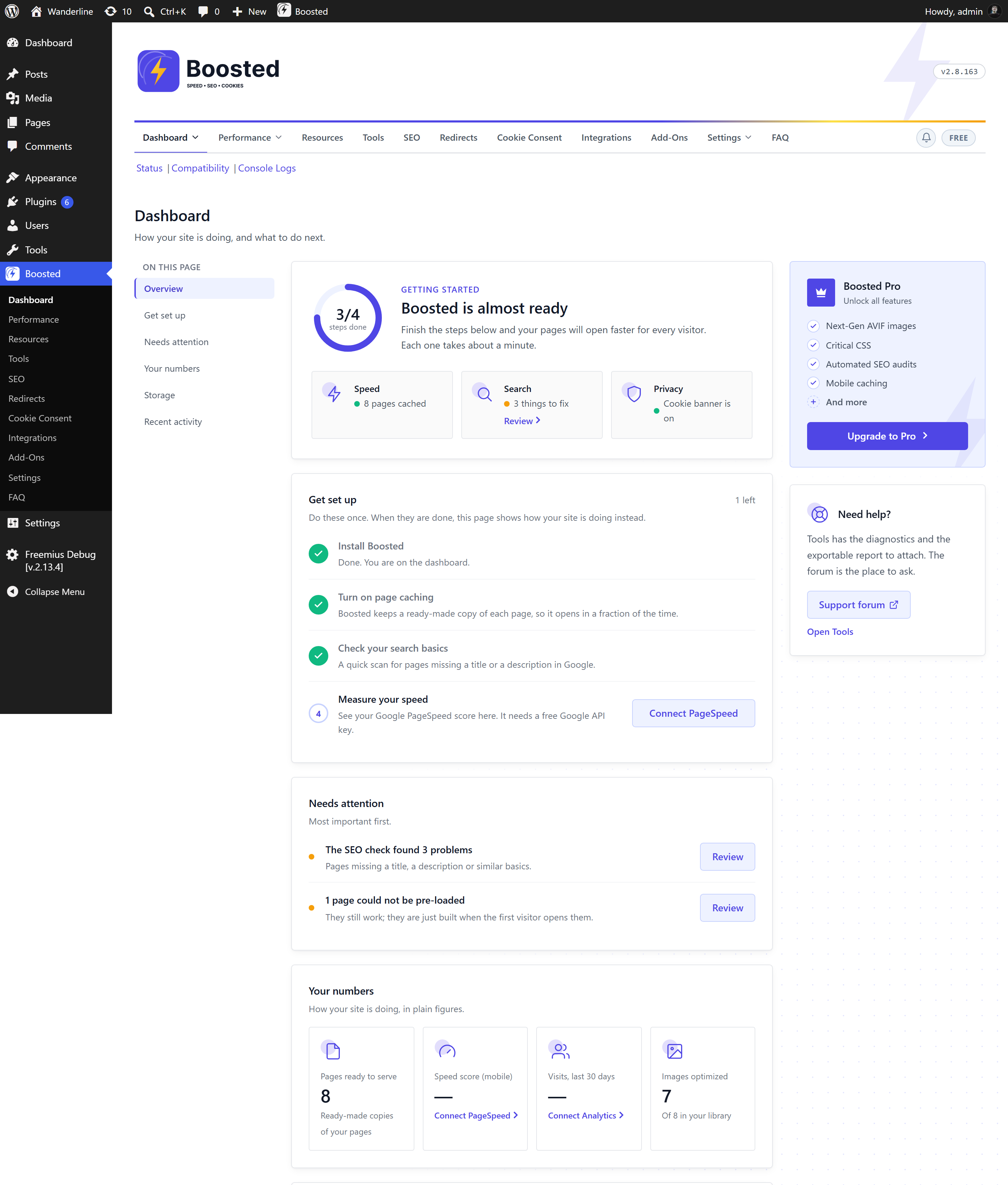
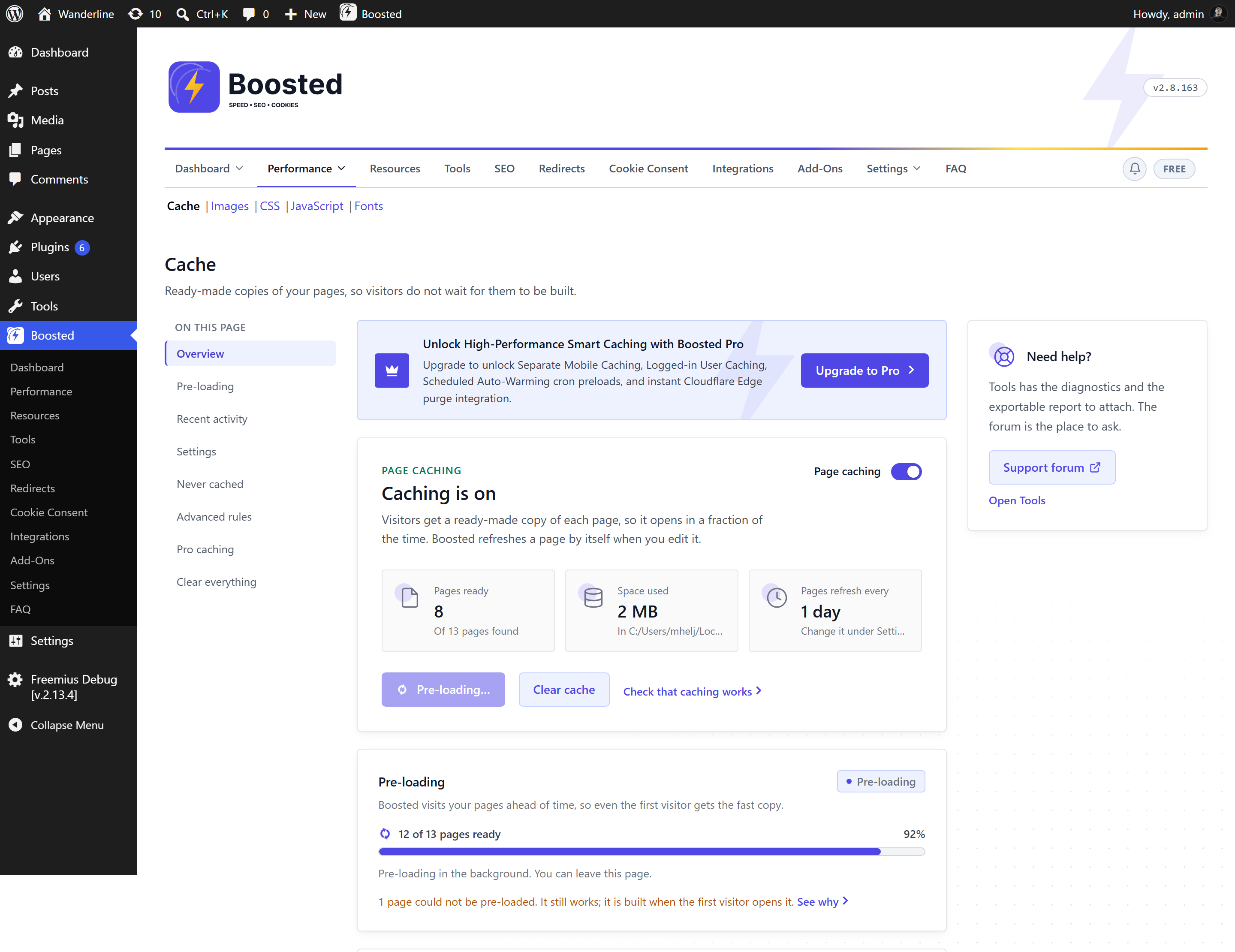
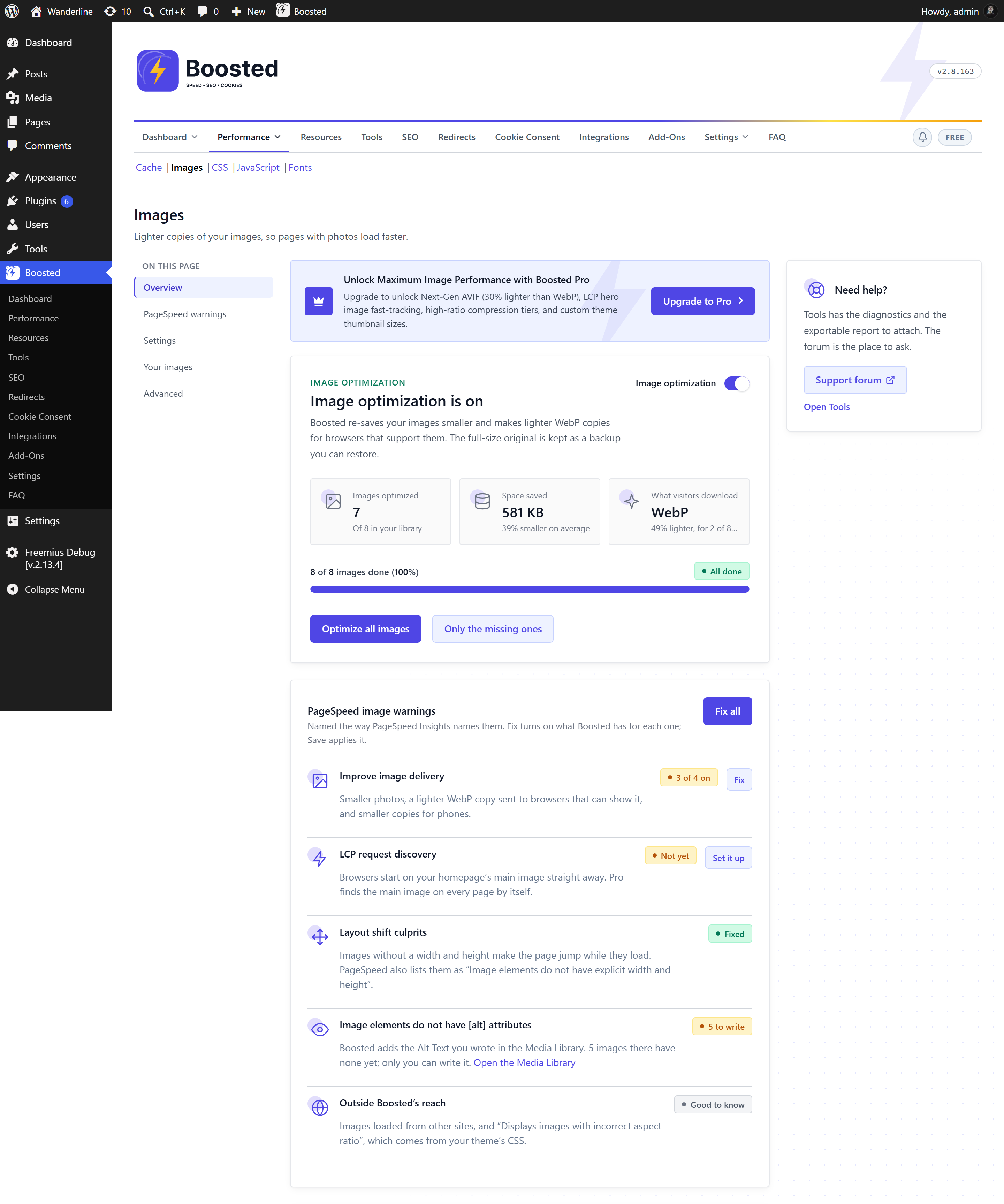
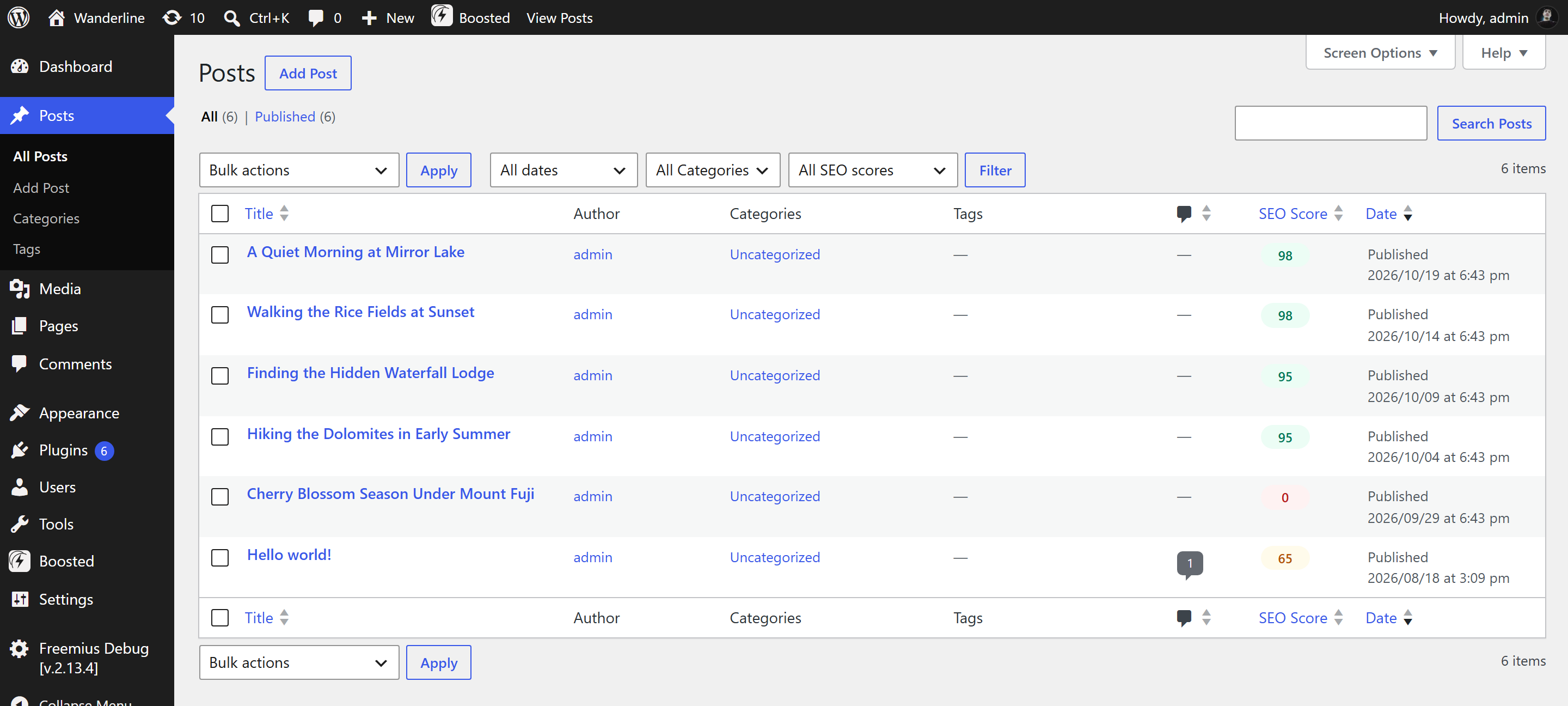
Changelog
2.8.173
- New admin design: every Boosted screen starts with a card that says what is on and what needs doing, settings sit in titled groups, and one Save bar under the cards shows when there are unsaved changes.
- Cookie Consent: the Banners tab says whether visitors see a banner, with the three steps to get there. A new banner starts from a choice of looks, and the banner editor keeps the live preview in view while you change it.
- Cookie Consent: “Scan Website Now” works again. It sent the wrong request and never ran. The editor’s preview now follows the Reject All switch.
- SEO: the Bulk editor lists your pages with an Edit dialog that holds every SEO field. The SEO title takes variables such as Title and Site Name, and saving clears the cached copy of each changed page, so visitors see the new title straight away.
- SEO: the setup, Health and Automation tabs are easier to follow, and the sub-tabs are one row of buttons.
- Redirects: adding a redirect, the rules, the 404 monitor and the settings share one screen with one Save button.
- The free plan no longer shows sample numbers where Pro results would be.
2.8.172
- CSS: combined and minified stylesheets are built once and served from cache. They were rebuilt on every page view, and on a theme with large stylesheets that could take longer than the server allows, so pages failed with an error. A page that would take too long now shows its original styles while the rest is finished on the next view.
- Images: the Images screen no longer warns “Undefined array key status” while images are waiting to be optimized, and shows the right Pause or Resume button.
- Updated the Freemius SDK to 2.13.5.
Older versions are listed in changelog.txt, included with the plugin.