
Description
WDOnline Print All for WooCommerce combines warehouse stocktake worksheets, inventory reports, warehouse locations, user import/export and order documents in one administration area. Prepare a physical count by product category and location, choose a blind count or show recorded stock, and use print, browser PDF or CSV.
Features:
- Prepare a physical stocktake worksheet with blank counted quantity, difference and notes fields.
- Choose a blind stocktake that hides expected quantities, or include the current quantities.
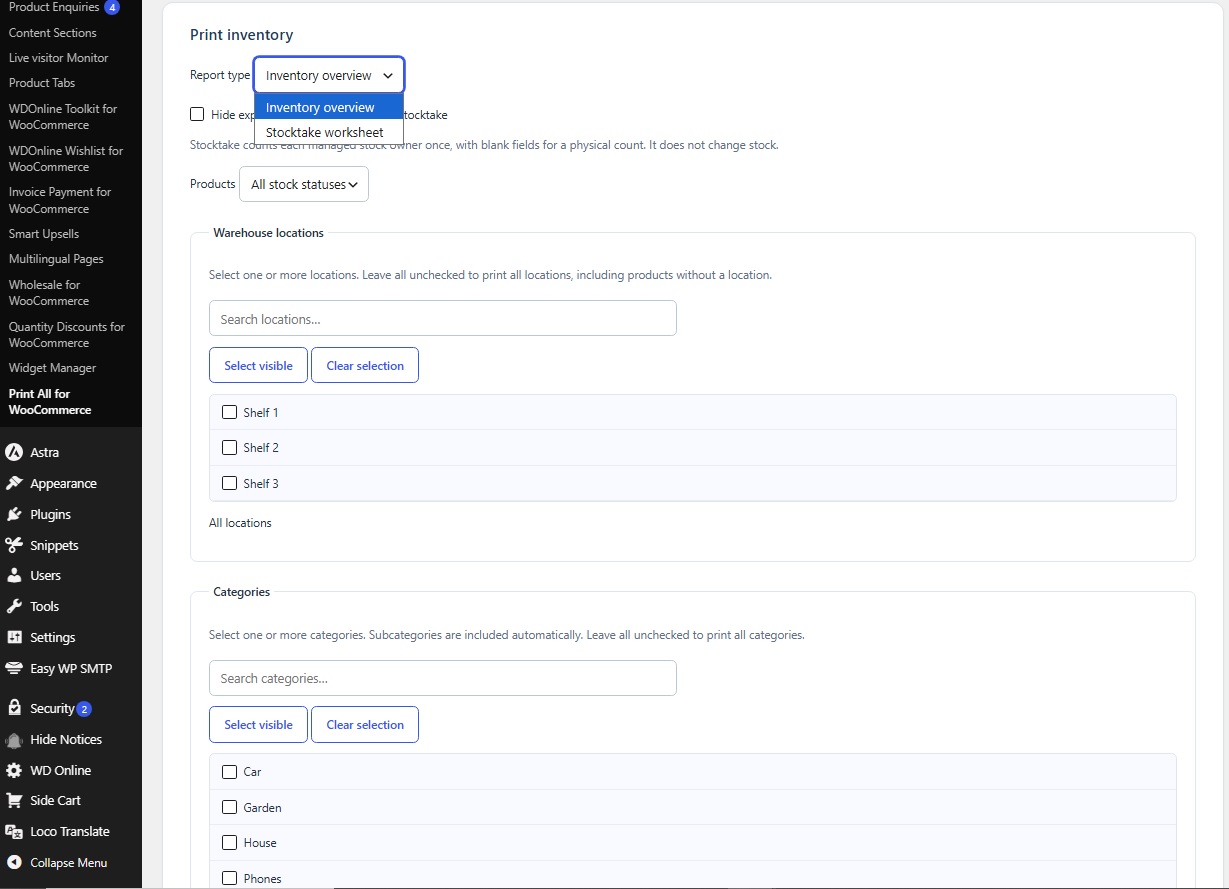
- Filter by multiple warehouse locations, product categories and stock status, then print or download CSV.
- Group shared variation stock under its stock owner, so a shared stock pool appears once.
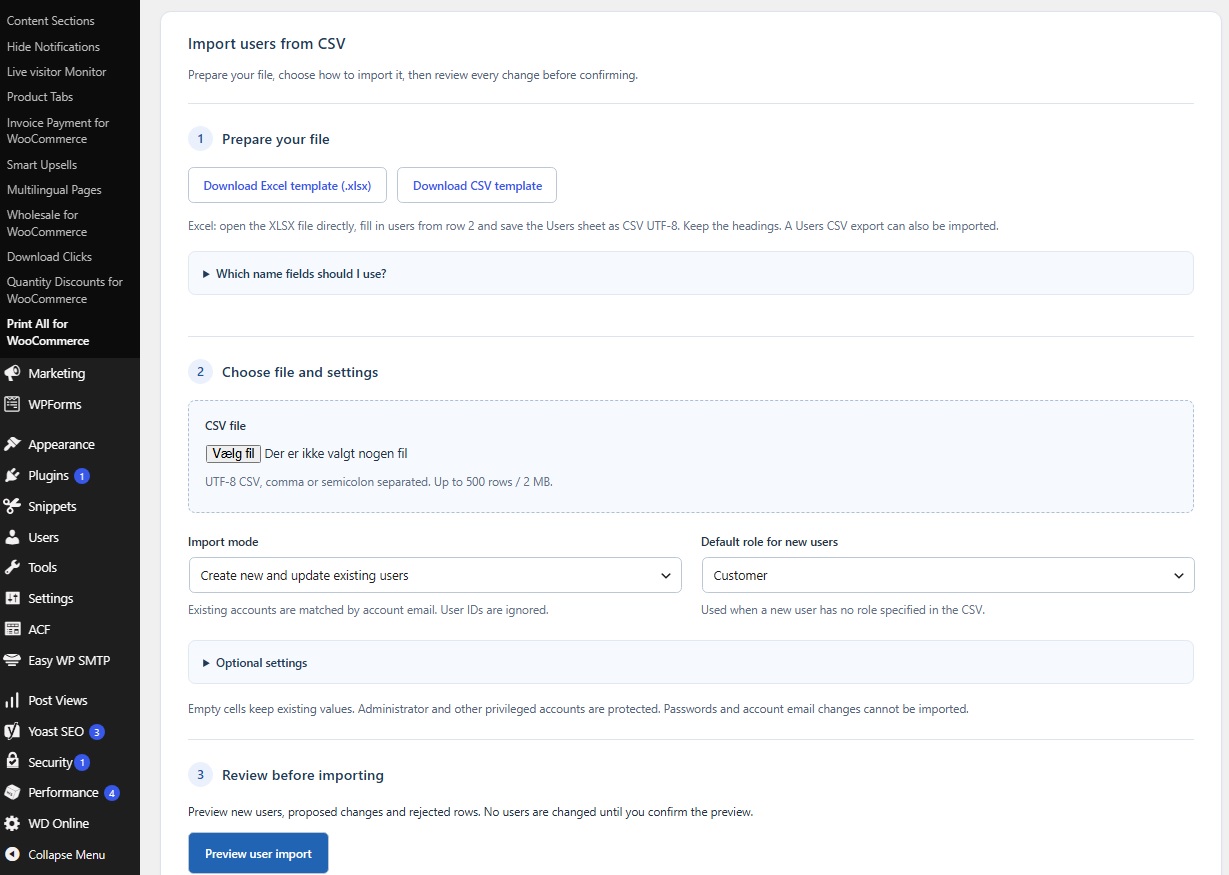
- Import registered users from CSV with a preview, protected administrator accounts and an optional Excel template.
- Export registered users by role, including billing and shipping addresses, as CSV or a browser printout.
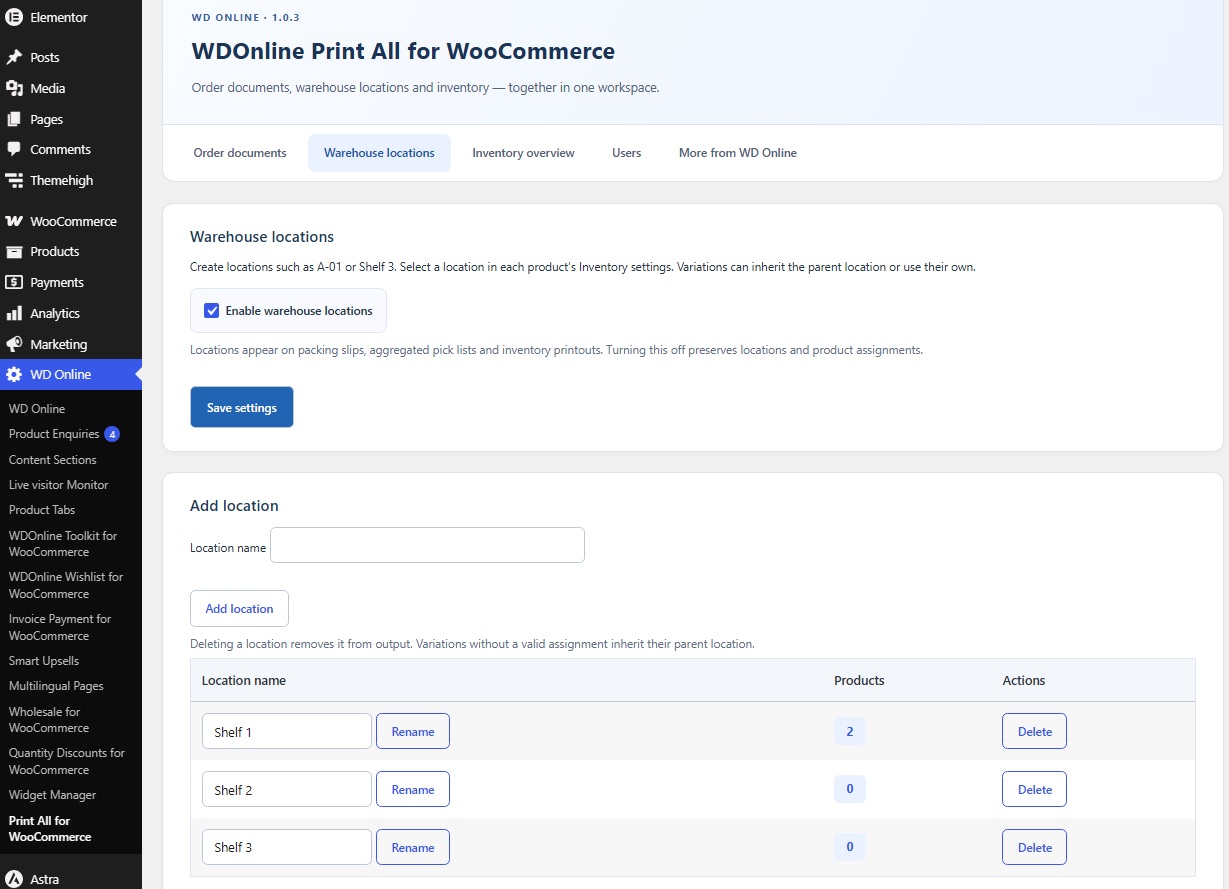
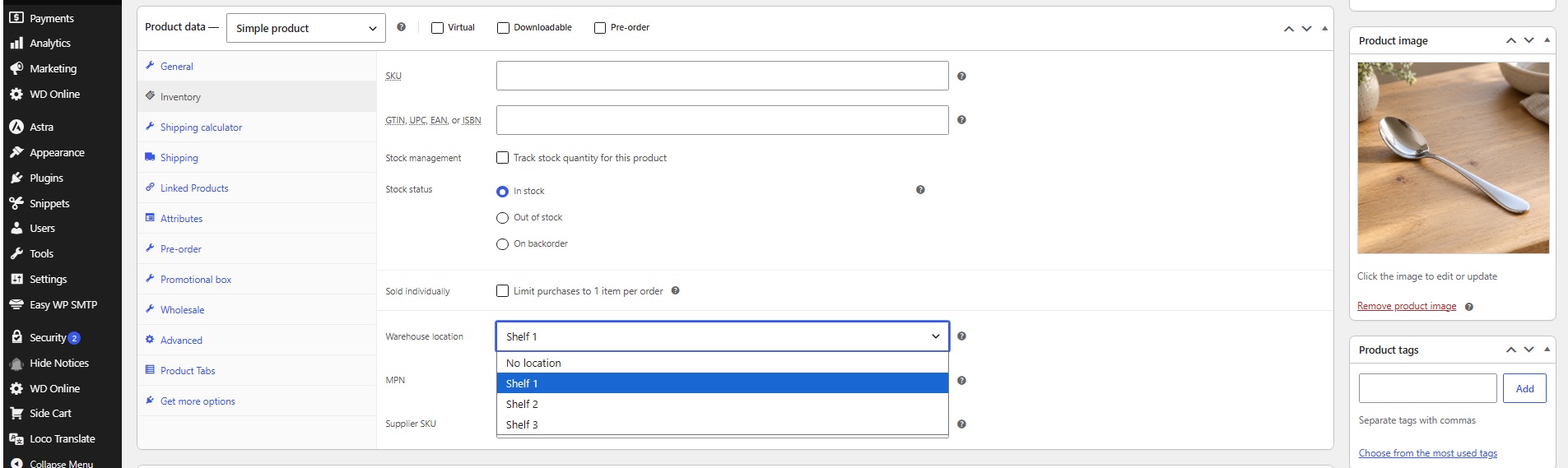
- Optional warehouse locations, managed in their own tab and selected on products or variations.
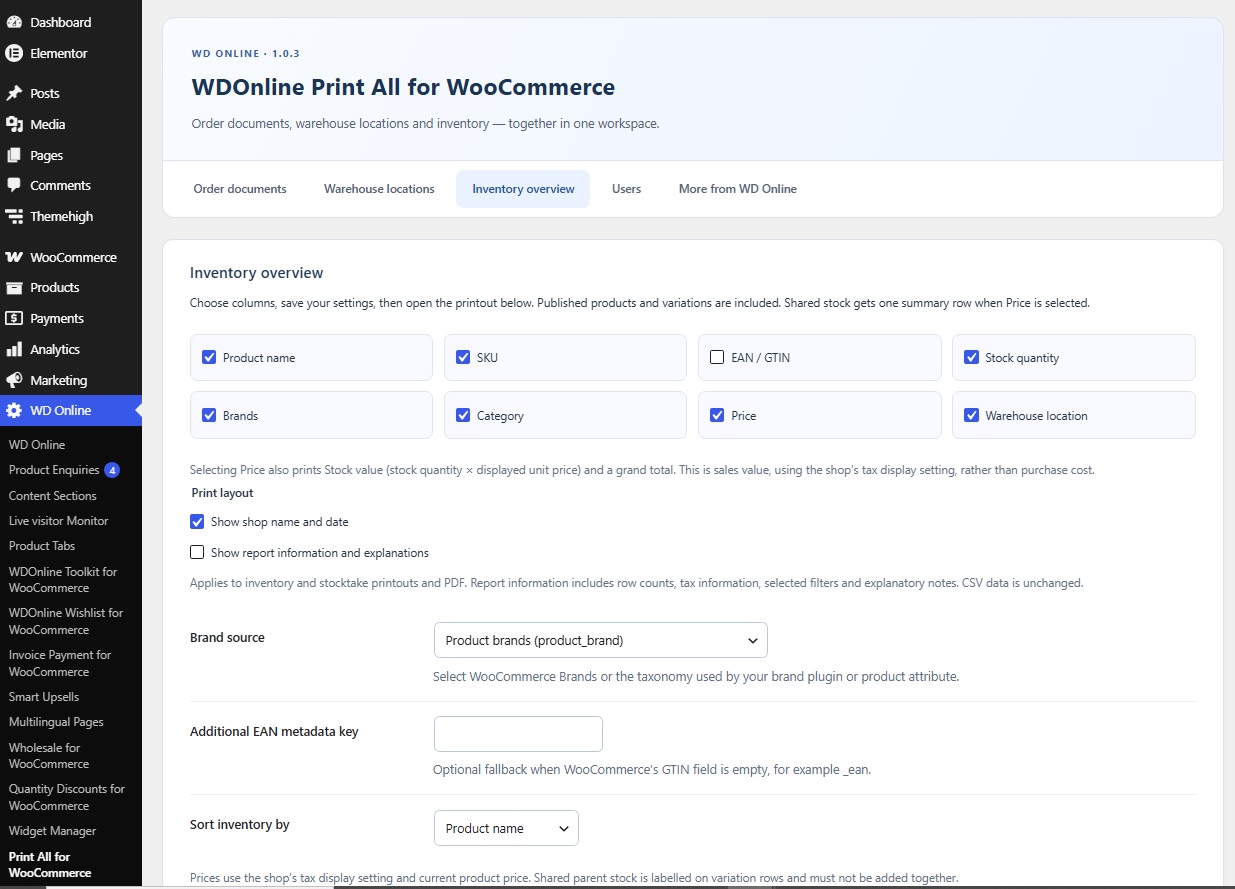
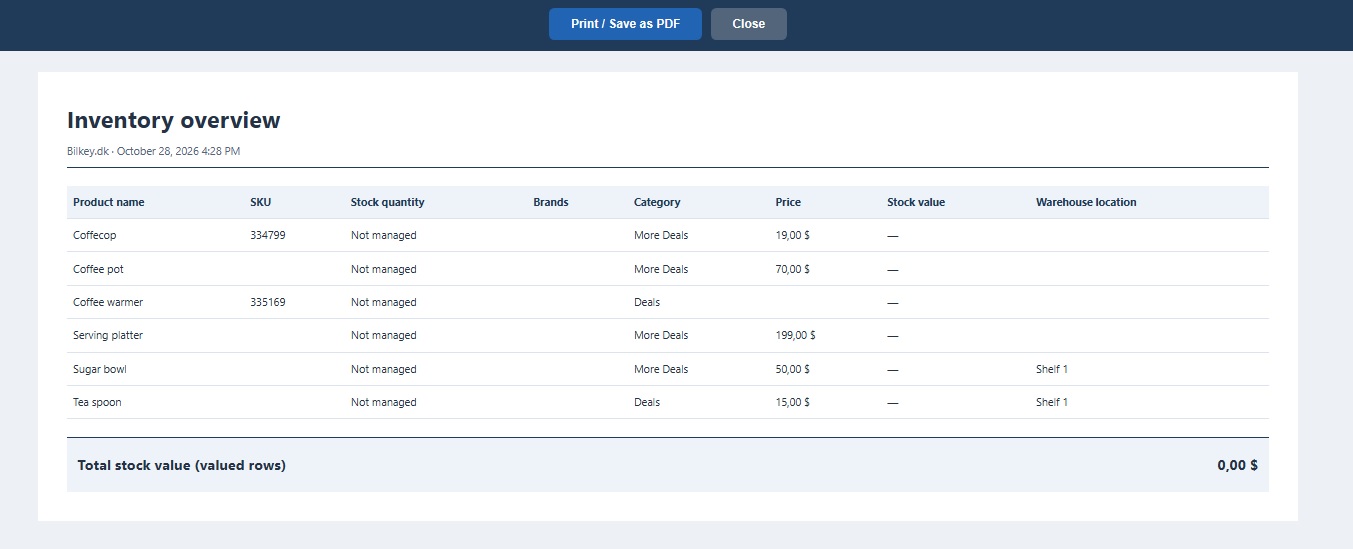
- Print inventory with name, SKU, EAN, stock, brands, category, price and location columns.
-
Filter inventory by category (including descendants) and stock status.
-
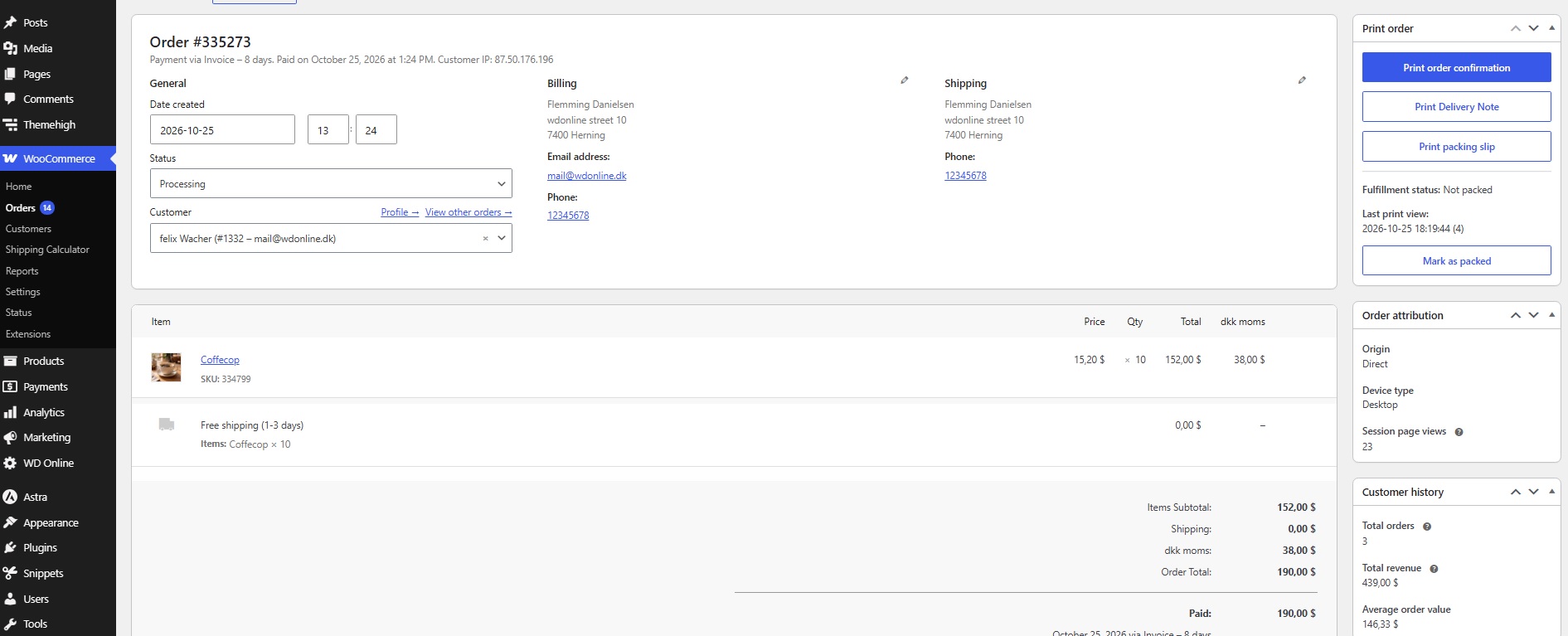
Print an order confirmation, Delivery Note or packing slip from an order.
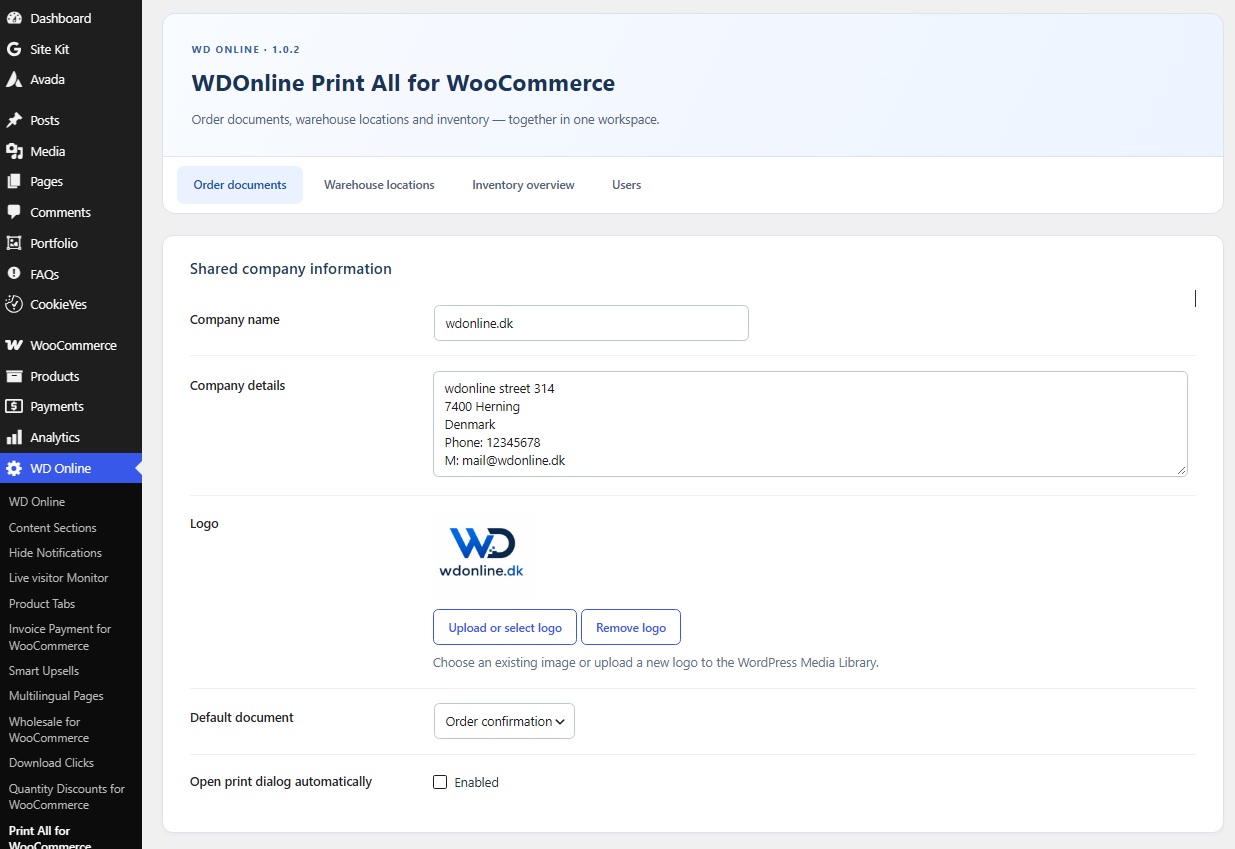
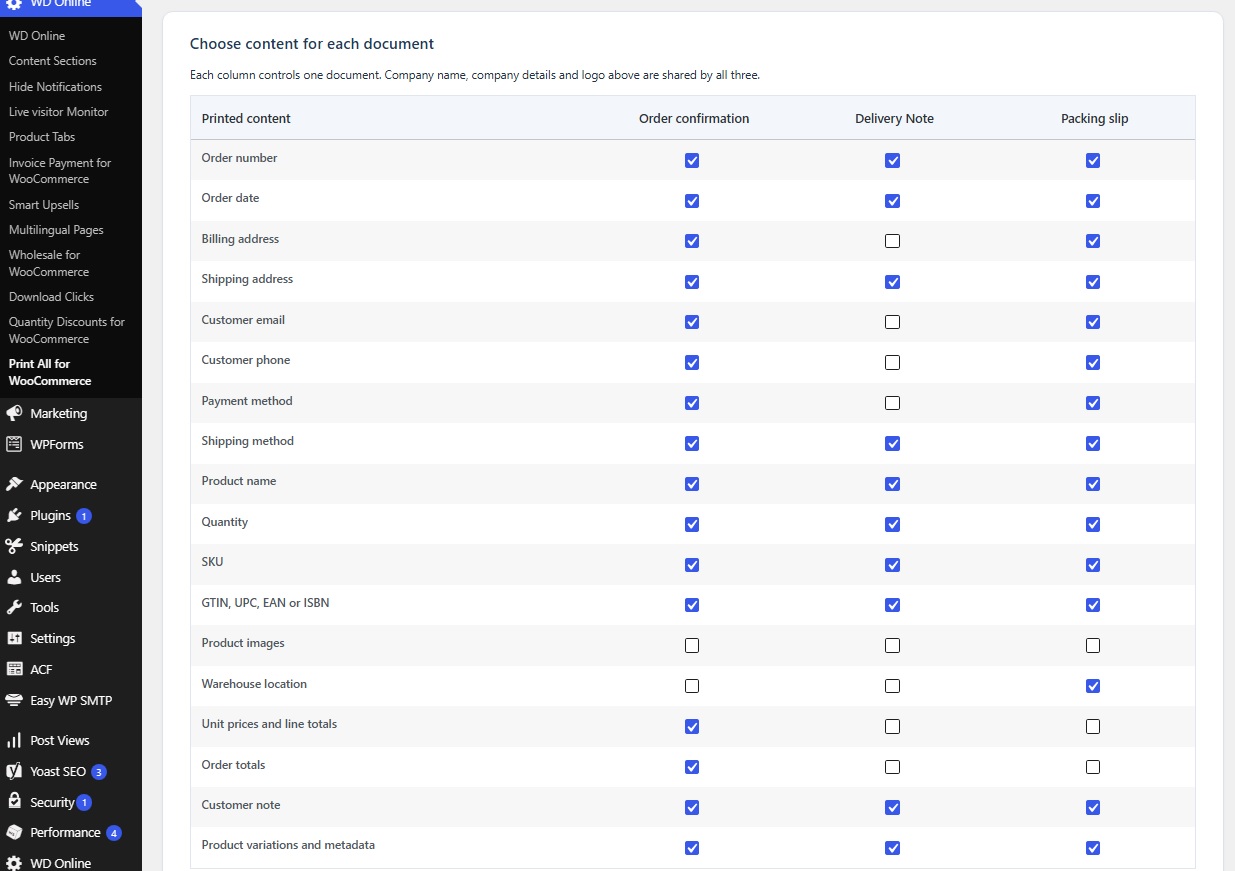
- Choose content independently for all three documents while sharing company details and logo.
- Print multiple selected orders using WooCommerce bulk actions.
- Generate an aggregated pick list across multiple selected orders.
- Optionally show product images and GTIN on aggregated pick lists.
- Track printed and packed orders directly in the order list.
- Filter orders by print and packing status.
- Sort products by name, SKU, GTIN or category.
- Show all order item metadata except exclusions, or print only selected metadata.
- Discover metadata keys from recent orders and optionally customize printed labels.
- Optional prices, SKU, GTIN, product images and customer notes.
- Configurable company name, details and logo.
- Optional automatic opening of the browser print dialog.
- Compatible with WooCommerce High-Performance Order Storage (HPOS).
- Reports are generated locally; optional new-user emails use the site’s configured mail delivery.
Privacy
Order, inventory and user reports are generated locally. The plugin does not automatically transmit diagnostics or telemetry. An administrator may choose to send a WordPress account setup email to newly imported users; WordPress delivers this through the site’s configured mail service. Import previews expire after 30 minutes and are removed through WordPress transient cleanup. Settings, locations and order fulfillment status are retained when the plugin is deleted.
Bundled artwork
The plugin recommendation icons in assets/images/plugins are WD Online artwork, distributed under this plugin’s GPLv2-or-later license. They are bundled locally; displaying the recommendations makes no requests to WordPress.org.
Installation
- Upload the plugin ZIP through Plugins > Add New > Upload Plugin.
- Activate the plugin.
- Configure it under WD Online > Print All for WooCommerce.
- Open a WooCommerce order and use the Print order panel.
FAQ
Which name fields does the user import update?
Account first name and Account last name update the WordPress profile fields. Nickname updates the profile nickname. Display name updates Display name publicly as; set it explicitly to change the public name. Billing and shipping first/last names only update the respective WooCommerce addresses and do not automatically overwrite profile names. Empty cells preserve existing values. User CSV exports include all four profile name fields. The login username is not changed for existing users.
How do I use the Excel template?
Under Users > Import users from CSV, click Download Excel template (.xlsx). Open the downloaded workbook directly in Excel, without importing it through a CSV query. Column headings are defined as a real Excel table header on row 1. Enter users starting on row 2. The first 500 input rows use text formatting to preserve leading zeros in postcodes and other identifiers. Account email is required to match an existing user. Keep the headings and save the Users sheet as CSV UTF-8 before uploading it for preview. XLSX uploads are not supported. The template uses English headings, accepted regardless of the WordPress interface language. Administrator protections also apply to this template.
Can I import users?
Yes. Under Users, download the CSV template or use a Users CSV export which always includes account email. Upload UTF-8 CSV (comma or semicolon), choose create/update mode and preview before confirming. Import matches by account email; user IDs are ignored. Empty cells preserve existing values. Roles on existing users only change when explicitly enabled. Passwords and account email changes cannot be imported. Country codes or current WooCommerce country labels are accepted. The limit is 500 rows / 2 MB per upload. Large files must be split into smaller files. Preview data is stored temporarily on your own site for 30 minutes and removed when processed; abandoned preview data expires via WordPress transient cleanup.
Administrator and equivalent privileged roles cannot be assigned. Existing administrators, super administrators and accounts with privileged roles or capabilities are protected even if their CSV row requests a normal role. Import requires manage_woocommerce, list_users, create_users, edit_users and promote_users. New users receive a password setup email only when explicitly enabled. Other installed plugins may independently react to WordPress user creation hooks.
How do I export users?
Open WD Online > Print All for WooCommerce > Users. Select one or more WordPress roles, or leave all unchecked for all registered users. Custom roles are included. Guest checkout customers without user accounts are excluded. Select billing, shipping or both addresses. When both are included, choose which address supplies city, postcode and country for sorting. Missing address values stay empty; shipping addresses are never replaced with billing addresses. User exports require both manage_woocommerce and list_users permissions.
How do PDF and CSV exports work?
Both Users and Print inventory offer Print preview, PDF (Save as PDF) and CSV. PDF opens the browser print dialog: select Save as PDF as the destination. No PDF service or external server receives the report. CSV downloads immediately as a UTF-8 file with a BOM and semicolon separators for spreadsheet applications. CSV uses the same selected filters and sort order as the printout. User addresses have separate CSV columns. Formula-like text is prefixed with an apostrophe for spreadsheet safety. Inventory stock values retain the existing shared-stock accounting; the total appears as the final CSV row.
How does the shared WD Online menu work?
The visible parent menu remains WD Online. The canonical integration slug is wdonline-admin. Registration runs at admin_menu priority 100 and reuses an existing wdonline-admin menu, or an existing legacy wd-online menu, before creating a parent. The plugin submenu remains wdonline-print-order. Every provider must register its own current-request callback; no separate core plugin is required.
Is Support Diagnostics required?
No. The documented wdonline_sd_providers filter registers version and tests according to the verified Support Diagnostics v0.1.2 interface. A report callback is also available. Tests return only dependency, handler and private-taxonomy status, with no customer data or location names. No report is transmitted automatically.
Can I customize the three order documents independently?
Yes. Under Order documents, configure shared Company name, Company details and Logo once. The content matrix lets you choose what each Order confirmation, Delivery Note and Packing slip prints. Each document also has its own sorting and metadata settings. Delivery Note starts without prices, billing details or warehouse location. Warehouse location output additionally requires the global location feature to be enabled. Unit prices and order totals can be enabled independently. Both are disabled by default on Delivery Note.
All three documents are available from individual order print buttons and WooCommerce bulk actions. The aggregated pick list and inventory overview remain available separately.
Can I see warehouse locations in the product list?
Yes. Enable warehouse locations under WD Online > Print All for WooCommerce > Warehouse locations. Products > All Products then includes a Warehouse location column next to SKU. Use Screen Options to show or hide the column for your user account. Products without an assigned location show a dash. Turning off warehouse locations removes the column without deleting assignments. Location information is not added to public product pages.
How do I use warehouse locations?
Open WD Online > Print All for WooCommerce > Warehouse locations. Enable the feature and add locations. Edit a product and choose its location under Product data > Inventory. Variations may inherit the parent location or use their own. Use the per-document Warehouse location checkboxes to choose where locations appear. Location output is enabled by default for packing slips and disabled for confirmations; Delivery Notes initially hide locations. Aggregated pick lists show locations while the global feature is enabled. Turning the feature off retains terms and assignments.
How is stock value calculated?
Selecting Price automatically adds Stock value and a grand total. Each valued row uses stock quantity multiplied by the displayed current unit sales price, rounded to the currency precision. The shop tax display setting is used. This is sales value, not cost-based accounting inventory valuation. Negative stock produces a negative value. Products without managed stock or without a price are excluded and counted in an explanatory notice.
Shared variation stock is valued once in an extra parent row using the parent’s current price (WooCommerce normally uses the lowest active variation price). Variation rows refer to this shared row. Filtering to a matching variation still includes the full shared stock pool. This avoids double-counting; it does not allocate shared physical stock among variations.
How do I prepare a stocktake worksheet?
Under Inventory overview > Print inventory, choose Stocktake worksheet, the desired categories and locations, and a stock status. For a blind count, tick Hide expected quantities. Choose Print preview, PDF (using the browser Save as PDF command), or CSV. The worksheet contains blank counted quantity, difference and notes fields. It does not update inventory; changes must be made separately. Products without managed stock are excluded.
A stock owner appears once. When variations share parent stock, the worksheet lists their common owner once and labels the shared pool. Filtering to a category or location still shows the expected quantity for the entire shared pool, not the amount at that location. Count or reconcile shared pools accordingly. In a blind count, no expected quantity column is included in either print or CSV.
How do I print inventory?
Open the Inventory overview tab. Select at least one column, choose your brand taxonomy and optionally an EAN metadata fallback, then save. Choose category and stock status filters and open the printout. Use the browser print dialog to print or save as PDF. Published individual products and variations are included; variable and grouped parent containers are excluded except for shared-stock valuation summary rows. Shared parent stock is explicitly labelled on each variation and must not be summed. This report does not change stock. Very large catalogs may require narrower category filters or more server memory.
Is data kept when I deactivate or remove this plugin?
Yes. Settings, warehouse locations and assignments remain stored for reinstallation. There is no automatic deletion of your fulfillment records.
Can I hide prices on a packing slip?
Yes. Prices are hidden on packing slips by default and can be enabled in the plugin settings.
Can I print several orders at once?
Yes. Select the orders in the WooCommerce order list and choose one of the print bulk actions.
Screenshots




Changelog
1.0.5
- Restored the published diagnostic provider identifier for upgrade compatibility.
- Restored the WD Online author URL and refreshed the translation template.
1.0.4
- Expanded More from WD Online to nine plugins with bundled local icons and a responsive three-column layout.
1.0.3
- Added an optional More from WD Online tab with links to related plugins on WordPress.org.
1.0.2
- Added separate saved options to hide shop name/date and report information on inventory and stocktake printouts and PDF.
1.0.1
- Renamed the plugin to WDOnline Print All for WooCommerce.
- Added stocktake worksheets and user import and export.
- Expanded warehouse and inventory reporting.
0.6.4
- Assign or remove a warehouse location for multiple products using WooCommerce product bulk editing.
- Leave existing locations unchanged by default; respect the warehouse locations enable setting and product permissions.
0.6.3
- Audited against WD Online plugin standards and WordPress Coding Standards.
- Added concrete order capability checks before printing and updating fulfillment status.
- Reject malformed IDs, nested filter values and nonce arrays before processing.
- Preserve other plugins’ order metadata filters when applying fulfillment filters.
- Use the canonical wdonline-admin shared menu when standalone; reuse existing WD Online menus and keep the legacy parent URL working.
- Recover safely from malformed stored settings without losing normal configuration.
- Improved formatting and API documentation throughout the PHP source.
- Made checkbox sanitization idempotent, so first-time saves cannot turn disabled flags on during repeated WordPress sanitization.
- Private underscore-prefixed item metadata is now printed only when explicitly selected.
- Corrected the diagnostic provider to the verified Support Diagnostics v0.1.2 tests interface while retaining the previous report callback.
- Keep the diagnostic provider available when WooCommerce is missing, without loading dependent features.
0.6.2
- Replace the single warehouse location dropdown with searchable multiple selection, matching the category picker.
- Add Select visible and Clear selection controls. No selected locations includes all locations and unassigned products.
- Show selected location names in the report; combine selections with category and stock-status filters.
- Preserve support for previous single-location print requests and integrations.
0.6.1
- Added a Warehouse location filter under Inventory overview > Print inventory, with All locations as the default.
- Combine location, category and stock-status filters; inherited variation locations are respected.
- Show the selected location in the printout and calculate totals for the filtered report.
- Reject stale or unavailable location selections instead of silently printing all locations.
- Clarified that shared parent stock pools cannot be divided between locations by filtering.
0.6.0
- Added Delivery Note printing from individual orders and bulk actions, for classic orders and HPOS.
- Added independent content selections for Order confirmation, Delivery Note and Packing slip.
- Added per-document warehouse location, addresses, contact details, product details, quantity, prices, totals, notes, metadata and sorting controls.
- Kept company name, company details and logo shared across all three documents.
- Preserved previous confirmation and packing slip settings through lazy profile defaults.
- Made the chosen default document the primary action in the order print panel.
- Prevented an empty trailing print page while keeping separate pages for bulk order documents.
0.5.1
- Disable Add location when warehouse locations are disabled, with server-side enforcement.
- Show clickable product counts per location and a paginated list including inherited variation assignments.
- Add searchable multiple category selection, including descendant categories.
- Show stock value beside Price and a grand total based on displayed unit prices.
- Value shared variation stock once in a separate parent row, using the parent product’s current price.
- Clearly identify rows without managed stock or prices that cannot be included in valuation.
0.5.0
- Added an optional warehouse location manager with its own settings tab.
- Added product and variation location assignment with parent inheritance.
- Show current locations on packing slips and aggregated pick lists, with optional location sorting.
- Added a printable inventory overview with eight selectable columns, category and stock-status filters, brand source and optional EAN fallback.
- Added explicit labels for shared parent stock on variation rows.
- Redesigned administration with separate tabs, cards and responsive layouts.
- Preserved existing order print settings and optional diagnostics integration.
- Omitted website URI headers while the website does not return a successful public HTTP response.
0.4.3
- Added the standard discreet WD Online support box with the current PayPal/card support link.
- Registered administration scripts and styles before enqueueing them to match the plugin project standards.
- Restored the public Author URI and added the public plugin product page as Plugin URI.
- Improved request handling by unslashing packed-status query values before validation.
- Refreshed the translation template for the new support text.
0.4.2
- Moved all print-view JavaScript to a properly enqueued external file.
- Removed inline event handlers and inline administration styles.
- Removed website URI headers while the URLs are unavailable to WordPress.org validation.
0.4.1
- Added the plugin-specific WD Online product page URL.
- Corrected the feature list after removal of the footer setting.
0.4.0
- Added optional product images to aggregated pick lists.
- Added a separate option for showing or hiding GTIN on aggregated pick lists.
- Added variation image support with a parent product image fallback.
0.3.1
- Added the required translator context for the aggregated order count.
- Documented the intentional metadata query used by the administrator order status filter.
0.3.0
- Added separate metadata display modes for packing slips and order confirmations.
- Added exact allowlists for printing only selected order item metadata.
- Added optional custom labels using the key|Label format.
- Added a list of public metadata keys detected in the 50 most recent orders.
- Preserved the existing exclusion-based metadata behavior after updating.
0.2.1
- Added the required quantity beside each order number on aggregated pick lists.
- Combined quantities correctly when the same product appears more than once in an order.
0.2.0
- Added aggregated pick lists with total quantities and related order numbers.
- Added product sorting by name, SKU, GTIN or category.
- Added print and packed status tracking with an order list column.
- Added order filters for printed, not printed, packed and not packed orders.
- Added single-order and bulk actions for marking orders packed or not packed.
- Added configurable hidden metadata rules for packing slips and confirmations.
- Improved multipage printing with repeated table headers and protected product rows.
0.1.7
- Removed pre-order notices from packing slip product metadata.
- Preserved variation attributes and other relevant item metadata.
- Kept pre-order information available on order confirmations.
- Added a filter for developers to adjust printed order item metadata.
0.1.6
- Added a Settings link to the plugin action links on the Plugins screen.
- Replaced the visible logo URL field with the WordPress Media Library selector.
- Added logo preview and remove controls.
- Preserved existing logo URLs as a backward-compatible fallback.
0.1.5
- Fixed the Close button after bulk printing.
- Close now returns to the previous order list when the print view uses the current browser tab.
- Printing from an individual order continues to close its separate print tab.
0.1.4
- Routed bulk printing through the plugin’s registered WD Online settings page.
- Removed the hidden WooCommerce page route that could be rejected by some admin menu configurations.
- Kept print rendering early enough to prevent WordPress administration markup from entering the document.
0.1.3
- Fixed the WordPress permission error when opening the bulk print screen.
- Registered the secure print route as a hidden WooCommerce administration page.
- Kept the print route out of the visible WooCommerce menu.
0.1.2
- Fixed blank output when printing multiple orders from WooCommerce bulk actions.
- Replaced the reserved admin-post action URL with a dedicated secure admin route.
- Registered and enqueued the print stylesheet according to WordPress requirements.
- Removed the discouraged manual translation loader; WordPress loads translations automatically.
- Updated the WordPress tested version header.
0.1.1
- Added a translation template and explicit Loco Translate support.
- Moved the settings page into the shared WD Online admin menu.
- Removed the document footer text setting and output.
- Suppressed browser-generated print headers and footers where supported.
- Confirmed bulk actions for both classic orders and HPOS order screens.
- Added optional WooCommerce GTIN, UPC, EAN or ISBN output with variation fallback.
0.1.0
- Initial development release.
- Added order confirmations, Delivery Notes and packing slips.
- Added single-order and bulk print actions.
- Added configurable document content and company details.
- Added HPOS compatibility declaration.
- Added optional WD Online Support Diagnostics integration.