

Description
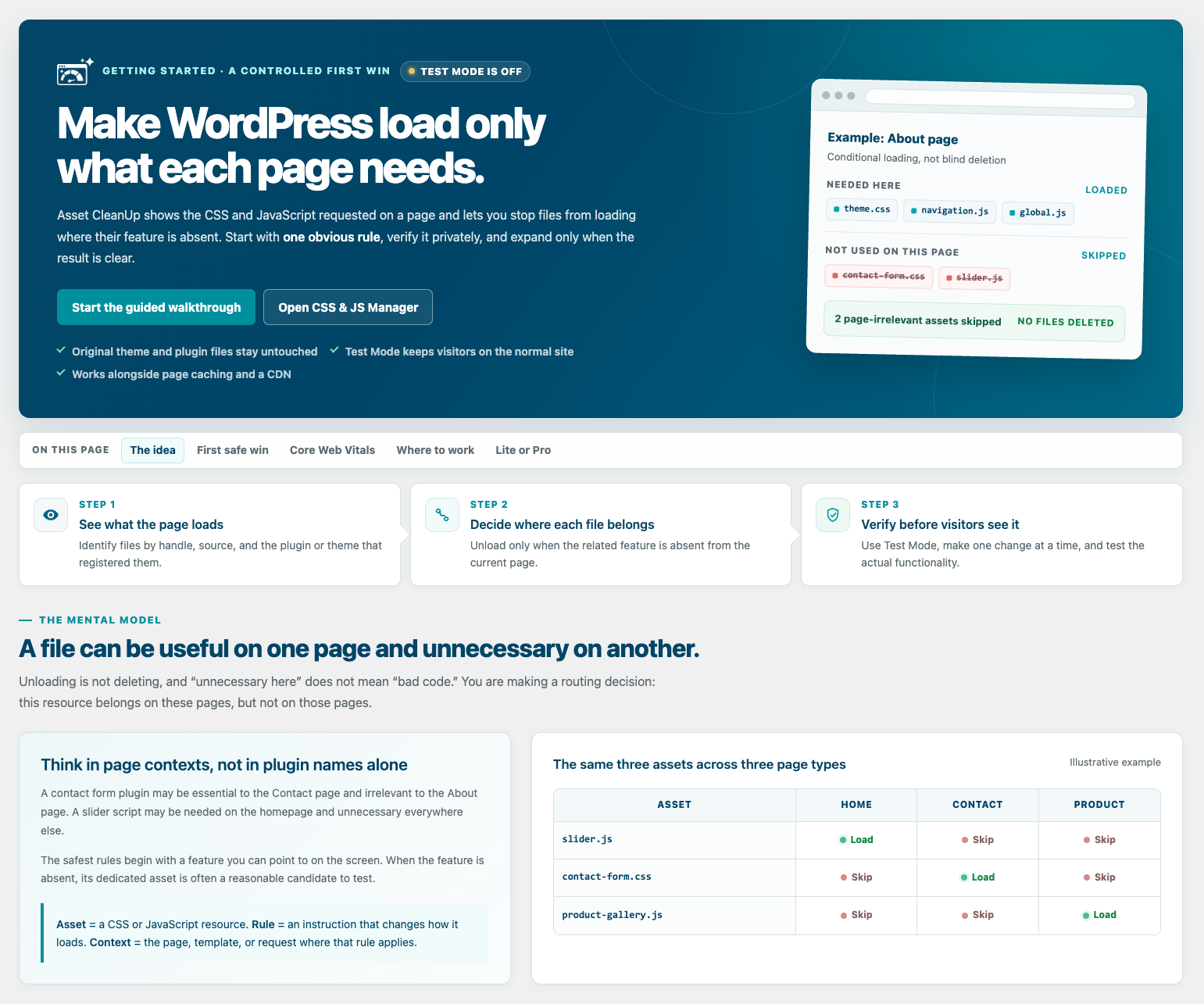
WordPress themes and plugins often load CSS and JavaScript on pages that do not use them. A contact form may load on the homepage, a slider may load on a plain article, or store-related files may load outside the shop.
Asset CleanUp shows you what each page loads and lets you unload what is not needed. This can reduce HTTP requests, page weight, and browser work while complementing your existing caching setup.
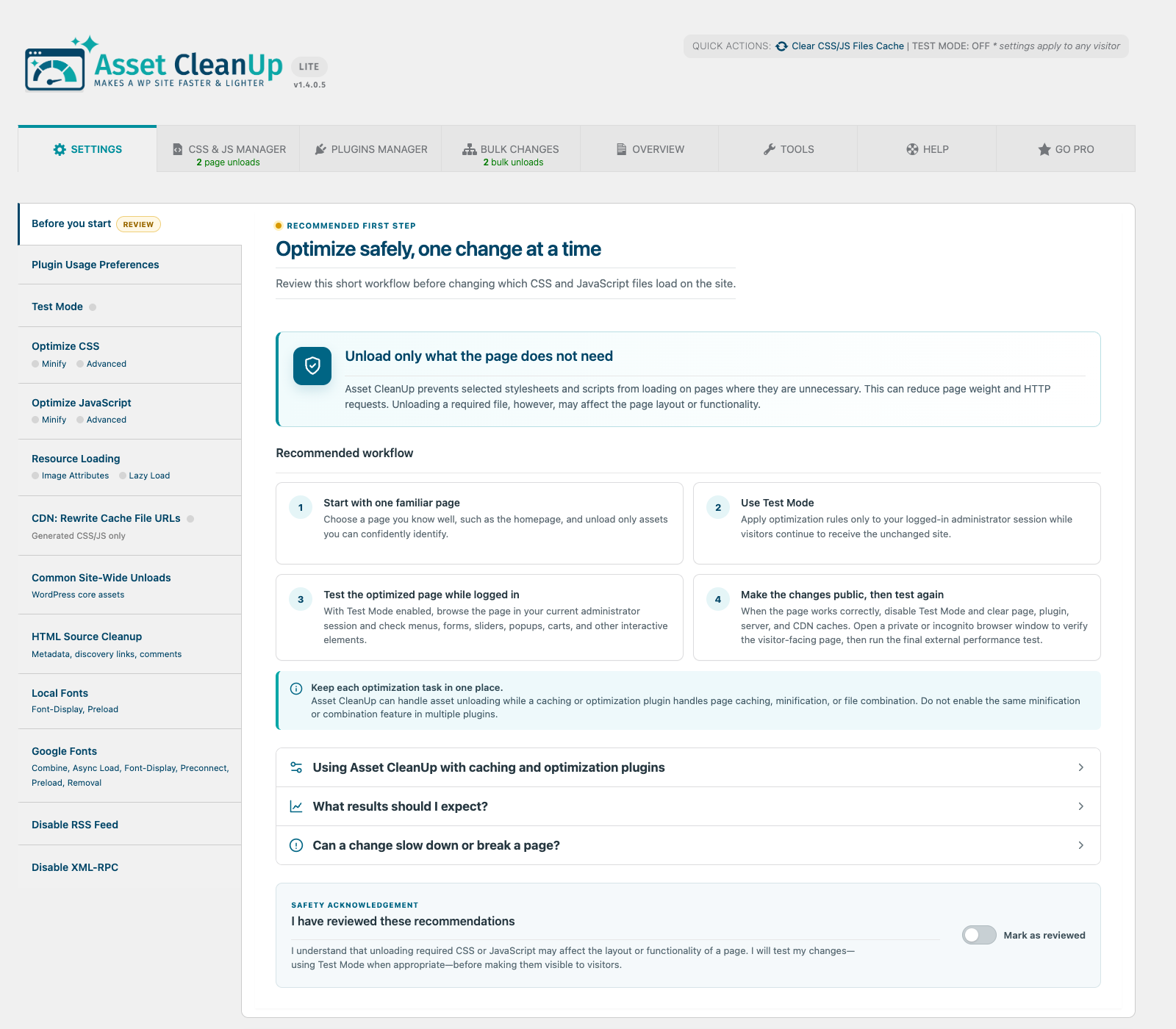
Use Test Mode to validate changes as an administrator before they affect visitors.
Asset CleanUp gives you precise, testable control over every optimization.
A safer workflow, without giving up control
The Dashboard keeps the technical detail experienced users need while guiding first-time users through Getting Started, Test Mode, and the central Overview page. Test changes before they affect visitors, then review and manage existing or leftover rules from one place.
CSS and JavaScript management
- View loaded stylesheets and scripts, organized by their source.
- Unload unnecessary CSS and JavaScript on the homepage and on individual posts, pages, and custom post types.
- Manage assets from the Dashboard, the post/page edit screen, or the front-end view.
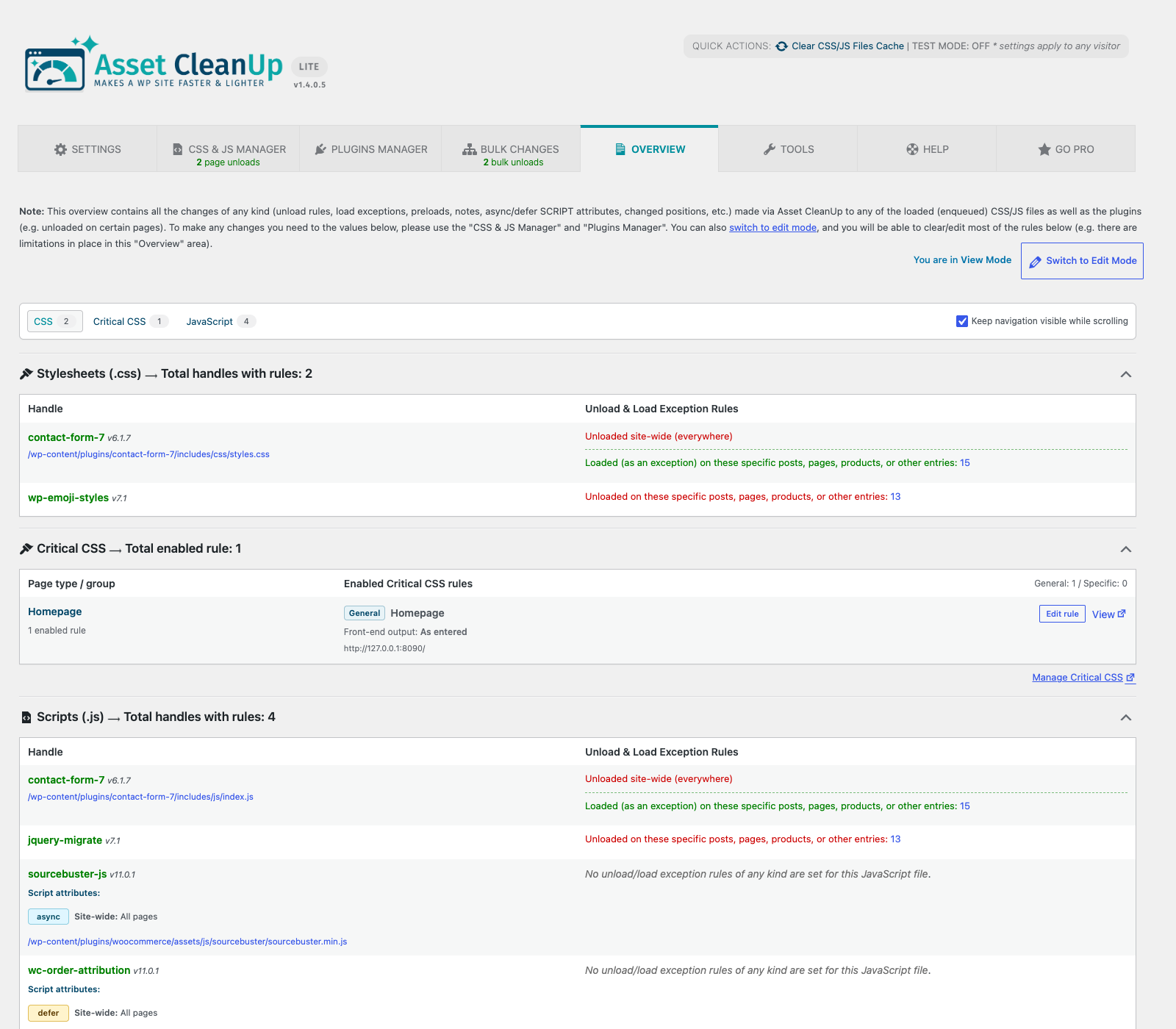
- Review unload rules, exceptions, asset attributes, page options, and leftover entries from the Overview page.
- Minify and combine supported CSS and JavaScript, including supported inline code.
- Preload selected CSS and JavaScript files when they need to be discovered earlier.
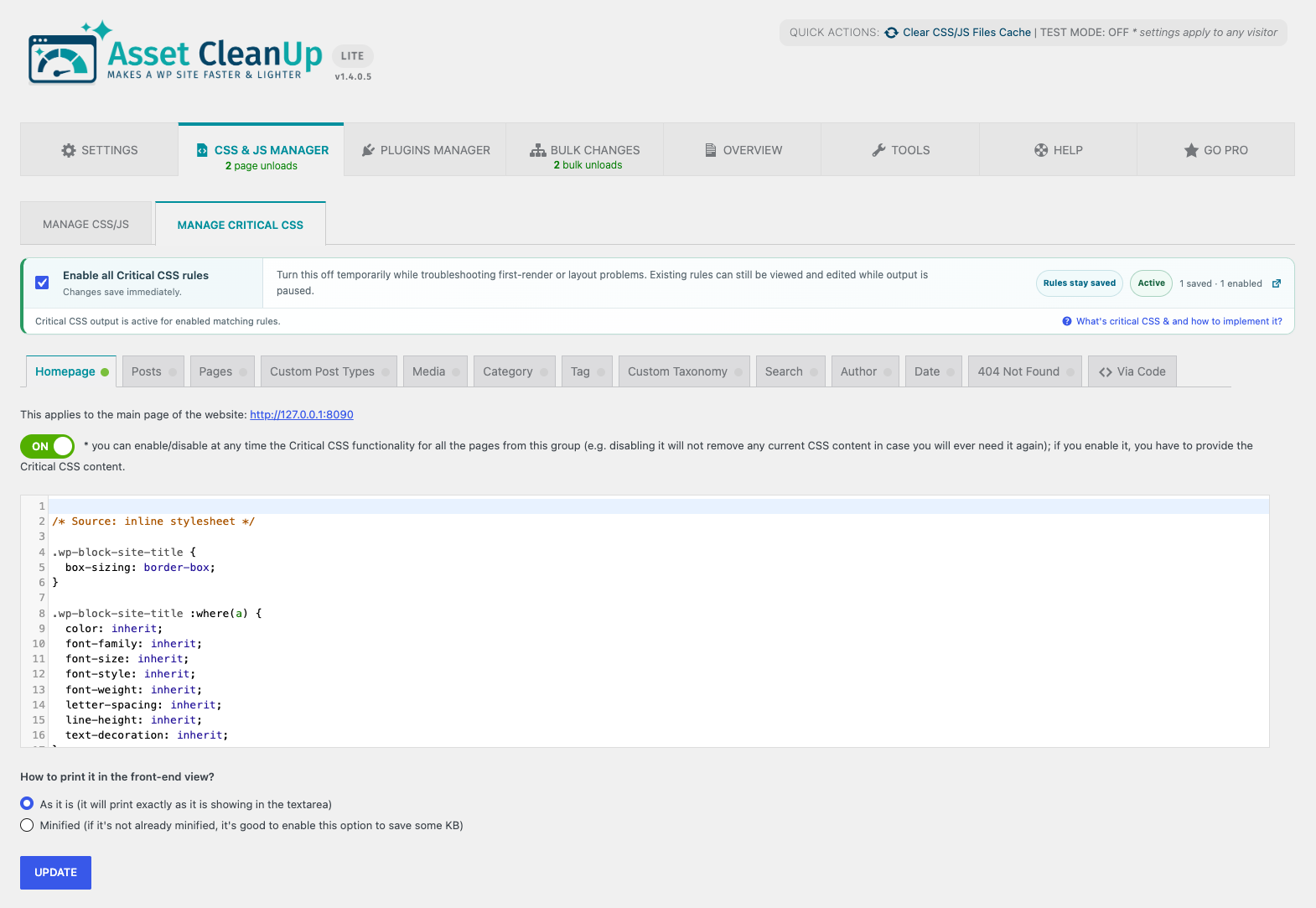
Granular manual Critical CSS management
Add, edit, and remove your own Critical CSS directly from the Dashboard. Keep manual CSS organized by supported page context instead of maintaining one large global block.
Asset CleanUp does not automatically generate Critical CSS. It gives you a structured way to manage CSS that you prepare yourself.
Fonts and resource loading
- Combine, preload, asynchronously load, or remove Google Fonts requests, with
font-displayand preconnect controls. - Preload local font files and apply
font-display. - Add
fetchpriority,loading, anddecodingattributes to images using simple matching or regular expressions. - Lazy-load images where appropriate.
WordPress cleanup options
- Remove unused WordPress features such as Emojis, Dashicons for guests, and Comment Reply.
- Remove selected discovery links, metadata, and oEmbed resources from the document HEAD.
- Disable RSS feed links or feeds when they are not needed.
- Restrict or disable XML-RPC when your site does not rely on it.
- Strip supported HTML comments, with exceptions where required.
Works with your caching setup, it does not replace it
Asset CleanUp is not a page-caching plugin. It controls what WordPress outputs; a page cache, server cache, or CDN can then store and deliver the optimized result.
After changing rules, clear every active cache layer. Avoid enabling the same minify or combine feature in multiple optimization plugins at the same time.
Asset CleanUp Lite and Pro
Lite includes page-level asset management, Test Mode, manual Critical CSS for supported contexts, resource-loading controls, and WordPress cleanup options.
Go beyond individual CSS and JavaScript files with the Plugins Manager.
Lite includes an interactive preview of the Plugins Manager (rules can be explored, but saved only in Pro). In Pro, it can prevent entire plugins from running on frontend or Dashboard pages where they are not needed, not merely remove their CSS and JavaScript. This can reduce PHP work, database queries, and potential conflicts before the page is generated.
Asset CleanUp Pro also adds broader conditional rules, hardcoded asset management, device-specific rules, and advanced JavaScript attribute and placement controls.
Documentation and support
- Read the Asset CleanUp documentation.
- Ask a question in the WordPress.org support forum.
External Services and Privacy
WordPress.org plugin icon service
When an administrator opens an Asset CleanUp Dashboard screen, the plugin may request public plugin information from the WordPress.org Plugin API to retrieve icons for installed plugins. This occurs only when the local icon cache needs to be populated and does not intentionally send the site URL or administrator details. See the WordPress.org Privacy Policy.
Google Fonts preload audit
When an administrator runs the Google Fonts preload audit, Asset CleanUp may request discovered stylesheets and font files from Google Fonts to analyze their preload requirements. These requests occur only during the administrator-initiated audit and can include the requested font URLs and standard HTTP metadata. See the Google Privacy Policy.
Optional email course
Asset CleanUp Lite offers an optional seven-lesson email course through Getting Started, Help and contextual invitations during initial setup or after saving CSS/JS rules. Only after you explicitly consent and submit a course form, the plugin sends your chosen email address, optional first name, consent indicator and version, plugin version, fixed Lite source and invitation placement to the developer’s course subscription service. Viewing or dismissing an invitation does not send a subscription request. The site URL, plugin/theme inventory, settings, rules and site content are not included. Mailster handles the confirmation email and course delivery. The course includes occasional information about Asset CleanUp Pro, and you can unsubscribe at any time. See the privacy policy.
Choosing Continue to setup records your choice locally and does not send a subscription request. The email field also provides an advisory mail-server check: only the email domain is checked through your WordPress server’s DNS resolver. This check does not send your name or full email address to the course service and never prevents submission. The plugin does not periodically contact the course service to check whether you confirmed your email.
After an accepted course request, the submitted email address is stored in the current WordPress user’s metadata so the confirmation reminder can identify it and prefill the correction form. The submitted first name is not stored by this feature.
The following two Asset CleanUp-operated services are optional. Both are disabled by default and require an administrator to opt in from Asset CleanUp > Settings > Plugin Usage Preferences.
Dashboard announcements
When an administrator enables announcements, Asset CleanUp periodically requests the Asset CleanUp Lite announcements feed to show maintenance information, update notices, optimization guides, and occasional product offers in the WordPress Dashboard. The request does not intentionally include the site URL, administrator details, or site content.
Optional usage tracking
When an administrator enables usage tracking, Asset CleanUp sends an initial technical check-in and no more than one check-in per week to the Asset CleanUp usage-tracking endpoint. It can include software versions, Asset CleanUp settings and notice state, server and multisite information, theme and plugin identifiers, and the WordPress locale. The site URL, administrator name, and administrator email are not intentionally included. Disabling the setting stops future check-ins.
The announcements and usage-tracking services are operated by the Asset CleanUp developer. See the privacy policy. CloudFront infrastructure is provided by Amazon Web Services and is also subject to the AWS Privacy Notice.
Installation
Install Asset CleanUp Lite
- In the WordPress Dashboard, go to
Plugins > Add New. - Search for
Asset CleanUp: Page Speed Booster. - Click
Install Now, thenActivate. - Open
Asset CleanUp > Getting Startedand follow the guided setup.
Make your first optimization safely
- Go to
Asset CleanUp > Settings > Test Modeand enable Test Mode. While it is active, your optimization rules are applied only to you as a logged-in administrator. - Open
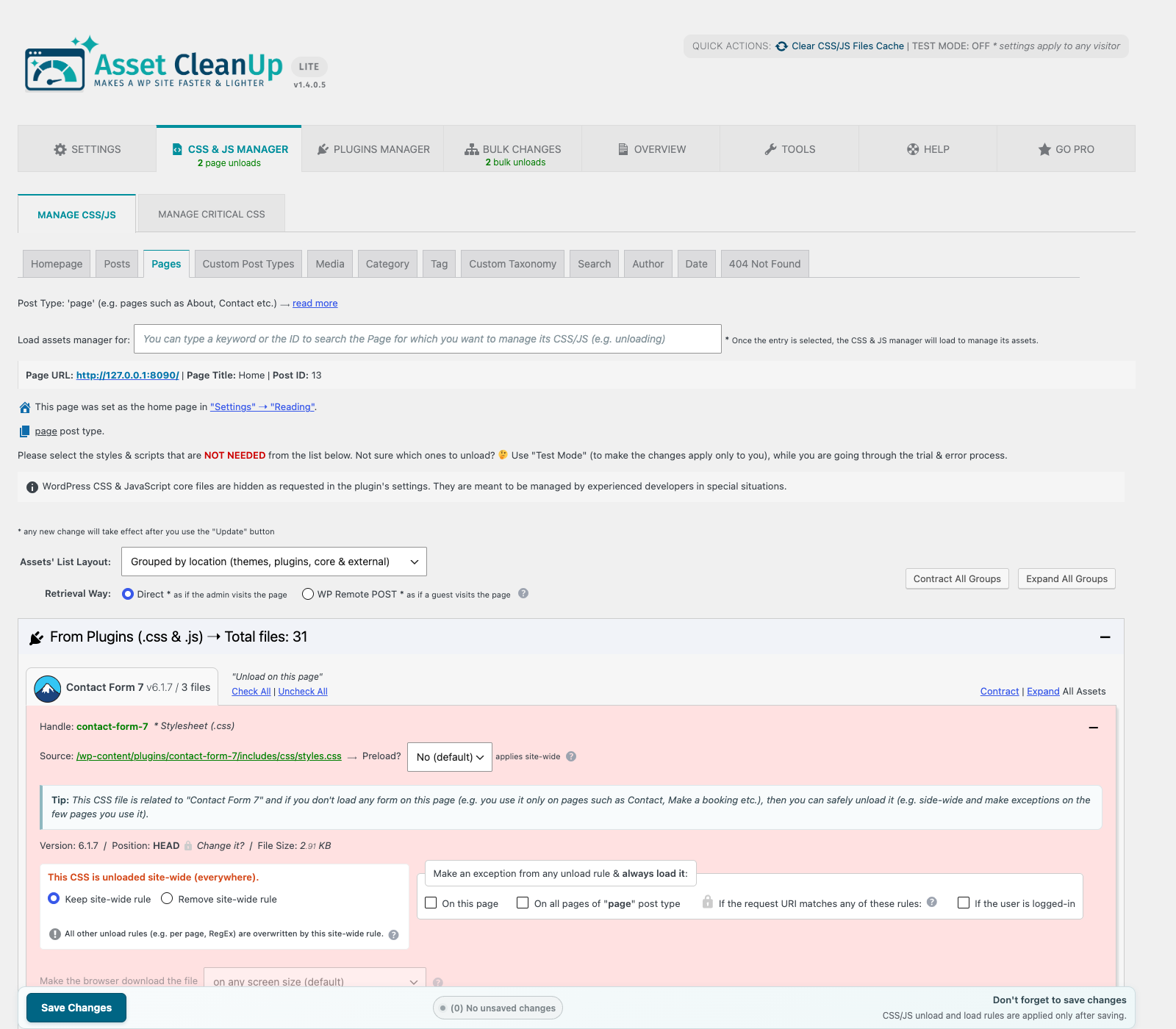
Asset CleanUp > CSS & JS Managerand select the page you want to optimize. - Start with an asset that is clearly unnecessary there, such as contact-form files on a page without a form.
- Save the rule and test the page carefully on desktop and mobile. Check menus, forms, popups, sliders, and other interactive elements.
- Clear page, server, and CDN caches. Disable Test Mode only after everything works correctly, then verify the page once more as a logged-out visitor.
You can also manage assets from the post/page edit screen or directly from the front end after enabling front-end management in the plugin settings.
Manual installation
- Download the plugin ZIP file from WordPress.org.
- Go to
Plugins > Add New > Upload Pluginin the WordPress Dashboard. - Select the ZIP file, click
Install Now, thenActivate. - Open
Asset CleanUp > Getting Started.
FAQ
Is Asset CleanUp a caching plugin?
No. Asset CleanUp controls which CSS, JavaScript, and other optimizations WordPress outputs. It works best alongside a page cache, server cache, or CDN.
Does Asset CleanUp automatically remove unused CSS or generate Critical CSS?
No. You decide which assets to unload and provide any Critical CSS yourself. This keeps each optimization inspectable and under your control, but it also means that every change should be tested.
Can Asset CleanUp improve Core Web Vitals or PageSpeed scores?
It can help when unnecessary CSS or JavaScript contributes to transfer size, render blocking, or browser work. Results still depend on your theme, plugins, hosting, caching, media, third-party scripts, and configuration. No plugin can guarantee a particular score.
Can unloading a CSS or JavaScript file break the page?
Yes, if that file is required for the page’s layout or functionality. Use Test Mode, make one meaningful change at a time, and test desktop, mobile, forms, navigation, popups, and other interactive elements before publishing the rule to visitors.
I am not sure which assets to unload. Where should I start?
Start with obvious candidates:
- Contact-form assets on pages without a form.
- Slider or gallery assets on pages without a slider or gallery.
- Store-related assets on pages outside the shop flow.
Avoid unloading WordPress core files or dependency files unless you understand what relies on them.
Why are my changes not taking effect?
The most common cause is caching. Clear plugin, server, browser, and CDN caches, then test as a logged-out visitor. Also check whether Test Mode is still enabled and whether another optimization plugin is applying the same type of rule.
See the detailed troubleshooting guide.
Why is a CSS or JavaScript file missing from the manager?
WordPress-enqueued assets are the easiest to detect and manage. Some files may be hardcoded, injected dynamically after the page loads, removed earlier by another plugin, or hidden by a cached response. Try another asset-retrieval method or the front-end manager. Advanced hardcoded asset management is available in Asset CleanUp Pro.
Can I use Asset CleanUp with another performance plugin?
Yes. Asset CleanUp is commonly used with caching plugins and CDN services. Do not enable the same minify, combine, or related optimization in more than one tool, because overlapping transformations can cause conflicts or make troubleshooting difficult.
Does Asset CleanUp support WordPress Multisite?
Yes. Each site can be configured independently.
Screenshots
Changelog
1.4.0.7
- New: Added Alternative Assets for CSS. Create and edit alternative versions of enqueued stylesheets and choose where they apply without modifying the original files. JavaScript alternatives require Pro.
- New: Pause and resume CSS/JS rules and Alternative Assets independently without deleting their saved configuration.
- Improvement: The front-end CSS/JS Manager now runs in an isolated iframe to prevent styling conflicts with themes and plugins. Custom CSS/JS integrations targeting the manager in the parent document need to be adapted; links navigate the top-level page by default unless explicitly targeted or handled within the manager.
- Improvement: Manual AJAX cache clearing now confirms success without reloading the page or requiring jQuery.
- Improvement: Add a locked Plugins Manager preview beside the front-end CSS/JS Manager, showing the contextual By page layout and preserved rules for the current page. The preview tab is hidden on 404 pages.
- Improvement: Import/Export now includes Alternative Assets and preserves stored Pro settings and rules when transferred through Lite, without enabling Pro-only features. Improved import validation and preservation of backslashes in saved rule data.
- Fix: Improve CSS/JS combining to preserve stylesheet order, media conditions and JavaScript execution order around inline code, translations and deferred scripts.
- Fix: Revalidate combined CSS/JS caches when source files or relevant page markup change, preventing reuse of outdated bundles.
- Fix: Keep manual local and Google Fonts preloading disabled when switched off, even if saved URLs remain.
- Fix: Use content-based versions for the plugin’s own CSS/JS files so browsers request updated files after plugin updates.
- Fix: Preserve settings belonging to the inactive plugin edition when saving Settings or changing individual options through AJAX controls. Validate submitted form fields against the active edition’s settings.
- Security: Restrict asset diagnostic dumps to users with plugin access and escape their HTML output, including hardcoded asset data.
- Security: Validate CSS/JS unload query handles and escape admin-bar output to prevent reflected cross-site scripting.
- Security: Replace document-wide temporary-attribute cleanup to prevent stored cross-site scripting through published comment content. Cleanup preserves quoted values, inline code and text content and also works on older WordPress versions. Ambiguous or unsupported HTML is left unchanged, including its cosmetic markers.
- Security: Restrict credentialed front-end CORS responses to trusted origins while preserving requests from the primary Dashboard to WPML/Polylang language domains. Additional trusted origins can be configured with
wpacu_frontend_cors_allowed_origins. - Fix: Keep Critical CSS preview cleanup confined to actual stylesheet tags, preserving marker-like text in other page content.
- Fix: Preserve empty SCRIPT/STYLE markup in page content during cleanup, including STYLE literals used by JavaScript to create elements dynamically.
- Fix: Remove temporary JS source markers from preload links, and handle whitespace consistently in CSS/JS unload query lists.
1.4.0.6
- New: Admin Bar transfer savings estimates for unloaded CSS/JS files and removed inline code, with AJAX-based measurements and Brotli/GZIP indicators.
- Improvement: Separate effective asset unloads from rules that had no effect on the current page, with inactive rules grouped by asset type.
- Improvement — Rule Management: “Overview” is now the recommended place to review and manage bulk rules, including dormant rules left behind by deleted pages or deactivated plugins. Removed “Bulk Changes” from the top navigation, WordPress sidebar, and Admin Bar. The legacy page remains accessible through its direct URL and existing bookmarks: /wp-admin/admin.php?page=wpassetcleanup_bulk_unloads
- Improvement: The “CSS/JS Manager” and Admin Bar now explain when “Page Options” disable optimizations, including CSS/JS unload rules. Admin Bar warnings identify disabled features, while clearer descriptions, dimmed overridden options, and quick links make these settings easier to understand.
- Improvement — Debugging “/?wpacu_debug”: Added temporary “Page Options” overrides without changing saved settings. Debugging controls now update their availability and distinguish global restrictions, Page Options overrides, and missing rules.
- Improvement — Debugging “/?wpacu_debug”: Added per-file CSS/JS optimization details explaining content changes, unchanged results, exclusions, failures, and cache decisions. Multiple optimization reasons can be shown for the same file.
- Improvement — Overview: Added navigation entries for “Page Options” and “Special Settings”, clarified page overrides, and dimmed redundant options.
- Fixed — Interface: Corrected “Overview” horizontal overflow and alignment.
- Fixed — CSS Optimization: When an optimized stylesheet has a matching
<noscript>fallback, the fallback now uses the same optimized cache URL instead of retaining the original unminified URL. - Fixed — CSS/JS Manager: Selecting “Remove bulk rule” or “Remove site-wide rule” now correctly removes the unload rules when saving changes.
- Fixed — Page Options: Fixed an issue where CSS/JS processing could still run on pages with “Disable all front-end optimizations” enabled. The plugin now checks the current page’s options before retaining the decision to allow optimizations, preventing unnecessary processing on excluded pages.
1.4.0.5
- Added — Resource Loading: Added automatic lazy loading for images. Location: “Settings” -> “Resource Loading” -> “Lazy Load”. Read more
- Added — Font Preload Audit: Added a browser-assisted audit for manually preloaded Local and Google Fonts. The audit checks representative pages in desktop and mobile viewports, identifies duplicate, invalid or unnecessary site-wide preloads and provides conservative cleanup recommendations without removing the fonts themselves.
- Added — Critical CSS: Added a global control directly in the Critical CSS Manager to temporarily pause or resume all Critical CSS output while preserving the existing rules.
- Added — Tools / Storage: Added a read-only Database Map showing where Asset CleanUp stores settings, optimization rules, metadata, transients and Pro-specific data.
- Added — Tools / Uninstall: Added a dedicated, explicitly confirmed action for removing all Asset CleanUp data before uninstalling the plugin, including settings, optimization rules, metadata, transients, license data and generated cache files.
- Added — Overview: Added Edit Mode, allowing unload/load rules, load exceptions, script attributes, Plugins Manager rules, page options, Critical CSS and other stored settings to be cleared from one central location.
- Added — Overview: Added detection and removal of leftover rules, including entries associated with inactive or deleted assets and plugins, as well as previously stored Pro-only settings that are no longer relevant.
- Added — CSS/JS Manager Preview: Added read-only Dashboard previews for categories, tags, custom taxonomies, author archives, date archives, search results, 404 pages and custom post type archives. Assets loaded on real URLs can be inspected, while the corresponding rule controls remain available only in Pro.
- Improved — Resource Loading: Improved how the
fetchpriority,loading, anddecodingattributes are applied to images and reorganized the stored image-attribute data. If you upgrade and later downgrade to an earlier plugin version, image-attribute rules might need to be configured again. Read more - Improved — Resource Loading: Hardened image attribute and lazy-loading rule validation, improved compatibility with rules saved by older versions and fixed edge cases where attributes such as
srccould be confused withdata-src. - Improved — JavaScript Optimization: Improved handling of modern JavaScript, including module/nomodule scripts and scripts using integrity, nonce, crossorigin or referrerpolicy attributes, preventing unsafe combine or inline transformations.
- Improved — Settings and CSS/JS Manager: Added unsaved-change counters and persistent save areas, making modified settings and asset rules easier to review before saving.
- Improved — Overview: Added quick section navigation, an optional sticky navigation bar, back-to-navigation links and visibility for Plugins Manager rules whose targeted plugins are inactive or not installed.
- Improved — Admin Bar: Added hover details for unloaded CSS/JS assets and plugins, showing the matched unload rule and its relevant value when available. Nested submenu hover behavior was also refined to reduce accidental closing.
- Improved — Critical CSS: Manual Critical CSS can now be managed with granular page-type coverage, including the homepage, individual posts, pages, custom posts, media attachment pages, taxonomy terms, author archives, date archives, search results, 404 pages and custom post type archives.
- Improved — Plugins Manager Preview: Rebuilt the read-only frontend and Dashboard previews around the current Pro interface, including a Compact Grid presentation, plugin search and highlighting, rule/status counters, grouped plugin states and expand/collapse controls. The available Grouped and Classic layouts are also presented, while Pro-only settings remain protected from being saved in Lite.
- Improved — Plugins Manager Preview: Preserved Pro rules are now displayed with readable post titles, taxonomy term names and author names after downgrading to Lite, with clear fallbacks for deleted content.
- Improved — Plugin Icons: Improved WordPress.org plugin icon fetching and cache recovery so missing icons can be downloaded again instead of remaining permanently replaced by the default icon.
- Improved — Admin Experience: Major UI/UX refresh across Settings, Help, Getting Started, Critical CSS and multiple vertical and horizontal tab sections, including clearer layouts, spacing, typography, accessibility and content organization.
- Improved — Interface Controls: Added a choice between the enhanced WPACU controls and standard browser-native form controls across supported admin areas.
- Improved — Dashboard Reliability: Improved AJAX validation, authorization and failure recovery across several Dashboard actions, including safer handling of invalid, expired or interrupted requests.
- Improved — Tools / Storage: Added a detailed overview of generated CSS/JavaScript storage, including directory paths, file counts, disk usage, write status and filtering between optimized assets and supporting files.
- Improved — Tools / Debugging: Redesigned the troubleshooting area with clearer diagnostic modes, copyable test URLs and protected PHP error-log downloads.
- Improved — Tools / Reset: Added more granular reset options for Critical CSS, previously stored Plugins Manager rules and all plugin data except Settings, with clearer confirmation, deletion summaries and partial-failure reporting.
- Improved — Tools / Uninstall: Cleanup results are shown on the Plugins page and partial filesystem failures are reported instead of returning a false success. Plugin settings are not recreated after cleanup.
- Improved — Dashboard CSS/JS Manager: When a selected URL redirects to another allowed internal URL, explicit confirmation is now required before loading assets from the final destination. The redirected URL remains visible after loading. Redirects from non-homepage contexts to the homepage remain blocked.
- Changed — Rule Matching: Reworked internal RegEx handling and replaced the previous third-party RegEx library with a dedicated lightweight class. This reduces the plugin package size while retaining support for plain-text rules, RegEx rules and existing legacy patterns.
- Fixed — Dashboard CSS/JS Manager: No longer reports a false external redirect or fails to fetch assets when WordPress runs on a non-standard port (e.g. localhost:8888).
- Fixed — Import/Export: The “Everything” option now includes all supported rules and Critical CSS data.
- Fixed — Import/Export: Legacy or malformed array-based settings are normalized safely during import, allowing the remaining valid settings from older JSON exports to continue importing.
- Fixed — Overview: Prevented PHP warnings when saved rules reference deleted or unavailable posts, users or taxonomy terms, while keeping the remaining Overview data available.
- Fixed — Settings: Prevented undefined-setting warnings after upgrading from older versions and corrected the Google Fonts sub-tab controls and font preload safety notice when full Google Fonts removal is active.
- Fixed — Upgrade Compatibility: Recently introduced access-control settings now receive their correct disabled or empty-list defaults when upgrading from older versions, preventing blank fields or unexpectedly enabled checkboxes.
- Compatibility — WordPress 7.0: Refined admin styling to remain consistent with recent WordPress 7.0 layout changes.
- Compatibility — Lite and Pro: Prevented the Lite version constant from overriding the Pro version when Lite remains dormant.
- Performance — Admin Assets: The main Asset CleanUp admin stylesheet now loads only on plugin screens and supported editing screens instead of every WordPress Dashboard page.
- Performance: Reduced expensive processing during updates and moved stale asset-information cleanup to a scheduled maintenance task, particularly benefiting multilingual sites and installations with many saved rules.
- Maintenance: Reorganized Critical CSS and Plugins Manager styles.
- Maintenance — Composer: Corrected the Lite package identity in Composer’s generated installation metadata.
- Privacy — Dashboard Announcements: Remote announcements are now disabled by default and require an explicit administrator opt-in.
- Privacy — External Services: Documented the announcements feed and optional usage tracking, including the data and HTTP metadata involved.
- Security — Dashboard CSS/JS Manager: Hardened asset retrieval against SSRF, including validation of AJAX-loaded URLs, redirect destinations, hosts, credentials and alternate ports. Remote DOM retrieval now uses
wp_safe_remote_post(). - Security: Hardened CSS optimization HTML cleanup so temporary WPACU attributes cannot affect user-controlled markup.
1.4.0.4
- New: Resource Loading – Control how images are loaded by adding attributes such as “fetchpriority”, “loading” and “decoding” based on custom rules (supports simple matching and RegEx) / read more: https://www.assetcleanup.com/docs/?p=2279
- Improved asset minification stability (library update)
- Security: Improvement for method “clearItemStorageForPost” within “OptimizeCommon”: Patchstack reported it as vulnerable to Broken Access Control
- “Plugin Announcement” area: Make sure it slides up when it’s closed; The font-size has been increased; Fix: “Uncaught TypeError: usort(): Argument #1 ($array) must be of type array, string given in […]/classes/Admin/PluginAnnouncements.php:492”
- Multisite extra compatibility: The structure of the caching directory has been updated, and now each site has its own directory. When the cache is cleared, it will only scan the cached CSS/JS files belonging to the current website, thus saving resources and not affecting in any way the files belonging to other websites. If a switch is made from a single site to a multisite, the structure will be updated and all cache files will be re-created, while the older ones will be cleared after 30 days (to ensure no static cached HTML pages are still referencing them).
- Hardcoded assets: Highlight the ones belonging to the ‘Slider Revolution’ plugin to make them easier to identify.
- Optimize JS: When the WordPress core file “wp-i18n” is unloaded, the SCRIPT tag is replaced with another tag (much lighter) keeping “setLocaleData” and other functions active to avoid JS errors being shown in the console (ideal for websites with just one language)
- Optimize JS: When a JS asset is unloaded and the option ‘Ignore dependency rule and keep the “children” loaded’ is used, make sure the inline JS associated with the asset is also cleared to avoid any JS errors in the console or even broken page functionality
- Improvement: Detect an attribute found in a tag without using RegEx (for faster PHP processing)
- Fix: When using the “Direct” assets retrieval method, any unloaded plugins for the homepage, would not show up as unloaded in the CSS/JS manager, confusing the admin that the rules might not be applied
- Fix: Avoid errors such as the following (in case plugin functions are called too early by external code): ‘Asset CleanUp’s object cache is not valid (from method “WpAssetCleanUp\ObjectCache::wpacu_cache_get”).’
1.4.0.3
- Fix: “CSS & JS Manager” — “Manage CSS/JS” — “Custom Taxonomy” was not showing the guiding information
- Fix: When managing CSS/JS in the front-end view, plugin’s core JS file was not loading, causing some lack of functionality in the CSS/JS manager from the bottom of the page
1.4.0.2
- WPML compatibility (it works with other similar plugins as well): Make sure that whenever CSS/JS manager is used in the Dashboard, if the domain/subdomain is different (e.g. es.domain.com instead de.domain.com), the assets will be fetched without getting blocked by the browser’s CORS policy
- Improvement for plugin’s JavaScript files: The main “script” file was split into two files, one containing the most common code that clears the caching and it’s used on many pages (e.g. when clicking the clear caching link from the top admin bar), which weighs around 11% in comparison with the other file; This way, on many pages, less JavaScript code is loaded, thus reducing bandwidth for admin visits, and eliminating any potential conflicts with other JS files belonging to other plugins
- Improvement (admin area): Prevent SweetAlert and extra CSS from loading if there’s no CSS/JS manager loaded (e.g. edit post area)
- Google Fonts Combine Fix: W3C Validator / ‘Error: Bad value for attribute href on element link: Illegal character in query: | is not allowed.’ – The character ‘|’ is replaced with ‘%7C’
- Fix: “Warning realpath(): open_basedir restriction in effect. File(/) is not within the allowed path(s):” – Extra checks are made to be sure that the error won’t be printed when features such as minify CSS are used
- Fix: “Bulk Changes” / When removing unload rules, a PHP error was showing up preventing the rule from being removed
1.4.0.1
- New Feature For The Admin: “Settings” — “Plugin Usage Preferences” — “Announcements” / The admin would be notified within the Dashboard (if he/she prefers) of critical updates, new features, usage tips, special offers / read more: https://www.assetcleanup.com/docs/?p=1946
- Make sure plugin generated STYLE/SCRIPT inline tags (e.g. from features such as “Inline CSS”) have the “type” attribute (unless the theme supports HTML5) / read more: https://www.assetcleanup.com/docs/?p=2086
- Moved “CSS/JS Cache” tab into the “CSS/JS Manager” one and grouped options within the ‘CSS/JS Manager’ (for better readability)
- Fix / Notice: “Function _load_textdomain_just_in_time was called incorrectly. Translation loading for the ‘wp-asset-clean-up’ domain was triggered too early.”
1.4
- Fix – Error message: Uncaught TypeError: in_array(): Argument #2 ($haystack) must be of type array, string given in […]/templates/_admin-page-settings-plugin-areas/_plugin-usage-settings/_access.php:43
- Fix – PHP Deprecated: trim(): Passing null to parameter #1 ($string) of type string is deprecated in […]/classes/OptimiseAssets/OptimizeCommon.php on line 903
- Fix – PHP Warning: Undefined global variable $wpassetcleanup_external_srcs_ref
- Updated the external links to the help pages
Previous versions
For versions before 1.4, see the changelog archive.