


Description
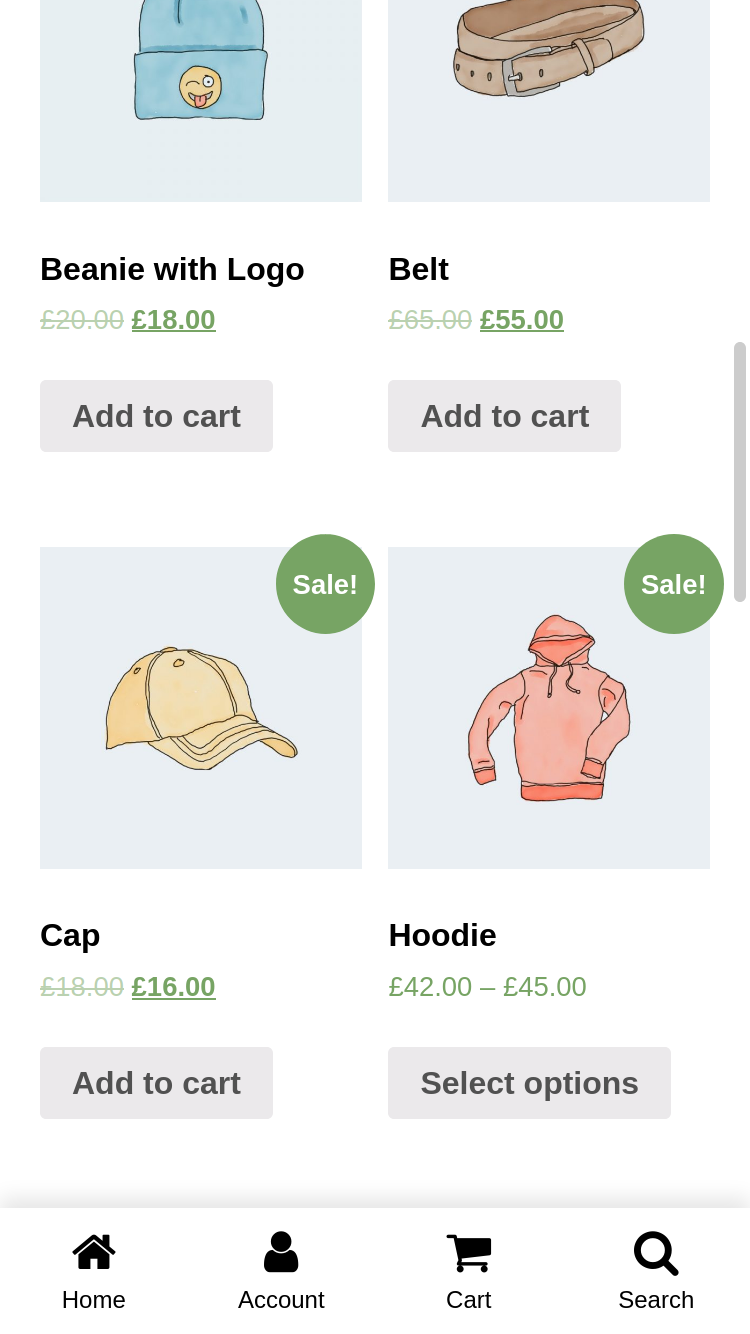
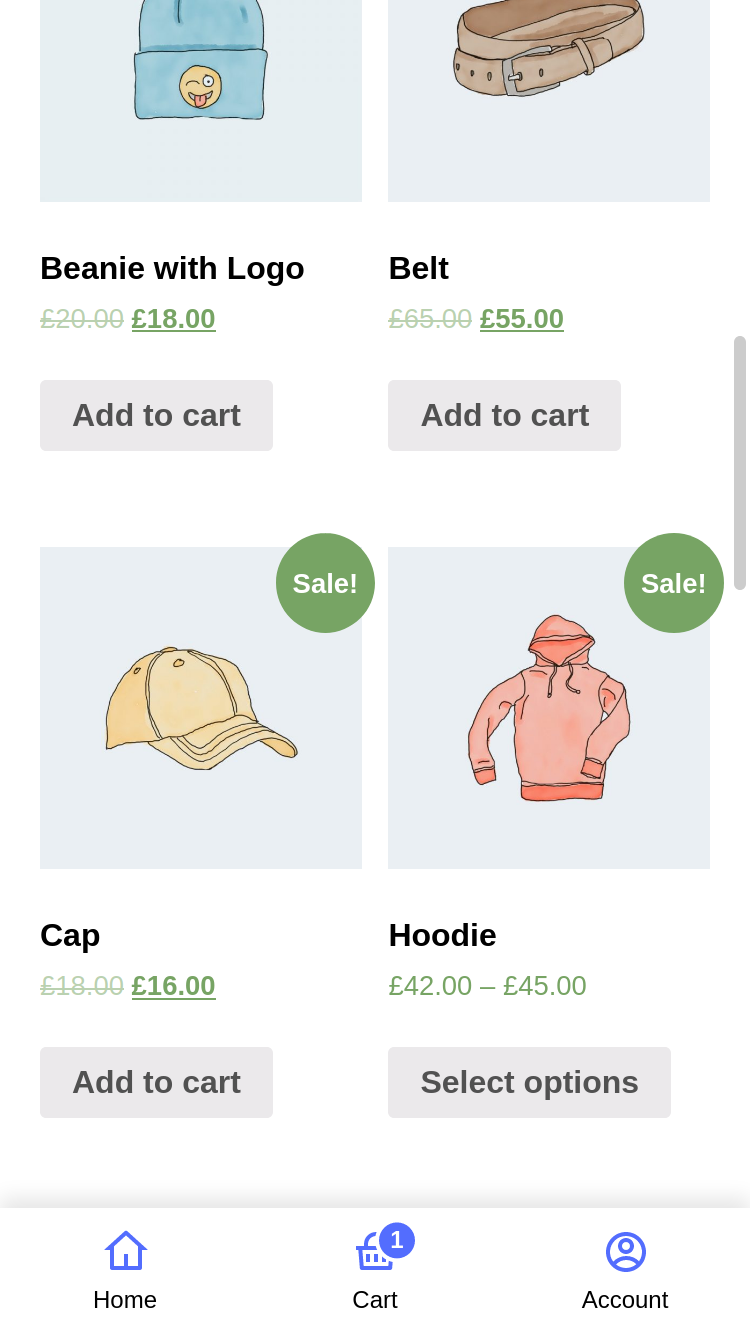
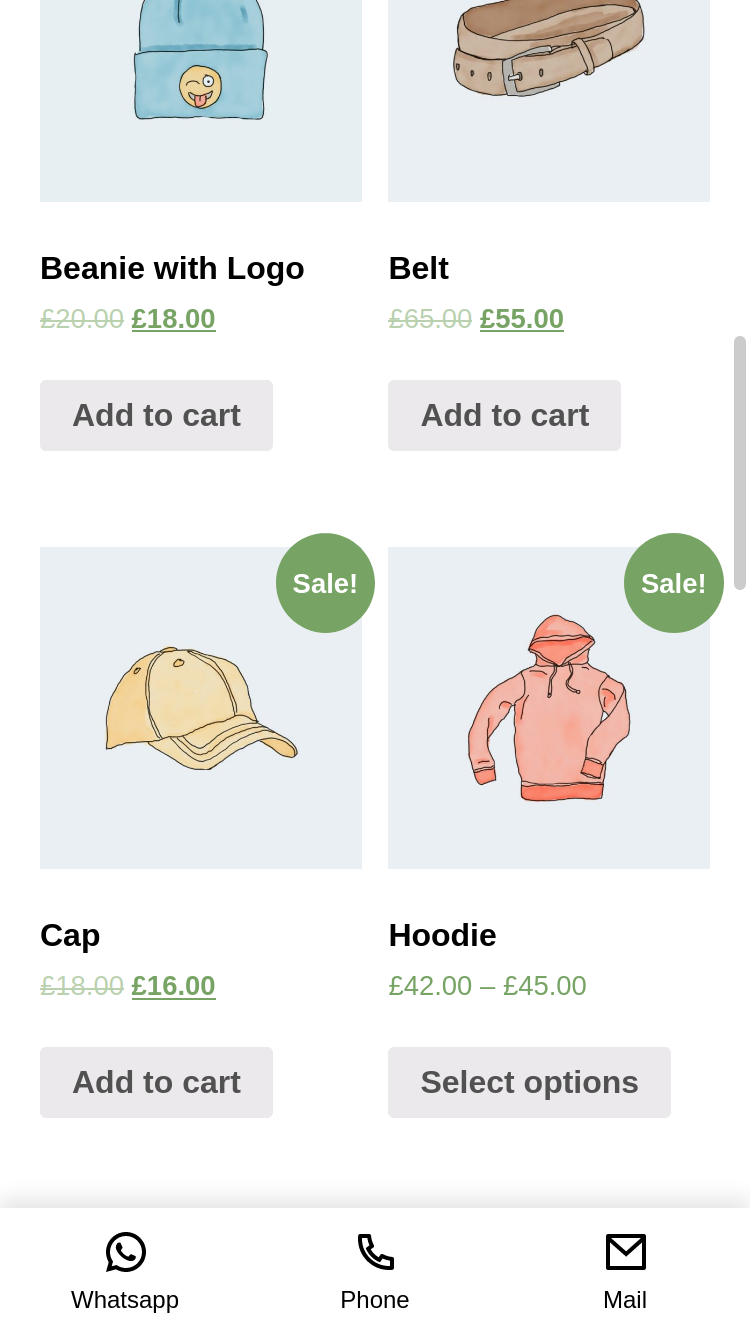
WP Bottom Menu allows you to add a woocommerce supported bottom menu to your site.
Enhance your website with WP Bottom Menu, a dynamic plugin that seamlessly integrates a WooCommerce-supported bottom menu. Elevate user experience and streamline navigation on your site with this feature-rich addition
Features
- Custom Link
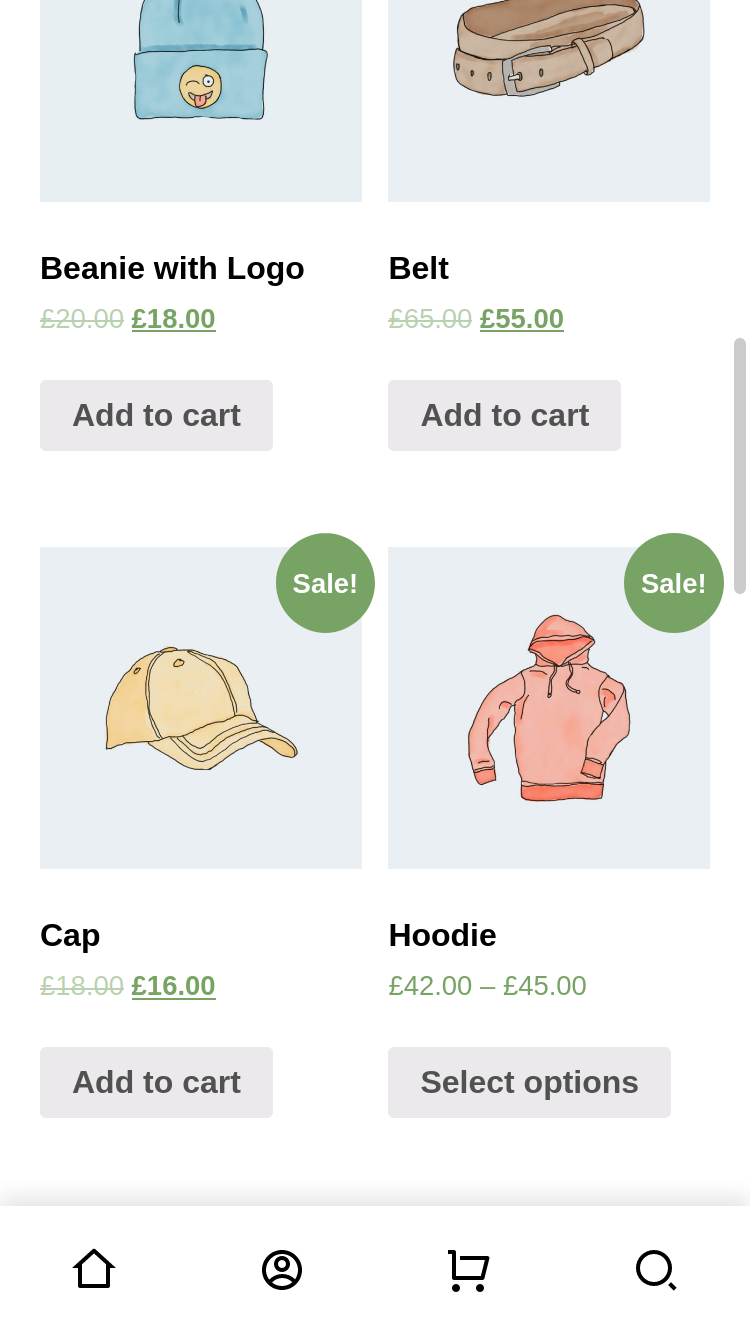
- FontAwesome Icon Support
- Custom SVG Icon Support
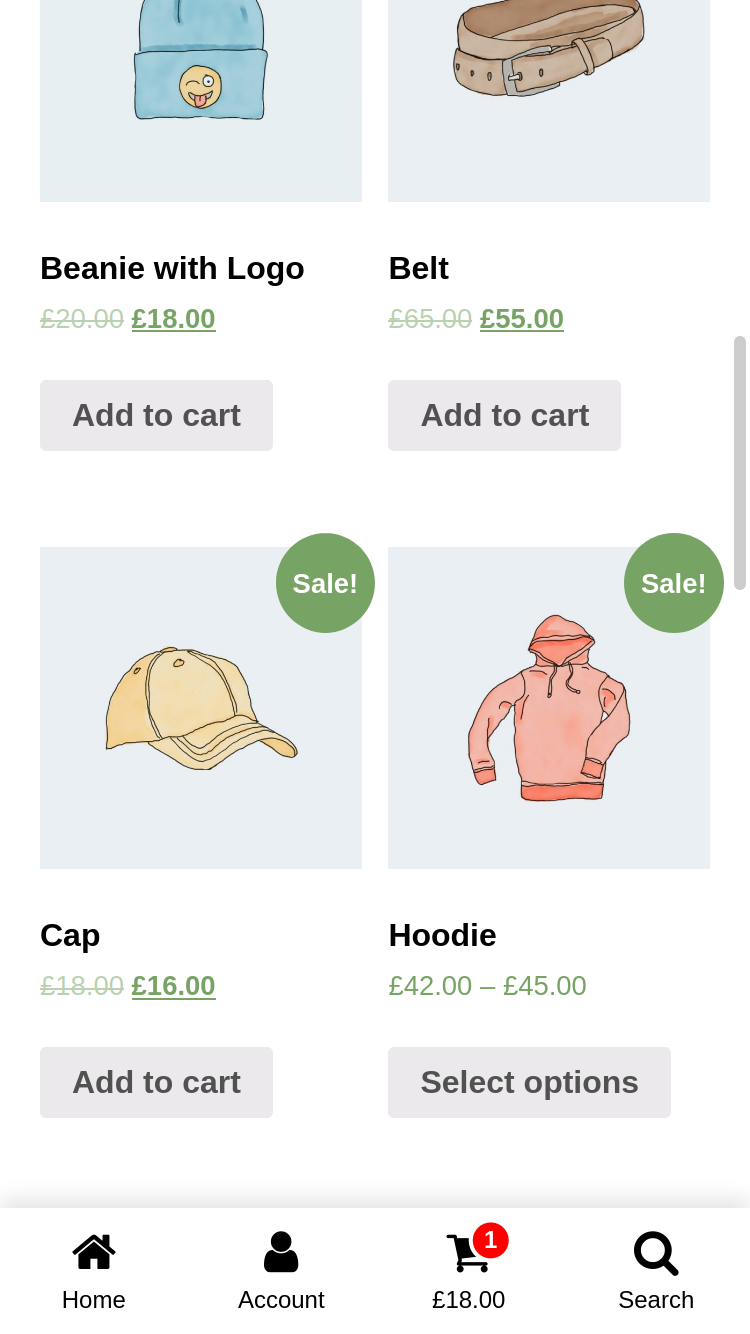
- Woocommerce Cart Support (Cart Count & Cart Total supported)
- Woocommerce Account Support (Account name supported)
- Hide/Show Menu Condition Manager
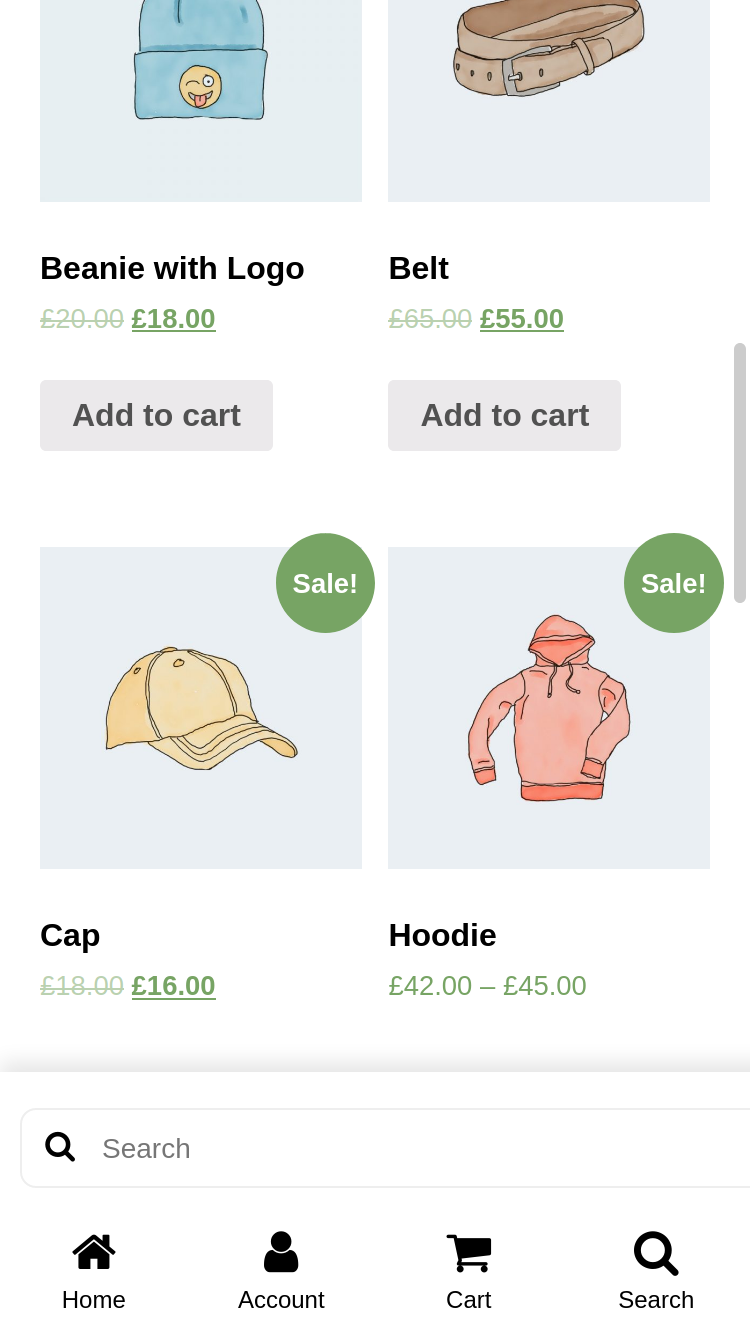
- Search (Woocommerce Product, Post or Custom Post Types)
- Custom Fullscreen Menu (Compatible with WordPress Menus)
- Customizable Style
- Multilanguage Support (Polyang)
Installation
- Upload the plugin files to the
/wp-content/plugins/wp-bottom-menudirectory, or install the plugin through the WordPress plugins screen directly. - Activate the plugin through the Plugins screen in WordPress
- Use the Appearance->Customize->WP Bottom Menu screen to configure the plugin.
FAQ
How can I customize colors & size?
Use the Appearance->Customize->WP Bottom Menu->Customize screen to configure the plugin.
How can I customize menu items?
Use the Appearance->Customize->WP Bottom Menu->Menu Items screen to configure the plugin.
How can I show cart count or cart total?
Use the Appearance->Customize->WP Bottom Menu->Customize screen and find Customize Cart Item, configure the plugin.
How can I show the menu on the desired page?
Use the Appearance->Customize->WP Bottom Menu->Conditions screen and configure the plugin.
How can I show the menu for user roles?
Use the Appearance->Customize->WP Bottom Menu->Conditions screen and find Select User Roles Condition configure the plugin.
How can I add Fullscreen menu?
- Add a menu in WP Dashboard->Appearance->Menus and select Display location WP Bottom Menu
- Add a WPBM menu item and select menu type Custom Menu
How can I add custom JavaScript code to the menu?
- Add a WPBM menu item and select menu type JavaScript onClick
- Add your script code to the onClick textarea. Example:
alert("my custom js alert");
How can I search for custom post types?
- Add a WPBM menu item and select menu type Search for custom post types
- Define post types in WP Bottom Menu->Settings screen and find Custom search post types configure the plugin.
Examples:
1. all : Search by all post types
2. product: Search by products
3. post: Search by post
4. my-custom-post-type: Search by my-custom-post-type
Also, you can use multiple custom post type with a comma. Example:
post,product,my-custom-post-type.
How can I add Page Back?
Go to Appearance->Customize->WP Bottom Menu->Menu Items screen and change the menu item type to Page Back.
This feature works like a browser. Returns to the previous page. If there is no previous page, it will be redirected to the home page.
How can I translate Menu items with Polylang plugin?
Go to the Languages->Translations select group as WP Bottom Menu and configure strings.
Screenshots
Changelog
2.3.0
- Fix – All Plugin Check errors resolved (escaping, i18n, direct access protection)
- Fix – Output escaping for customizer repeater controls
- Fix – Added missing text domains to all translation functions
- Fix – Added translators comments for placeholder strings
- Fix – Added direct file access protection to included PHP files
- Fix – Updated Tested up to 7.1
2.2.4
- Fix – Settings page not redirection
- New – Polylang link translate support
2.2.3
- Fix – JavaScript OnClick Menu item is not working.
2.2.2
- New – Polylang Support
- Fix – Promote notice is not hiding.
- Improve – Condition manager.
2.2.1
- Improve – Added WPMB options page link to Settings. You can access it on WP Dashboard > Settings > WP Bottom Menu.
2.2
- New – JavaScript onClick menu item. See here for usage: Frequently Asked Questions
- Improve – Mobile device style improvements
- Fix – Dynamic account title bug
- Fix – Custom Menu (Fullscreen) not working
2.1.4
- Fix – Active menu color on the shop page.
- Fix – JS error on the console.
2.1.3
- Fix – Dynamic Account Name not visible on frontend.
2.1.2
- New – Dynamic Account Name – Added a setting where you can show the account name. Check it ‘WP Bottom Menu > Customize > Show Account Name’
- New – Page Back – Added a menu option where you can return to the previous page. ‘WP Bottom Menu > Menu Items > Menu Item > Menu Type: Page Back’.
2.1.1
- Fix – Missing search icon on Custom SVG
2.1
- New – Custom Fullscreen Menu – See here for usage: Frequently Asked Questions
- New – Search by Custom post types – See here for usage: Frequently Asked Questions
2.0.1
- Fix – headers already sent issue https://wordpress.org/support/topic/error-1671/
- Fix – FontAwesome v4.x icons missing
2.0
- New – Condition Manager – Now there are settings where you can show WP Bottom Menu on any page or user role you want. Check it ‘WP Bottom Menu > Conditions’.
- New – Added new Icon Library – FontAwesome v6.1.1
- Improve – Improved the plugin core. The codes have been made more understandable.
- Deprecated – The feature to show the menu by page has been removed. Added Condition Manager instead. Yours old settings will be invalid.
1.4.3
- New – Hide menu for non-logged in users. Check it ‘WP Bottom Menu > Settings > Hide for visitors’.
1.4.2
- Fix – Customizer PHP8 conflict.
1.4.1
- Fix – SVG Hover / Active color.
1.4
- New – Hover / Active colors option. Check it ‘WP Bottom Menu > Customize’.
- New – Open links in a new tab option. Check it ‘WP Bottom Menu > Settings’.
1.3.2
- PHP8 Compatibility
1.3.1
- Fix – Woocommerce Product Search
1.3
- New – Hide Pages option. You can now hide the menu on the pages you have selected. Check it ‘WP Bottom Menu > Settings’ and find ‘Hide Menu’.
- New – Menu padding option. Check it ‘WP Bottom Menu > Customize’ and find ‘Menu Padding’.
1.2
- New – Cart Count and Cart Total option. Check it ‘WP Bottom Menu > Customize’ and find ‘Customize Cart Item’.
1.1.2
- Fix – Issue: https://wordpress.org/support/topic/js-error-123/
1.1.1
- New – Added setting for search form placeholder text. Check it ‘WP Bottom Menu > Customize’.
1.1
- New – SVG Icon Support. Enable to use SVG ‘Settings > Select Icon Type > Custom SVG’.
- Fix – Menu link input problem.
- Fix – CSS & JS files.
1.0.4
- Fixed issue: https://wordpress.org/support/topic/no-id-for-bottom-menu-element/
1.0.3
- Fixed css issue: https://wordpress.org/support/topic/menu-behaves-like-it-should-except-for-one-page/
- Tested for Woocommerce 5.0 and WordPress 5.6.1.
1.0.2
- Added disable title setting.
1.0.1
- Fix woocommerce bugs.
1.0
- Initial Release.