
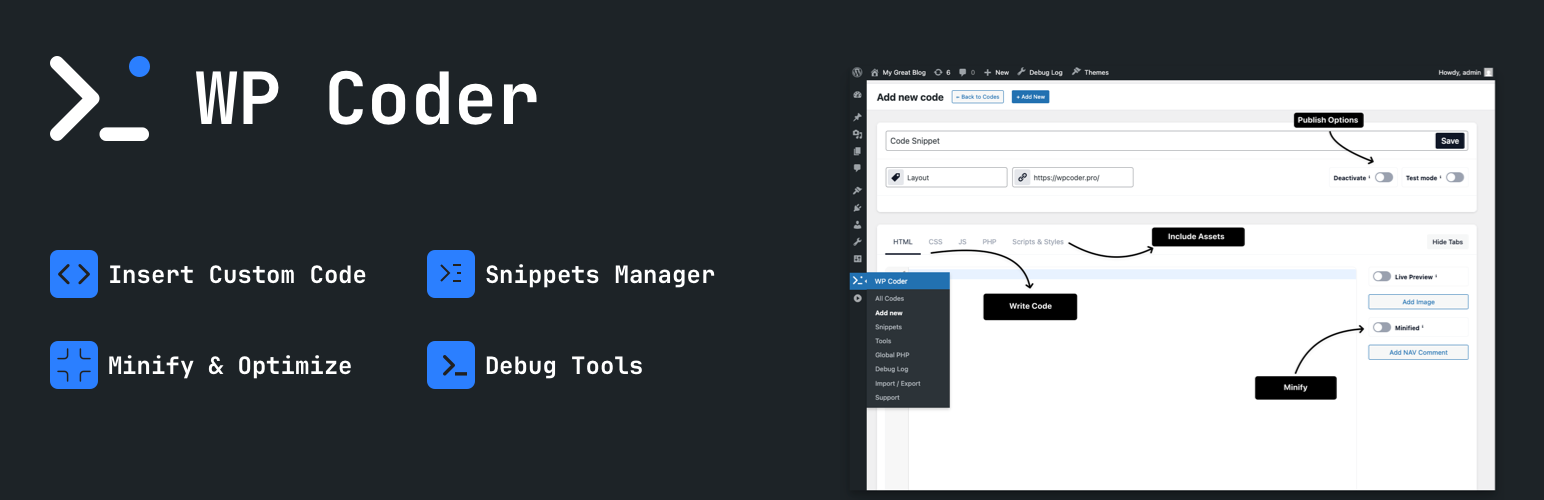

Description
Tired of editing theme files to add custom scripts or styles?
WP Coder lets you insert custom HTML, CSS, JavaScript, and PHP snippets directly from your dashboard — no coding in theme files required. Gain full control and flexibility over your site.
Why WP Coder?
- Header & Footer Scripts: Add Google Analytics, Tag Manager, verification meta tags or any script to every page — in
<head>, right after<body>, before or after the post content, or before</body>. - Shortcodes & a Gutenberg Block: Place a snippet anywhere with
[wp_code id="X"](or by its title,[wp_code title="…"]) or the WP Coder block, with a live preview in the editor. - Reusable Snippets with Attributes: Define fields once — text, textarea, number, range, URL, image, color, date — and fill them per shortcode or block. Use them in your code as
{{name}}. - Images Done Right: An image attribute gives you its URL, alt text, size,
srcsetand a ready<img>tag with WordPress lazy loading and fetch priority applied. - 82 Ready-made Snippets: Turn on common tweaks for security, performance, the editor, media, comments and login with one switch — and find any of them with instant search.
- Safe by Design: Only administrators can add code. A PHP error in a snippet is caught and logged instead of breaking the page, a fatal one switches that snippet off automatically, and Safe Mode (
?wpcoder-safe-mode=1, for administrators) gets you back into the admin if Global PHP or an included PHP snippet ever locks you out.
Ideal For
- Developers: Test snippets, hooks and PHP quickly, with a code editor that feels like home.
- Marketers: Insert tracking pixels, analytics and ad scripts site-wide in a minute.
- Designers & Bloggers: Build reusable blocks, customize layouts and styles.
Key Features
- Tabbed editor for HTML, CSS, JS and PHP with syntax highlighting, linting, autocomplete (
Ctrl+Space), auto-closing tags and brackets, code folding, find & replace, go to line, full screen andCtrl/Cmd+Sto save — and a warning before you leave with unsaved code. - Live Preview: See your HTML and CSS rendered as you type, right next to the editor. Load a CSS file for the preview only, if you need one.
- Smart PHP handling: run in admin, front end, everywhere, or only where the snippet is placed.
- PHP variables in HTML: set
$yearin the PHP tab and print it in the HTML as{{year}}(with Include PHP on “Run where inserted”, the default). - CSS and JS output inline or as a separate file, with
defer/asyncand an optional jQuery dependency. - Include external libraries (Google Fonts, CDN scripts & styles) with
async/defer. - Minify HTML, CSS and JS, or obfuscate JavaScript.
- Test Mode: Preview snippets as an administrator before visitors see them.
- Organize: Several tags per snippet, pin the ones you use most, add a private note and a reference link, duplicate a snippet, search by title or ID, filter by tag and bulk-edit the list.
- Import/Export snippets (all, selected or by tag) and your Snippets & Tools settings between sites.
- Customizable Interface: Hide unused editor tabs and add NAV comments to jump around long code.
- Lightweight — pages that do not use a snippet get no extra CSS or JavaScript.
Included Tools
Integrations
- Google Tag Manager (GTM) integration with user role controls.
- Google Analytics, Facebook Pixel, and Pinterest Pixel integration.
- Google AdSense integration with the option to disable ads for selected user roles.
Content & Templates
- Markdown Editor – Disables Gutenberg and TinyMCE, replacing them with a Markdown editor powered by CodeMirror.
Developer Tools
- Debug Log – Turn PHP error logging to
wp-content/debug.logon or off, read and clear the log, with an Admin Bar link while it has entries. - Show Page Debug Info – A Dev Info menu in the Admin Bar: template and its path, query type, database queries and the slowest ones, memory and render time, loaded scripts and styles, body classes, WordPress and server environment. Admins only.
- Theme Switcher – Quickly switch between installed themes directly from the admin bar.
Included Snippets (82)
Editor & Content
- Remove Gutenberg Block CSS
- Add Page Slug to Body Class
- Disable Widget Blocks
- Enable Shortcode Execution in Text Widgets
- Enable Excerpt for Pages
- Open External Links in New Tab
- Disable Block Patterns
- Unsynced Patterns by Default
- Change “Read More” Text for Excerpts
- Custom Excerpt Length by Post Type
- Change Autosave Interval
- Custom Editor Styles
- Disable Gutenberg Editor
Admin Interface
- Disable “Screen Options” Tab
- Disable Welcome Panel
- Duplicate Posts & Pages
- Enable Search by ID
- Show ID Column
- Show Featured Image Column
- Show Last Modified Column
- Collapse Admin Notices
- Disable The WP Admin Bar
Login & Users
- Disable Login Page Language Switcher
- Disable Login by Email
- Disable Admin Password Reset Emails
- Change Logo on Login Page
- Change URL for Logo on Login Page
- Change Redirect After Login
- Change Redirect After Logout
- Change “Remember Me” Duration
Media & Embeds
- Allow SVG Uploads
- Disable Big Image Scaling
- Disable Unused Image Sizes
- Auto Alt Text from Filename
- Default Image Link to None
- Enable Lowercase Filenames for Uploads
- Add Alt Text to Avatars
- Add Featured Image to RSS Feeds
- Disable Embeds
- Limit Maximum Upload Size
- Change oEmbed Max Width and Height
Comments & Feedback
- Disable Comments
- Remove Website URL Field
- Disable Self Pingbacks
- Disable Trackbacks & Pingbacks
- Disable HTML in Comments
- Limit Comment Length
Security
- Disable XML-RPC
- Disable Theme & Plugin File Editing
- Disable Plugin & Theme Installation
- Disable Author Archives
- Email on Administrator Login
- Disable User Enumeration
- Add Security Headers
- Disable Application Passwords
- Hide Login Error Details
- Remove WordPress Version Number
- Limit Login Attempts
- Disable WordPress REST API
Performance
- Load Block CSS Only When Used
- Remove Global Styles & SVG Filters
- Disable Gravatar
- Remove Query Strings from Assets
- Disable Heartbeat on Front End
- Remove jQuery Migrate
- Disable Dashicons on Front End
- Disable Emojis
- Remove Shortlink Tag
- Remove Windows Live Writer Tag
- Remove RSD Link & X-Pingback
- Resource Hints
- Image Lazy Loading (force or disable)
Core & System
- Disable Automatic Updates
- Disable Automatic Update Emails
- Disable Admin Email Verification
- Disable Automatic Trash Emptying
- Disable Search
- Disable RSS Feeds
- Disable Attachment Pages
- Redirect 404 to Homepage
- Custom Mail From Name & Address
- Limit Post Revisions
WP Coder Pro
Everything above stays free. WP Coder Pro adds:
- Conditions: show a snippet only on chosen posts, pages, post types and archives, for chosen user roles, devices, browsers and languages, or on a schedule.
- More attribute types: rich text, toggle, select, repeater, gradient, post and term pickers, icons and an image with preload, with labels, help text and live preview in the block.
- QuickCode and Loop Logic: live site data such as
{{post.title}}or{{user.name}}, and<If>/<Loop>blocks in snippet HTML. - Snippet management: revision history, Search & Replace across all snippets, filters by status and mode, and an edit lock.
- Faster pages: combined CSS/JS files, jQuery only when needed, dequeue unused files.
- More tools: WP Coder Debug Bar, Test Users, Plugin Switcher, Cron viewer, page templates, menus and sidebars, Maintenance Mode, Global Variables, login page CSS & JS, breadcrumbs, icon library and an AI Assistant.
WP Coder simplifies your WordPress development workflow and makes customization safe, fast, and flexible!
Quick Start Video
Plugin Demo
Support
Need help? Ask questions and get quick answers in our support center.
Installation
📌 Option 1: Install via WordPress Admin
- Go to
Plugins→Add Newin your WordPress admin panel. - Search for “WP Coder” and click Install Now.
- Click Activate after installation.
📌 Option 2: Install Manually
- Download the WP Coder plugin ZIP file from WordPress.org.
- In WordPress admin, go to
Plugins→Add New→ Upload Plugin. - Click Choose File, select the downloaded ZIP file, then click Install Now.
- After installation, click Activate.
📌 Option 3: Install via FTP
- Download and unzip the WP Coder plugin ZIP file.
- Upload the extracted
wp-coderfolder to/wp-content/plugins/via FTP. - Go to
Pluginsin WordPress admin and click Activate.
🚀 Getting Started
- Open WP Coder in your WordPress admin menu.
- Click Add New to create your first snippet.
- Add your HTML, CSS, JavaScript or PHP.
- Choose how it appears: copy the shortcode, insert the WP Coder block, or set Display: Everywhere on the Conditions tab.
- Click Save (or press
Ctrl/Cmd+S).
FAQ
Does WP Coder support Network activation?
Currently, WP Coder doesn’t support network-wide activation. If you’re using WordPress Multisite, activate the plugin individually on each site within your network.
Where can I find detailed documentation?
Visit our comprehensive official documentation for detailed guides and step-by-step instructions.
How can I use shortcode content in HTML code?
If you include content within the shortcode like [wp_code id="1"]Some Text[/wp_code], you can insert this content into your HTML snippet using the variable {{$shortcode_content}}.
Can I use PHP variables in the HTML?
Yes. Keep Include PHP on Run where inserted (the default), set a variable in the PHP tab — for example $year = date( 'Y' ); — and print it in the HTML tab as {{year}}. Text and numbers are printed; an array or object is left as written. PHP set to run in the admin, on the front end or everywhere runs once on init instead, and its variables do not reach the HTML.
Can I use shortcodes from other plugins within WP Coder snippets?
Absolutely! WP Coder allows you to embed shortcodes from any plugin within your HTML snippet content. You can also use WP Coder’s own shortcodes, offering enhanced flexibility for customization.
How do I add Google Analytics (or any script) to every page?
Create a snippet, paste the code into the HTML tab and on the Conditions tab set Display to Everywhere and choose the Location: In <head> for analytics, Tag Manager and verification meta tags, or Before </body> for chat widgets and other scripts. The Integrations tab under Tools also has ready fields for Google Analytics, Tag Manager, Facebook and Pinterest pixels and AdSense.
My site broke after adding PHP code. What can I do?
A PHP error inside a snippet is caught and logged, so the page keeps working. An error no code can catch — a time limit, memory exhausted, “Cannot redeclare” — switches that snippet (or Global PHP) off automatically, so the next page loads; an admin notice links to it. If Global PHP or a snippet whose PHP runs in the admin still locks you out, add ?wpcoder-safe-mode=1 to the admin URL: that PHP is skipped while you are in Safe Mode, so you can open the snippet and fix or deactivate it. Safe Mode works for administrators only — signed out, the login screen keeps the parameter for after you sign in. If even the login screen fails, add define( 'WPCODER_SAFE_MODE', true ); to wp-config.php, and remove it once the snippet is fixed.
My PHP code stopped working after updating to 5.0. Why?
Since 5.0, PHP code is checked before it runs. A snippet’s PHP, an included PHP snippet or Global PHP that calls eval(), exec(), system(), shell_exec(), passthru(), popen(), proc_open(), pcntl_exec(), assert(), create_function() or base64_decode(), or uses backticks, is not run — its HTML still shows. The blocked functions are written to the PHP error log (turn logging on and read it under WP Coder → Debug Log); for Global PHP and included snippets an admin notice names them too. Rewrite the code without these functions and it runs again.
Where does WP Coder store snippet files?
Snippets are saved in the database. Their CSS, JavaScript and PHP are also written as files to wp-content/uploads/wp-coder/, so that folder must be writable. If the folder is cleared or lost in a migration, the files are recreated from the database automatically.
Does WP Coder work with Elementor, Divi and other page builders?
Yes. The [wp_code id="X"] shortcode works wherever shortcodes are processed — the Shortcode, Text or HTML element of a page builder, the classic editor and widgets. In the block editor, use the WP Coder block.
Does WP Coder connect to external services?
No. The plugin itself makes no external requests and collects no data; the Support page sends your message by email only when you submit it. Third-party code — Google Analytics, Tag Manager, pixels, AdSense or a CDN library you include — is loaded on your site only when you add or enable it.
How do attributes work?
On the Attributes tab, add a name (for example button_text), a type and a default value. Use it in your code as {{button_text}}, then set a value per shortcode — [wp_code id="1" button_text="Buy now"] — or in the block’s sidebar, where each attribute gets a matching field.
How do tags work?
Add one or more tags to a snippet, separated by commas. In the list each tag is a filter link, and you can export all snippets with a given tag. Pin the snippets you use most to keep them at the top.
What are the Link and Note fields for?
Both are for the people who edit snippets and are never shown on the site. Put a reference link in the Link field — the page where the snippet is used, its documentation, a design or a task — and open it with one click. A note says what the snippet is for; its first line is shown under the title in All Codes.
What is the difference between WP Coder and WP Coder Pro?
WP Coder is complete for adding code by shortcode, block or site-wide. WP Coder Pro adds conditions (show a snippet only on chosen pages, to chosen users, devices or on a schedule), more attribute types such as repeaters and rich text, QuickCode, revisions, Search & Replace and more tools.
Will my snippets survive the switch to Pro?
Yes. Both versions use the same data, so your snippets, settings, tags and attributes carry over when you activate WP Coder Pro — and back again.
Screenshots


Changelog
5.0.2
- Added: Safe Mode switches off a snippet – or Global PHP – whose PHP stops the site with an error no code can catch (time limit, memory exhausted, “Cannot redeclare”), so the next page loads, and leaves an admin notice linking to it. Until now every page kept failing until Safe Mode was set by hand.
- Added: Tracking Code Manager – switch off Google Analytics and the Facebook and Pinterest pixels for chosen user roles, as already possible for Tag Manager and AdSense.
- Fixed: PHP code set to “Run only in admin area”, “Run only on front-end” or “Run everywhere” also ran where the snippet’s shortcode or block was placed – a second time on that page, so a function or class it declared stopped the page with “Cannot redeclare”, and admin-only code ran on the front end. It now runs only where Include PHP says; “Run where inserted” works as before.
- Fixed: Test Mode also holds back PHP code set to “Run only in admin area”, “Run only on front-end” or “Run everywhere”: it ran for every visitor, and now runs for administrators only, like the rest of the snippet.
- Fixed: The tooltip of the Status column in All Codes, and the “Delete” bulk action label.
5.0.1
- Fixed: Security – the alt text of a media library image is now escaped in {{name_alt}} (and {{name_srcset}}, {{name_sizes}}) of an Image attribute. A user who can upload media (Author and above) could set an image’s Alt Text so that it broke out of alt=”{{name_alt}}” in an administrator’s snippet and ran a script for every visitor of the page. An image URL can no longer close a single-quoted attribute either. Reported through Wordfence.
- Fixed: Security – “Duplicate Posts & Pages” copies only posts the user can edit, and each Duplicate link works for its own post only. A Contributor could copy any post – someone else’s private post or draft, with its password and custom fields – into a draft of their own.
- Fixed: Security – “Open External Links in New Tab” could turn a link written by a Contributor into a script on the page (WordPress before 7.0 keeps the quotes that made it possible). Links are now edited through WordPress’s HTML API; on WordPress older than 6.2 they are left as written.
- Fixed: Security – values from an author who may not publish raw HTML (e.g. a Contributor) can no longer close the HTML attribute of the snippet they are placed in: shortcode and block attributes, HTML and Rich text ones included, and the content between [wp_code]…[/wp_code] ({{$shortcode_content}}). Inside a tag their quotes are encoded, and outside quotes their spaces too; the page shows the same text. Values from administrators are written as before.
- Fixed: Security – “Allow SVG Uploads” also cleans a file sent to the REST API as the raw request body, and removes links under any xlink prefix and instructions.
5.0
- Added: Snippets – the full set from WP Coder Pro, now 82 snippets in 8 groups, with a new Security group and instant search across all of them. Your existing snippet settings are kept; the few renamed options are migrated automatically.
- Added: Code editor – code folding, highlighting of matching words, Ctrl/Cmd+S to save, find & replace, select next occurrence, go to line, full screen (F11), a shortcuts reference, and a warning before leaving with unsaved code.
- Added: Display Everywhere – a snippet can now be added to every page automatically, without a shortcode, at the Location you choose: in , after opens, before or after the post content, or before . Ideal for analytics, verification meta tags and site-wide scripts. Existing snippets stay shortcode-only until you change this on the Conditions tab.
- Added: Attributes – define values each shortcode or block fills in, used in the code as {{name}}. Types: text, textarea, number, range, URL, image, color and date; the block shows a matching field for each. An image attribute also gives {{name_url}}, {{name_alt}}, {{name_srcset}}, {{name_html}} and more. Attributes from WP Coder Pro keep working.
- Added: Several tags per snippet – separate them with a comma; each tag in the list is its own filter link, and export by tag includes every snippet carrying it. Existing tags are kept.
- Added: Pin snippets – keep the ones you return to at the top of the list, with a pin icon on each row and Pin/Unpin bulk actions.
- Added: Snippet note – a private note under the Link field of the snippet editor, shown under the title in All Codes; it is never printed on the site.
- Added: Snippets & Tools settings export / import – on the Import / Export page, download which Snippets and Tools items are switched on, with their options, and import the file on another site. It replaces those settings on the receiving site; files move between WP Coder and WP Coder Pro.
- Added: Descriptions of WP Coder Pro features on the Attributes and Conditions tabs and on the Tools page.
- Improved: Conditions tab – Display (Shortcode or block only / Everywhere) is now set here, in the same place as in WP Coder Pro, with Pro’s page rules listed greyed out in the same menu. Location moved there too, right under Display, and appears when Display is Everywhere.
- Improved: Admin interface restyled to match WP Coder Pro.
- Improved: “Disable Gutenberg Editor” can keep the block editor on chosen post IDs; “Disable REST API” can apply to logged-out visitors only.
- Improved: “Redirect 404 to Homepage” now uses a temporary (302) redirect, so a page published at that URL later still works.
- Improved: Activating WP Coder deactivates WP Coder Pro wherever it is installed, and a notice says so; your snippets and settings, Pro’s included, are kept for when Pro is active again.
- Improved: A
<?phppasted at the start of Global PHP or of a snippet’s PHP code is removed on save – the file already starts with it, and a second one stopped all of the code from running. - Changed: Security – PHP code is checked before it runs, as in WP Coder Pro: a snippet’s PHP, an included PHP snippet or Global PHP that calls eval(), exec(), system(), shell_exec(), passthru(), popen(), proc_open(), pcntl_exec(), assert(), create_function() or base64_decode(), or uses backticks, is not run. Its HTML still shows, and the block is written to the debug log (for Global PHP and included snippets, also shown as an admin notice). If your code uses one of these functions, it stops running after this update.
- Changed: Plugin Switcher moved to WP Coder Pro.
- Fixed: Security – Safe Mode (
?wpcoder-safe-mode=1) now works for administrators only. Any visitor could add it to a URL and switch off Global PHP and included PHP snippets for their own request. If even the login screen fails, adddefine( 'WPCODER_SAFE_MODE', true );to wp-config.php instead, and remove it once the snippet is fixed. - Fixed: Safe Mode now also skips the PHP code of snippets shown on the page, so a broken snippet can no longer take down the page you open to fix it.
- Fixed: What a snippet’s PHP code prints now appears where the shortcode or block stands, not above the post content.
- Fixed: An attribute holding HTML (e.g. Rich text, from WP Coder Pro) used inside an HTML attribute of the snippet – title=”{{name}}”, alt=”{{name}}” – no longer breaks the rest of the page in a block.
- Fixed: Editing a snippet created in WP Coder Pro (or imported from it) erased its attributes, display rules and conditions; they are now kept for when Pro is active again.
- Fixed: Shortcode and block attribute values are escaped when the post’s author may not publish raw HTML (e.g. a Contributor), and a “]” in a block attribute no longer cuts the snippet short.
- Fixed: The WP Coder block preview in the editor now shows the snippet’s CSS (the editor content is in an iframe, and the styles were added outside it).
- Fixed: The “title” and “id” values of a shortcode reached {{title}} / {{id}} unescaped when the post’s author may not publish raw HTML.
- Fixed: Clearing a snippet’s PHP code did not stop it – with “Run everywhere / admin / frontend” selected, the old code kept running on every request. Files left over from earlier saves are cleaned up on update.
- Fixed: “Inline” CSS broke child selectors (“.card > .title” was written as “>”).
- Fixed: Deleting a snippet now also deletes its CSS, JS and PHP files.
- Fixed: A CSS or JS file recreated after the uploads folder was cleared ignored the Minify/Obfuscate setting.
- Fixed: SVG uploads are sanitized – scripts, event handlers and javascript: links are removed, and a file that is not valid SVG is rejected.
- Fixed: A PHP error in a snippet no longer breaks the whole page; the snippet’s output is skipped and the error is logged.
- Fixed: A placeholder such as {{name}} that refers to an array no longer causes a fatal error on PHP 8.
- Fixed: HTML minification no longer joins words separated by a line break, and leaves
<
pre>,
4.5.2
- Fixed: Security – the WP Coder admin pages and all save handlers (Global PHP, snippets with PHP code, tools, import/export, debug log) are now restricted to administrators (
manage_optionstogether withunfiltered_html). Previously, users with the Editor role on single-site installs could save and execute arbitrary PHP. Thanks to Ayush Srivastava for responsibly reporting this issue.
4.5.1
- Fixed: Security – restricted the Gutenberg block REST endpoints (snippet preview and attributes) to logged-in users with the
edit_postscapability, preventing unauthenticated access.
4.5
- Added: Lazy load option for images
- Added: Google Tag Manager integration in Tools & Integrations
- Fixed: Snippet Open External Links in New Tab now correctly identifies internal links
4.4
- Added: Gutenberg block – insert and manage WP Coder snippets directly inside the WordPress block editor with live preview.
4.3.1
- Fixed: includes css to Live preview
4.3
- Added: Markdown Editor in Tools for writing with Markdown syntax.
- Added: Debug Tools section in Tools, including:
- Show Page Debug Info
- Theme Switcher
- Plugin Switcher
- Improved: Tools page layout – tools are now grouped into sections for easier navigation.
4.2
- Added: Debug Log page in WP Coder admin menu with options to enable/disable logging and clear log.
- Added: Admin bar indicator with link to Debug Log when entries are present.
4.1
- Added: Export snippets by tags
- Added: Export selected snippets
- Added: Option to use CSS files only in Live Preview without loading them on the site
4.0.3
- Added: duplicate button for each item
- Improved: Live Preview block behavior and rendering
4.0.2
- Improved: Reorganized method order in DBManager class for better readability and maintenance
- Improved: Minor SQL formatting for consistency
- Cleaned: Minor code style improvements according to WordPress Coding Standards (WPCS)
4.0.1
- Improved: Added
matchBrackets: trueoption for the JavaScript editor to highlight matching brackets when editing code.
4.0
- Improved: Refreshed interface for better user experience.
- Added: “Open External Links in New Tab” snippet.
- Added: “Redirect 404 to Homepage” snippet.
- Added: “Limit Comment Length” snippet.
- Added: “Disable HTML in Comments” snippet.
- Added: “Disable Trackbacks & Pingbacks” snippet.
- Added: Live preview feature for HTML & CSS snippets.
3.6.1
- Fixed: Security issue in escaping within list files.
3.6
- Added: Custom locations for PHP snippet inclusion.
- Added: Option to hide tabs in settings.
- Fixed: Admin style compatibility for Safari browser.
3.5.2
- Fixed: Minor admin style improvements.
- Fixed: Various minor bugs.
3.5.1
- Changed: Adjusted user permissions to use the plugin.
3.5
- Added: “Tracking Code Manager” tool for easy integration of analytics pixels.
- Added: “Google AdSense” integration tool.
- Added: User roles support for “Disable WP Admin Bar” snippet.
- Improved: Updated back-link functionality.
3.4
- Added: Pre-set popular snippets page.
3.3
- Added: Button to insert images in HTML snippets.
- Added: HTML Minification tool.
- Improved: Enhanced CSS Minification tool.
3.2.1
- Fixed: Minor database issue.
3.2
- Added: “Add New” and “All Codes” buttons in editor.
- Fixed: Improved admin styling.
3.1.1
- Fixed: Database save issue.
3.1
- Added: Global PHP snippet feature.
- Added: Content handling inside shortcodes.
- Added: Copy shortcode button.
- Improved: More flexible file inclusion management.
- Changed: Shortcode updated to
[wp_code].
3.0.5
- Fixed: Minor update bug and admin notifications.
3.0.4
- Fixed: Updated datatable handling.
3.0.3
- Fixed: Inline scripts/styles management.
3.0.2
- Fixed: Execution order for scripts and styles.
3.0.1
- Fixed: Updating and saving snippets.
- Fixed: Admin capability adjustments.
3.0
- Added: Test Mode and snippet Status.
- Added: Tagging and Link options.
- Added: Inline and Minified options for CSS.
- Added: JavaScript optimization options.
- Added: Export/Import feature.
- Improved: Updated database and admin interface.