


Description
WP Job Manager is a lightweight job listing plugin for adding job board functionality to your WordPress site. Being shortcode based, it can work with any theme (given a bit of CSS styling) and is really simple to setup.
Features
- Add, manage, and categorize job listings using the familiar WordPress UI.
- Searchable & filterable ajax powered job listings added to your pages via shortcodes.
- Frontend forms for guests and registered users to submit & manage job listings.
- Allow job listers to preview their listing before it goes live. The preview matches the appearance of a live job listing.
- Each listing can be tied to an email or website address so that job seekers can apply to the jobs.
- Searches also display RSS links to allow job seekers to be alerted to new jobs matching their search.
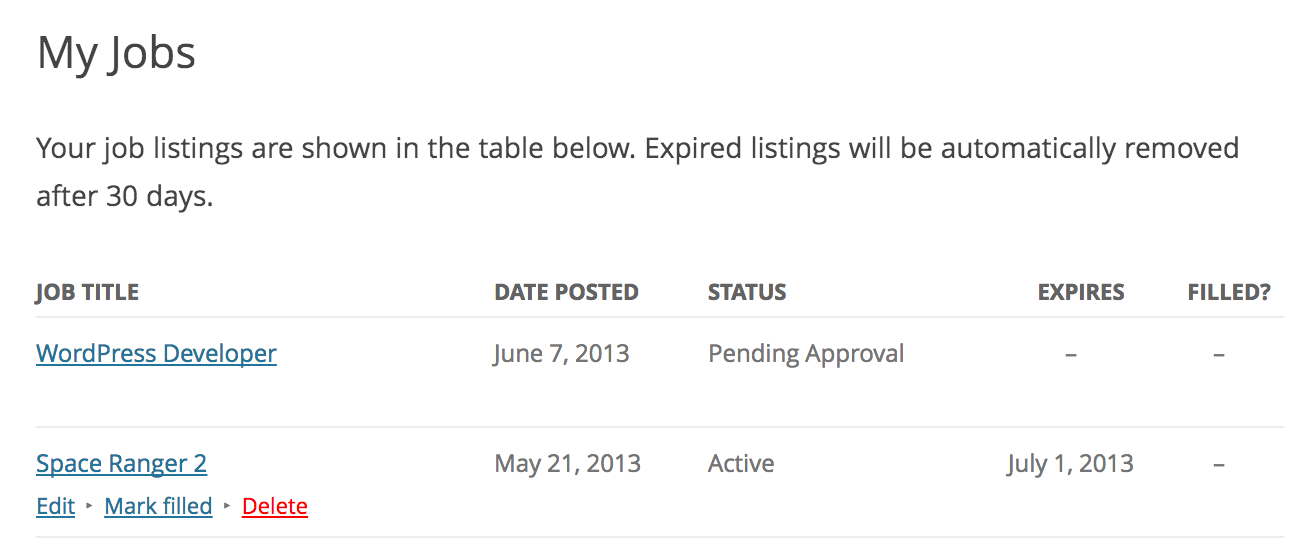
- Allow logged in employers to view, edit, mark filled, or delete their active job listings.
- Job statistics for employers about job listing views and search impressions.
- Developer friendly code – Custom post types, endpoints & template files.
The plugin comes with several shortcodes to output jobs in various formats, and since its built with Custom Post Types you are free to extend it further through themes.
Read more about WP Job Manager.
Documentation
Documentation for the core plugin and extensions can be found on the docs site here. Please take a look before requesting support because it covers all frequently asked questions!
Demo
For a real-life example site, check out jobs.blog, built by the WP Job Manager team! To try out the plugin in an expendable demo site, click the Live Preview button above.
Extensions
The core WP Job Manager plugin is free and always will be. It covers all functionality we consider ‘core’ to running a simple job board site.
Additional, advanced functionality is available through extensions. Not only do these extend the usefulness of the core plugin, they also help fund the development and support of core.
You can browse available extensions after installing the plugin by going to Job Manager > Marketplace. Our popular extensions include:
Allow candidates to apply to jobs using a form & employers to view and manage the applications from their job dashboard.
Paid listing functionality powered by WooCommerce. Create custom job packages which can be purchased or redeemed during job submission. Requires the WooCommerce plugin.
Resume Manager is a plugin built on top of WP Job Manager which adds a resume submission form to your site and resume listings, all manageable from WordPress admin.
Allow registered users to save their job searches and create alerts which send new jobs via email daily, weekly or fortnightly.
You can get the above extensions and several others at discount with our WPJM Pro Bundle. Take a look!
Contributing and reporting bugs
You can contribute code to this plugin via GitHub: https://github.com/Automattic/WP-Job-Manager and localizations via https://translate.wordpress.org/projects/wp-plugins/wp-job-manager
Thanks to all of our contributors.
Support
Use the WordPress.org forums for community support where we try to help all users. If you spot a bug, you can log it (or fix it) on Github where we can act upon them more efficiently.
If you need help with one of our extensions, please raise a ticket in our help desk.
If you want help with a customization, please consider hiring a developer! http://jobs.wordpress.net/ is a good place to start.
Installation
Automatic installation
Automatic installation is the easiest option as WordPress handles the file transfers itself and you don’t even need to leave your web browser. To do an automatic install, log in to your WordPress admin panel, navigate to the Plugins menu and click Add New.
In the search field type “WP Job Manager” and click Search Plugins. Once you’ve found the plugin you can view details about it such as the point release, rating and description. Most importantly of course, you can install it by clicking Install Now.
Manual installation
The manual installation method involves downloading the plugin and uploading it to your web server via your favorite FTP application.
- Download the plugin file to your computer and unzip it
- Using an FTP program, or your hosting control panel, upload the unzipped plugin folder to your WordPress installation’s
wp-content/plugins/directory. - Activate the plugin from the Plugins menu within the WordPress admin.
Getting started
Once installed:
- Create a page called “jobs” and inside place the
[jobs]shortcode. This will list your jobs. - Create a page called “submit job” and inside place the
[submit_job_form]shortcode if you want front-end submissions. - Create a page called “job dashboard” and inside place the
[job_dashboard]shortcode for logged in users to manage their listings.
Note when using shortcodes, if the content looks blown up/spaced out/poorly styled, edit your page and above the visual editor click on the ‘text’ tab. Then remove any ‘pre’ or ‘code’ tags wrapping your shortcode.
For more information, read the documentation.
FAQ
How do I setup WP Job Manager?
View the getting installation and setup guide for advice getting started with the plugin. In most cases it’s just a case of adding some shortcodes to your pages!
Can I use WP Job Manager without frontend job submission?
Yes! If you don’t setup the [submit_job_form] shortcode, you can just post from the admin backend.
How can I customize the job application process?
There are several ways to customize the job application process in WP Job Manager, including using some extra plugins (some are free on WordPress.org).
See: Customizing the Job Application Process
How can I customize the job submission form?
There are three ways to customize the fields in WP Job Manager;
- For simple text changes, using a localisation file or a plugin such as https://wordpress.org/plugins/say-what/
- For field changes, or adding new fields, using functions/filters inside your theme’s functions.php file: https://wpjobmanager.com/document/editing-job-submission-fields/
- Use a 3rd party plugin such as https://plugins.smyl.es/wp-job-manager-field-editor/ which has a UI for field editing.
If you’d like to learn about WordPress filters, here is a great place to start: https://developer.wordpress.org/plugins/hooks/filters/
How can I be notified of new jobs via email?
If you wish to be notified of new postings on your site you can use a plugin such as Post Status Notifier.
What language files are available?
You can view (and contribute) translations via the translate.wordpress.org.
How do I add the Recent Jobs or Featured Jobs widgets on a block theme?
Block themes have no classic Widgets screen, but you can still add the Recent Jobs and Featured Jobs widgets through the Site Editor. Go to Appearance → Editor, open a template or template part, add the Legacy Widget block from the inserter, and choose Recent Jobs or Featured Jobs. The widget’s settings and preview appear right in the editor, just as they do on a classic theme.
Screenshots




Changelog
2.4.12 – 2026-11-16
- Fix: Update extensions’ filters when job results are restored after using the browser’s Back button, and clear cached results in browsers that no longer fire
unload. - Fix: Hardening for the company website, X and application links of submitted listings.
- Change: The single job listing template is now rendered separately from the post content filters. Shortcodes are expanded only in the description of listings written by users who can edit job listings; shortcodes in other listing fields, in theme template overrides or added through template hooks are shown as text. Use the
job_manager_isolate_single_job_contentfilter to restore the previous behaviour.
2.4.11 – 2026-11-13
- Fix: Check the company video URL before building the player.
- Fix: Keep restricted listing descriptions as text through later processing.
- Fix: Display the salary and X / Twitter fields as the text that was entered.
- Fix: Look up embeds for restricted listings with known providers only.
- Fix: Show nothing in the single-listing shortcodes when the ID isn’t a listing’s ID.
2.4.10 – 2026-11-06
- Fix: Keep uploaded files that another attachment still uses when a listing’s attachment is deleted.
- Fix: Don’t copy a listing’s edited and scheduled state when duplicating it.
- Fix: Sanitize submitted descriptions the way listing content is displayed.
- Fix: Display the company and location fields as the text that was entered.
- Fix: Serve expired listings through the REST API the way the site displays them.
- Fix: Show the company video player on listings whose media is restricted.
- Fix: Check the captcha and terms agreement before processing the submitted fields.
- Fix: Harden identity checks for logged-out visitors.
- Fix: Remove iframes from restricted listing content.
- Fix: Serve only published listings in the job listing feeds.
- Fix: Apply the attachment usage rules to file URLs submitted through the frontend forms.
- Fix: Keep the text written inside shortcodes when displaying restricted listing descriptions.
2.4.9 – 2026-10-28
- Fix the primary job dashboard action button overflowing its container. (#3092)
- Fix the [jobs] shortcode adding extra paragraph and line break tags in block themes. (#3044)
- Fix Save Draft not saving when reCAPTCHA v3 is enabled. (#3142)
- Fix job listings not loading when WPML adds a language parameter to the site URL. (#3144)
- Fix the job dashboard staying filtered after clearing the search field with the browser’s clear button. (#3024)
- Show an image preview for guest uploads in the job submission form. (#3145)
- Keep the numbered pagination page in the URL, so reloading or going back returns to the same page. (#3038)
- Allow past dates in date fields, and keep a listing’s past expiry date when editing it. (#3033)
- Only expand shortcodes, blocks and media embeds in job listing content whose author can edit job listings, wherever the listing is shown. Use the new
job_manager_job_description_allow_shortcodesfilter to restore the previous behavior. - Remove video and audio elements from job listing content by authors who can’t edit job listings, and caption tracks from all job listing content. Media previews in the editor are also turned off for those listings.
- Check submission permissions before processing uploaded files on the job submission form.
- Require the submitting key to start a new submission from the job submission form.
- Apply the browse capability to the random [job_summary] shortcode, and the view capability to the [job_apply] shortcode.
- Don’t copy a listing’s promotion when duplicating it.
2.4.8 – 2026-10-07
- Fix job dashboard actions being silently ignored when the dashboard is rendered from a synced pattern, template or page builder; the configured Job Dashboard page is now honoured and declined actions show an error notice. (#3126)
- Fix the geolocation filter not being honored when importing listings. (#3112)
- Fix the reCAPTCHA deprecation notices naming a non-existent replacement method. (#3127)
- Prevent resuming another user’s job submission draft.
- Scrub unusable attachment values on the edit-job form.
- Apply the View Job Capability to taxonomy term feeds.
- Apply the browse and view capabilities to listing archive queries.
- Apply the listing capabilities to the Yoast, Jetpack and All in One SEO sitemaps.
- Align REST single-listing route matching with WordPress core and withhold the guid in restricted responses.
- Honour requested listing statuses by viewer capability in the [jobs] shortcode.
- Update developer dependencies.