

Description
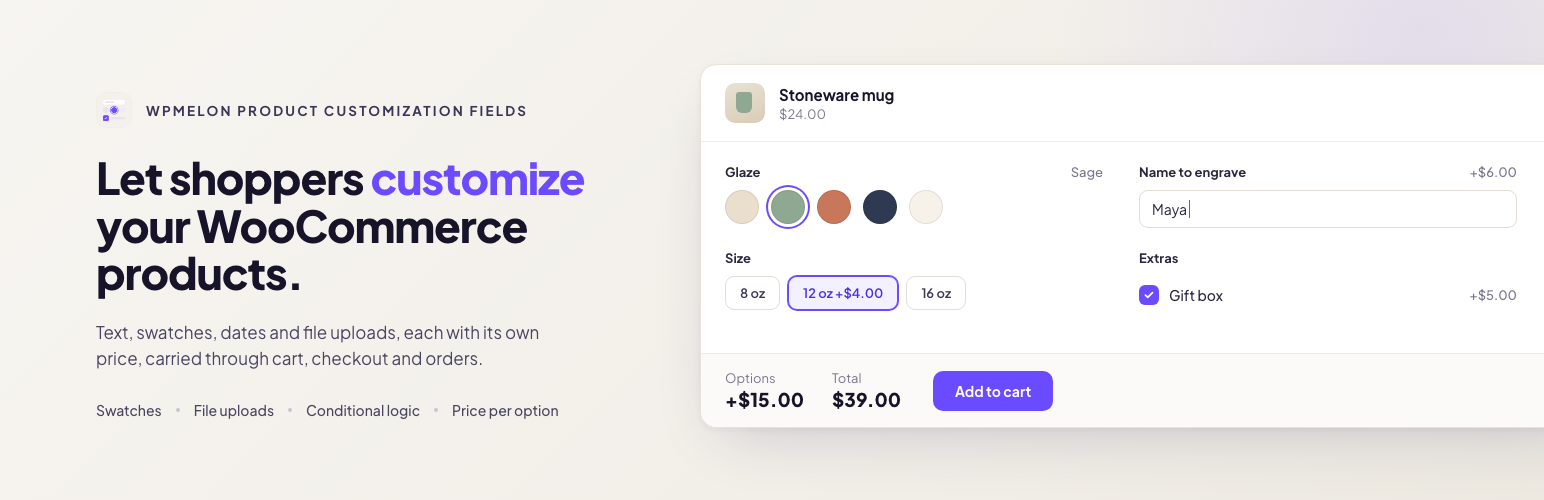
Let shoppers personalize your WooCommerce products: a name to engrave, a gift message, a size or color swatch, a logo to print. Each choice can change the price, the total updates as they pick, and everything they chose follows the order through the cart, checkout, emails and My Account.
Watch the 3-minute setup video:
Good for personalized gifts, engraving, custom clothing and print, made-to-order products, delivery dates, and set-up fees for small runs.
Free, and complete on its own
- 14 field types, plus headings and paragraphs to organize longer forms
- Flat and percentage prices per option, added or subtracted
- One-time fees, charged once per cart line whatever the quantity
- Conditional logic with several rules, including number comparisons
- Color and label swatches
- File uploads, kept private and downloadable only by shop managers
- Reusable option groups: apply one to every product, to chosen products, categories or tags (with exclusions), or attach it on a product’s edit screen
- Classic and block cart and checkout
- WPML and Polylang
- JSON import and export of option groups
- One small script (about 5 KB gzipped, no jQuery), loaded only on products that have options
- No external requests and no usage data collected
Field types
- Text and textarea
- Email, URL and phone, checked when the product is added to the cart and shown as plain text (never as links)
- Number
- Select, radio buttons and checkboxes
- Color swatches and label swatches
- Date and time, with earliest and latest values per field (times also take a step in minutes, and a window can run past midnight)
- File upload, with allowed types and maximum size per field
- Headings and paragraphs (conditions can show or hide them too)
Pricing per option
- No price, a flat amount, or a percentage of the product price, added or subtracted (a discount needs no minus sign)
- Charge a price per item, or once per cart line as a one-time fee (set-up fees, engraving plates): the fee gets its own row in the cart and at checkout and does not change with the quantity
- Percentages follow the price of the selected variation, sale price included
- Option prices use the same tax setting as your product prices, and work with quantities and coupons
Conditional logic
Show or hide a field depending on the fields above it. Combine several rules and choose whether all or any of them must match; each rule checks whether a field is, is not, is empty or is not empty. Number fields can also be compared: greater than, less than, at least or at most a number, for example “show Bulk engraving when Names is at least 10”. Hidden fields are ignored when the order is placed, and prices are always worked out again on the server.
What the shopper sees
On the product page, the fields sit above the Add to cart button, and the options total, any one-time fee and the new total update as the shopper picks. Their choices and prices then show in the cart and at checkout, are saved on the order, and appear in the order emails and in My Account. Uploaded files show by name only; shop managers download them from the order screen.
Compatibility
Tested with the Storefront and Twenty Twenty-Five themes, and works with classic and block themes. Works with simple and variable products, and with the classic and block cart and checkout. In the shop, a product with a required field that shows by default gets “Select options” instead of “Add to cart”.
Privacy
The free plugin makes no external requests and collects no usage data.
Known limitations
- With currency switchers or other price filters, the product page shows option prices before conversion; cart, checkout and orders show converted amounts.
- With WPML Multilingual & Multicurrency for WooCommerce, flat option amounts and one-time fees are not converted to the shopper’s currency: a flat amount of 5 is charged as 5 in every currency. Percentages are converted along with the product price.
Pro
WPMelon Product Customization Fields Pro adds to the free version, which stays complete on its own:
- Price formulas: a price calculated from the customer’s answers, with ready-made templates
- Image swatches, with the chosen image in the cart and on the order
- Prices per character, per word, or entered by the customer
- Conditions on product attributes, and “contains” rules on text
- Minimum and maximum choices on checkboxes, lead time and booking window on dates
- Option groups for chosen customer roles
- A catalog overview: which groups each product gets, and why
- Import between sites that finds the same products, updates groups and brings their images
Early-bird buyers keep their early-bird price for as long as their license stays active.
From the makers of WPMelon Advanced Bulk Edit for WooCommerce.
Developer notes
Export file. Plain JSON: "format": "wpm-pcf-groups", a format_version (1), the plugin version and a groups list. Each group has a stable uid, its title, fields and assignment as stored (field and choice ids included, because conditions point at them), refs (SKU, slug and name of assigned products and terms) and attachments (products it is attached to). The file also has a media list: the address, file name and alt text of the images the groups’ choices use. A newer plugin always reads older files; an older one refuses a newer format_version.
Customer text. Text and textarea values are plain text with HTML tags removed. Escape them for the context you print them in (esc_html(), esc_attr()), as WooCommerce and this plugin do.
Uploads behind a proxy. Upload limits count per visitor IP (20 uploads per 10 minutes). Behind Cloudflare or another proxy, return the real visitor IP from the wpm_pcf_upload_client_ip filter (for example from CF-Connecting-IP); without it, all visitors share one limit. The wpm_pcf_upload_rate_limit, wpm_pcf_pending_max_files (default 500) and wpm_pcf_pending_max_bytes (default 1 GB) filters change the limits.
WPML and the block checkout. Use directories or a domain per language (WPML → Languages → Language URL format). With a language URL parameter (?lang=), the block checkout runs in the default language and the order, options included, is saved in that language.
Installation
- Install and activate WooCommerce.
- Install and activate WPMelon Product Customization Fields for WooCommerce.
- Go to Products → Product Options and create your first option group.
FAQ
Does it work with the block cart and checkout?
Yes. Selected options and their prices show in the classic and block cart and checkout.
Does it work with variable products?
Yes. Percentage prices follow the price of the selected variation.
How do one-time fees work?
Set an option’s charge to “Once per line” and its price is added once for each cart line, whatever the quantity, as a cart fee named after the product and the option. A percentage is a percentage of one unit’s price. The fee uses the product’s tax status and tax class. The same product added twice with different choices is two cart lines, so it pays the fee twice.
Do coupons discount one-time fees?
No. WooCommerce coupons apply to product prices, not to fees, so one-time fees are charged in full. Options charged per item are part of the product price and are discounted as usual.
Why don’t Apple Pay, Google Pay or PayPal buttons show on some product pages?
Express-pay buttons on a product page buy the product directly, without the option fields, so the shopper’s choices would be lost. The plugin hides them on product pages that have options (WooCommerce Stripe Gateway, WooPayments and WooCommerce PayPal Payments). They still show in the cart and at checkout.
Does it work with WPML or Polylang?
Yes. Every text shoppers see in an option group is registered for translation in the “WPMelon Product Customization Fields” group: with WPML under WPML → String Translation (WPML String Translation must be active), with Polylang under Languages → Translations. Shoppers see the translations on the product page, in the cart and at checkout, and the options are saved on the order in the language it was placed in. A group assigned to a product, category or tag also applies to their translations. See “Developer notes” for WPML’s language URL format with the block checkout.
How do I copy option groups to another site?
Under Products → Product Options, choose Export in a group’s menu, or Export all, to download a JSON file. On the other site, choose Import, pick the file (2 MB at most, up to 50 groups) and check the preview. Imported groups start disabled. Products, categories and tags they were assigned to are kept only where they match on the new site (products by SKU, or by slug when they have no SKU; terms by slug). An import never attaches groups to products, and importing the same file twice makes two copies.
Where are uploaded files stored?
In a private folder inside your uploads directory, under random file names. Customers see only the file name; shop managers download files from the order screen.
How do I switch to Pro?
Upload the Pro zip under Plugins → Add Plugin → Upload Plugin. It installs next to the free plugin, and only one of them can be active. Deactivate the free plugin, then activate Pro. Your option groups, settings and orders stay. You can then delete the free plugin: Pro keeps using the same data. If your store isn’t in English, keep it installed but inactive instead: deleting it also removes its translations, and Pro uses them.
What happens to my option groups if I delete the plugin?
They stay, unless you turn on “Remove all data when the plugin is deleted” under Products → Product Options → Settings. With it on, deleting the plugin removes the option groups, the groups attached to products and the files customers uploaded. While the free plugin and Pro are both installed, deleting one of them keeps all of this: the setting applies when you delete the last one. Options already saved on orders always stay on the orders, and deactivating the plugin never deletes anything.
Screenshots


Changelog
1.1.0
- Added: Import and export option groups as JSON files under Products → Product Options, to copy groups from a staging site to the live site or between stores. Imported groups start disabled, and keep only the products, categories and tags that match on the new site.
- Added: Pro is available. The Add field menu, the price type lists, the condition rules and the field settings show Pro’s features where they would appear, marked Pro, and the upgrade dialog shows the prices.
- Changed: A flat or percentage price now has an Add / Subtract choice, so a discount option no longer needs a minus sign.
- Changed: An option group with a required or priced field that needs Pro, or a customer role rule made with Pro, is paused while Pro is inactive, so orders never miss a choice or its charge.
- Changed: Saving a group in the free plugin keeps the settings and role rules Pro added.
- Changed: The plugin download is smaller.
- Fixed: Deleting the free plugin or Pro while the other is installed no longer removes your option groups, settings or uploaded files, and the message shown when both can’t be active now says what to do next.
- Fixed: In a narrow admin window, an option with a price no longer squeezes its label out of sight.
1.0.0
- First release.