


Description
Sales Counter For WooCommerce shows shoppers how many units of a product you have sold, such as “128 sold”, right on your shop pages and product pages. People trust products that other people have bought, and a real sales count is one of the simplest forms of social proof you can add to an online store.
The plugin also gives you a clear sales dashboard inside WordPress, helps shoppers find your best-selling products, and works with both classic and block themes.
Every number comes from your real WooCommerce orders. The free plugin never adds fake sales.
Show your WooCommerce product sales count
- Display the number of units sold under products in your shop, category, tag and related-product grids.
- Display it on the single product page, in five positions around the title, price and add to cart button.
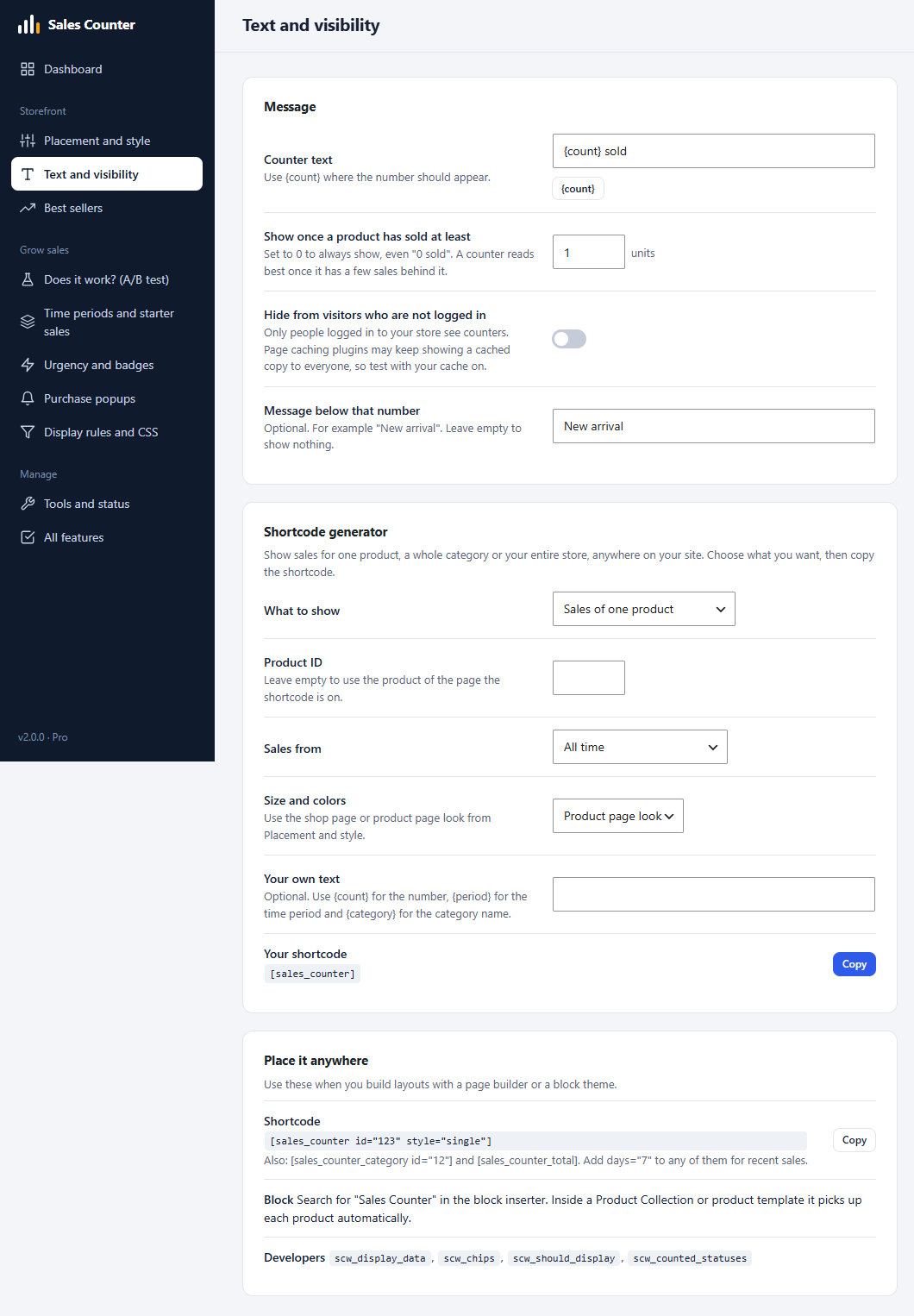
- Write your own wording with a placeholder, such as “{count} sold” or “Bought {count} times”.
- Show sales for a whole category or your entire store with the
[sales_counter_category]and[sales_counter_total]shortcodes, for any time period, using the built-in shortcode generator. - Hide counters from visitors who are not logged in, if you prefer.
- Hide the counter until a product has sold a minimum number of units, so you never show an unconvincing “0 sold”. Optionally show a message such as “New arrival” instead.
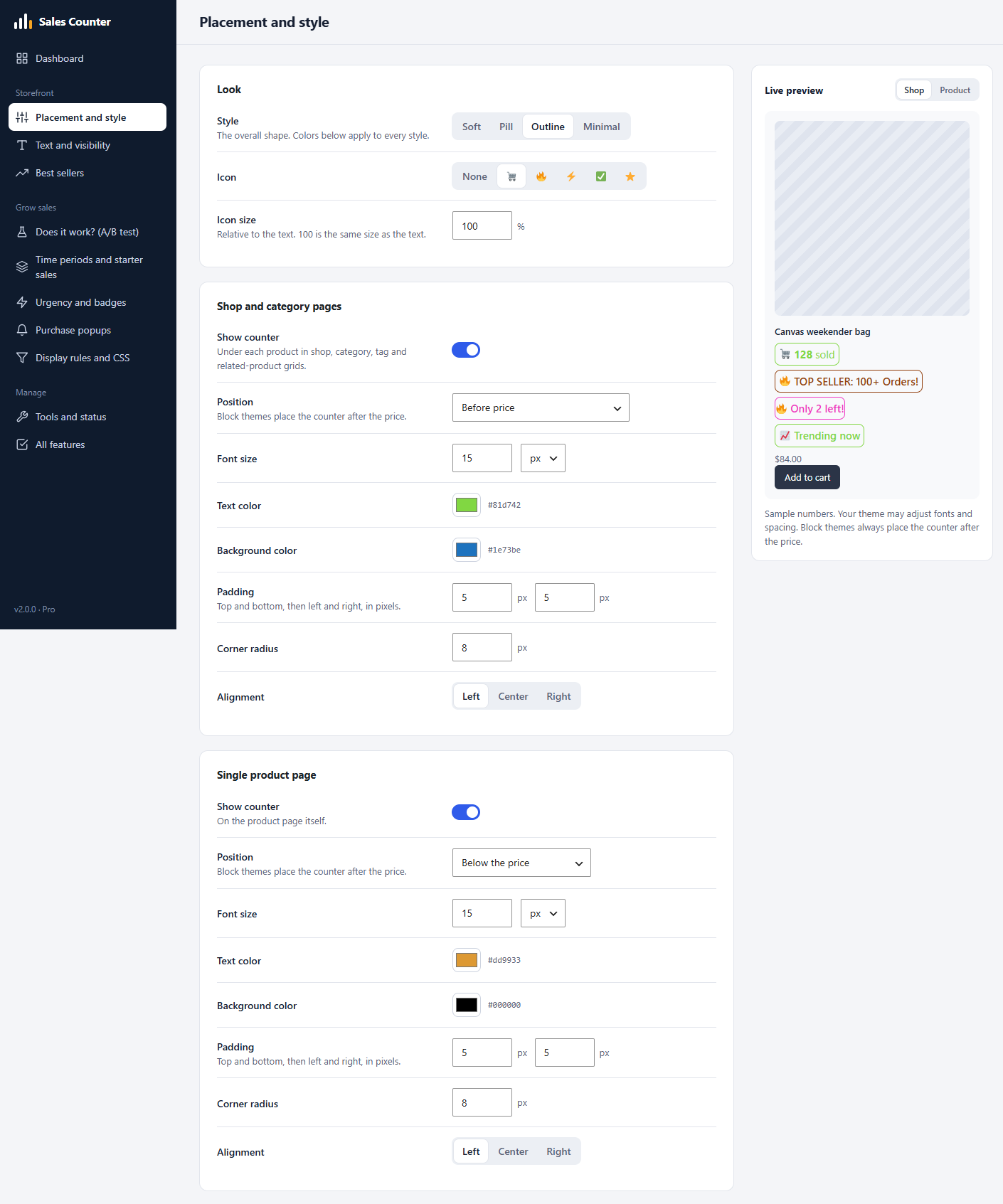
- Choose from four styles (Soft, Pill, Outline, Minimal), add an icon, and set colors, font size, padding, corner radius and alignment.
- See your changes instantly in a live preview before you save.
Sales dashboard for store owners
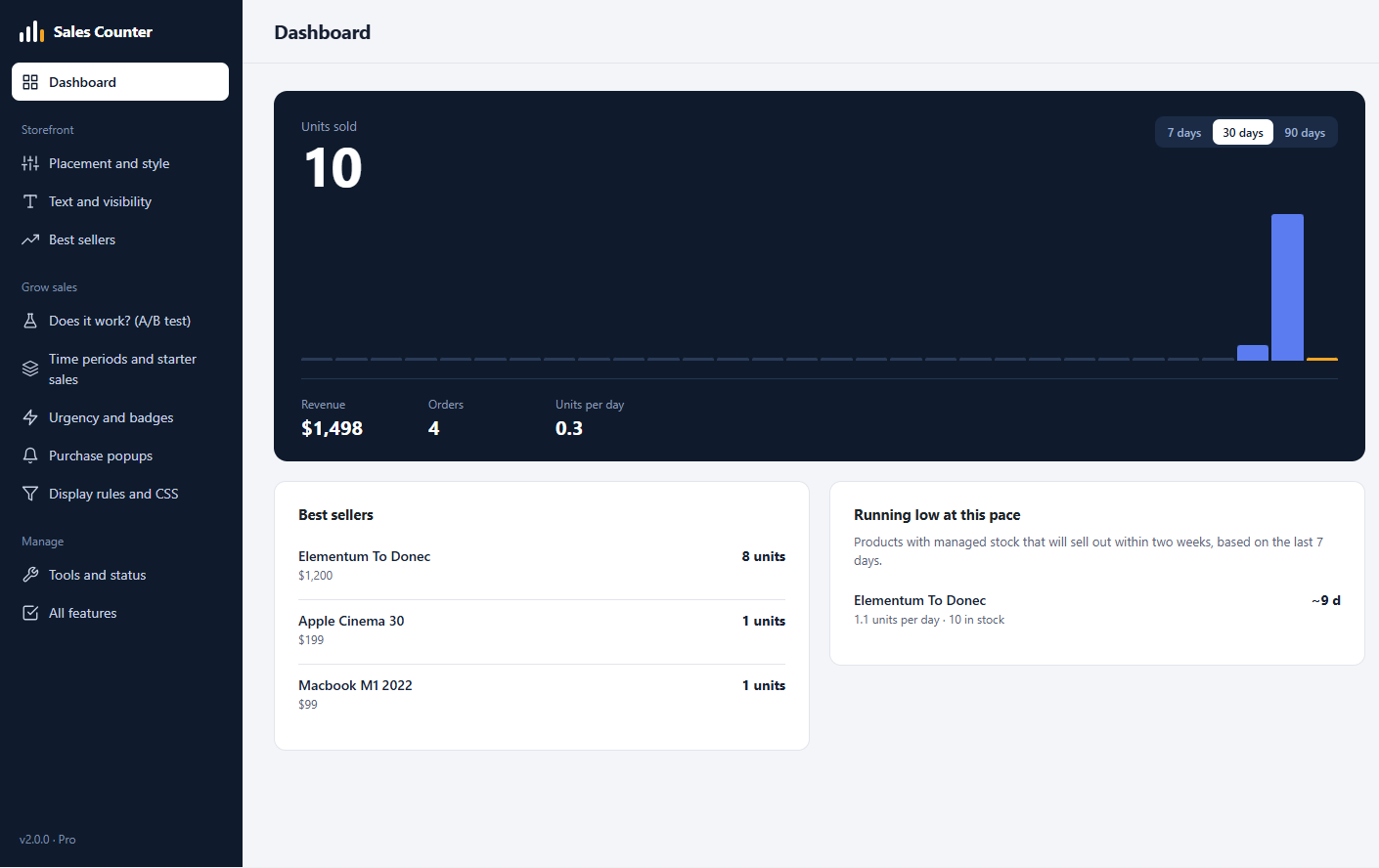
- Units sold, revenue, orders and units per day for the last 7, 30 or 90 days.
- A daily sales chart you can scan at a glance.
- Your top 5 best sellers for the period.
- A “running low at this pace” list that shows which products will sell out within two weeks, based on recent sales.
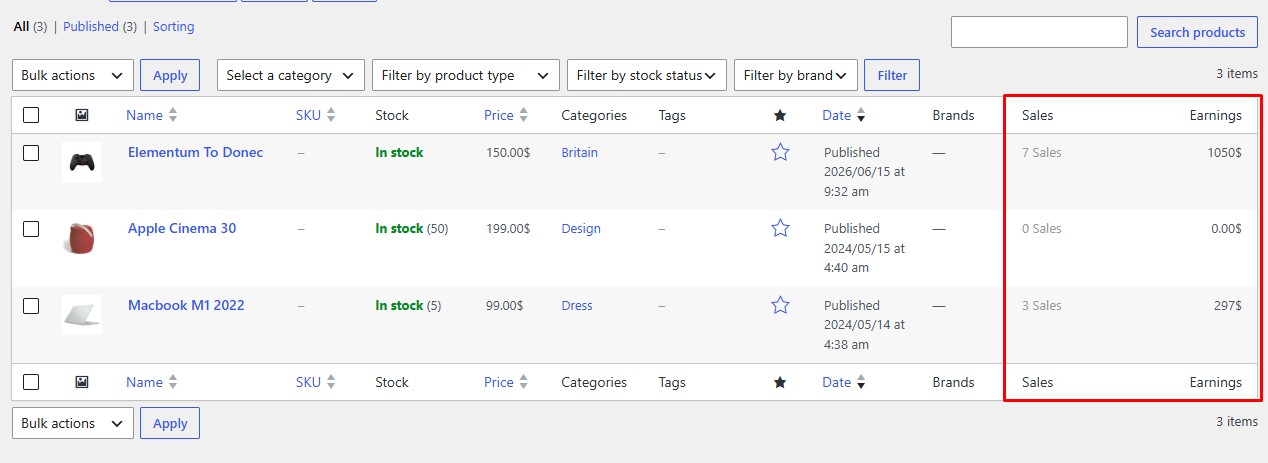
- Sortable Sales and Revenue columns in your Products list, and the units sold on each product’s edit screen.
- A short setup checklist to get you live quickly.
Help shoppers find best-selling products
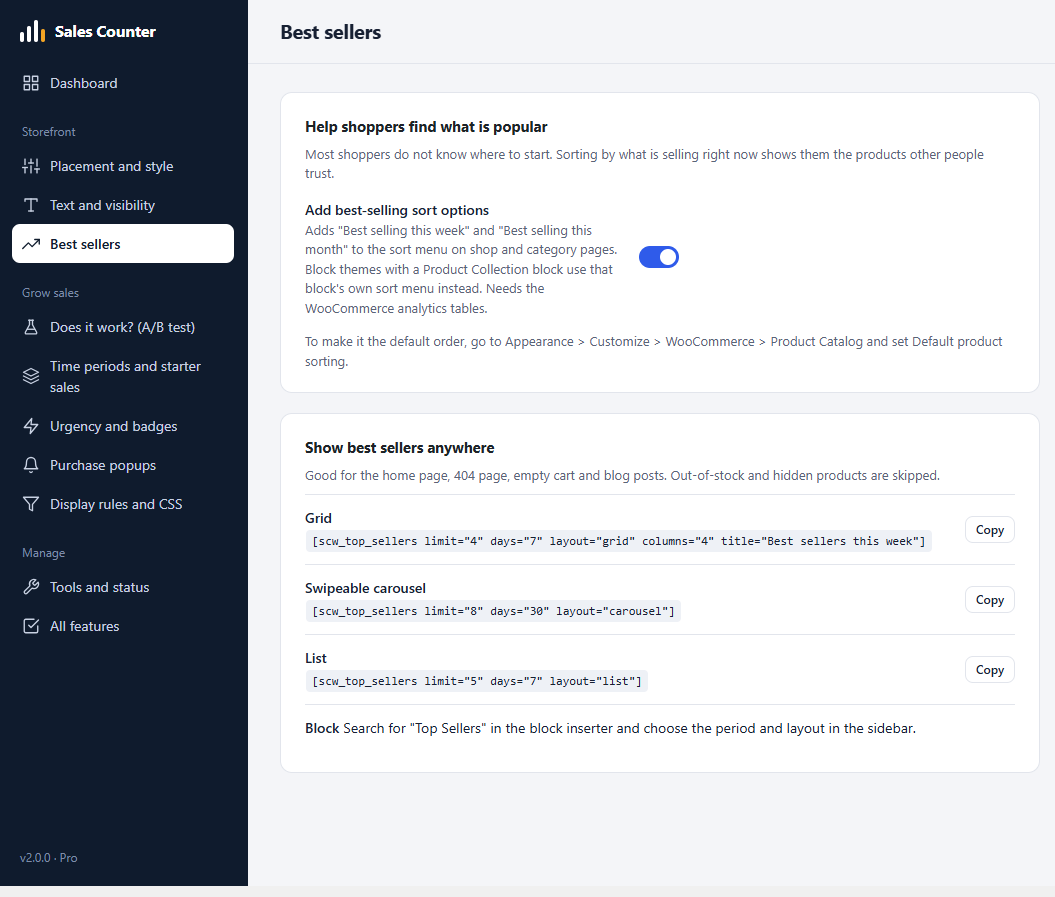
- Adds Sort by best selling this week and Sort by best selling this month to your shop sorting menu.
- A Top Sellers block and a
[scw_top_sellers]shortcode that show your best sellers as a grid, a list or a swipeable carousel, with the number sold. Use them on your home page, landing pages, blog posts or an empty cart.
Works with the way you build your store
- Classic themes and block themes, including block-based product templates.
- A Sales Counter block and a
[sales_counter]shortcode to place a counter anywhere, including in page builders such as Elementor. - Compatible with WooCommerce High-Performance Order Storage (HPOS).
- Reads WooCommerce analytics data, which keeps the dashboard fast on larger stores.
- Import, export and reset your settings, to move a setup between stores.
- Translation ready.
Pro version
A separate Pro version adds tools for stores that want to go further:
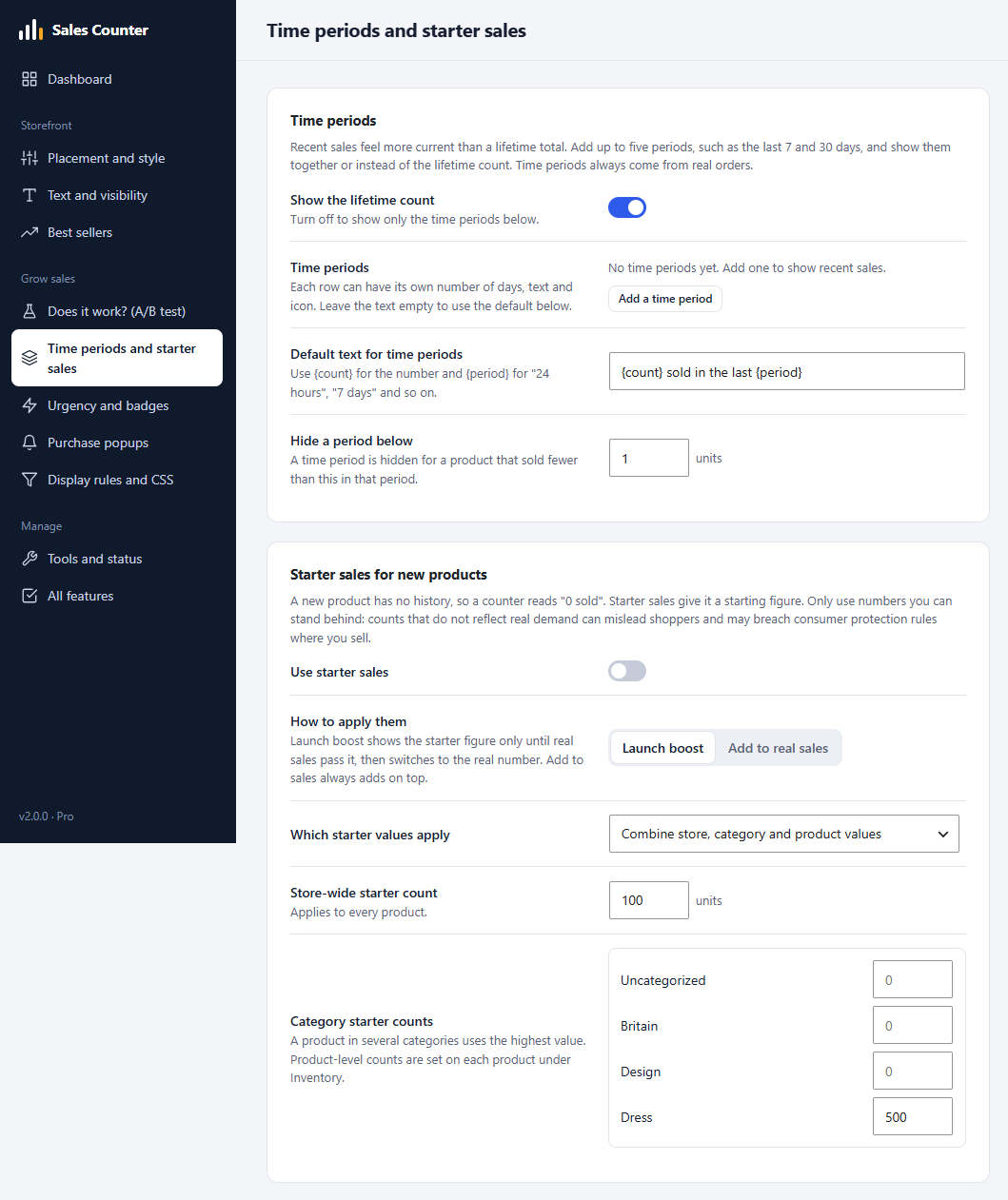
- Several time periods at once, such as the last 7 and 30 days, each with its own text and icon.
- Starter sales for brand new products, with a “launch boost” mode that stops once real sales catch up.
- Milestone badges, low-stock messages, a stock progress bar and a trending badge.
- Recent purchase popups built from real orders, with optional Google Analytics 4 events.
- Display rules by category and stock status, per-product controls and a custom CSS box.
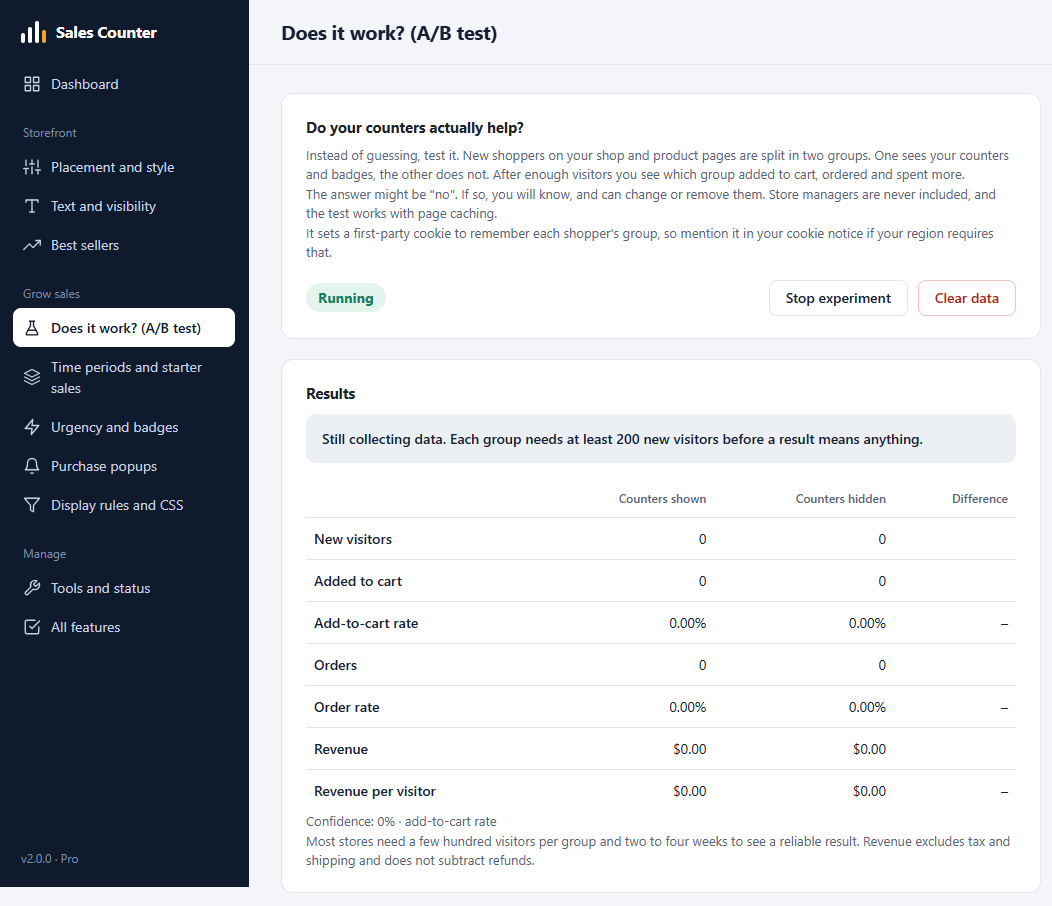
- An A/B test that shows half of new visitors your counters and half none, then tells you in plain words whether the counters help your add-to-cart rate, orders and revenue per visitor.
Learn more at https://themepoints.com/preview/salescounter/.
Privacy
The free plugin does not send data to any external service, does not set cookies and does not collect personal information. Counters are built from your own WooCommerce order data on your own server.
For developers
Filters are available to change which orders count (scw_counted_statuses), to hide a counter (scw_should_display), to change the number or text before it is shown (scw_display_data) and to add items to the counter box (scw_chips).
Installation
- Make sure WooCommerce is installed and active.
- In WordPress go to Plugins > Add New Plugin, search for “Sales Counter For WooCommerce”, then click Install Now and Activate. You can also upload the plugin zip under Plugins > Add New Plugin > Upload Plugin.
- Go to WooCommerce > Sales Counter.
- Open Placement and style, check that Show counter is on for shop pages and the single product page, and click Save changes.
- Optional: if your store already has orders, go to WooCommerce > Analytics > Settings and run Import historical data so the dashboard and best-seller features can use them.
FAQ
How does the sales counter work?
For each product it shows the lifetime units sold figure that WooCommerce keeps. You choose where it appears, what it says and how it looks. It updates as new orders come in.
Which orders count as sales?
The dashboard, best-selling sort and Top Sellers list count orders with the status Processing or Completed. Cancelled, failed and refunded orders are not counted. Developers can change this with the scw_counted_statuses filter.
Does the plugin add fake or inflated numbers?
No. The free plugin only shows real sales from your store.
Can I hide the counter on products that have not sold much?
Yes. Open Text and visibility and set Show once a product has sold at least to the number you prefer. Below that number the counter is hidden, or replaced by an optional message such as “New arrival”.
Can I change the text, for example to “customers bought this”?
Yes. Under Text and visibility, edit Counter text and use {count} where the number should appear, for example {count} customers bought this.
Does it work with block themes such as Twenty Twenty-Five?
Yes. In block themes the counter is added after the price in product templates. You can also add the Sales Counter block anywhere. If you place the block yourself, turn off Show counter for that area so it does not appear twice.
Does it work with Elementor and other page builders?
Yes. Use the shortcode [sales_counter id="123" style="single"], or [scw_top_sellers] for a list of best sellers. Leave out id to use the product on the current page.
Is it compatible with HPOS (High-Performance Order Storage)?
Yes. The plugin declares compatibility and reads WooCommerce’s analytics tables instead of querying orders directly.
The dashboard is empty or shows zeros. What should I do?
The dashboard reads WooCommerce analytics data. Go to WooCommerce > Analytics > Settings and run Import historical data. New orders appear a few minutes after they are placed. Tools and status in the plugin shows whether the analytics tables are available.
Does it work with caching plugins?
Yes. The counter number updates when your cache is cleared, so clear the cache after large sales or shorten the cache lifetime.
How do I show best sellers on my home page?
Add the Top Sellers block, or paste a shortcode such as [scw_top_sellers limit="4" days="7" layout="grid" columns="4" title="Best sellers this week"]. The Best sellers screen in the plugin has ready-to-copy examples.
How do I add “Best selling this week” to my sort menu?
Open Best sellers in the plugin and switch on Add best-selling sort options. To make it the default order, go to Appearance > Customize > WooCommerce > Product Catalog and set Default product sorting. Themes that use a Product Collection block have their own sort menu, so the options do not appear there.
Will it slow down my store?
No. The plugin reads figures WooCommerce already stores, caches dashboard queries for a few minutes and only loads its admin files on its own settings screen. Its storefront stylesheet loads only on pages where a counter is shown.
Does the plugin collect data or set cookies?
No. The free plugin does not use cookies, send data to external services or collect personal data.
Can I translate it?
Yes. The text domain is sales-counter-for-woocommerce. You can contribute translations at translate.wordpress.org.
What happens to my settings if I delete the plugin?
Deleting the plugin from the Plugins page removes its settings. Your orders and products are not affected.
Where can I get help?
Use the support forum for this plugin on WordPress.org. Please include your WordPress, WooCommerce and theme versions, and the information shown under Tools and status in the plugin.
Screenshots


Changelog
2.0.0
- New: redesigned settings area with a left menu, live preview and a save bar that shows unsaved changes.
- New: sales dashboard with units, revenue, orders, a daily chart, best sellers and a “running low at this pace” list.
- New: best-selling sort options for your shop sort menu.
- New: Top Sellers block and
[scw_top_sellers]shortcode with grid, list and carousel layouts. - New:
[sales_counter_total]and[sales_counter_category]shortcodes with a shortcode generator, and adaysoption for[sales_counter]. - New: option to hide counters from logged-out visitors, and an icon size setting.
- New: units sold shown on the product edit screen.
- New: Sales Counter block, and support for block themes.
- New: set a minimum number of sales before a counter is shown, with an optional message below it.
- New: four style presets and an icon option.
- New: sortable Sales column and a Revenue column in the Products list.
- New: import, export and reset settings, and a system status table.
- Fixed: counter parts stacking on separate lines in some themes, and the counter showing twice on themes that run a hook more than once.
- Fixed: High-Performance Order Storage (HPOS) compatibility. Revenue is now read from WooCommerce analytics tables.
- Fixed: settings screen files now load only on the plugin’s own page.
- Fixed: translation text domain.
- Settings from earlier versions are migrated automatically.
1.0.9
- Update Readme.txt
- Update backend code.
1.0.8
- Fix Support Link Issue
- Add New Color Option
- Stock Manage Tet Color
- Add Customization Option
1.0.7
- Fix Support Link Issue
- Add New Color Options
1.0.6
- Update Readme.txt
- Fix Insecure WooCommerce Check
- Fix ttributes & Redundant Escaping
- Add “Fake/Virtual” Sales Modifier
- Add Dynamic Real-Time Timeframes (“Sold in the last 24 hours”)
- Add “Low Stock” & Sales Synergy Indicator
- Add Shortcode Support for Custom Placement
- Update Option Page
1.0.5
- Update Option Page
1.0.4
- Update Compatibility issue
1.0.3
- Fix Sanitization Issue.
1.0.2
- Update Option Page.
- Fix localized Issue.
1.0.1
- Update Option Page
1.0.0
- Initial release